




 here!
here!
I’m your shopping assistant for PC builds, upgrades, and everything tech.
Got questions? Ask away!
Start a conversation
here!
I’m your shopping assistant for PC builds, upgrades, and everything tech.
Got questions? Ask away!
Start a conversation



Any questions? Ask CelesteSM will help you find out quickly.


We offer a range of high-quality microphones, headphones, and earbuds. Committed to our product and service improvement, we aim to deliver gear that satisfies users, boosts work efficiency, and enhances communication. At the same time, we create warm, enjoyable listening experiences for watching, gaming, and calling.
We value the feedback from every user—if you have any questions, suggestions, or feedback, please feel free to reach us.

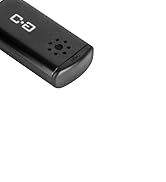
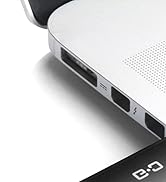
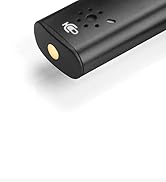
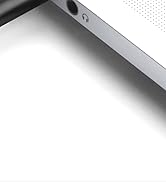


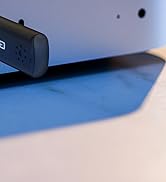
























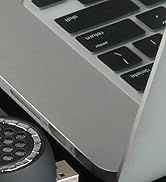



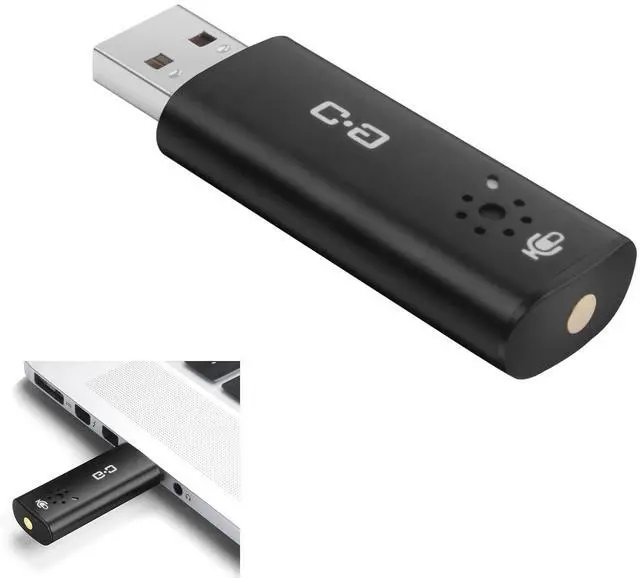
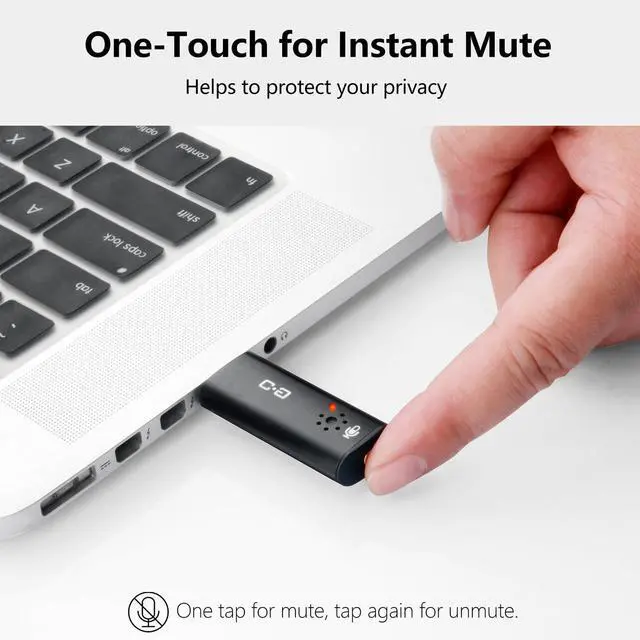
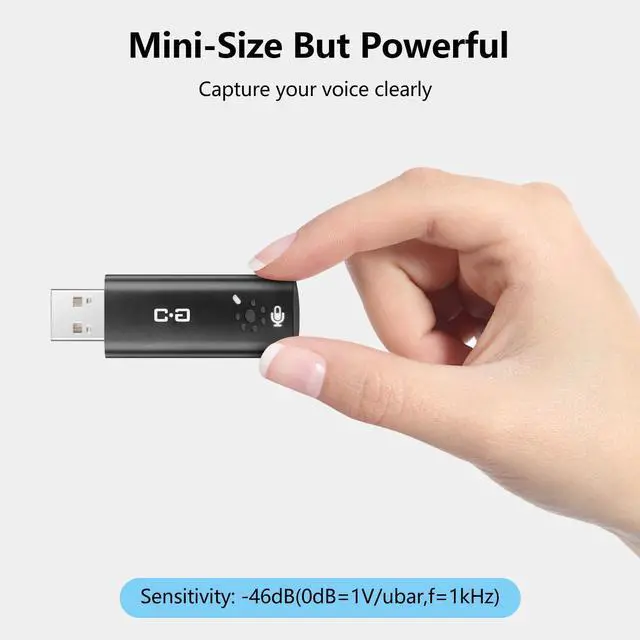
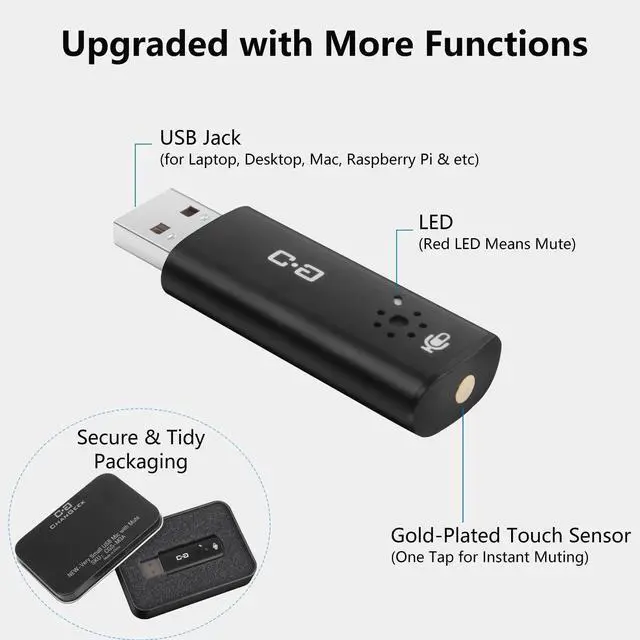
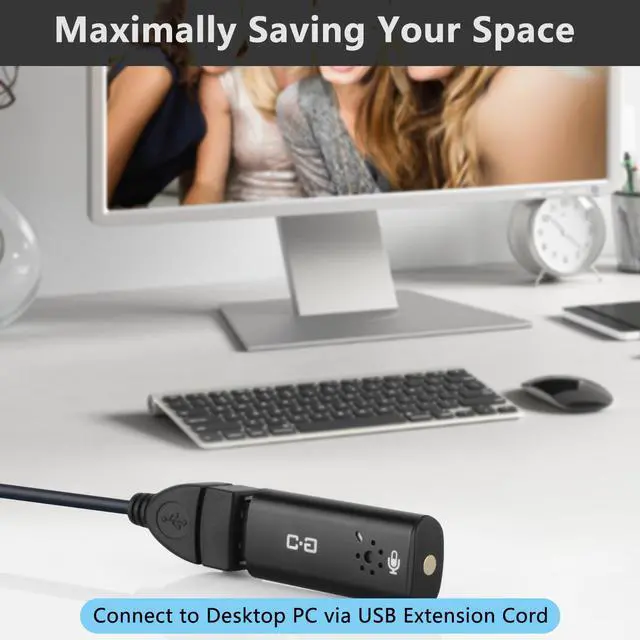
This upgraded USB microphone with a built-in mute function gives you greater control and privacy, making it an even better fit for your everyday work, study, or communication needs.
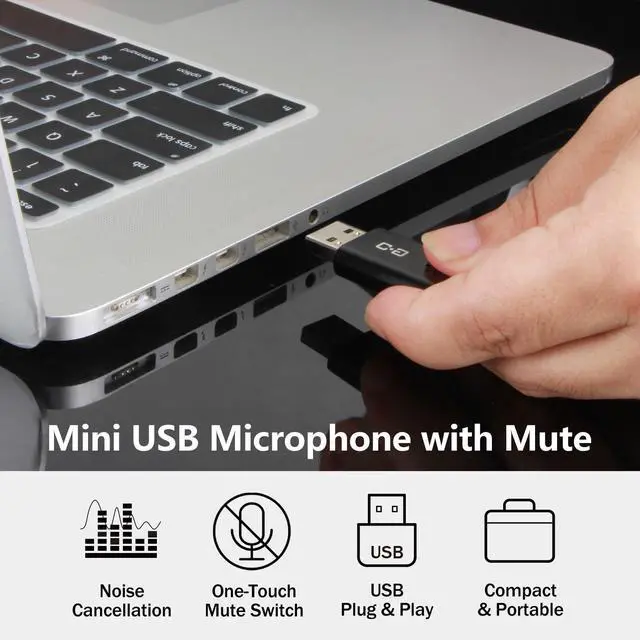
And it's widely compatible with the most computer environments include Windows, Mac, Raspberry Pi, Linux, Chrome OS, Google Meet, Zoom, Team, Skype and etc.
How to adjust the input volume:
Do similar settings on other systems & Apps.
Notice:


Compatibility Notes (For Raspberry Pi and Linux Systems)
This USB-A mini microphone works great with Windows, but on Linux systems (like Raspberry Pi with Debian), you might need to do a little extra setup. Here’s how:
1. Update Your System:
- Make sure your Raspberry Pi is running the latest OS version to help with compatibility.
2. Check if the Microphone is Recognized:
- After plugging it in, check if the microphone shows up in your audio input list. If not, it might need some extra steps to be detected.
3. Driver Support:
- Sometimes, Linux systems need extra drivers for USB audio devices. Make sure everything’s enabled for audio input.
4. Set Up in Audio Settings:
- Go to your audio settings and select the microphone as the default input device. Adjust the volume or sensitivity if needed.
5. Tips for Better Sound:
- If you’re having sound issues, try adjusting the microphone’s position or distance. Make sure it’s properly set up in your system.
Quick Tip:
If you're using an older model of Raspberry Pi or an older version of Debian, you may encounter compatibility issues with driver support. Updating your operating system and drivers should help resolve these issues.
By following these steps, you should be able to use this USB microphone on your Raspberry Pi. If you continue to experience issues, please feel free to reach out to our technical support team.
 DUNGZUDUZ Upgrade Mini USB Computer Microphone with Mute Function | 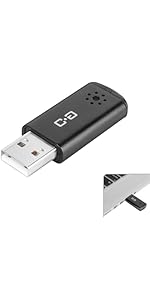 DUNGZDUZ Mini USB Microphone for Computer (Without Mute) | 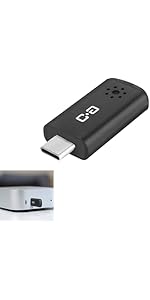 DUNGZDUZ USB C Mini Microphone for Mac mini M4/M4 Pro & Mac | |
|---|---|---|---|
| Customer Reviews | — | — | — |
| Price | — | — | — |
| Connection | USB-A | USB-A | USB-C |
| Size | Mini | Mini | Mini |
| LED Light | ? | × | × |
| Mute Function | ? | × | × |
| Compatible with | Laptop and Desktop Computer | Laptop and Desktop Computer | Mac mini M4/Pro, Mac |
This upgraded USB microphone with a built-in mute function gives you greater control and privacy, making it an even better fit for your everyday work, study, or communication needs.
And it's widely compatible with the most computer environments include Windows, Mac, Raspberry Pi, Linux, Chrome OS, Google Meet, Zoom, Team, Skype and etc.
How to adjust the input volume:
Do similar settings on other systems & Apps.
Notice:
Compatibility Notes (For Raspberry Pi and Linux Systems)
This USB-A mini microphone works great with Windows, but on Linux systems (like Raspberry Pi with Debian), you might need to do a little extra setup. Here’s how:
1. Update Your System:
- Make sure your Raspberry Pi is running the latest OS version to help with compatibility.
2. Check if the Microphone is Recognized:
- After plugging it in, check if the microphone shows up in your audio input list. If not, it might need some extra steps to be detected.
3. Driver Support:
- Sometimes, Linux systems need extra drivers for USB audio devices. Make sure everything’s enabled for audio input.
4. Set Up in Audio Settings:
- Go to your audio settings and select the microphone as the default input device. Adjust the volume or sensitivity if needed.
5. Tips for Better Sound:
- If you’re having sound issues, try adjusting the microphone’s position or distance. Make sure it’s properly set up in your system.
Quick Tip:
If you're using an older model of Raspberry Pi or an older version of Debian, you may encounter compatibility issues with driver support. Updating your operating system and drivers should help resolve these issues.
By following these steps, you should be able to use this USB microphone on your Raspberry Pi. If you continue to experience issues, please feel free to reach out to our technical support team.
DUNGZUDUZ Upgrade Mini USB Computer Microphone with Mute Function | DUNGZDUZ Mini USB Microphone for Computer (Without Mute) | DUNGZDUZ USB C Mini Microphone for Mac mini M4/M4 Pro & Mac | |
|---|---|---|---|
| Customer Reviews | — | — | — |
| Price | — | — | — |
| Connection | USB-A | USB-A | USB-C |
| Size | Mini | Mini | Mini |
| LED Light | ? | × | × |
| Mute Function | ? | × | × |
| Compatible with | Laptop and Desktop Computer | Laptop and Desktop Computer | Mac mini M4/Pro, Mac |
We offer a range of high-quality microphones, headphones, and earbuds. Committed to our product and service improvement, we aim to deliver gear that satisfies users, boosts work efficiency, and enhances communication. At the same time, we create warm, enjoyable listening experiences for watching, gaming, and calling.
We value the feedback from every user—if you have any questions, suggestions, or feedback, please feel free to reach us.


