






Our Story
We offer a range of high-quality microphones, headphones, and earbuds. Committed to our product and service improvement, we aim to deliver gear that satisfies users, boosts work efficiency, and enhances communication. At the same time, we create warm, enjoyable listening experiences for watching, gaming, and calling.
We value the feedback from every user—if you have any questions, suggestions, or feedback, please feel free to reach us.

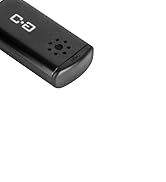
USB Microphone for Laptop
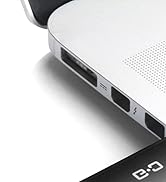
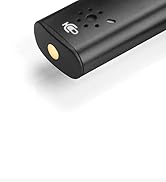
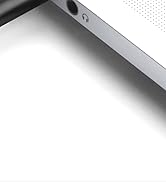
USB Microphone with Mute


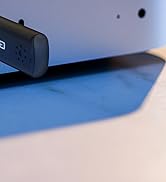
USB C Mic for Mac Mini M4




Lavalier Mic & Cable Boom Mic




Cable Boom Mic for Headsets




2 Pack Lav Mic for DJI/RODE




Long Cord Headphone for TV



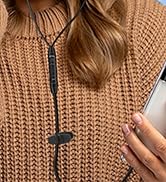
USB-C & USB-A Earbuds with Mic
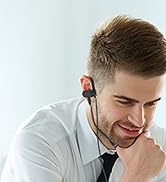



USB One-Side Earbud with Mic

Dual Mode Mini Speaker
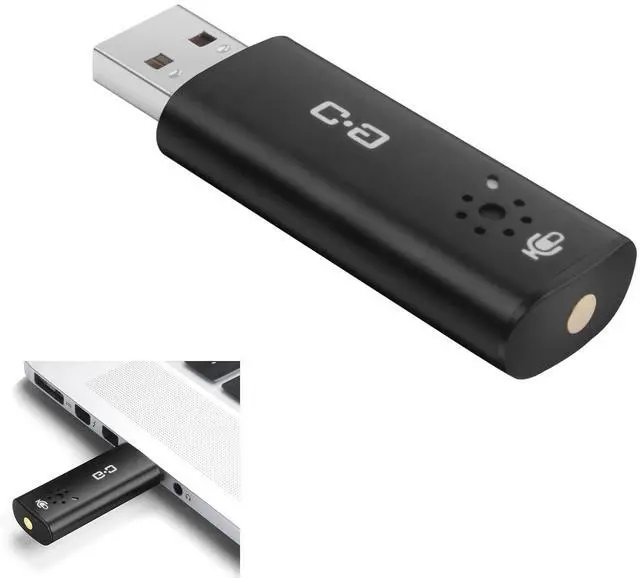
DUNGZDUZ Mini USB Microphone with Mute – Protect Your Privacy on PC

This upgraded USB microphone features a built-in mute button, giving you better privacy and control – perfect for work, study, or daily calls. And it works well with most systems including Windows, Mac, Raspberry Pi, Linux, Chrome OS, Google Meet, Zoom, Teams, Skype, and more.
How to Adjust Input Volume
- For Windows 10/11: Right-click the speaker icon in the System Tray >> Select "Sound Settings" > "Input" >> Choose "USB PnP Sound Device" as your input device >> Click "Device Properties" and move the volume slider to 10–50 (recommended).
For Skype:
- Go to Options > Audio Settings > select "USB PnP Sound Device" and set volume to 10–50.
For other systems or apps, follow similar steps to select the USB mic as your input device.
Important Notes:
- Manual selection may be needed: On some devices, the microphone may not be auto-detected. Go to Settings > Sound > Input and manually select "USB PnP Sound Device".
- System volume control: This microphone does not control your device's system volume. If the sound is too low, turn up the volume on your computer.
- Avoid echo: Due to high sensitivity, set input volume to 10–50 (below 50). Do not set it too high, as others may hear an echo.
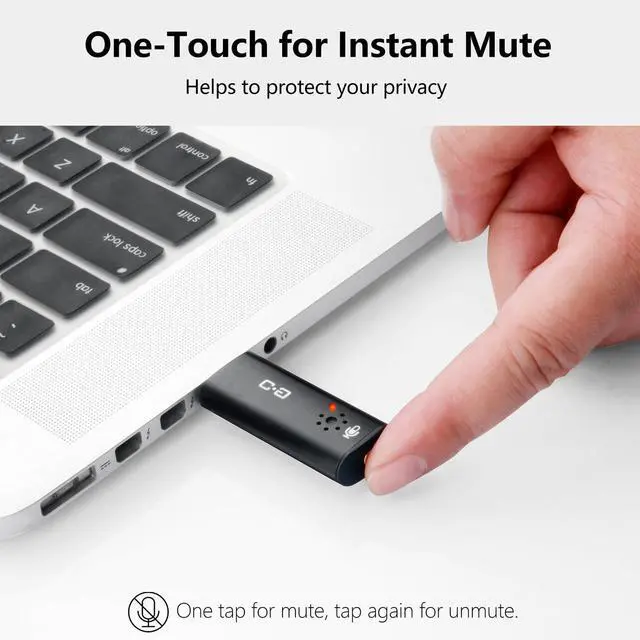
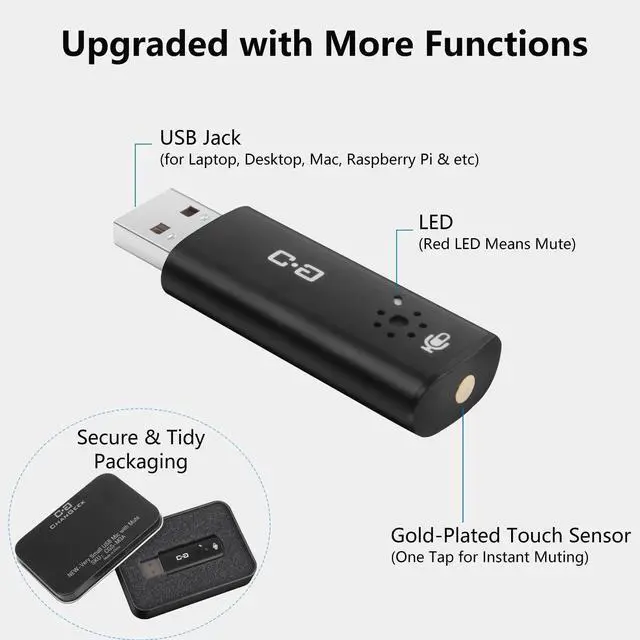
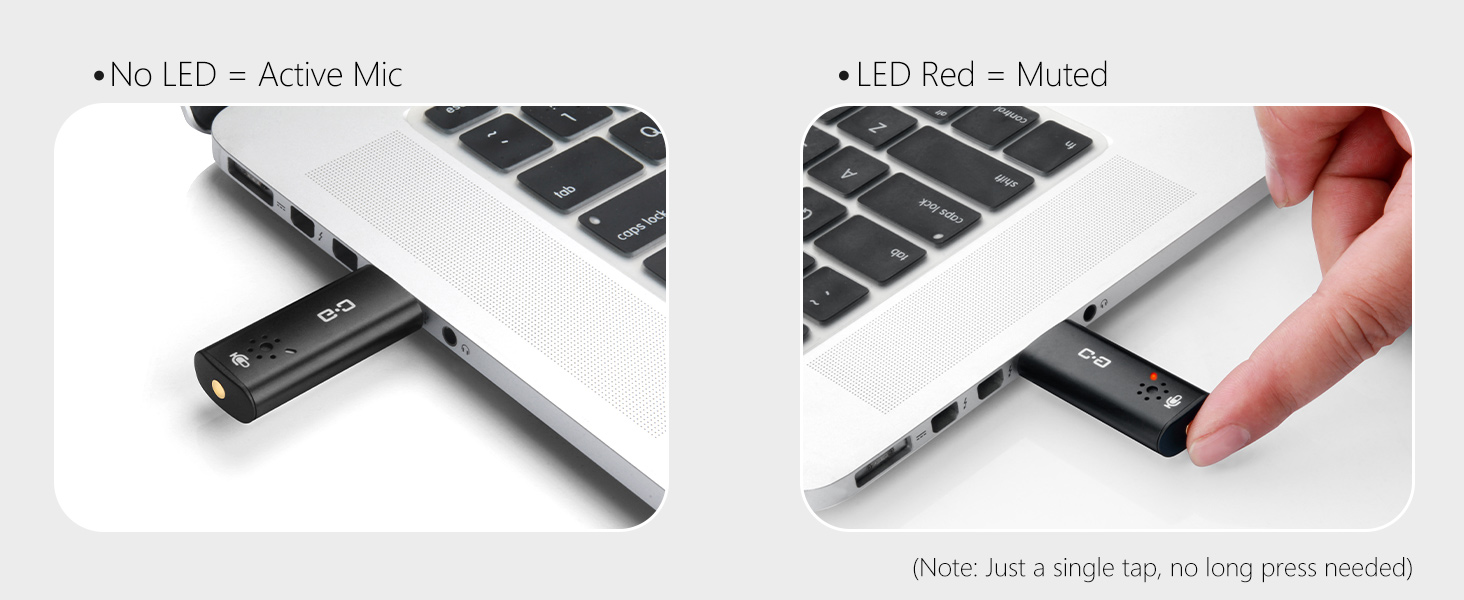
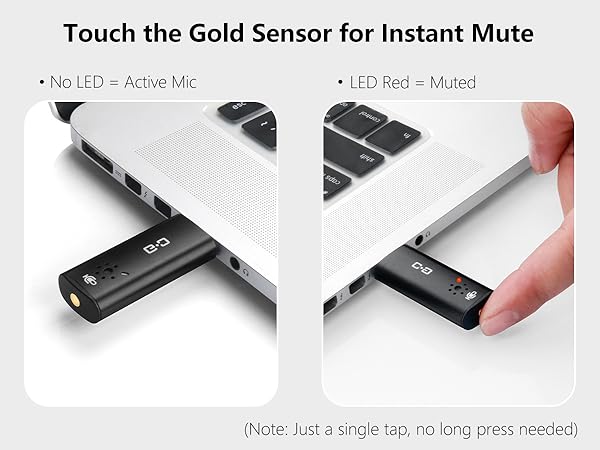
One-Touch Mute Button with LED Light – Red Means You're Muted
Works Well with Your Devices – No Drivers Needed
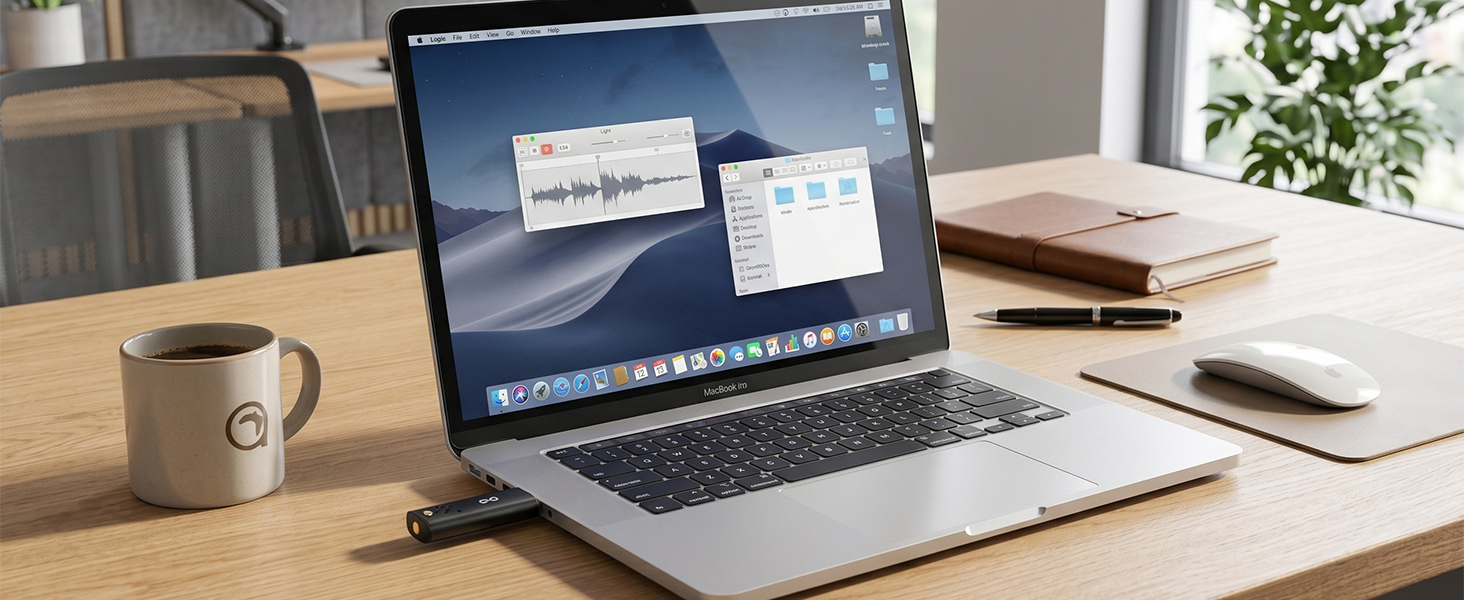
for Laptop
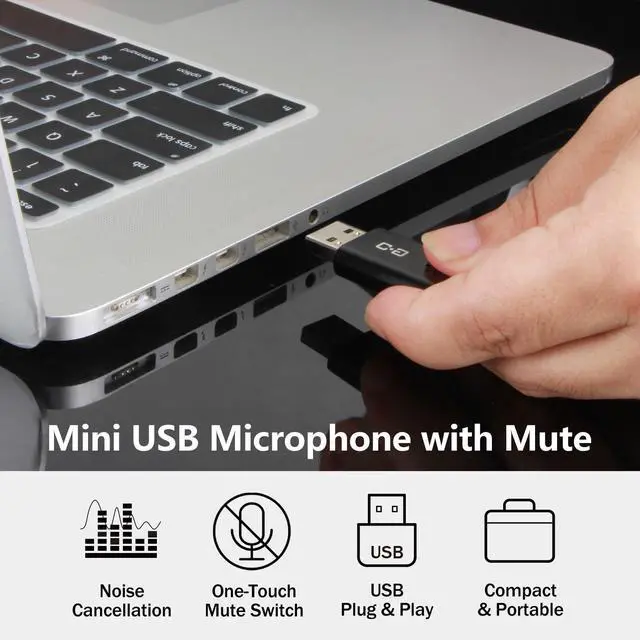
Mini USB Mic, Laptop Ready, Works Anywhere.
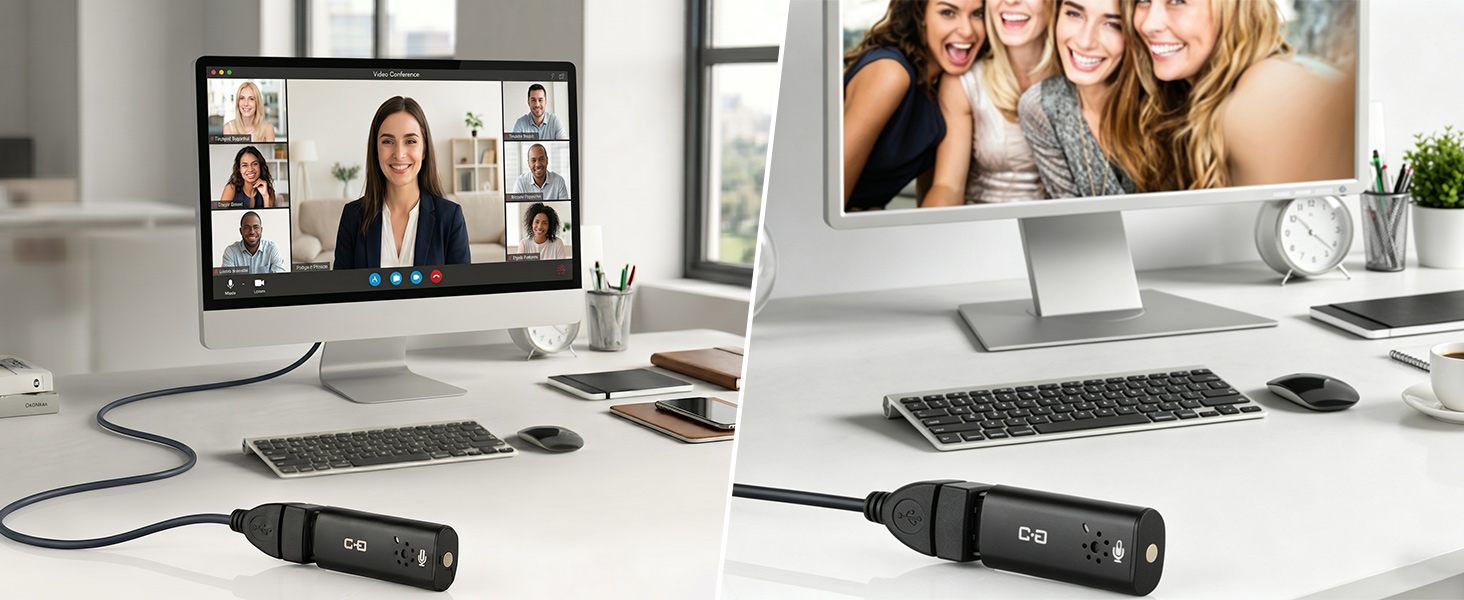
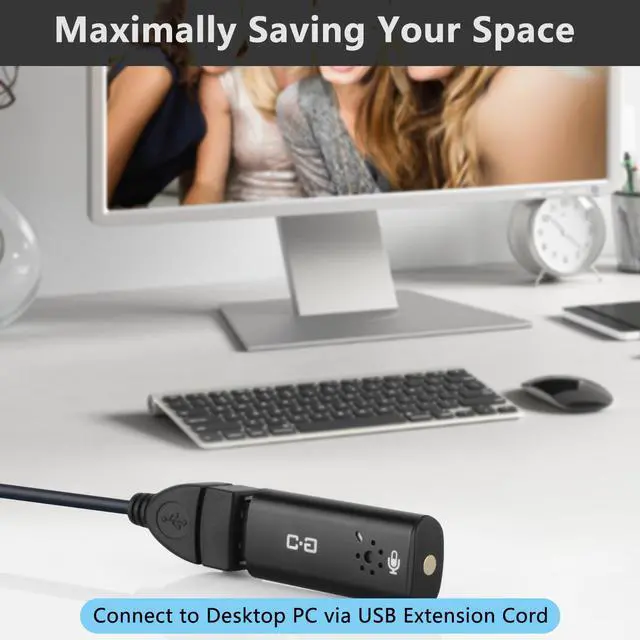
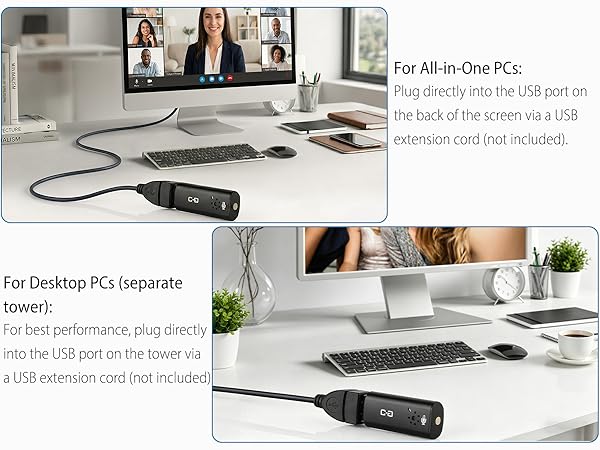
for Desktop (USB Extension Cord Not Included)
All-in-One PC: Use a USB extension cord to plug into the USB port on the back of the screen.
Desktop PC: Use a USB extension cord to plug directly into the tower's USB port (under the desk).
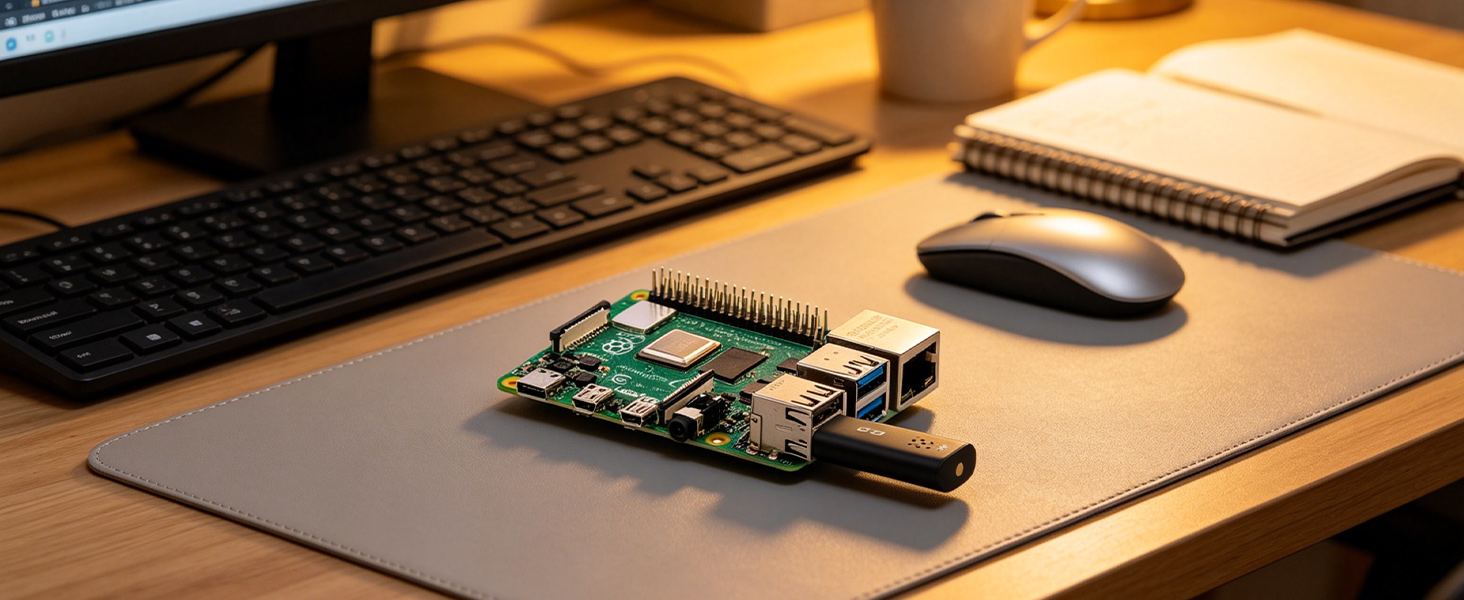
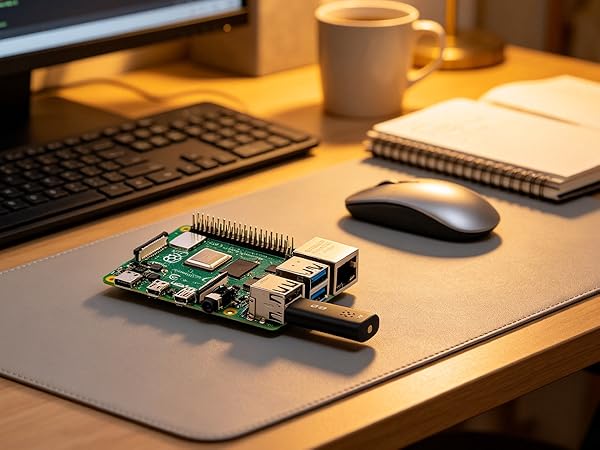
for Raspberry Pi
Plug & Play for Raspberry Pi.
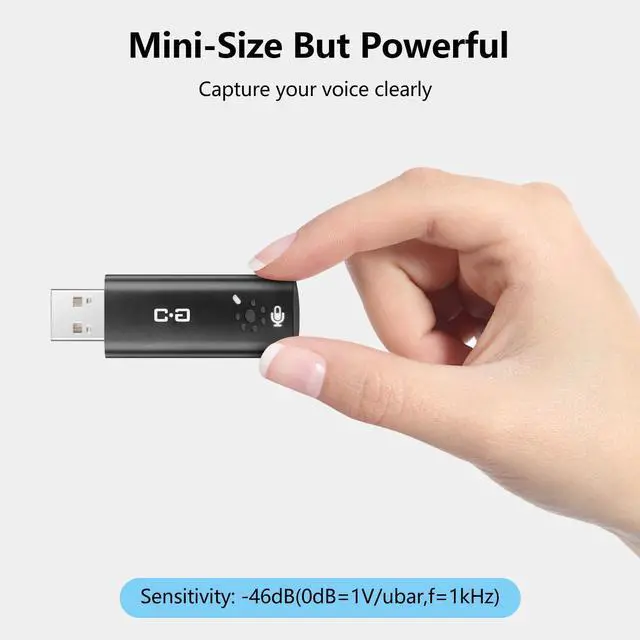
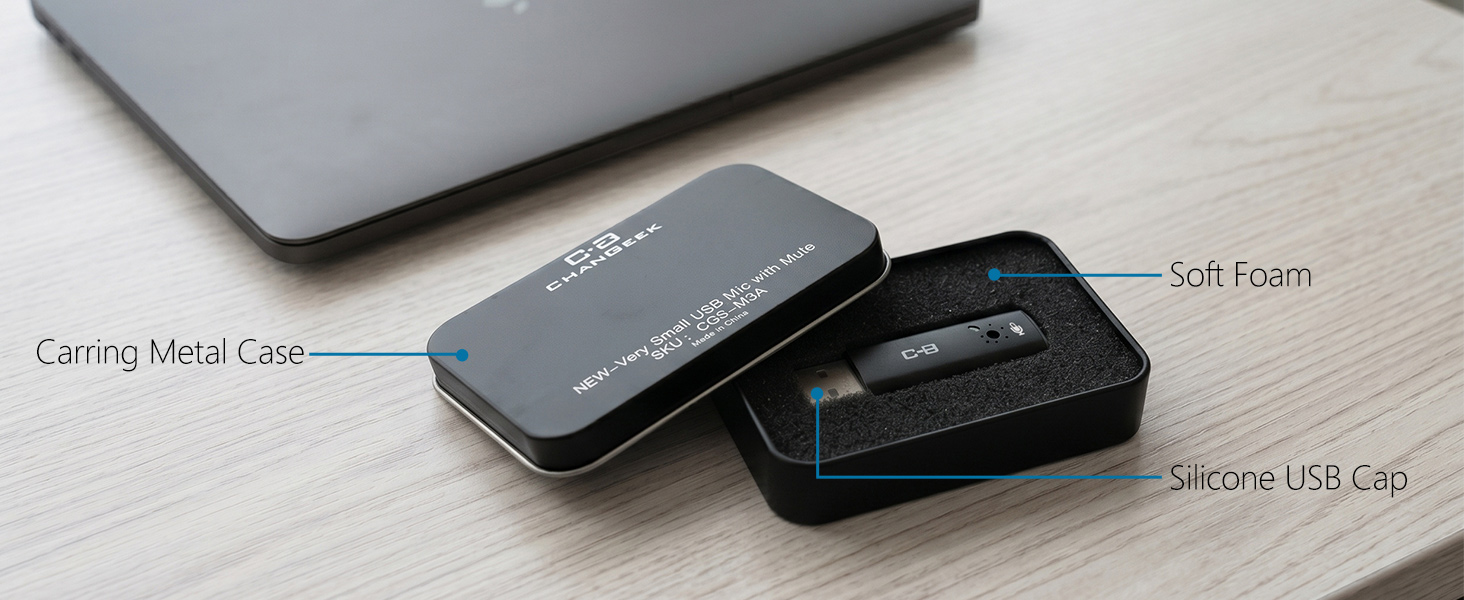
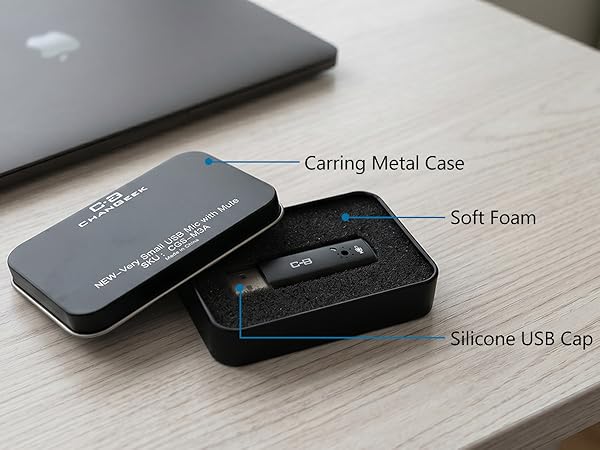
Metal Case with Soft Foam – Better Protection, Easy to Carry
DUNGZDUZ Mini Computer Microphone Series
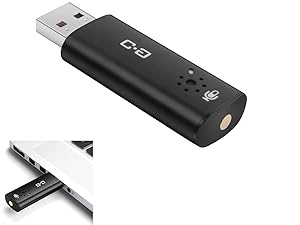 Upgrade USB Mic with Mute | 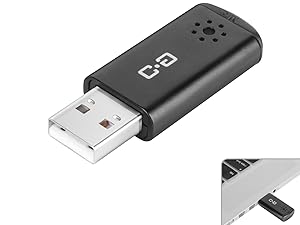 Mini USB Computer Mic for PCs | 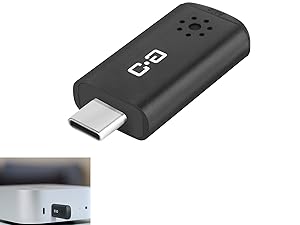 USB-C Microphone for Mac mini |
|---|---|---|
Connection USB-A | Connection USB-A | Connection USB-C |
Size Mini | Size Mini | Size Mini |
LED Light v | LED Light × | LED Light × |
Mute Function v | Mute Function × | Mute Function × |
Compatible with Laptop and Desktop | Compatible with Laptop and Desktop | Compatible with Mac mini M4/Pro, Mac |
DUNGZDUZ Mini USB Microphone with Mute – Protect Your Privacy on PC

This upgraded USB microphone features a built-in mute button, giving you better privacy and control – perfect for work, study, or daily calls. And it works well with most systems including Windows, Mac, Raspberry Pi, Linux, Chrome OS, Google Meet, Zoom, Teams, Skype, and more.
How to Adjust Input Volume
- For Windows 10/11: Right-click the speaker icon in the System Tray >> Select "Sound Settings" > "Input" >> Choose "USB PnP Sound Device" as your input device >> Click "Device Properties" and move the volume slider to 10–50 (recommended).
For Skype:
- Go to Options > Audio Settings > select "USB PnP Sound Device" and set volume to 10–50.
For other systems or apps, follow similar steps to select the USB mic as your input device.
Important Notes:
- Manual selection may be needed: On some devices, the microphone may not be auto-detected. Go to Settings > Sound > Input and manually select "USB PnP Sound Device".
- System volume control: This microphone does not control your device's system volume. If the sound is too low, turn up the volume on your computer.
- Avoid echo: Due to high sensitivity, set input volume to 10–50 (below 50). Do not set it too high, as others may hear an echo.
One-Touch Mute Button with LED Light – Red Means You're Muted
Works Well with Your Devices – No Drivers Needed
for Laptop
for Desktop (USB Extension Cord Not Included)
for Raspberry Pi
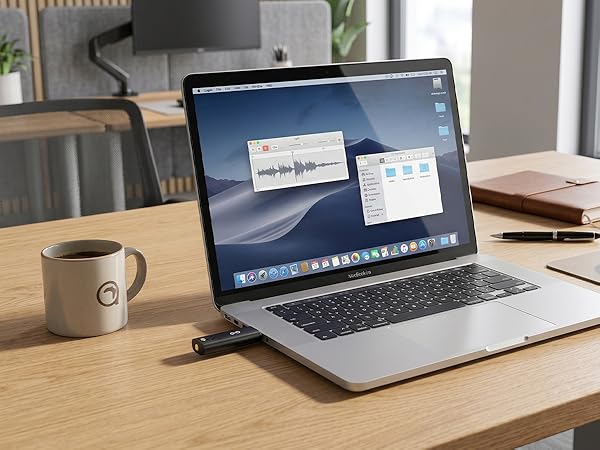
Mini USB Mic, Laptop Ready, Works Anywhere.
All-in-One PC: Use a USB extension cord to plug into the USB port on the back of the screen.
Desktop PC: Use a USB extension cord to plug directly into the tower's USB port (under the desk).
Plug & Play for Raspberry Pi.
Metal Case with Soft Foam – Better Protection, Easy to Carry
DUNGZDUZ Mini Computer Microphone Series
Our Story
We offer a range of high-quality microphones, headphones, and earbuds. Committed to our product and service improvement, we aim to deliver gear that satisfies users, boosts work efficiency, and enhances communication. At the same time, we create warm, enjoyable listening experiences for watching, gaming, and calling.
We value the feedback from every user—if you have any questions, suggestions, or feedback, please feel free to reach us.
USB Microphone for Laptop
USB Microphone with Mute
USB C Mic for Mac Mini M4
Lavalier Mic & Cable Boom Mic
Cable Boom Mic for Headsets
2 Pack Lav Mic for DJI/RODE
Long Cord Headphone for TV
USB-C & USB-A Earbuds with Mic
USB One-Side Earbud with Mic
Dual Mode Mini Speaker