






Our Story
We offer a range of high-quality microphones, headphones, and earbuds. Committed to our product and service improvement, we aim to deliver gear that satisfies users, boosts work efficiency, and enhances communication. At the same time, we create warm, enjoyable listening experiences for watching, gaming, and calling.
We value the feedback from every user—if you have any questions, suggestions, or feedback, please feel free to reach us.

USB Microphone for Laptop
USB Microphone with Mute


USB C Mic for Mac Mini M4




Lavalier Mic & Cable Boom Mic
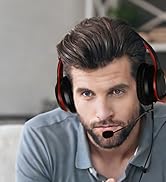



Cable Boom Mic for Headsets




2 Pack Lav Mic for DJI/RODE




Long Cord Headphone for TV



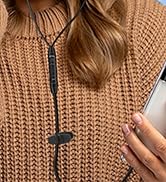
USB-C & USB-A Earbuds with Mic
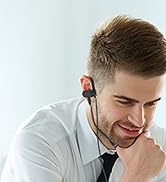



USB One-Side Earbud with Mic

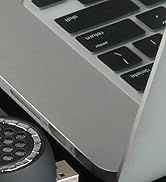

Dual Mode Mini Speaker
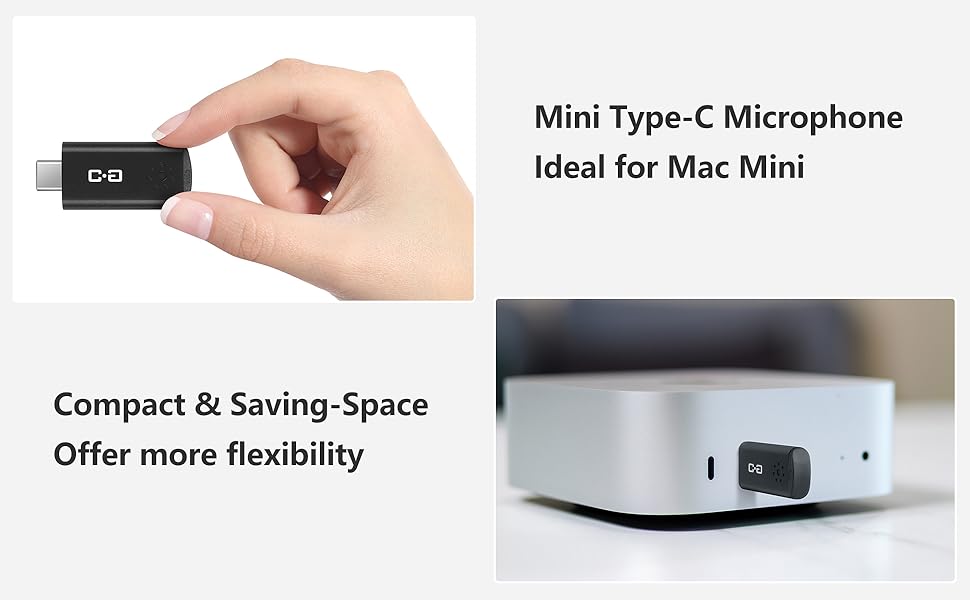
Portable USB-C Microphone for Mac Mini
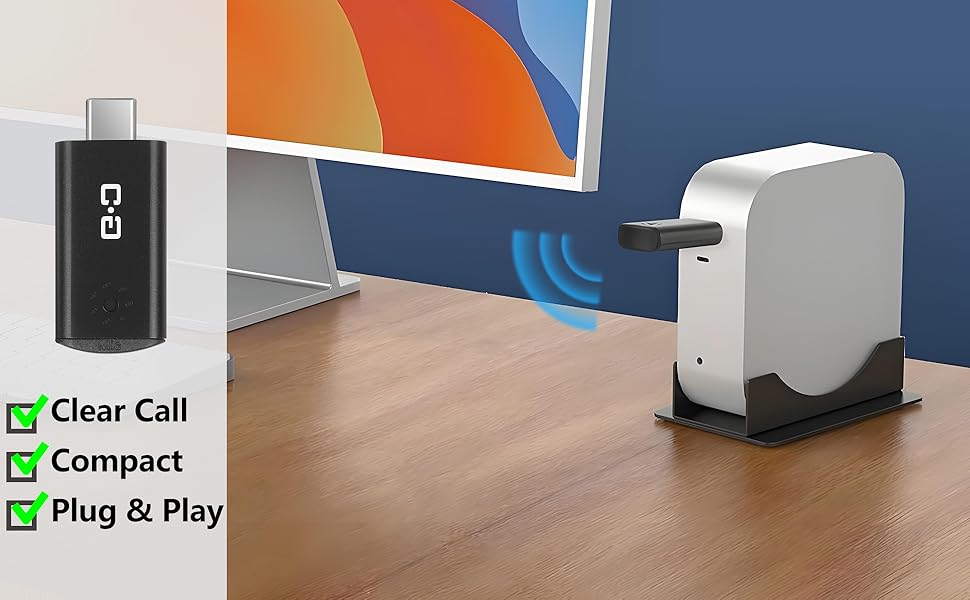
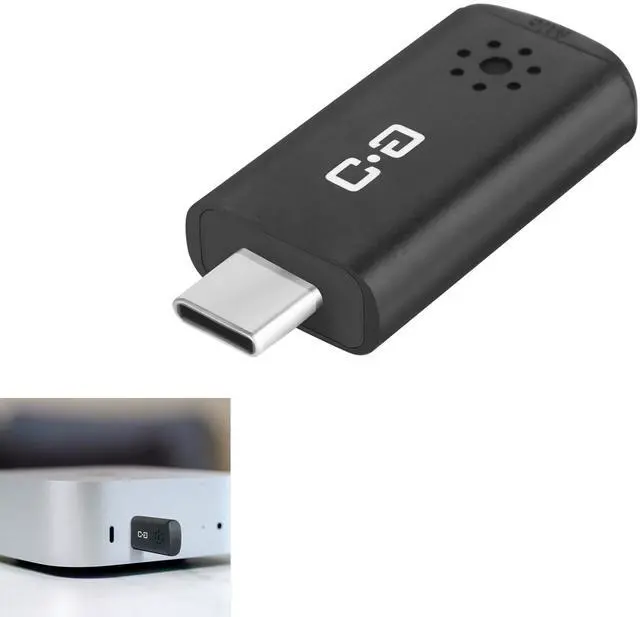
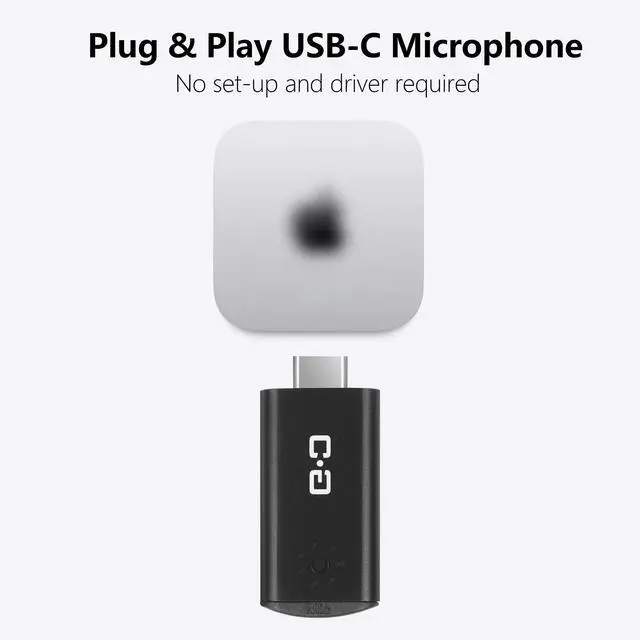
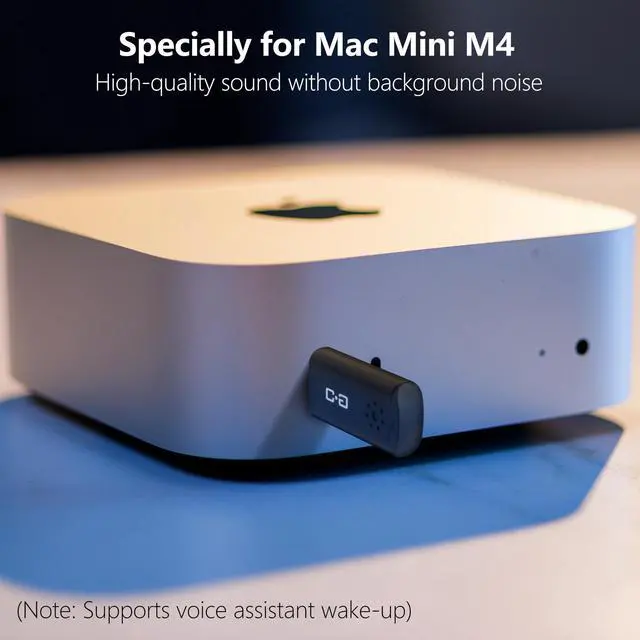
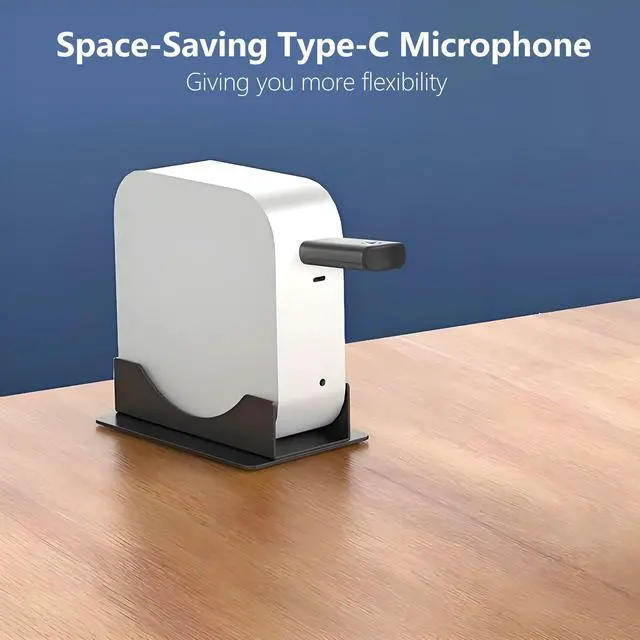
This small type-C microphone is designed for Mac Mini M4/M4 Pro and MacBook.
Notice:
- This microphone does not control the system volume. If the sound is too low, adjust the volume directly in the "Sound Settings" on your computer.
- Since Mac Mini does not include a built-in microphone, an external mic is required for voice control.
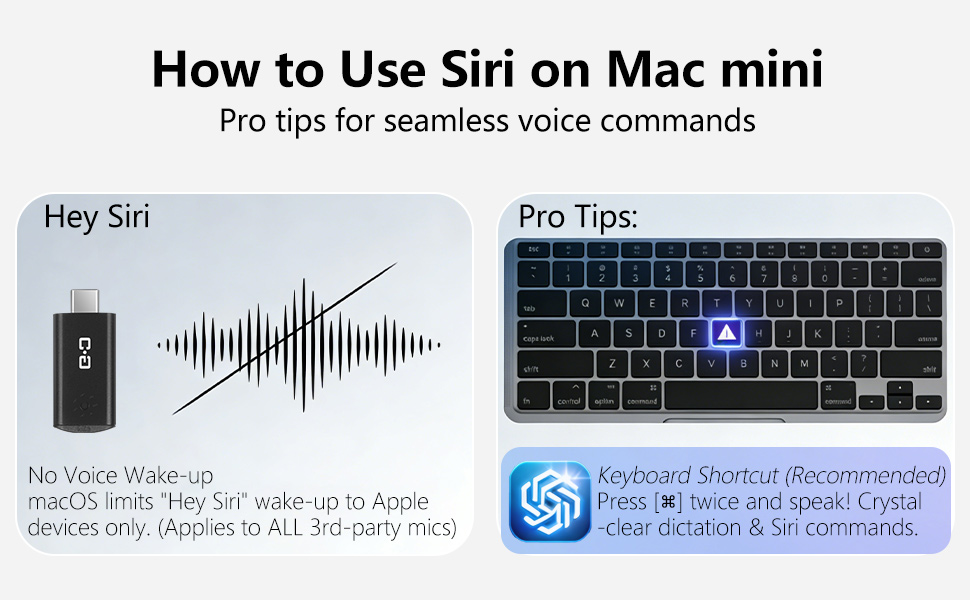
Important Note for Mac mini Users (Regarding "Hey Siri"):
Siri can only be activated manually — voice wake-up (“Hey Siri”) is not supported due to system-level restrictions.
Here is how to easily set up and use Siri with this microphone on your Mac mini:
Step 1: Verify Microphone Connection Go to System Settings > Sound > Input, select this USB microphone, and speak into it. If the input level bar moves, your microphone is working perfectly.
Step 2: Set Up a Siri Shortcut (Recommended Solution) Since Apple restricts voice wake-up, using a keyboard shortcut is the most seamless workaround:
- Go to System Settings > Apple Intelligence & Siri and set your preferred Keyboard Shortcut (e.g., "Press Command (?) twice" or "Hold the Dictation/Mic key").
- Pro Tip: If pressing the shortcut brings up a typing box, go to System Settings > Accessibility > Siri and turn off "Type to Siri". Once disabled, you can simply press the shortcut and speak your commands directly into the microphone!
DUNGZDUZ USB C Microphone for Computer
Specially for Mac mini
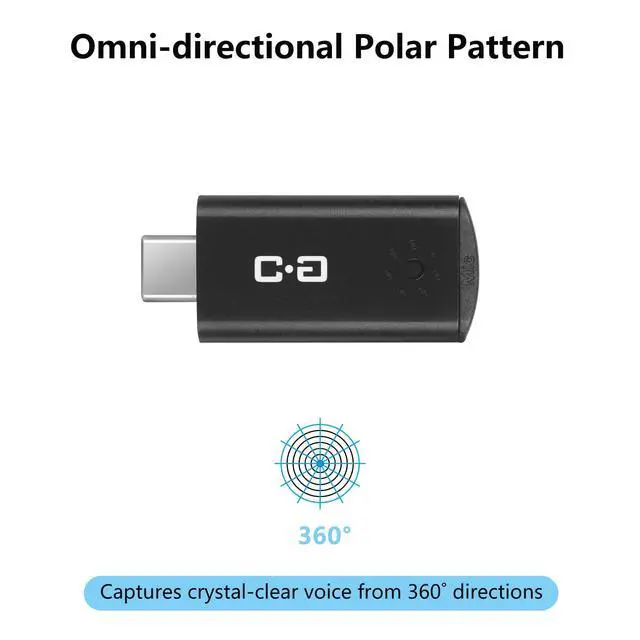
Built with a high-sensitivity condenser capsule and premium audio chipset, this type-c microphone captures your voice with clarity while reducing background noise.
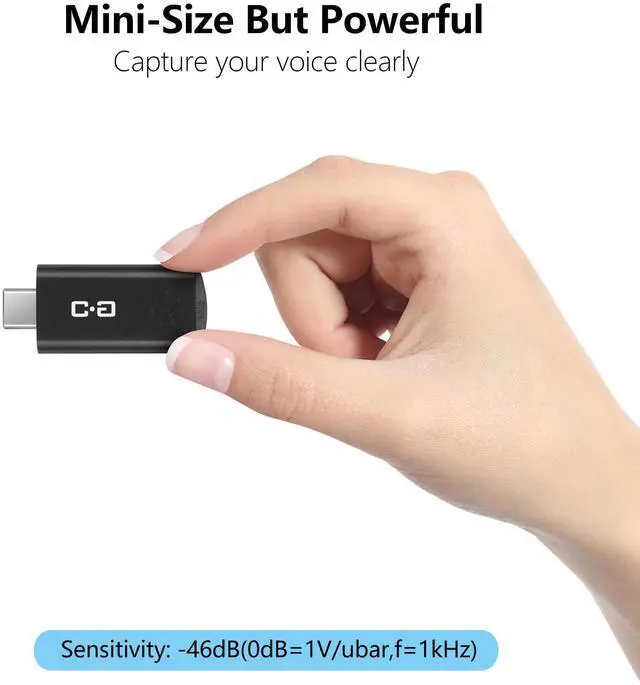
Upgrade your Mac Mini with a compact but powerful USB-C microphone. Enjoy crystal-clear audio for calls, online meetings, and more — turning your Mac Mini into a more functional tool for work or study.
Features:
- Plug-and-Play
- Use Siri
- High-quality Sound
- Reduce Background Noise
- Compact & Portable
- One-year Protection
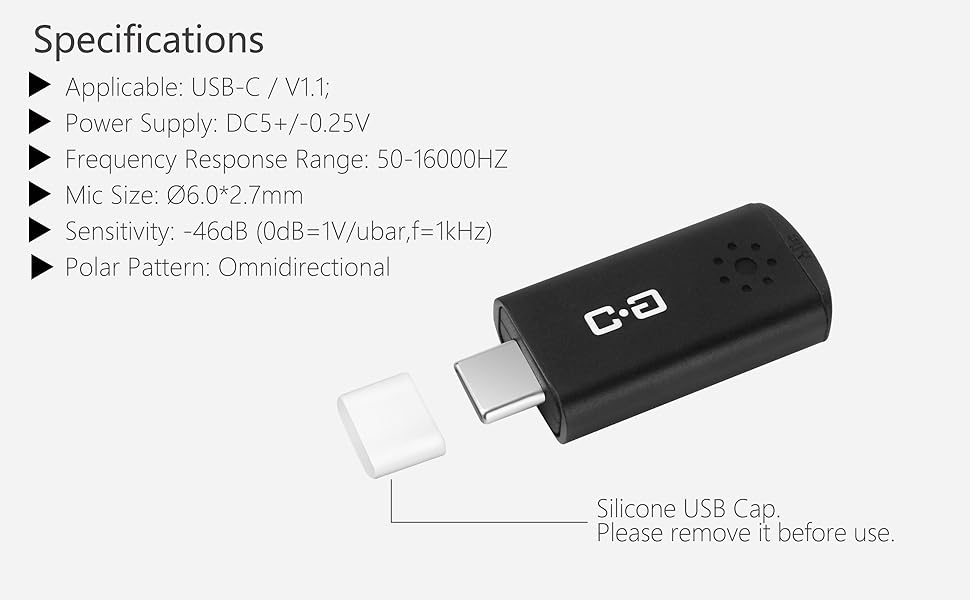
More Specifics: Why Doesn't "Hey Siri" Wake-Up Work on Mac mini?
Please note: This is a known Apple system limitation, not a microphone defect. Here is why:
- 1. Apple's Hardware Lock: The always-listening "Hey Siri" feature relies exclusively on Apple's proprietary internal chips (like the Secure Enclave) to process audio and protect privacy.
- 2. System-Level Restrictions: For Mac minis (M1-M4), macOS strictly limits voice wake-up to Apple-branded devices (e.g., AirPods or Studio Display). For ALL third-party USB microphones, Apple simply grays out or hides the "Listen for" option in settings.
- 3. macOS Sequoia Updates: On the new M4 Mac mini, enabling Apple Intelligence often defaults Siri to a "Type to Siri" mode, which disables direct voice wake-up by default.
(Rest assured, your mic works perfectly for calls, dictation, and voice commands once Siri is activated via a keyboard shortcut!)
Q&A
 DUNGZDUZ USB C Mini Microphone for Mac mini M4/M4 Pro & Mac |  DUNGZDUZ Mini USB Microphone for Computer (Without Mute) |  DUNGZUDUZ Upgrade Mini USB Computer Microphone with Mute Function | |
|---|---|---|---|
| Customer Reviews | — | — | — |
| Price | — | — | — |
| Connections | USB-C | USB-A | USB-A |
| Compatible with | Mac mini M4/Pro, Mac | Laptop and Desktop Computer | Laptop and Desktop Computer |
| Mute Function | × | × | ? |
Portable USB-C Microphone for Mac Mini
This small type-C microphone is designed for Mac Mini M4/M4 Pro and MacBook.
Notice:
- This microphone does not control the system volume. If the sound is too low, adjust the volume directly in the "Sound Settings" on your computer.
- Since Mac Mini does not include a built-in microphone, an external mic is required for voice control.
Important Note for Mac mini Users (Regarding "Hey Siri"):
Siri can only be activated manually — voice wake-up (“Hey Siri”) is not supported due to system-level restrictions.
Here is how to easily set up and use Siri with this microphone on your Mac mini:
Step 1: Verify Microphone Connection Go to System Settings > Sound > Input, select this USB microphone, and speak into it. If the input level bar moves, your microphone is working perfectly.
Step 2: Set Up a Siri Shortcut (Recommended Solution) Since Apple restricts voice wake-up, using a keyboard shortcut is the most seamless workaround:
- Go to System Settings > Apple Intelligence & Siri and set your preferred Keyboard Shortcut (e.g., "Press Command (?) twice" or "Hold the Dictation/Mic key").
- Pro Tip: If pressing the shortcut brings up a typing box, go to System Settings > Accessibility > Siri and turn off "Type to Siri". Once disabled, you can simply press the shortcut and speak your commands directly into the microphone!
DUNGZDUZ USB C Microphone for Computer
Specially for Mac mini
Built with a high-sensitivity condenser capsule and premium audio chipset, this type-c microphone captures your voice with clarity while reducing background noise.
Upgrade your Mac Mini with a compact but powerful USB-C microphone. Enjoy crystal-clear audio for calls, online meetings, and more — turning your Mac Mini into a more functional tool for work or study.
Features:
- Plug-and-Play
- Use Siri
- High-quality Sound
- Reduce Background Noise
- Compact & Portable
- One-year Protection
More Specifics: Why Doesn't "Hey Siri" Wake-Up Work on Mac mini?
Please note: This is a known Apple system limitation, not a microphone defect. Here is why:
- 1. Apple's Hardware Lock: The always-listening "Hey Siri" feature relies exclusively on Apple's proprietary internal chips (like the Secure Enclave) to process audio and protect privacy.
- 2. System-Level Restrictions: For Mac minis (M1-M4), macOS strictly limits voice wake-up to Apple-branded devices (e.g., AirPods or Studio Display). For ALL third-party USB microphones, Apple simply grays out or hides the "Listen for" option in settings.
- 3. macOS Sequoia Updates: On the new M4 Mac mini, enabling Apple Intelligence often defaults Siri to a "Type to Siri" mode, which disables direct voice wake-up by default.
(Rest assured, your mic works perfectly for calls, dictation, and voice commands once Siri is activated via a keyboard shortcut!)
Q&A
| Q1. | How to connect this microphone to the computer? |
| Answer: | This microphone is plug-and-play. For computers that do not automatically recognize external microphones, simply go to “Sound” settings > “Input” and select this microphone "PnP Sound Device" to connect. |
| Q2. | How can I adjust the volume? |
| Answer: | This microphone does NOT control the system volume, you can adjust the volume in the "Sound Setting" on your computer. |
| Q3. | Can I mute the microphone? |
| Answer: | This microphone does not have a built-in mute button. However, you can mute it directly through your computer’s sound settings or within applications that support mute control (such as Zoom, Teams, or Skype). |
| Q4. | Can I use Siri with Mac mini? |
| Answer: | Yes. To use Siri, connect this microphone and select it as the “Input Device” in your Sound Settings. You can then activate Siri using a keyboard shortcut and use it with the microphone. |
| Q5. | Why is there an echo on Zoom/Teams calls when using the microphone with my Mac Mini? |
| Answer: | This is usually not a hardware failure, but an "audio loop." The sound from your Mac Mini's external speakers is picked up again by the microphone, causing the echo. For the best experience, we recommend using headphones or manually selecting the microphone in your software settings and disabling "Automatically adjust microphone volume." |
DUNGZDUZ USB C Mini Microphone for Mac mini M4/M4 Pro & Mac | DUNGZDUZ Mini USB Microphone for Computer (Without Mute) | DUNGZUDUZ Upgrade Mini USB Computer Microphone with Mute Function | |
|---|---|---|---|
| Customer Reviews | — | — | — |
| Price | — | — | — |
| Connections | USB-C | USB-A | USB-A |
| Compatible with | Mac mini M4/Pro, Mac | Laptop and Desktop Computer | Laptop and Desktop Computer |
| Mute Function | × | × | ? |
Our Story
We offer a range of high-quality microphones, headphones, and earbuds. Committed to our product and service improvement, we aim to deliver gear that satisfies users, boosts work efficiency, and enhances communication. At the same time, we create warm, enjoyable listening experiences for watching, gaming, and calling.
We value the feedback from every user—if you have any questions, suggestions, or feedback, please feel free to reach us.
USB Microphone for Laptop
USB Microphone with Mute
USB C Mic for Mac Mini M4
Lavalier Mic & Cable Boom Mic
Cable Boom Mic for Headsets
2 Pack Lav Mic for DJI/RODE
Long Cord Headphone for TV
USB-C & USB-A Earbuds with Mic
USB One-Side Earbud with Mic
Dual Mode Mini Speaker