How to Repair It
aplus content video
If you have issue when use it such as can not connect/no images, there may be a pairing problem.
- Please follow the steps to repair it as below:
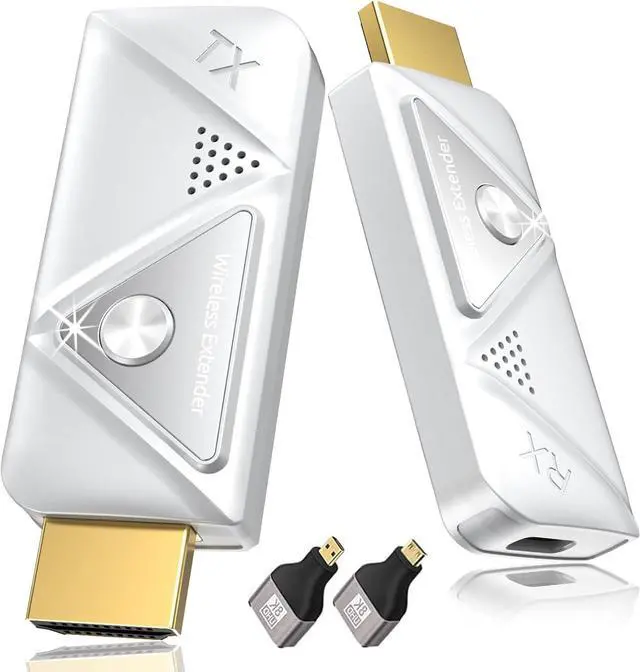
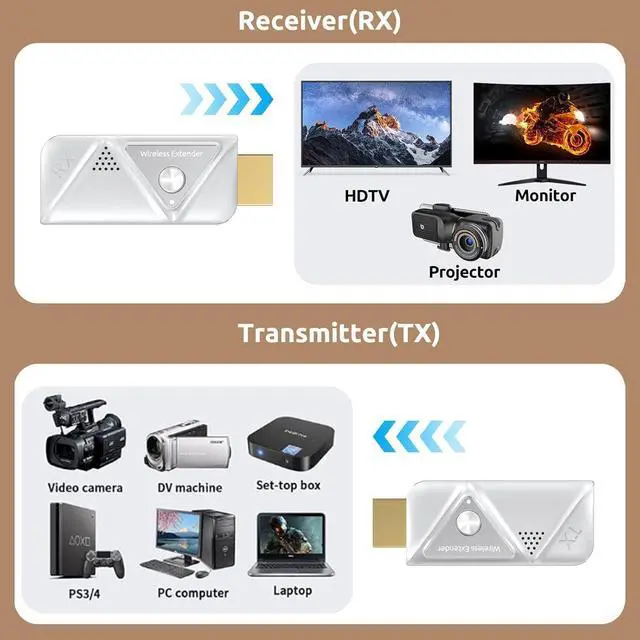
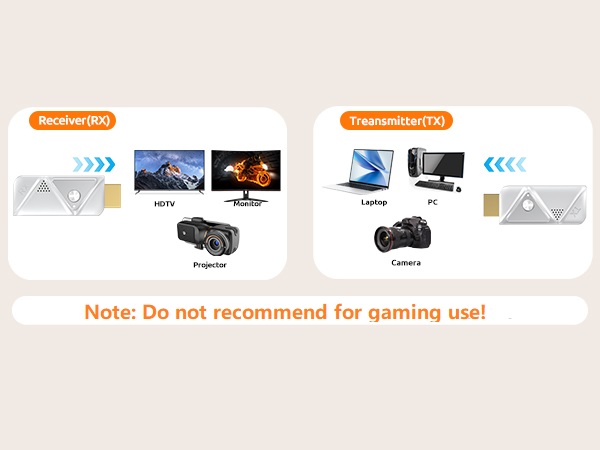
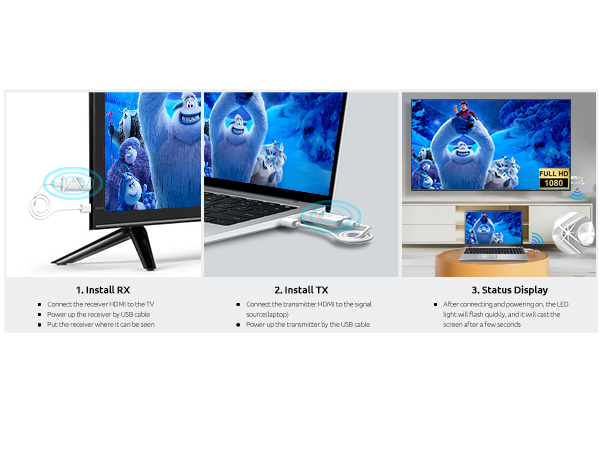
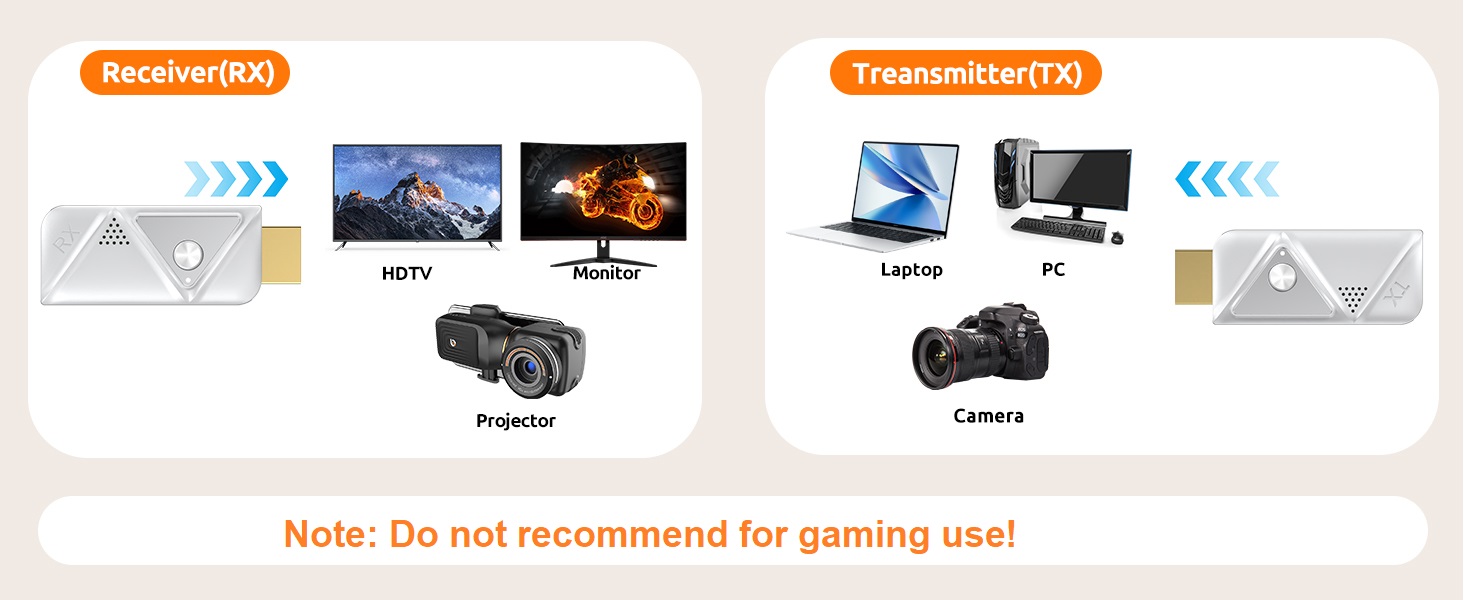
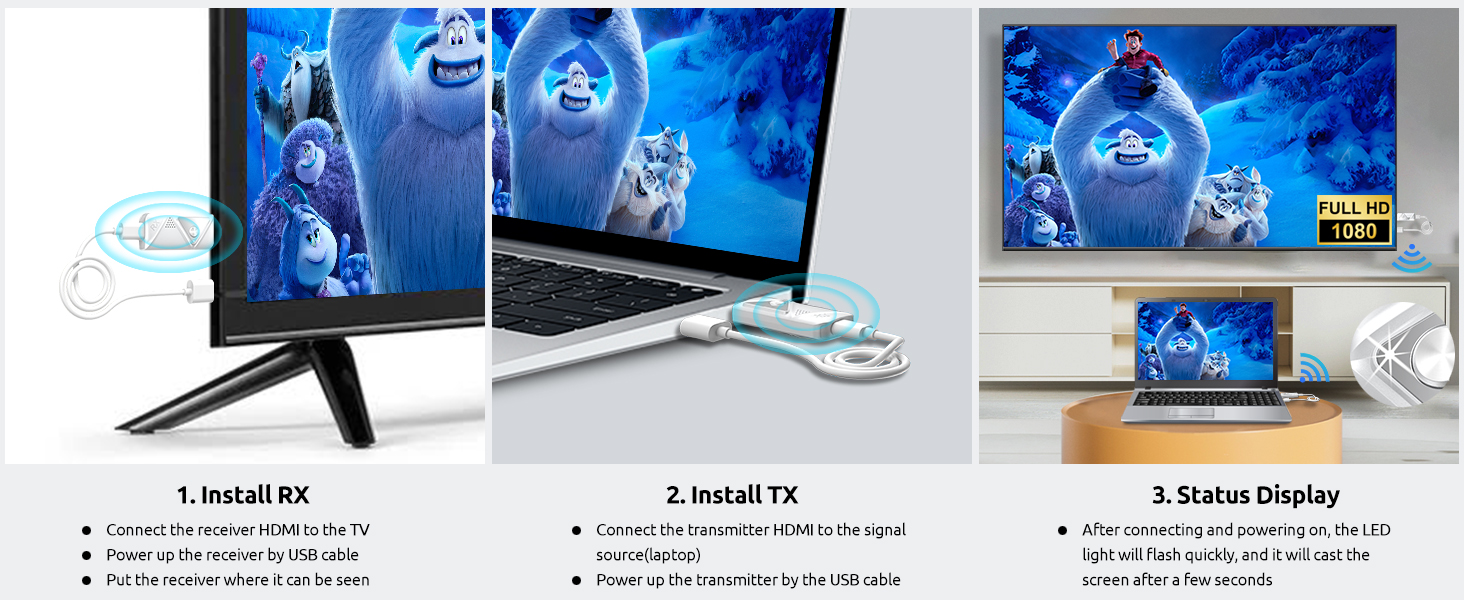
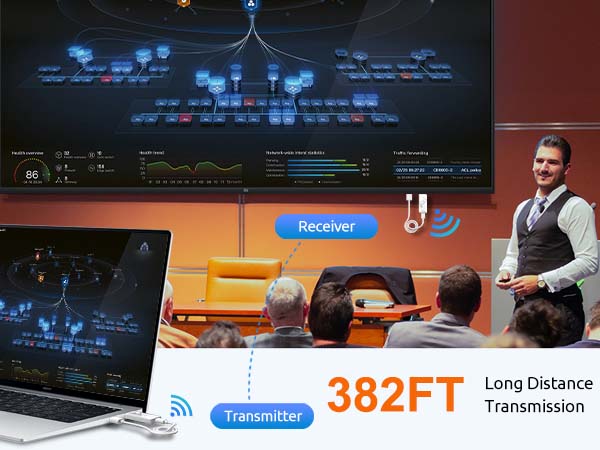
- Step 1. Connect TX to computer/TV box and RX to monitor/Projector/TV.
- Step 2. Connect TX and RX to a power source.
- Step 3. After connecting TX and RX, TX flashes and RX stays on.
- Step 4. Press and hold RX for more than 7 seconds, and "ready to pair" appears on the display.
- Step 5. Now press and hold TX for more than 7 seconds, TX will turn off briefly and then flash again, wait for 5-20 seconds.
- Step 6. "Paring" begins to appear on the screen, appears (the "x" state will become "v" after a few seconds).
- Step 7. Wait for 5-10 seconds before the screen starts sharing. Just set it once, and it will pair automatically next time.
If you have issue that only image but no audio, please check the audio setting on your TV or Monitor
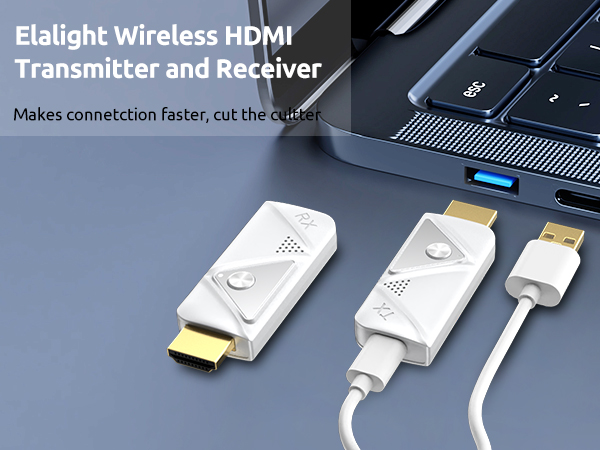
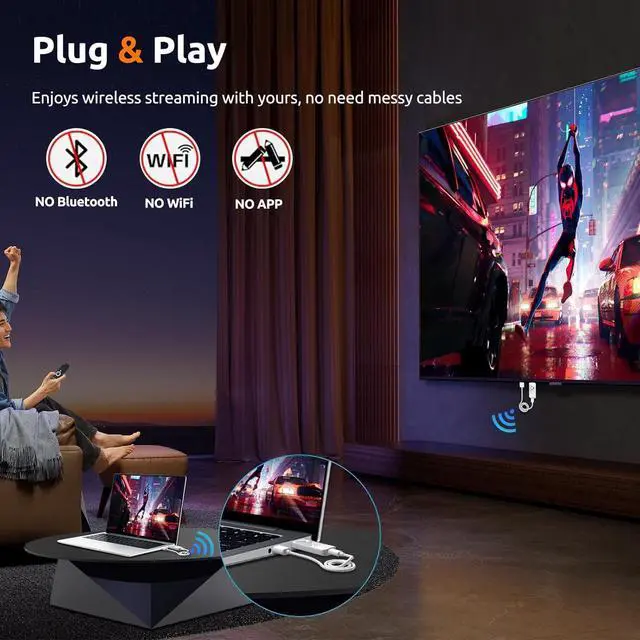
Plug & Play
No Need Wifi/APP/Bluetooth
How to Repair It
aplus content video
If you have issue when use it such as can not connect/no images, there may be a pairing problem.
- Please follow the steps to repair it as below:
- Step 1. Connect TX to computer/TV box and RX to monitor/Projector/TV.
- Step 2. Connect TX and RX to a power source.
- Step 3. After connecting TX and RX, TX flashes and RX stays on.
- Step 4. Press and hold RX for more than 7 seconds, and "ready to pair" appears on the display.
- Step 5. Now press and hold TX for more than 7 seconds, TX will turn off briefly and then flash again, wait for 5-20 seconds.
- Step 6. "Paring" begins to appear on the screen, appears (the "x" state will become "v" after a few seconds).
- Step 7. Wait for 5-10 seconds before the screen starts sharing. Just set it once, and it will pair automatically next time.
If you have issue that only image but no audio, please check the audio setting on your TV or Monitor