




XEME , Your Trusted Partner!

Enrich your work and life
XEME has a professional and passionate team. committed to developing high-quality, efficient, and consumer friendly products, seeking simpler and more modern ways to improve your work and life.
The charm of technology lies in continuous innovation. We will adhere to strict product standards, continuously provide high-quality products and professional services, bring you more surprising products.
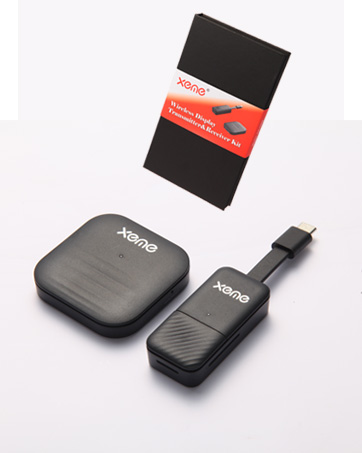
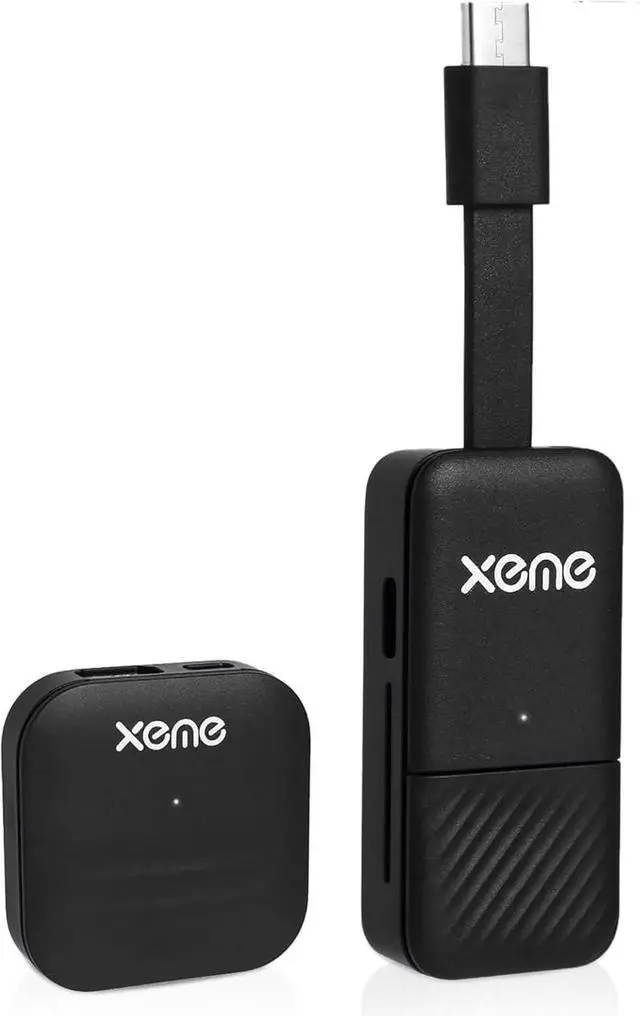
Transmitter & Receiver Kit
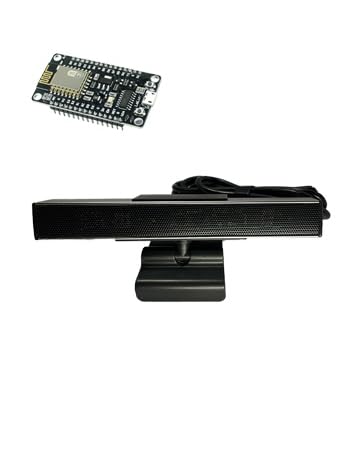
Far-Field Voice Microphone

E-ink Smart Phone Case


Connection Step
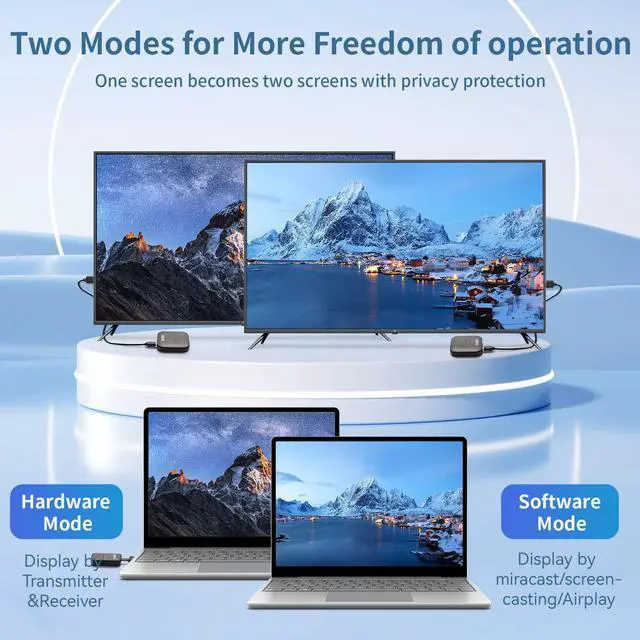
Hardware Mode
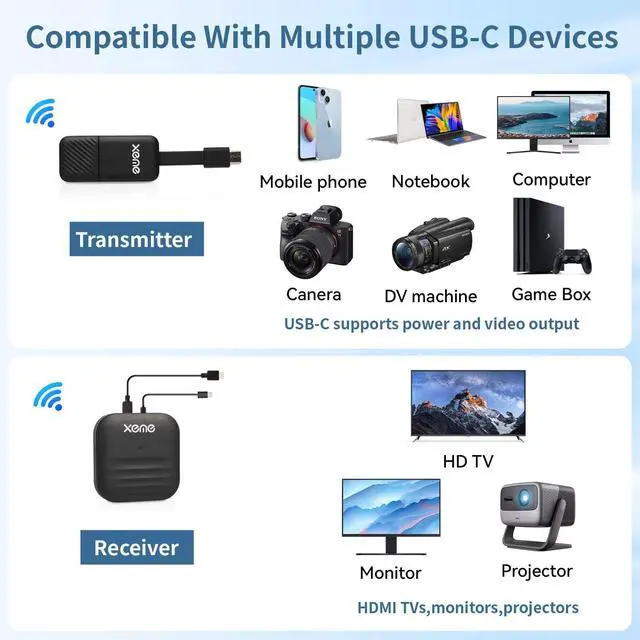
USB-C port of your pc, laptop, smart phone supports power and video output
- Step 1: Plug the Receiver(RX) to HDMI port of display Device such as TV/Monitor/Projector/etc. and power on via USB-A power adatper or a USB-A port on your TV.
- Step 2:Plug the Transmitter to USB-C port which with power and video output to pc,/laptop,/smart phone/ etc.
- Step 3: Waiting for about 3~5 seconds to connect successfully
Software Mode
USB-C port of pc, smart phone not support power and video output
- Step 1: Plug the Receiver(RX) to HDMI port of display Device such as TV/Monitor/Projector/etc. and power on via USB-A power adatper or a USB-A port on your TV.
- Step 2: Waiting for about 3~5 seconds to start up Receiver(RX) successfully
- Step 3: Open DLNA/Miracase/Airplay of you device and screen casting to big screen. (Windows PC press Win + K)

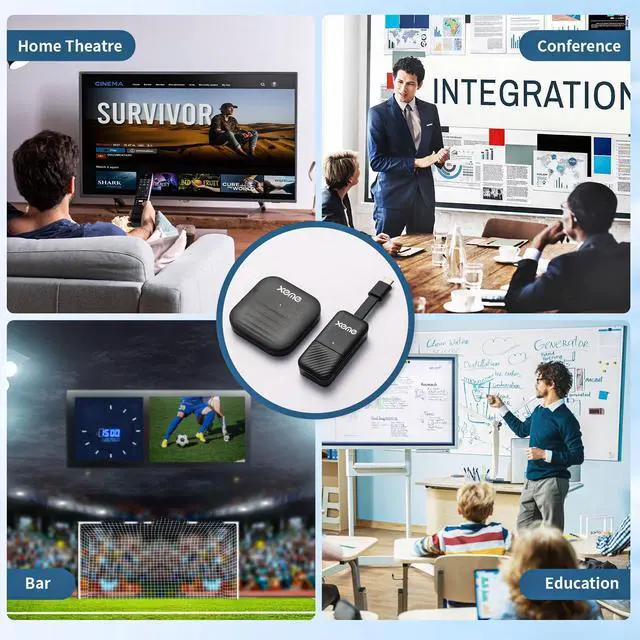
Wide Application Scenes


Connection Step
Hardware Mode
USB-C port of your pc, laptop, smart phone supports power and video output
- Step 1: Plug the Receiver(RX) to HDMI port of display Device such as TV/Monitor/Projector/etc. and power on via USB-A power adatper or a USB-A port on your TV.
- Step 2:Plug the Transmitter to USB-C port which with power and video output to pc,/laptop,/smart phone/ etc.
- Step 3: Waiting for about 3~5 seconds to connect successfully
Software Mode
USB-C port of pc, smart phone not support power and video output
- Step 1: Plug the Receiver(RX) to HDMI port of display Device such as TV/Monitor/Projector/etc. and power on via USB-A power adatper or a USB-A port on your TV.
- Step 2: Waiting for about 3~5 seconds to start up Receiver(RX) successfully
- Step 3: Open DLNA/Miracase/Airplay of you device and screen casting to big screen. (Windows PC press Win + K)
Wide Application Scenes
XEME , Your Trusted Partner!
Enrich your work and life
XEME has a professional and passionate team. committed to developing high-quality, efficient, and consumer friendly products, seeking simpler and more modern ways to improve your work and life.
The charm of technology lies in continuous innovation. We will adhere to strict product standards, continuously provide high-quality products and professional services, bring you more surprising products.
Transmitter & Receiver Kit
Far-Field Voice Microphone
E-ink Smart Phone Case