






Enjoy life, enjoy quality.
Accelerate your dreams, add color to your life, and make every product with your heart, bringing you an unprecedented experience.

NOHZIO, your preferred brand, focuses on cutting-edge technology. Our products are designed to provide seamless connection and excellent performance.
Choose NOHZIO to enhance your viewing experience and embark on the future journey of wireless display technology.
Trust NOHZIO's innovation, reliability and excellent quality.
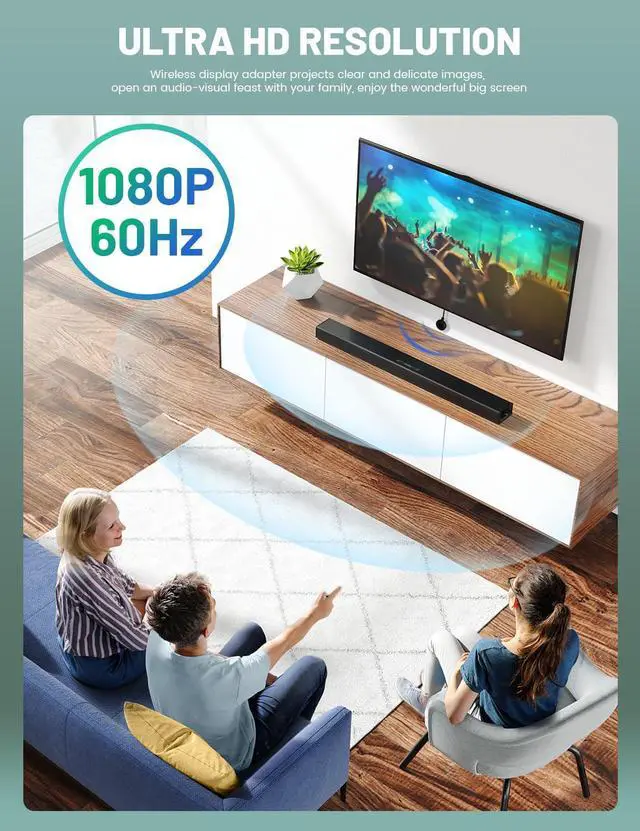
Can the wireless HDMI display dongle adapter support the wireless transmission of high-definition video and audio?
Yes, this product supports the wireless transmission of high-definition video and audio signals, and provides a seamless and convenient solution for streaming media content without affecting the quality.
How is the product performance?
Every product of ours has undergone strict quality control to ensure its perfect performance.
Is it easy to install the product?
Very simple-just plug it in and you can start using it immediately without any complicated installation process.
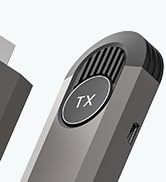
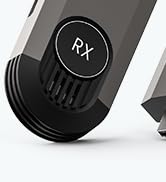
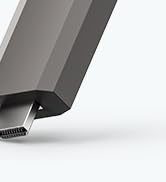
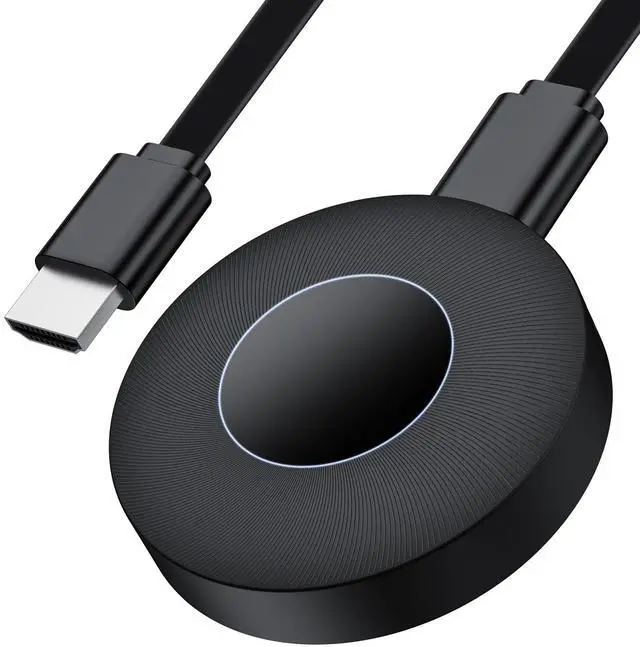
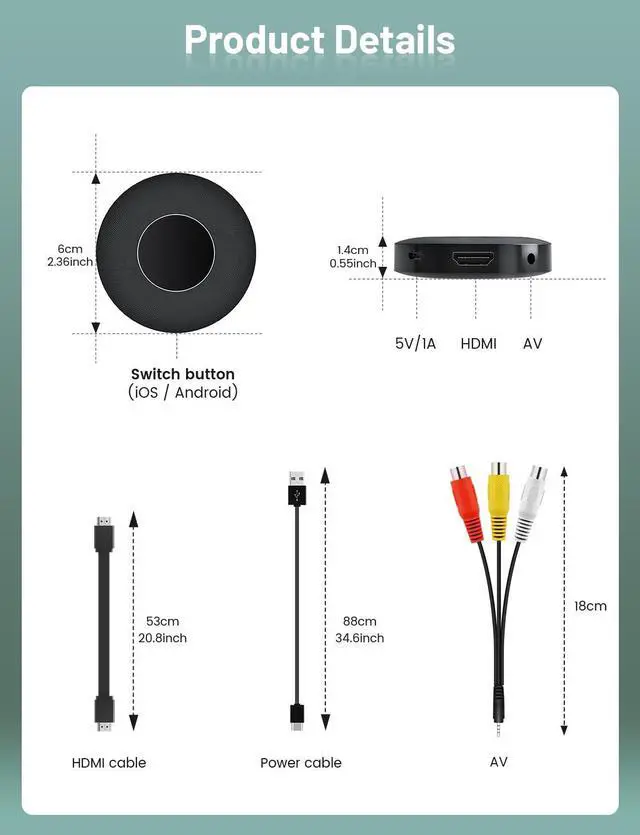
Wireless HDMI Extender kit


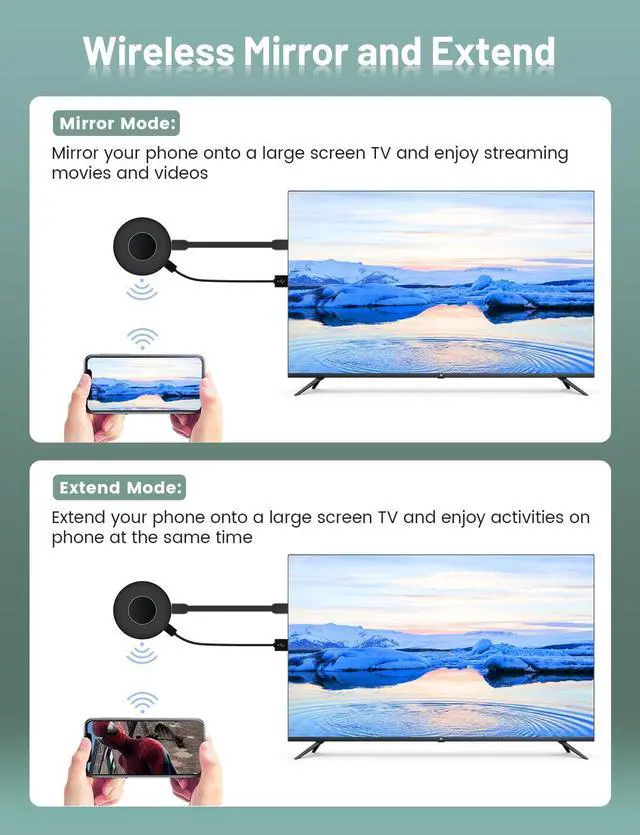
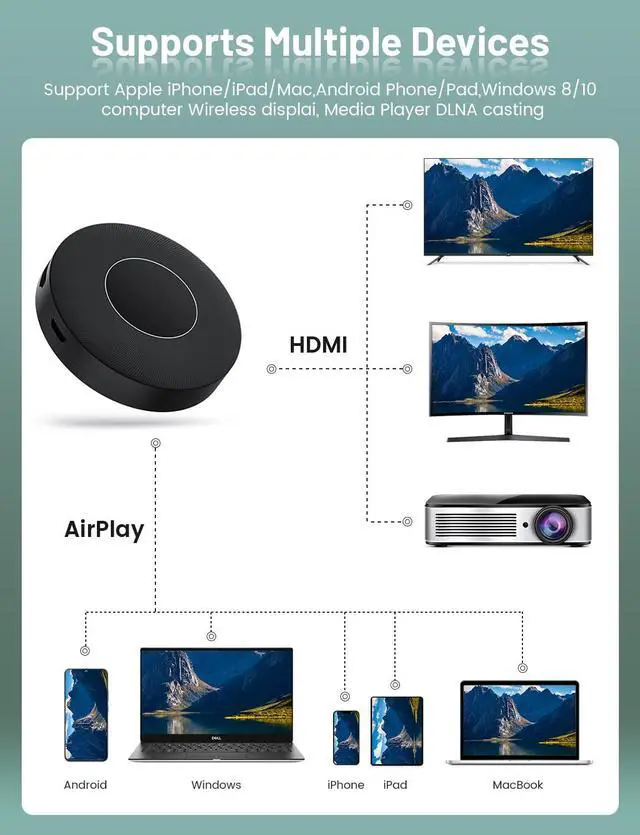
This wireless display adapter provides a powerful mirroring function and is additionally equipped with DLNA function for more advanced needs. To realize the DLNA function, firstly, you need to set up the network connection between the device and the router. This product is suitable for 2.4G&5G dual WiFi channels.
1. Keep the boot interface in Android/Windows system dedicated mode.
2. Open the phone settings >>> Open WIFI >>> find the Renkchip-XXXX hotspot >> enter the password: 12345678.
3. After the phone is successfully connected to the hotspot, return to the main interface of the mobile phone, open the mobile phone browser, enter the URL "192.168.49.1", click "Enter" and click "SCAN", and wait the mobile phone search for the hotspots of the surrounding routers.
4. After searching for the surrounding routing signals, find your router name, click and enter the routing password. Wait for a while, the network connection is completed between the device and the router.
Notice:
1. In the DLNA mode, you only need to set up the network for the first time, after that, it will automatically connect to the WiFi that was connected for the first time after it is turned on.
2. Please set the device connected to the 5G wifi, because teh 5G wifi experience is better.
How to use the DLNA function on Android phone and IOS phone:
Open the mobile phone's audio and video APP, select the program source want to play, click the DLNA/Airplay screen projection button in the upper right corner of the video after playing, search for the "Renchip-XXXX" and click to use the DLNA/Airplay playback.


This wireless display adapter provides a powerful mirroring function and is additionally equipped with DLNA function for more advanced needs. To realize the DLNA function, firstly, you need to set up the network connection between the device and the router. This product is suitable for 2.4G&5G dual WiFi channels.
1. Keep the boot interface in Android/Windows system dedicated mode.
2. Open the phone settings >>> Open WIFI >>> find the Renkchip-XXXX hotspot >> enter the password: 12345678.
3. After the phone is successfully connected to the hotspot, return to the main interface of the mobile phone, open the mobile phone browser, enter the URL "192.168.49.1", click "Enter" and click "SCAN", and wait the mobile phone search for the hotspots of the surrounding routers.
4. After searching for the surrounding routing signals, find your router name, click and enter the routing password. Wait for a while, the network connection is completed between the device and the router.
Notice:
1. In the DLNA mode, you only need to set up the network for the first time, after that, it will automatically connect to the WiFi that was connected for the first time after it is turned on.
2. Please set the device connected to the 5G wifi, because teh 5G wifi experience is better.
How to use the DLNA function on Android phone and IOS phone:
Open the mobile phone's audio and video APP, select the program source want to play, click the DLNA/Airplay screen projection button in the upper right corner of the video after playing, search for the "Renchip-XXXX" and click to use the DLNA/Airplay playback.
Enjoy life, enjoy quality.
Accelerate your dreams, add color to your life, and make every product with your heart, bringing you an unprecedented experience.
NOHZIO, your preferred brand, focuses on cutting-edge technology. Our products are designed to provide seamless connection and excellent performance.
Choose NOHZIO to enhance your viewing experience and embark on the future journey of wireless display technology.
Trust NOHZIO's innovation, reliability and excellent quality.
Can the wireless HDMI display dongle adapter support the wireless transmission of high-definition video and audio?
Yes, this product supports the wireless transmission of high-definition video and audio signals, and provides a seamless and convenient solution for streaming media content without affecting the quality.
How is the product performance?
Every product of ours has undergone strict quality control to ensure its perfect performance.
Is it easy to install the product?
Very simple-just plug it in and you can start using it immediately without any complicated installation process.
Wireless HDMI Extender kit