
Your Browsing History



Overview
Specs
Reviews (9)
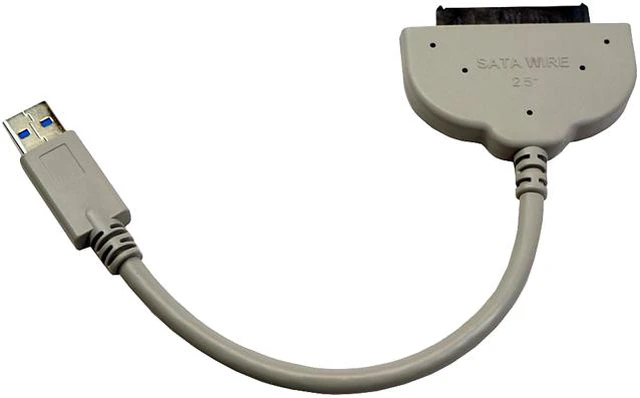
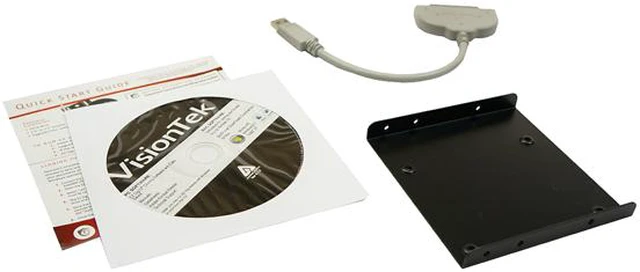
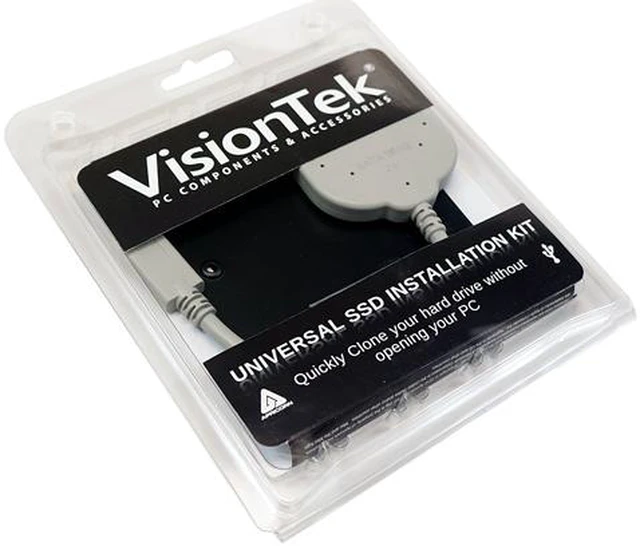
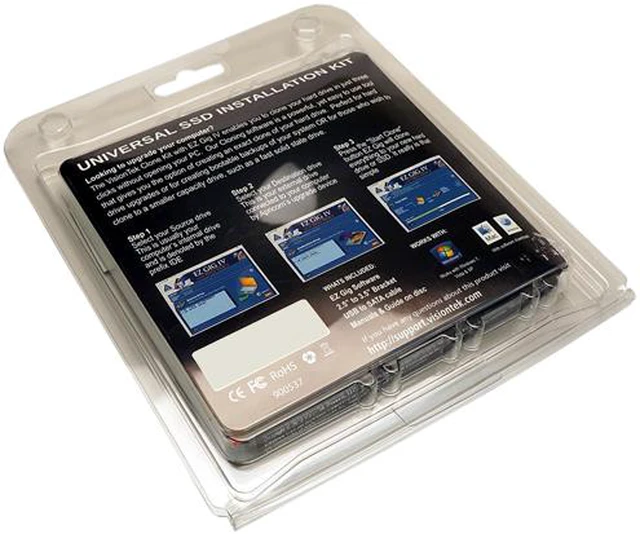
Want to upgrade your PC’ or Mac’s hard drive to a reliable Solid State Drive quickly? The VisionTek 900537 Universal SSD Installation and File Transfer Kit allows you to easily clone your data from your existing hard drive to a new solid state drive - only in three steps! It includes a point and click software, a USB to SATA 3 GB/s connection cable, and a 2.5” to 3.5” drive adapter bracket. It can also be used to create bootable clones and archival backups.
Universal SSD Cloning and Transfer Kit (USB 3.0 to SATA) featuring Apricorn EZ GigIV Cloning Software. Includes 3.5" bracket, screws, CD software disc and SATA cable. USB 2.0 to SATA 2.5" to 3.5"
 Transfer Data or Create a Supercharged Boot DiskThe Data Select would help when you migrate data from a large HDD to a smaller capacity sized SSD. It provides a simple method to exclude files from the cloning process so you migrate only the data you need. This useful feature is also perfect for creating a lightning fast SSD boot disk that loads your OS and apps nearly instantaneously while retaining your documents and media files on the original hard drive.
 Upgrade to a Larger Internal Drive in Three StepsWhen you want to copy all your data – programs, documents, address books, e-mail, even your OS and system preferences - from the small factory hard drive to a new spacious hard drive, you only need to do three steps: choose your Source and Destination drive, click the “Start Clone” button, and the custom software takes care of the rest.
 Create a Disaster Recovery BackupBefore disaster strikes and you experience a drive failure or even theft to where all your data is lost, the software can be used to create a bootable recovery backup. This “recovery” drive can be installed into your system, an external enclosure, or drive dock to keep you up and running with no data loss.
 Verify copyCompare the data of source and destination after copying. If verify copy is chosen, the free areas between partitions will also be copied. This option offers the possibility to synchronize the data of the source and destination drives after the copying process.
 Resize partitionsEZ Gig IV gives you three options when creating your clone: automatically resizing partitions to the new drive, keeping the partition sizes the same, and allowing you to manually resize your partitions. Once your clone is complete, EZ Gig IV’s final report will outline the number of sector copied, read errors, write errors and if verified, will also report verification errors.
 SmartCopySmartCopy enables you to clone your file systems in a fraction of time usually required.
 Transfer Data or Create a Supercharged Boot DiskThe Data Select would help when you migrate data from a large HDD to a smaller capacity sized SSD. It provides a simple method to exclude files from the cloning process so you migrate only the data you need. This useful feature is also perfect for creating a lightning fast SSD boot disk that loads your OS and apps nearly instantaneously while retaining your documents and media files on the original hard drive.
 Upgrade to a Larger Internal Drive in Three StepsWhen you want to copy all your data – programs, documents, address books, e-mail, even your OS and system preferences - from the small factory hard drive to a new spacious hard drive, you only need to do three steps: choose your Source and Destination drive, click the “Start Clone” button, and the custom software takes care of the rest.
 Create a Disaster Recovery BackupBefore disaster strikes and you experience a drive failure or even theft to where all your data is lost, the software can be used to create a bootable recovery backup. This “recovery” drive can be installed into your system, an external enclosure, or drive dock to keep you up and running with no data loss.
 Verify copyCompare the data of source and destination after copying. If verify copy is chosen, the free areas between partitions will also be copied. This option offers the possibility to synchronize the data of the source and destination drives after the copying process.
 Resize partitionsEZ Gig IV gives you three options when creating your clone: automatically resizing partitions to the new drive, keeping the partition sizes the same, and allowing you to manually resize your partitions. Once your clone is complete, EZ Gig IV’s final report will outline the number of sector copied, read errors, write errors and if verified, will also report verification errors.
 SmartCopySmartCopy enables you to clone your file systems in a fraction of time usually required.
Warranty & Returns
Warranty, Returns, And Additional Information
Return Policies*
- Return for refund within: 30 days
- Returns are subject to restocking fees and return shipping fees. Please click here to learn more about restocking fees and return shipping fees.
- This item is covered by Newegg.com's International Order Return Policy.
- Read full return policy for details.
- *Subject to applicable law
Warranty Notice:
This product does not include manufacturer warranty when purchased or used outside of its designated sales region. By purchasing internationally, you acknowledge that warranty support from the manufacturer will not be available.
Manufacturer Contact Info
- Manufacturer Website
- Support Phone: 1-866-883-5411
- Support Website
- View other products from VisionTek
LOADING...
LOADING...