
 here!
I’m your shopping assistant for PC builds, upgrades, and everything tech.
Got questions? Ask away!
Start a conversation
here!
I’m your shopping assistant for PC builds, upgrades, and everything tech.
Got questions? Ask away!
Start a conversation




Any questions? Ask CelesteSM will help you find out quickly.


GLOTRENDS specializes in developing high-performance PCIe adapters and riser cables for computer engineers and DIY enthusiasts.
The products mainly include 2 series: PCIe adapters (M.2 SSD Adapter, SATA Card, WiFi/Ethernet Card, USB Card, etc) and PCIe 5.0/4.0/3.0 extension cables.
The goal of GLOTRENDS is to provide quality-assured and cost-effective products to customers worldwide. Customized production is welcome.




Does it support OS boot?
No
How to Locate and Set SATA Mode to AHCI in BIOS or UEFI?
Enter BIOS / UEFI --- Advanced Mode --- SATA Mode: AHCI. (Note: set AHCI first then install Windows. If Windows has already been installed under IDE/RAID/VMD mode, directly switching SATA mode to AHCI in BIOS will trigger blue screen crash.
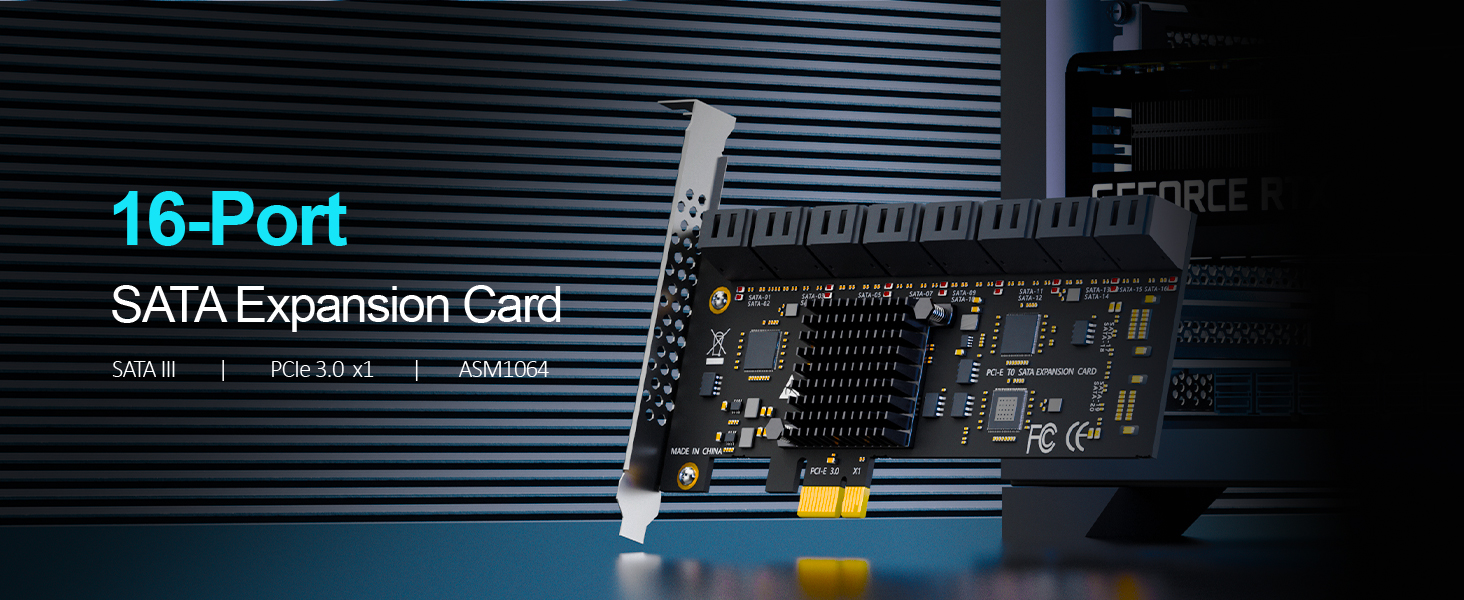
| Product Type | 16-Port PCIe SATA III Expansion Card (Host Bus Adapter / HBA, non-RAID) |
|---|---|
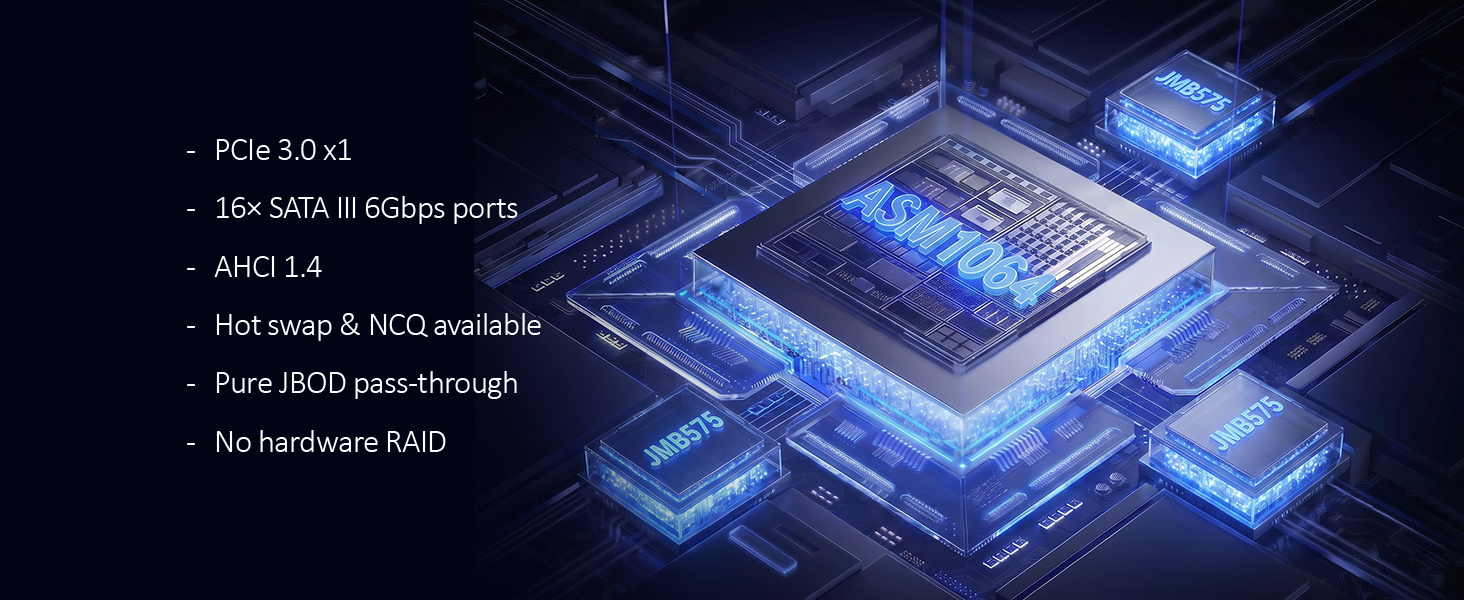
| Controller Chipset | ASMedia ASM1064 |
| Host Interface | PCI Express 3.0 x1 (upstream, 8 GT/s per lane) |
| Compatible Slots | PCIe x1 / x4 / x8 / x16 (physical slot) |
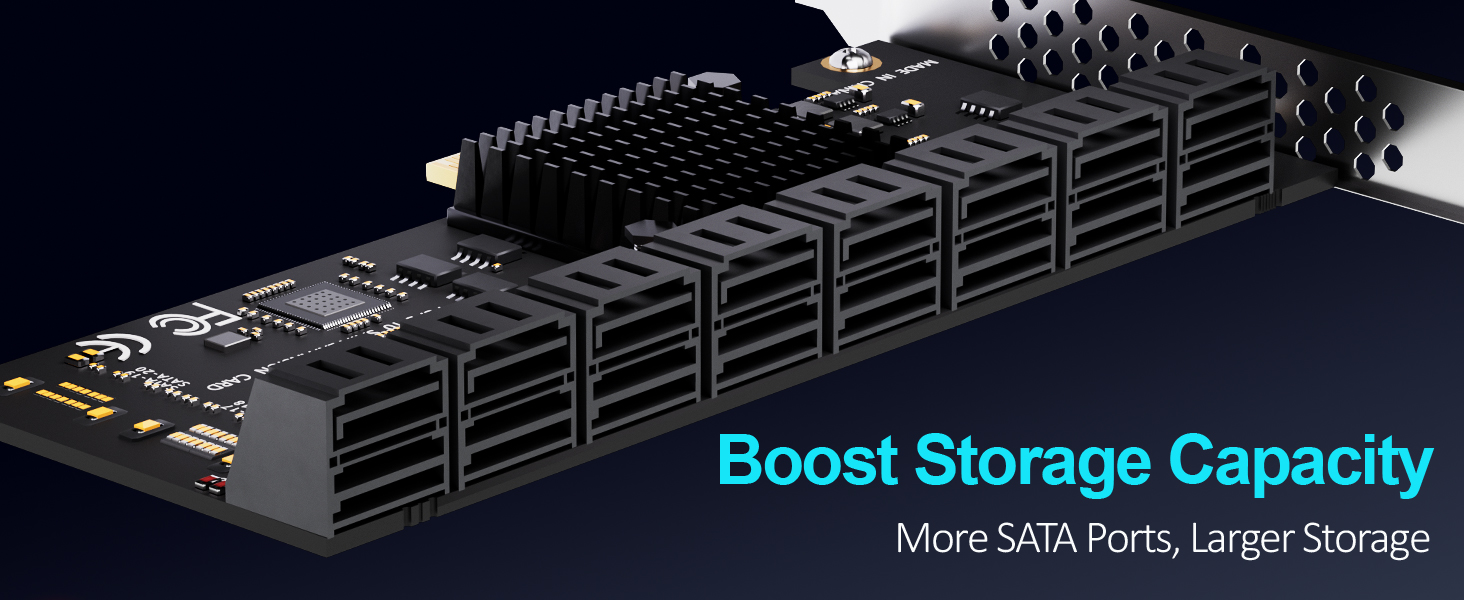
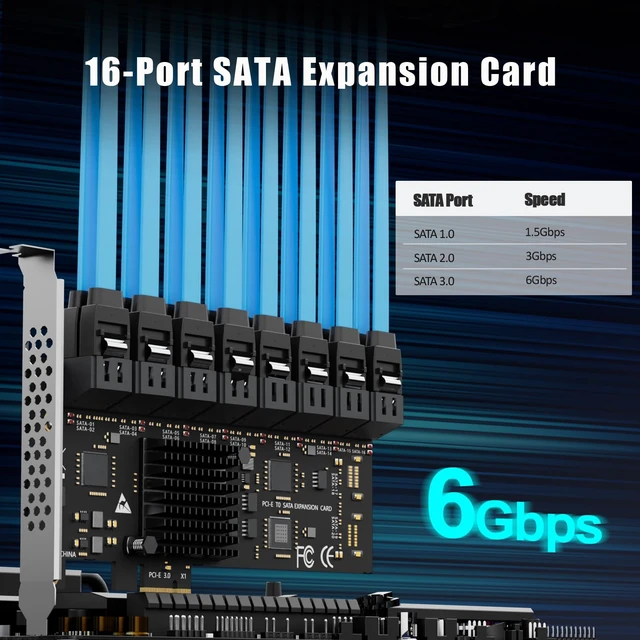
| SATA Ports | 16 × SATA III (internal), 6 Gbps per port |
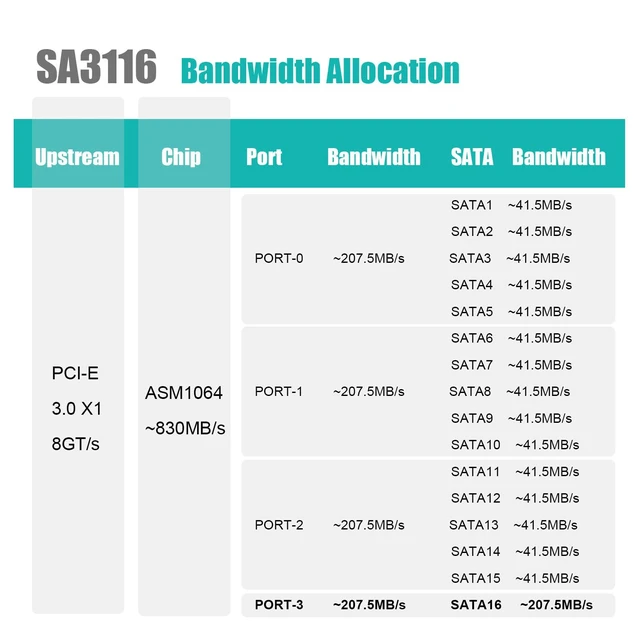
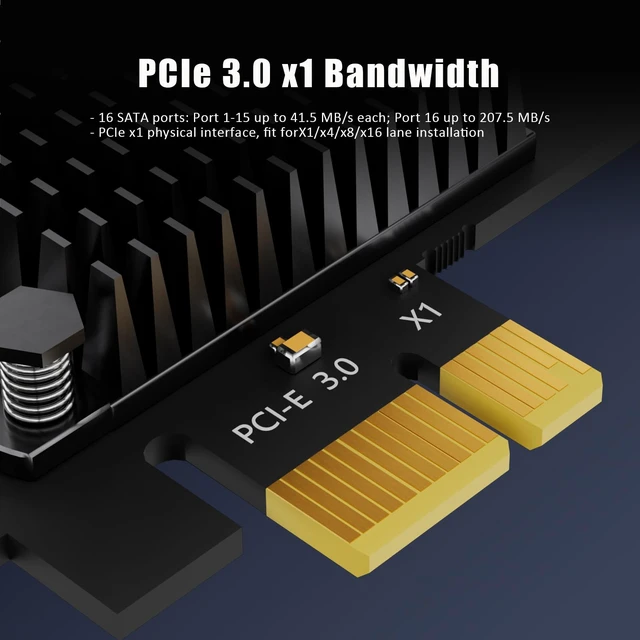
| Per-Port Bandwidth | Ports 1–15: up to 41.5MB/s each; Port 16: up to 207.5MB/s each |
| RAID Support | Hardware RAID: Not supported · Software RAID only (unRAID, TrueNAS / ZFS, Proxmox, Windows Storage Spaces) |
| OS Boot Support | Not support |
| SATA Controller Mode | AHCI (must be set in BIOS / UEFI before first install) |
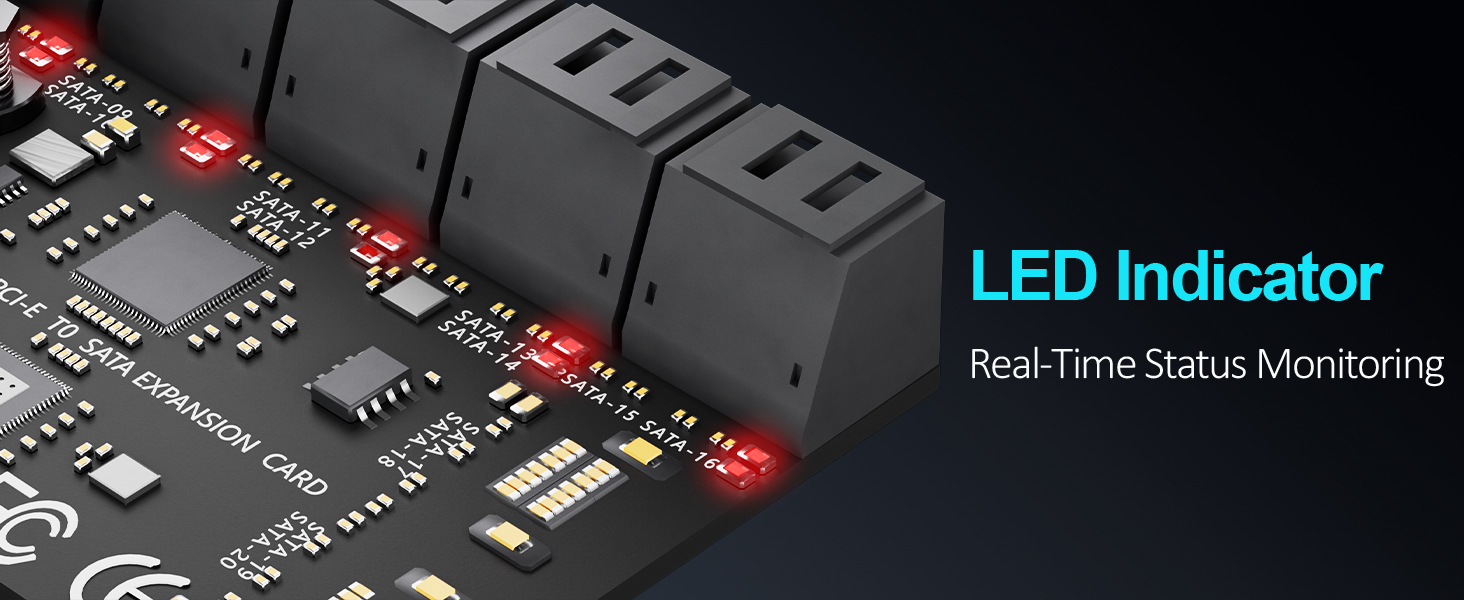
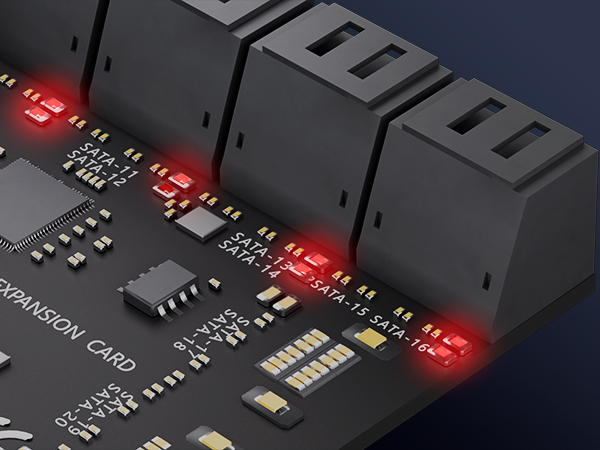
| LED Indicators | 16 × built-in LEDs — steady light = normal operation; flashing = data read/write activity |
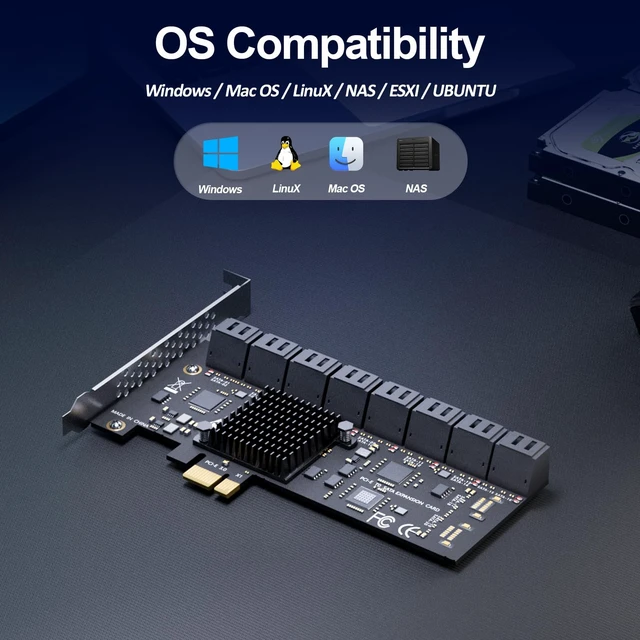
| Operating Systems | Windows (except Windows XP), macOS, Linux, NAS systems |
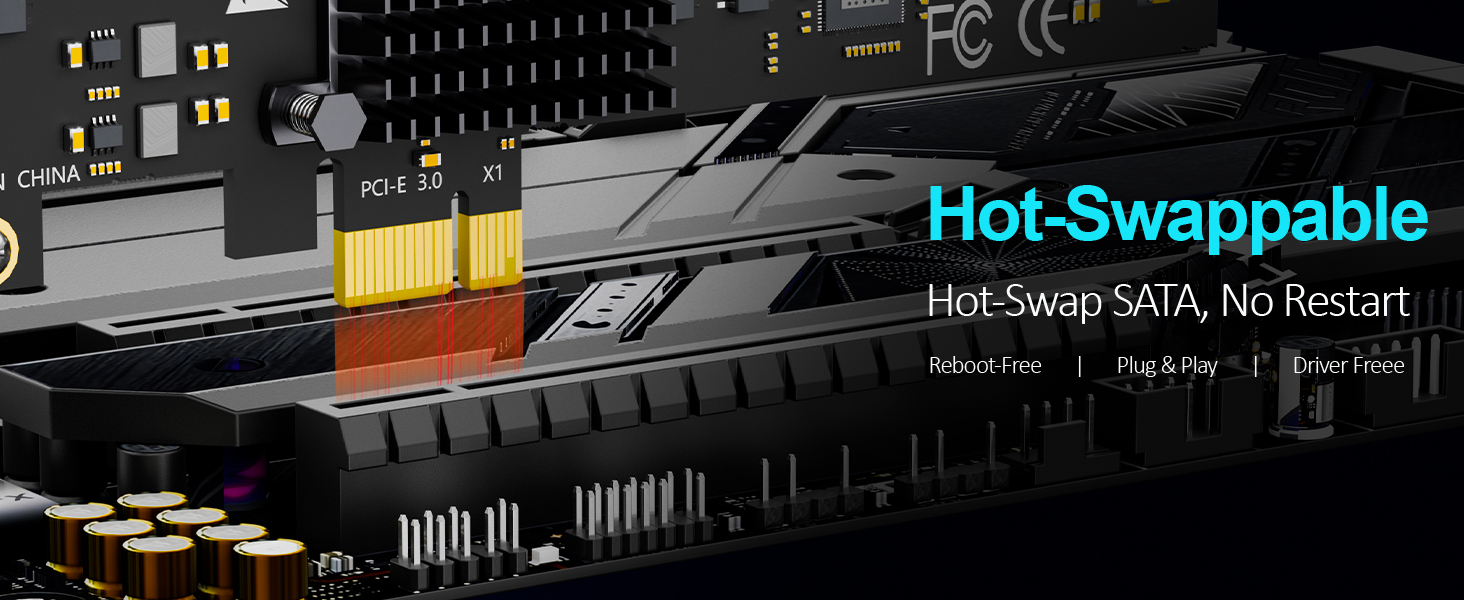
| Driver Requirement | None — Plug and Play, no driver installation required |
| Compatible Devices | SATA SSD / HDD (up to 16 drives), desktop PC, NAS enclosure |
| Typical Applications | NAS builds, home server, software RAID storage pool, media library, backup target, OS boot drive |
| Brackets Included | Regular-profile bracket (for desktop PCs) |







Does it support OS boot?
No
How to Locate and Set SATA Mode to AHCI in BIOS or UEFI?
Enter BIOS / UEFI --- Advanced Mode --- SATA Mode: AHCI. (Note: set AHCI first then install Windows. If Windows has already been installed under IDE/RAID/VMD mode, directly switching SATA mode to AHCI in BIOS will trigger blue screen crash.
GLOTRENDS specializes in developing high-performance PCIe adapters and riser cables for computer engineers and DIY enthusiasts.
The products mainly include 2 series: PCIe adapters (M.2 SSD Adapter, SATA Card, WiFi/Ethernet Card, USB Card, etc) and PCIe 5.0/4.0/3.0 extension cables.
The goal of GLOTRENDS is to provide quality-assured and cost-effective products to customers worldwide. Customized production is welcome.
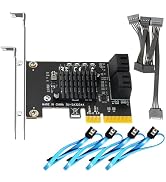
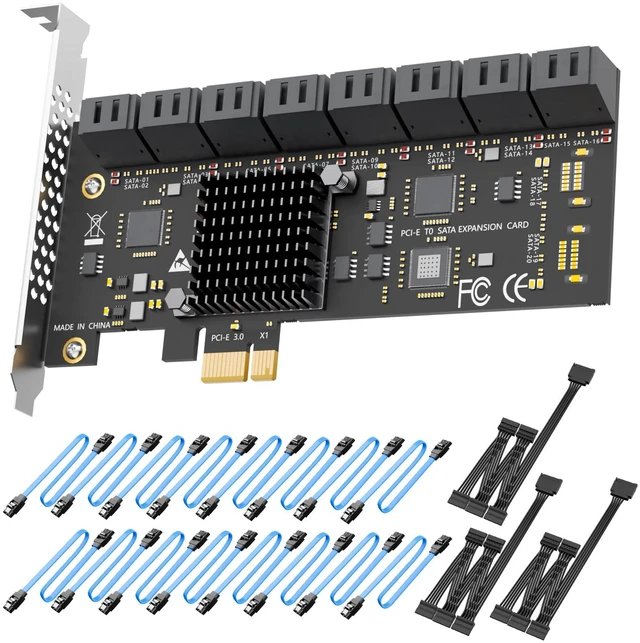
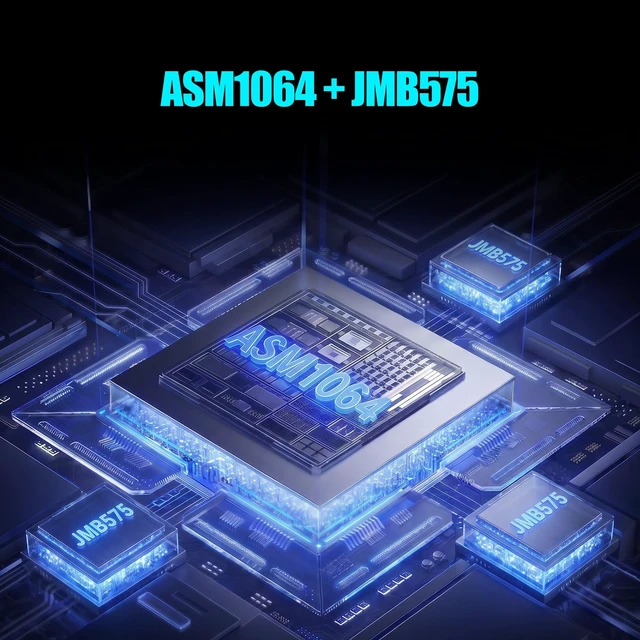
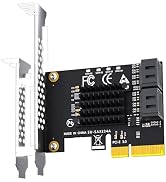
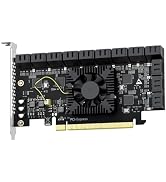
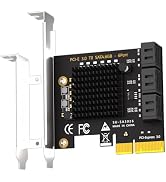
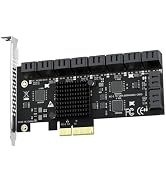
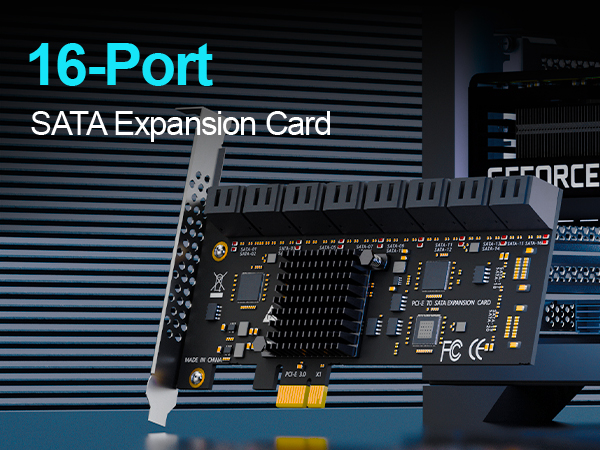
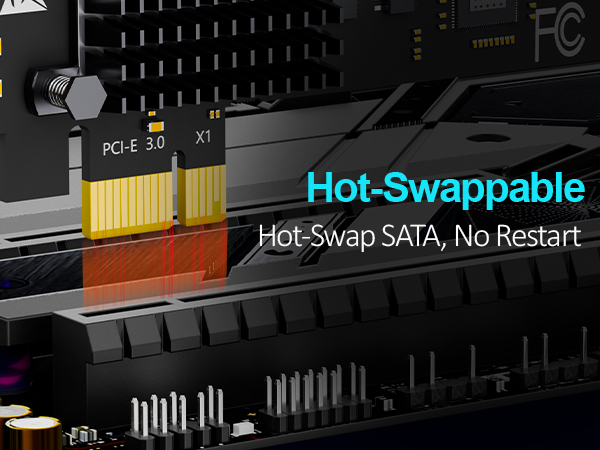
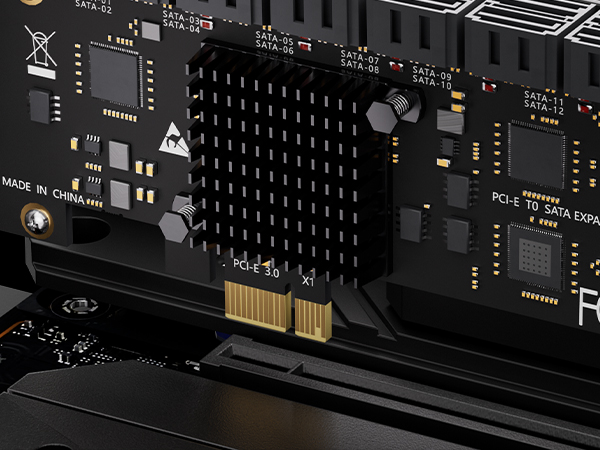
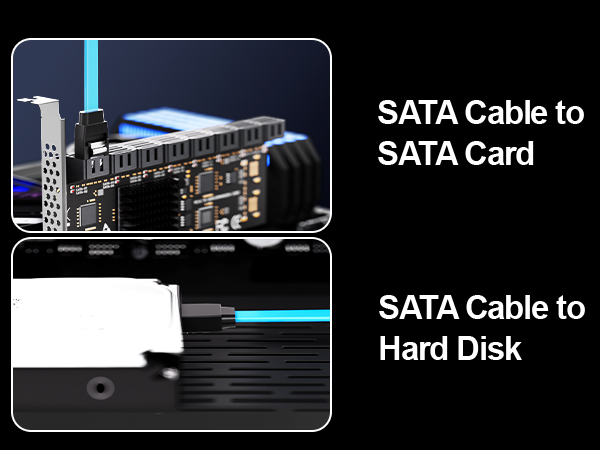
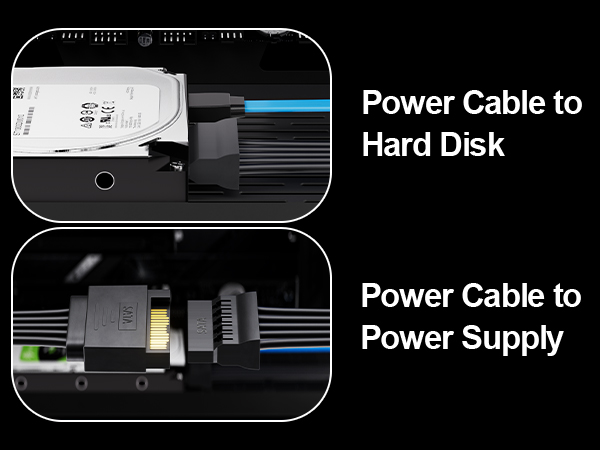
GLOTRENDS SA3116C - Add 16 SATA Drives to One PCIe Slot Running out of SATA ports? The GLOTRENDS SA3116C turns a single PCIe slot into 16 SATA III ports, powered by the ASM1064 controller plus 3x JMB575 port multipliers. It is the simple way to build a home NAS, a media server, or a large cold-storage and backup array - without replacing your motherboard. Plug the card into any PCIe X1, X4, X8 or X16 slot, connect your drives with the 16 included SATA III cables, add power with the 3 included 1-to-5 SATA splitter cables, and you are ready to go. No driver installation is needed on Windows, macOS, Linux or NAS systems such as TrueNAS and Unraid. 16 built-in LEDs show each drive's status at a glance: solid red for power, blinking for active read/write. All ports support AHCI mode and hot-swapping. Bandwidth guide:the PCIe 3.0 X1 upstream provides a shared 8GT/s. SATA ports 16 support up to 207.5MB/s per drive, and SATA ports 1-15 support up to 41.5MB/s per drive - ideal for HDDs, surveillance footage, media libraries and backups. Please note: this card does not support booting an operating system (OS boot), does not support hardware RAID (use software RAID or your NAS system's storage pool), and is not compatible with Windows XP. A full-height bracket is pre-installed; it does not fit slim or compact chassis.
| Brand | GLOTRENDS |
| Hardware Interface | PCI Express x1 |
| Style | PCIe SATA III Expansion Card |
| Item Weight | 0.57 kg |
| Compatible Devices | 16 x SATA SSD |
| Model Number | SA3116J |
| Number of Items | 1 |
| Manufacturer | glotrends |
| Item Highlight | PCIe 3.0 x1, Ports 16: up to 207.5MB/s each, Ports 115: up to 41.5MB/s each, NAS & PC builds |
| Mfr Part Number | SA3116J |
| Warranty Description | 30 Day Warranty Against Manufacturer Defects |
| Operating System | Windows/Mac OS/Linux/NAS/UBUNTU/ESXI |
| Style Name | PCIe SATA III Expansion Card |