





Instructions for Use
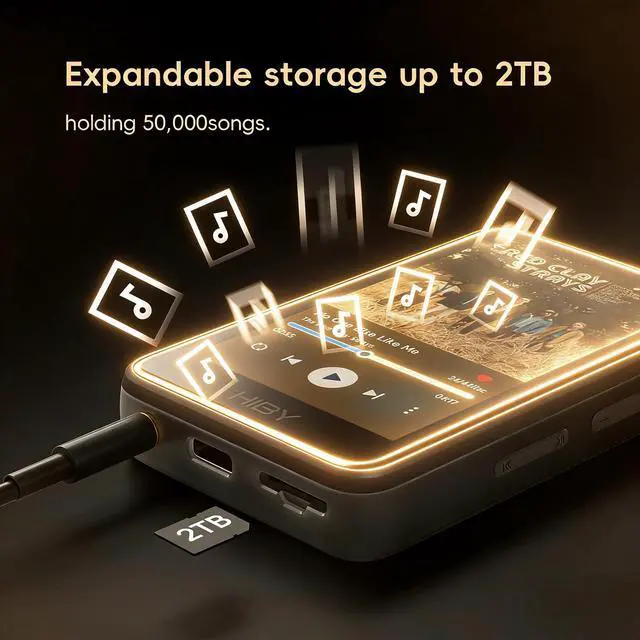
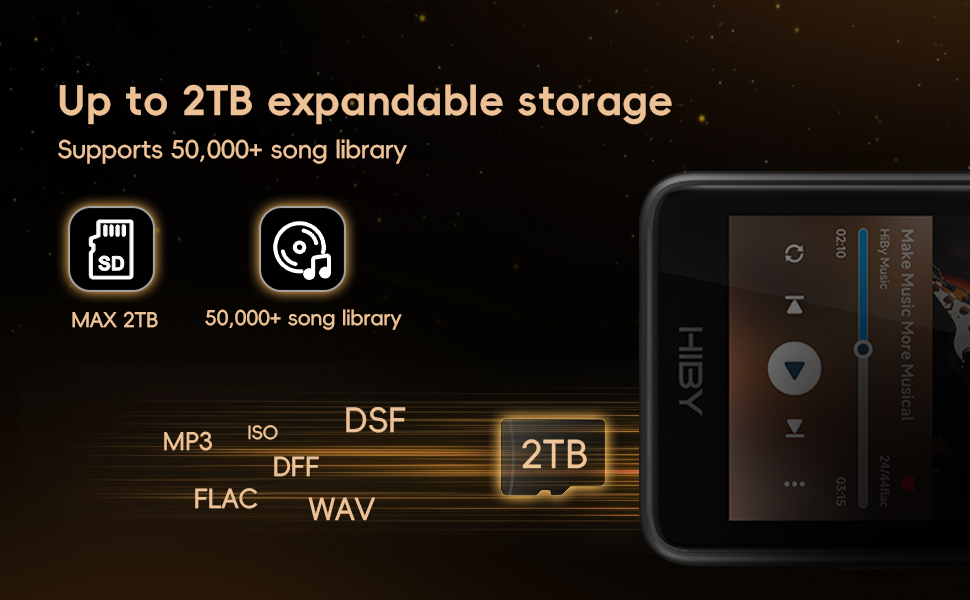
·This music player requires a TF card for normal operation.
·Insert the TF card first, then connect the player to a computer. The computer will recognize the USB storage, allowing you to transfer music files or format the TF card. The TF card cannot be formatted independently without a computer connection.
·If your computer fails to recognize the USB drive after inserting the TF card and connecting, please go to System Settings - USB Working Mode and confirm it is switched to Device Mode.
·To protect your hearing, the factory default maximum volume is limited to 50. You can manually turn off the volume lock to unlock the full volume up to 100.
Go to the About page ? continuously tap the version number below the logo 5 times to enable Developer Mode ? return to System Settings ? enter Developer Options ? disable Volume Lock.
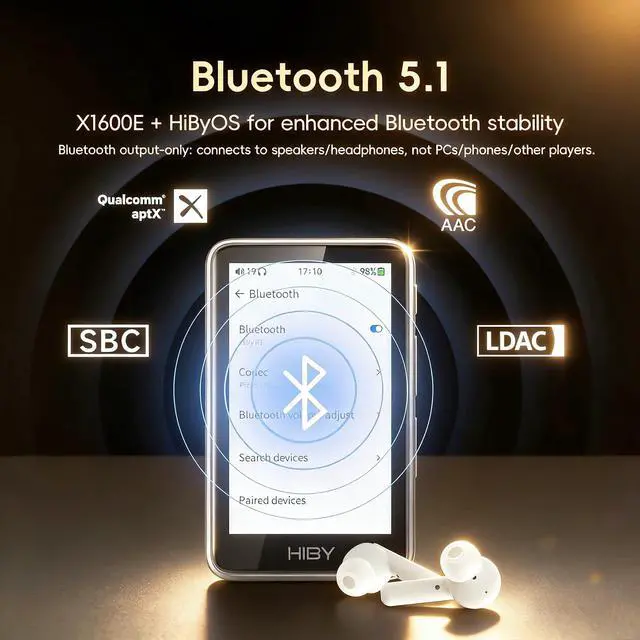
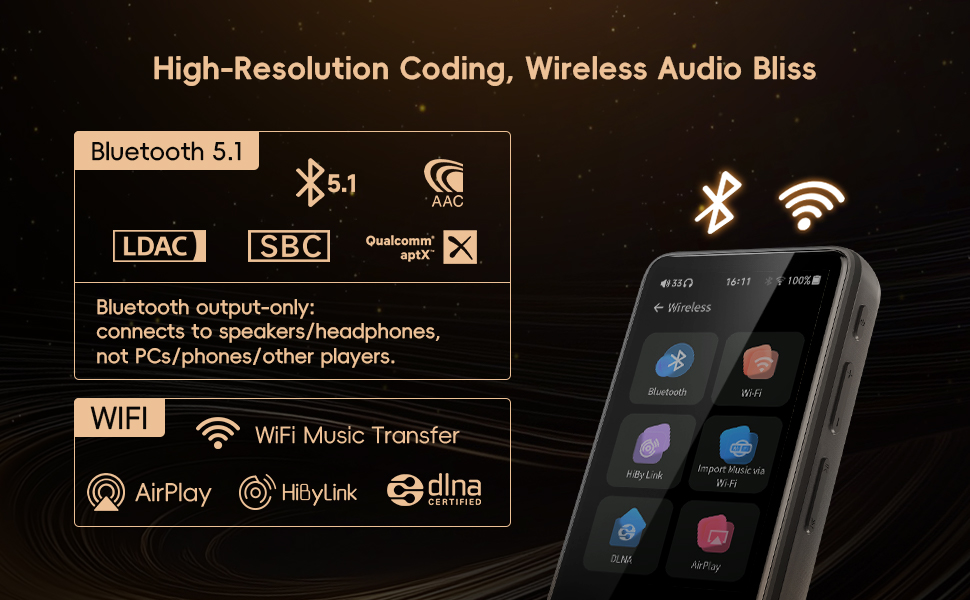
·Bluetooth fails to connect to headphones / speaker? Please ensure your Bluetooth receiving device (headphone, speaker, etc.) is powered on and enters pairing mode (flashing indicator light means pairing status). Then re-search and pair on this device.
·Bluetooth paired successfully but no sound? Check the status bar at the top of the device to see if the Bluetooth icon is displayed. If no icon appears, the connection is abnormal; disconnect and pair again. If the Bluetooth icon is visible but there is still no sound, please turn up the volume of this player and your Bluetooth device respectively.
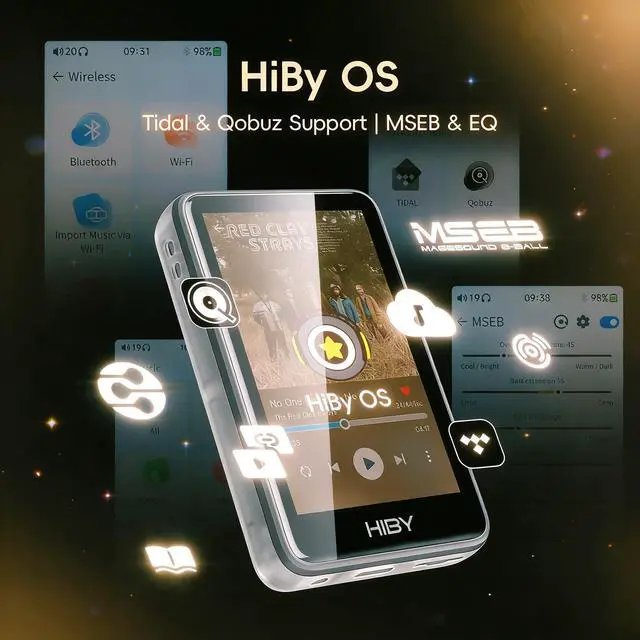
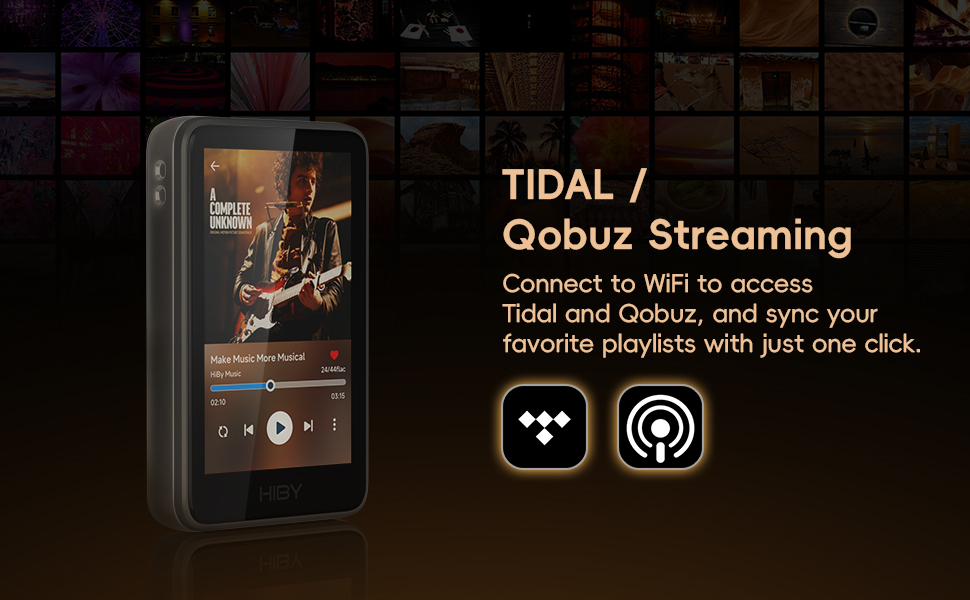
·Pre-installed with TIDAL and Qobuz streaming apps. Internet connection via Wi-Fi is required for online playback. Offline downloading and caching are not supported.
·Open the music interface ? click the star folder icon in the upper right corner ? Playlist ? custom radio to start listening.Create a new TXT file, enter valid network radio URLs, name the file radio, and save it to the root directory of the TF card.
·We offer 1-year free repair service for quality failures caused by non-human factors.
Instructions for Use
·This music player requires a TF card for normal operation.
·Insert the TF card first, then connect the player to a computer. The computer will recognize the USB storage, allowing you to transfer music files or format the TF card. The TF card cannot be formatted independently without a computer connection.
·If your computer fails to recognize the USB drive after inserting the TF card and connecting, please go to System Settings - USB Working Mode and confirm it is switched to Device Mode.
·To protect your hearing, the factory default maximum volume is limited to 50. You can manually turn off the volume lock to unlock the full volume up to 100.
Go to the About page ? continuously tap the version number below the logo 5 times to enable Developer Mode ? return to System Settings ? enter Developer Options ? disable Volume Lock.
·Bluetooth fails to connect to headphones / speaker? Please ensure your Bluetooth receiving device (headphone, speaker, etc.) is powered on and enters pairing mode (flashing indicator light means pairing status). Then re-search and pair on this device.
·Bluetooth paired successfully but no sound? Check the status bar at the top of the device to see if the Bluetooth icon is displayed. If no icon appears, the connection is abnormal; disconnect and pair again. If the Bluetooth icon is visible but there is still no sound, please turn up the volume of this player and your Bluetooth device respectively.
·Pre-installed with TIDAL and Qobuz streaming apps. Internet connection via Wi-Fi is required for online playback. Offline downloading and caching are not supported.
·Open the music interface ? click the star folder icon in the upper right corner ? Playlist ? custom radio to start listening.Create a new TXT file, enter valid network radio URLs, name the file radio, and save it to the root directory of the TF card.
·We offer 1-year free repair service for quality failures caused by non-human factors.