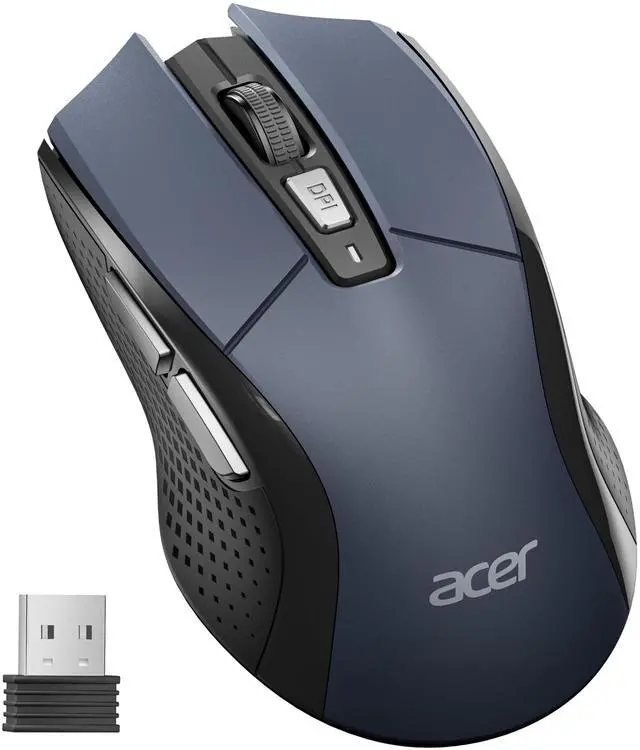
Wireless Mouse for Laptop, 2.4GHz Computer Mouse 5 Adjustable DPI Office Cordless USB Mice with USBA Receiver, 6 Buttons, 4000 DPI, Medium to Large Sized Hands Compatible with PC, Laptop, Desktop
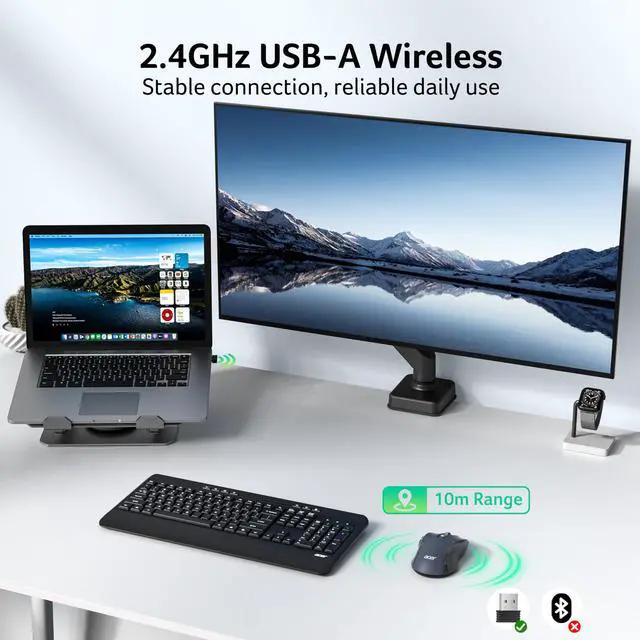
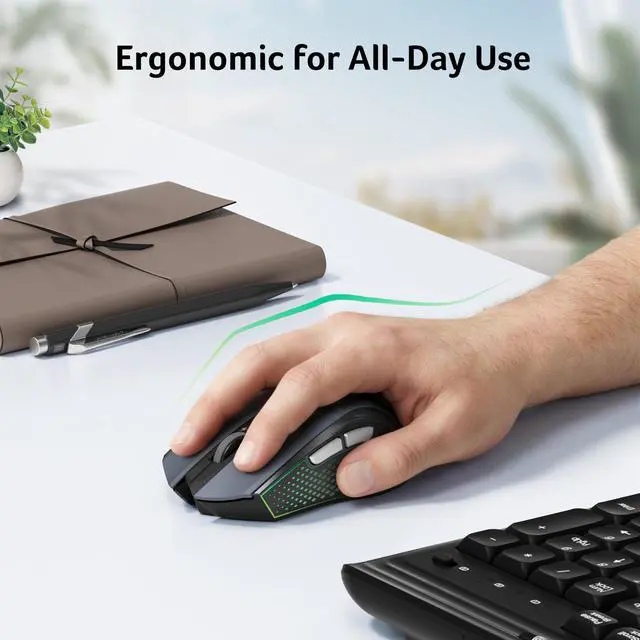
Plug and Play for Home OfficeThe wireless mouse for laptop features 2.4GHz connectivity, providing a stable, interference-free connection of up to 33ft. Designed for hands, it ensures all-day comfort. Simply plug the - into your device for instant pairing. Please remove the film at the bottom of the mouse before use.
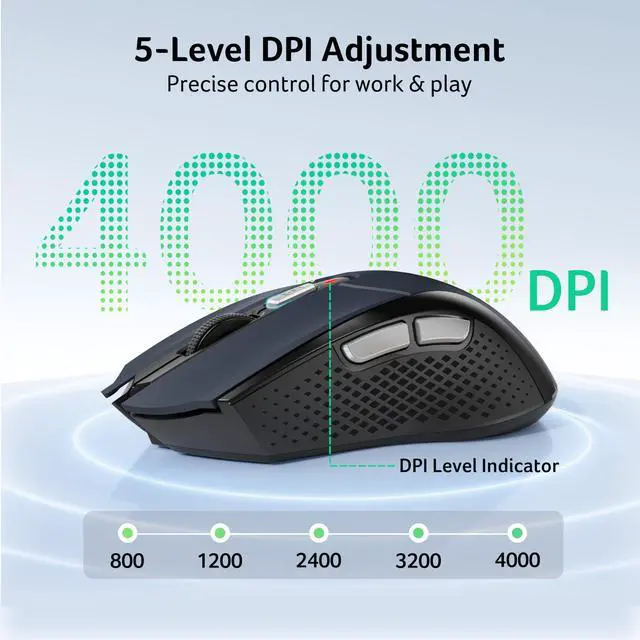
5 Levels Adjustable DPIThis laptop mouse features 5 adjustable DPI levels (800/1200/2400/3200/4000), giving you the flexibility to choose the right sensitivity for detailed design work and boost your efficiency.
Visible Indicator LightThe cordless mouse includes a visual indicator that shows both the current DPI setting and low battery warnings. A red light flashes once (800 DPI), twice (1200 DPI), three times (2400 DPI), four times (3200 DPI), or five times (4000 DPI). When battery falls below 10%, the light flashes red continuously until power runs out.
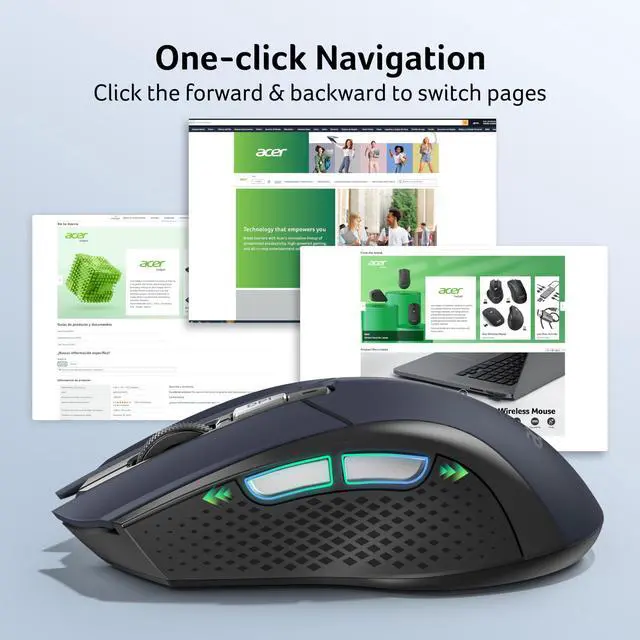
Efficient WorkflowWith forward and backward buttons, this USB mouse helps you quickly navigate web pages and files, making work more efficient with just one click.
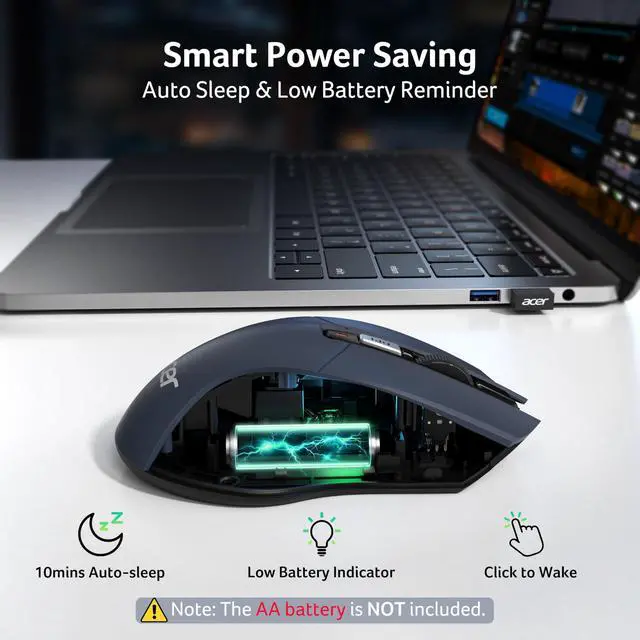
Click to WakeThis travel mouse saves power by entering standby after 10 minutes of inactivity and wakes with just 23 clicks, extending battery life. This pc mouse is rated for up to 10 million clicks and offers exceptional long-term durability.
+
+
Overview
Specs
Reviews
Any questions? Our AI beta will help you find out quickly.
Try me now
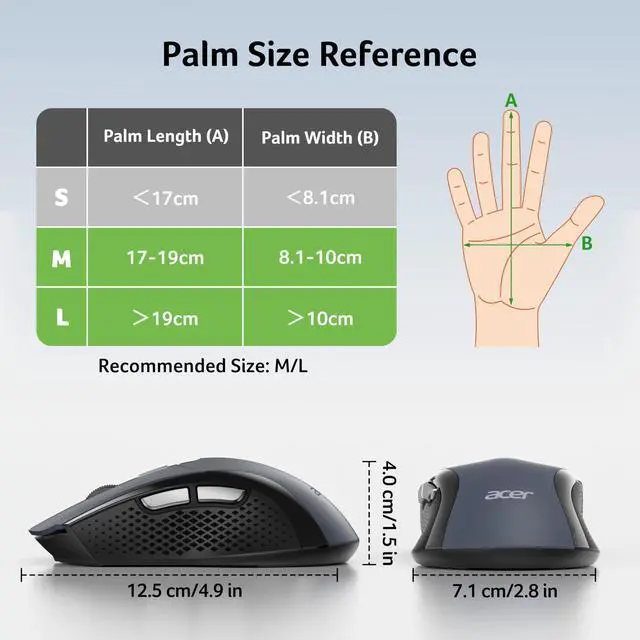
Comfortable Fit for Users with Medium to Large Hands
1. Please check if the battery is installed with the correct polarity. Make sure the power switch is set to "ON". 2. Try to plug the receiver into a different USB-A port or Restart the computer. 3. The battery might be dead.
Q2
Where is the USB A receiver?
-
Please open the battery cover; the receiver is stored underneath the battery compartment.
Q3
How to wake up the mouse?
-
Powers down after 10 minutes of idle and requires 2-3 clicks to wake it.
Q4
Why is my wireless mouse not working for a while?
-
Low battery power. Please replace the battery.
Q5
When the mouse responds slowly, has delays, or lacks precision, please follow these steps to re-pair it?
-
1. Insert the batteries into the mouse, switch it to the "NO" position to power it on.
-
2. Plug in the mouse receiver to computer, then press and hold both the left and right mouse buttons simultaneously.
-
3. Place the mouse within 20 cm of the receiver and wait for 3–5 seconds until pairing is complete. Your mouse will then be successfully paired with the receiver and ready for normal use.
Q6
How can I confirm the DPI of the mouse?
-
The DPI indicator light will light up when the DPI is switched. A red light flashes once (800 DPI), twice (1200 DPI), three times (2400 DPI), four times (3200 DPI), or five times (4000 DPI). Easily switch between 800-1200-2400-3200-4000.
Q7
What are the dimensions and weight of this mouse?
-
This mouse is L 4.94 inches, W 2.81 inches, H 1.57 inches, and a weight of 2.5oz.
Comfortable Fit for Users with Medium to Large Hands
Better Understanding of the Mouse
Q1
Why is my wireless mouse not working?
-
1. Please check if the battery is installed with the correct polarity. Make sure the power switch is set to "ON". 2. Try to plug the receiver into a different USB-A port or Restart the computer. 3. The battery might be dead.
Q2
Where is the USB A receiver?
-
Please open the battery cover; the receiver is stored underneath the battery compartment.
Q3
How to wake up the mouse?
-
Powers down after 10 minutes of idle and requires 2-3 clicks to wake it.
Q4
Why is my wireless mouse not working for a while?
-
Low battery power. Please replace the battery.
Q5
When the mouse responds slowly, has delays, or lacks precision, please follow these steps to re-pair it?
-
1. Insert the batteries into the mouse, switch it to the "NO" position to power it on.
-
2. Plug in the mouse receiver to computer, then press and hold both the left and right mouse buttons simultaneously.
-
3. Place the mouse within 20 cm of the receiver and wait for 3–5 seconds until pairing is complete. Your mouse will then be successfully paired with the receiver and ready for normal use.
Q6
How can I confirm the DPI of the mouse?
-
The DPI indicator light will light up when the DPI is switched. A red light flashes once (800 DPI), twice (1200 DPI), three times (2400 DPI), four times (3200 DPI), or five times (4000 DPI). Easily switch between 800-1200-2400-3200-4000.
Q7
What are the dimensions and weight of this mouse?
-
This mouse is L 4.94 inches, W 2.81 inches, H 1.57 inches, and a weight of 2.5oz.
Wireless Mouse for Laptop, 2.4GH z Computer Mouse 5 Adjustable DPI Office Cordless USB Mice with USBA Receiver, 6 Buttons, 4000 DPI, Medium to Large Sized Hands Compatible with PC, Laptop, Desktop
Learn more about the Acer
Model
Brand
HP
Name
Acer
Model
OMR339
Part Number
OMR339
Type
PC Keyboard\Mouse Combos
Details
Interface
USB
Hand Orientation
Right Hand
Tracking Method
Optical
Sensor
Optical
Buttons
3
Scrolling Capability
Touch Scroll
Wireless
Power Supply
Wired
OS / System Requirement
System Requirement
USB port
Additional Information
First Listed on Newegg
May 31, 2026
Customer Reviews of Acer
There are no reviews yet.
Do you own this product?
Warranty & Returns
Warranty, Returns, And Additional Information
Warranty
Please contact the Seller directly for warranty information. Warranty information may also be found on the Manufacturer's website.