
Introduction
Buying PC components can feel overwhelming, especially if you are new to building or upgrading a computer. With thousands of products across dozens of categories, knowing where to start and how to avoid buying the wrong part can save you time, money, and frustration. Newegg offers a set of tools specifically designed to help shoppers find the right parts, build a compatible system, and get the best possible price — but many buyers never discover or use them.
This guide walks you through the most useful Newegg shopping tools available in 2026, step by step, so you can shop with confidence.

Background: Why Smart Shopping Matters for PC Buyers
PC components are not like buying a book or a pair of shoes. A CPU must be compatible with your motherboard socket. Your RAM must match your motherboard’s supported memory standard. Your GPU must fit inside your case and not exceed your power supply’s available wattage. Getting any of these compatibility decisions wrong means returns, delays, or at worst, damaged hardware. The good news is that Newegg’s shopping tools are specifically designed to prevent these mistakes.
Step 1: Use Category Filters to Narrow Your Search
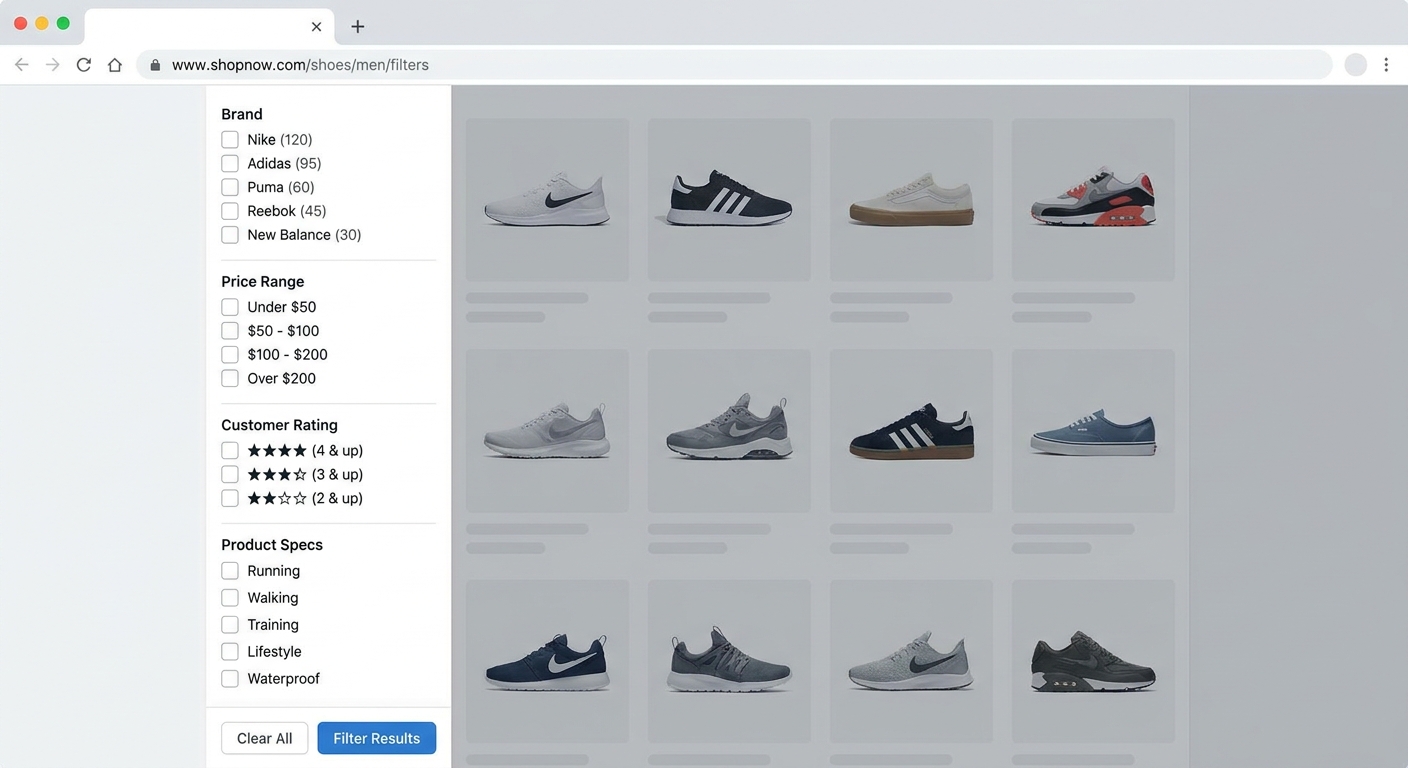
Newegg’s product category pages include robust filtering options that let you narrow thousands of results down to exactly what you need. On any category page — such as Graphics Cards, CPUs, or Laptops — the left sidebar contains filters for brand, price range, customer ratings, and detailed technical specifications.
For example, if you are shopping for a gaming GPU, you can filter by: VRAM size (8GB, 12GB, 16GB), manufacturer (NVIDIA, AMD), interface (PCIe 5.0, PCIe 4.0), price range, and average customer rating. Combining two or three filters simultaneously reduces thousands of results to a manageable shortlist. Always filter by “In Stock” to avoid wasting time on backordered items.
Pro tip: Sort results by “Best Match” first to see Newegg’s relevance ranking, then switch to “Price: Low to High” or “Top Reviews” to find hidden gems that might not be at the top of the default sort.
Step 2: Use the PC Builder Tool for New Builds
If you are building a new PC from scratch, Newegg’s PC Builder tool is one of the most valuable resources available. It allows you to select components across every category — CPU, motherboard, RAM, storage, GPU, case, power supply, and cooling — and checks compatibility between your selections in real time.
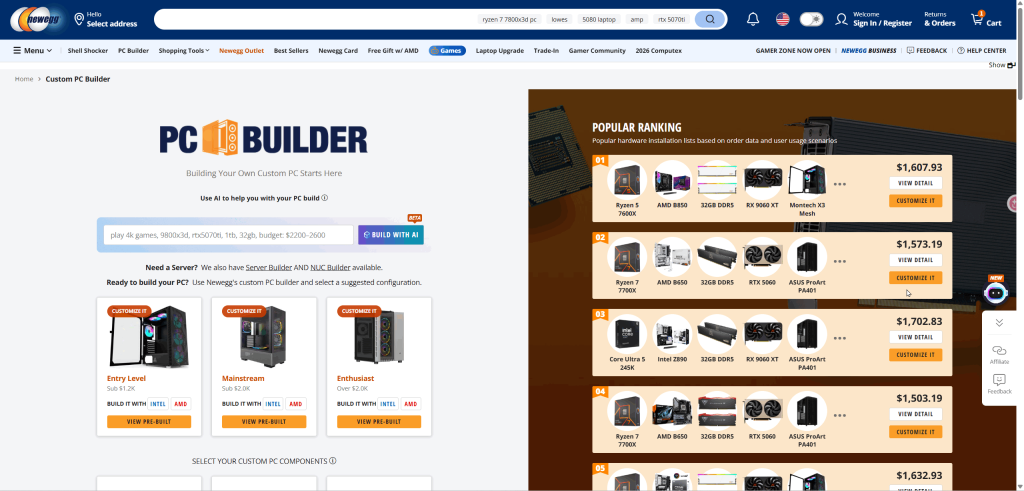 When you select a CPU, the tool automatically filters compatible motherboards. When you add a case, it flags any GPU that is too long to fit. The tool also tracks your total budget as you add components, making it easy to see where you can trim or upgrade. When your build is complete, you can add all components to your cart in a single click — saving significant time versus searching for each item individually.
Access the PC Builder tool at newegg.com/tools/pc-builder.
Step 3: Check Combo Deals for Bundled Savings
Newegg frequently offers combo deals — bundled pricing when you purchase two or more compatible components together. Common combinations include CPU plus motherboard bundles, which often save $20 to $50 compared to buying the same items separately, and GPU plus case bundles.
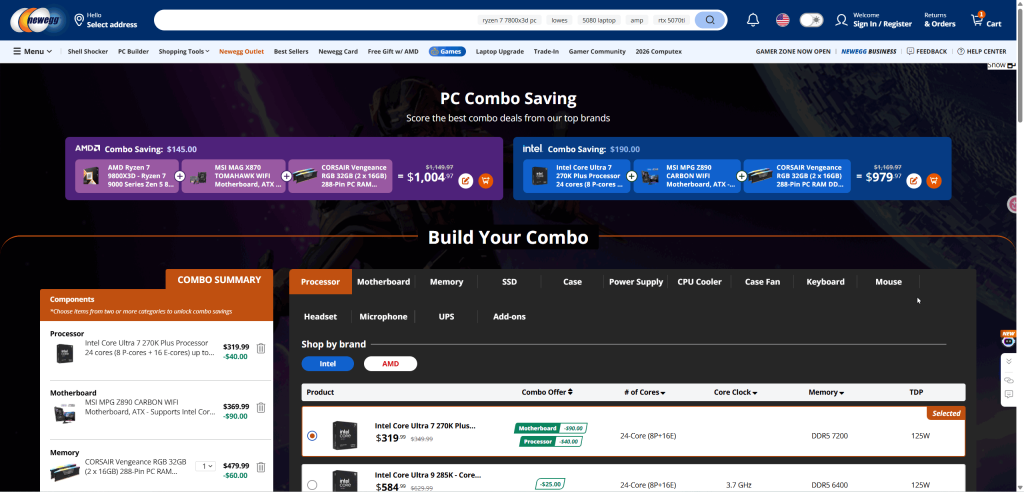 To find combo deals: on any product page, scroll down to the “Combo Deals” section. If the product has available bundles, they will appear here with the combined discount clearly listed. You can also browse combo deals directly through Newegg’s promotional pages during sales events. For first-time builders buying multiple components, always check whether a combo deal is available before adding items to your cart individually.
Step 4: Set Price Alerts for Items You Are Watching
PC component prices fluctuate regularly — GPUs in particular can swing by $30 to $100 within a few weeks based on stock availability and market demand. Newegg allows registered users to set price drop alerts on specific products. When the item’s price falls below your specified threshold, you receive an email notification so you can purchase at the optimal time.
To set a price alert: navigate to the product page, click “Add to Wish List,” and set your desired target price. You can manage all your tracked items from your account’s Wish List section.
Step 5: Read Reviews Strategically
Newegg’s product reviews are one of its most valuable resources for buyers. Unlike general consumer reviews, Newegg’s buyers are typically technically literate and provide detailed feedback about compatibility, thermal performance, and real-world use — information you will not find in mainstream retail reviews. When evaluating a product, prioritize reviews that mention your specific use case (gaming, workstation, compact builds) and pay attention to negative reviews describing compatibility issues or quality control problems. Sort reviews by “Most Recent” to see if patterns have changed after a product revision.
Summary: Shop Smarter on Newegg
Whether you are building a new PC, upgrading a single component, or simply looking for the best deal, Newegg’s shopping tools take the guesswork out of the process. Use category filters to narrow your options, the PC Builder for compatibility checking on new builds, combo deals for bundled savings, price alerts for timing your purchase, and the review system for real-world buyer feedback. Combined, these tools give PC shoppers a significant advantage over buying without research.
Start Building Your PC on Newegg
Read More
- PCPartPicker Build Guides — Community-curated PC build guides with pre-verified part compatibility across different budget tiers.
- Reddit r/buildapc Wiki — Comprehensive guide to planning and executing a PC build, including part selection, compatibility, and assembly tips.
- Tom’s Hardware: How to Build a PC — Step-by-step PC build guide with photos covering component selection through first boot.
- Linus Tech Tips: How to Build a Gaming PC 2026 (YouTube) — A beginner-friendly video walkthrough of the complete PC building process from start to finish.
- Newegg PC Builder Tool — Start your compatible build with Newegg’s official PC Builder, with real-time compatibility checks and one-click cart addition.
Related Posts
- Best Budget Desktop PCs Under $800 in 2026: Big Performance, Small Price
- Best NVMe SSDs in 2026
- GPU Prices Climbed Again. Here Is What I Would Buy in 2026
- Best Mechanical Keyboards in 2026
- Best Gaming CPUs in 2026
Frequently Asked Questions
Common questions about using Newegg tools to build and buy PC components.