
Motherboards are the part of a build people most often overspend on and most often underthink. Overspend, because the expensive ones look impressive and the feature list is long. Underthink, because the two or three things that will actually annoy you in two years are buried halfway down the specification tab.
I have built on AM5 enough times now to have opinions about which of those things matter. Here are the questions worth asking, with eight boards attached to the answers.
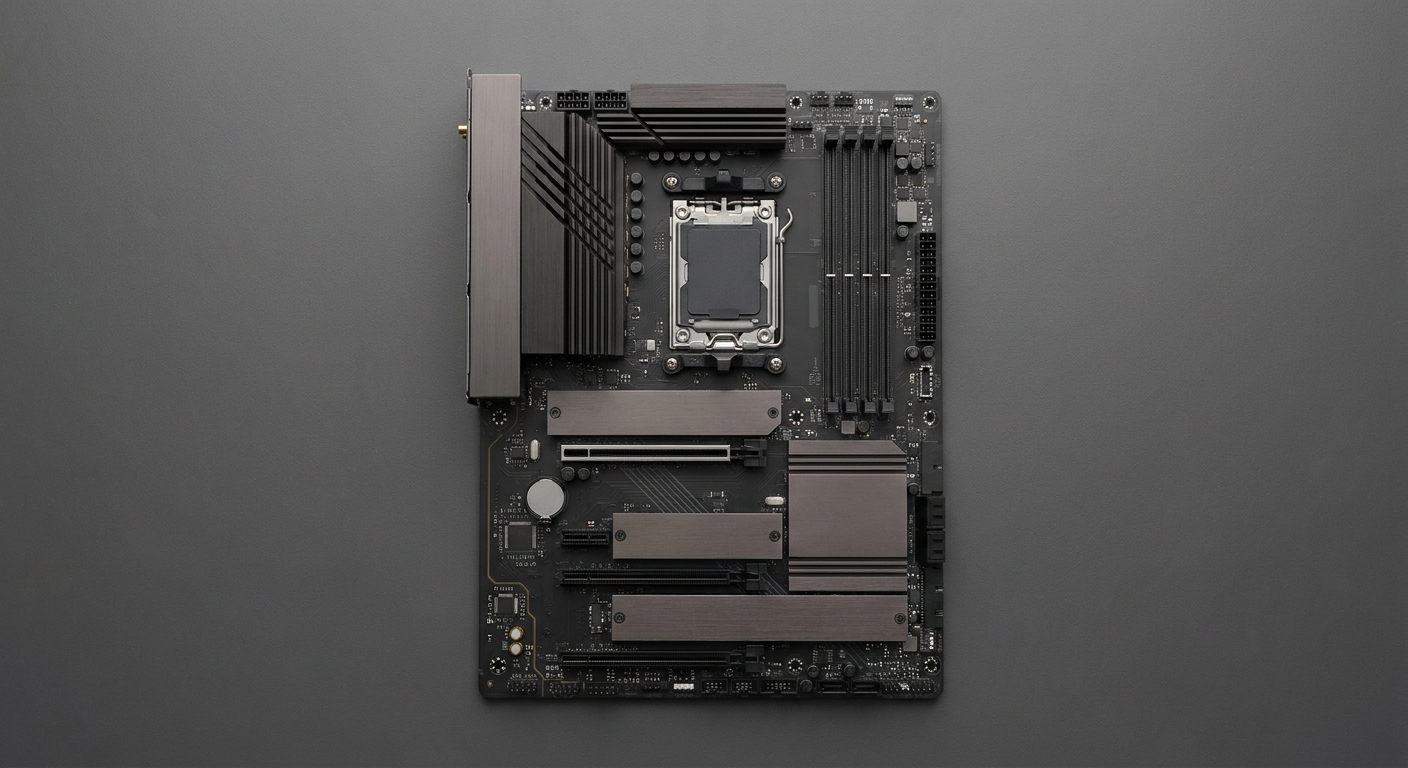
Does the Chipset Name Actually Matter?
Less than the marketing implies, and not in the direction you would guess. B850 and X870 boards here both take the same processors and the same memory. What changes is lane allocation, the number of M.2 slots, and how much of the rear I/O is populated.
The clearest example is on this list. The MSI MAG B850 TOMAHAWK MAX WIFI is a B850 board with a PCIe 5.0 x16 slot from the CPU, two CPU-attached M.2 slots that both run PCIe 5.0 x4, 5Gbps Ethernet, Wi-Fi 802.11be, an ALC4080 codec, memory support listed to 8400+ MT/s overclocked, and a 20Gbps front Type-C header. On paper it outruns plenty of X870 boards.
How Many M.2 Slots Do I Really Need?
Two is enough for most builds and three is comfortable. Four is a workstation decision. The thing to check is not the count but the source: slots wired to the CPU keep full bandwidth, while chipset slots often share lanes with an expansion slot, and populating one quietly drops the other.
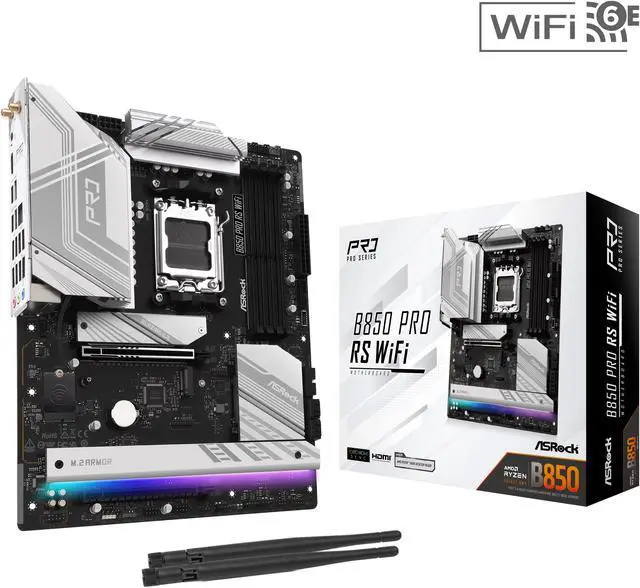
The ASRock B850 PRO RS WIFI is my favourite example of getting this right without theatre. ATX, four DDR5 slots rated to 8000+ overclocked, one PCIe 5.0 x16 from the CPU, one PCIe 4.0 x16 running at x4, a CPU-attached PCIe Gen5 x4 M.2, four SATA ports, 2.5Gbps Ethernet, Wi-Fi 6, ALC897 audio and two 8-pin CPU power connectors.
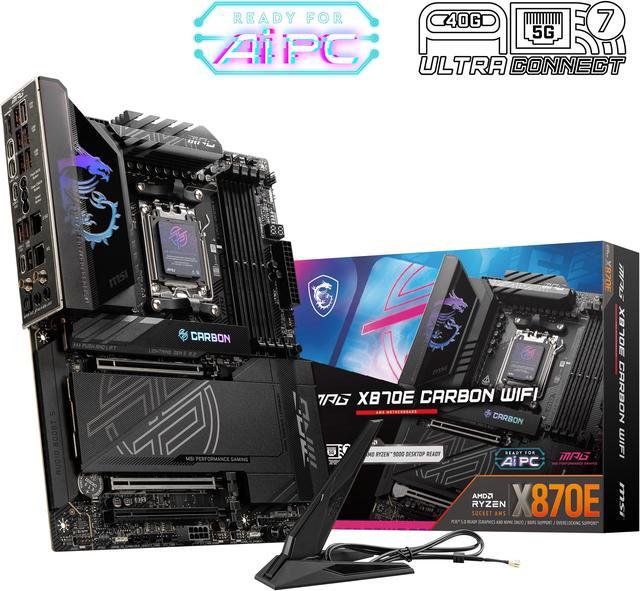
At the other end, the MSI MPG X870E CARBON WIFI gives you four M.2 slots with the first two running PCIe 5.0 x4 from the CPU, a 110A SPS VRM, Wi-Fi 7, both 5Gbps and 2.5Gbps Ethernet, ALC4080 audio, and an extra 8-pin PCIe power connector for the graphics slot. That last detail is a real consideration with current cards.
Is Wi-Fi 7 Worth Paying For?
If your router is Wi-Fi 6 and you are not replacing it, no. If you are buying a board you intend to keep for five years, it is a cheap piece of future-proofing that costs nothing to have.
The ASUS ROG Strix B850-F GAMING WIFI7 NEO is the board I would pick if I wanted that box ticked alongside everything else: 16+2+2 power stages, four M.2 slots with the first running PCIe 5.0 x4 from the CPU, Wi-Fi 802.11be, 5Gbps Ethernet, ALC4080-based SupremeFX audio, and memory support listed beyond 8400 MT/s overclocked with Ryzen 9000 chips. It carries only two SATA ports, which is the trade for all those M.2 slots.
The GIGABYTE X870 AORUS ELITE WIFI7 takes a more balanced approach: four M.2 slots, four SATA, USB4, Wi-Fi 7, 2.5Gbps Ethernet and ALC1220 audio, with a five-year warranty. Its PCIe x4 slot shares bandwidth with an M.2, so read the manual before filling everything.
What If I Want Something Smaller?
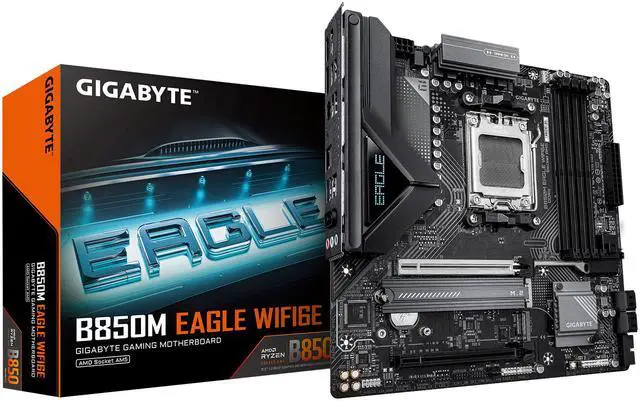
The GIGABYTE B850M EAGLE WIFI6E is the Micro-ATX option and it gives up less than you would expect. Four DDR5 slots, a CPU-attached PCIe 5.0 x16, two M.2 slots supporting PCIe 5.0 x4 and PCIe 4.0 x4, four SATA, 2.5Gbps Ethernet, Wi-Fi 6E, two rear USB Type-C ports with USB 3.2 Gen 2, and a single 8-pin CPU power connector.
That last spec is the honest limit of the board. One 8-pin is fine for a 65W or 120W processor and is not what I would put a 200W chip behind if I planned to load it for hours.
Where Should I Not Cut Costs?
Power delivery and rear I/O. Everything else you can live with.
The MSI PRO B850-S WIFI6E is the budget ATX pick here: four DDR5 slots supporting up to 8200 MT/s overclocked, two CPU-attached M.2 slots with the first at PCIe 5.0 x4, four SATA, 2.5Gbps Ethernet, Wi-Fi 6E, a 10Gbps Type-C port and two 8-pin CPU power connectors. Note that its main graphics slot is PCIe 4.0 x16 rather than 5.0, which matters for almost nothing today.
And if you want the flagship without qualification, the ASUS ROG STRIX X870E-A GAMING WIFI7 NEO pairs 16+2+2 power stages with four M.2 slots, four SATA, Wi-Fi 7, 5Gbps Ethernet and memory support listed past 8600 MT/s overclocked on Ryzen 9000 processors.
How I Would Choose
Most builds: the B850 TOMAHAWK MAX, or the B850 PRO RS if you want to spend less and lose very little. Small case: B850M EAGLE, with a 65W or 120W processor. Lots of drives, or a 200W chip: X870E CARBON. Keeping it five years: Strix B850-F, or the X870E-A if you want the full set.
Whatever you choose, update the BIOS before you install anything else. It takes ten minutes and it has saved me two afternoons. The full range is in Newegg’s AM5 motherboard listings.
Frequently Asked Questions
What is the difference between B850, X870 and X870E? They take the same AM5 processors and the same DDR5 memory. The differences are in how many PCI Express lanes the chipset provides and therefore how many M.2 slots, expansion slots and rear ports a board can populate without sharing bandwidth. A well-specified B850 board can easily out-feature a basic X870 board, so compare the actual slot and port lists rather than the chipset name.
Do I need a PCIe 5.0 x16 graphics slot? Not today. Current graphics cards do not saturate PCI Express 4.0 x16, and boards such as the MSI PRO B850-S that run the main slot at 4.0 x16 lose essentially nothing in games. It is a reasonable thing to want on a board you plan to keep for many years, but it should not be the deciding factor.
How do I know if my M.2 slots will share bandwidth? The board manual and the Newegg specification tab both note it, usually with a line saying a PCI Express slot drops to fewer lanes when a particular M.2 slot is populated. The GIGABYTE X870 AORUS ELITE and the MSI B850 TOMAHAWK MAX both document this behaviour. Plan which slots you will fill before you buy rather than after.
Do I need both 8-pin CPU power connectors populated? If the board has two, connect both when you are running a high-power processor. Most of these boards provide two 8-pin connectors, while the Micro-ATX GIGABYTE B850M EAGLE has one, which is appropriate for the 65W and 120W chips it is likely to host but limiting for a 200W part under sustained load.
Will I need to update the BIOS for a new processor? Possibly, and it is worth doing regardless. AM5 has accepted several processor generations, and support for the newest chips usually arrives through a firmware update. Many boards include BIOS flashback, which lets you update from a USB stick without a processor installed, and that feature is worth looking for if you are buying a board and a brand-new CPU together.
Read More
- Tom’s Hardware: Best Motherboards — Reviews covering VRM quality, connectivity and BIOS behaviour across chipsets.
- TechPowerUp: Motherboard Reviews — Detailed teardowns including power stage analysis and lane allocation diagrams.
- AMD: AM5 Chipsets — The official comparison of what each AM5 chipset provides in lanes and connectivity.
- ASUS: Motherboards — Manufacturer specification pages for the ROG Strix B850-F and X870E-A, including full M.2 lane details.
- Newegg: AM5 Motherboards — Filter by chipset, form factor, M.2 count, networking and power stages.
Related Posts
- AM4 or AM5 in 2026? What the Memory Price Surge Changed
- Ryzen 7 7700X3D Motherboard and BIOS Guide: Official Support, Step by Step
- Get Your AM5 Rig Ready: Motherboards to Buy Before AMD’s Next X3D CPU Lands
- Best AM5 Motherboards for Ryzen 9000 Series in 2026
- How Much Memory an AM5 Build Actually Needs in 2026