
Back to school season always raises the same question: can one machine handle lecture notes at nine, a rendering assignment at noon, and a few rounds with friends at midnight? Buy a laptop and you are locked into whatever compromises the manufacturer chose. Build a desktop yourself and the answer becomes an emphatic yes, usually for less money than most people expect, and with a machine you can repair, upgrade, and genuinely understand. This guide walks through a complete student build, step by step, with every price checked against live Newegg listings at this writing. No fantasy budgets, no parts that were discontinued last spring, and no pretending 2026 component prices are what they were two years ago.
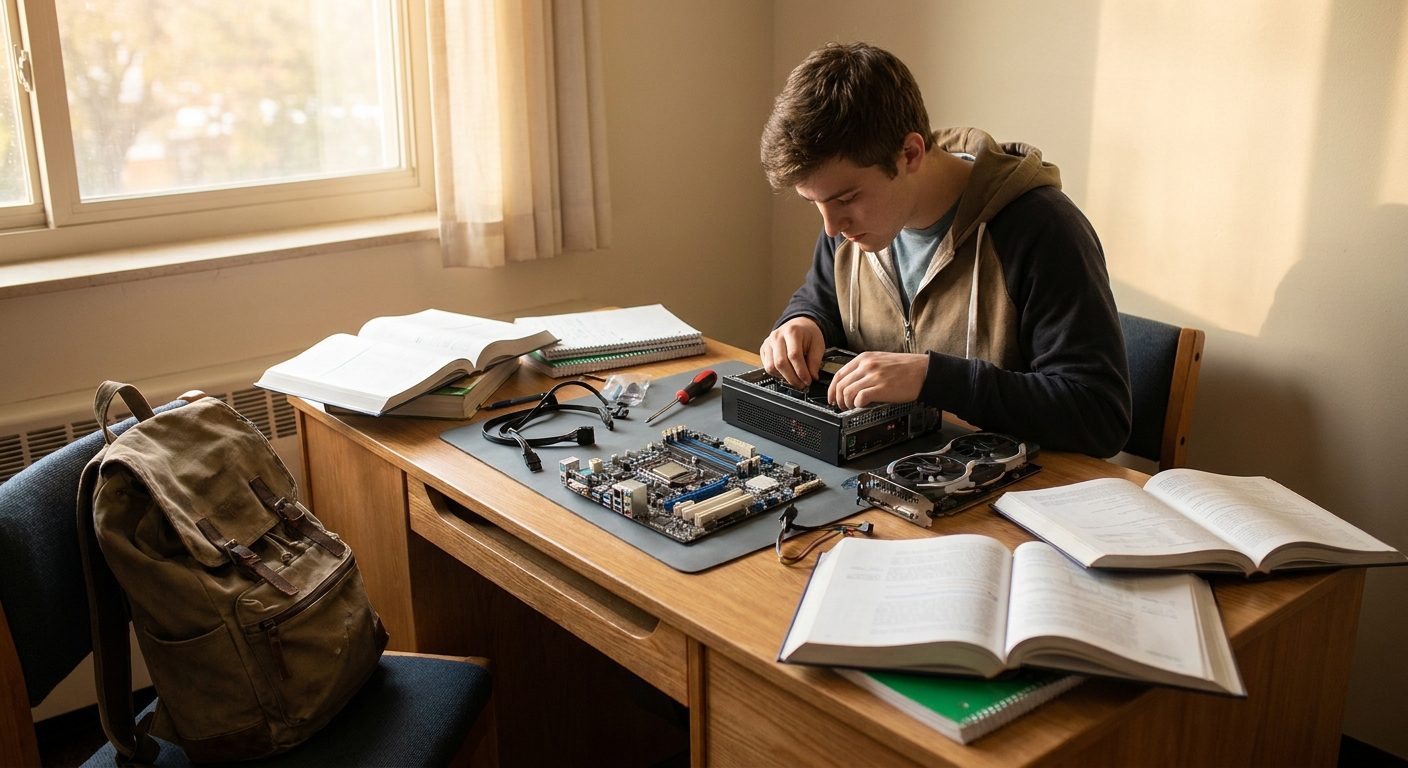
Why Build Instead of Buy?
Three reasons matter to students specifically. Cost efficiency: prebuilt systems carry assembly margins, and budget prebuilts often hide their savings in exactly the parts you cannot easily see on a spec sheet, such as the power supply, the motherboard VRMs, and the cooling. Building yourself puts every dollar into components you chose. Repairability: when something fails during finals week, and hardware has a sixth sense for timing, a self-built machine lets you diagnose and swap one part instead of shipping an entire sealed system to a service depot for three weeks. Upgradability: choose the platform wisely now, and a junior-year graphics upgrade or a memory bump rides on the same motherboard, case, and power supply you buy today.
There is a fourth reason nobody puts on spec sheets: building a PC is the single best crash course in how computers actually work. For an afternoon of careful screwdriver work, you graduate from user to owner. If you can assemble IKEA furniture, you can assemble a PC; modern parts are keyed so that almost nothing fits in the wrong place.
Step 1: Start With a Sensible CPU and Board
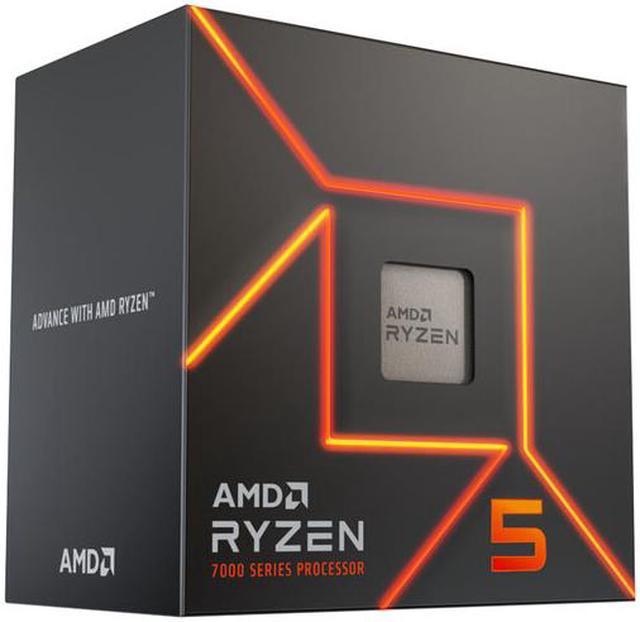
The processor sets the tone for the whole build, and here is the counterintuitive truth: you do not need a flagship. Coursework, browsers, office suites, and programming environments are comfortable on six modern cores, and the overwhelming majority of games still scale best across six to eight. The six-core, twelve-thread AMD Ryzen 5 7600 is currently listed at $169.98, boosts to 5.1GHz, ships with a perfectly usable cooler in the box, and sips power at a 65W TDP, which also means less heat and less fan noise in a small dorm room. In everyday feel, it is indistinguishable from chips costing twice as much; in gaming, it keeps pace far above its price class.
The motherboard decision is really a platform decision, and this is where students should think in four-year terms. Socket AM5 is the smart home for a student build because AMD has extended official platform support out to 2029, longer than most undergraduate careers. The GIGABYTE B650M Gaming Plus WiFi ($108.74) covers every dorm-specific requirement: built-in Wi-Fi 6E for residence halls where an ethernet jack is a rumor, 2.5GbE LAN for when you do find one, a compact Micro-ATX footprint that fits under-desk cases, and a Q-Flash Plus button that can update the BIOS from a USB stick without a CPU installed. That last feature sounds obscure until the day it saves you, and it also means this board will happily accept the X3D-class gaming chips you might crave in two years, including the newest additions to that family.
Step 2: Pick a GPU That Matches Student Reality
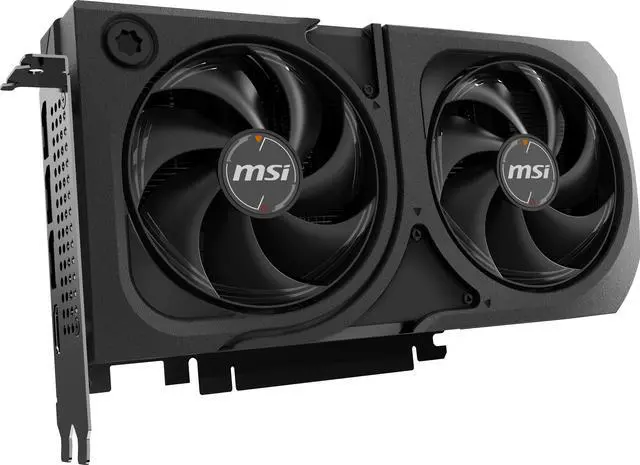
The graphics card is the most expensive line item, so it deserves the most honest thinking. Ask what you actually play and what your major actually demands. For the common case, esports titles plus a rotation of AAA games at 1080p or 1440p, plus GPU-accelerated coursework in Premiere, Blender, or a machine-learning framework, the MSI Shadow GeForce RTX 5060 Ti 8GB at $369.99 is the balanced answer. Blackwell-generation efficiency keeps it cool in a compact case, DLSS 4 with frame generation stretches it comfortably into 1440p territory, and NVIDIA’s encoder and CUDA ecosystem remain the default assumption in most creative and technical course software.
Two honest adjustments to consider. If your major leans hard into 3D rendering or high-resolution video, the 8GB frame buffer will eventually pinch; a 16GB variant of the same class of card is the smarter long game. If you live entirely in Valorant, League, and Rocket League, you can step down a GPU tier, bank the difference, and never notice. The build does not collapse either way; that flexibility is the point of choosing a solid platform first.
Step 3: Do Not Skimp on Memory and Storage
Here is the honest talk about 2026: memory prices have climbed industry-wide, and a guide that pretends otherwise is setting you up for sticker shock at checkout. Even so, 32GB remains the right call for a machine that has to survive four years of growing software appetites, especially given how students actually compute: a game, Discord, Spotify, and forty browser tabs, simultaneously, always. A kit like the V-COLOR Manta XSky 32GB DDR5-6000 CL30 ($419.99) hits the exact specification AM5 loves, 6000 MT/s at CL30 with an EXPO profile, which means one BIOS toggle gets you full speed with zero tuning knowledge required. If the budget simply will not stretch this semester, a 16GB kit at the same speed grade works today and leaves two slots free; just treat 32GB as a when, not an if.
Storage follows the same logic of buying once. Modern games regularly weigh 100GB or more, and creative coursework multiplies files at an alarming rate, so 1TB is the realistic floor. The Silicon Power US75 1TB ($169.79) is a PCIe 4.0 drive rated up to 7,000 MB/s, which translates to a Windows boot measured in seconds and game loads fast enough that you stop thinking about them. Skip the temptation of a Gen5 drive here; the real-world difference for student workloads is negligible, and the money belongs elsewhere in this build.
Step 4: Finish Smart, Power, Case, and the Assembly Afternoon
Round the build out with a quality 80 Plus Gold power supply in the 650-850W range from an established brand; this build draws well under 400W at full tilt, so mid-range Gold units offer huge headroom, near-silent fan profiles, and room for that future GPU upgrade. Any well-ventilated Micro-ATX case with two included fans and dust filters does the job; prioritize mesh front panels over glass aesthetics if the PC will live in a warm dorm, and measure your desk clearance before falling in love with a tower.
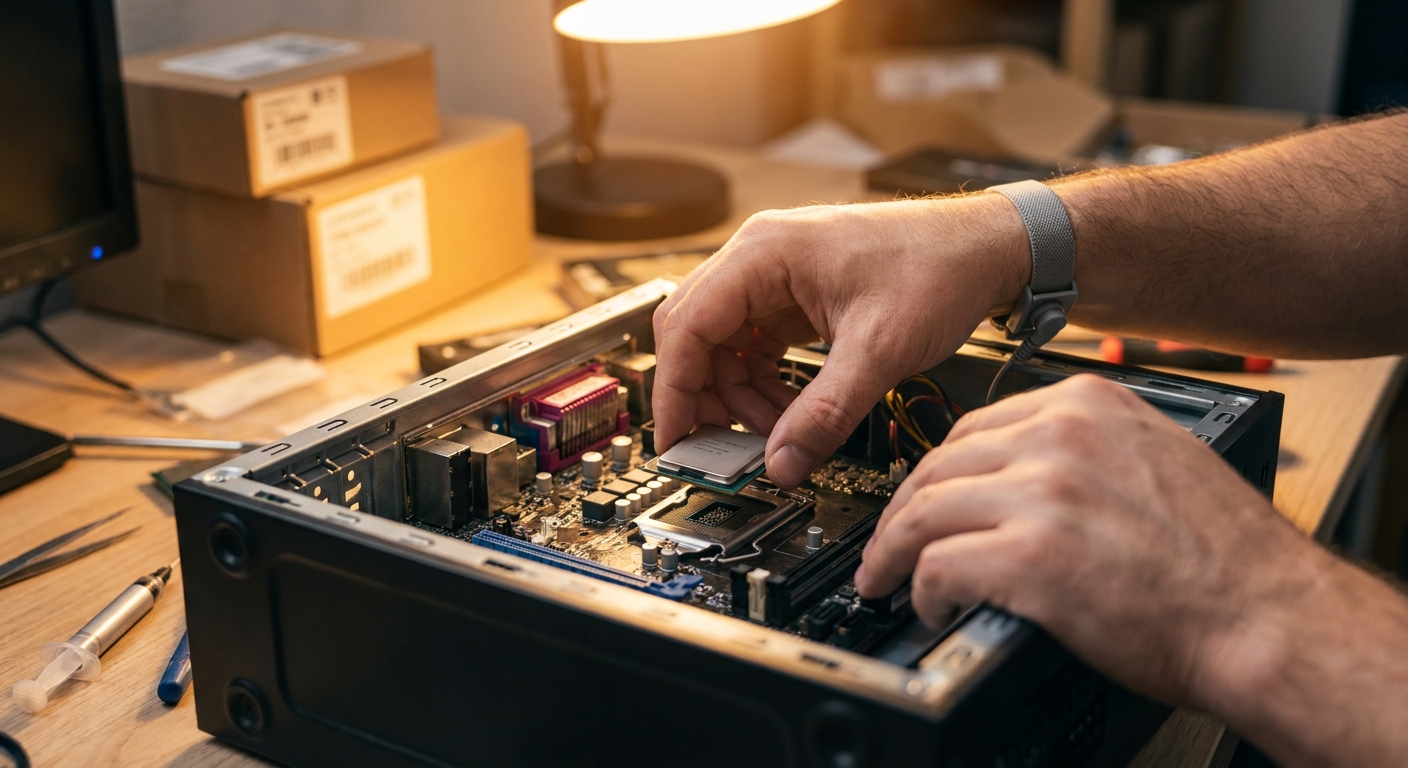
Assembly itself is a two-to-three hour afternoon the first time. Three tips that prevent ninety percent of first-build panic: install the CPU, cooler, and memory on the motherboard outside the case where you have room to work; connect the front-panel headers with the motherboard manual open, because that is the only genuinely fiddly step; and if the system does not light up on first boot, reseat the memory and the power connectors before assuming anything is broken. It is almost always the memory or a half-clicked cable.
The Budget Reality Check
Adding the verified core parts, $169.98 CPU, $108.74 board, $369.99 GPU, $419.99 memory, and $169.79 storage, lands at roughly $1,240, with case and power supply bringing a sensible total near $1,400. That is not pocket change, but compare it honestly: a laptop with equivalent sustained performance costs meaningfully more, throttles harder, and cannot be upgraded when the GPU starts feeling its age in 2028. The desktop also holds value in pieces; students routinely sell an old GPU to fund the new one, a trick no soldered laptop allows.
Summary: The Semester-Proof Recipe
Six modern cores, a mid-range RTX GPU, 32GB of fast memory, and a terabyte of Gen4 storage on a socket with a guaranteed future: that is the entire formula for a PC that treats homework and Helldivers with equal respect. Tune the GPU tier to your major, tune the memory timeline to your wallet, and enjoy being the person on your floor who actually understands their computer, and can fix everyone else’s.
Read More
- Tom’s Hardware: Best CPUs for Gaming — See where the Ryzen 5 7600 lands against pricier chips.
- PC Gamer: The Best Graphics Cards — Context for the RTX 5060 Ti’s price bracket.
- AMD Official: Ryzen Desktop Processors — Full specifications for the Ryzen 5 7600.
- Newegg Insider: DDR5-6000 CL30, the AM5 Sweet Spot — Our deeper memory guide for this exact platform.
- Newegg Insider: How Much Power Supply Do You Need? — Sizing the PSU for this class of build.
Related Posts
- 5 ROG-Inspired Gaming PCs to Build Your Dream Battlestation
- AM4 or AM5 in 2026? What the Memory Price Surge Changed
- GTA 6 on PS5 Pro: What Resolution and Frame Rate Can You Expect?
- Best Gaming Mice in 2026
- How Much RAM Do You Actually Need in 2026?
Frequently Asked Questions
Common questions about building a student PC.