
Every student desk lives a double life. From nine to nine it is a library carrel: papers, citations, problem sets, the slow grind of a GPA being earned. Sometime after that it becomes an arena, and the same three feet of particleboard hosts ranked climbs, co-op raids, and the occasional heroic all-nighter that has nothing to do with academics. The mistake most people make is building for only one of those lives, a sterile office that makes evenings joyless, or a full RGB battle station that makes Tuesday morning discipline impossible. Build deliberately, though, and one desk can be genuinely excellent at both jobs. Here are the questions that actually matter, answered in order, with the key prices verified on Newegg at this writing.
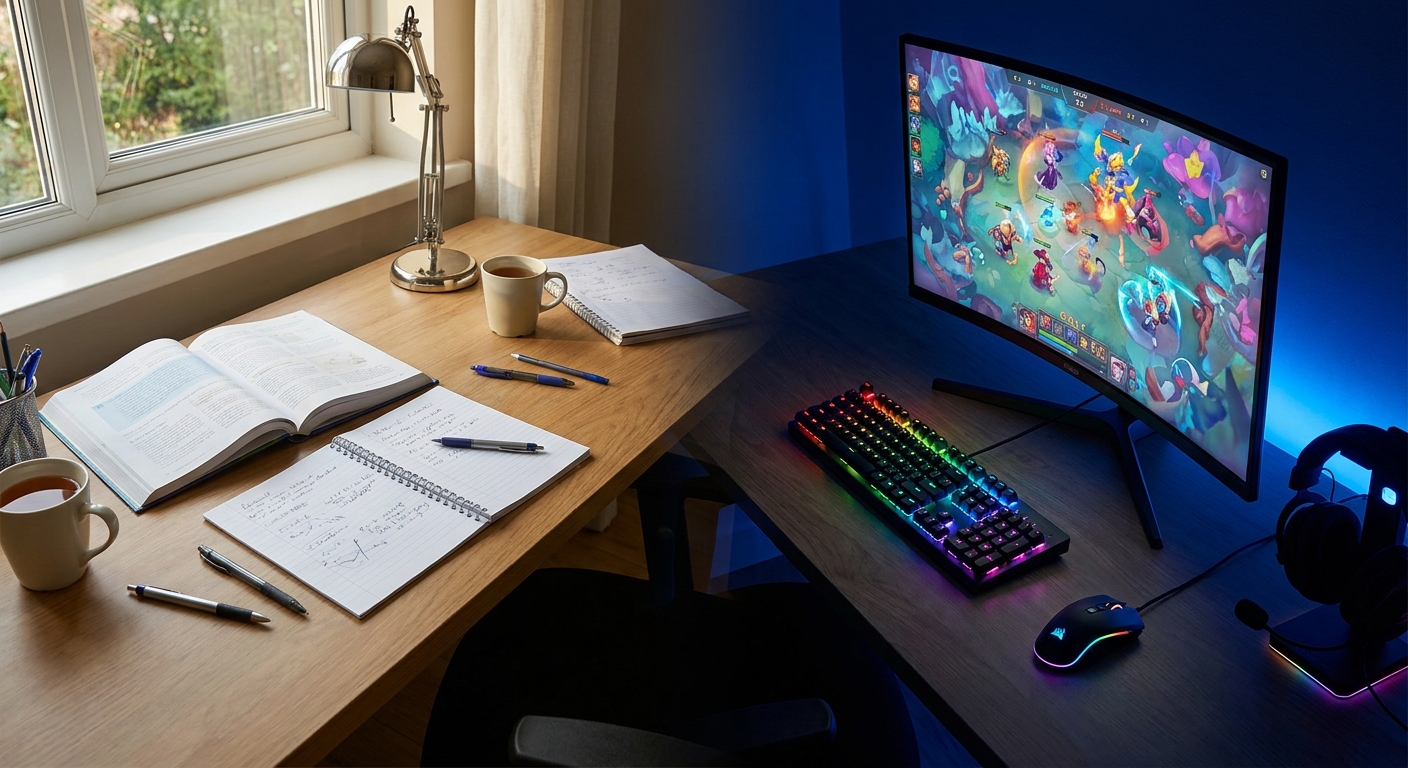
Can one monitor really serve essays and esports?
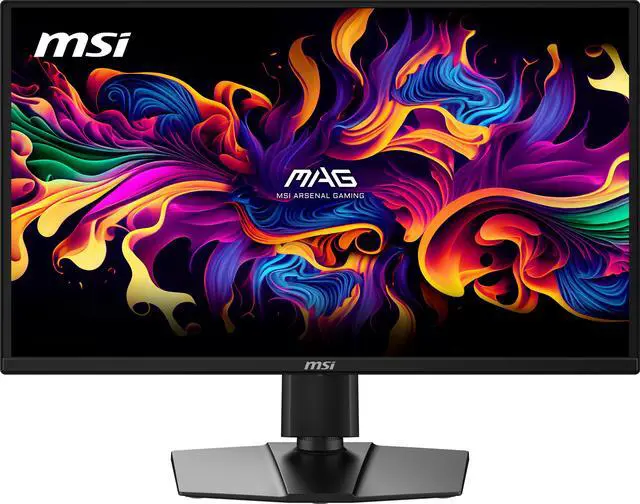
Yes, and this is the purchase to get right first, because every hour of both lives flows through it. The trick is understanding that studying and gaming stress a display in opposite ways. Studying wants comfort across six-hour reading marathons: stable text, no flicker, no eye-searing backlight bleeding through a white document at midnight. Gaming wants raw speed: refresh rate for smoothness and pixel response for clarity in motion. Most monitors pick a side. QD-OLED, almost uniquely, refuses to.
Because every pixel emits its own light, text on an OLED sits on true black with no backlight haze, which is dramatically gentler during long night reading than an LCD panel glowing at full brightness behind a white page. Then, after dark, the same panel’s 0.03ms pixel response and 240Hz refresh make competitive play feel wired directly to your hands, with none of the smearing budget LCDs show in fast motion. The MSI MAG 272QP QD-OLED X24, a 27-inch 1440p panel listed at $419.40 at this writing, is the rare screen that treats a bibliography and a boss fight with equal seriousness, and its fully adjustable stand, height, pivot, swivel, and tilt, means you can set the ergonomics correctly without buying anything extra. Two placement rules regardless of what you buy: top bezel at eye level, and if the room allows, positioned so the window sits beside the screen rather than behind or in front of it.
The burn-in question deserves an honest sentence rather than hand-waving: modern panels carry pixel-shift and refresh routines plus multi-year warranties, and mixed study-gaming use is close to the ideal varied workload. Set your taskbar to auto-hide, use dark mode where you can, and this is a non-issue on a realistic student timeline.
What actually powers the station: desktop or laptop?
Both work; the difference is geometry and lifestyle, not correctness. A compact desktop tower under the desk delivers the most performance per dollar, upgrades piece by piece across your degree, and our companion guide to building a student PC lays out exactly that recipe around a Ryzen 5 and a mid-range RTX card. Choose the tower if your computing life happens overwhelmingly at this one desk.
Choose the laptop path if your day genuinely moves, campus, library, lab, home for breaks, because the modern docking workflow has quietly become excellent. A gaming laptop like the MSI Cyborg 15 ($1,389.99) carries an RTX 5070 Laptop GPU, 16GB of memory, and a terabyte of storage to lectures by day, then docks into the station’s monitor and keyboard by night, one file library, one Steam install, zero syncing headaches. The evening ritual becomes a single cable click, and the laptop’s own screen turns into a second display for Discord and lecture slides. Whichever path you take, buy the station peripherals below first; they serve both futures identically.
How do I keep the peace with a roommate?
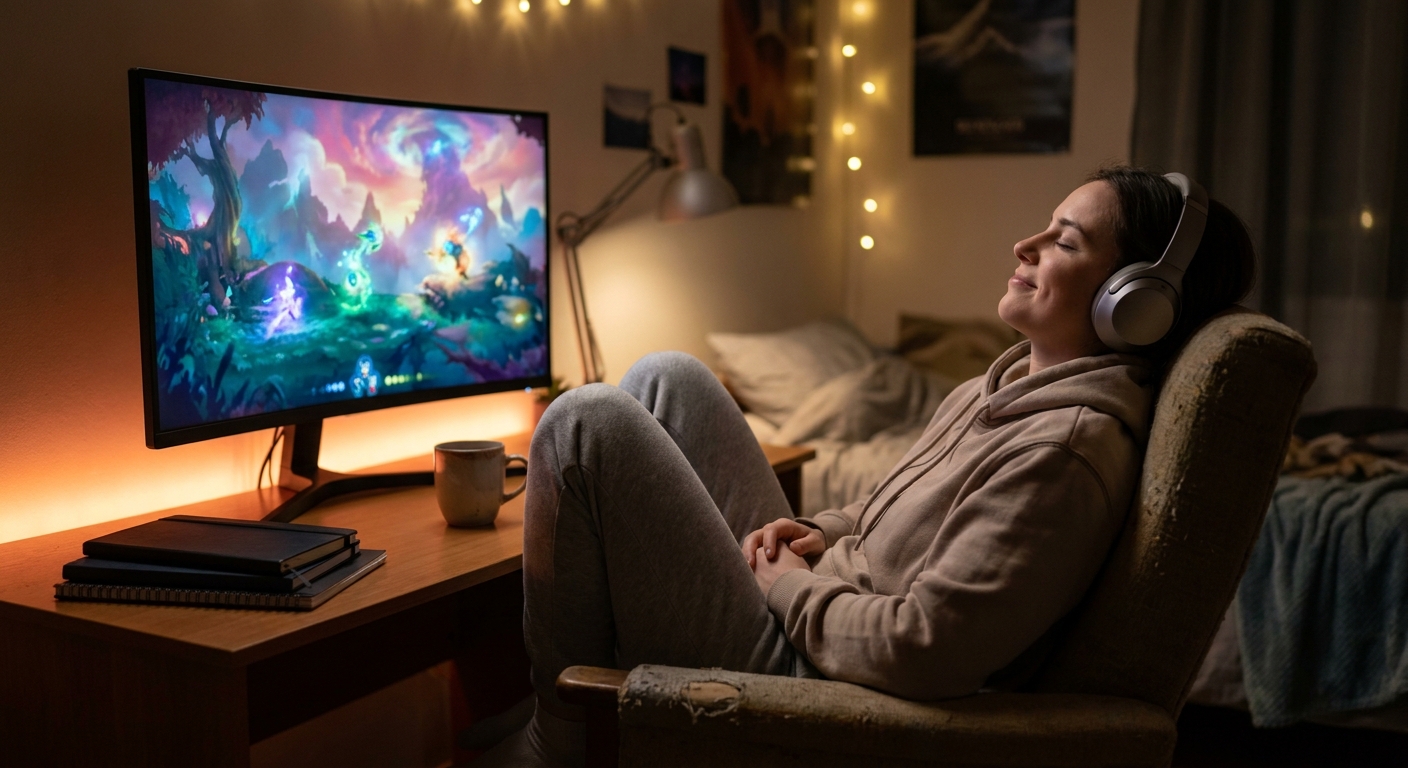
The most underrated component in any shared-room station is the headset, because it is secretly two products in one box: immersive audio for you, and total silence for the person trying to sleep eight feet away. Get it right and your gaming hours become invisible; get it wrong, or worse, use speakers, and you become a floor legend for the wrong reasons.
The Corsair HS80 RGB Wireless ($119.99) covers the entire double life with room to spare. Low-latency wireless keeps competitive audio in sync while freeing you from a cable that always finds the coffee mug. Dolby Atmos spatial audio does the flashy job of placing footsteps in a firefight, but it also quietly flatters lecture recordings, podcasts, and late-night lo-fi. The flip-to-mute microphone is genuinely good, good enough for class presentations, office-hours calls, and Discord alike, which spares you owning a separate mic. And the floating headband design stays comfortable across sessions long enough that comfort, not battery, becomes the limiting factor.

What separates a good station from a great one?
Ritual and switchability, the deliberately designed transition between the desk’s two lives. Psychologists who study context-dependent behavior keep finding the same thing: environments cue habits, and a desk that visibly changes modes helps your brain change modes with it. The great setups engineer that switch on purpose. A keyboard with onboard profiles swaps from silent, macro-free typing to full gaming bindings with one key combination; a compact mechanical keyboard with hot-swappable switches is the cheapest way to build that ritual, and it upgrades every essay you type as a side effect. Lighting completes the cue: warm and bright while the day shift works, dimmed with a splash of RGB only after the last assignment closes. Keep the lighting rule honest and it becomes a surprisingly effective anti-procrastination device, because the fun mode literally does not switch on until the work is done.
Round out the great-station checklist with the small physical layer: a deskpad large enough to unify keyboard and mouse zones, a headphone hook that gives the HS80 a home, and a cable route that lets the laptop dock with one connector. None of it is glamorous; all of it is the difference between a setup that photographs well once and one that works every day for four years.
What is the sensible build order on a student budget?
Almost nobody should buy this station in one checkout, and the good news is that it decomposes perfectly into a semester of paychecks. Monitor first, always: it upgrades every single hour spent at the desk, in both of its lives, and the posture fix compounds daily. Headset second: it upgrades your evenings and, just as importantly, your roommate’s opinion of you. Keyboard third, when you are ready to make the mode-switch ritual real. The compute upgrade, tower or laptop, comes fourth, timed to sales or to the moment your current machine genuinely holds you back rather than merely bores you. Decoration comes last, funded by whatever survives.
Tallied honestly, the peripheral core, monitor at $419.40, headset at $119.99, and a quality compact keyboard, lands around $600 on top of the computer you already own, spread painlessly across months. That is the entire price of a desk that earns grades by day and frames by night without compromising either.
What mistakes should I avoid?
Three traps catch most first-time station builders. The first is buying the computer before the peripherals: the tower or laptop you choose next year will plug into the same monitor, headset, and keyboard, so the peripherals are the safer early investment, not the riskier one. The second is chasing symmetry over function, buying two mediocre monitors instead of one excellent panel; on a dorm-depth desk, a single 27-inch QHD screen with the laptop display as a sidecar beats a cramped dual-monitor wall both for focus and for wallet. The third is treating the chair and the desk height as someone else’s problem; no amount of OLED compensates for a seat that makes hour three of anything unbearable, so if the university chair is hostile, a cushion and a footrest are the cheapest ergonomic rescue on the market. Avoid those three and the rest of this guide assembles itself.
The Bottom Line
One QD-OLED display doing double duty, one wireless headset keeping the peace, one keyboard that switches personalities, and a computer that fits how you actually move through campus: that is the whole architecture of the ultimate study and gaming station. Build it in order, let each piece earn its place, and browse gaming headsets on Newegg to start with the piece your current setup gets most wrong. The desk is small; there is no rule that says the setup has to think small.
Read More
- RTINGS: The Best 1440p Gaming Monitors — Lab-measured comparisons for our monitor pick’s class.
- Tom’s Hardware: Best Gaming Headsets — Wider headset testing across wired and wireless.
- Corsair Official: HS80 RGB Wireless — Manufacturer specs and battery ratings.
- Newegg Insider: How to Build a Student PC — The desktop recipe that pairs with this station.
- Newegg Insider: Best 1440p OLED Gaming Monitors — More OLED options if our pick sells out.
Related Posts
- How to Make Headphones Feel Better for Long Listening Sessions
- Wireless Headphones Buying Guide
- Quick Look: Virtuoso RGB SE – Corsair’s newest gaming headset
- Quick Look: Rosewill Nebula GX51 Surround Sound Gaming Headset
- Air Cooler vs Air Cooler: What to Put on an AM5 Build
Frequently Asked Questions
Common questions about combined study and gaming setups.