
Planning to upgrade your laptop down the road represents smart long-term thinking, but the explosive trend toward ultra-thin designs has dramatically reduced upgrade possibilities in modern laptops. In 2026, understanding what you can and cannot upgrade before purchase has become critical for maximizing your investment’s lifespan. This comprehensive guide explains exactly what to verify before buying, ensuring your laptop can grow with your needs rather than becoming obsolete prematurely.
The Upgrade Landscape Has Changed Dramatically
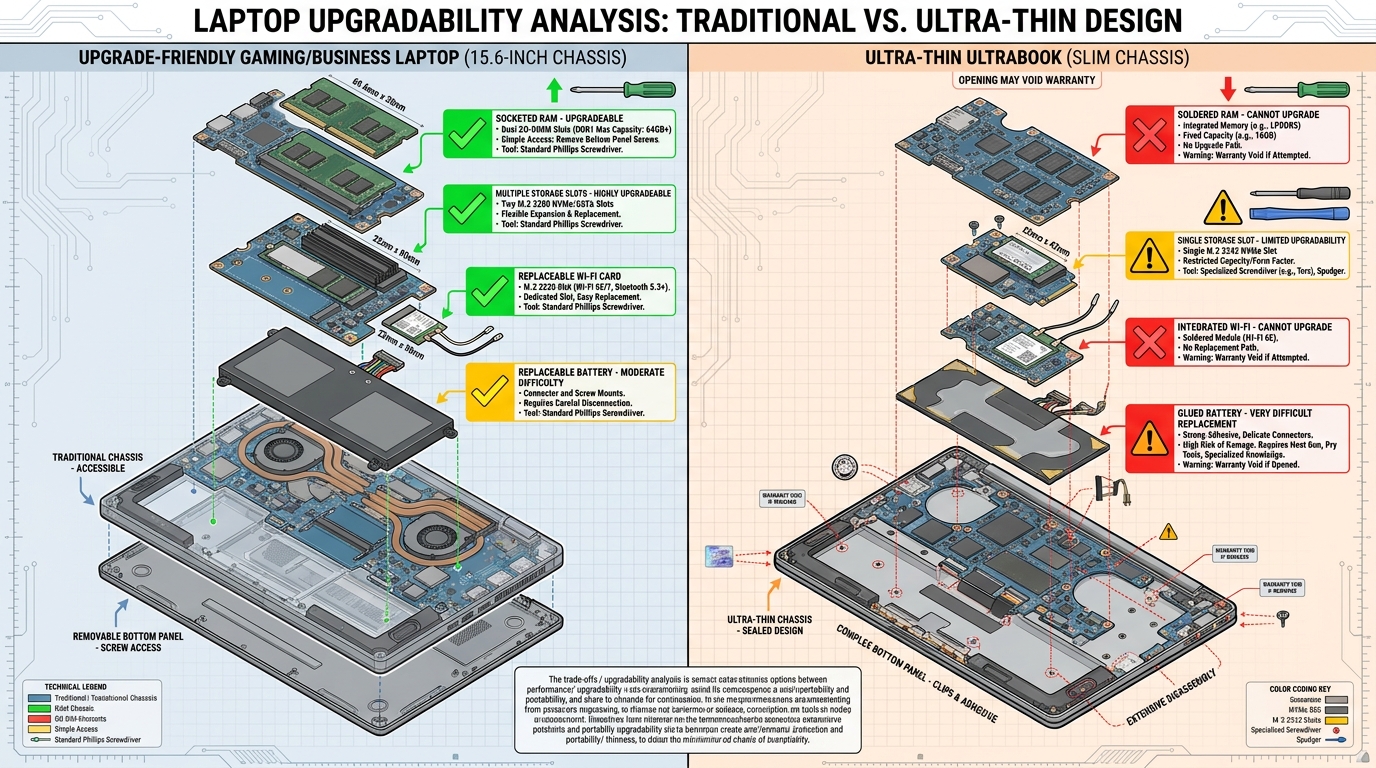
Traditional laptops once offered extensive upgrade paths—swappable RAM modules, replaceable storage drives, removable batteries, and accessible wireless cards. However, the industry’s push toward thinner, lighter designs has led manufacturers to solder components directly to motherboards, eliminating upgrade possibilities.
This shift means pre-purchase research determines whether your laptop remains relevant for five years or requires replacement after three. Understanding which components are upgradeable in specific models prevents costly mistakes and ensures your investment serves you throughout its intended lifespan.
RAM Upgradability: The Critical First Check
Memory represents one of the most impactful and traditionally easiest laptop upgrades, but 2026’s landscape presents complications. When evaluating any laptop—whether business configurations, gaming systems, or 2-in-1 convertibles—verify the RAM configuration before purchase.
What to Check:
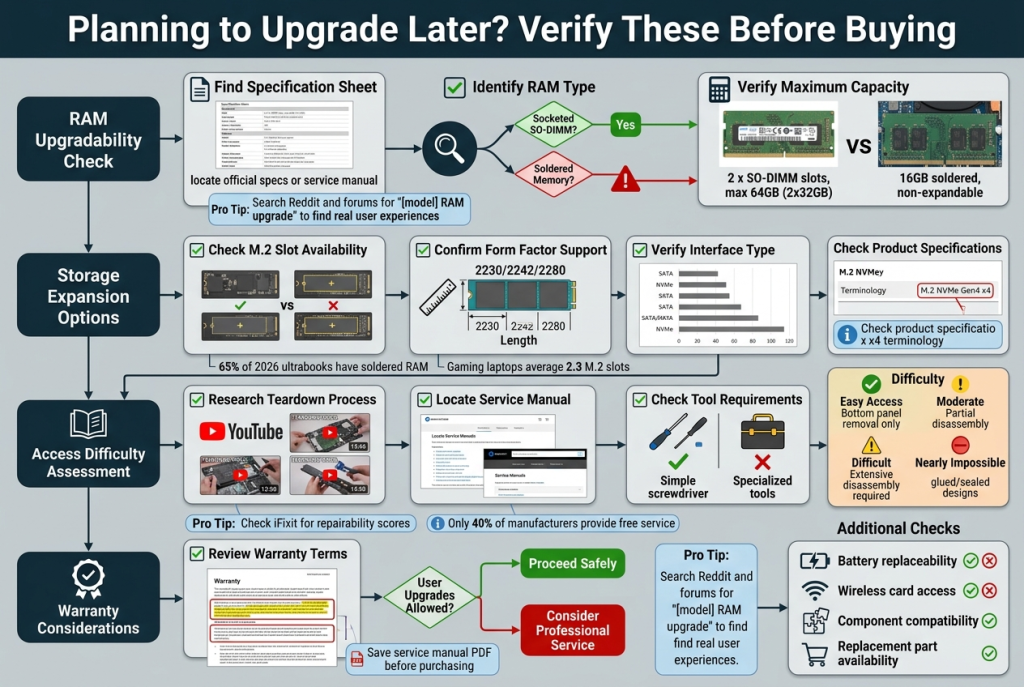
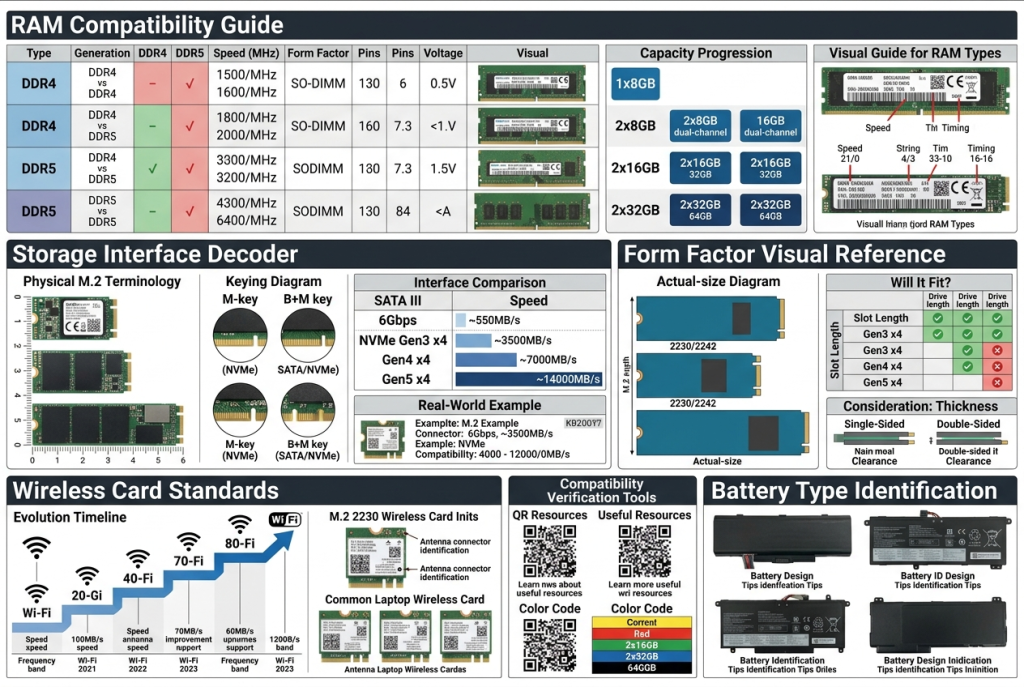
Soldered vs Socketed RAM: Examine specifications or manufacturer documentation stating whether RAM is “soldered” or uses “SO-DIMM slots.” Soldered RAM cannot be upgraded—what you buy is what you keep forever. Socketed RAM using SO-DIMM slots can be replaced or expanded.
Many laptops use hybrid configurations: part soldered, part socketed. For example, 8GB soldered plus one open slot allows upgrading to 16GB or 24GB total but never less than the 8GB soldered baseline.
Maximum Capacity Support: Even with socketed RAM, laptops have maximum supported capacities limited by motherboard chipset and BIOS. A laptop with two RAM slots might support maximum 32GB (two 16GB modules) or 64GB (two 32GB modules)—verify this before assuming unlimited expansion.
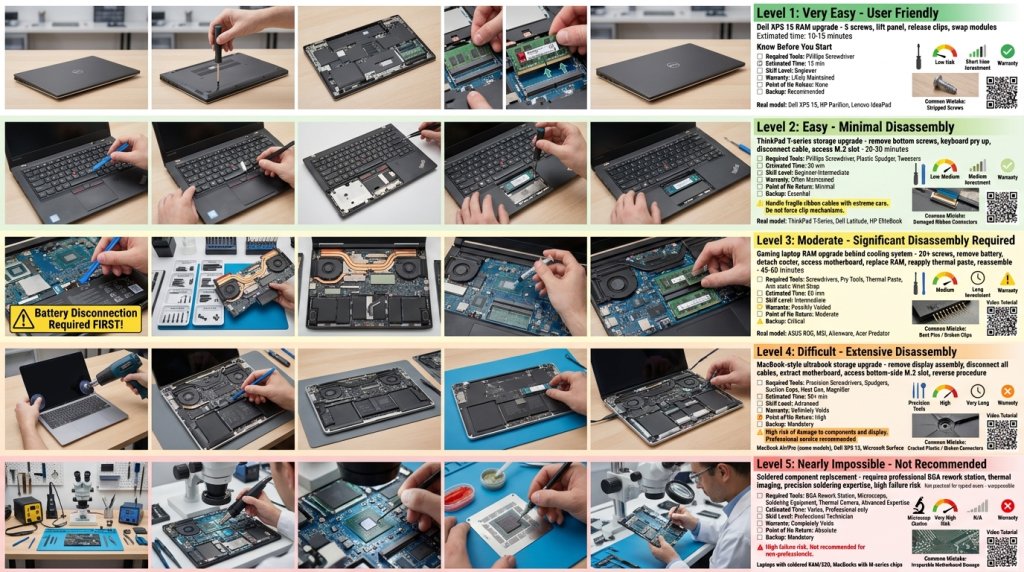
Accessibility: Some laptops require complete disassembly to access RAM slots, while others provide convenient bottom panel access. Check teardown videos or service manuals for your specific model to understand the complexity involved. Simple bottom-panel access makes DIY upgrades practical; complete disassembly often necessitates professional service.
Storage Upgrade Possibilities
SSD storage upgrades often remain possible even in thin laptops, but form factors and interface types create compatibility considerations.
Critical Storage Checks:
Form Factor Compatibility: Modern laptops use M.2 SSDs in various sizes: 2230, 2242, 2260, or 2280 (length in millimeters). Verify which lengths your laptop supports—a slot designed for 2280 accepts shorter drives, but a 2230-only slot cannot accommodate longer drives. Gaming laptops and larger systems typically use 2280 (most common), while ultra-portables may use 2242 or 2230.
Interface Type: M.2 slots support either SATA or NVMe interfaces—NVMe offers dramatically faster speeds. Verify whether your laptop’s M.2 slot supports NVMe, SATA, or both. Buying the wrong interface type results in non-functional drives.
Number of Slots: Some laptops provide multiple M.2 slots, allowing storage expansion without replacing existing drives. Others offer single slots, requiring existing drive replacement to upgrade capacity. Premium gaming laptops often include two or three M.2 slots for maximum flexibility.
Generation Support: NVMe drives span generations (Gen3, Gen4, Gen5) with different speed capabilities. Verify which generation your laptop supports—installing Gen4 drive in Gen3 slot works but limits performance to Gen3 speeds.
Battery Replaceability Assessment
Battery degradation remains inevitable, with most lithium batteries losing capacity after 2-4 years of regular use. Replaceable batteries extend laptop lifespan significantly, but many modern designs use batteries glued or riveted inside, requiring professional service or risky DIY attempts.
Battery Replacement Checks:
Internal vs External: Older laptops featured external batteries removed via simple latches. Modern laptops nearly universally use internal batteries, but some allow relatively easy replacement while others require extensive disassembly.
Service Manual Availability: Manufacturers providing detailed service manuals with battery replacement procedures signal upgrade-friendly designs. Absence of such documentation suggests the manufacturer doesn’t expect user battery replacement.
Replacement Part Availability: Check whether genuine replacement batteries exist as orderable parts. Some manufacturers freely sell replacement batteries; others restrict sales to authorized service centers.
Wireless Card Upgradability
Wi-Fi and Bluetooth capabilities improve steadily, with Wi-Fi 7 becoming standard in 2026. Laptops with replaceable wireless cards can adopt new standards via simple upgrades, while soldered wireless cards lock you into purchase-time capabilities.
Most traditional laptops use M.2 2230 form factor wireless cards—easily replaceable. Ultra-thin designs increasingly use soldered wireless solutions. Intel-based gaming laptops and AMD configurations typically retain upgradeable wireless cards.
Laptop Upgradability Comparison Matrix
| Component | Traditional Laptop | Ultra-Thin Laptop | Gaming Laptop | 2-in-1 Convertible |
|---|---|---|---|---|
| RAM | Usually upgradeable (slots) | Often soldered | Often upgradeable | Usually soldered |
| Storage | Typically upgradeable | Usually upgradeable | Highly upgradeable (multiple slots) | Usually upgradeable (1 slot) |
| Battery | Replaceable with effort | Difficult replacement | Replaceable with effort | Difficult replacement |
| Wireless Card | Usually replaceable | Often soldered | Usually replaceable | Often soldered |
| CPU/GPU | Not upgradeable | Not upgradeable | Not upgradeable | Not upgradeable |
What Can Never Be Upgraded
Certain components remain permanently fixed regardless of laptop design:
Processor (CPU): Modern laptop processors are soldered directly to motherboards across all designs. The CPU you purchase is the CPU you keep. Copilot+ PC specifications with integrated NPUs are similarly permanent.
Graphics (GPU): Dedicated laptop GPUs are soldered to motherboards. Integrated graphics are part of the CPU package. The graphics capability at purchase remains throughout the laptop’s life.
Display: While technically replaceable, display upgrades are impractical for most users—requiring precise specifications matching, careful disassembly, and considerable technical skill.
Motherboard: Replacing motherboards is theoretically possible but economically senseless—you’d replace the CPU, integrated graphics, and often pay more than a complete new system.
Using the Laptop Finder for Upgrade-Friendly Systems
The Laptop Finder helps identify upgrade-friendly configurations, though you’ll need to research specific models for detailed upgrade information. Look for:
- Larger chassis designs (typically more upgrade-friendly)
- Gaming or workstation classifications (prioritize upgradability)
- User-accessible panels mentioned in specifications
- Manufacturer documentation availability
Premium laptop configurations sometimes emphasize upgradability as a selling point—worth investigating when future expansion matters.
Documentation and Community Resources
Before purchasing any laptop with upgrade intentions, research these resources:
Service Manuals: Manufacturers vary tremendously in documentation accessibility. Dell, Lenovo, and HP typically provide detailed service manuals. Others restrict documentation to authorized service centers.
YouTube Teardowns: Popular laptop models have detailed teardown videos showing internal layout, component accessibility, and upgrade difficulty. Search “[model name] teardown” or “[model name] RAM upgrade” for visual confirmation of upgrade possibilities.
Reddit and Forums: Communities like r/laptops and model-specific forums contain real-world upgrade experiences. Users share compatibility discoveries, pitfall warnings, and successful upgrade paths.
AI and Automated Optimization in 2026
Copilot+ PCs and AI-enhanced systems offer intelligent resource management that partially compensates for fixed hardware. However, AI optimization cannot overcome fundamentally inadequate RAM or storage—hardware limitations remain hardware limitations regardless of software intelligence.
Making Informed Purchase Decisions
When evaluating laptops with future upgrades in mind:
For Maximum Upgradability:
- Prioritize traditional form factors over ultra-thin designs
- Select gaming or workstation laptops when performance matters
- Verify socketed RAM with multiple slots
- Confirm multiple storage expansion slots
- Research battery replacement procedures
- Check wireless card replaceability
When Upgrades Are Unlikely: If you rarely upgrade and replace devices every 3-4 years regardless, buying exactly what you need today without upgrade premium makes sense. Windows laptops and even Chromebooks with soldered components work perfectly fine if you accept their initial configuration as permanent.
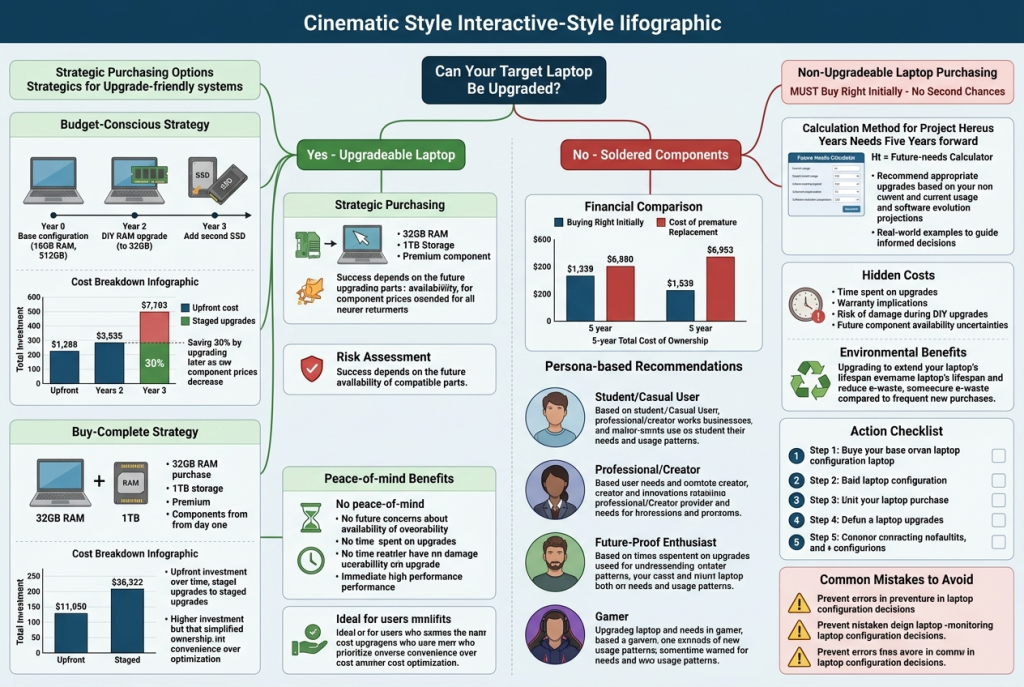
Strategic Initial Configuration: If upgrades are limited or impossible, purchase more capacity than you currently need. Spending extra on 32GB RAM instead of 16GB at purchase costs less than replacing an entire laptop when 16GB becomes inadequate. Similarly, choosing 1TB storage instead of 512GB prevents future capacity issues.
Warranty Implications
Performing upgrades can affect warranty coverage. Many manufacturers void warranties when users open devices or install third-party components, while others explicitly support user upgrades without warranty consequences.
Review warranty terms before purchase, understanding whether planned upgrades risk voiding coverage. Some manufacturers offer extended warranties that cover user upgrades; others strictly prohibit any user modifications.
The Buy-Right-Initially Approach
Given 2026’s reduced upgrade possibilities, the “buy what you’ll need for the laptop’s entire lifespan” approach has gained favor. Rather than purchasing minimal configurations with upgrade intentions, many users now invest in higher-specification systems initially, accepting all components as permanent.
This strategy particularly suits thin-and-light ultraportables where upgrade possibilities are minimal anyway. For business laptops and professional use, investing in appropriate initial specifications prevents productivity disruptions from inadequate hardware years later.
Understanding what you can and cannot upgrade before purchasing ensures your laptop investment serves you effectively throughout its intended lifespan. In 2026’s landscape of increasingly integrated designs, thorough pre-purchase research prevents expensive mistakes and maximizes the value of every laptop purchase.
Related Posts
- Do Laptops Overheat? What Buyers Need to Know About Heat and Fan Noise in 2026
- The Critical Role of Laptop Cooling: Why Thermal Management Matters More Than Ever in 2026
- Overview: MSI Prestige 14 EVO Specs and Capabilities
- 1440p OLED or 4K IPS: The Monitor Question I Keep Getting
- Best Graphics Cards for 1080p Gaming in 2026