

You’ve done the research, chosen your machine, and the box has arrived. But before you dive into using your new laptop, there are several important steps that will determine how secure, fast, and long-lasting your experience will be. So what exactly should you do after buying a new laptop?
In 2026, the answer goes beyond simply installing apps. With AI-powered features, cloud integration, and evolving security threats all part of the modern computing landscape, setting up a laptop correctly from day one makes a material difference — not just in performance, but in protection and longevity.
1. Charge Before Extended Use — But Don’t Obsess Over It
Modern laptop batteries use lithium-ion or lithium-polymer technology, which doesn’t require an initial “full charge” conditioning ritual the way older nickel-cadmium batteries did. That said, it’s good practice to charge to 100% before your first extended session, just to establish the battery management system’s baseline reading.
For the best long-term battery health:
- Avoid leaving the laptop plugged in at 100% for extended periods
- Many Windows laptops now include smart charging features that cap at 80% when plugged in — enable this if your device supports it
- ARM-based Copilot+ PCs are particularly efficient and tend to manage charging cycles more intelligently out of the box
2. Run Windows Update Immediately
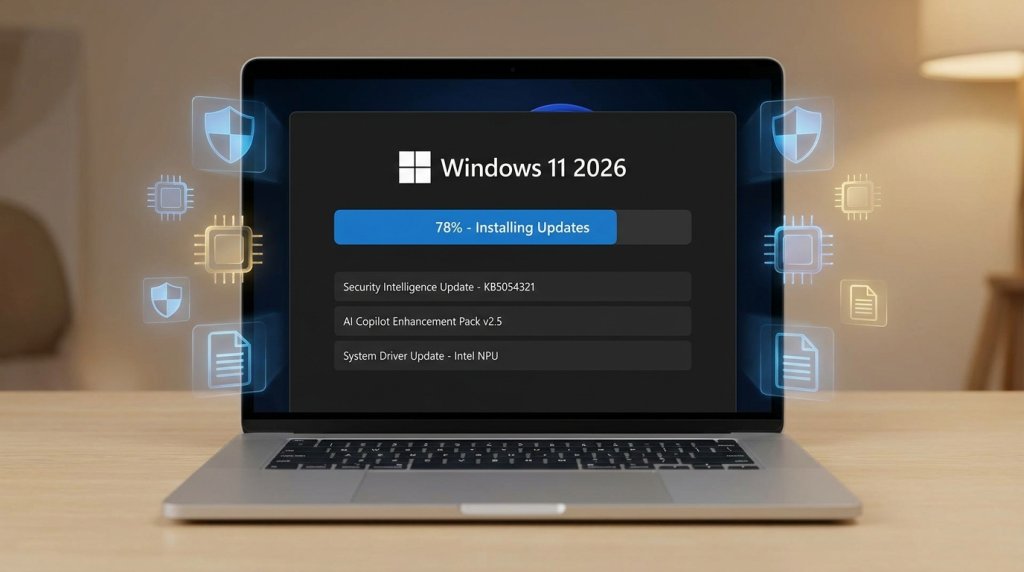
This step is non-negotiable. The software loaded onto a laptop at the factory may be weeks or months old by the time it reaches you. Running Windows Update immediately closes security vulnerabilities, installs the latest driver updates, and ensures your AI and Copilot features are running on the most current firmware.
In 2026, this matters more than ever. Microsoft releases monthly security patches, and Windows 11’s AI features — especially on Copilot+ certified devices — receive functional improvements through regular updates. A laptop running out-of-date software is a laptop operating below its full potential from day one.
Steps: Settings → Windows Update → Check for Updates → Install All
3. Uninstall Bloatware
Most retail laptops ship with pre-installed software — trial subscriptions, manufacturer utilities of questionable value, and third-party apps you didn’t ask for. This bloatware consumes storage, runs in the background, and can slow startup times.
Open Settings → Apps → Installed Apps and remove anything you don’t recognize or need. For gaming laptops, be cautious not to uninstall manufacturer performance utilities (like ASUS Armoury Crate, MSI Center, or Lenovo Vantage) — these often control fan curves, power modes, and GPU switching that are genuinely useful.
4. Set Up Windows Hello and Security Features
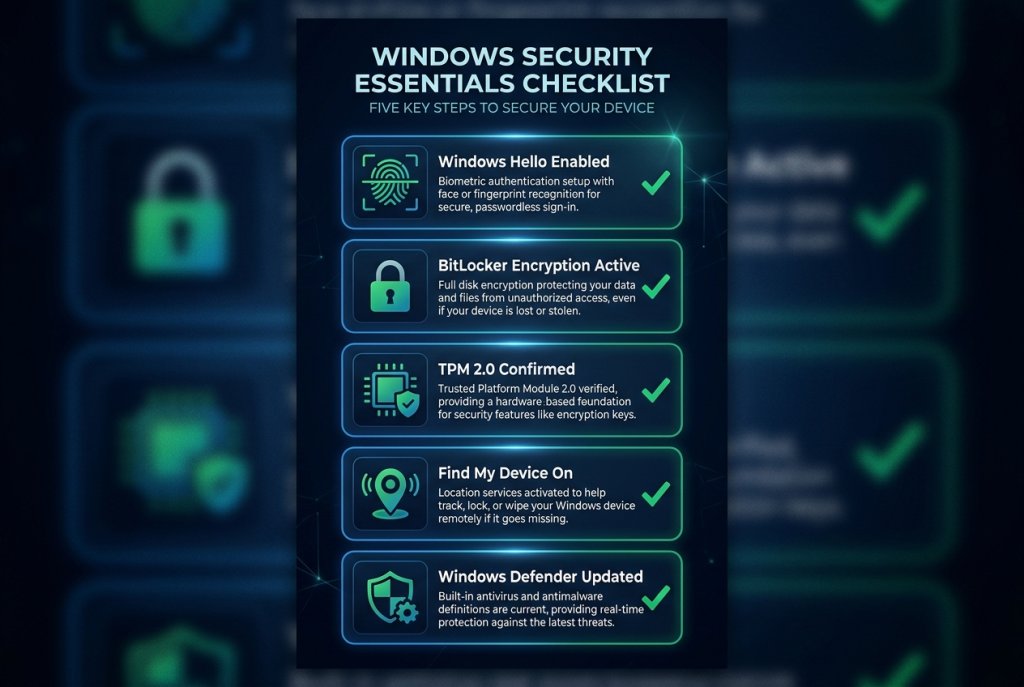
In 2026, password-only login is a security liability. Windows Hello offers fingerprint authentication, facial recognition (IR camera), and PIN-based login — all more secure and faster than a typed password.
For business laptops with enterprise-grade hardware, also confirm that:
- BitLocker drive encryption is enabled (Settings → Privacy & Security → Device Encryption)
- TPM 2.0 is active (most modern laptops enable this by default)
- Find My Device is turned on in case the laptop is lost or stolen
These are not advanced user settings — they’re baseline protections that take under five minutes to configure.
5. Install and Configure Your Core Applications
Before installing everything at once, think about what you actually need:
| Category | Examples |
|---|---|
| Productivity | Microsoft 365, Google Workspace, Notion |
| Browser | Chrome, Edge (built-in with Copilot), Firefox |
| Communication | Teams, Slack, Zoom |
| Security | Windows Defender (built-in) + optional VPN |
| Creative / Media | DaVinci Resolve, Adobe apps, VLC |
| Gaming | Steam, Epic Games Launcher, Xbox app |
For gaming laptops carrying NVIDIA GeForce RTX 50 Series GPUs, install GeForce Experience (or the newer NVIDIA App) to manage GPU drivers, optimize in-game settings, and enable AI-powered features like DLSS 4 and RTX Neural Rendering.
6. Check and Expand Storage if Needed
Before filling your drive with games, projects, and media, take stock of available storage. Many laptops ship with fast NVMe SSDs in the 512GB range — which fills faster than most buyers expect once the OS, apps, and game installs pile up.
If your laptop has an accessible M.2 slot, upgrading or adding additional SSD storage now is far easier than doing it after your drive is nearly full. If internal expansion isn’t an option, external hard drives offer a simple way to offload large media libraries.
7. Enable and Configure AI Features
If you purchased a Copilot+ certified laptop, 2026 brings a richer set of on-device AI features than any previous Windows generation:
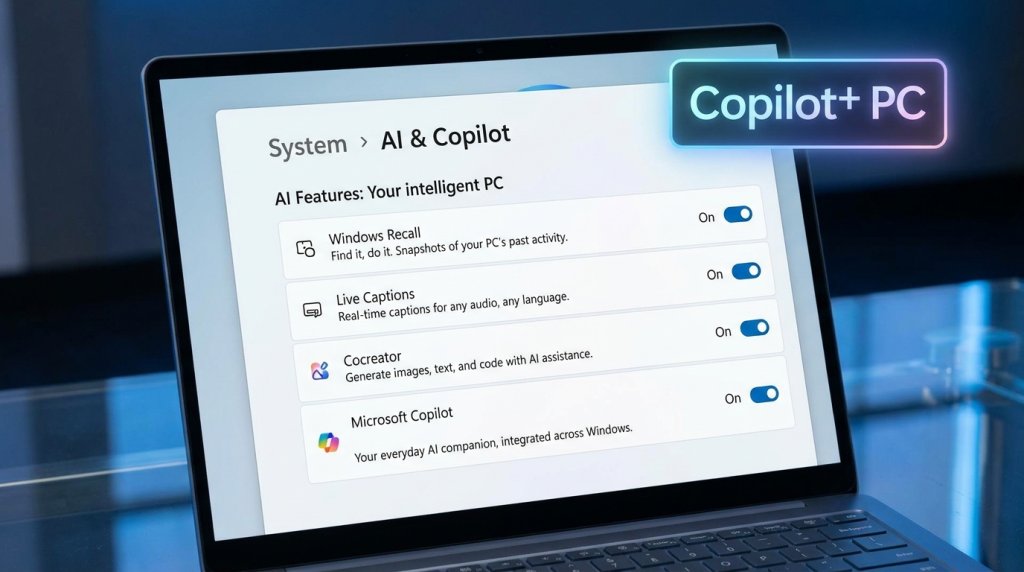
- Windows Recall — Searches your computing history with natural language queries; configure privacy settings before enabling
- Live Captions — Real-time transcription of any audio on the device; no internet required
- Cocreator in Paint — On-device AI image generation powered by the NPU
- Microsoft Copilot — AI assistant integrated across Windows, Edge, and Microsoft 365
Take 15 minutes to explore the AI settings panel (Settings → Privacy & Security → AI Features) and decide which features align with your workflow.
8. Create a Backup Strategy
New laptops feel invulnerable. They aren’t. Drives fail, devices get lost, and ransomware doesn’t discriminate. Set up a backup plan before it’s relevant:
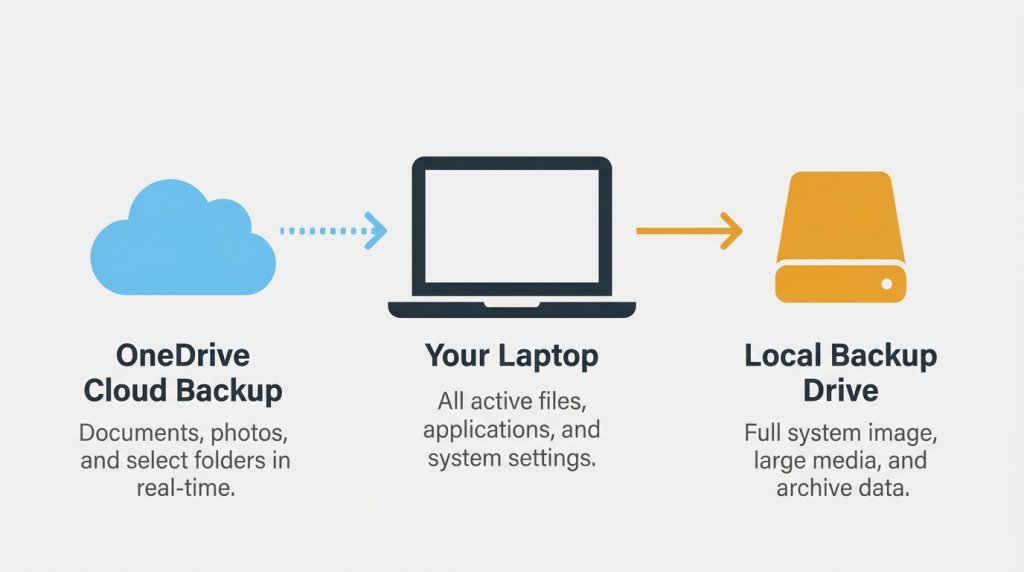
- Cloud backup: Enable OneDrive folder protection for Desktop, Documents, and Pictures
- Local backup: Use Windows Backup or a third-party tool to create a periodic full-system image on an external drive
- Create a recovery drive: Windows can create a bootable USB recovery drive; do this while the system is healthy
9. Personalize Power and Performance Settings
Different use cases call for different power profiles:
- Best Power Efficiency — Extends battery life for travel and meetings
- Balanced — The default for everyday use
- Best Performance — Unlocks maximum CPU/GPU performance for intensive tasks
For 2-in-1 laptops, also configure display rotation, stylus sensitivity, and touch keyboard preferences to match your workflow.
10. Register Your Warranty
This step is easy to forget and potentially costly to miss. Register your laptop with the manufacturer immediately after setup. Warranty registration:
- Establishes your ownership record for future service claims
- May extend or activate additional coverage in some manufacturer programs
- Ensures you receive firmware and recall notifications directly from the manufacturer
The Bottom Line
A new laptop is only as good as the foundation you build on it. Running updates, configuring security, clearing bloatware, setting up AI features, and building a backup strategy in the first hour of ownership will pay dividends for years. Use the Newegg Laptop Finder if you’re still choosing your machine — and once it arrives, run through this checklist before anything else.
Related Posts
- Best Gaming Notebooks Under $1000 in 2026
- Best Gaming Laptops Under $1500 in 2026: Power Without Breaking the Bank
- How to Set Up a New Laptop After Unboxing: A Step-by-Step Guide
- ROG Strix vs. Lenovo Legion Pro 5i vs. Razer Blade: Which Gaming Laptop Brand Wins in 2026?
- RTX 4070 Laptop vs. AMD RX 7700S: Which Gaming GPU Delivers Better Value in 2026?