





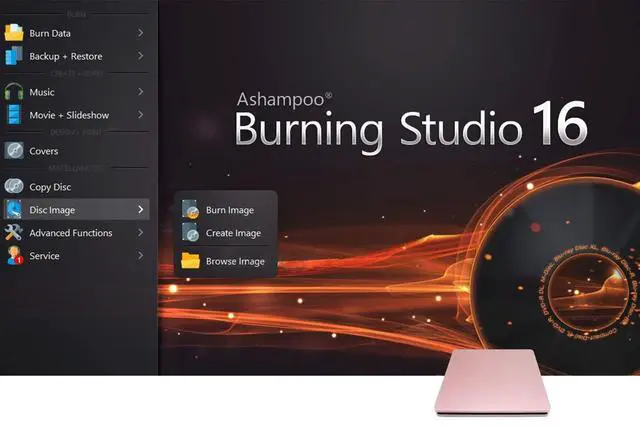


Ultra Slim USB3.0 & Type-C External DVD Drive Burner

- When looking for a great way to store, back up, and transfer files from your CDs / DVDs,external CD DVD drive is an easy choice. It provides you with fast data transfer speed and stable performance. Not only a CD DVD player but also a CD DVD burner, it gives you the ability to quickly create CDs / DVDs using tools included in most operating systems.
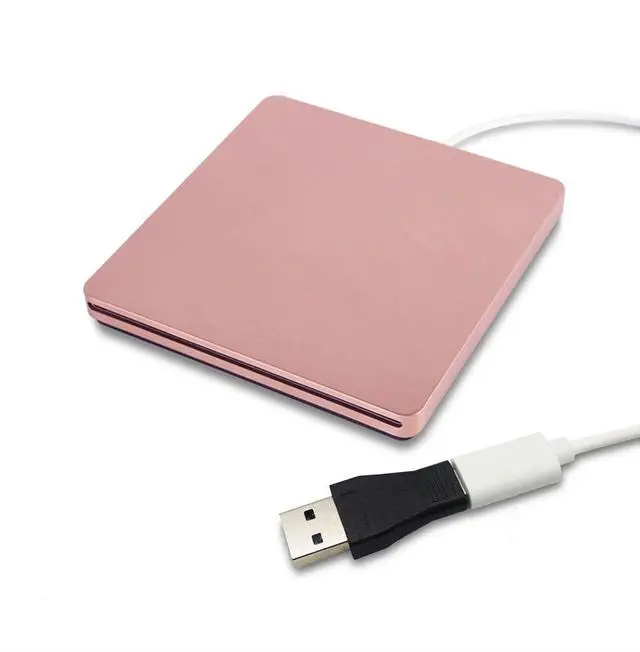
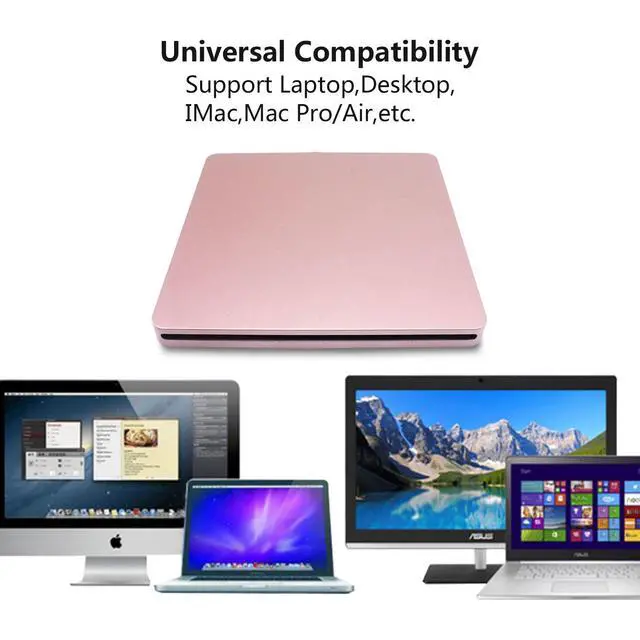
- Ultra-Slim Type-C&USB 3.0 External Slot-in CD DVD Drive is special designed for Macbook, Macbook Pro, Macbook Air or other PC/ Laptop with USB port, with touch eject button, powered by sigal USB port from your PC/ Laptop, plug and play, compatible with MAC or Windows system, no need to install any driver program
- This TYPE - C SuperDrive and retina display is connected to your MacBook Pro, MacBook, the built-in list TYPE - C cable SuperDrive, we provide a USB Type c(Female) to USB(Male) converter, , so if you want to use the USB port of the MacBook Air/Pro or other laptop, you can use it very well
Type-C External DVD Drive

Features:
1?No external driver is required
2?Insert and play.
3?High speed intelligent combustion technology, error correction and noise reduction technology.
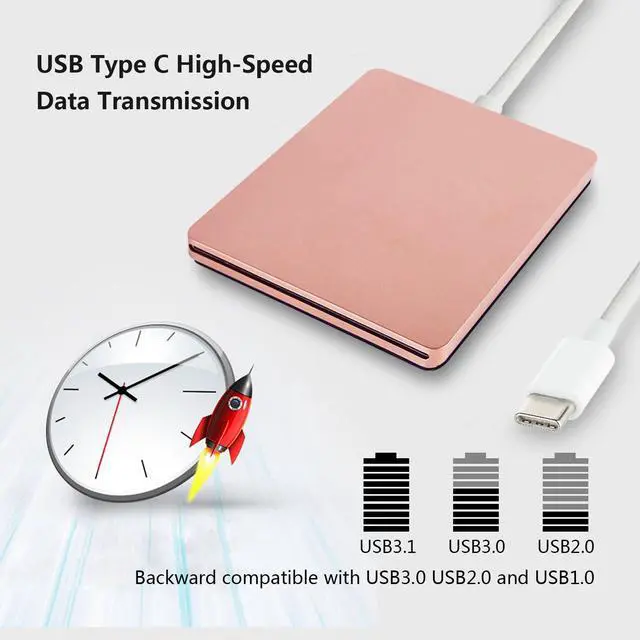
4?The external DVD drive USB Type-C high-speed data transmission.Backward compatible with USB3.0 ,USB2.0 and USB1.0.
Specification:
Cache Capacity:2MB.
Interface type:Type-c.
Optical Disc Loading Mode:Suction Type.
Writer Speed:DVD-R: 8X;DVD-RW: 4X;DVD + R: 8X;DVD+RW: 4X;DVD+DL (D9) : 4X;DVD-DL: 4X;CD-R: 24X;CD-RW: 16X
Read Speed:DVD-R:8X;DVD-RW:6X;DVD+R:8X;DVD+RW:6X;CD-RW:16X;CD-ROM:24X;Can Read DVD - RAM
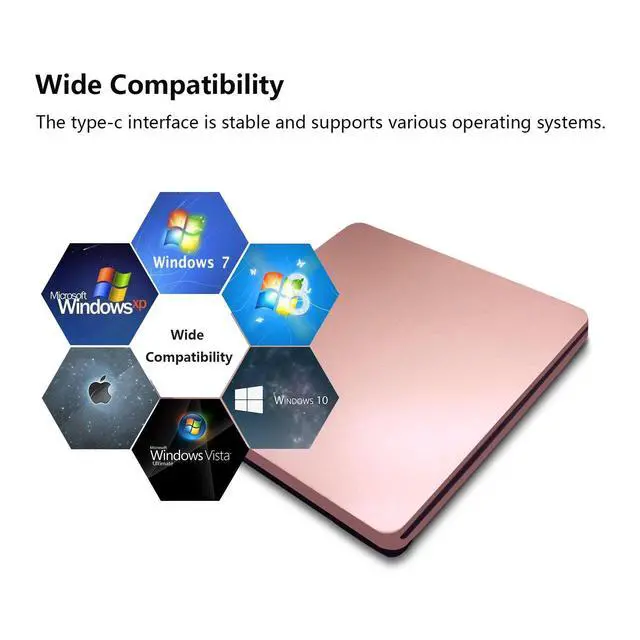
Support Systems:Compatible with Windows 11/10/8/7/XP/Vista,Linux and all Version Mac OS system.


NOTE:
1?This USB external DVD drive won't work with iPad/Tablet/Projector/TV/Chrome OS/Car/Smart Phone/Blu-ray Disc.
2?For Mac OS the icon of "Eject" icon in the playback software or from the computer system.
3?Do not drive the drive near any magnetic object.
4?Please connect the device to the direct USB port on your computer.If you connect it to a USB hub or an extension line, it may not be able to identify the driver.
5?Make sure that this DVD drive itself is set in place in such a way that the blank side faces up and the black side faces down, Otherwise the disc will eject automatically.
6?There’s no separate power adapter. Please make sure the laptop is with sufficient power supply, a low capacity may cause this CD drive can’t be recognized. Otherwise, maybe the disk will stuck inside the external DVD player and stop working.
How to Use it on Windows Computers:
1?Prepare the media player, burning, or ripping software based on your needs (not all), and network connection (for Windows 11)
2?Take out the data cable (located under the drive) and plug it into your computer's USB-C port directly or a self-powered USB hub. If needed, connect the power supply cord to a USB power adapter or bank to ensure sufficient power supply
3?It will install the driver automatically and you will see a DVD RW icon in Windows Explorer
4?For video DVDs, set the region code to number #1 to play US or CA DVDs (CDs do not have region code)
5?Insert your CDs or DVDs
6?Use the software you’ve prepared to play, burn, or rip the disc
Recommended Free Software for Windows:
- Audio CD Media Player:Windows Media Player, VideoLAN VLC Player
- Video/Movie DVD Media Player:VideoLAN VLC Player, Kodi, 5KPlayer
- Audio CD Burning Software:CDBurnerXP, ImgBurn)
- Video DVDs Burning Software:ImgBurn, BurnAware Free, CDBurnerXP
- Audio CD Ripping Software:Windows Media Player, iTunes, Exact Audio Copy [EAC], Fre:ac
- Video DVD Ripping Software:HandBrake, MakeMKV
Package:
1 x TYPE-C super external drive.
1 x USB Type-c(Female) to USB(Male) converter.
1 x User manual
How to Use it on Apple Mac Computers:
1?Open Finder
2?Settings (or Preferences, depending on your macOS version)
3?Ensure "CDs, DVDs, and iOS Devices" is checked in the General Tab and Sidebar Tab if available
4? Prepare the media player, burning, or ripping software based on your needs (not all)
5? Take out the data cable (located under the drive) and plug it into your computer's TYPE-C port directly or a self-powered USB hub. If needed, connect the power supply cord to a USB power adapter or bank to ensure sufficient power supply
6? Insert your CDs or DVDs
7?Your Mac will recognize the drive, read the disc and an icon will appear on the desktop
8?Use the software you’ve prepared to play, burn, or rip the disc
9? To eject a disc on Mac burning, right-click on the desktop icon and select "eject," or choose "File"
10?"Eject" from the menu. (Note: The tray cannot open via the button due to macOS limitations)
Recommended Free Software for Apple Mac:
- Audio CDs Media Player:Apple Music, iTunes, VLC Player
- Video/Movie DVDs Media Player:VideoLAN VLC Player, Apple DVD Player
- Audio CDs Burning Software:Apple Music, Burn, Express Burn
- Audio CD Ripping Software:Apple Music, X Lossless Decoder, HandBrake
- Video DVDs Burning Software:Burn for Mac, HandBrake, iDVD (Legacy), DVDStyler, iDVD [for old mac]
- Video DVD Ripping Software:MakeMKV, HandBrake with VLC - Use VLC to read the DVD, and HandBrake to convert and rip it to your desired format
Free playback software:
1?Any media player, any DVD
2?Free burning software for Windows OS: InfraRecorder, Ones, Express Disc Burner
3?Free burning software for Mac OS Burn for Mac
4?Free disc burning software for Linux OS/Unix OS K3b (KDE Burn Baby Burn)
These things you need to know before buying
Ultra Slim USB3.0 & Type-C External DVD Drive Burner
- When looking for a great way to store, back up, and transfer files from your CDs / DVDs,external CD DVD drive is an easy choice. It provides you with fast data transfer speed and stable performance. Not only a CD DVD player but also a CD DVD burner, it gives you the ability to quickly create CDs / DVDs using tools included in most operating systems.
- Ultra-Slim Type-C&USB 3.0 External Slot-in CD DVD Drive is special designed for Macbook, Macbook Pro, Macbook Air or other PC/ Laptop with USB port, with touch eject button, powered by sigal USB port from your PC/ Laptop, plug and play, compatible with MAC or Windows system, no need to install any driver program
- This TYPE - C SuperDrive and retina display is connected to your MacBook Pro, MacBook, the built-in list TYPE - C cable SuperDrive, we provide a USB Type c(Female) to USB(Male) converter, , so if you want to use the USB port of the MacBook Air/Pro or other laptop, you can use it very well
Type-C External DVD Drive
Features:
1?No external driver is required
2?Insert and play.
3?High speed intelligent combustion technology, error correction and noise reduction technology.
4?The external DVD drive USB Type-C high-speed data transmission.Backward compatible with USB3.0 ,USB2.0 and USB1.0.
Specification:
Cache Capacity:2MB.
Interface type:Type-c.
Optical Disc Loading Mode:Suction Type.
Writer Speed:DVD-R: 8X;DVD-RW: 4X;DVD + R: 8X;DVD+RW: 4X;DVD+DL (D9) : 4X;DVD-DL: 4X;CD-R: 24X;CD-RW: 16X
Read Speed:DVD-R:8X;DVD-RW:6X;DVD+R:8X;DVD+RW:6X;CD-RW:16X;CD-ROM:24X;Can Read DVD - RAM
Support Systems:Compatible with Windows 11/10/8/7/XP/Vista,Linux and all Version Mac OS system.
NOTE:
1?This USB external DVD drive won't work with iPad/Tablet/Projector/TV/Chrome OS/Car/Smart Phone/Blu-ray Disc.
2?For Mac OS the icon of "Eject" icon in the playback software or from the computer system.
3?Do not drive the drive near any magnetic object.
4?Please connect the device to the direct USB port on your computer.If you connect it to a USB hub or an extension line, it may not be able to identify the driver.
5?Make sure that this DVD drive itself is set in place in such a way that the blank side faces up and the black side faces down, Otherwise the disc will eject automatically.
6?There’s no separate power adapter. Please make sure the laptop is with sufficient power supply, a low capacity may cause this CD drive can’t be recognized. Otherwise, maybe the disk will stuck inside the external DVD player and stop working.
How to Use it on Windows Computers:
1?Prepare the media player, burning, or ripping software based on your needs (not all), and network connection (for Windows 11)
2?Take out the data cable (located under the drive) and plug it into your computer's USB-C port directly or a self-powered USB hub. If needed, connect the power supply cord to a USB power adapter or bank to ensure sufficient power supply
3?It will install the driver automatically and you will see a DVD RW icon in Windows Explorer
4?For video DVDs, set the region code to number #1 to play US or CA DVDs (CDs do not have region code)
5?Insert your CDs or DVDs
6?Use the software you’ve prepared to play, burn, or rip the disc
Recommended Free Software for Windows:
- Audio CD Media Player:Windows Media Player, VideoLAN VLC Player
- Video/Movie DVD Media Player:VideoLAN VLC Player, Kodi, 5KPlayer
- Audio CD Burning Software:CDBurnerXP, ImgBurn)
- Video DVDs Burning Software:ImgBurn, BurnAware Free, CDBurnerXP
- Audio CD Ripping Software:Windows Media Player, iTunes, Exact Audio Copy [EAC], Fre:ac
- Video DVD Ripping Software:HandBrake, MakeMKV
Package:
1 x TYPE-C super external drive.
1 x USB Type-c(Female) to USB(Male) converter.
1 x User manual
How to Use it on Apple Mac Computers:
1?Open Finder
2?Settings (or Preferences, depending on your macOS version)
3?Ensure "CDs, DVDs, and iOS Devices" is checked in the General Tab and Sidebar Tab if available
4? Prepare the media player, burning, or ripping software based on your needs (not all)
5? Take out the data cable (located under the drive) and plug it into your computer's TYPE-C port directly or a self-powered USB hub. If needed, connect the power supply cord to a USB power adapter or bank to ensure sufficient power supply
6? Insert your CDs or DVDs
7?Your Mac will recognize the drive, read the disc and an icon will appear on the desktop
8?Use the software you’ve prepared to play, burn, or rip the disc
9? To eject a disc on Mac burning, right-click on the desktop icon and select "eject," or choose "File"
10?"Eject" from the menu. (Note: The tray cannot open via the button due to macOS limitations)
Recommended Free Software for Apple Mac:
- Audio CDs Media Player:Apple Music, iTunes, VLC Player
- Video/Movie DVDs Media Player:VideoLAN VLC Player, Apple DVD Player
- Audio CDs Burning Software:Apple Music, Burn, Express Burn
- Audio CD Ripping Software:Apple Music, X Lossless Decoder, HandBrake
- Video DVDs Burning Software:Burn for Mac, HandBrake, iDVD (Legacy), DVDStyler, iDVD [for old mac]
- Video DVD Ripping Software:MakeMKV, HandBrake with VLC - Use VLC to read the DVD, and HandBrake to convert and rip it to your desired format
Free playback software:
1?Any media player, any DVD
2?Free burning software for Windows OS: InfraRecorder, Ones, Express Disc Burner
3?Free burning software for Mac OS Burn for Mac
4?Free disc burning software for Linux OS/Unix OS K3b (KDE Burn Baby Burn)
These things you need to know before buying
| Use it on Windows | 1. Take out the USB A/C data cable built into the back of the drive. 2. Plug the USB A or USB C connector into your computer's USB port (not through a USB hub). 3. Your computer will recognize the drive. 4. Set the region code to number 1 to play US or Canadian DVDs (CDs do not have region code). 5. Insert your CD or DVD. 6. Use a media player (such as Windows Media Player, VLC Player, etc.) or burning/ripping software to read/write the disc. |
| Incompatible devices and discs | This CD/DVD drive cannot play Blu-ray discs. And it is not compatible with cars, trucks, TVs, projectors, smartphones, iPhones, tablets, iPads, PS4/5, Nintendo Switch, Xbox, surface (some models), Chromebooks and Ubuntu OS. |
| Setting Region Code in Windows | 1. Right-click the "DVD-RW Drive" icon and select "Properties". 2. Select the "Hardware" tab. 3. Select the corresponding to open the "Properties" tab at the bottom. 4. Select the "DVD Region" tab. 5. Select the "OK". Note: You are only allowed to change the region code 4-5 times. |
| WINDOWS 11 Requirements | WINDOWS 11 needs a media player (such as VLC ) and a network connection. |
| Product Put Unstable? | Product may be placed on the office desktop too smooth, resulting in slight shaking, but this does not affect the drive to read the disc, can also be placed on the mouse pad, increasing friction, this will not happen. |
| Playback video is not clear | The disc has been used for a long time and scratches or the product is placed near a strong magnetic object, resulting in this problem for the disc to read. |
| Burn Files Not Compatible DVDs | Because the video formats of most computers and mobile phones are not compatible with DVD, you need third-party software to convert the file format to a format that can be displayed on the disc (e.g., MPEG-2,WAV or MP3) , otherwise, even if you burn the file to a disc, it will not work. |