





Online Web Software (Chrome)
How to Connect Software
- Visit the official "AULA" website.
- Go to the "Downloads" section, then select the "Driver" page and click "Driver".
- Pull down and find the link for the "MINI60 HE" and click the driver link.
- Click "Connect Keyboard," choose "MINI60HE MAX", and click "??”.
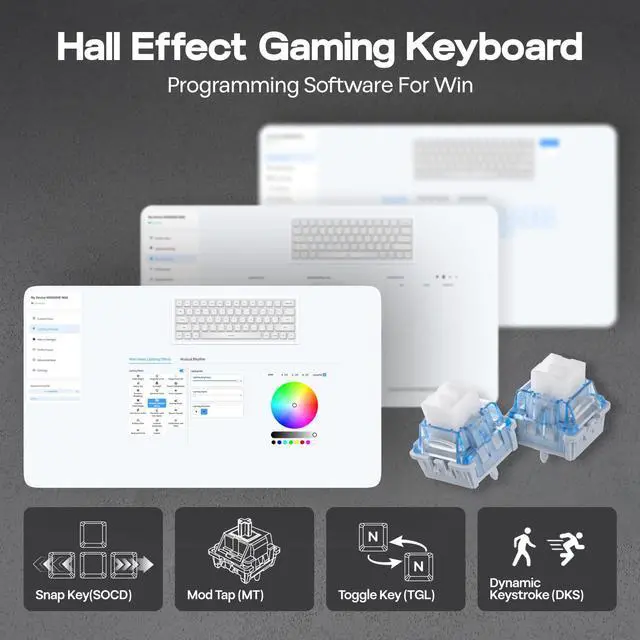
- Remap Layout, Record Macros, Set up RGB and more on: hec.aulacn.com/#/
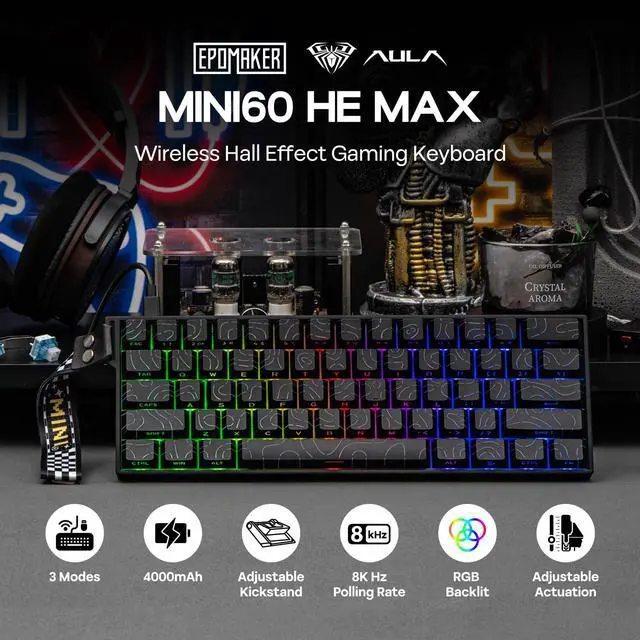
wireless gaming keyboard

Snap Key (SOCD)
No more, stop moving in the heat of battle. With Snap Key, only the latter key is prioritized and triggered when two opposing directions are pressed.

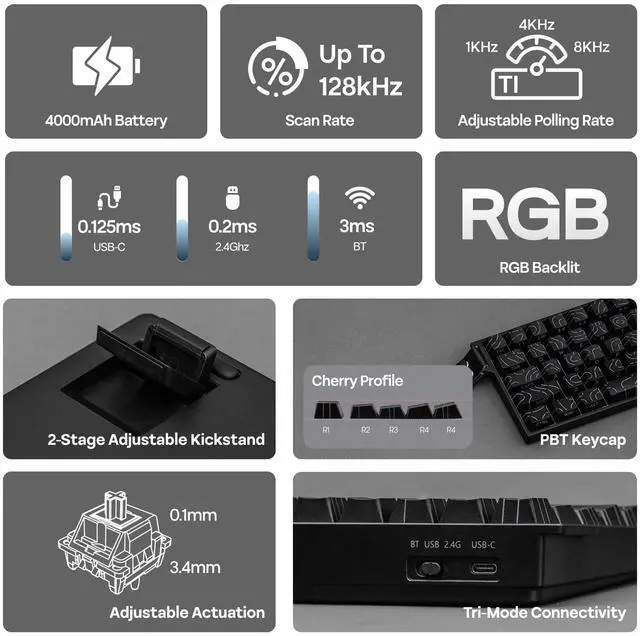
Fast Trigger from 0.1-3.4mm
Per 0.01mm adjustable actuation distance and four pre-set sensitivity modes for work accuracy, gaming speed, and everyday convenience.

DKS & MT
Maximize the keyboard's potential by setting 2-4 functions on 1 key in 1 layout. 4 distances as 4 functions with DKS or hold/tap as 2 with MT.

Toggle Key (TGL)
Set "hold" or "double-click" as the trigger for continuous input and "tap" as termination. Release your finger for operation elsewhere.


Portable Gaming Keyboard
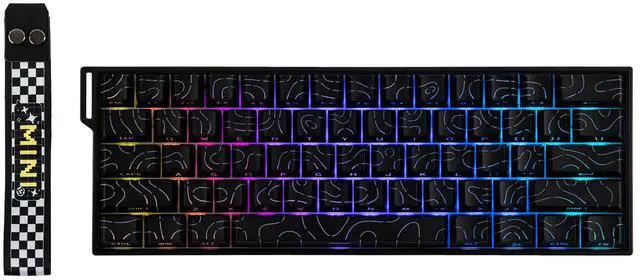
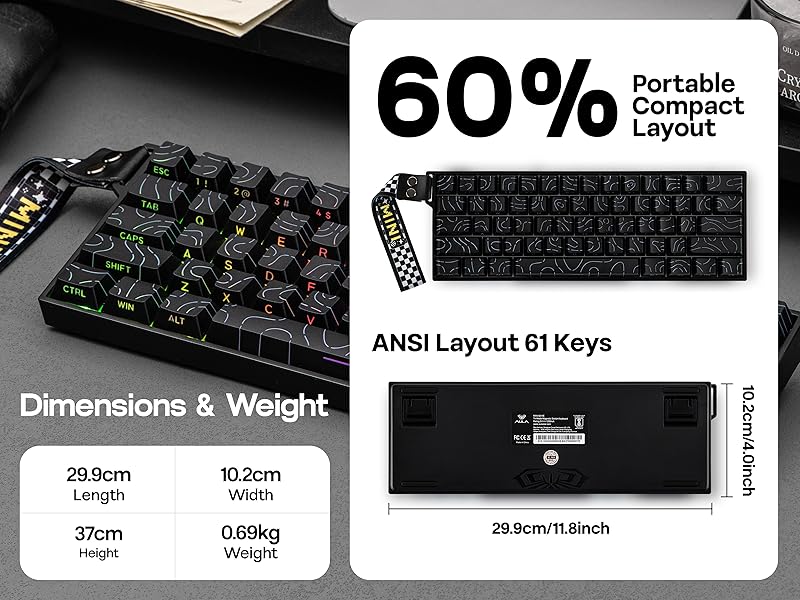
60% Ultra-compact Layout with 61 Keys
The MINI 60 HE keyboard features a space-saving design with 61 keys, offering a sleek, minimalist aesthetic and improved typing efficiency. Its 60% layout provides additional space for mouse maneuvers, enhancing gaming performance and ergonomics, making it ideal for gamers, multi-device users, business travelers, and remote workers.
3 Modes Connectivity
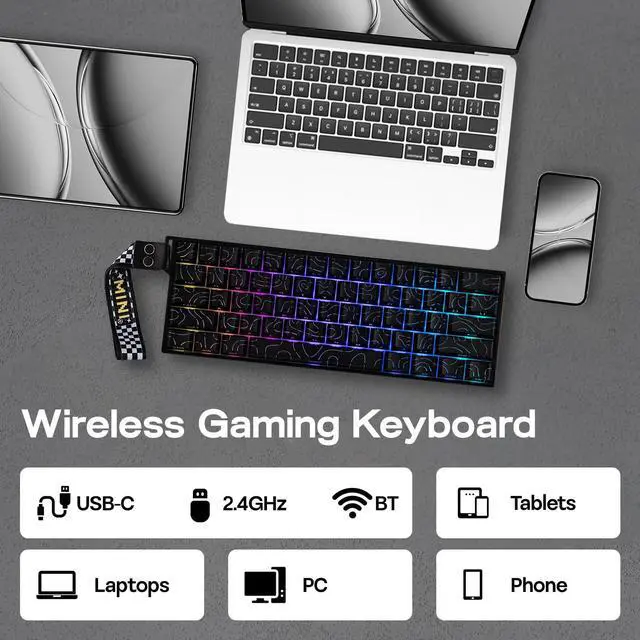
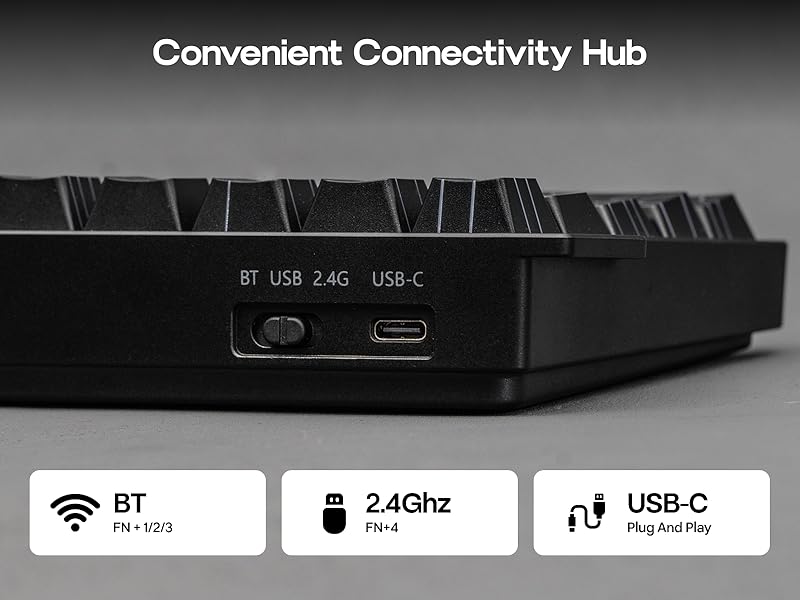
BT 3.0/5.0 & 2.4Ghz & USB Cable
Whether you prefer the simplicity of a plug-in cable, the versatile BT mode, or the reliable 2.4 GHz wireless, the AULA MINI60 HE has you covered.
- When pairing MINI60 HE to your computer, make sure to hold FN+Q/W/E/R until light's flash quicken from slow to rapid, before plugging the receiver or initiating BT settings.
- FN+B (hold): Green Bar=100%. Yellow Bar=50%. Red Bar=30%
- FN (hold): Q/W/E/R/T=BT1/BT2/BT3/Wireless/Cable. A/S/D=Android/Windows/Mac
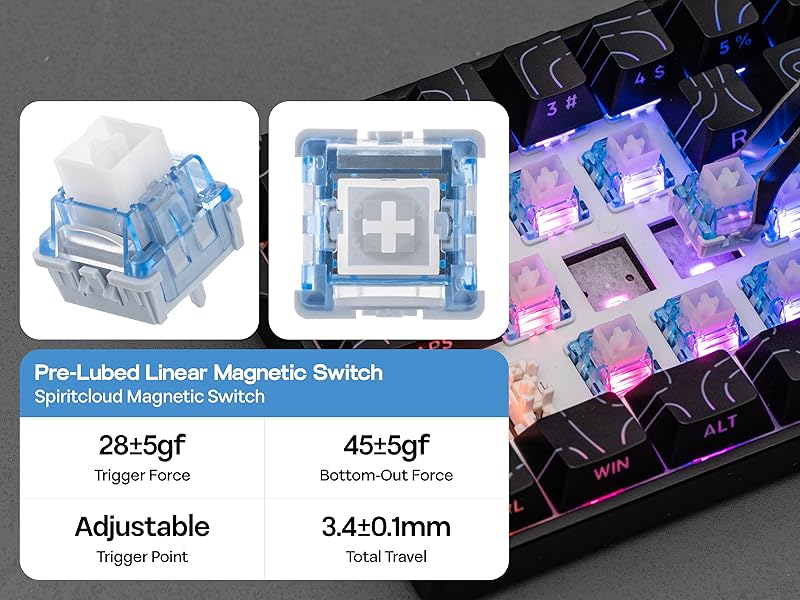
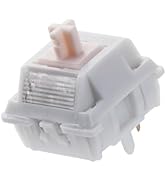
Spiritcloud Magnetic Switch
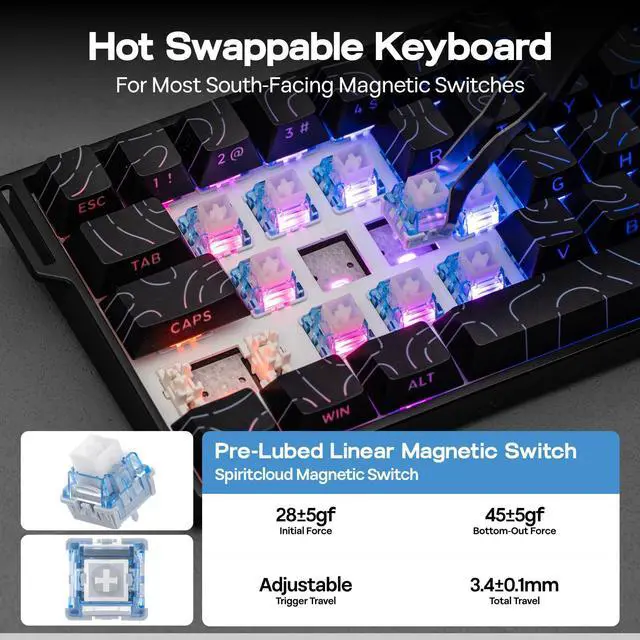
Linear Hall Effect Switch
- The AULA MINI60 HE wireless gaming keyboard supports three connection modes: wired mode offers millisecond-level precise input, 2.4G wireless mode balances stability and battery life, while Bluetooth mode enables seamless collaboration across multiple devices. Users can flexibly choose the most suitable mode based on their needs, whether for gaming, office work, or entertainment.
- Initial Force: 28±5gf
- Bottom-out Force: 45±5gf
- Trigger Travel: Adjustable Per 0.01mm. Total Travel: 3.4±0.1mm
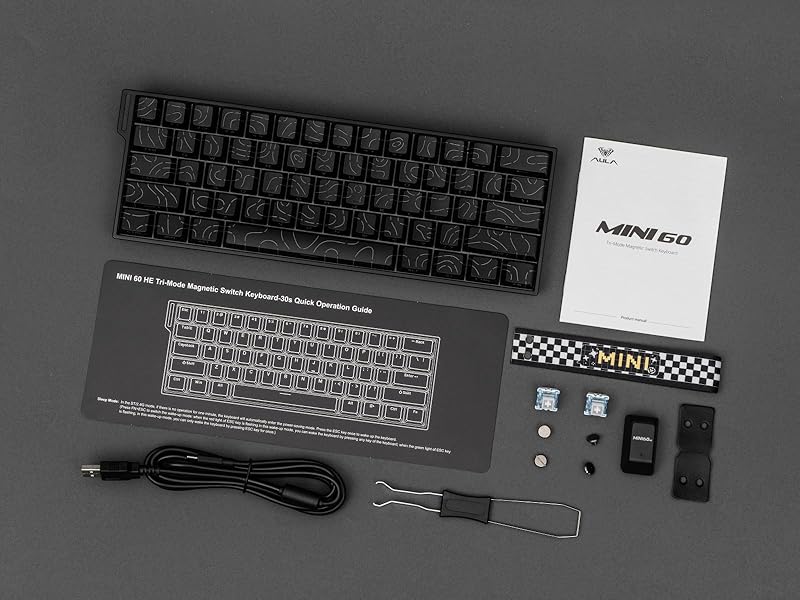
What's in the box?
- Mini60 HE MAX Keyboard
- User Manual & Quick Guide
- Detachable Ribbon, Dust Cover, USB A to C Cable, Switch & Keycap Puller
- 2.4Ghz Wireless Dongle (8,000 Polling) & 2*Storage Cap for Dongle (Insert the dongle into the computer’s hub to connect)
Can I adjust the height of this keyboard for typing?
Yes, the AULA MINI60 HE Wireless Hall Effect Keyboard offers three adjustable typing angles through its 2-stage kickstand.
Does this keyboard have backlighting? Can I adjust the brightness?
Yes, the MINI60 HE MAX keyboard has 16.8 million dynamic RGB backlighting with customizable effects. You can easily toggle the effect or adjust the brightness using function key shortcuts.
FN + \| to toggle between different lighting effects
Is this keyboard compatible with macOS, or just Windows?
Yes, the MINI60 HE Gaming Keyboard is compatible with macOS, Windows, and Android. You can switch between these operating systems using the shortcut keys (FN+A/S/D).
(FN+A/S/D=Android/Windows/Mac)
How long does the battery last on this wireless keyboard?
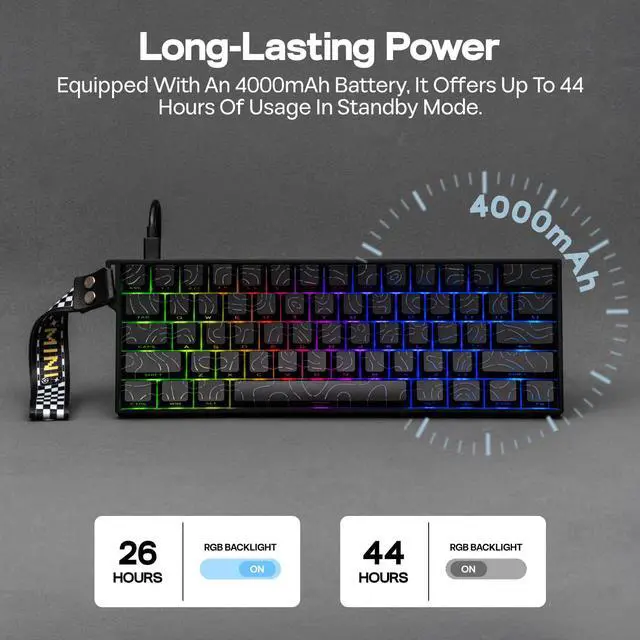
The EPOMAKER Aula MINI60 HE Standard Gaming Keyboard features a 4000mAh battery that provides up to 44 hours of use with the backlight off.




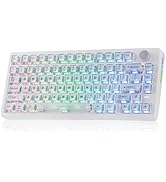
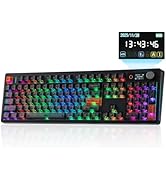

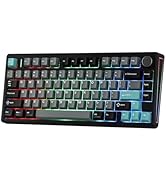
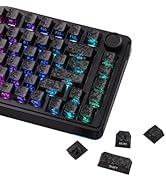
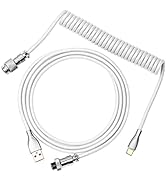
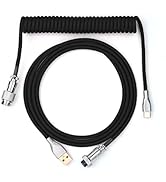
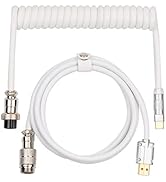


wireless gaming keyboard
Online Web Software (Chrome)
How to Connect Software
- Visit the official "AULA" website.
- Go to the "Downloads" section, then select the "Driver" page and click "Driver".
- Pull down and find the link for the "MINI60 HE" and click the driver link.
- Click "Connect Keyboard," choose "MINI60HE MAX", and click "??”.
- Remap Layout, Record Macros, Set up RGB and more on: hec.aulacn.com/#/
Snap Key (SOCD)
No more, stop moving in the heat of battle. With Snap Key, only the latter key is prioritized and triggered when two opposing directions are pressed.
Fast Trigger from 0.1-3.4mm
Per 0.01mm adjustable actuation distance and four pre-set sensitivity modes for work accuracy, gaming speed, and everyday convenience.
DKS & MT
Maximize the keyboard's potential by setting 2-4 functions on 1 key in 1 layout. 4 distances as 4 functions with DKS or hold/tap as 2 with MT.
Toggle Key (TGL)
Set "hold" or "double-click" as the trigger for continuous input and "tap" as termination. Release your finger for operation elsewhere.


Portable Gaming Keyboard
60% Ultra-compact Layout with 61 Keys
The MINI 60 HE keyboard features a space-saving design with 61 keys, offering a sleek, minimalist aesthetic and improved typing efficiency. Its 60% layout provides additional space for mouse maneuvers, enhancing gaming performance and ergonomics, making it ideal for gamers, multi-device users, business travelers, and remote workers.
3 Modes Connectivity
BT 3.0/5.0 & 2.4Ghz & USB Cable
Whether you prefer the simplicity of a plug-in cable, the versatile BT mode, or the reliable 2.4 GHz wireless, the AULA MINI60 HE has you covered.
- When pairing MINI60 HE to your computer, make sure to hold FN+Q/W/E/R until light's flash quicken from slow to rapid, before plugging the receiver or initiating BT settings.
- FN+B (hold): Green Bar=100%. Yellow Bar=50%. Red Bar=30%
- FN (hold): Q/W/E/R/T=BT1/BT2/BT3/Wireless/Cable. A/S/D=Android/Windows/Mac
Spiritcloud Magnetic Switch
Linear Hall Effect Switch
- The AULA MINI60 HE wireless gaming keyboard supports three connection modes: wired mode offers millisecond-level precise input, 2.4G wireless mode balances stability and battery life, while Bluetooth mode enables seamless collaboration across multiple devices. Users can flexibly choose the most suitable mode based on their needs, whether for gaming, office work, or entertainment.
- Initial Force: 28±5gf
- Bottom-out Force: 45±5gf
- Trigger Travel: Adjustable Per 0.01mm. Total Travel: 3.4±0.1mm
What's in the box?
- Mini60 HE MAX Keyboard
- User Manual & Quick Guide
- Detachable Ribbon, Dust Cover, USB A to C Cable, Switch & Keycap Puller
- 2.4Ghz Wireless Dongle (8,000 Polling) & 2*Storage Cap for Dongle (Insert the dongle into the computer’s hub to connect)
Can I adjust the height of this keyboard for typing?
Yes, the AULA MINI60 HE Wireless Hall Effect Keyboard offers three adjustable typing angles through its 2-stage kickstand.
Does this keyboard have backlighting? Can I adjust the brightness?
Yes, the MINI60 HE MAX keyboard has 16.8 million dynamic RGB backlighting with customizable effects. You can easily toggle the effect or adjust the brightness using function key shortcuts.
FN + \| to toggle between different lighting effects
Is this keyboard compatible with macOS, or just Windows?
Yes, the MINI60 HE Gaming Keyboard is compatible with macOS, Windows, and Android. You can switch between these operating systems using the shortcut keys (FN+A/S/D).
(FN+A/S/D=Android/Windows/Mac)
How long does the battery last on this wireless keyboard?
The EPOMAKER Aula MINI60 HE Standard Gaming Keyboard features a 4000mAh battery that provides up to 44 hours of use with the backlight off.

EPOMAKER New Release for 2026
Mechanical Keyboard
Magnetic Keyboard
Ergonomic Keyboard
PC Gaming Mice
Numpad
Premium Keycaps Set
Keyboard Cable
Keyboard Switches
Keyboard Wrist Rest