here!
here!
I’m your shopping assistant for PC builds, upgrades, and everything tech.
Got questions? Ask away!
Start a conversation
here!
I’m your shopping assistant for PC builds, upgrades, and everything tech.
Got questions? Ask away!
Start a conversation



Any questions? Ask CelesteSM will help you find out quickly.

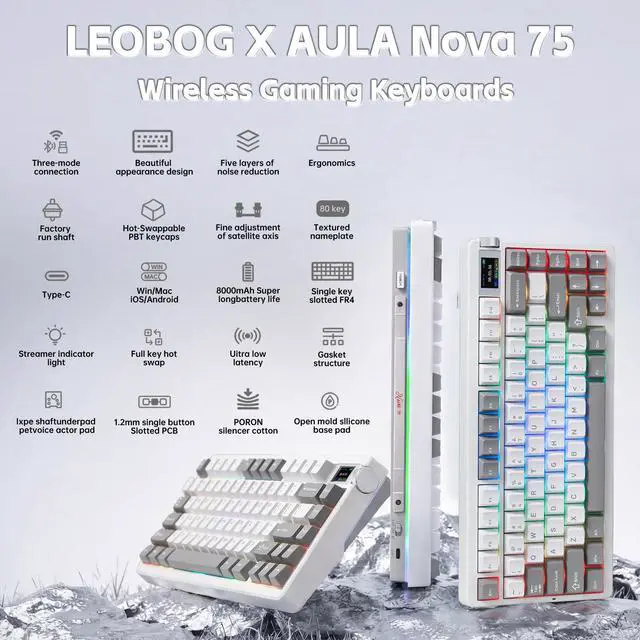
The large battery capacity increases the battery life in wireless mode. Please note that don't use a fast charging cable to charge this keyboard.

Double shot PBT keycaps, made from many colors material molded into each others, make the keycaps characters maintain the vibrance and saturation.

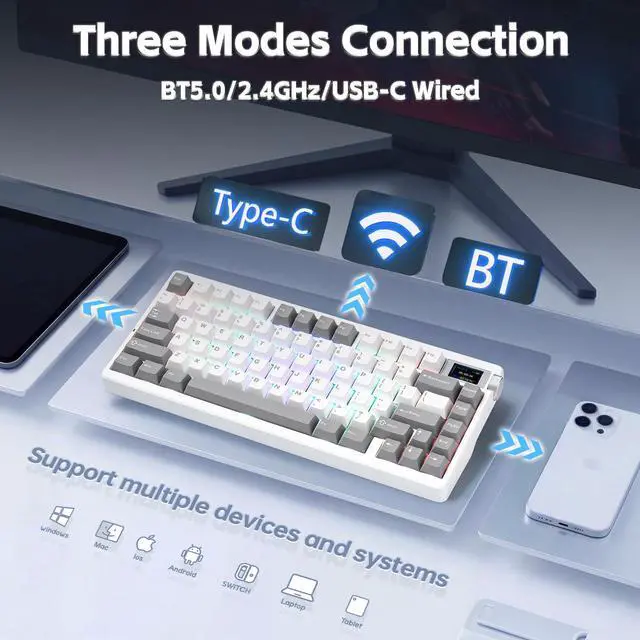
Support BT 3.0/5.0, 2.4GHZ wireless and USB-C wired connection. Users can quickly switch between connection modes using the mode switch on the side.

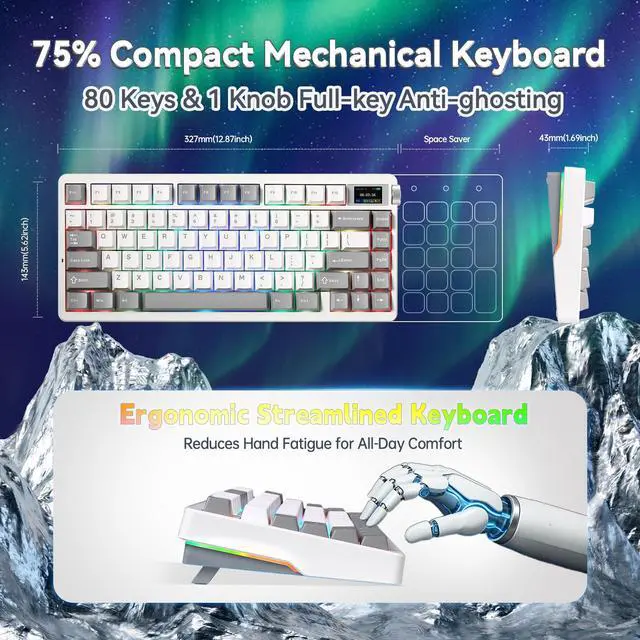
It adjustable Keyboard Stand has 2 adjustable height levels and can make users adjust the keyboard tilt according to their own requirements.
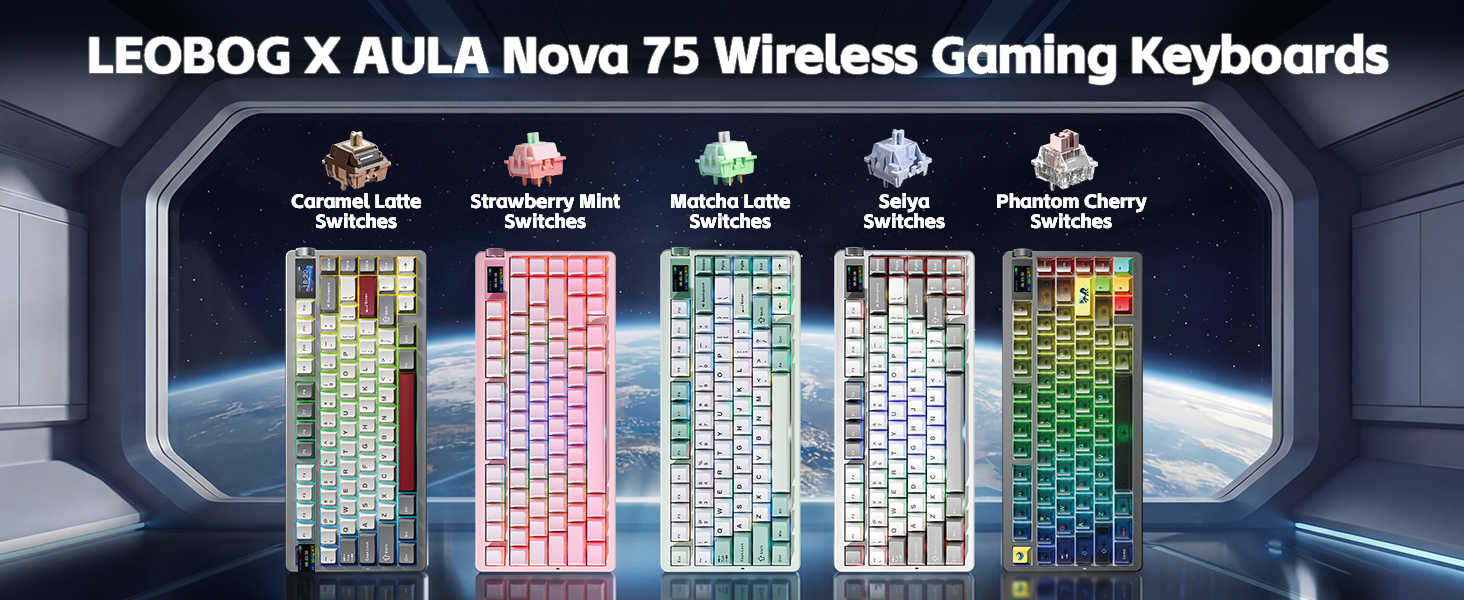
 Nova75 Black&White&Grey |  Nova75 Red&Whtie&Grey |  Nova75 Misty Black |  Nova75 Gradient Pink |  Nova75 White&Green |  Aula F75 Keyboard | |
|---|---|---|---|---|---|---|
Customer Reviews | — | — | — | — | — | — |
Price | — | — | — | — | — | — |
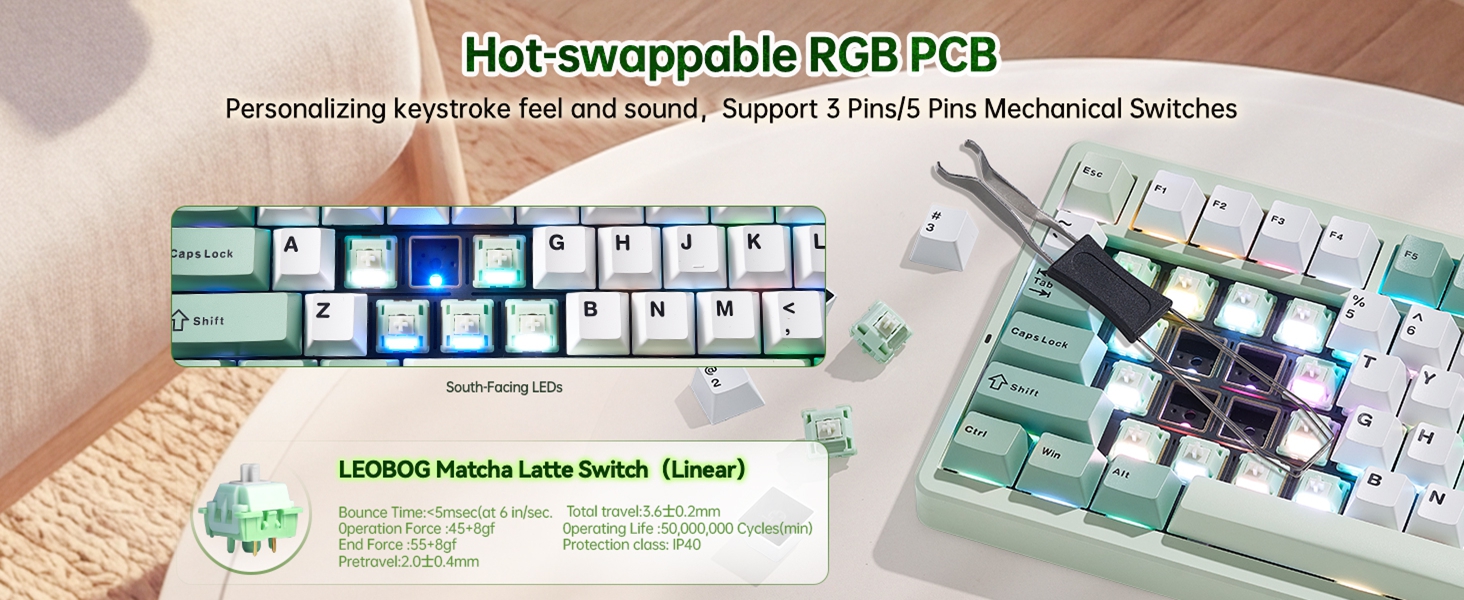
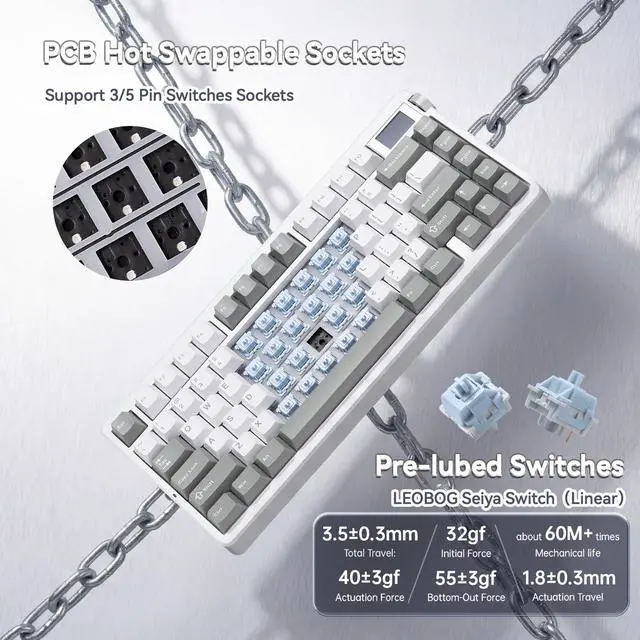
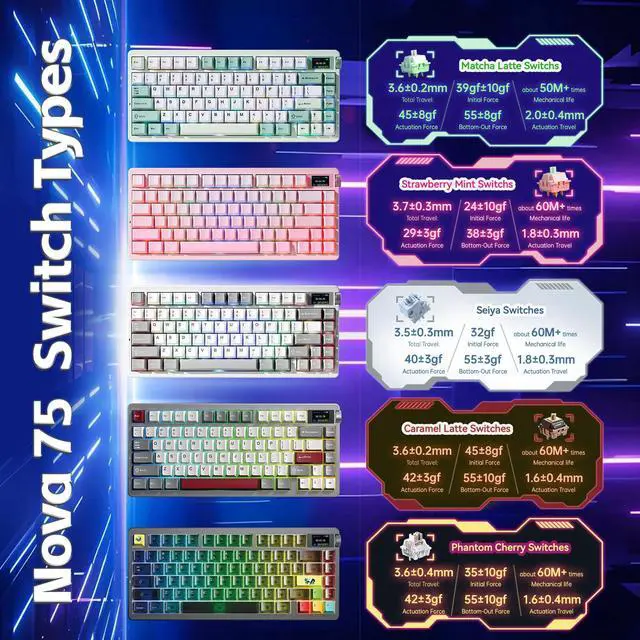
Switches Name | Seiya Switches | Caramel Latte Switches | Phantom Cherry Switches | Strawberry Mint Switches | Matcha Latte Switches | Reaper Switches |
Total Travel | 3.5±0.3mm | 3.6±0.2mm | 3.6±0.4mm | 3.7±0.3mm | 3.6±0.2mm | 3.6±0.3mm |
Actuation Force | 40±3gf | 42±3gf | 42±3gf | 29±3gf | 42±3gf | 45±3gf |
Initial Force | 32gf | 45±8gf | 35±10gf | 24±10gf | 35±10gf | 36gf |
Bottom-Out Force | 55±3gf | 55±10gf | 55±10gf | 38±3gf | 55±8gf | 55±3gf |
Actuation Travel | 1.8±0.3mm | 1.6±0.4mm | 1.6±0.4mm | 1.8±0.3mm | 1.8±0.3mm | 1.8±0.3mm |
Main Purpose | Gaming | Office | Gaming | Gaming | Office | Gaming |
Compatible Applications | Office | Gaming | Office | Office | Gaming | Office |
Battery Capacity | 8000mAh | 8000mAh | 8000mAh | 8000mAh | 8000mAh | 4000mAh |
Positioning Board Material | FR4 Positioning Board | FR4 Positioning Board | FR4 Positioning Board | FR4 Positioning Board | FR4 Positioning Board | Single key slotted PC board |
How do I connect the keyboard?
Toggle the side button to 2.4G/BT/Wired mode, then:
2.4G mode: press FN+’~ key for 3s, then plug in the receiver.
BT mode: press FN+1/2/3, search for the device named AULA-F75 3.0KB/AULA-F75 5.0 KB on your pc/tablet/phone, select it to connect.
How do I customize the keyboard?
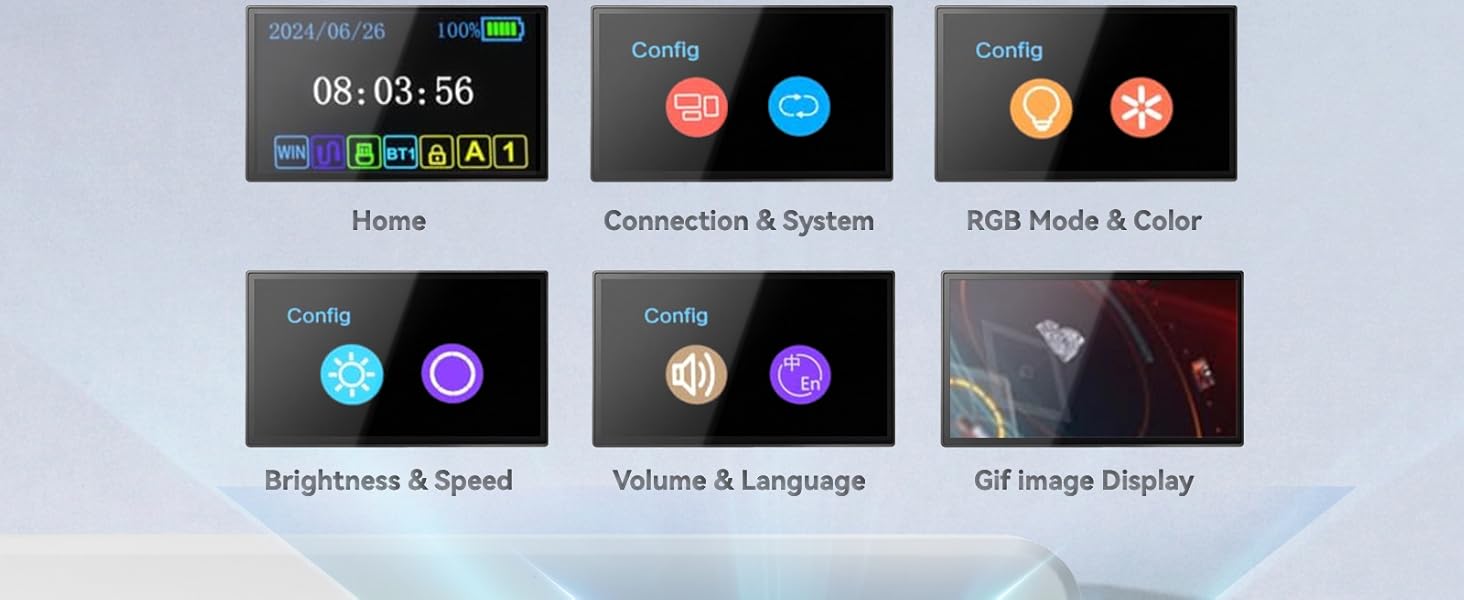
Download the AULA Nova75 driver software on the website , switch the keyboard's side button to wired mode, then open the software to customize settings via the interface.
Is the keyboard compatible with Mac OS?
Yes, the keyboard is compatible with Mac OS, Windows and Laptop After connectivity, press FN+E = Mac system (the light of E key red flashes for 3s).
Note: driver software only supports Window system in wired mode.
How can I put the keyboard into sleep mode when not in use?
The keyboard will automatically enter sleep mode after 1 minute(you can reset the time via the Driver) of inactivity. To wake it up, simply press any key.
Is there anything to note when charging the Aula Nova 75 Mechanical keyboard?
1. Please use only the USB Cable interface of the computer to charge the keyboard;
2. Don’t use the mobile phone fast charging charger/over-voltage/over-current power adapter to charge the keyboard.
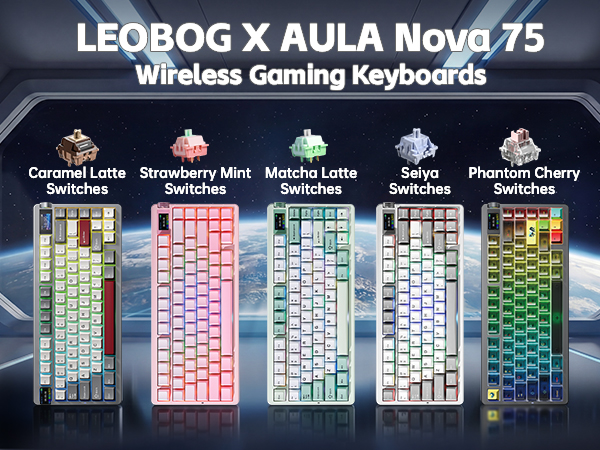


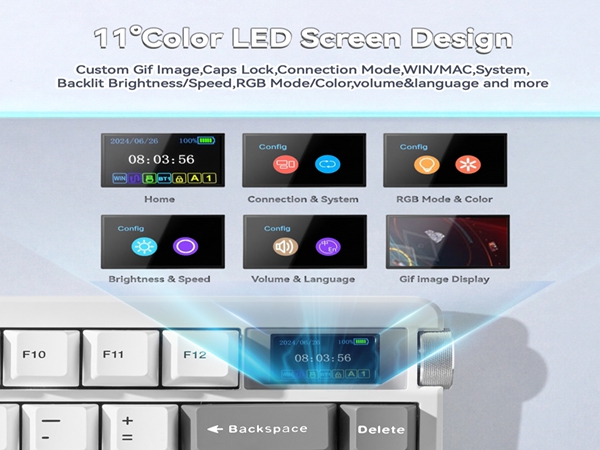
The large battery capacity increases the battery life in wireless mode. Please note that don't use a fast charging cable to charge this keyboard.
Double shot PBT keycaps, made from many colors material molded into each others, make the keycaps characters maintain the vibrance and saturation.
Support BT 3.0/5.0, 2.4GHZ wireless and USB-C wired connection. Users can quickly switch between connection modes using the mode switch on the side.
It adjustable Keyboard Stand has 2 adjustable height levels and can make users adjust the keyboard tilt according to their own requirements.
Nova75 Black&White&Grey | Nova75 Red&Whtie&Grey | Nova75 Misty Black | Nova75 Gradient Pink | Nova75 White&Green | Aula F75 Keyboard |
|---|---|---|---|---|---|
| Customer Reviews | |||||
| — | — | — | — | — | — |
| Price | |||||
| — | — | — | — | — | — |
| Switches Name | |||||
| Seiya Switches | Caramel Latte Switches | Phantom Cherry Switches | Strawberry Mint Switches | Matcha Latte Switches | Reaper Switches |
| Total Travel | |||||
| 3.5±0.3mm | 3.6±0.2mm | 3.6±0.4mm | 3.7±0.3mm | 3.6±0.2mm | 3.6±0.3mm |
| Actuation Force | |||||
| 40±3gf | 42±3gf | 42±3gf | 29±3gf | 42±3gf | 45±3gf |
| Initial Force | |||||
| 32gf | 45±8gf | 35±10gf | 24±10gf | 35±10gf | 36gf |
| Bottom-Out Force | |||||
| 55±3gf | 55±10gf | 55±10gf | 38±3gf | 55±8gf | 55±3gf |
| Actuation Travel | |||||
| 1.8±0.3mm | 1.6±0.4mm | 1.6±0.4mm | 1.8±0.3mm | 1.8±0.3mm | 1.8±0.3mm |
| Main Purpose | |||||
| Gaming | Office | Gaming | Gaming | Office | Gaming |
| Compatible Applications | |||||
| Office | Gaming | Office | Office | Gaming | Office |
| Battery Capacity | |||||
| 8000mAh | 8000mAh | 8000mAh | 8000mAh | 8000mAh | 4000mAh |
| Positioning Board Material | |||||
| FR4 Positioning Board | FR4 Positioning Board | FR4 Positioning Board | FR4 Positioning Board | FR4 Positioning Board | Single key slotted PC board |
How do I connect the keyboard?
Toggle the side button to 2.4G/BT/Wired mode, then:
2.4G mode: press FN+’~ key for 3s, then plug in the receiver.
BT mode: press FN+1/2/3, search for the device named AULA-F75 3.0KB/AULA-F75 5.0 KB on your pc/tablet/phone, select it to connect.
How do I customize the keyboard?
Download the AULA Nova75 driver software on the website , switch the keyboard's side button to wired mode, then open the software to customize settings via the interface.
Is the keyboard compatible with Mac OS?
Yes, the keyboard is compatible with Mac OS, Windows and Laptop After connectivity, press FN+E = Mac system (the light of E key red flashes for 3s).
Note: driver software only supports Window system in wired mode.
How can I put the keyboard into sleep mode when not in use?
The keyboard will automatically enter sleep mode after 1 minute(you can reset the time via the Driver) of inactivity. To wake it up, simply press any key.
Is there anything to note when charging the Aula Nova 75 Mechanical keyboard?
1. Please use only the USB Cable interface of the computer to charge the keyboard;
2. Don’t use the mobile phone fast charging charger/over-voltage/over-current power adapter to charge the keyboard.