here!
here!
I’m your shopping assistant for PC builds, upgrades, and everything tech.
Got questions? Ask away!
Start a conversation
here!
I’m your shopping assistant for PC builds, upgrades, and everything tech.
Got questions? Ask away!
Start a conversation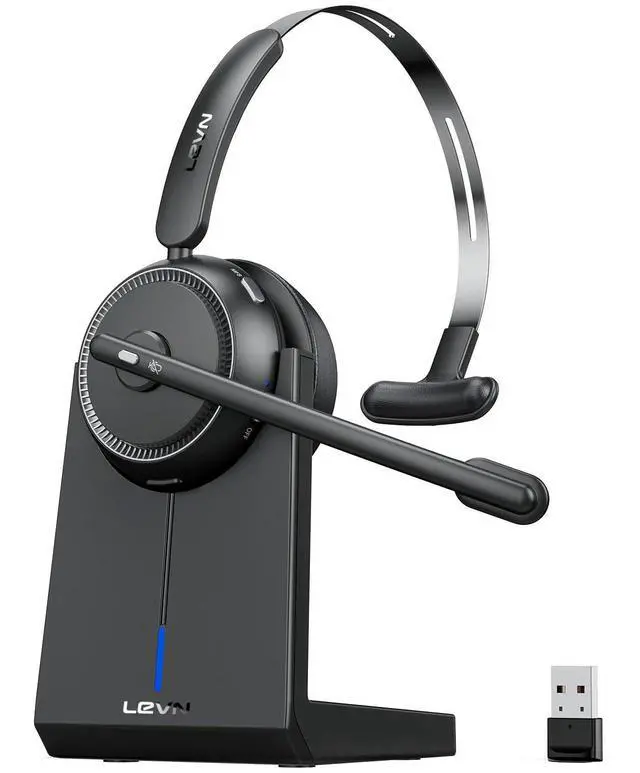





Any questions? Ask CelesteSM will help you find out quickly.
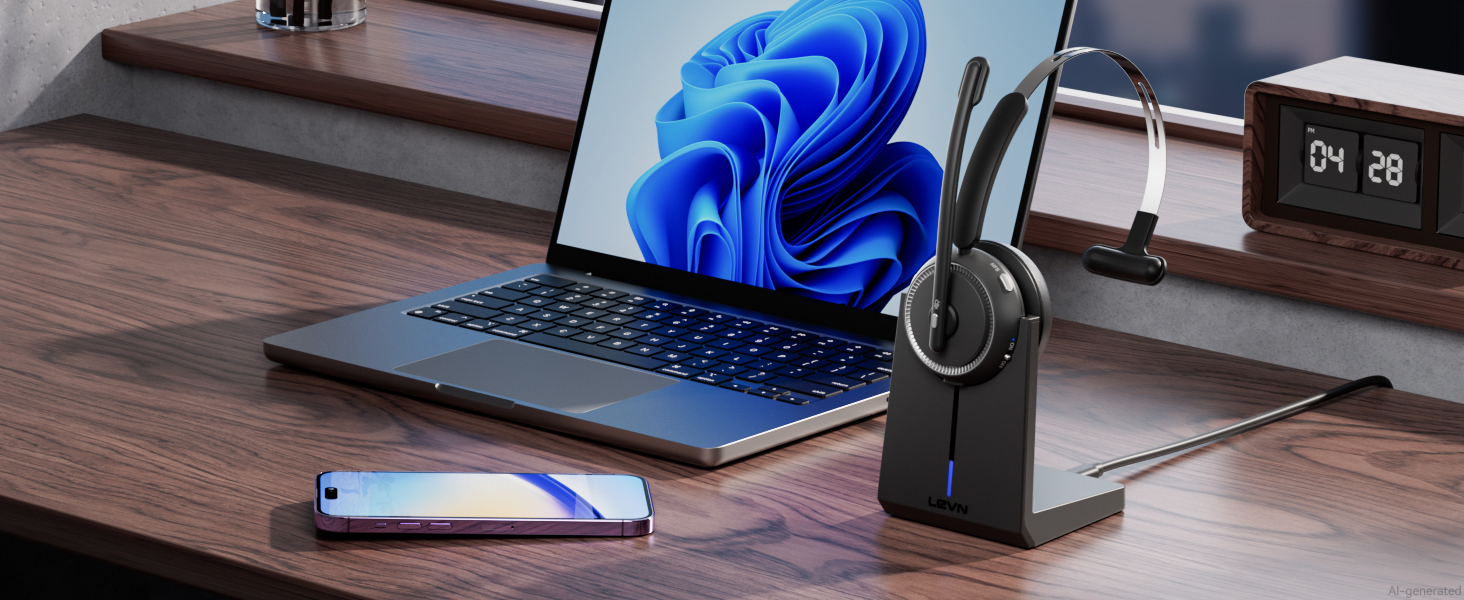
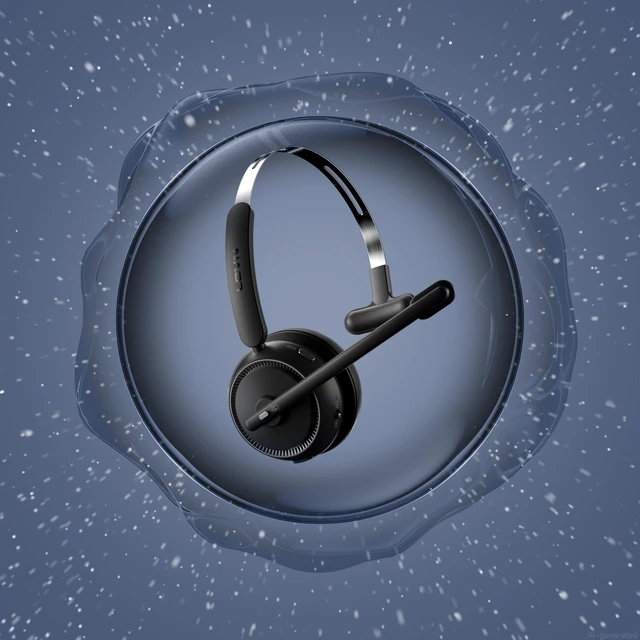
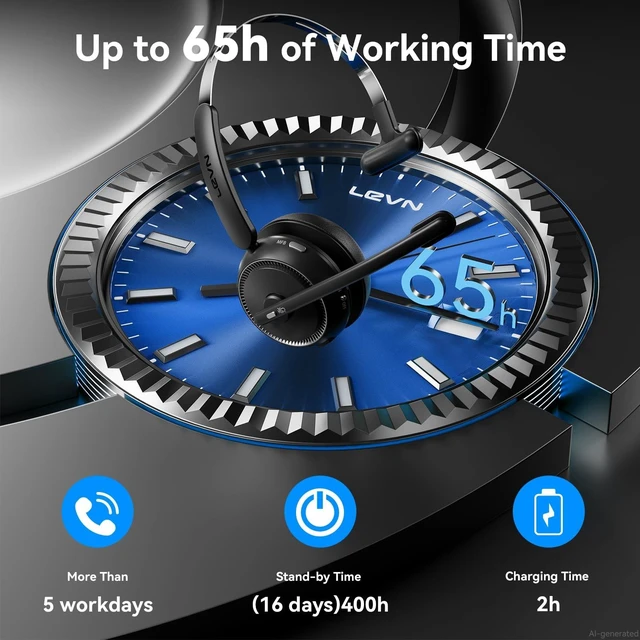
Clear calls, effortless charging, and seamless wireless connectivity for every workday.
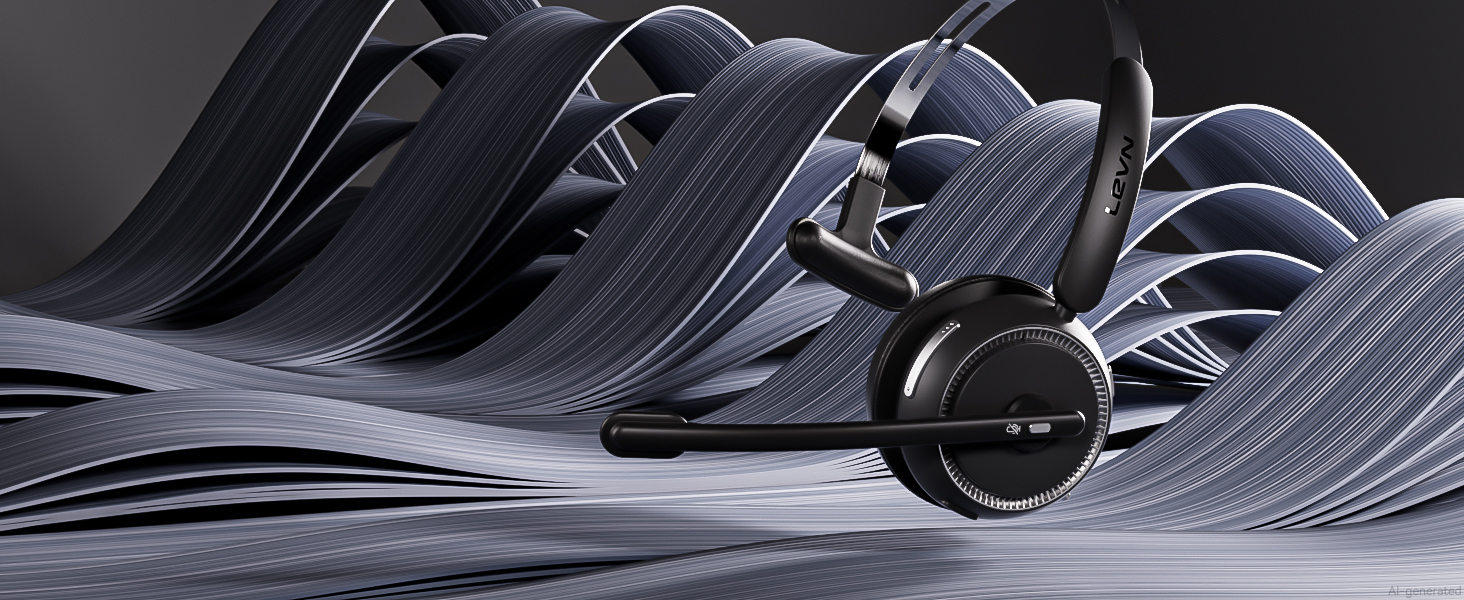
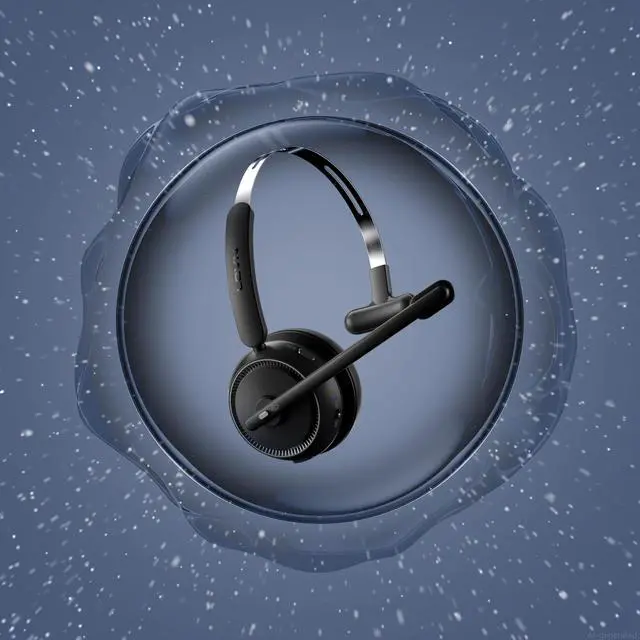
Minimize background noise interference for more focused calls and online meetings
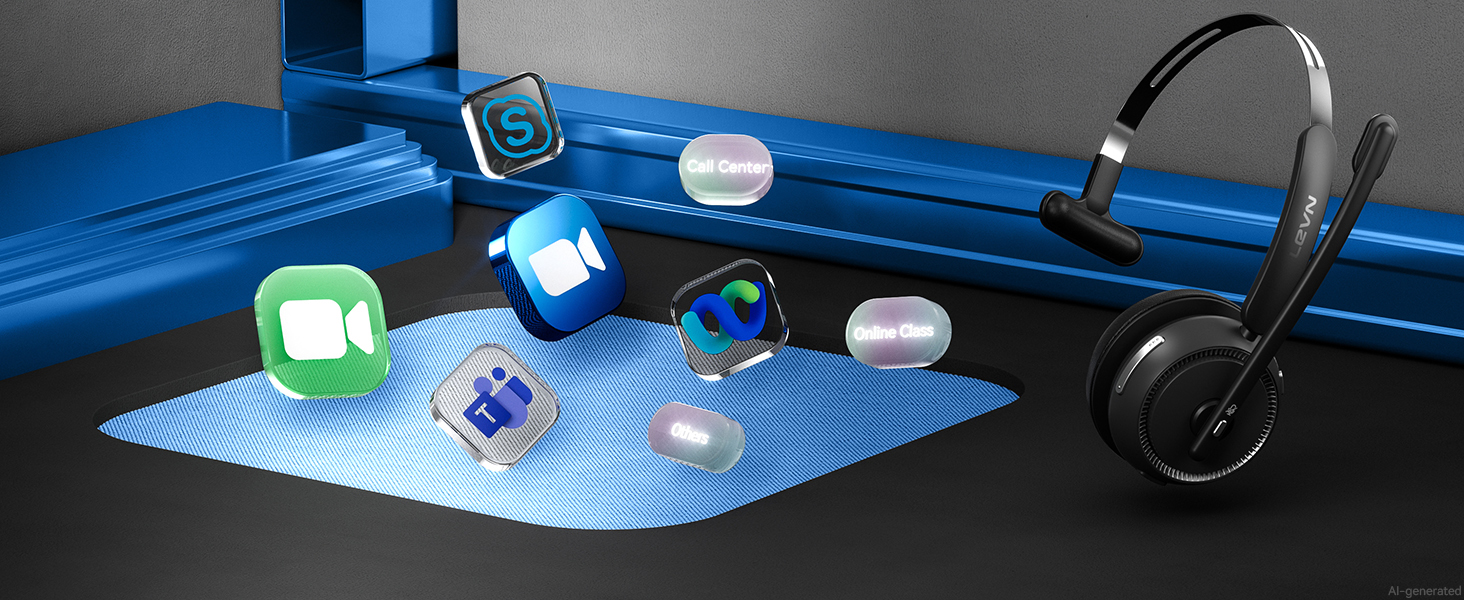
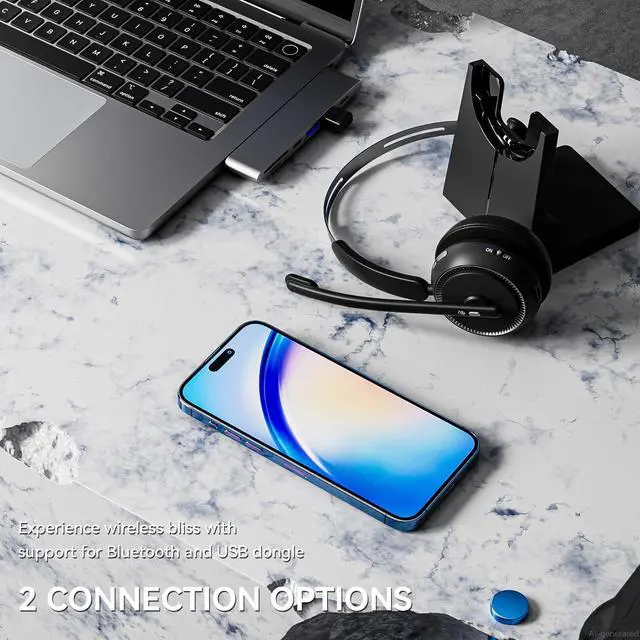
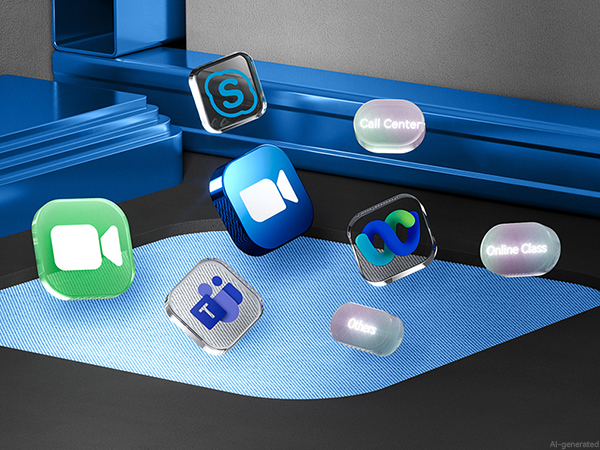
Wireless headset is designed for seamless with most video conferencing software and softphone
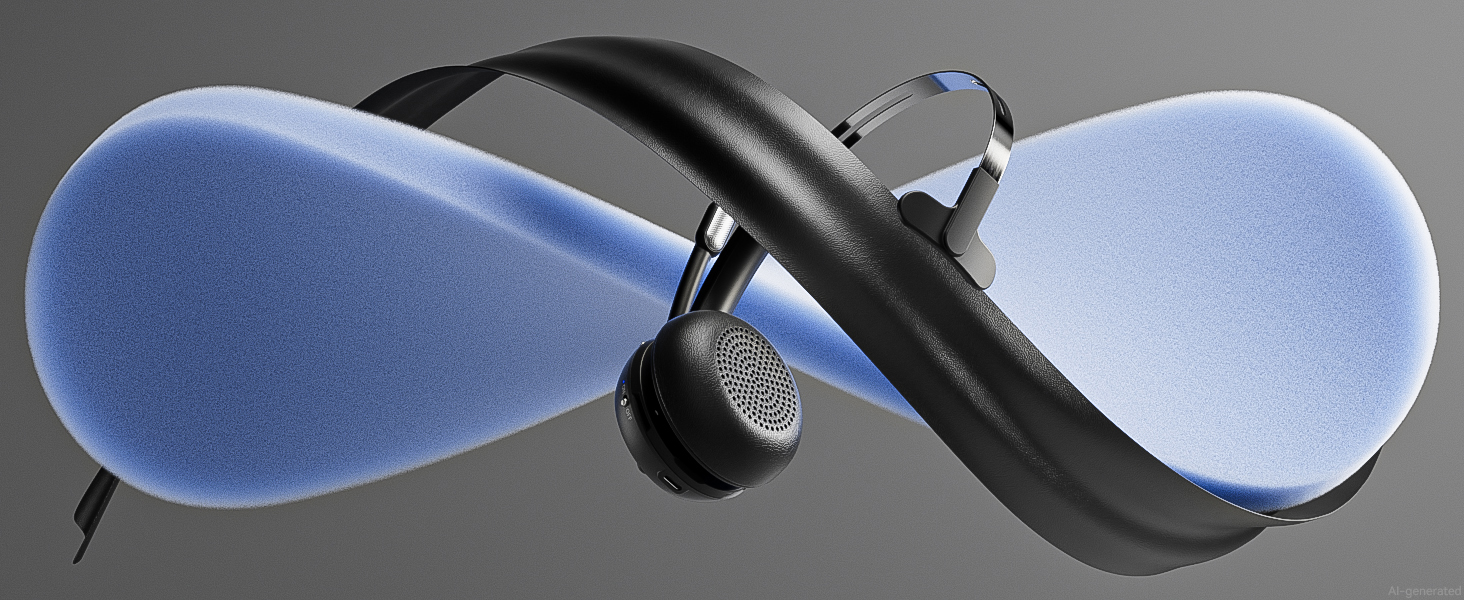
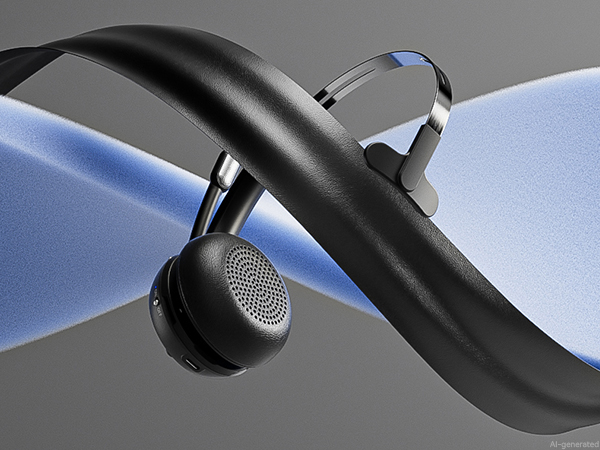
Soft memory foam and a lightweight design keep you comfortable through every meeting and call.
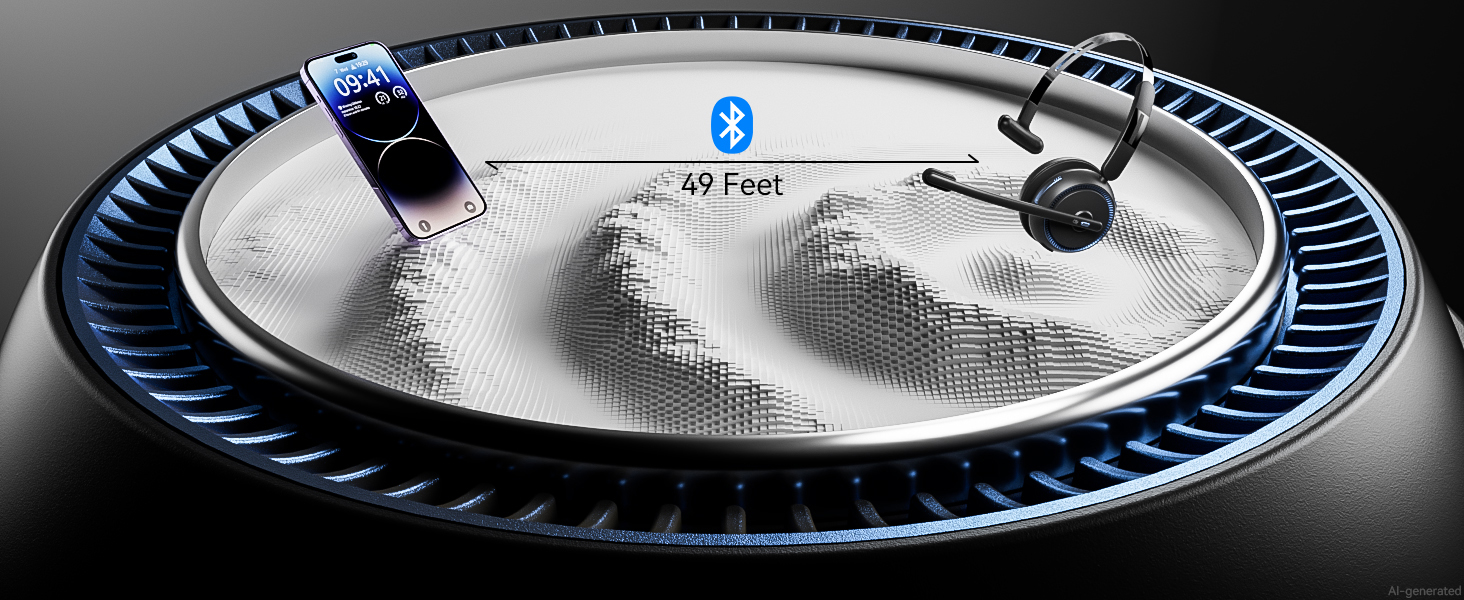
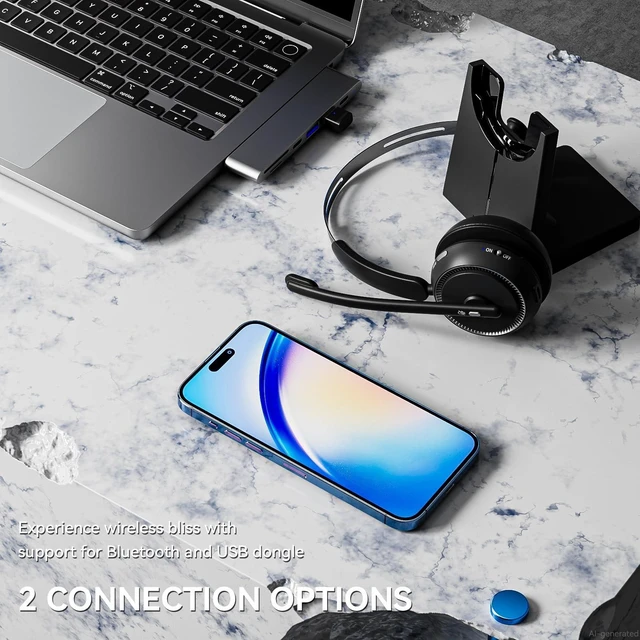
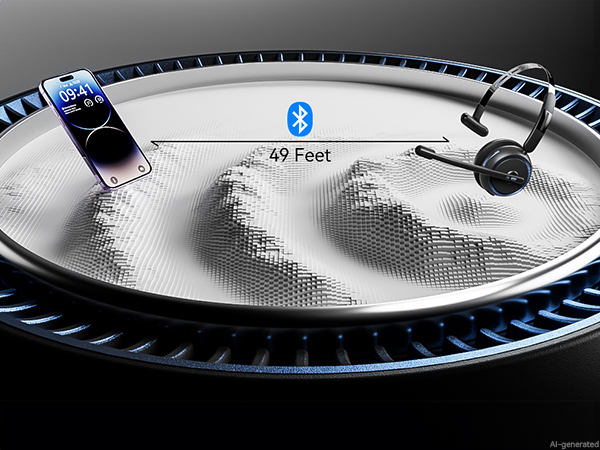
Keep your connection stable, 49-feet effective distance, free hands, realizing remote work
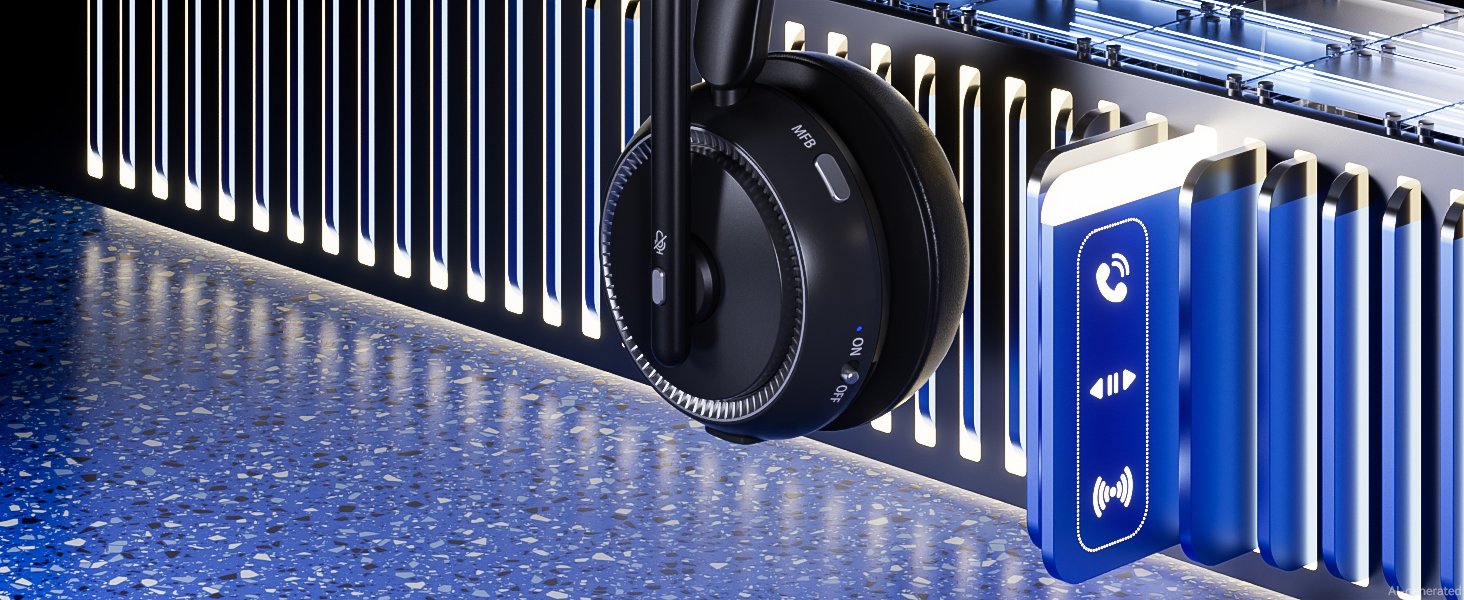
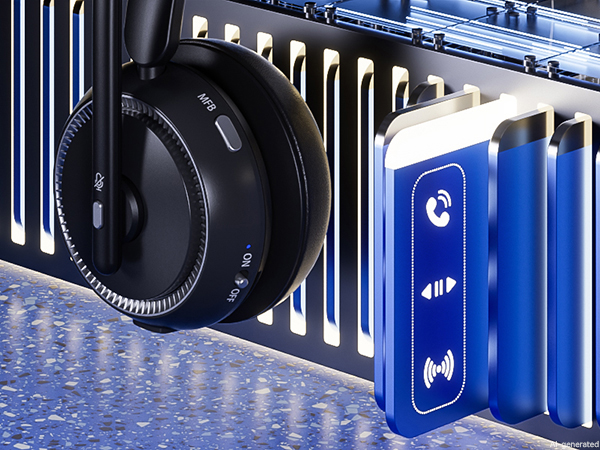
Manage calls, adjust volume, and activate your voice assistant without reaching for your device.
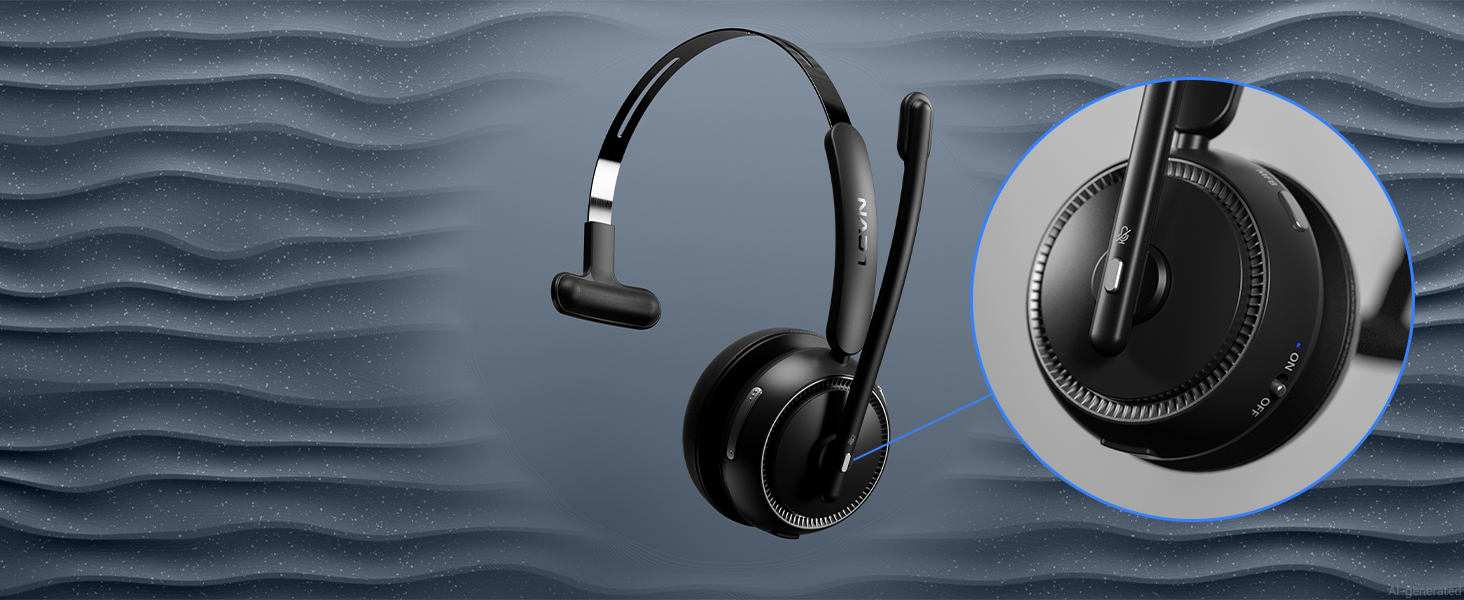
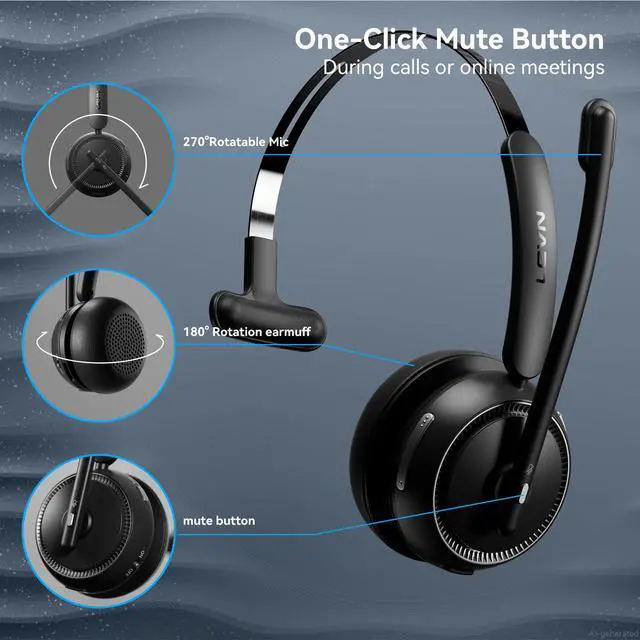
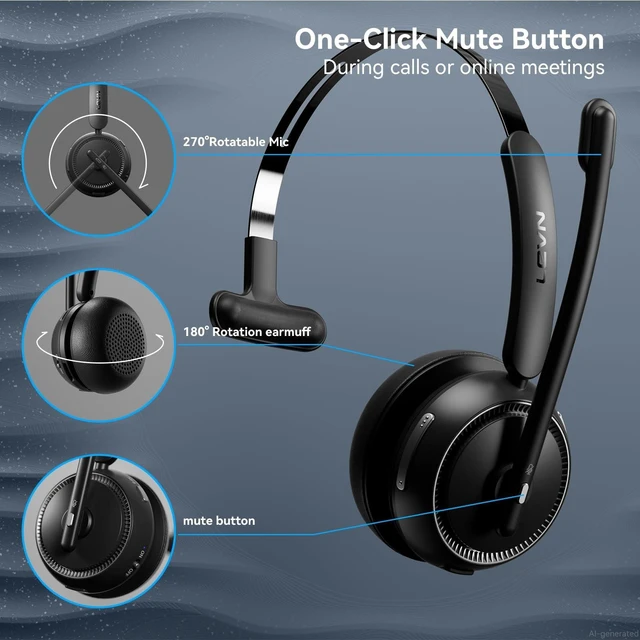
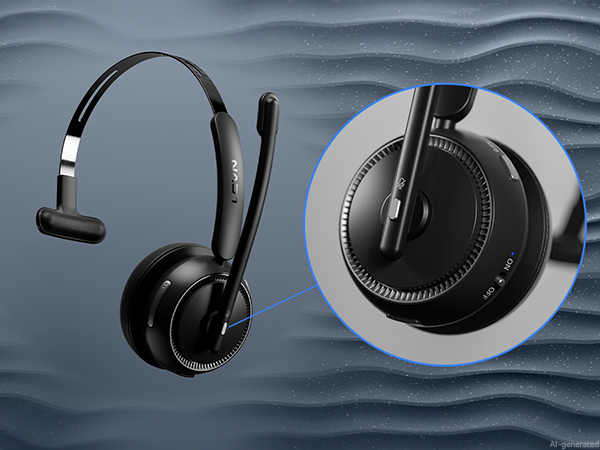
Simply click the mute button to toggle the microphone on or off, ensuring your privacy during calls
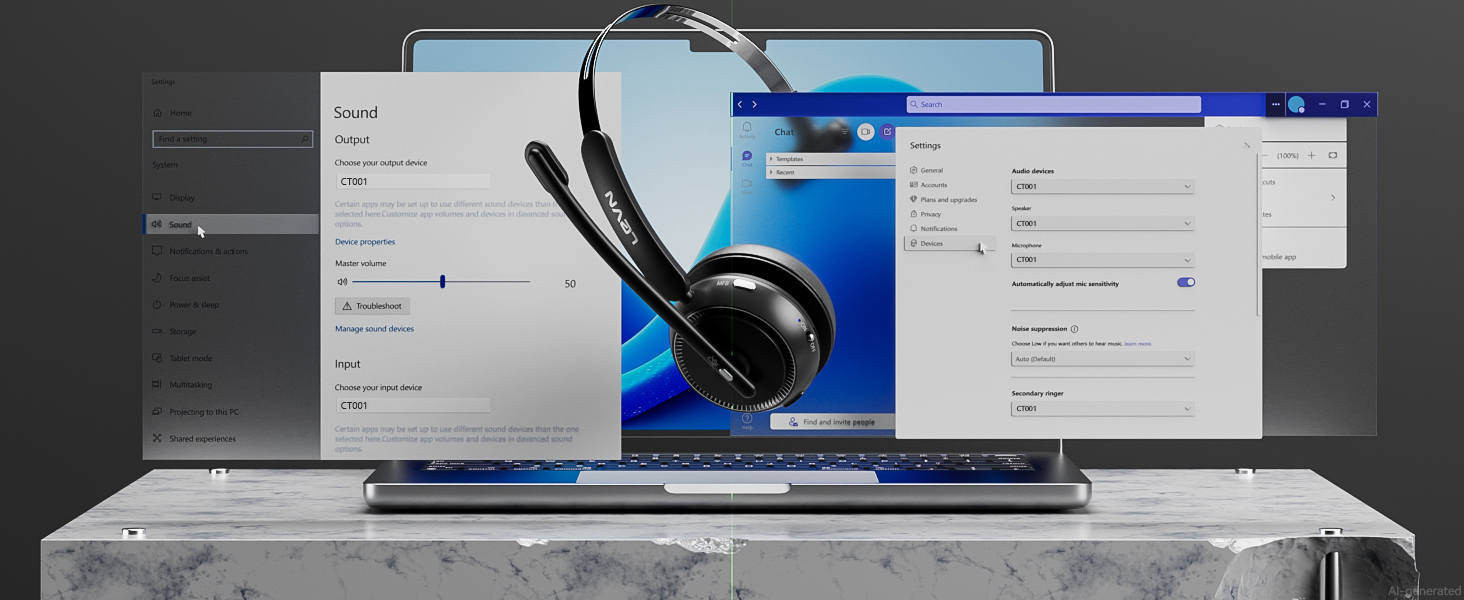
When I use this wireless headset on Teams, how should I set it up?
When you make a call with teams, please check the sound settings of both the computer and the software to make sure [CT001] is selected as the default output and input device (speaker/microphone).
I use the wireless headset to work from home, can it effectively eliminate the noise of background noise?
Yes. Our wireless headset can eliminate up to 99.9% of background noise, such as children screaming, dogs barking, TV background sound, and so on. It ensures a superior calling experience with clearer conversations for the person on the other end.
How do I use the headset's mute function during a call or online meeting?
During a call or online meeting, simply press the mute button once to mute the headset microphone. Press again to unmute. The mute key only works during a call or meeting.
Can I use the Bluetooth headset to answer or hang up calls?
If the headset is connected to a mobile phone, you can click the MFB to answer/end calls on the headset; If the headset is connected to a computer, you need to answer calls on the computer. Reminder: MFB does not work with desk phones and landlines.
How do I charge the wireless headset?
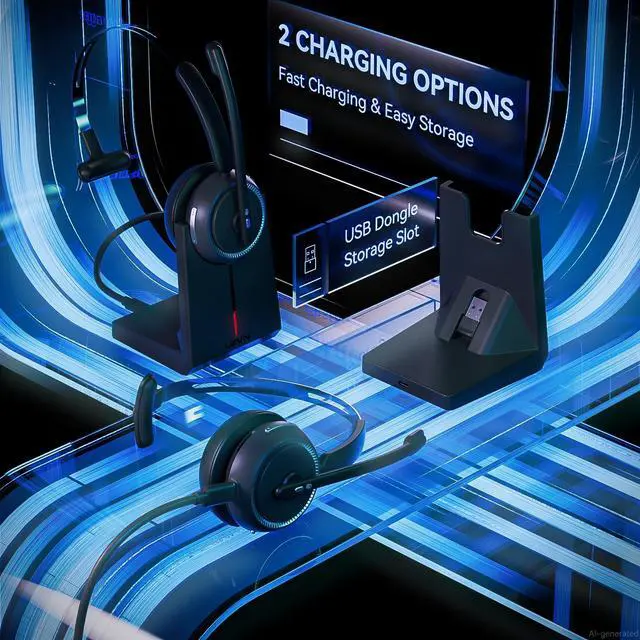
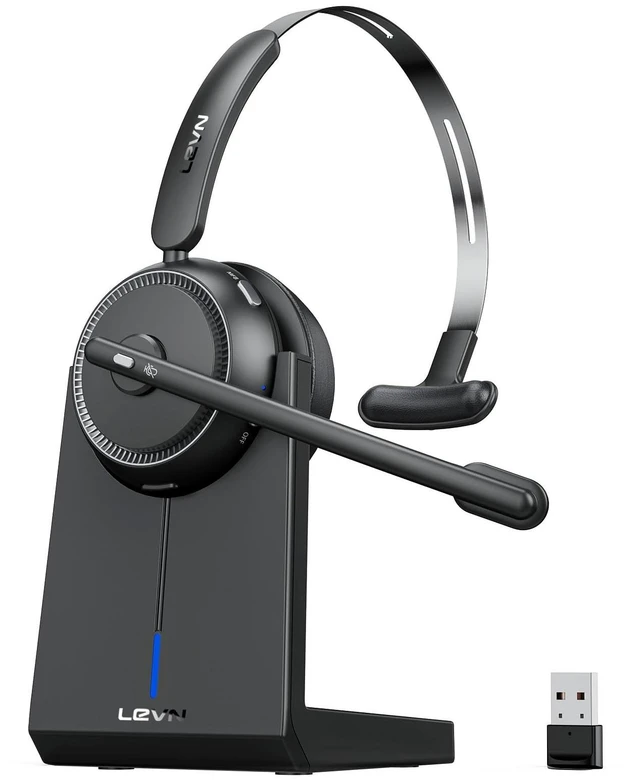
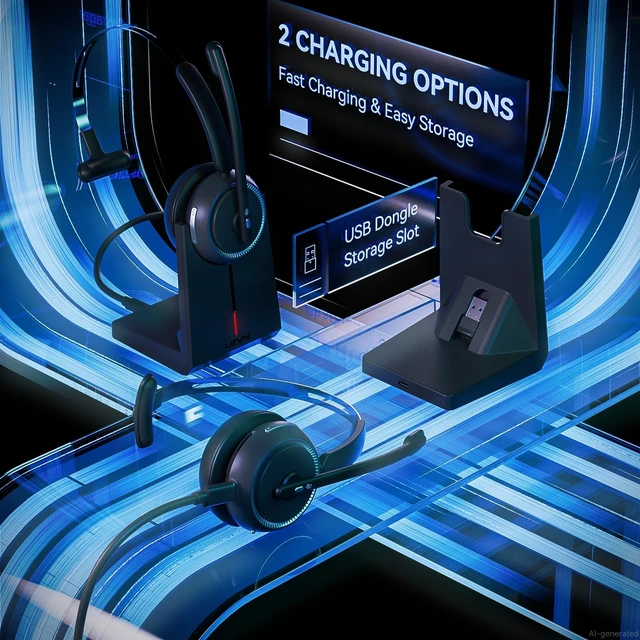
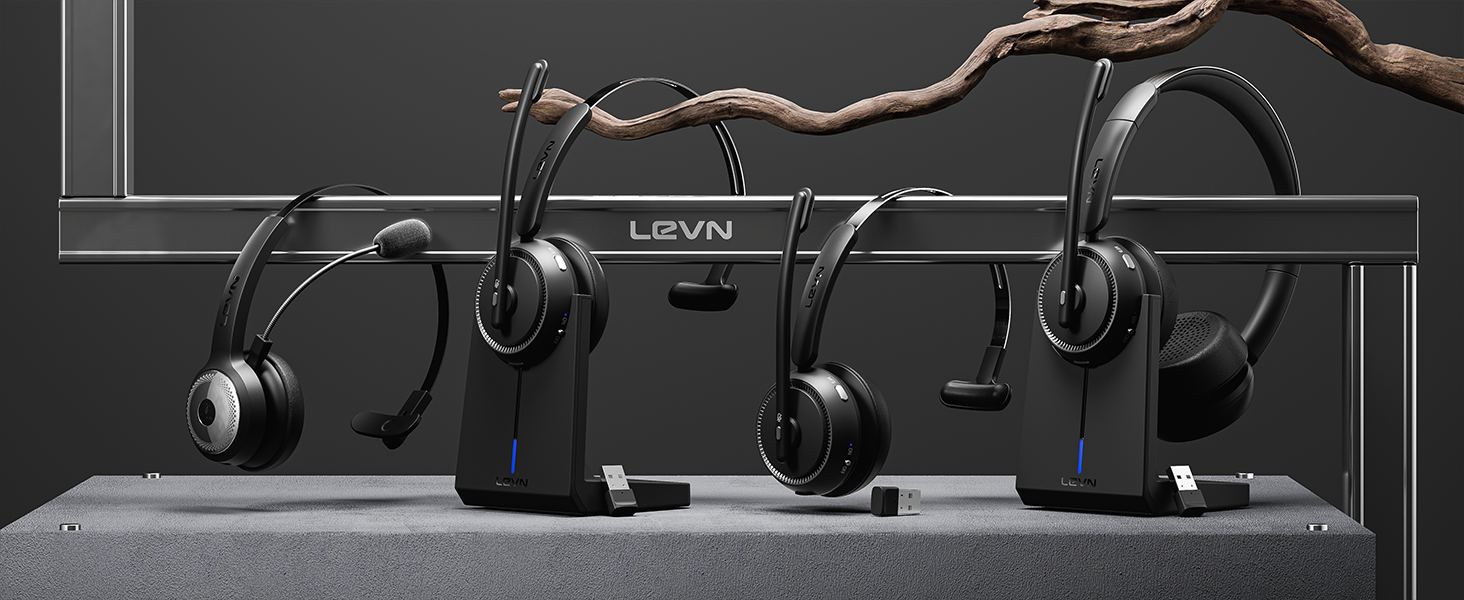
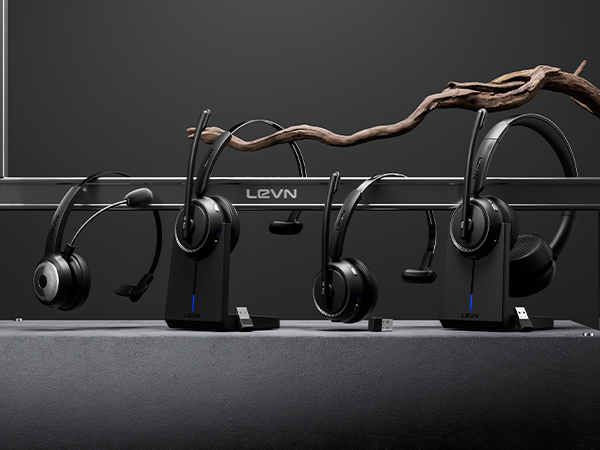
This headset has a stylish charging base, providing a convenient solution for charging and storage. The charging base with a slot to securely hold the USB dongle. Additionally, you have the option to charge it using a Type-C Charging cable.
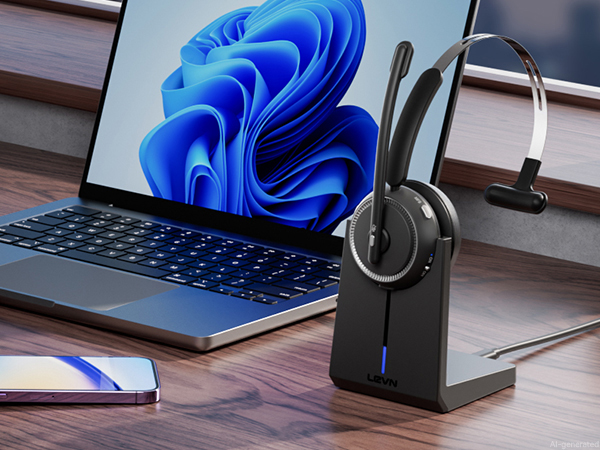
Clear calls, effortless charging, and seamless wireless connectivity for every workday.
Minimize background noise interference for more focused calls and online meetings
Wireless headset is designed for seamless with most video conferencing software and softphone
Soft memory foam and a lightweight design keep you comfortable through every meeting and call.
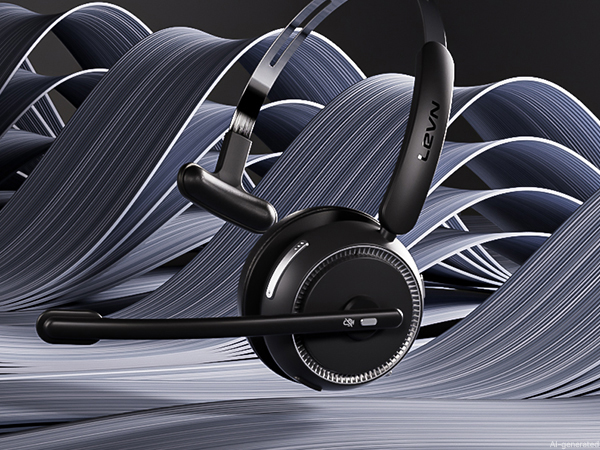
Keep your connection stable, 49-feet effective distance, free hands, realizing remote work
Manage calls, adjust volume, and activate your voice assistant without reaching for your device.
Simply click the mute button to toggle the microphone on or off, ensuring your privacy during calls
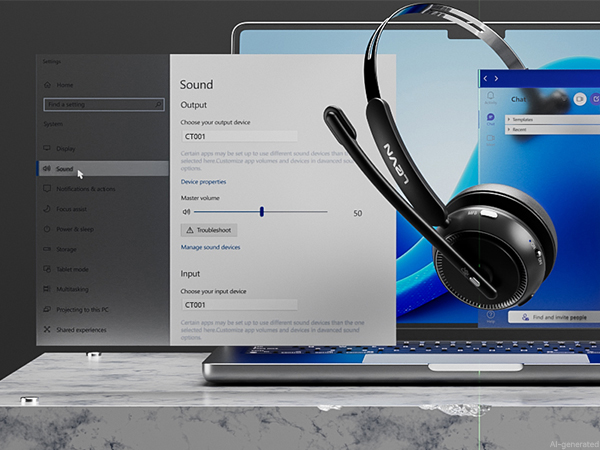
When I use this wireless headset on Teams, how should I set it up?
When you make a call with teams, please check the sound settings of both the computer and the software to make sure [CT001] is selected as the default output and input device (speaker/microphone).
I use the wireless headset to work from home, can it effectively eliminate the noise of background noise?
Yes. Our wireless headset can eliminate up to 99.9% of background noise, such as children screaming, dogs barking, TV background sound, and so on. It ensures a superior calling experience with clearer conversations for the person on the other end.
How do I use the headset's mute function during a call or online meeting?
During a call or online meeting, simply press the mute button once to mute the headset microphone. Press again to unmute. The mute key only works during a call or meeting.
Can I use the Bluetooth headset to answer or hang up calls?
If the headset is connected to a mobile phone, you can click the MFB to answer/end calls on the headset; If the headset is connected to a computer, you need to answer calls on the computer. Reminder: MFB does not work with desk phones and landlines.
How do I charge the wireless headset?
This headset has a stylish charging base, providing a convenient solution for charging and storage. The charging base with a slot to securely hold the USB dongle. Additionally, you have the option to charge it using a Type-C Charging cable.