




 here!
here!
I’m your shopping assistant for PC builds, upgrades, and everything tech.
Got questions? Ask away!
Start a conversation
here!
I’m your shopping assistant for PC builds, upgrades, and everything tech.
Got questions? Ask away!
Start a conversation




Any questions? Ask CelesteSM will help you find out quickly.
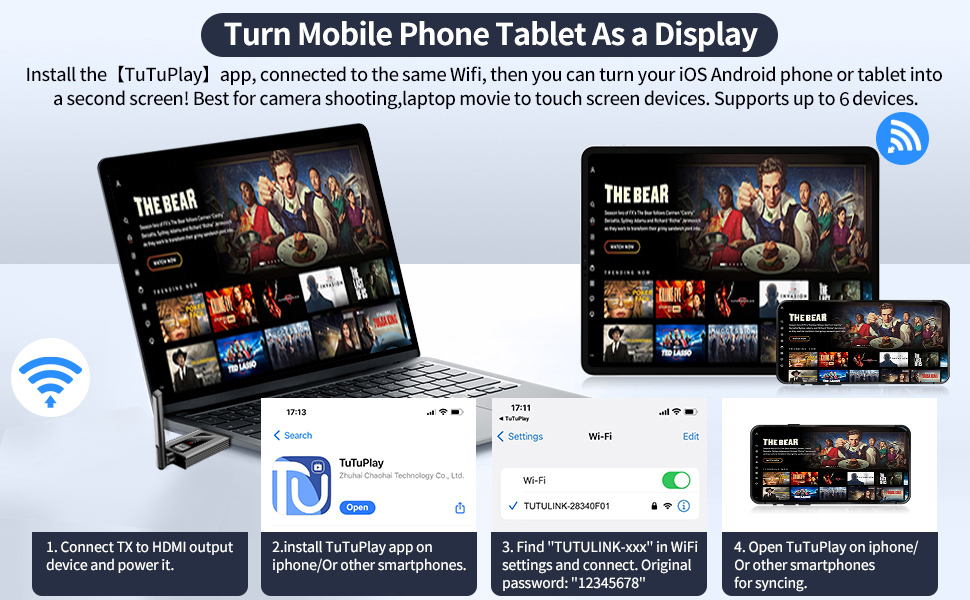
Using Your Phone and iPad as Screens:
Manual Matching:
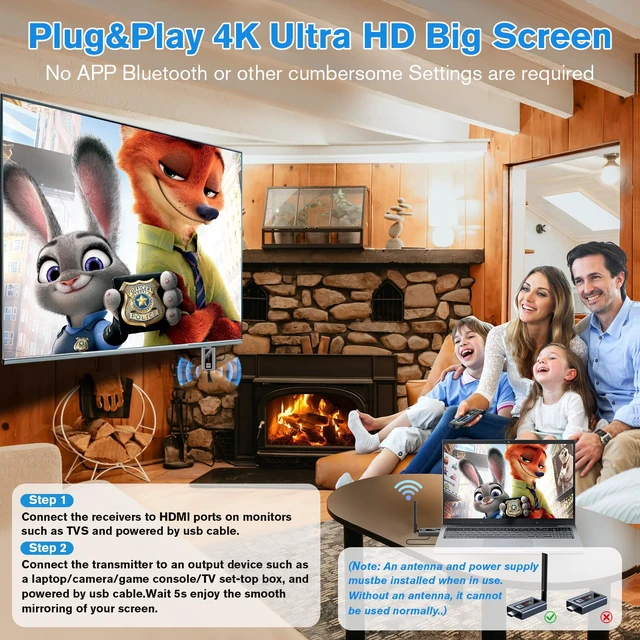
The HDMI wireless adapter has been paired before delivery.If the pairing fails due to improper operation or other reasons during use, re-pair the device.
The steps are as follows:


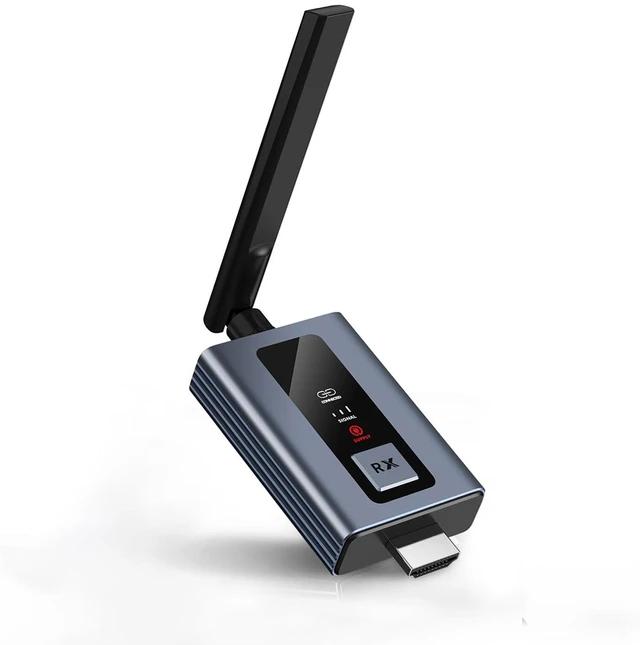
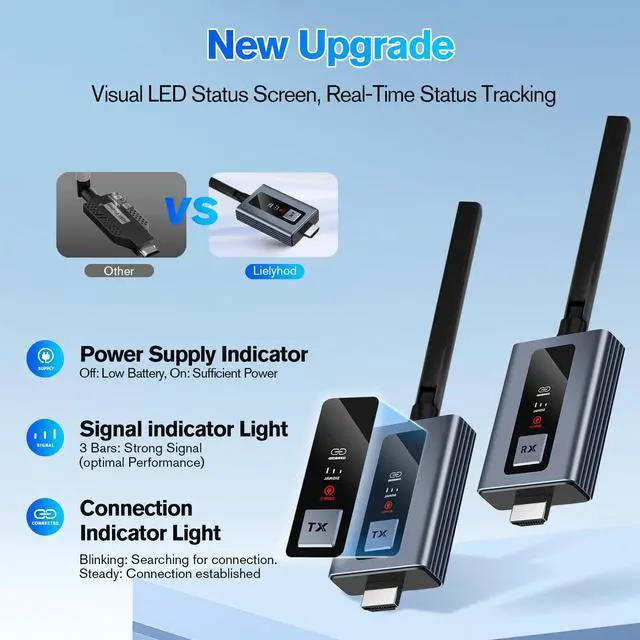
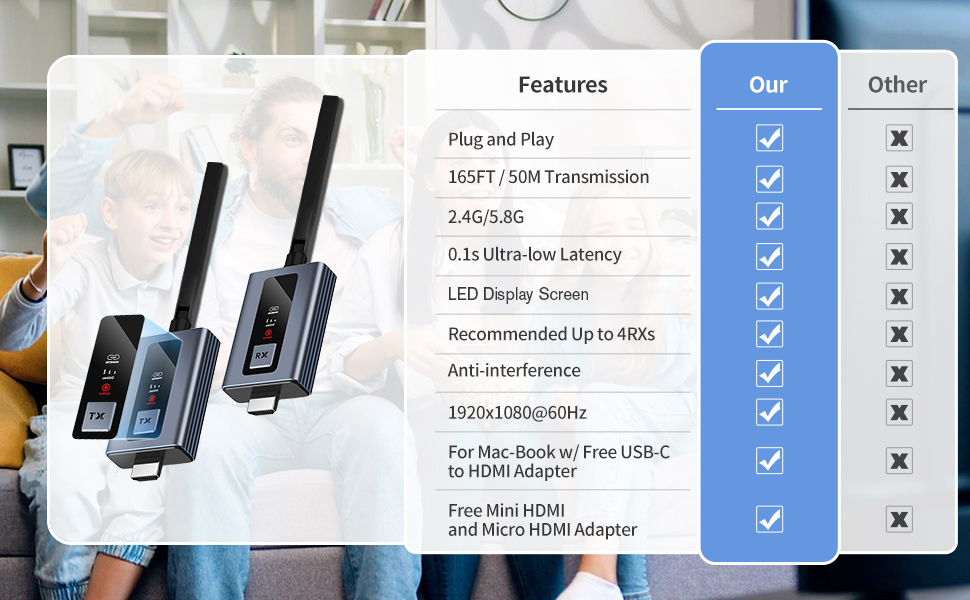
Wireless HDMI Transmitter and Receiver is designed with newly upgraded LED display, connection status, signal status, output status, power status can be seen at a glance, all-round upgraded products, all-round to meet the needs of our work and life more leisurely and easy.
We firmly believe that technology will make our lives better!


Using Your Phone and iPad as Screens:
Manual Matching:
The HDMI wireless adapter has been paired before delivery.If the pairing fails due to improper operation or other reasons during use, re-pair the device.
The steps are as follows:
Wireless HDMI Transmitter and Receiver is designed with newly upgraded LED display, connection status, signal status, output status, power status can be seen at a glance, all-round upgraded products, all-round to meet the needs of our work and life more leisurely and easy.
We firmly believe that technology will make our lives better!
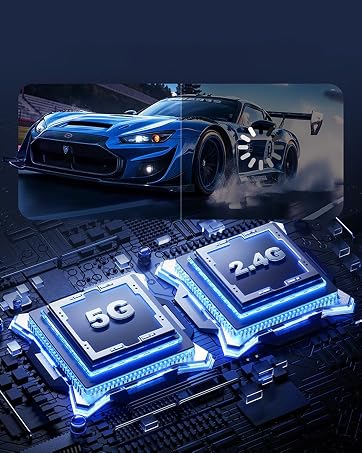
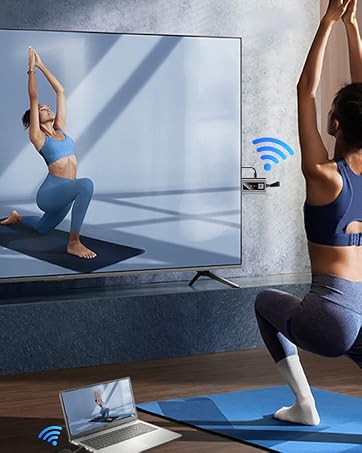

Wireless HDMI Transmitter and Receiver is designed with newly upgraded LED display, connection status, signal status, output status, power status can be seen at a glance, all-round upgraded products, all-round to meet the needs of our work and life more leisurely and easy.
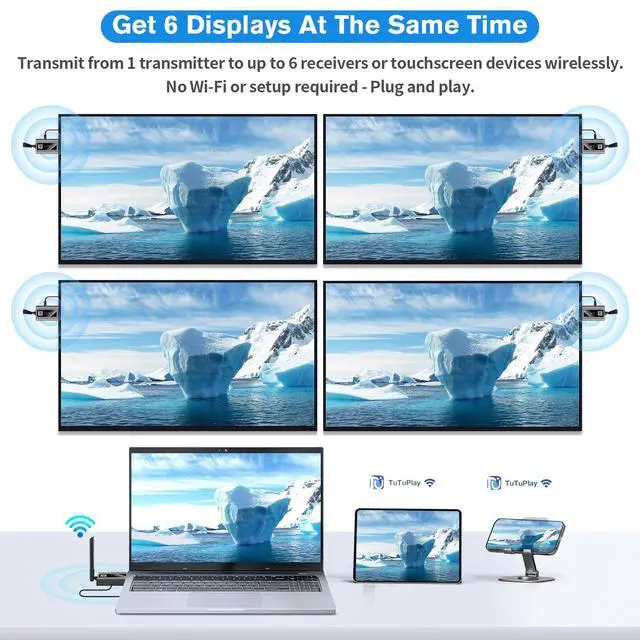
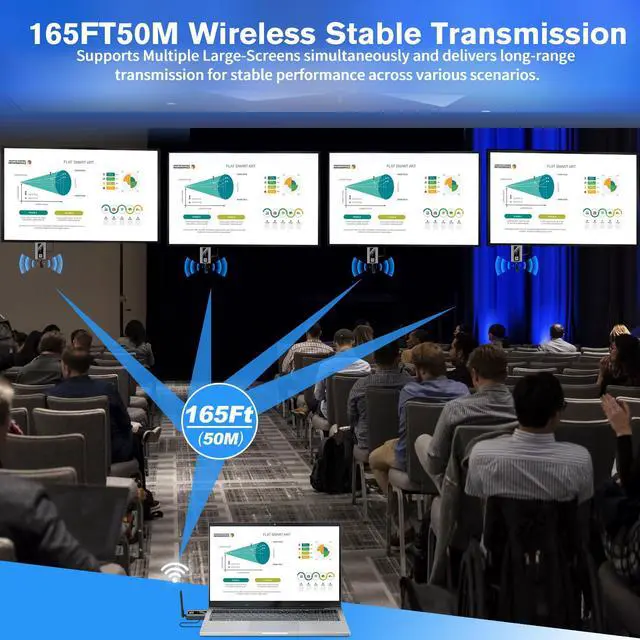
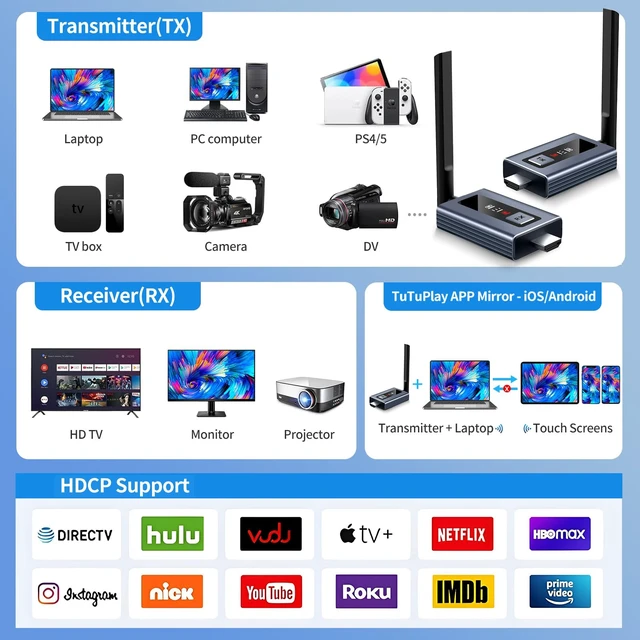
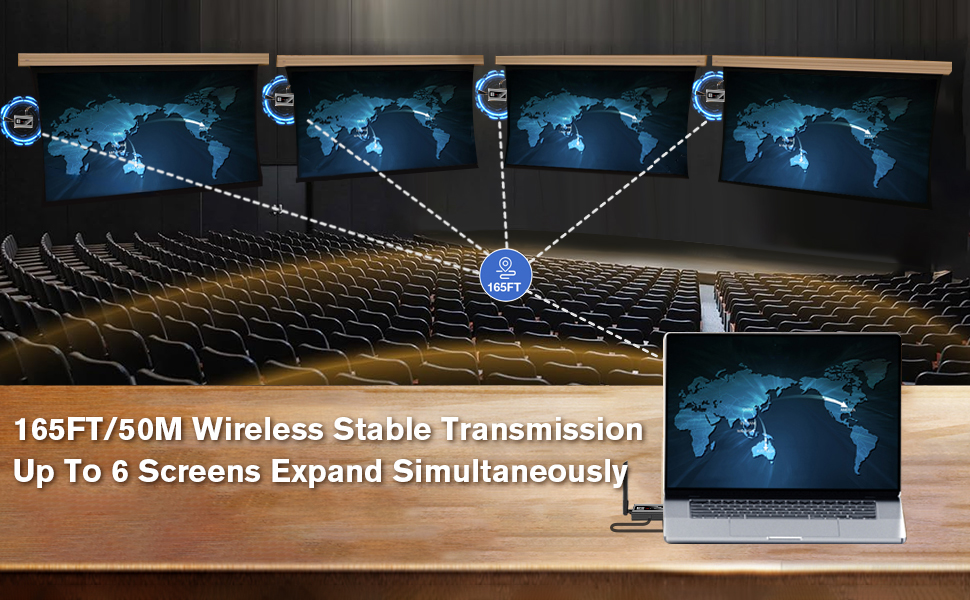
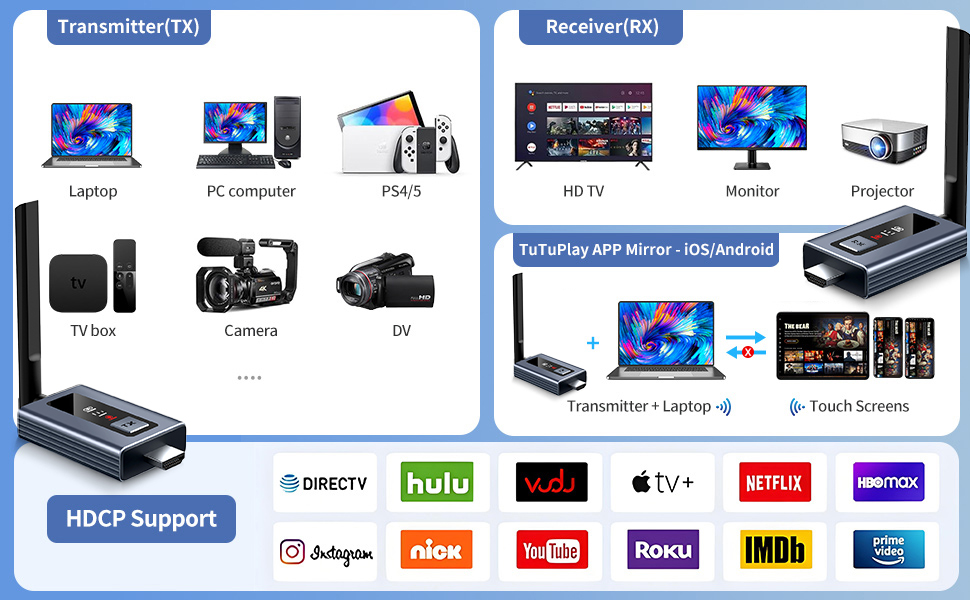
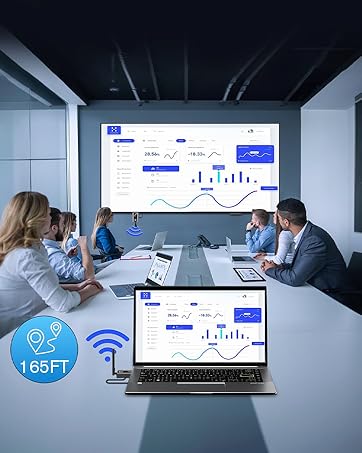
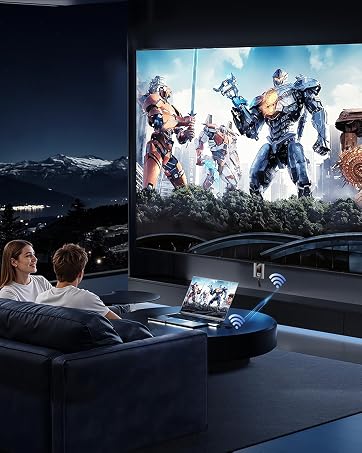
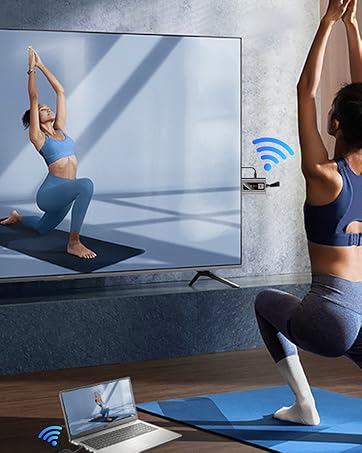
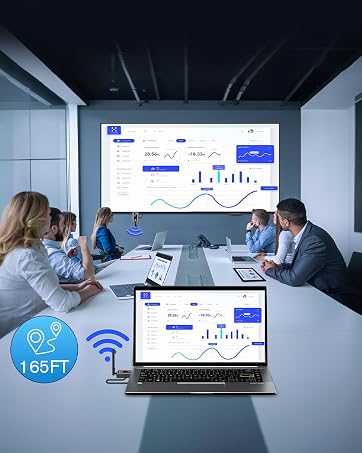
Wireless HDMI Extender supports screen copy and screen expansion, allowing you to project the content from your laptop, camera and cable set-top box to HDTV, projector and monitor, the duplication mode synchronizes the screen in real time, and the expansion mode displays a different screen for a wider range of operations.
Whether it's for a home theater, bar, restaurant, multimedia classroom, conference room, church, or any space that demands multi-screen interaction, this is your ideal choice.
Applicable models: Smartphones/Tablets/laptops/HDTV/Projectors/Monitors and more.
Color: Black,Grey.
Material: Premium PC.
Quantity: 1.
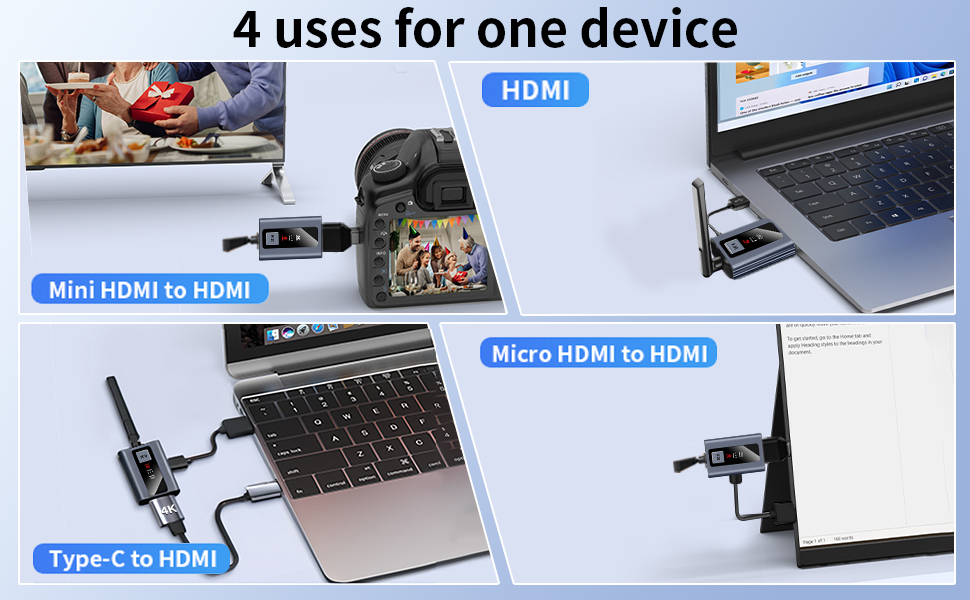
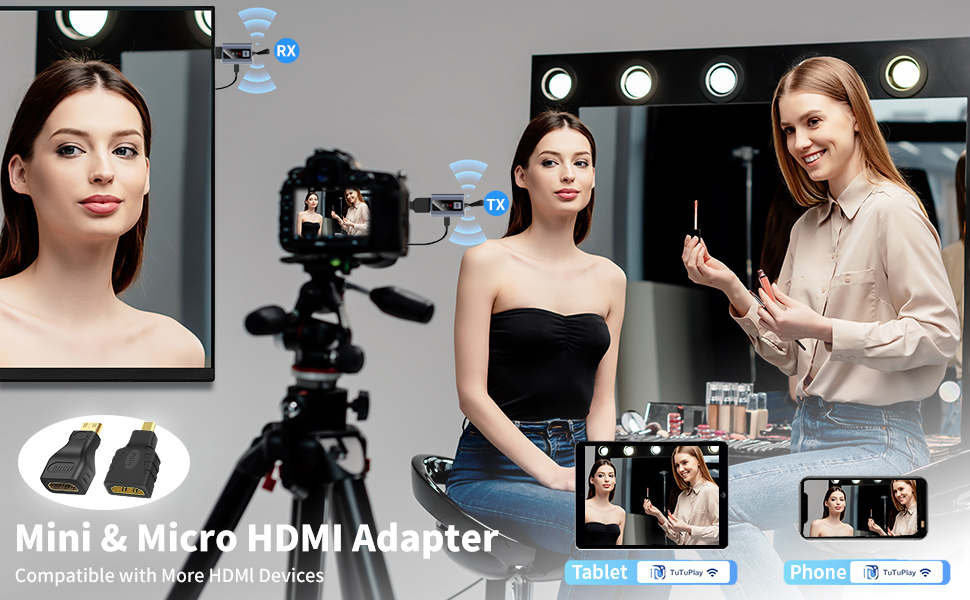
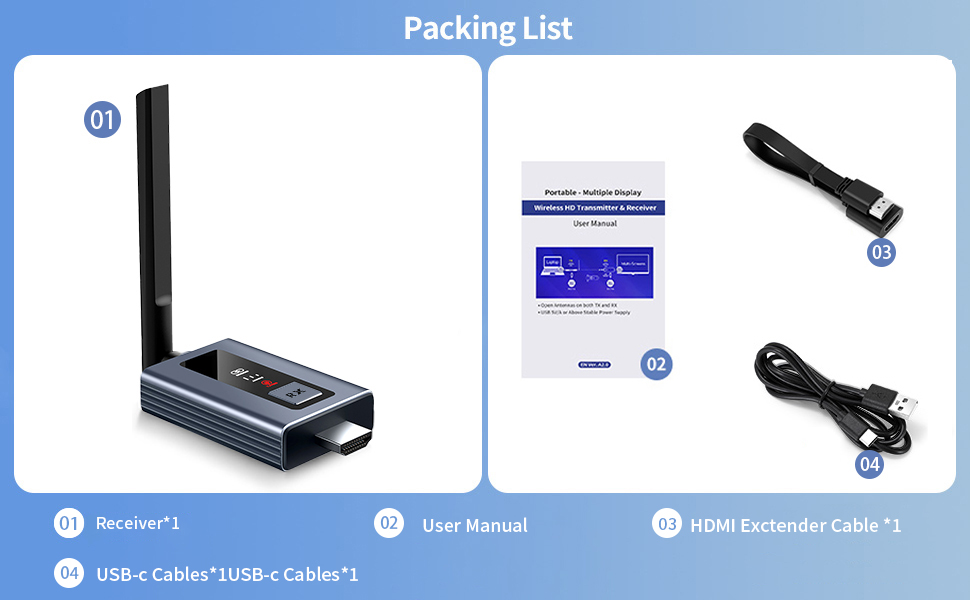
Package Includes:1 x Receiver,1 x USB-C Cable,1 x Antenna,1 x HDMI Extension Cord,1 x mini HDMI to HDMI Adapter,1 x Micro HDMI to HDMI Adapter,1 x HDMI to USB-C/Type-C Conversion Cord,1 x User Manual.
Due to the different monitor and light effect, the actual color of the item might be slightly different from the color showed on the pictures. Thank you!


