Sold by HKJUNFENG

Shipped by HKJUNFENG

Price alert
Shop it at NeweggBusiness.

Meet Your Seller

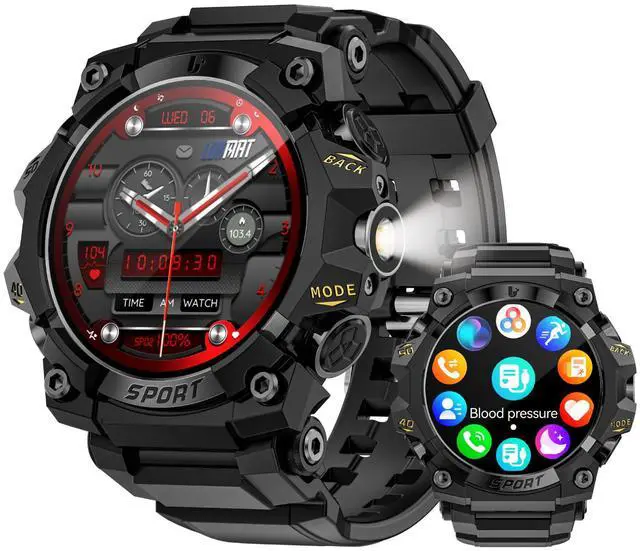
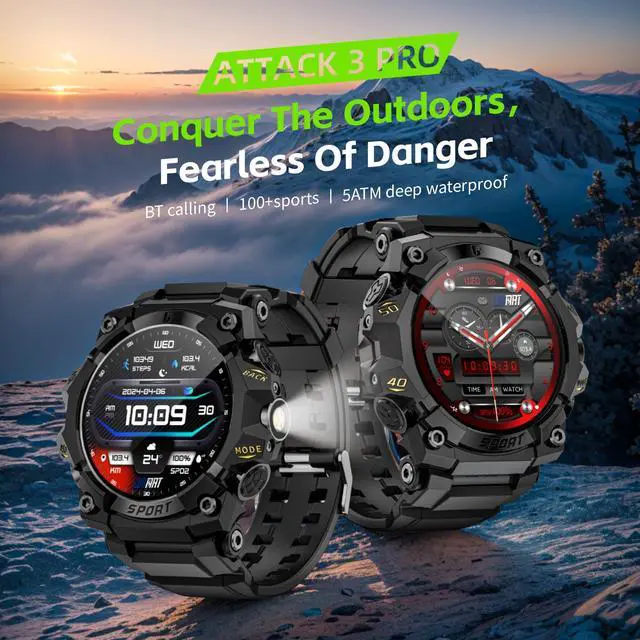
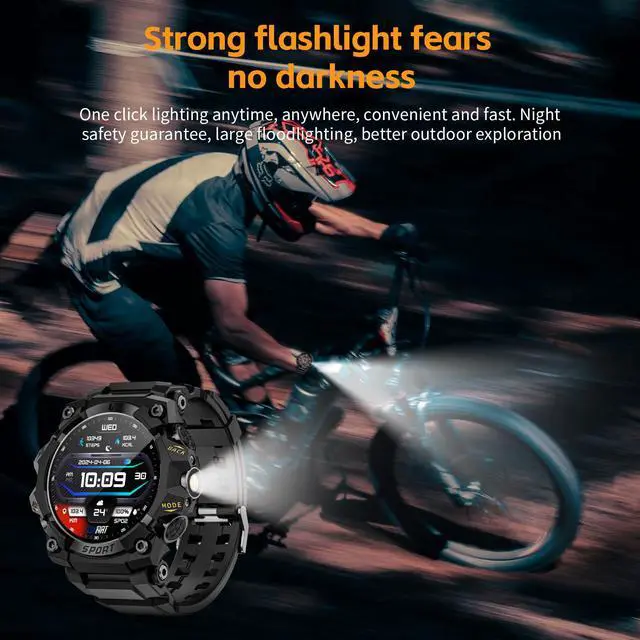
smartwatch features a 1.39-inch screen, flashlight, compass, Bluetooth calling, 100 sports modes, IP68 water resistance, health monitoring functions, and is compatible with Android and iOS systems.

  • Black
  • Glod
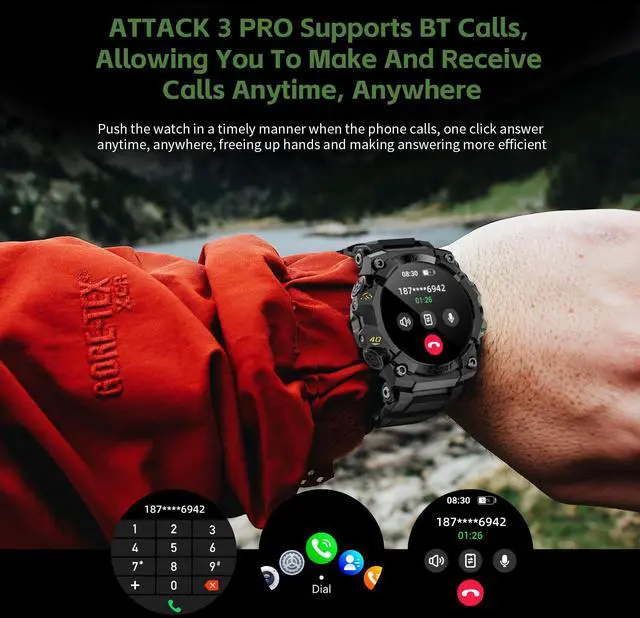
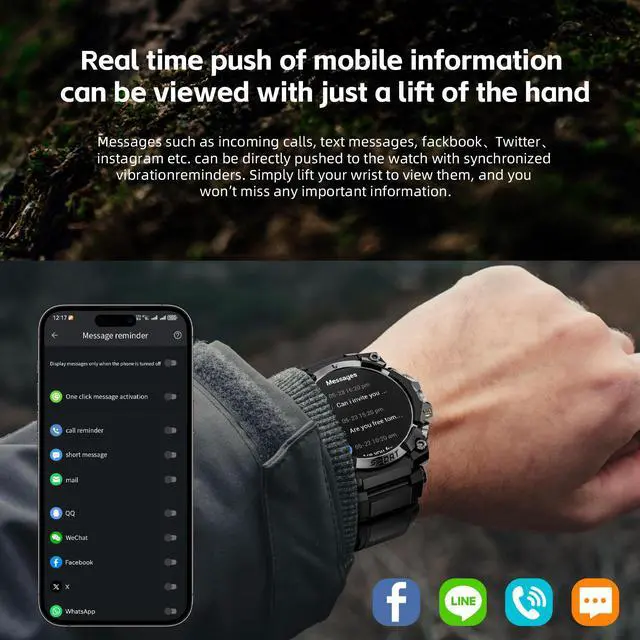
  • [Bluetooth Calling & Smart Notification Watch] Utilizes BLE 5.1 for faster and more stable connectivity between the smartwatch and smartphone. Thanks to its unique Bluetooth chipset, this smartwatch supports SMS and call functions and features a high-quality speaker for making and receiving calls and playing music.
  • [24-Hour Health Monitoring & Long Battery Life] Features 24-hour real-time heart rate monitoring, blood pressure, blood oxygen, and sleep quality monitoring. (Note: Not for medical use!) Equipped with a 400mAh high-capacity battery, it fully charges in approximately 1.5 hours, providing 7-10 days of daily use and over 30 days of standby time.
  • [Premium Materials & 1.39HD & IP68 Water Resistance] Made of high-quality aluminum alloy, it is sturdy, durable, shockproof, and its internal components are not easily damaged.
  • [Wide Compatibility] This smartwatch is compatible with Bluetooth V5.0, iOS 10.0 and above, or Android 5.0 and above smartphones.
+
+
Overview
Specs
Reviews
avatar

Any questions? Our AI beta will help you find out quickly.

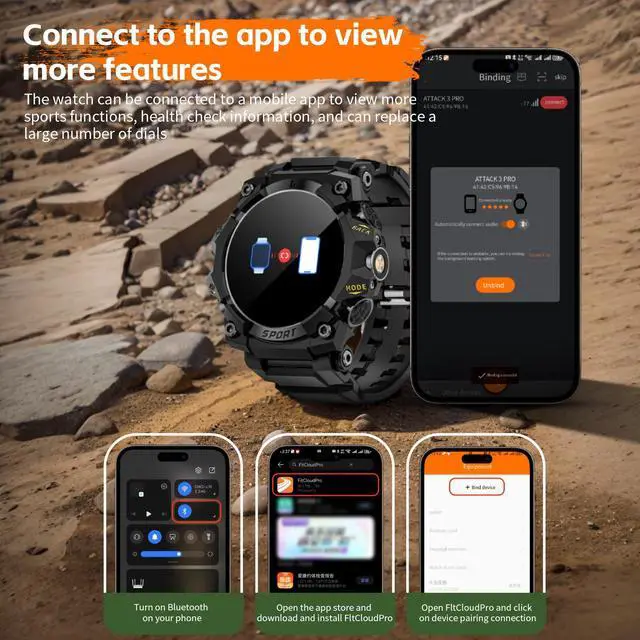
How to connect to the LOKMAT smartwatch?


1. Turn on your phone's Bluetooth.


2. Scan the QR code on your smartwatch or search for the "FitCloudPro" app in your app store.


3. Download the "FitCloudPro" app.


4. Grant all permissions and accept the terms of service.


5. Locate the ATTACK 3 PRO device and tap it.


6. Pair the ATTACK 3 PRO Bluetooth.


7. Allow the watch to receive phone notifications.


8. In the watch's "Settings" -- "Phone", turn on "Calls" and "Media Audio" to enable the call answering/making function.


What if Bluetooth shows the watch is connected, but FitCloudPro shows a connection failure?


1. Remove the device in the FitCloudPro app.


2. Open your phone's Bluetooth settings, find the "ATTACK 3 PRO" device, and select "Remove Device".


3. Wait approximately 10 minutes, then re-add the ATTACK 3 PRO device in the FitCloudPro app.


4. After adding, wait for the Bluetooth pairing prompt, then click the prompt to establish a connection.

Warranty & Returns

Warranty, Returns, And Additional Information

Warranty

  • Please contact the Seller directly for warranty information. Warranty information may also be found on the Manufacturer's website.
  • CONTACT

Return Policies

  • Return for refund within: 30 days
  • Return for replacement within: non-replaceable
  • This item is covered by HKJUNFENG Return Policy

Manufacturer Contact Info

LOADING...