



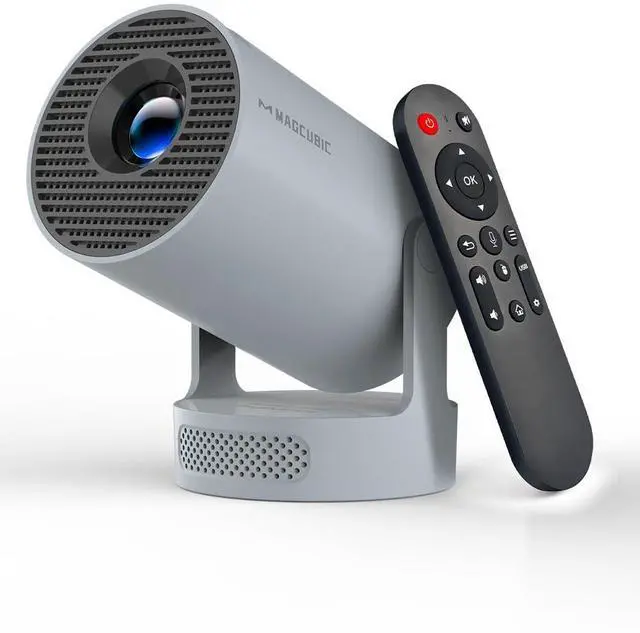


Magcubic: Project Your Imagination
 Magcubic HY300Pro+ |  Magcubic HY300 Ultra |  Magcubic HY300 Pro |  Magcubic HY310 | |
|---|---|---|---|---|
Customer Reviews | — | — | — | — |
Price | — | — | — | — |
Display Resolution | Native 720P | Native 720P | Native 720P | Native 1080P |
Focus Mode | Manual Focus | Electric Focus | Manual Focus | Auto Focus |
Brightness | 200ANSI | 260ANSI | 200ANSI | 260ANSI |
Auto Keystone Correction | Vertical | Vertical | Vertical | v |
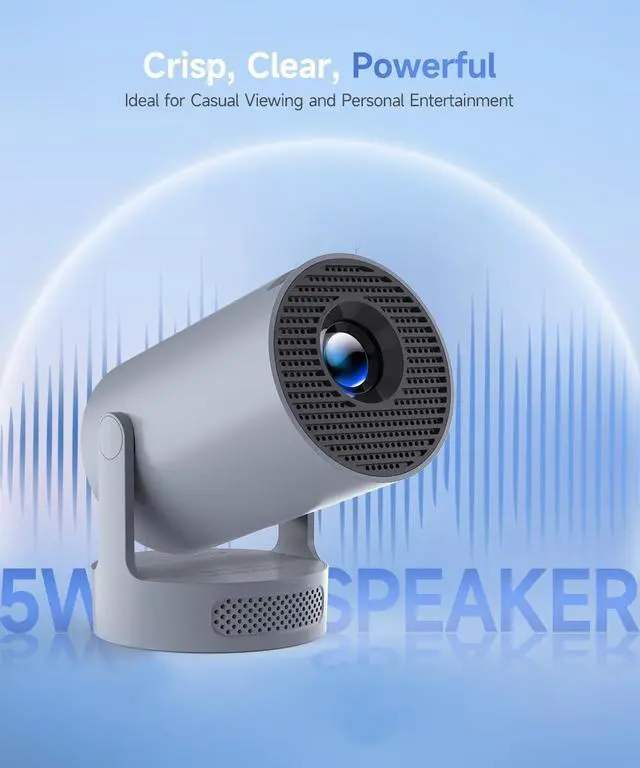
Speaker | 5W Soundbase Speaker | 5W Soundbase Speaker | Built-in 3W Speaker | 5W Soundbase Speaker |
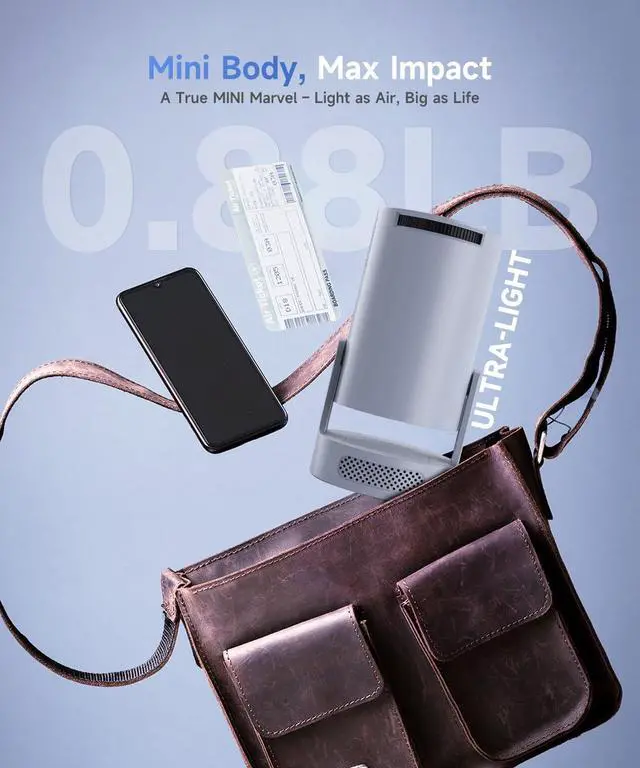
Weight | 400g/0.88lb | 561g/1.23lb | 350g/0.77lb | 610g/1.34lb |
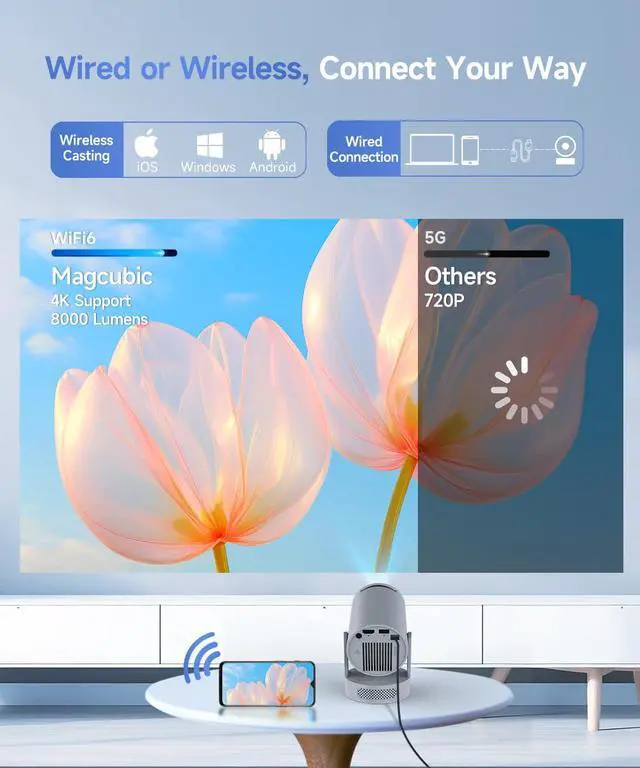
Connection | WiFi6 + Bluetooth 5.4 | WiFi6 + Bluetooth 5.4 | WiFi6 + Bluetooth 5.4 | WiFi6 + Bluetooth 5.4 |
FAQ


Magcubic: Project Your Imagination
Magcubic HY300Pro+ | Magcubic HY300 Ultra | Magcubic HY300 Pro | Magcubic HY310 |
|---|---|---|---|
| Customer Reviews | |||
| — | — | — | — |
| Price | |||
| — | — | — | — |
| Display Resolution | |||
| Native 720P | Native 720P | Native 720P | Native 1080P |
| Focus Mode | |||
| Manual Focus | Electric Focus | Manual Focus | Auto Focus |
| Brightness | |||
| 200ANSI | 260ANSI | 200ANSI | 260ANSI |
| Auto Keystone Correction | |||
| Vertical | Vertical | Vertical | v |
| Speaker | |||
| 5W Soundbase Speaker | 5W Soundbase Speaker | Built-in 3W Speaker | 5W Soundbase Speaker |
| Weight | |||
| 400g/0.88lb | 561g/1.23lb | 350g/0.77lb | 610g/1.34lb |
| Connection | |||
| WiFi6 + Bluetooth 5.4 | WiFi6 + Bluetooth 5.4 | WiFi6 + Bluetooth 5.4 | WiFi6 + Bluetooth 5.4 |
FAQ
| Why OTA Update Before Use? | To ensure optimal performance and take advantage of our latest features and updates, please upgrade to the most recent software version before first use. You can do this by navigating to Settings > About device > Online upgrade. |
|---|---|
| Is It Good for Daytime Use? | Due to its brightness limitations, the projector is ideal for dark environments, such as a backyard at night, a campsite after sunset, a living room with closed curtains, or a bedroom with the lights turned off. |
| Info on Streaming Services | Due to the HDCP (High-bandwidth Digital Content Protection) agreement, screen mirroring may not function properly (no image or sound) when attempting to mirror content from certain apps, such as Prime Video, Hulu, and others. We recommend that you use a streaming device such as a Fire Stick or Roku. |
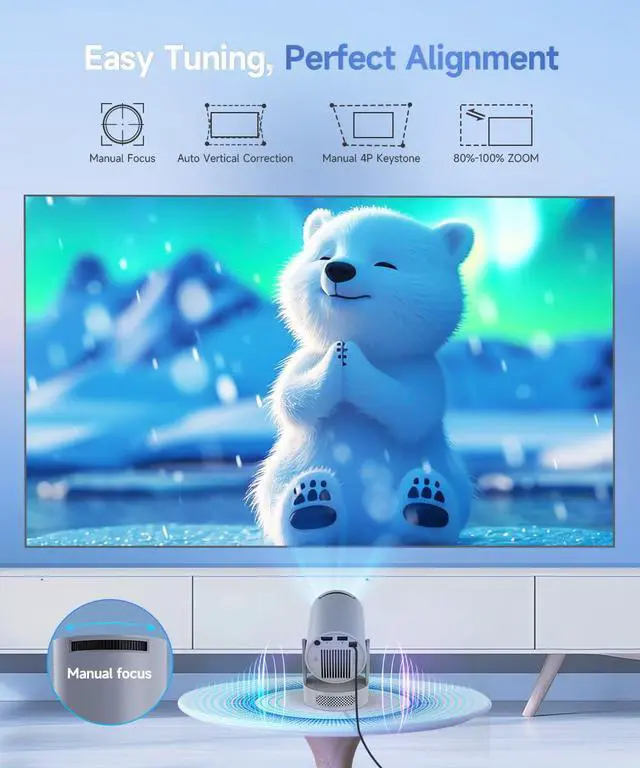
| Activate Manual Focus? | To help you fine-tune the sharpness of your projection, the projector features an internal gear mechanism. Simply rotate the gear to adjust the focus and achieve your desired level of clarity. |
| How to Get a Square Image? | Automatic vertical keystone correction works best when the projector lens is directly facing the wall. If the results are unsatisfactory, follow these steps: 1. Place the projector on a flat surface and ensure the lens is perpendicular to the wall. 2. Navigate to Settings > Projection Settings > Keystone Correction > Initial Angle Correction. 3. If needed, disable the automatic keystone correction and make manual adjustments for optimal alignment." |
| Can’t Connect to Wi-Fi? | 1. Ensure the projector and your router are within 16 feet (5 meters) of each other. Check if other devices connect to Wi-Fi. 2. Check the time zone settings by navigating to Settings > Time and Date > Time Zone and ensure it is accurate. 3. Attempt to connect to a different Wi-Fi network or use your phone's hotspot as an alternative. 4. Test both the 2.4GHz and 5GHz frequency bands on your router. 5. Reset the projector by going to Settings > Other Settings > Restore Factory Settings. " |
| Screen-Mirror iOS? | 1.Ensure your device is updated to the latest version. You can do this by navigating to Settings > About device > Online upgrade. 2.Open the ScreenCast app. 3.Use AirPlay on your iOS device, making sure both devices are connected to the same Wi-Fi network." |
| How to Use Air Mouse Remote? | Some apps are designed for mobile devices and require the mouse mode to be activated for navigation. Follow these steps to enable the air mouse function: 1. Open the Bluetooth settings on your device. 2. Press and hold both the “Left” and “Right” buttons simultaneously to enter pairing mode. 3. Press the “Mouse” icon on the remote to activate the air mouse function. 4. Move your wrist to control the cursor using the air mouse feature." |
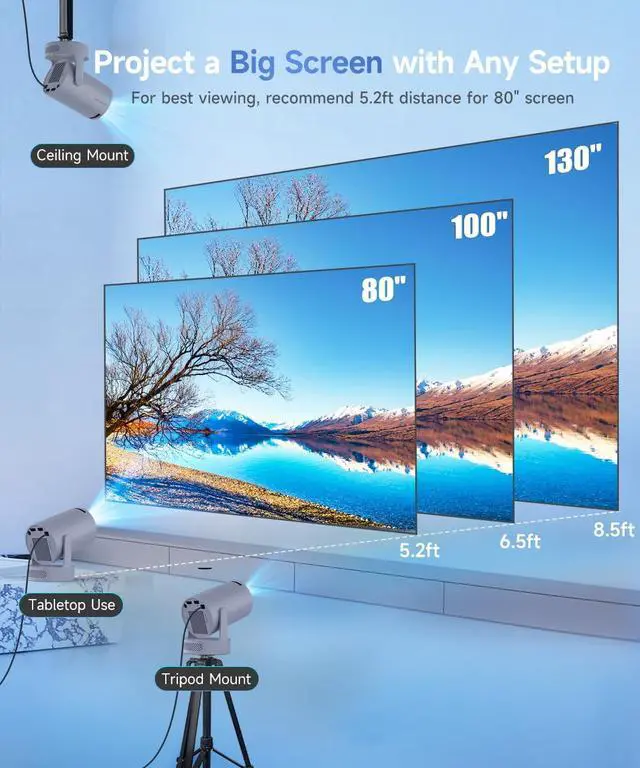
| Projection Distance? | The distance between the projector and the projection surface must be a minimum of 0.6 m and a maximum of 2.5m. This ensures a projection image between 40" and 110". |