• $80.99
  • Price alert

    Shipped by MoChenShangMao

    Shop it at NeweggBusiness.

    Meet Your Seller

    2026 Upgraded HY300PRO Mini Projector with WiFi and Bluetooth, Portable Projector 4K Support, Auto Keystone, 180 Degree Rotation, Smart Proyector for Home Outdoor

    • NOTE: To ensure optimal performance of built-in applications, please manually update your device to the LATEST system version. Should you encounter any issues, do not hesitate to contact our customer support team for further assistance.
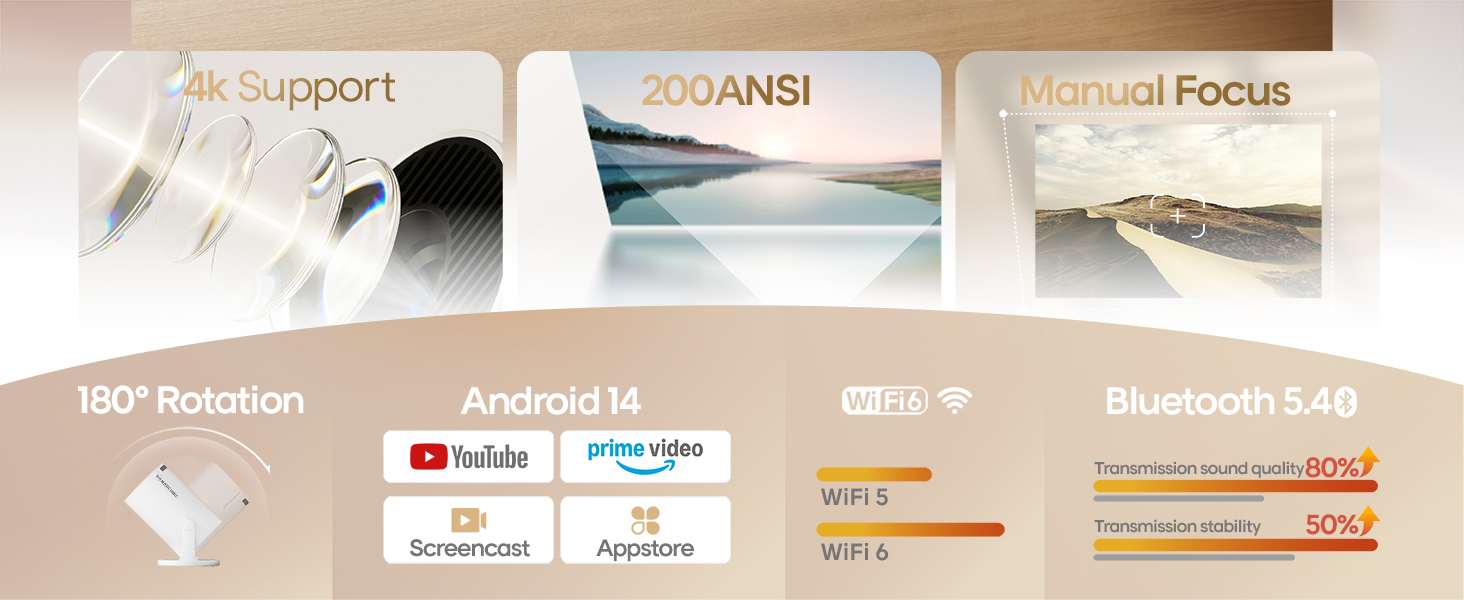
    • Portable & Powerful: The 2026 HY300Pro Projector is 30% smaller than the previous model and 60% more compact than competitors--perfect for travel, work, or outdoor movie nights. Features an external power supply for cooler, faster performance.
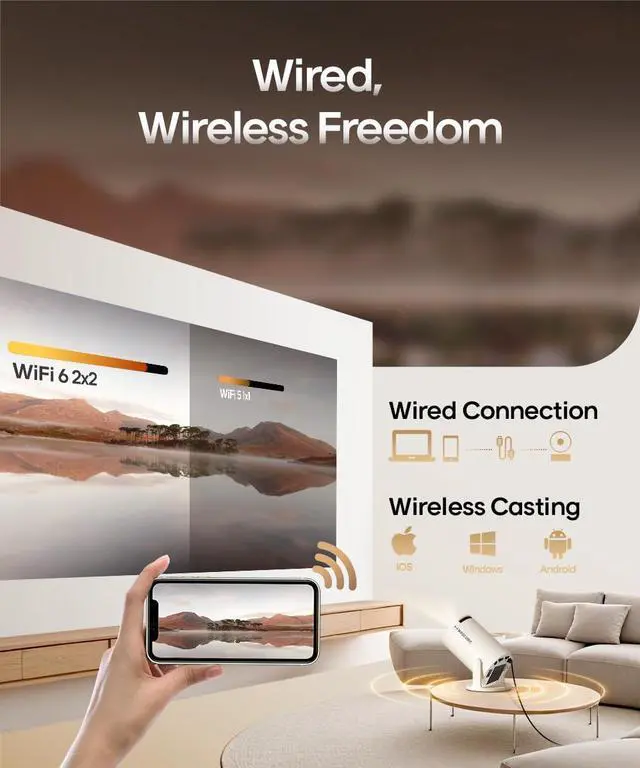
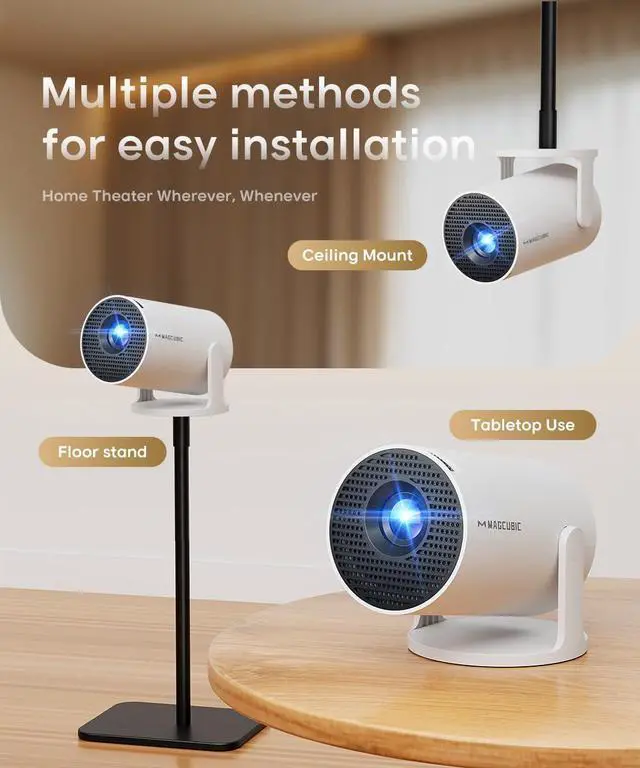
    • Universal Connectivity: The portable projector with WiFi and Bluetooth streams lag-free streaming from phones, laptops, and consoles. With HDMI/USB ports for instant setup anywhere, plus a 180° rotating stand and ultra-compact design, it's backpack-ready for grab-and-go entertainment.
    • Built-in Multiple Apps: This smart projector offers seamless access to 1,000,000 videos with a single click, eliminating the need for an external TV stick. Dive into endless entertainment with one device, ideal for home theaters or portable use.
    • Cinematic Clarity Anywhere: Enjoy native 720P resolution with 4K support ,suitable for casual use in your bedroom, outdoor space, or living room, making it an affordable option for creating a basic personal cinema.
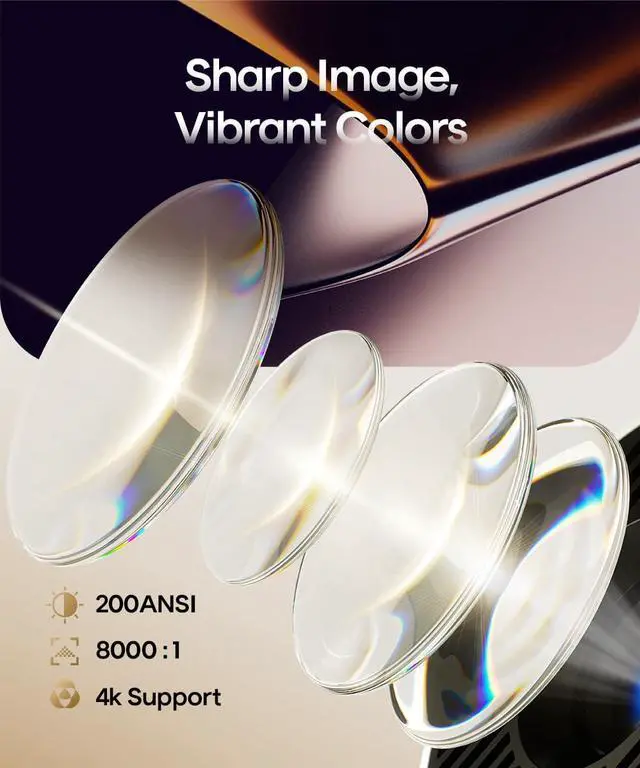
    • Bright and Reliable Visuals: With 200 ANSI lumens and an 8000:1 contrast ratio, this mini proyector provides sufficient brightness for casual movie watching or kids' shows. Its easy to use, affordable, and good for daily family entertainment or short trips.
    +
    +
    Overview
    Specs
    Reviews
    avatar

    Any questions? Our AI beta will help you find out quickly.

    Magcubic HY300PRO
    portable projector

    Magcubic: Project Your Imagination

    https://m.media-amazon.com/images/S/aplus-media-library-service-media/64174eef-a9ce-4c45-8a6a-ac98947e61b4.__AC_SR200,225___.jpg

    Upgraded HY300PRO

    https://m.media-amazon.com/images/S/aplus-media-library-service-media/cad391e8-d6a3-4ed6-b099-9093d3ada2d1.__AC_SR200,225___.jpg

    HY300Pro

    https://m.media-amazon.com/images/S/aplus-media-library-service-media/872c718e-8857-4f78-83da-94478279b199.__AC_SR200,225___.jpg

    HY300Pro+

    https://m.media-amazon.com/images/S/aplus-media-library-service-media/f3ef986c-8636-460d-bb5e-217eaf648903.__AC_SR200,225___.jpg

    HY300 Ultra

    Customer Reviews
    Price
    Weight
    350g/0.77lb 530g/1.17lb 400g/0.88lb 561g/1.23lb
    Size
    94.8*156.7mm 170*101mm 94.8*177mm 106.5*193.4mm
    Display Resolution
    Native 720P Native 720P Native 720P Native 720P
    Focus Mode
    Manual Focus Manual Focus Manual Focus Electric Focus
    Auto Keystone Correction
    Vertical Vertical Vertical Vertical
    Brightness
    200ANSI 200ANSI 200ANSI 260ANSI
    Speaker
    Built-in 3W Speaker Built-in 3W Speaker 5W Soundbase Speake 5W Soundbase Speake
    Connection
    WiFi6 + Bluetooth 5.4 WiFi6 + Bluetooth 5.4 WiFi6 + Bluetooth 5.4 WiFi6 + Bluetooth 5.4

    FAQ

    The Image is Tilted? Try the following steps to see if they help: 1. Ensure the projector is properly aligned and that the lens is facing the screen directly. 2. Navigate to Settings > Projection settings > Keystone Correction > Initial angle correction. 3. If the above steps don’t resolve the issue, manually adjust the keystone correction by going to Settings > Projection settings > Keystone Correction > Turn Off Auto Keystone Correction > Manual Down Keystone Correction
    If My App Crashes? 1. Try another Wi-Fi network and update the firmware. Go to Settings > About devices > Online upgrade 2. Check if your time zone is accurate via Settings > Date And Time Setting> Time Zone Selection 3. Clear data via Settings > My Apps > (App Name) > Clear Cache. 4. Reset the projector via Settings > Other Settings > Factory Reset Settings
    Can't Connect to Wi-Fi? 1. Place the projector and your router within 16 ft / 5 m of each other. Test if other devices can connect to Wi-Fi. 2. Check if your time zone is accurate via Settings > Date and time Setting 3. Try a different Wi-Fi network or connect to your phone's hotspot. 4. Try your router's 2.4GHz and 5GHz settings. 5. Reset the projector by going to Settings > Other Settings > Restore factory settings.
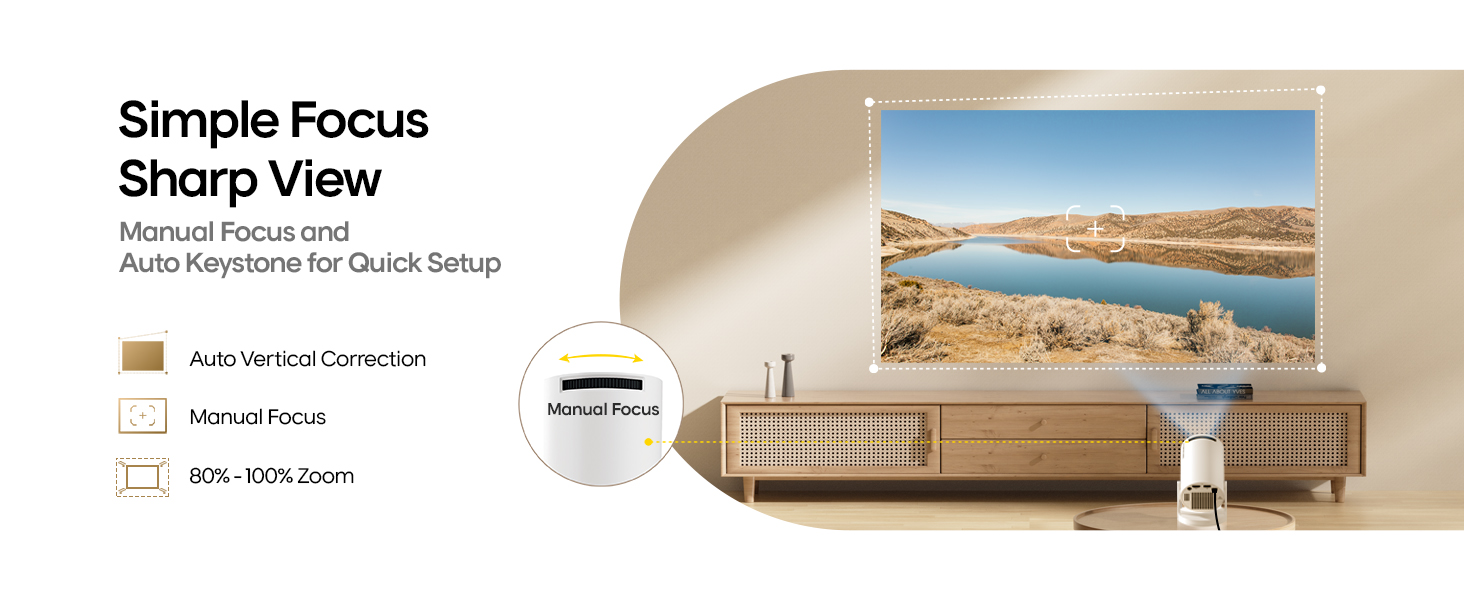
    Projection Distance The distance between the projector and the projection surface must be a minimum of 0.5 m and a maximum of 3m. This ensures a projection image between 40" and 130".
    Projector Can't Power On? 1. Check the Power Indicator: Ensure the power indicator light is on when the power cable is plugged in. 2. Try a Different Power Cable: Use another functional power cable to see if this resolves the issue. 3. Update the Firmware: If possible, update the projector to the latest firmware via USB drive.
    Automatically Shuts Down 1. Check for High Temperature Warnings: See if there’s a prompt indicating the projector has shut down due to high temperature. 2. Check the Fan Operation: Confirm whether the fan is running. If needed, open the projector and reconnect the fan cable. - If the fan is working, update the projector to the latest firmware via USB drive. - If the fan is not working, consider replacing it.
    Remote Control Is Not Work? 1. Replace the Batteries: Insert new batteries, ensuring the positive and negative poles are correctly aligned. Reversed polarity will prevent the remote from working. 2. Use a Wired USB Mouse: Connect a wired USB mouse to control the projector as an alternative. 3. Contact Support: If the issue persists, reach out to support for a replacement remote control
    Image Has Lines or Is Flashing 1. Restore Factory Settings: Go to Settings > Other Settings > Factory Reset to reset the projector to its original settings. 2. Update Firmware: Go to Settings > About Device > Online Upgrade to update the projector to the latest firmware version. 3. Check the Screen Cable: If the issue persists, carefully disassemble the device and gently move the screen cable. If the lines shift as the cable moves, the screen may be faulty and will likely need replacement.
    Projected Image Appears Burnt? 1. Check Fan Operation: Confirm that the fan is working properly and that hot air is being discharged from the exhaust port. Ensure nothing is blocking the machine’s heat dissipation. 2. Re-plug or Replace the Fan: If the fan isn’t working, you may need to disassemble the projector to re-plug the fan cable or replace the fan. 3. Inspect the Screen: If the above steps don’t resolve the issue, the screen may be faulty and will likely need replacement.
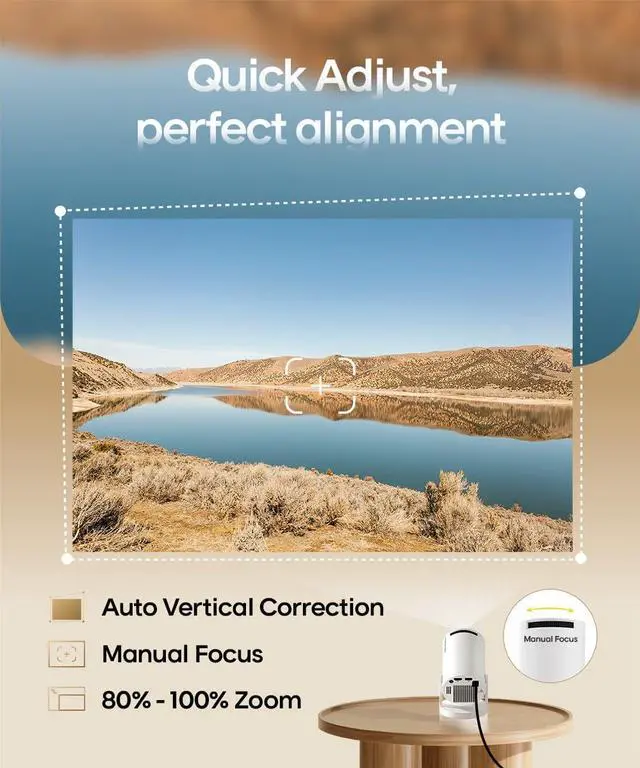
    How to Get a Squared Image? 1. Ensure the projector is properly aligned with the lens facing the screen directly. 2.Go to Settings > Projection Settings>Keystone Correction > Initial Angle Correction. 3. If needed, manually adjust by turning off Auto Keystone
    Magcubic HY300PRO
    portable projector

    Magcubic: Project Your Imagination

    https://m.media-amazon.com/images/S/aplus-media-library-service-media/64174eef-a9ce-4c45-8a6a-ac98947e61b4.__AC_SR200,225___.jpg

    Upgraded HY300PRO

    https://m.media-amazon.com/images/S/aplus-media-library-service-media/cad391e8-d6a3-4ed6-b099-9093d3ada2d1.__AC_SR200,225___.jpg

    HY300Pro

    https://m.media-amazon.com/images/S/aplus-media-library-service-media/872c718e-8857-4f78-83da-94478279b199.__AC_SR200,225___.jpg

    HY300Pro+

    https://m.media-amazon.com/images/S/aplus-media-library-service-media/f3ef986c-8636-460d-bb5e-217eaf648903.__AC_SR200,225___.jpg

    HY300 Ultra

    Customer Reviews
    Price
    Weight
    350g/0.77lb 530g/1.17lb 400g/0.88lb 561g/1.23lb
    Size
    94.8*156.7mm 170*101mm 94.8*177mm 106.5*193.4mm
    Display Resolution
    Native 720P Native 720P Native 720P Native 720P
    Focus Mode
    Manual Focus Manual Focus Manual Focus Electric Focus
    Auto Keystone Correction
    Vertical Vertical Vertical Vertical
    Brightness
    200ANSI 200ANSI 200ANSI 260ANSI
    Speaker
    Built-in 3W Speaker Built-in 3W Speaker 5W Soundbase Speake 5W Soundbase Speake
    Connection
    WiFi6 + Bluetooth 5.4 WiFi6 + Bluetooth 5.4 WiFi6 + Bluetooth 5.4 WiFi6 + Bluetooth 5.4

    FAQ

    The Image is Tilted? Try the following steps to see if they help: 1. Ensure the projector is properly aligned and that the lens is facing the screen directly. 2. Navigate to Settings > Projection settings > Keystone Correction > Initial angle correction. 3. If the above steps don’t resolve the issue, manually adjust the keystone correction by going to Settings > Projection settings > Keystone Correction > Turn Off Auto Keystone Correction > Manual Down Keystone Correction
    If My App Crashes? 1. Try another Wi-Fi network and update the firmware. Go to Settings > About devices > Online upgrade 2. Check if your time zone is accurate via Settings > Date And Time Setting> Time Zone Selection 3. Clear data via Settings > My Apps > (App Name) > Clear Cache. 4. Reset the projector via Settings > Other Settings > Factory Reset Settings
    Can't Connect to Wi-Fi? 1. Place the projector and your router within 16 ft / 5 m of each other. Test if other devices can connect to Wi-Fi. 2. Check if your time zone is accurate via Settings > Date and time Setting 3. Try a different Wi-Fi network or connect to your phone's hotspot. 4. Try your router's 2.4GHz and 5GHz settings. 5. Reset the projector by going to Settings > Other Settings > Restore factory settings.
    Projection Distance The distance between the projector and the projection surface must be a minimum of 0.5 m and a maximum of 3m. This ensures a projection image between 40" and 130".
    Projector Can't Power On? 1. Check the Power Indicator: Ensure the power indicator light is on when the power cable is plugged in. 2. Try a Different Power Cable: Use another functional power cable to see if this resolves the issue. 3. Update the Firmware: If possible, update the projector to the latest firmware via USB drive.
    Automatically Shuts Down 1. Check for High Temperature Warnings: See if there’s a prompt indicating the projector has shut down due to high temperature. 2. Check the Fan Operation: Confirm whether the fan is running. If needed, open the projector and reconnect the fan cable. - If the fan is working, update the projector to the latest firmware via USB drive. - If the fan is not working, consider replacing it.
    Remote Control Is Not Work? 1. Replace the Batteries: Insert new batteries, ensuring the positive and negative poles are correctly aligned. Reversed polarity will prevent the remote from working. 2. Use a Wired USB Mouse: Connect a wired USB mouse to control the projector as an alternative. 3. Contact Support: If the issue persists, reach out to support for a replacement remote control
    Image Has Lines or Is Flashing 1. Restore Factory Settings: Go to Settings > Other Settings > Factory Reset to reset the projector to its original settings. 2. Update Firmware: Go to Settings > About Device > Online Upgrade to update the projector to the latest firmware version. 3. Check the Screen Cable: If the issue persists, carefully disassemble the device and gently move the screen cable. If the lines shift as the cable moves, the screen may be faulty and will likely need replacement.
    Projected Image Appears Burnt? 1. Check Fan Operation: Confirm that the fan is working properly and that hot air is being discharged from the exhaust port. Ensure nothing is blocking the machine’s heat dissipation. 2. Re-plug or Replace the Fan: If the fan isn’t working, you may need to disassemble the projector to re-plug the fan cable or replace the fan. 3. Inspect the Screen: If the above steps don’t resolve the issue, the screen may be faulty and will likely need replacement.
    How to Get a Squared Image? 1. Ensure the projector is properly aligned with the lens facing the screen directly. 2.Go to Settings > Projection Settings>Keystone Correction > Initial Angle Correction. 3. If needed, manually adjust by turning off Auto Keystone
    2026 Upgraded HY300PRO Mini Projector with WiFi and Bluetooth, Portable Projector 4K Support, Auto Keystone, 180 Degree Rotation, Smart Proyector for Home Outdoor

    Warranty & Returns

    Warranty, Returns, And Additional Information

    Warranty

    • Please contact the Seller directly for warranty information. Warranty information may also be found on the Manufacturer's website.
    • CONTACT

    Return Policies

    Manufacturer Contact Info

    LOADING...