




 here!
here!
I’m your shopping assistant for PC builds, upgrades, and everything tech.
Got questions? Ask away!
Start a conversation
here!
I’m your shopping assistant for PC builds, upgrades, and everything tech.
Got questions? Ask away!
Start a conversation



Any questions? Ask CelesteSM will help you find out quickly.

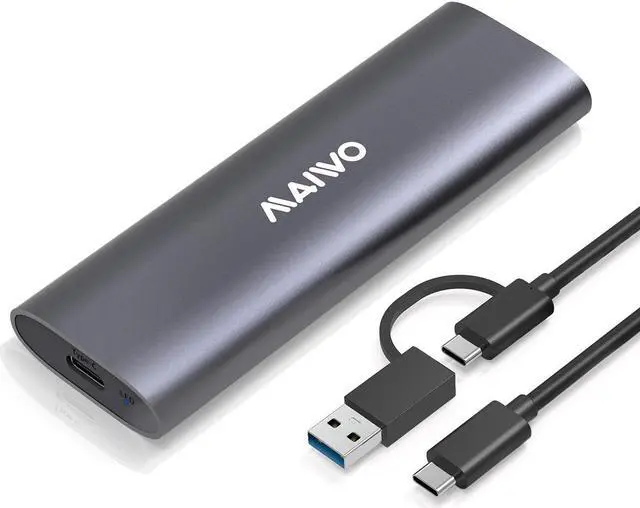
MAIWO Tool-free M.2 NVMe SSD External Enclosure
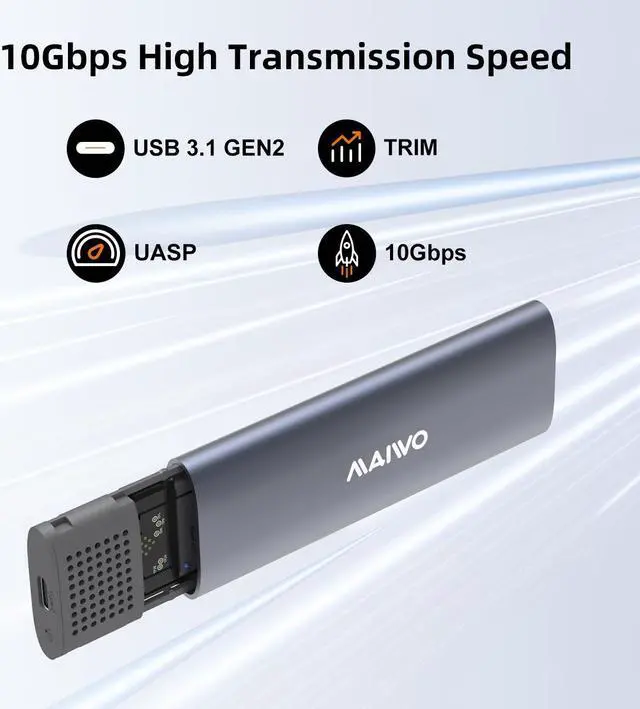
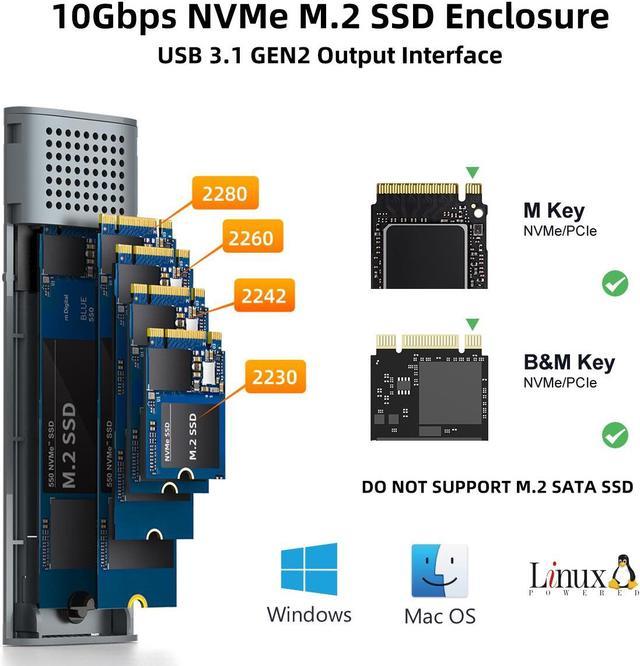
MAIWO K1689P Type-C (USB3.2) M.2 NVMe SSD enclosure is specially designed for M.2 M Key based SSD, compatible with SSD size 2230 / 2242 / 2260 / 2280mm. Offering an easy way to connect M.2 SSD with your laptops. Ultra-fast data transmission, great for storage expansion, file back-up, data recovery and system upgrade. The m.2 nvme enclosure is compatible with multi OS:Windows, Mac OS, Linux ,Android. Support UASP / Trim with ultra fast transmission speed up to 10Gbps. Supports plug & play and hot-swapping. Fits SSD storage up to 2TB (no ssd included).
USB 3.2 New Nomenclature:
1. USB3.2 Gen 1 = USB3.1 Gen 1 , Product transfer rate is up to 5Gbps, Marketing name: SuperSpeed USB
2. USB3.2 Gen 2 = USB3.1 Gen 2 , Product transfer rate is up to 10Gbps, Marketing name: SuperSpeed USB 10Gbps
3. USB3.2 Gen 2X2, Product transfer rate is up to 20Gbps, Marketing name: SuperSpeed USB 20Gbps

This M.2 NVMe enclosure is compatible with M.2 NVMe SSDs with M key, and size 2230 / 2242 / 2260 / 2280 SSDs. Not compatible with SATA or PCIe AHCI SSDs.

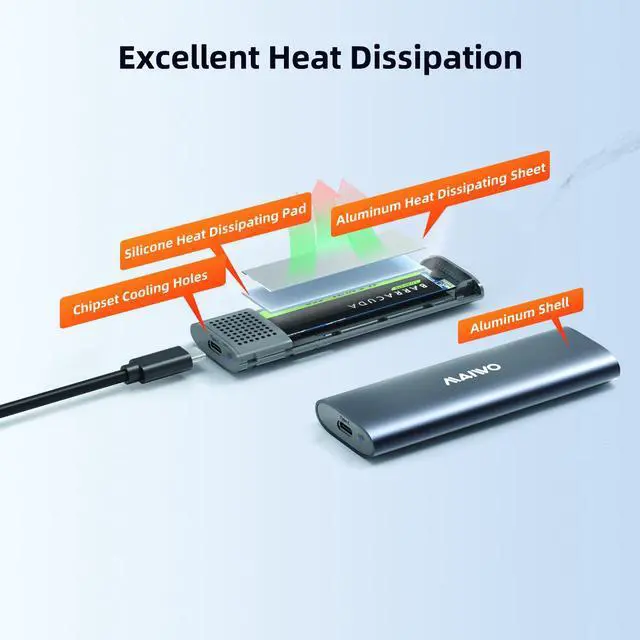
This M.2 solid state disk adapter adopts aluminum alloy shell, and come with silicone and aluminum heat sinnk, durable and good heat dissipation performance.

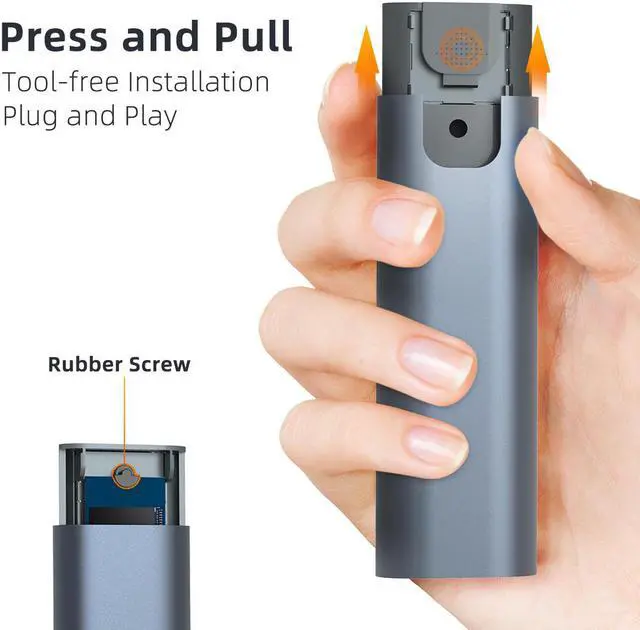
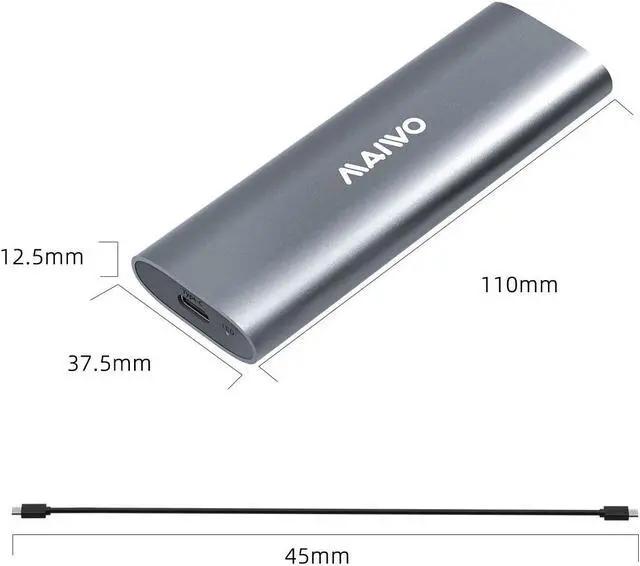
This nvme ssd enclosure is portable and slim. Tool-free, plug and play, can be taken in a pocket.

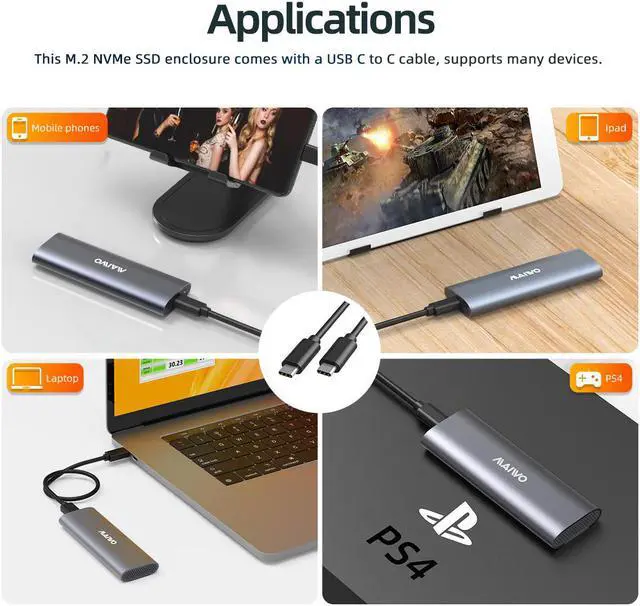
You can connect this ssd enclosure to mobile phone, no more need to worry your phone has no enough storage.

High transfer speed help you easy to transfer files in laptop, work as a portable hard drive.

No need to transfer the PS4 game to the host, just plug the nvme ssd into enclosure and start playing and enjoying gaming.

Portable Design
Adopts aluminum alloy shell, slim design, durable and excellent heat dissipation, be portable and easy to carry.
Compatibility
Compatible with M Key M.2 NVMe SSD, in sizes: 2230/2242/2260/2280.
Tool-Free Installation
USB C to M.2 NVMe SSD enclosure allows the quick installation of an M.2 NVMe SSD just in seconds.
Plug and Play
Support plug & play and hot-swapping, compatible with multi OS:Windows, Mac OS,Linux ,Android, no driver required.

Kindly Note - If you computer can't recognize the SSD enclosure. Please Following Steps.
For new SSD, You need to go into the disk management and initialize the SSD firstly, then it could be detected and used normally. Please finish disk initialization according to the following steps.
How to start disk management?
Right click "Computer" - "Manage" - "Disk Management". Find your unallocated disk, right click "Unallocated", and choose "New Simple Volume Wizard".
How to start disk management (in windows 10)?
Click Start -> Run -> type compmgmt.msc -> click OK. Alternatively, right-click on the My Computer icon and select 'Manage'. In the console tree, click Disk Management.






