here!
here!
I’m your shopping assistant for PC builds, upgrades, and everything tech.
Got questions? Ask away!
Start a conversation
here!
I’m your shopping assistant for PC builds, upgrades, and everything tech.
Got questions? Ask away!
Start a conversation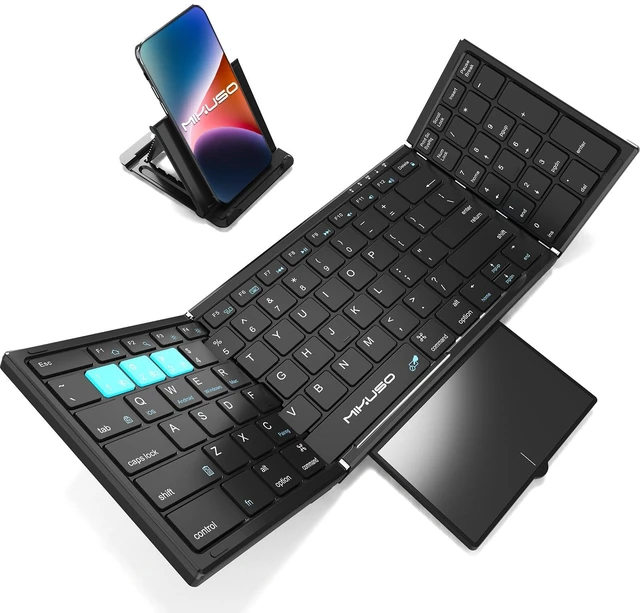
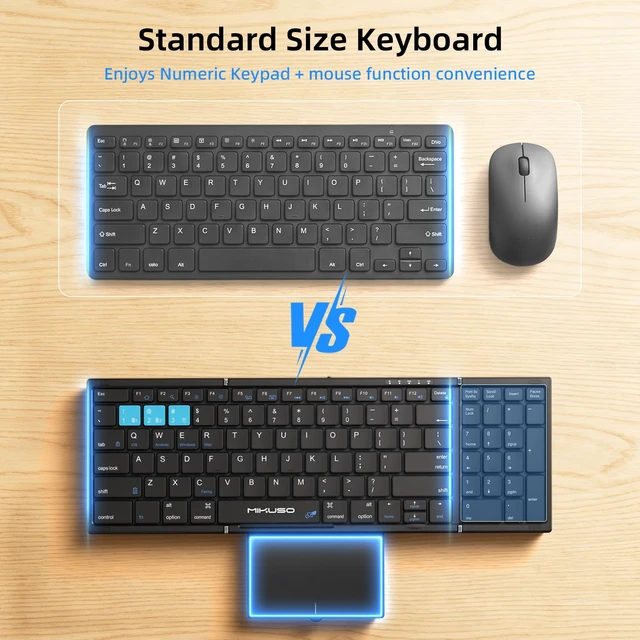
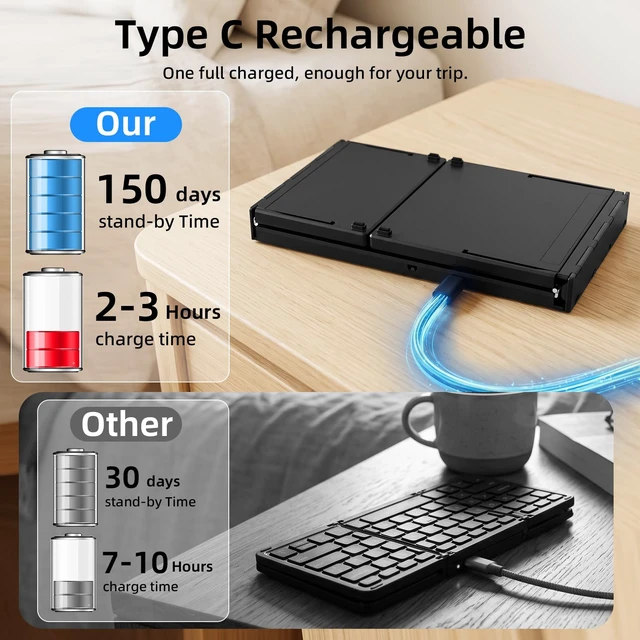
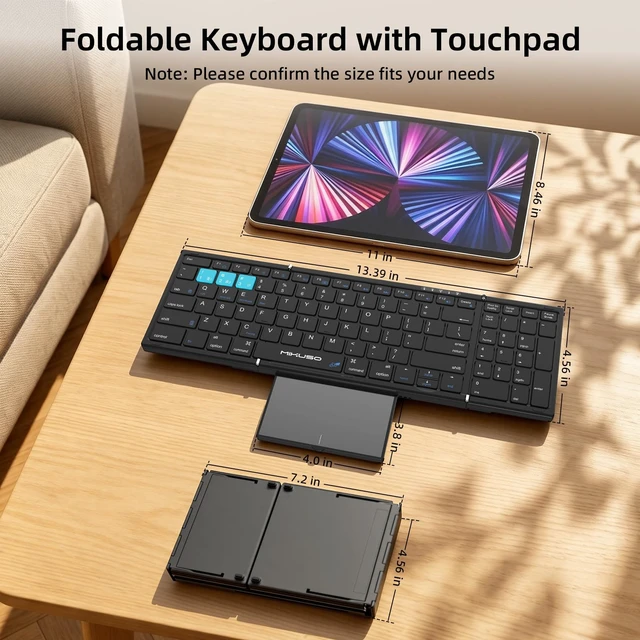



Any questions? Ask CelesteSM will help you find out quickly.
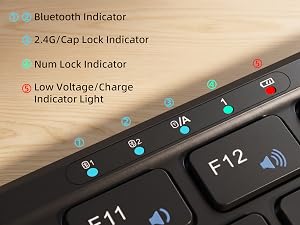
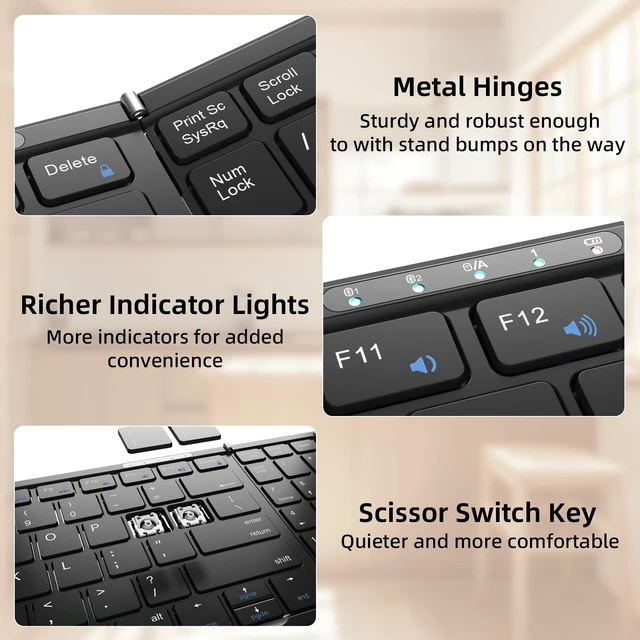
Abundant indicator Lights
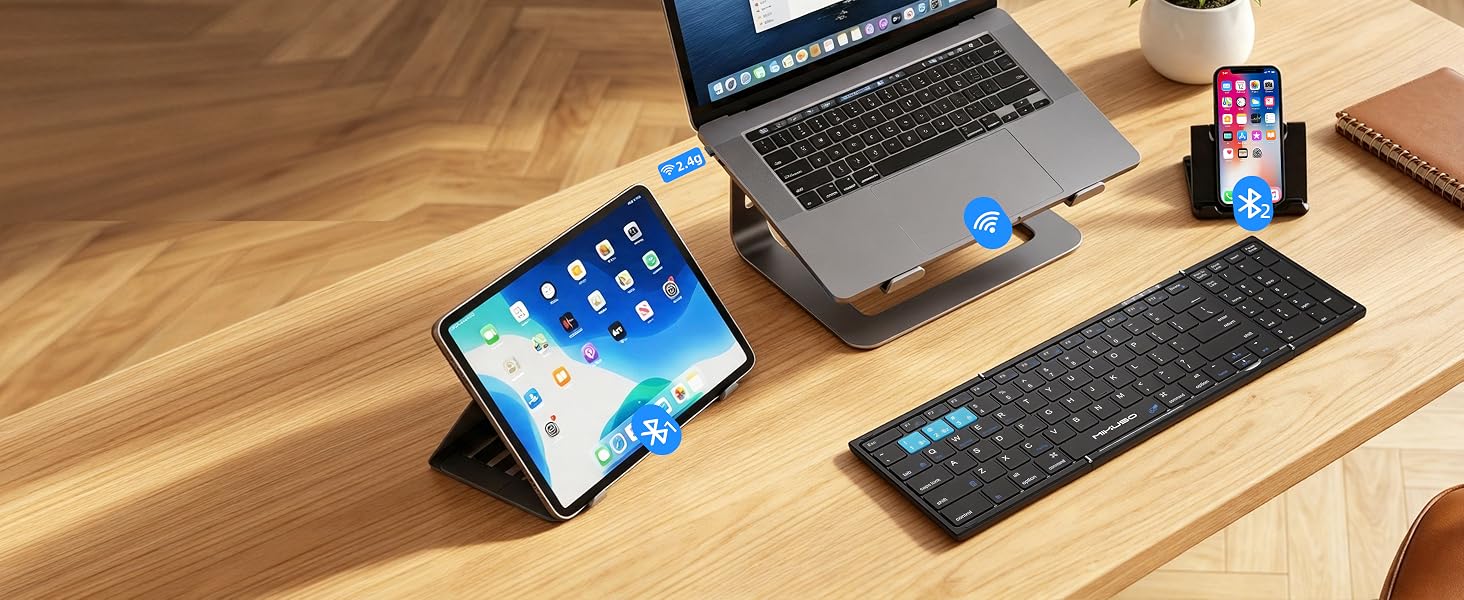
Each Bluetooth and Wireless channel features a dedicated indicator light, making connection status instantly clear.
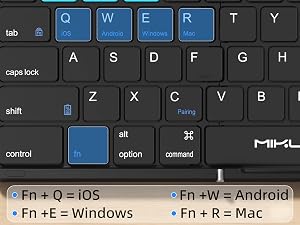
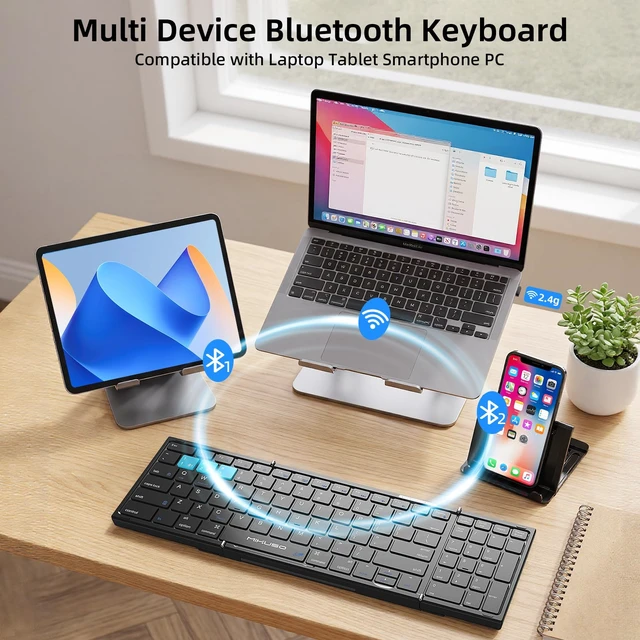
It’s compatible with iOS/Android/Windows/Mac OS (switch via FN+Q/W/E/R). One keyboard fits most devices.
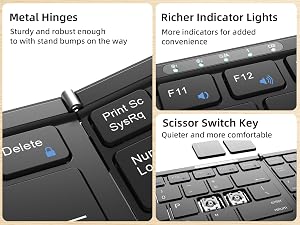
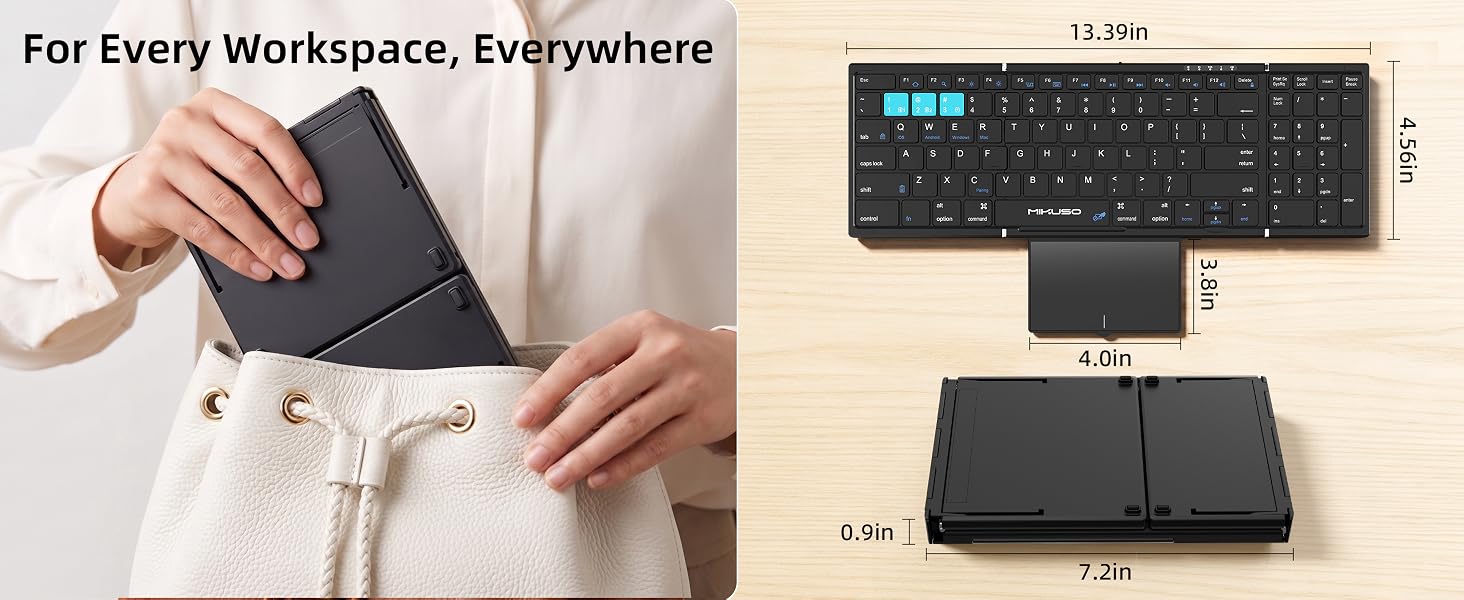
1. Aviation grade metal hinges
2. Clear functional indicator lights
3. Equipped with scissor switch keys for
a "mac-like" typing experience
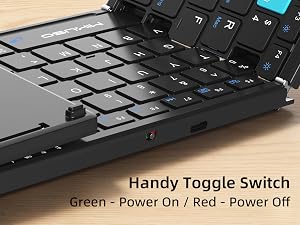
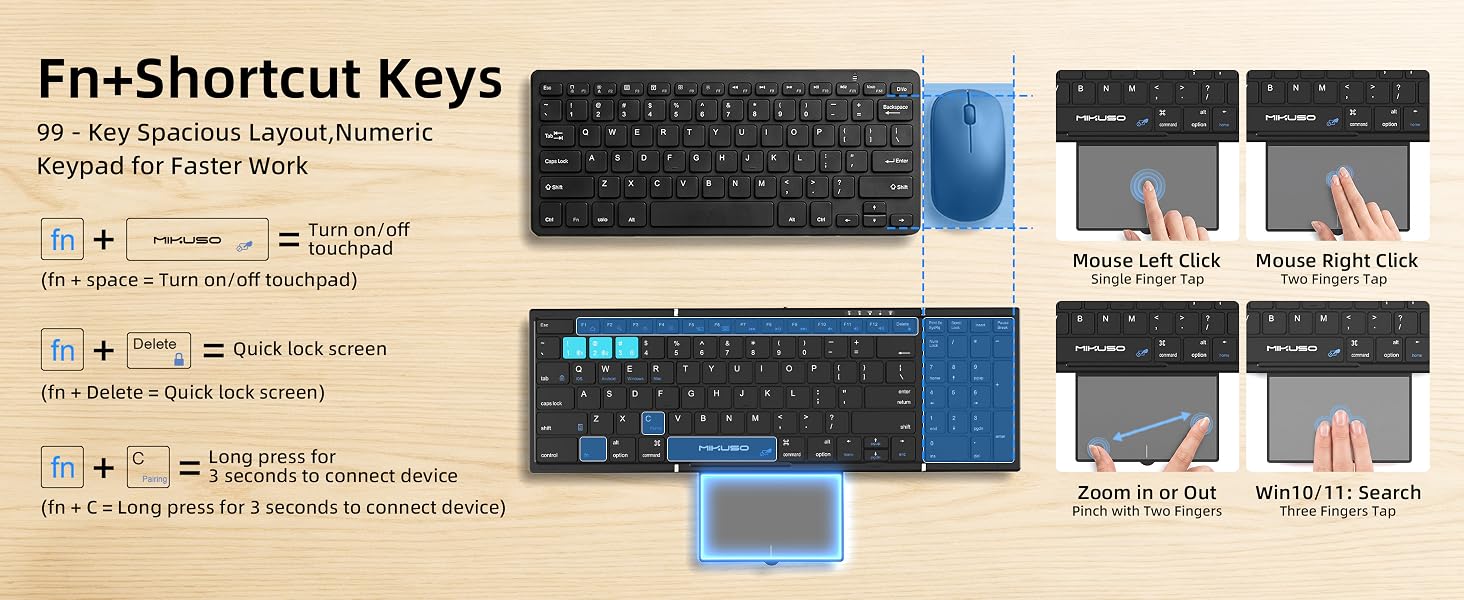
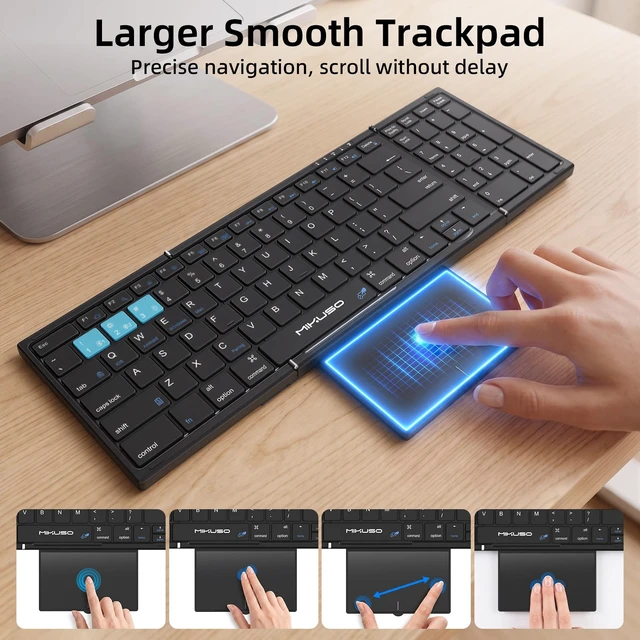
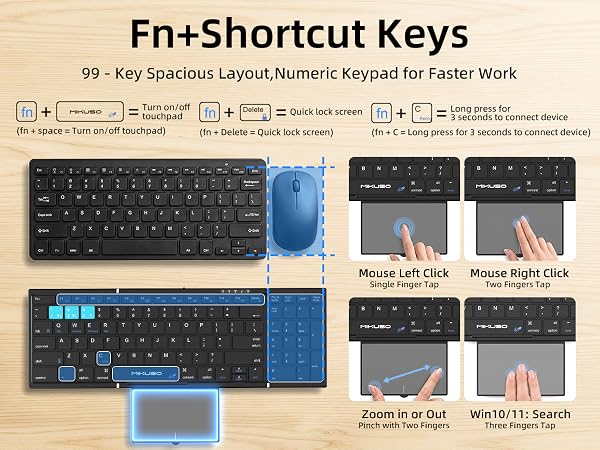
The touchpad consumes relatively more power. You can disable it by pressing FN + Spacebar, or turn off the keyboard when not in use to save battery.
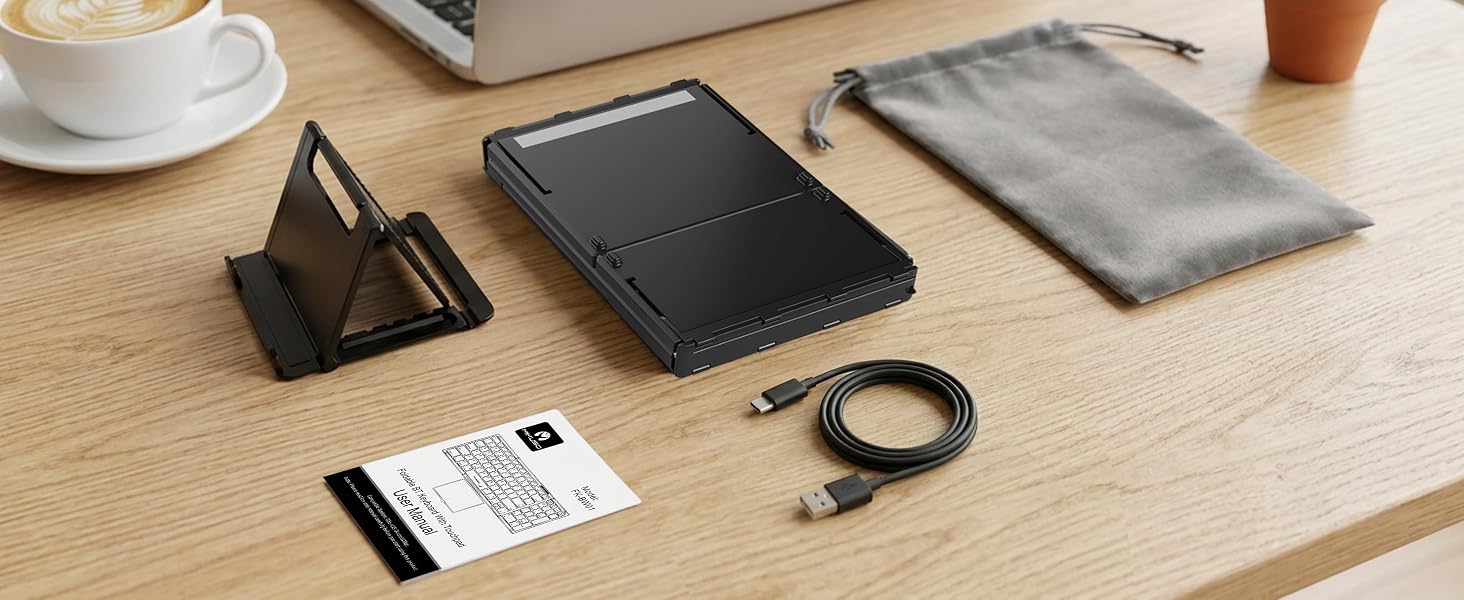
What's in the box?
User Manual*1,
Phone Holder*1,
2.4G USB Receiver*1,
Portable comfortable bag*1,
USB C Chargeable Cable*1,
Foldable Keyboard with Touchpad & Numberpad*1.
How to solve frequent Bluetooth disconnections?
1. Shorten distance, avoid interference.
2. Check keyboard power, charge when low.
3. Delete paired keyboard, re-pair about 3 second by long-pressing FN+C key.
4. Ensure device Bluetooth =5.0.
What can I do if MIKUSO keyboard Fail to connect wireless?
1. Charge keyboard for 30 minutes.delete the previous connection record
2. Press FN+Blue key(3) to switch the connection from signal to wireless 2.4G USB
3. Insert the USB receiver into(Check if the computer is compatible with wireless connection)
How to turn off the touchpad separately?
FN+spacebar can turn on/off the touchpad. If you don't want to use the touchpad, you can turn it off separately without affecting keyboard usage
Touchpad lagging or freezing—can it be fixed?
1. Tap any key to wake first, then check if the low-battery light flashes (charge if low). Stay within 10 ft; re-pair if needed.
?
2. Windows: raise Pointer Speed & disable “Enhance pointer precision.”
?
3. macOS: Trackpad > Tracking Speed ? fast.
What computer systems does the keyboard use?
Wide Compatibility.It’s compatible with iOS/Android/Windows/Mac OS (switch via FN+Q/W/E/R). One keyboard fits most devices.
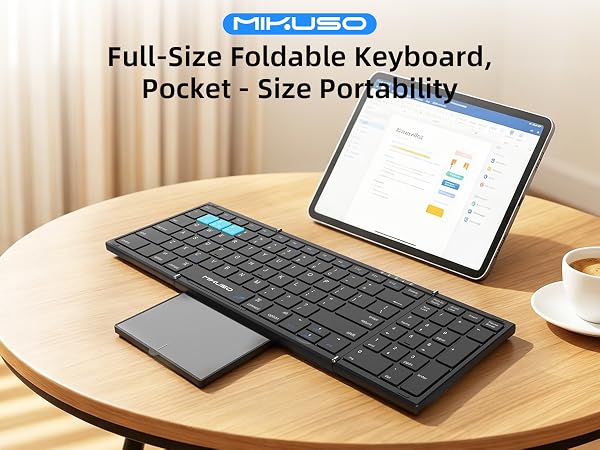
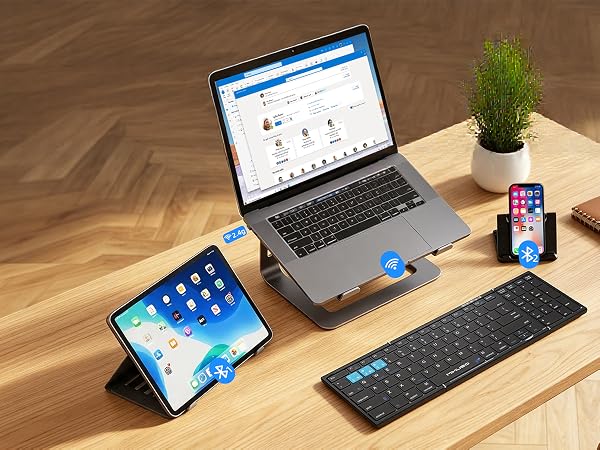
Your Workflow, Effortlessly United
Abundant indicator Lights
Each Bluetooth and Wireless channel features a dedicated indicator light, making connection status instantly clear.
It’s compatible with iOS/Android/Windows/Mac OS (switch via FN+Q/W/E/R). One keyboard fits most devices.
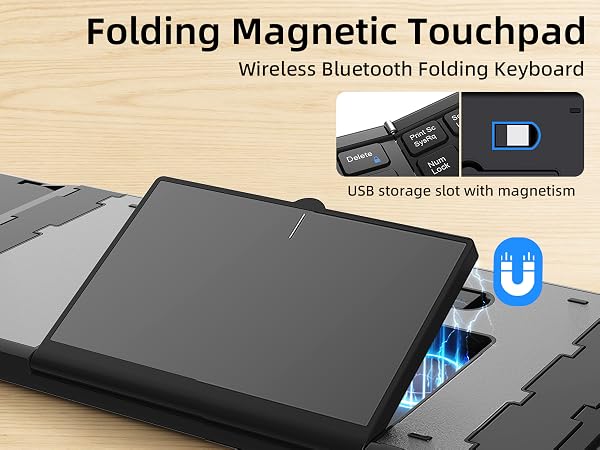
1. Aviation grade metal hinges
2. Clear functional indicator lights
3. Equipped with scissor switch keys for
a "mac-like" typing experience
The touchpad consumes relatively more power. You can disable it by pressing FN + Spacebar, or turn off the keyboard when not in use to save battery.
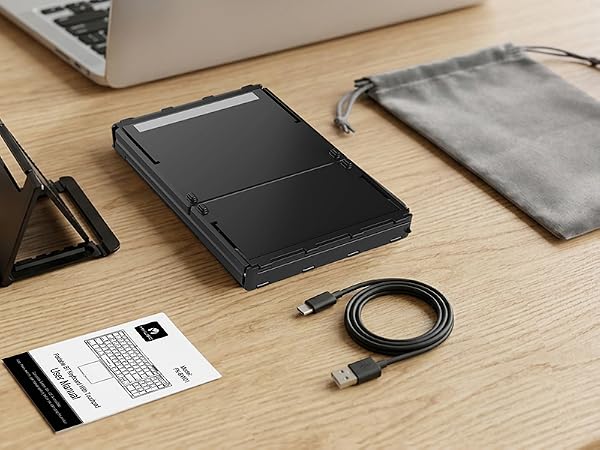
What's in the box?
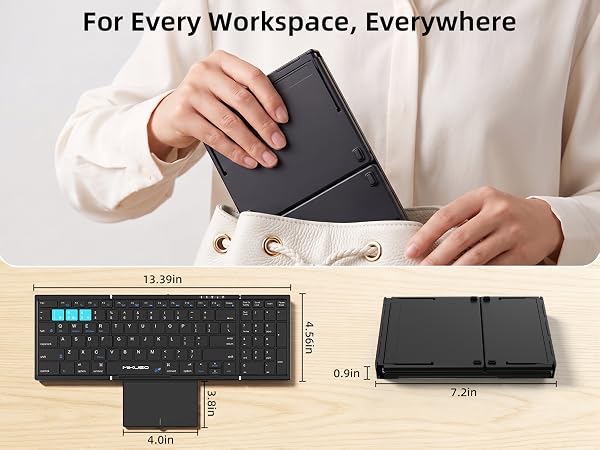
User Manual*1,
Phone Holder*1,
2.4G USB Receiver*1,
Portable comfortable bag*1,
USB C Chargeable Cable*1,
Foldable Keyboard with Touchpad & Numberpad*1.
How to solve frequent Bluetooth disconnections?
1. Shorten distance, avoid interference.
2. Check keyboard power, charge when low.
3. Delete paired keyboard, re-pair about 3 second by long-pressing FN+C key.
4. Ensure device Bluetooth =5.0.
What can I do if MIKUSO keyboard Fail to connect wireless?
1. Charge keyboard for 30 minutes.delete the previous connection record
2. Press FN+Blue key(3) to switch the connection from signal to wireless 2.4G USB
3. Insert the USB receiver into(Check if the computer is compatible with wireless connection)
How to turn off the touchpad separately?
FN+spacebar can turn on/off the touchpad. If you don't want to use the touchpad, you can turn it off separately without affecting keyboard usage
Touchpad lagging or freezing—can it be fixed?
1. Tap any key to wake first, then check if the low-battery light flashes (charge if low). Stay within 10 ft; re-pair if needed.
?
2. Windows: raise Pointer Speed & disable “Enhance pointer precision.”
?
3. macOS: Trackpad > Tracking Speed ? fast.
What computer systems does the keyboard use?
Wide Compatibility.It’s compatible with iOS/Android/Windows/Mac OS (switch via FN+Q/W/E/R). One keyboard fits most devices.