




 here!
I’m your shopping assistant for PC builds, upgrades, and everything tech.
Got questions? Ask away!
Start a conversation
here!
I’m your shopping assistant for PC builds, upgrades, and everything tech.
Got questions? Ask away!
Start a conversation
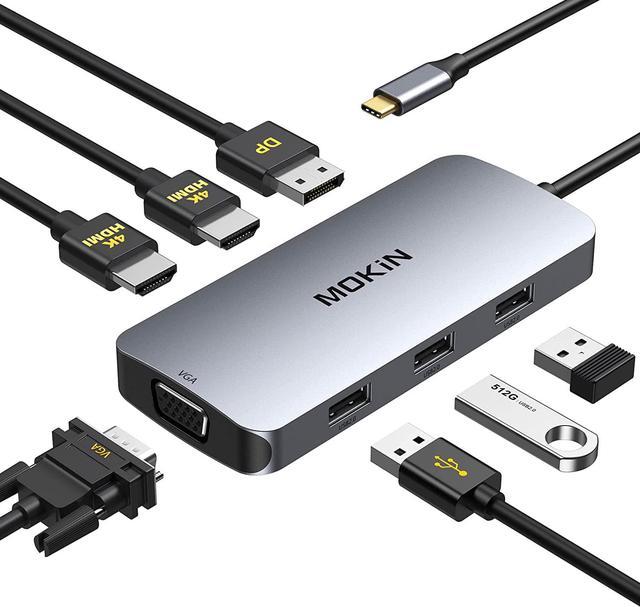



Any questions? Ask CelesteSM will help you find out quickly.

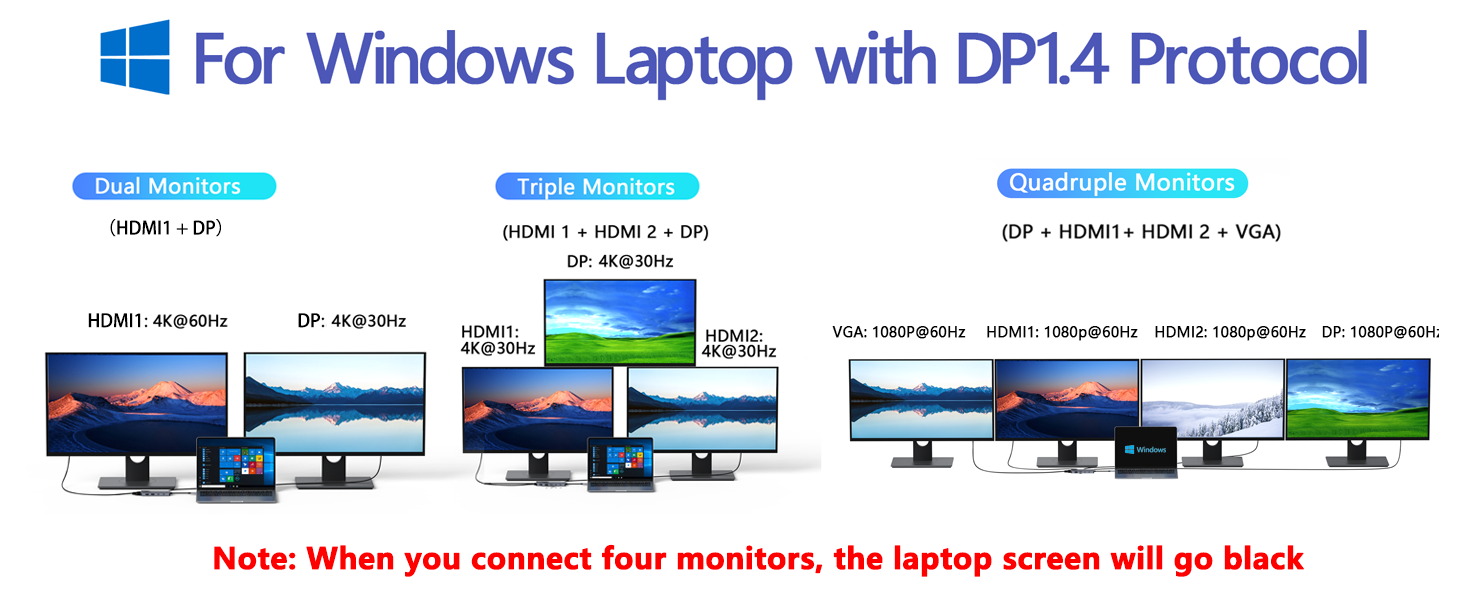
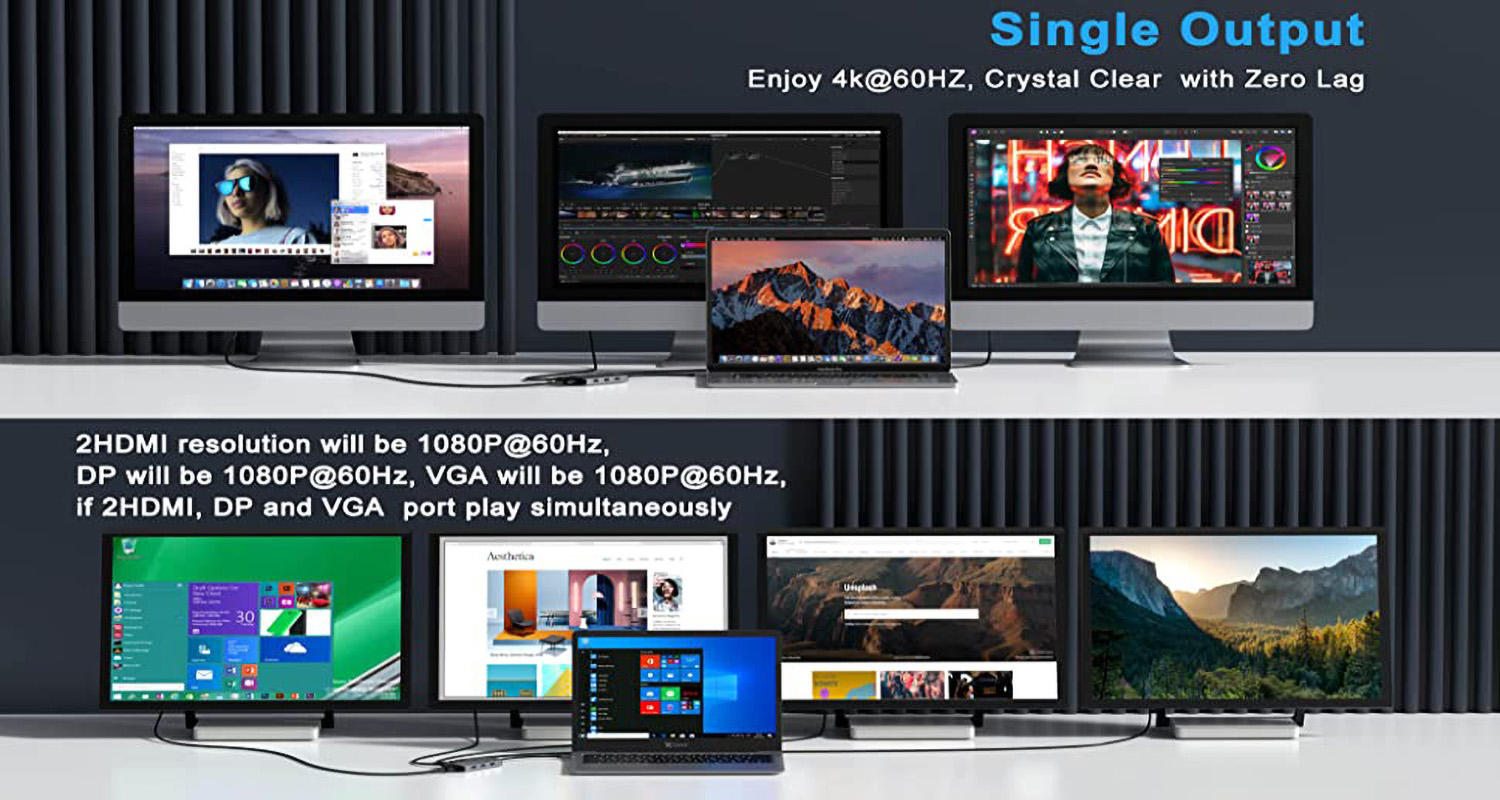
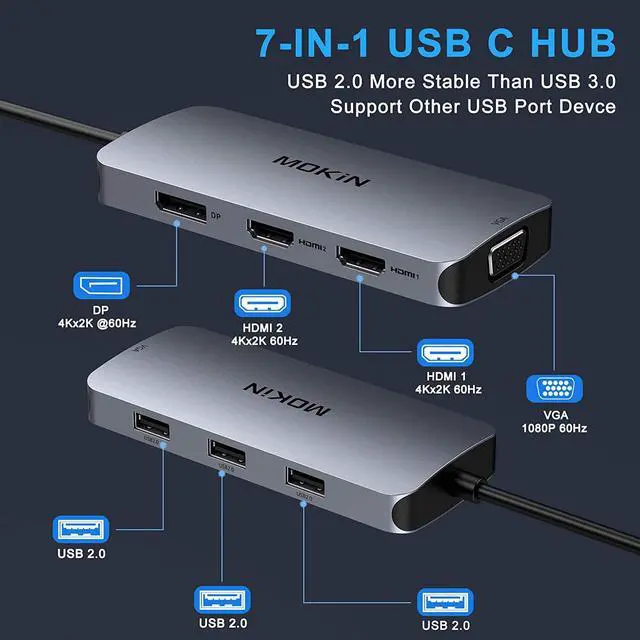
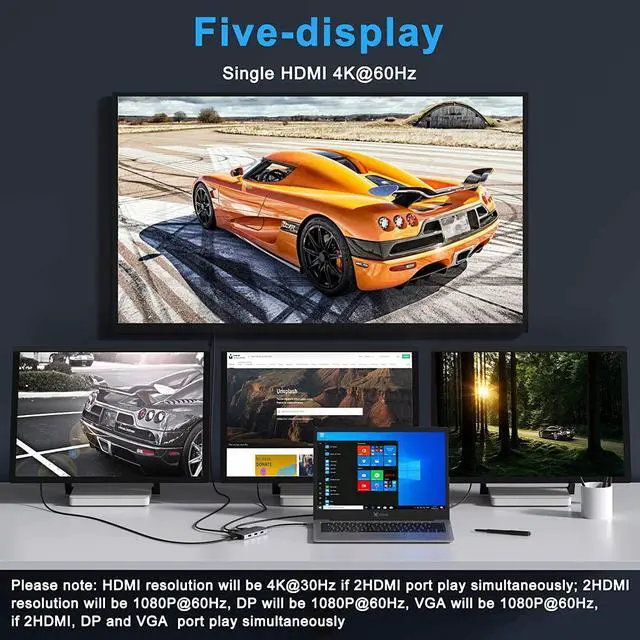
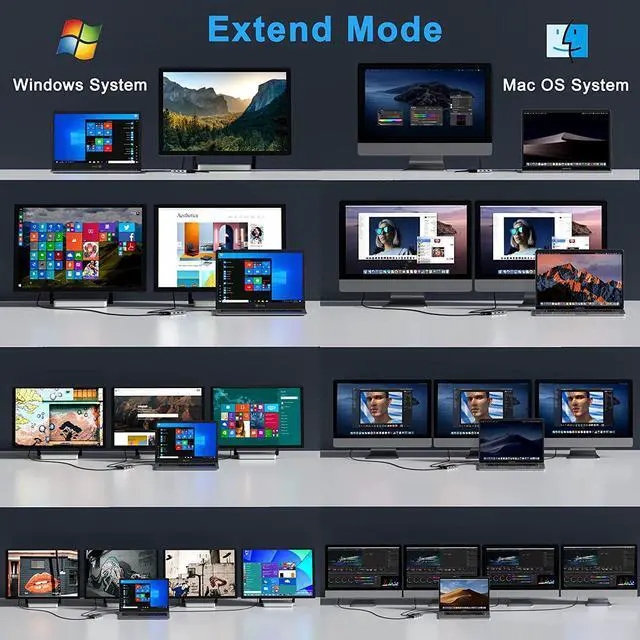
Present you dual monitors display (Mirror Mode/Extend Mode), which supports HDMI 1 and DP display up to 4K(3840*2160@60Hz,while source is DP1.4).
NOTE:For MAC OS laptop,extend mode can only extend one monitor.
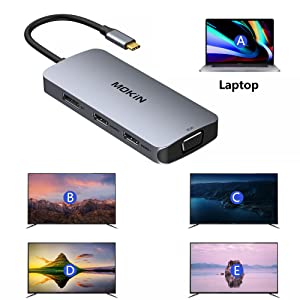
Works flawlessly with Windows laptop and it supports MST triple display or four display.Support 4 additional monitors beyond the laptop display.
To connect four external monitors, your resolution will be limited to 1920 x 1080 displays at 30hz.
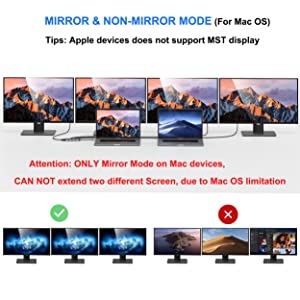
For Apple computer users (MAC OS), extend mode can only extend laptop's images. Other monitors only mirror each other. It is the Mac OS system restriction.
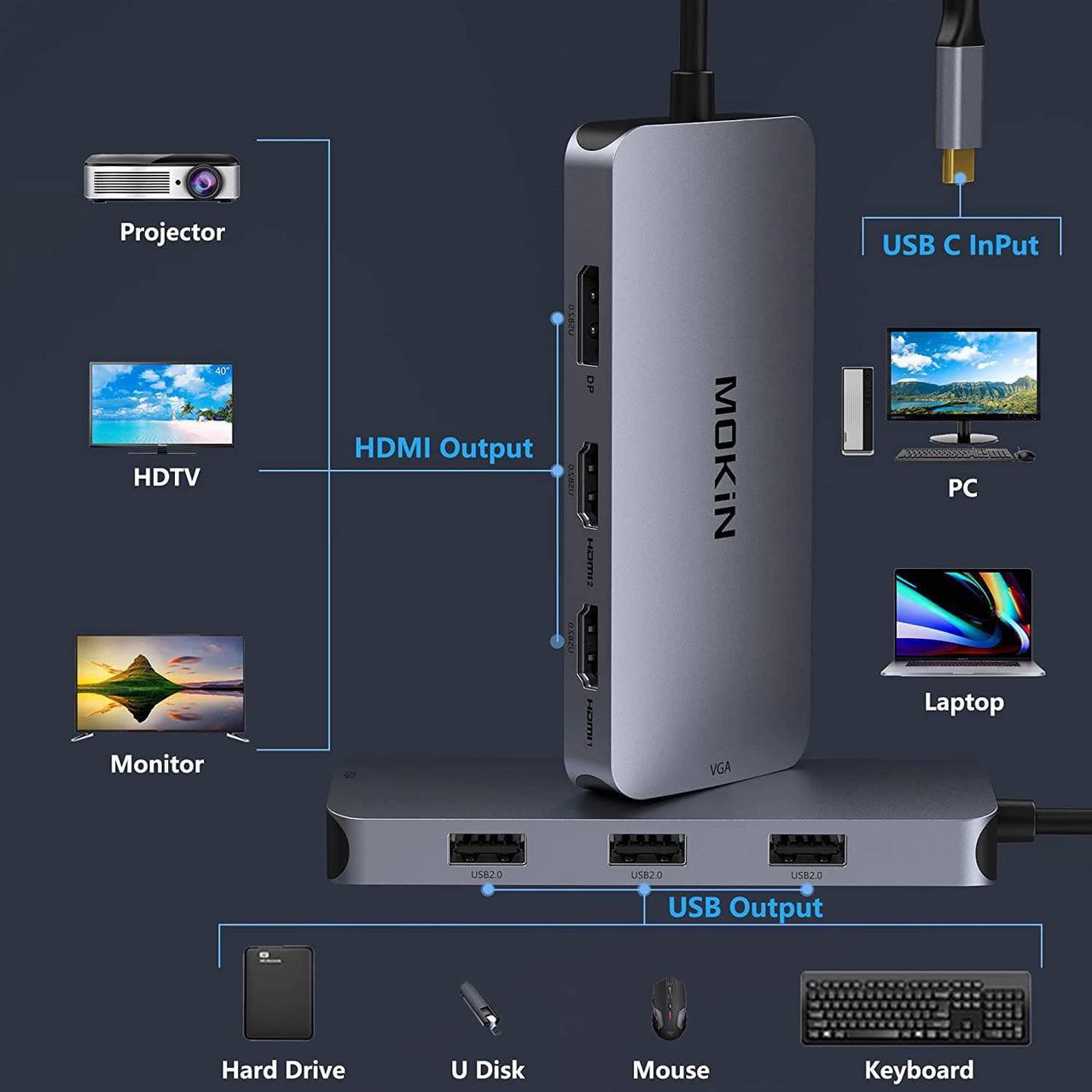
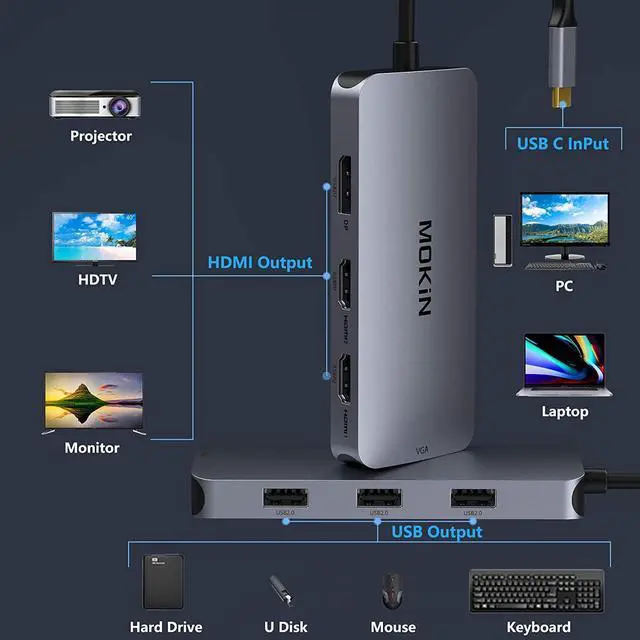
With 3 USB-A 2.0 ports,this laptop docking station with 2 hdmi ports enables data transfer speeds of up to 480MB/s. Connect your USB devices like a mouse, keyboard, or USB disk to your laptop with ease.
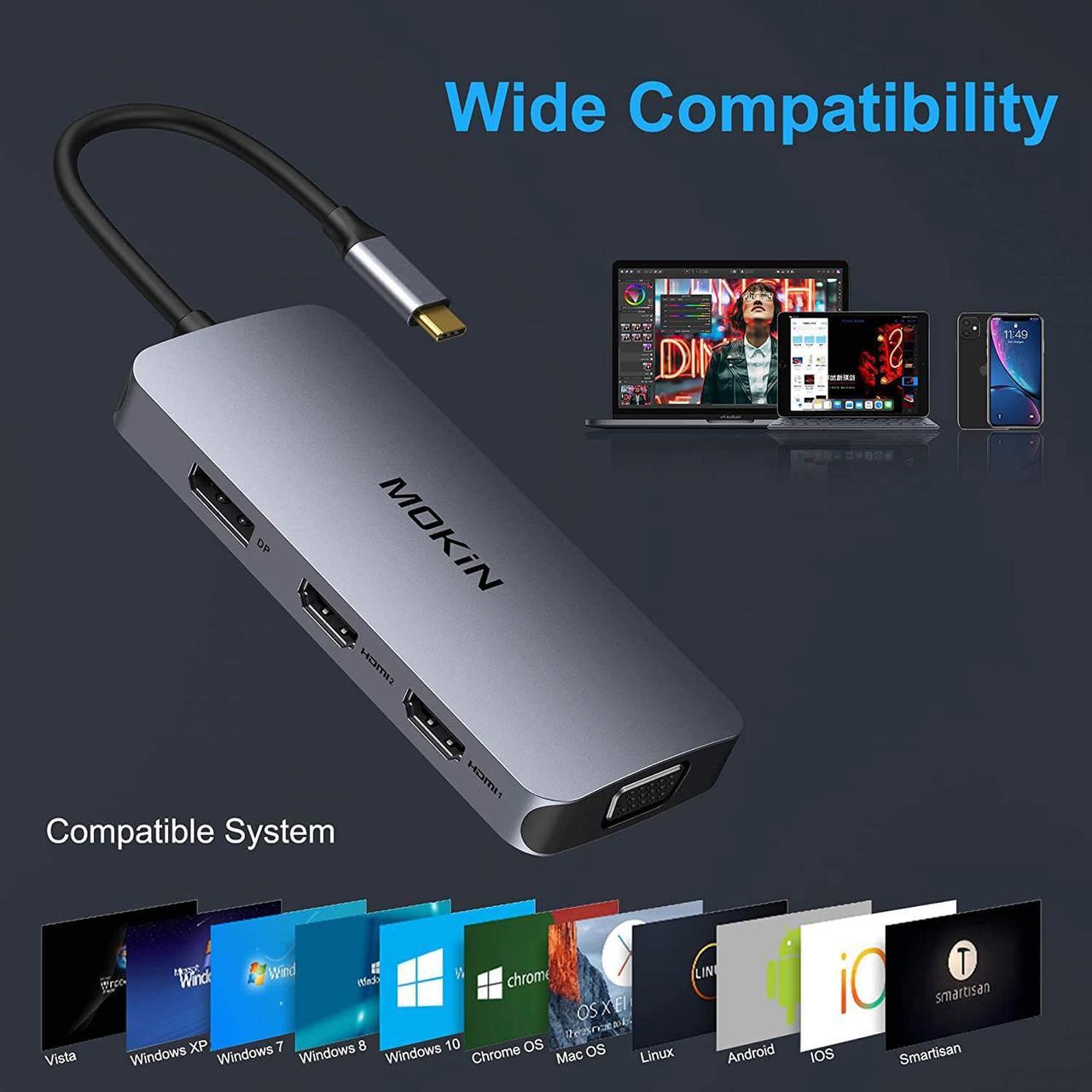
Please ensure your laptop has Thunderbolt or full-function USB-C ports before purchasing this laptop docking station dual monitor. If you're unsure whether this docking station monitors is suitable for your laptop,simply share your laptop model with us and we'll verify compatibility.

Can NOT work with (Tested):
HP EliteBook 745 G4 / HP Elitebook 820 G3 / HP EliteBook 828 G4 / HP 14s-be102TX / HP 14-ce1004TX 14 / HP Probook 650 G2 / HP Probook 455 G4 / HP Probook 430 G5 / HP Pavilion-14 bf116tx / HP Pavilion 15 ck009 / HP Pavilion Power Laptop 15-cb / Lenovo ideapad 340s Tablets / Google Pixel phones / Nintendo Switch / Acer Aspire A5 / Oneplus 5T Phone
| Brand | MOKiN |
|---|---|
| Color | Grey |
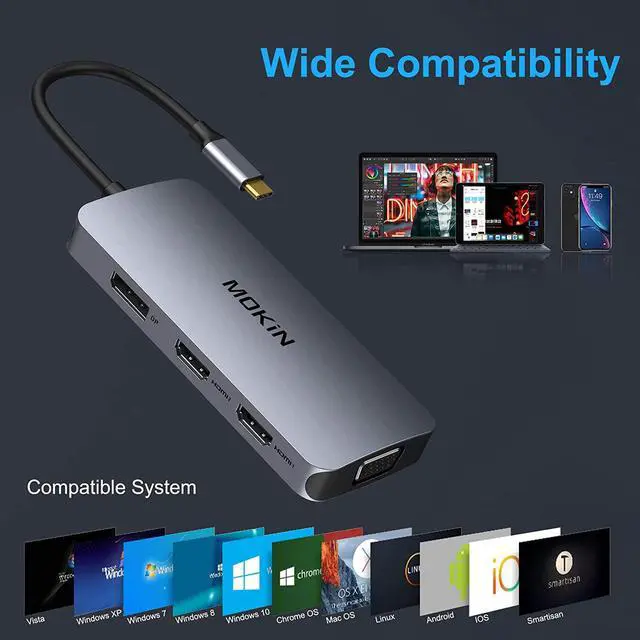
| Hardware Interface | HDMI,DisplayPort&VGA,USB 2.0 |
| Compatible Devices | Dell XPS, Steam Deck, HP, ASUS, Lenovo ThinkPad, Surface,etc. |
| Item Dimensions | 5.71x2.76x0.39 inches |
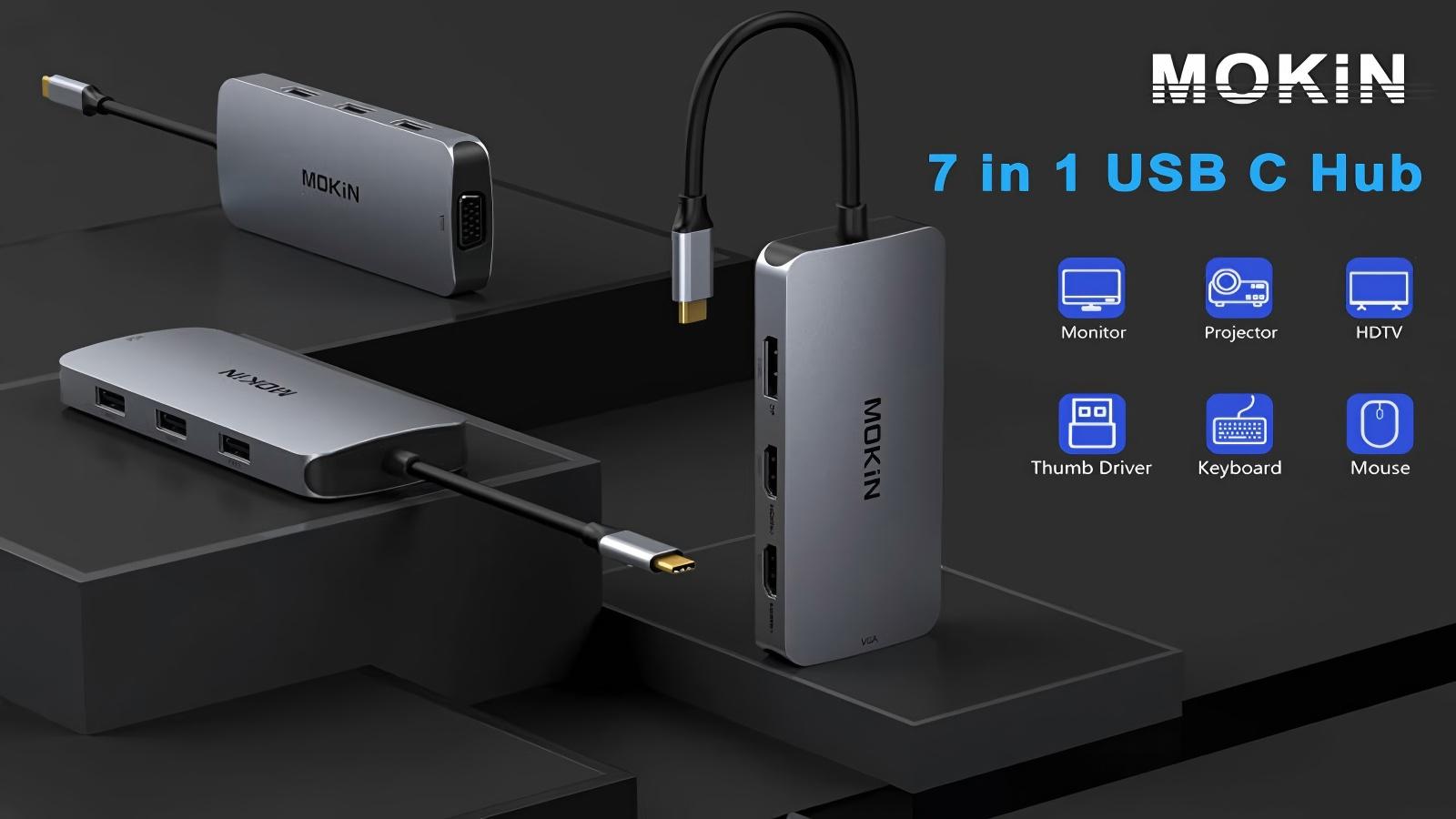
The MOKiN MOUC0507-US is a 7-in-1 USB-C docking station for compatible Windows laptops, offering dual HDMI outputs at up to 4K 60Hz, DisplayPort, VGA, and three USB 2.0 ports. It is suitable for users who need multi-monitor connectivity plus keyboard, mouse, storage, or other USB accessories.
| Attribute | Value |
|---|---|
| Best For | USB-C docking for compatible Dell, HP, Lenovo, and Microsoft laptops that need up to four external video outputs plus three USB peripherals |
| Video Output | Four display outputs: two HDMI ports supporting 4K at 60Hz, one DisplayPort, and one VGA port |
| USB Connectivity | Three USB 2.0 ports for connecting peripherals and other USB devices |
| Compatibility | Compatible with Dell, HP, Lenovo, Microsoft, and other supported devices |
| Physical Specifications | Gray docking station measuring 5.79 x 3.15 x 0.71 inches and weighing 0.22 lb |
| Package Contents | USB-C docking station, instruction manual, and kraft paper box |
| Model Identifiers | MOKiN model MOUC0507-US |
Q: Is the MOKiN MOUC0507-US better than a basic USB-C hub for two monitors?
A: Choose the MOKiN MOUC0507-US when a Windows laptop needs two external 4K displays plus HDMI, DisplayPort, VGA, and three USB 2.0 ports from one USB-C connection. A basic USB-C hub is more suitable for one-monitor setups or travel because it usually has fewer display outputs and a smaller footprint. Confirm that the laptop supports USB-C DisplayPort Alt Mode or Thunderbolt 3 before purchase, because USB-C alone does not guarantee external-display support.
Q: Should I buy the MOKiN MOUC0507-US or a DisplayLink dock such as the Plugable UD-6950PDH?
A: The MOKiN is the better fit for a Windows desk setup that prioritizes multiple video connector types, compact size, and basic keyboard or mouse connectivity. The Plugable UD-6950PDH is the stronger choice when you need macOS or ChromeOS support, laptop charging, faster USB peripherals, or more predictable dual-monitor support across systems. DisplayLink docks require software installation, while the MOKiN listing emphasizes Windows compatibility and does not identify DisplayLink technology.
Q: Is the MOKiN MOUC0507-US a better choice than a Thunderbolt 4 dock?
A: Choose the MOKiN for a simpler Windows dual-monitor workspace where 4K at 60Hz, VGA compatibility, and basic USB accessories are sufficient. Choose a Thunderbolt 4 dock when you need higher-bandwidth storage and peripherals, laptop charging, Ethernet, broader Mac support, or additional expansion. Thunderbolt 4 docks typically provide substantially more connectivity and power delivery, but they are more than this MOKiN requires for basic display docking.
Q: Should I use the MOKiN MOUC0507-US for gaming or buy a higher-tier USB4 dock?
A: The MOKiN is aimed at office productivity, presentations, web use, and general multitasking with 4K 60Hz displays. A higher-tier USB4 dock is the better choice for high-refresh-rate 4K gaming, fast external SSDs, 2.5Gb Ethernet, or demanding visual workflows. For example, StarTech's USB4 dock supports dual 4K at up to 120Hz, while the MOKiN listing specifies 4K at 60Hz and USB 2.0 data ports limited to 480Mbps.
Q: Is the MOKiN MOUC0507-US suitable for portable use compared with a full-size docking station?
A: The MOKiN is more portable than a full-size powered dock because the listed unit weighs about 0.22 pounds and measures approximately 5.79 by 3.15 by 0.71 inches. It is a practical choice for moving between Windows workspaces when you mainly need display outputs and low-speed USB accessories. A full-size dock is preferable for a permanent desk because it is more likely to include laptop charging, Ethernet, fast USB ports, audio, SD-card access, and a dedicated power supply.
Q: Can this adapter extend my laptop display to two separate monitors?
A: Yes, on compatible Windows laptops, the adapter supports extended-display use through its two HDMI outputs and Windows MST mode. The laptop must support video output over USB-C, typically through DisplayPort Alt Mode or Thunderbolt 3, and actual monitor combinations depend on the laptop’s graphics capability.
Q: Does my laptop need a special USB-C port for this docking station to work?
A: Yes. The laptop’s USB-C port must support video output, such as DisplayPort Alt Mode or Thunderbolt 3. A standard USB-C data-only port may not transmit video, so users should confirm the laptop’s USB-C specifications before buying.
Q: Is this USB-C dock suitable for travel and everyday office work?
A: It is suitable for users who need a compact way to connect external monitors, a keyboard, and a mouse. Its approximately 5.79 x 3.15 x 0.71-inch size and 0.22-pound weight make it travel-friendly. The main trade-offs are that it has USB 2.0 ports rather than faster USB 3.x ports, and the listed configuration does not include Ethernet, SD card readers, or laptop charging.
Q: Are the USB ports fast enough for external storage and file transfers?
A: The three USB ports support USB 2.0 speeds up to 480 Mbps, so they are appropriate for keyboards, mice, printers, and basic peripherals. They are slower than USB 3.x ports and are not the best choice for frequent transfers from external SSDs or other high-speed storage devices.
Q: Can I use the HDMI, DisplayPort, and VGA outputs at the same time?
A: The adapter provides two HDMI outputs, one DisplayPort output, and one VGA output, but the number of displays that can run simultaneously depends on the laptop’s USB-C video standard, graphics bandwidth, operating system, and MST support. Windows laptops are the best fit because the product specifically supports Windows MST and SST modes. Users should confirm the laptop’s maximum supported external-display count before relying on all video outputs at once.
Q: Is this MOKiN adapter suitable for a Windows laptop with two external monitors?
A: It is suitable when the laptop’s USB-C or Thunderbolt port supports DisplayPort Alt Mode and the system supports MST. The adapter provides two HDMI outputs rated for up to 4K at 60Hz, plus DisplayPort and VGA, but the laptop’s graphics hardware and USB-C bandwidth determine the actual display configuration.
Q: Will it work with any laptop that has a USB-C port?
A: No. The USB-C port must support video output through DisplayPort Alt Mode or Thunderbolt 3. A USB-C port intended only for charging or data may support the hub’s USB functions but not external displays.
Q: Is this a good choice for a home-office or productivity setup?
A: It is a reasonable fit for users who want one USB-C connection to add two HDMI monitors, a DisplayPort or VGA display, and basic peripherals. The three USB ports are USB 2.0, so it is better suited to keyboards, mice, printers, and low-speed accessories than to frequent large-file transfers or high-speed external storage.
Q: What are the main risks or trade-offs before buying it?
A: The main trade-offs are compatibility limits and reported display-stability concerns with some MOKiN dual-display adapters. Community reports mention intermittent graphical artifacts, black screens, or resolution limitations in certain setups. Buyers should verify USB-C video support, monitor resolution requirements, cable quality, and the laptop’s available display bandwidth before relying on it for a critical workstation.


