



Out of stock
This item is currently out of stock and it may or may not be restocked.
Most customers receive within 5-7 days.
Shop it at NeweggBusiness.

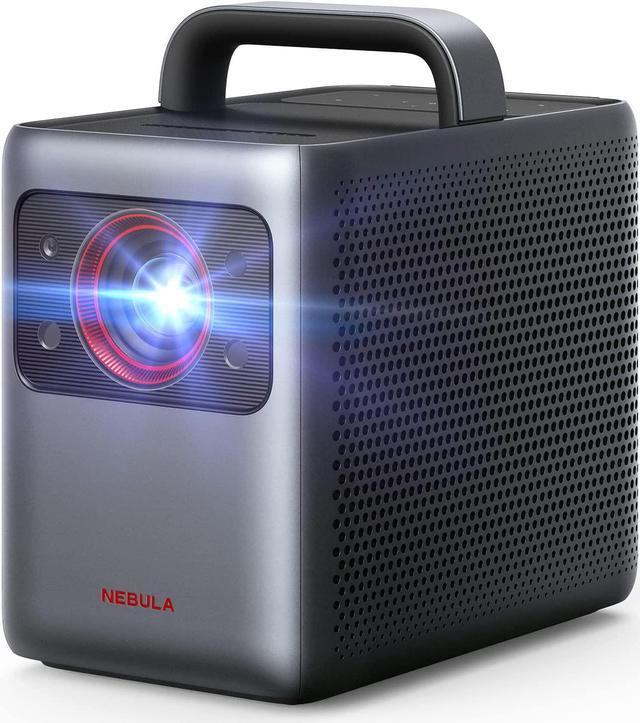
NEBULA Cosmos Laser 1080P Projector, 1840 ANSI Lumen, Android TV 10.0 with 7000+Apps, Auto Focus, Auto Keystone Correction, Screen Fit, Home Theater Image Quality, Movie Projector, Ideal for Parties

(15 from seenebula.com) Write a Review
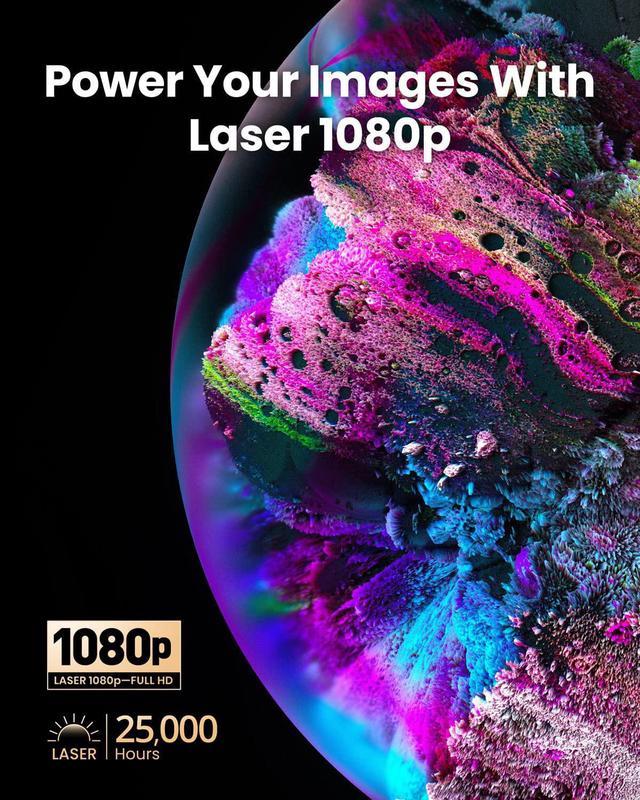
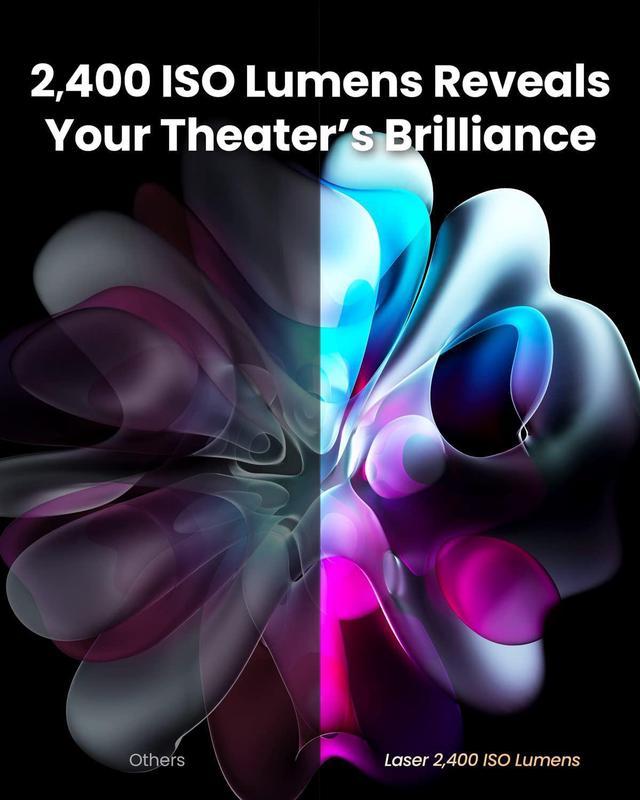
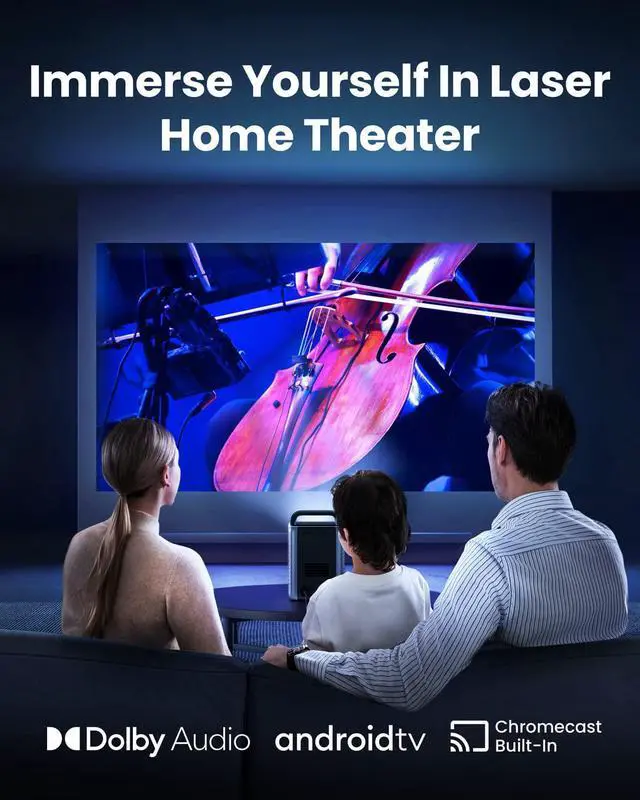
  • Laser-Powered Detail: Make your movies shine with the intensity of 1840 ansi lumen, which is so bright you can even watch with the lights on, then watch every pixel pop in 1080p HD quality.
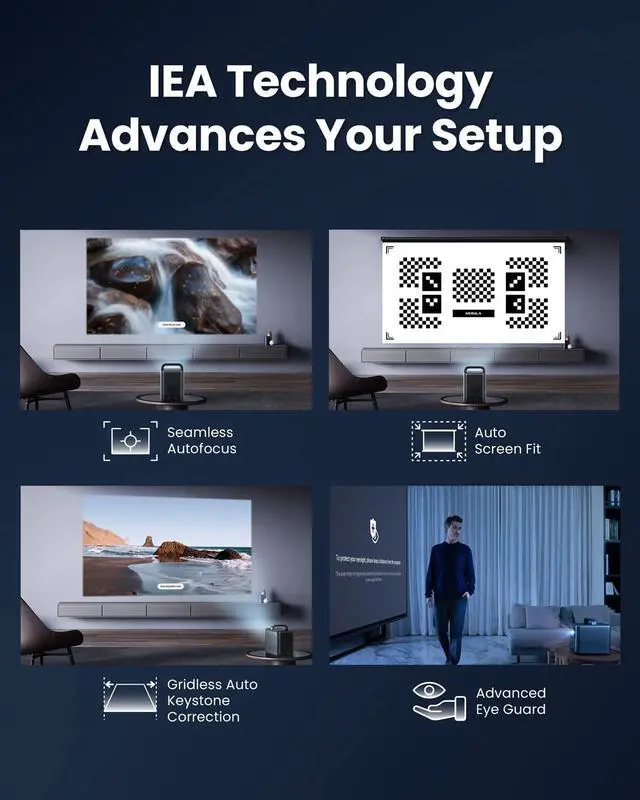
  • Setup is a Snap: Start the movie in seconds with Intelligent Environment Adaptation (IEA) Technology. Analyze your room to avoid furniture or decorations, then watch your screen automatically fit to your space without any disruptions to the action on screen.
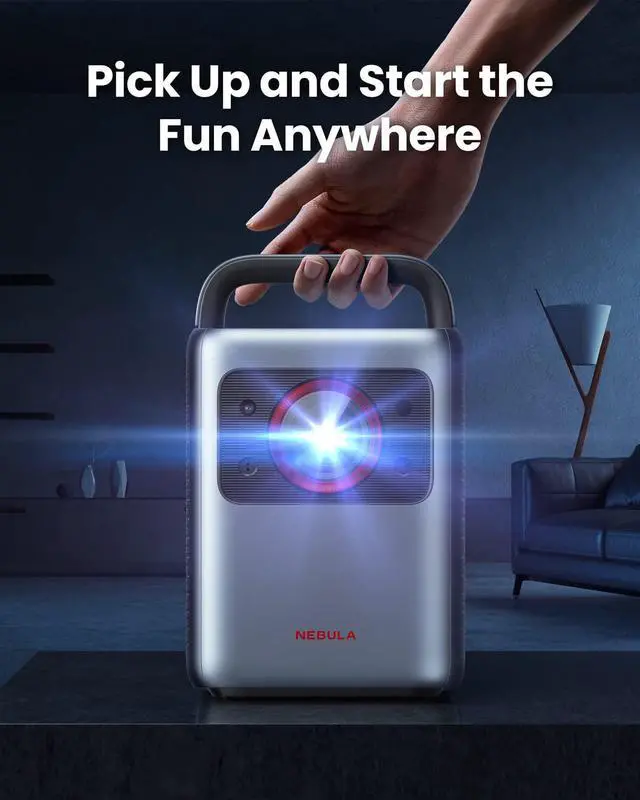
  • Carry Around the Home: The ergonomically designed handle allows you to conveniently move Cosmos Laser 1080p to the bedroom or the backyard, wherever you want to watch movies.
  • Hear the Difference in 3D: Get lost in the power of AiFi technology, which uses a unique algorithm to maximize your speakers potential for a true 3D soundscape. Youll feel the emotion of the 10W full-range speakers with every intimate whisper and heart-pounding explosion.
  • Abundant Streaming Choices: Android TV 10.0 allows you to see 400,000+ movies and episodes on 7,000+
Overview
Specs
Reviews (17)
avatar

Any questions? Our AI beta will help you find out quickly.

image for this item
image for this item
image for this item
image for this item
image for this item

Laser FAQ

1. How Do I Upgrade the 4K Streaming Dongle's and Cosmos Laser Projector's Firmware?

For 4K Streaming Dongle's Firmware, please go to Settings > Device Preferences > About > System Update > Checking for Update. For Cosmos Laser's firmware, please go to Settings > Device Preferences > About > Projector Firmware Update > Checking for Update.


2. How to Fix Remote Control to Change Projector Settings?

Update the firmware of the 4K dongle and Cosmos Laser to the latest version first. Press the Settings button on the projector or press the Source button on the remote control. Also, you can use Nebula Connect to control the settings.


3. How to Fix Volume Control or Low Volume on Cosmos Laser?

Update the firmware of the 4K dongle and Cosmos Laser to the latest version first. Pair the remote with Cosmos Laser and set up the Cosmos Laser remote buttons as follows:

Go to Settings > Set up Remote Buttons > Add Device > TV or press the Settings button on the remote. Select Nebula as the TV brand. And then follow on-screen instructions to finish the setup.


4. How to Stop the 'Protect Your Eyesight' or 'Auto-Keystone Precision' Prompt on Cosmos Laser?

  • Update the firmware of the 4K dongle and Cosmos Laser to the latest version first.
  • Remove any objects in front of the projector and place the projector between 5-13 ft (1.5-4 m) away from your screen.
  • Press the Settings button on the projector or the Source button on the remote, select Advanced Settings, and turn off Eyesight Protection (Eye Guard) or select Image Correction, and turn off the following features: Auto Keystone Correction after Move, Manual Keystone Correction, and Auto Screen Fit.
Projection Technology DLP
Brightness 1840 ansi lumen
Resolution 1920*1080 (16:9,FHD)
Projection Size 60-150 in: 150 in @4.22m; 120 in @3.37m; 100 in @2.81m; 80 in @2.25m; 60 in @1.68m
Operating System Android TV 10.0, Download 7000+apps in Google Play store
Dolby Digital Plus& Speaker Dolby Digital Plus& 2x10W
Connectivity HDMI,USB,AC IN,Bluetooth,Wi-Fi,Chromecast
Image Correction Seamless Auto Focus, Gridless Auto Keystone
Size 10.4x8.7x6.5 inch
image for this item
TV or press the Settings button on the remote. Select Nebula as the TV brand. And then follow on-screen instructions to finish the setup. 4. How to Stop the 'Protect Your Eyesight' or 'Auto-Keystone Precision' Prompt on Cosmos Laser? Update the firmware of the 4K dongle and Cosmos Laser to the latest version first. Remove any objects in front of the projector and place the projector between 5-13 ft ( 1.5 -4 m) away from your screen. Press the Settings button on the projector or the Source button on the remote, select Advanced Settings, and turn off Eyesight Protection (Eye Guard) or select Image Correction, and turn off the following features: Auto Keystone Correction after Move, Manual Keystone Correction, and Auto Screen Fit.

Warranty & Returns

Warranty, Returns, And Additional Information

Warranty

  • Please contact the Seller directly for warranty information. Warranty information may also be found on the Manufacturer's website.
  • CONTACT

Return Policies

Manufacturer Contact Info

LOADING...