






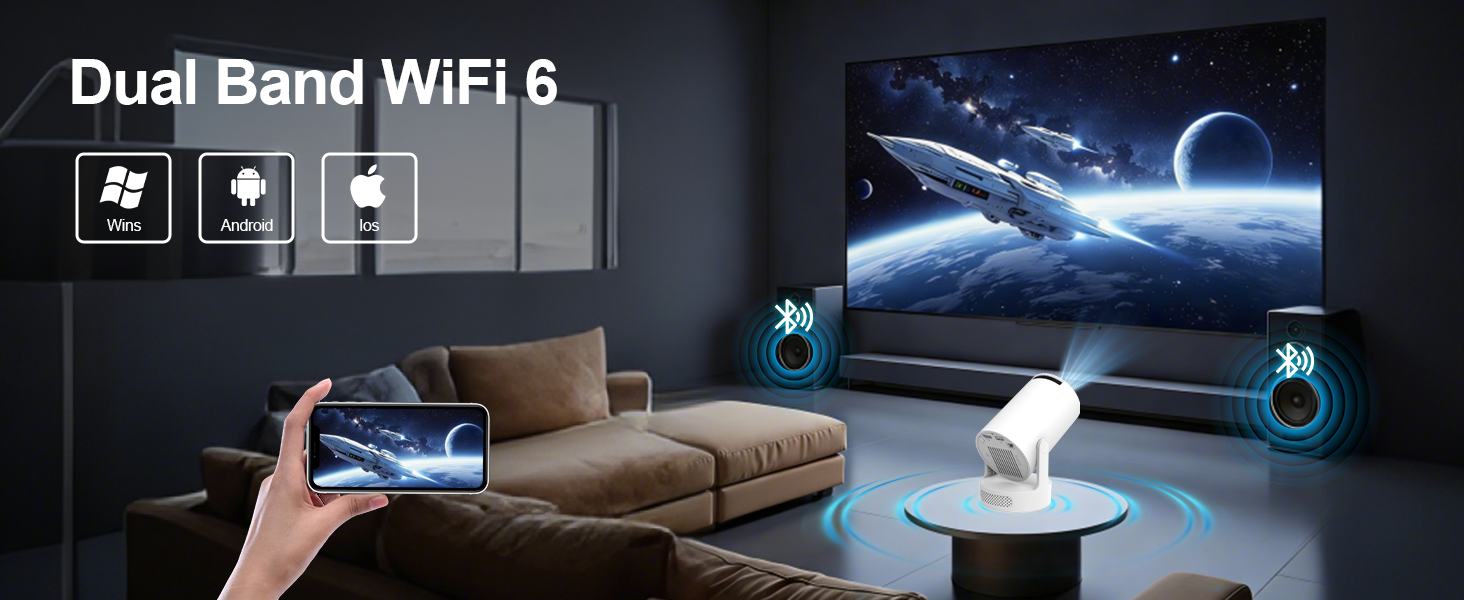

How to Connect to an iOS/Android Device?
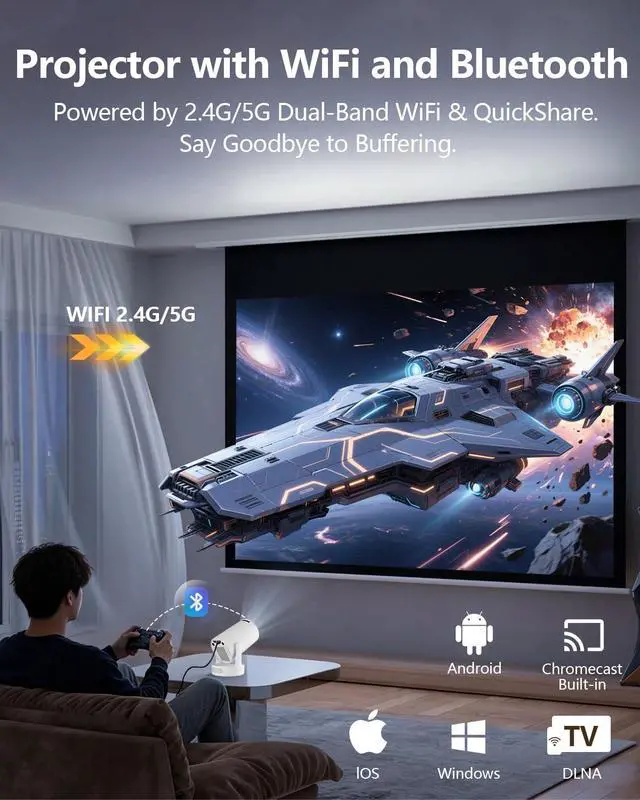
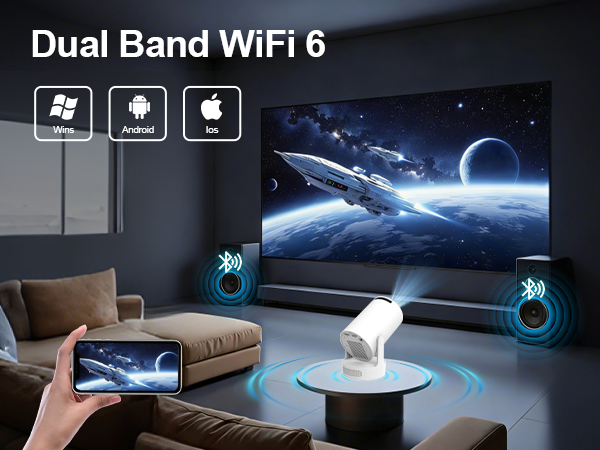
To connect an iOS or Android device, you can use the Screencast feature. Ensure both your mobile device and the projector are connected to the same Wi-Fi network during screen mirroring.
How to Watch Videos from Prime, YouTube, etc?
1. Update Your System: Ensure your device has the latest software update.
2. Download Apps: Install the respective apps from the official App Store.
3. Use a TV stick for wireless streaming (note: TV sticks are not included).
The remote control becomes unresponsive when using certain applications.
Note:Rough handling by the carrier during transit can occasionally cause the remote to malfunction. quick fix, you can plug a USB mouse into the projector to control it.
What should I do if the apps don't work after connecting to Wi-Fi during the initial setup?
Please perform a quick system restart. The projector requires a one-time reboot to fully activate and initialize all applications upon its first use. Once restarted, everything will function perfectly.
What should I do if the screen mirroring function of my projector isn’t working?
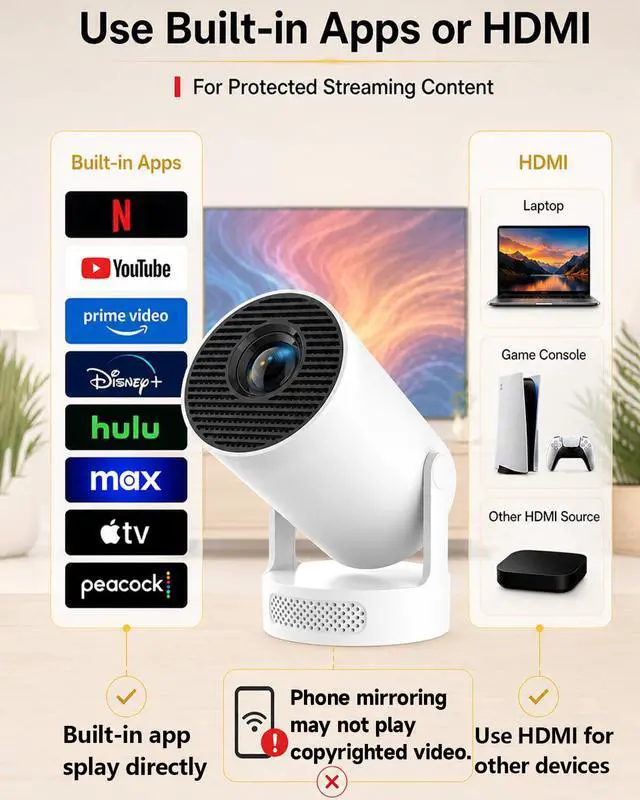
Our projectorssupport screen miroring, but some apps dont This due to third -party softwares security-blocking tto prevent piray orscreen recording The issue isn't with the projector and won't affect its use.
Quick Start Video Guide


How to Connect to an iOS/Android Device?
To connect an iOS or Android device, you can use the Screencast feature. Ensure both your mobile device and the projector are connected to the same Wi-Fi network during screen mirroring.
How to Watch Videos from Prime, YouTube, etc?
1. Update Your System: Ensure your device has the latest software update.
2. Download Apps: Install the respective apps from the official App Store.
3. Use a TV stick for wireless streaming (note: TV sticks are not included).
The remote control becomes unresponsive when using certain applications.
Note:Rough handling by the carrier during transit can occasionally cause the remote to malfunction. quick fix, you can plug a USB mouse into the projector to control it.
What should I do if the apps don't work after connecting to Wi-Fi during the initial setup?
Please perform a quick system restart. The projector requires a one-time reboot to fully activate and initialize all applications upon its first use. Once restarted, everything will function perfectly.
What should I do if the screen mirroring function of my projector isn’t working?
Our projectorssupport screen miroring, but some apps dont This due to third -party softwares security-blocking tto prevent piray orscreen recording The issue isn't with the projector and won't affect its use.
Quick Start Video Guide
Connecting to Wi-Fi
1. Go to top-right **Wi-Fi Settings** on Home Screen and turn it **ON**.
2. Select your home network and enter the password to connect.
3. The Wi-Fi icon will turn **green** upon successful connection.
**Note:** If missing, refresh list. Keep projector close to the router and avoid thick walls to maintain a strong signal.
Mobile Screen Mirroring
1. Connect projector and phone to the same non-guest Wi-Fi.
2. Select **Screen Cast** on Home Screen, then choose **iOS** or **Android**.
3. Open phone's Control Center, tap **Screen Mirroring** & select device.
**Note:** Some apps (Netflix, etc.) block casting due to DRM policies. This is a standard software restriction, not a projector defect.
Connecting a Laptop
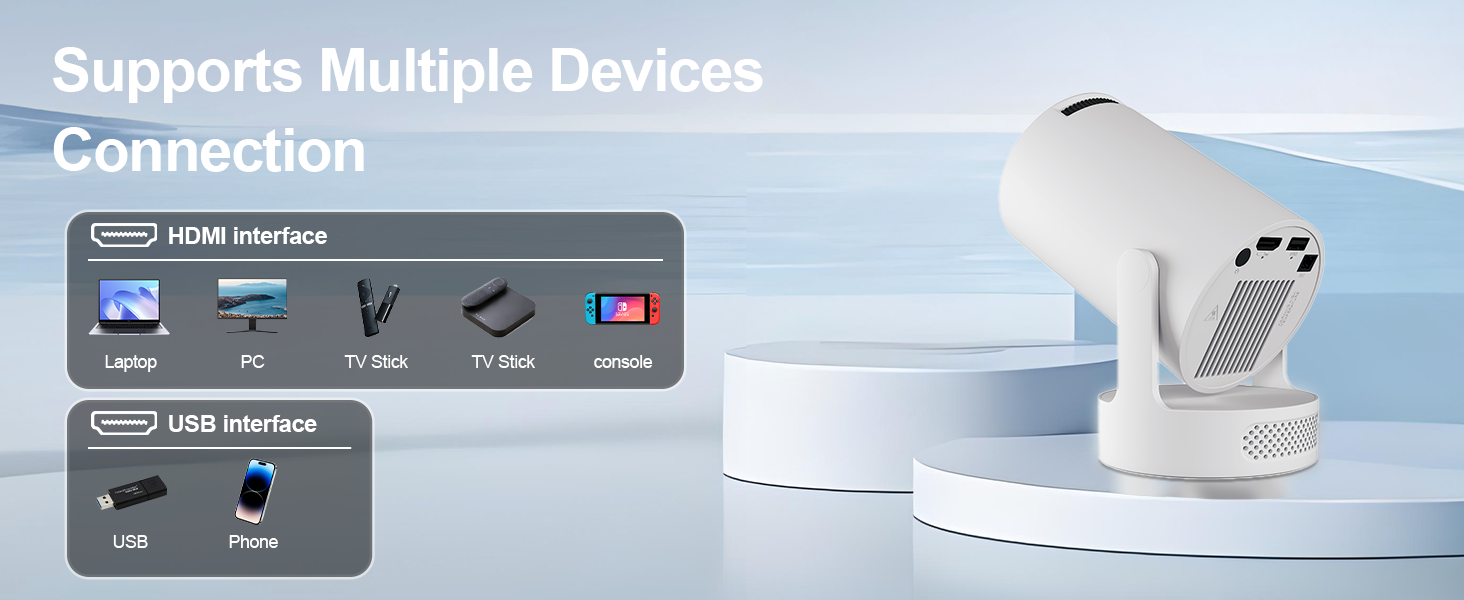
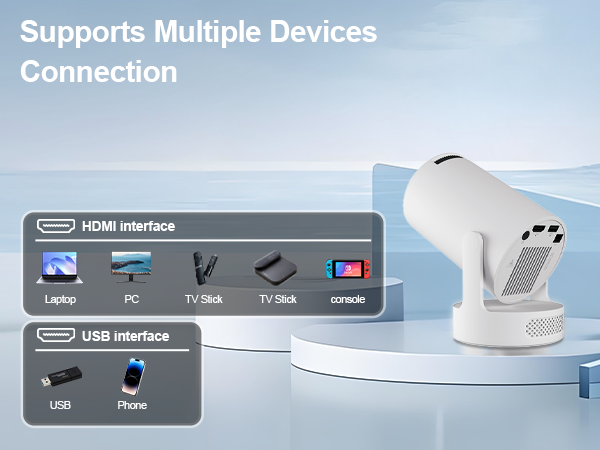
1. Turn on laptop and connect HDMI cable (use a hub if no HDMI port).
2. Turn on projector and plug the other end of HDMI cable into it.
3. Select **HDMI** on Home Screen; screen mirrors in 3-5 seconds.
**Note:** If connection fails, check if the HDMI cable or hub is faulty.
Accessing YouTube Correctly
1. Connect projector to Wi-Fi (ensure YouTube works in your region).
2. Go to **Settings > Date & Time**, enable **Automatic Acquisition**.
3. Open YouTube app and always update it to the latest version.
**Note:** You must log into your Google account to play videos smoothly.
Remote Unresponsiveness Fix (Mouse Mode)
1. If remote arrows become unresponsive in an app, activate **Mouse Mode**.
2. Use remote's arrow keys to move the on-screen cursor and **OK** to select.
3. Press the **Mouse Button** again to exit and return to normal mode.