here!
here!
I’m your shopping assistant for PC builds, upgrades, and everything tech.
Got questions? Ask away!
Start a conversation
here!
I’m your shopping assistant for PC builds, upgrades, and everything tech.
Got questions? Ask away!
Start a conversation
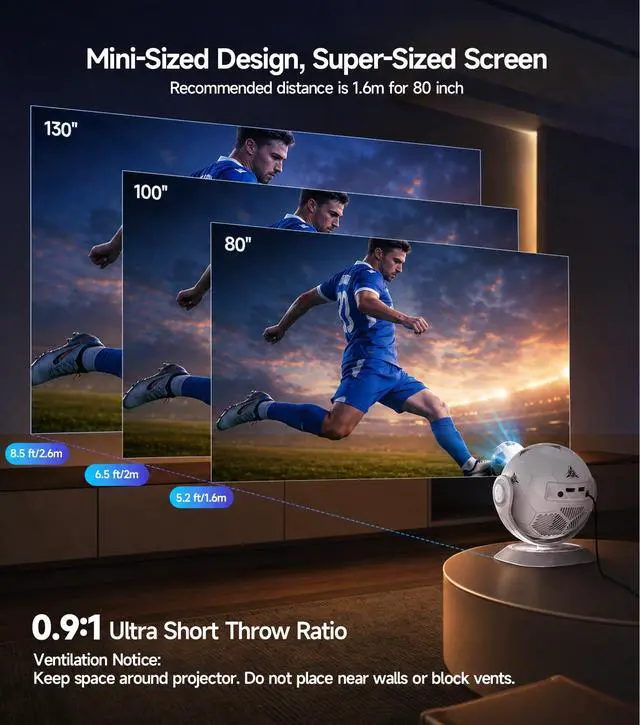
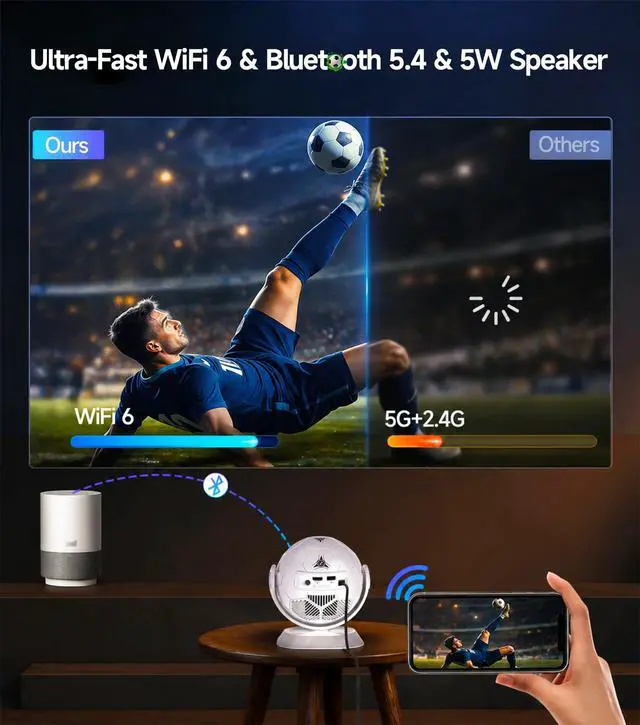
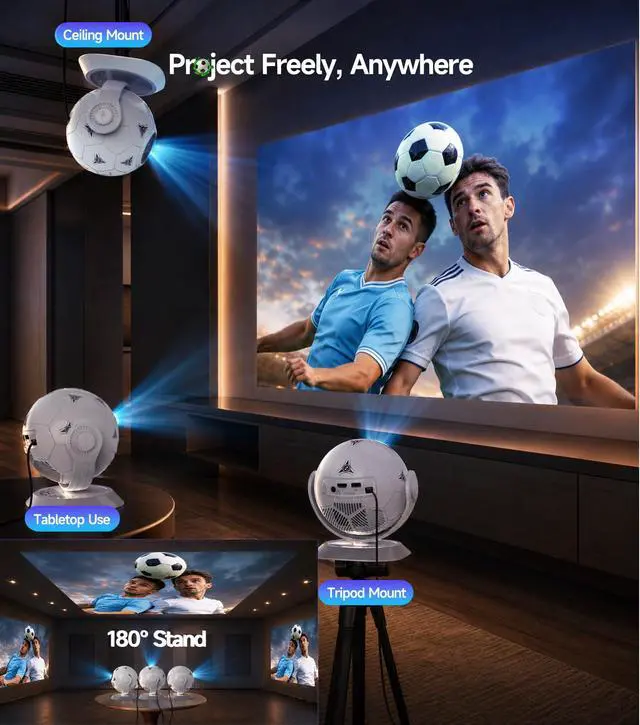
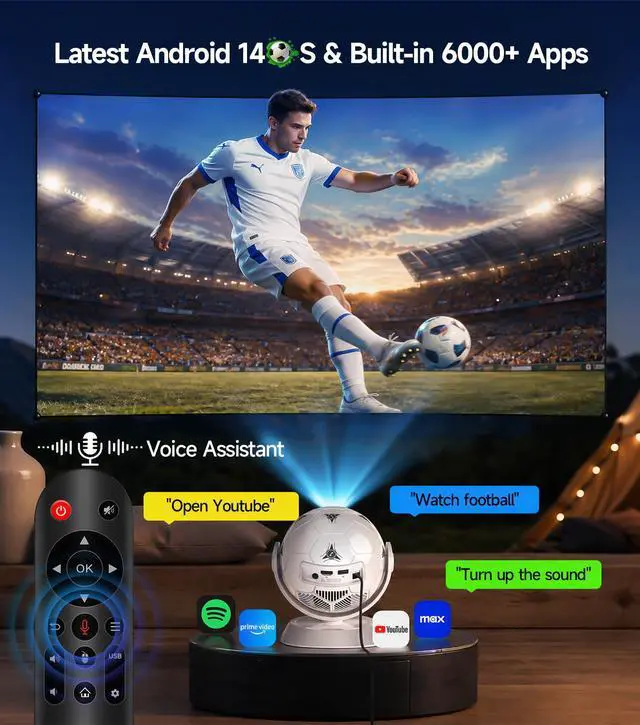



Any questions? Ask CelesteSM will help you find out quickly.
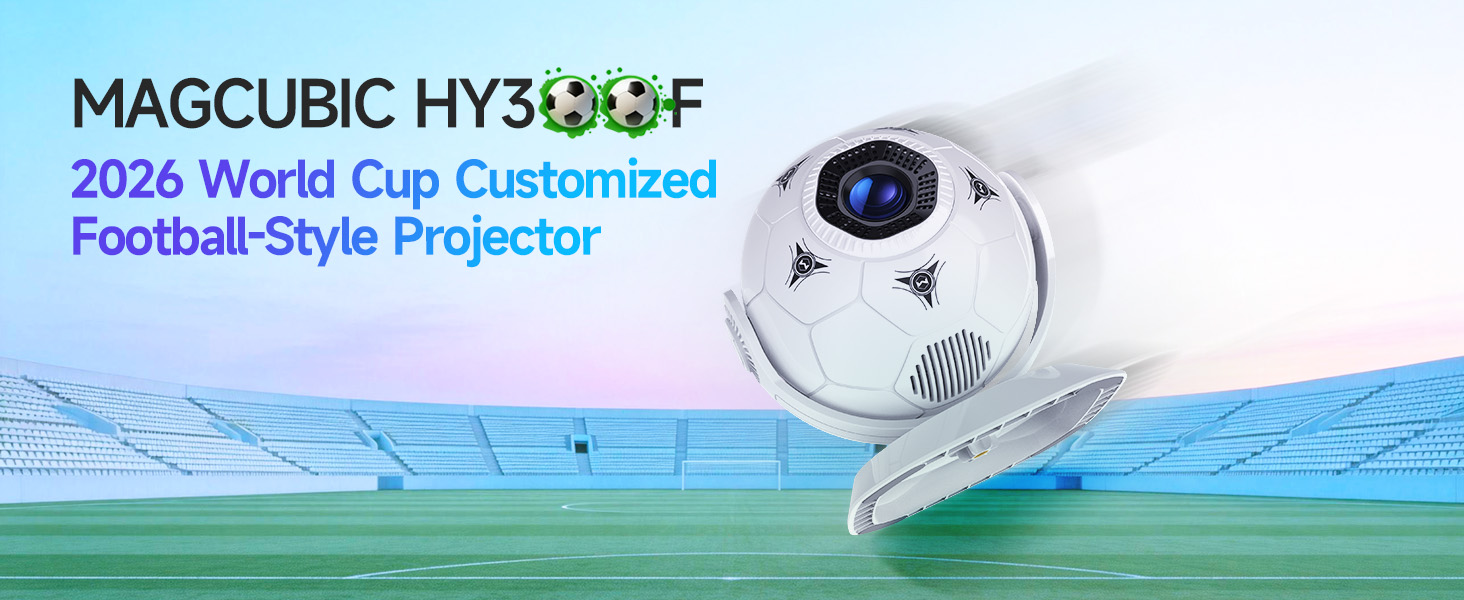
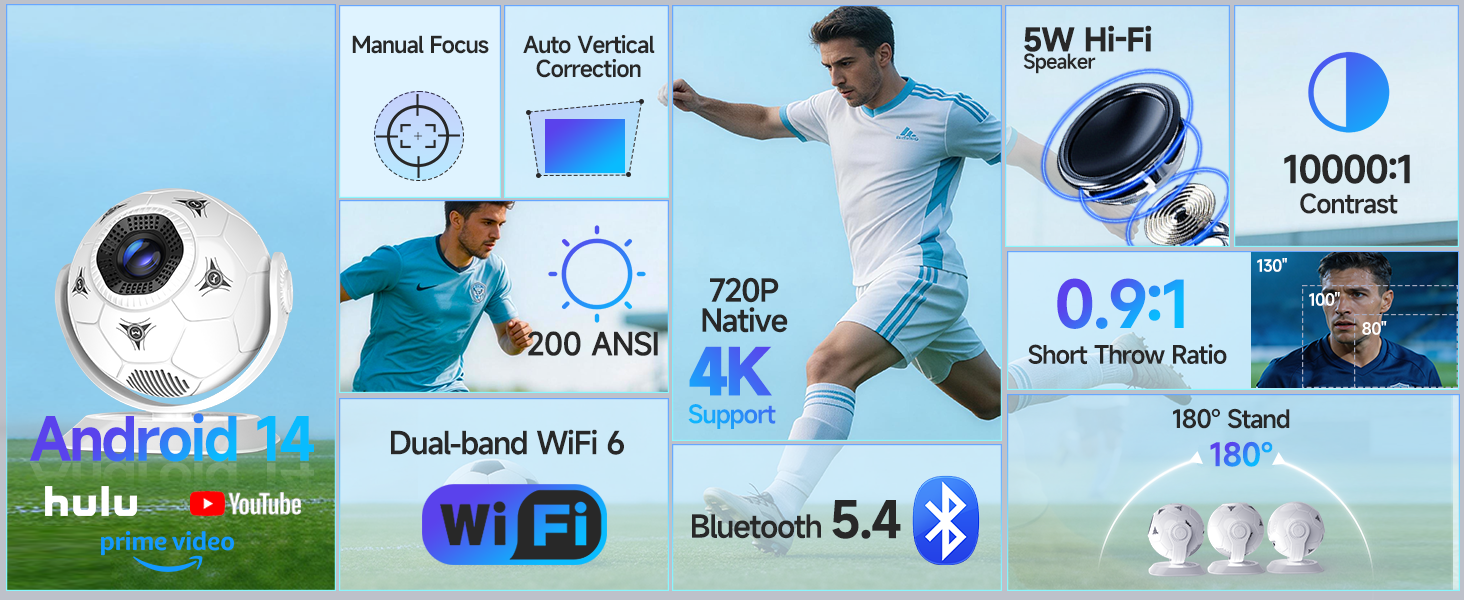
 2026 New Release HY300F |  Upgraded HY300PRO |  HY300Pro |  HY300Pro+ | |
|---|---|---|---|---|
Customer Reviews | — | — | — | — |
Price | — | — | — | — |
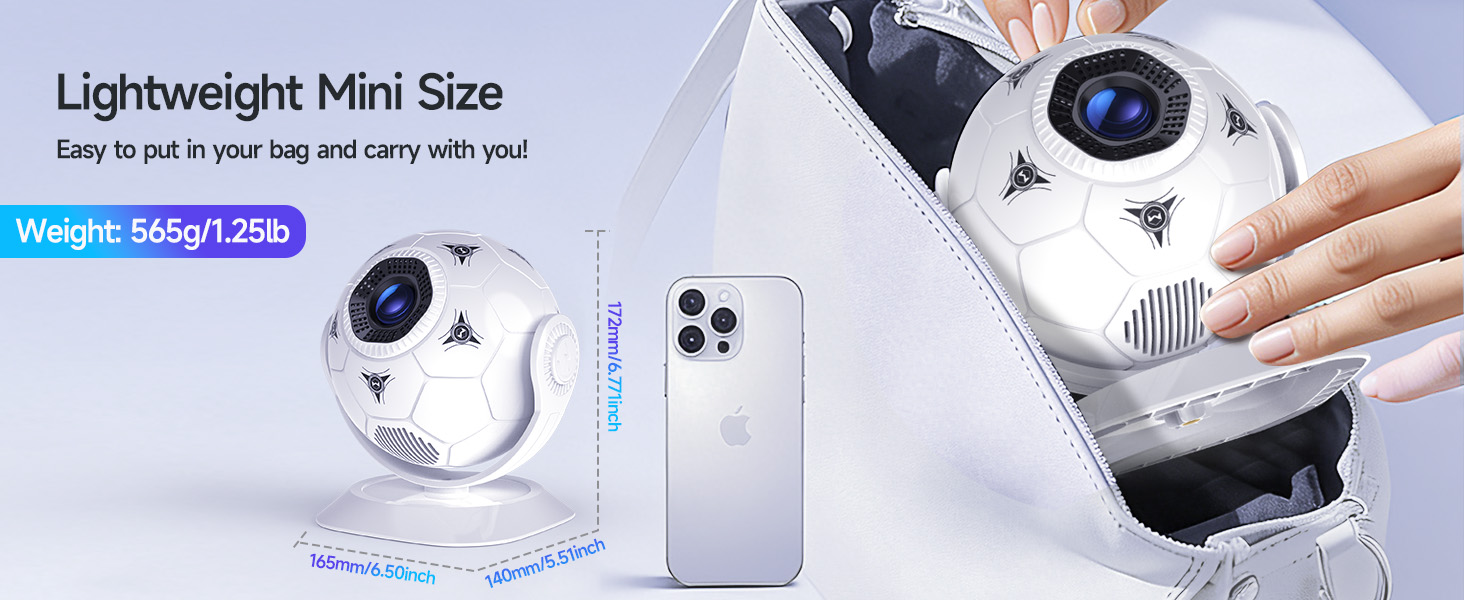
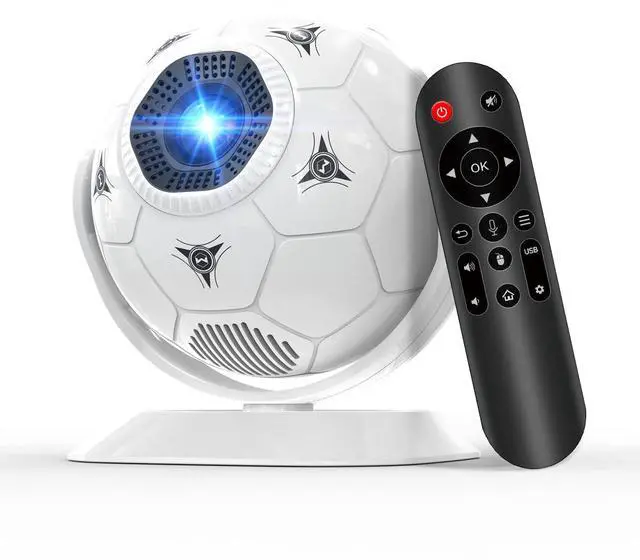
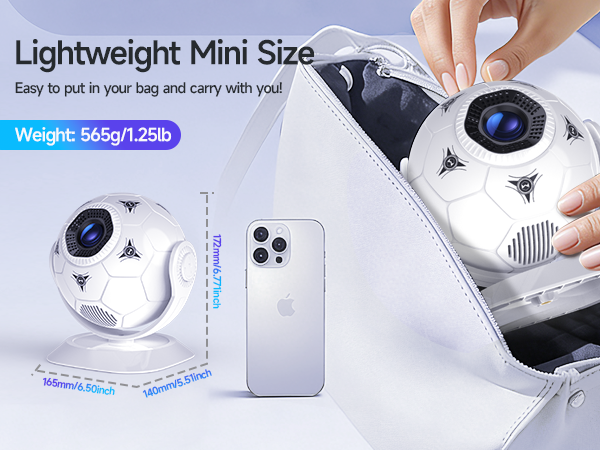
Weight | 565g/1.25lb | 350g/0.77lb | 530g/1.17lb | 400g/0.88lb |
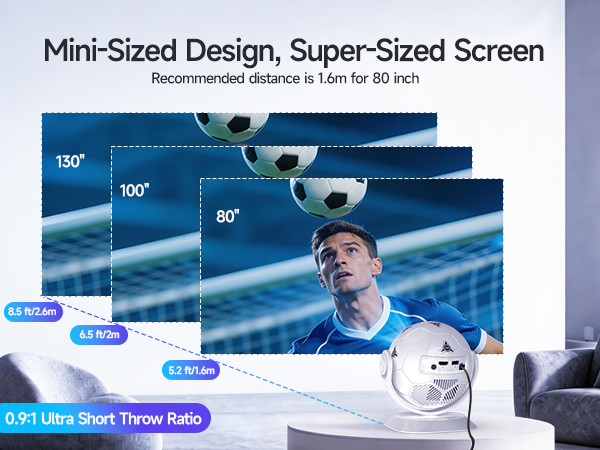
Size | 165*172mm | 94.8*156.7mm | 170*101mm | 94.8*177mm |
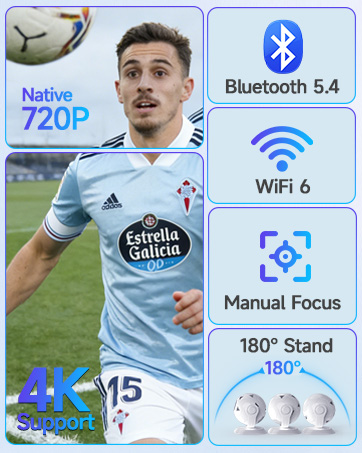
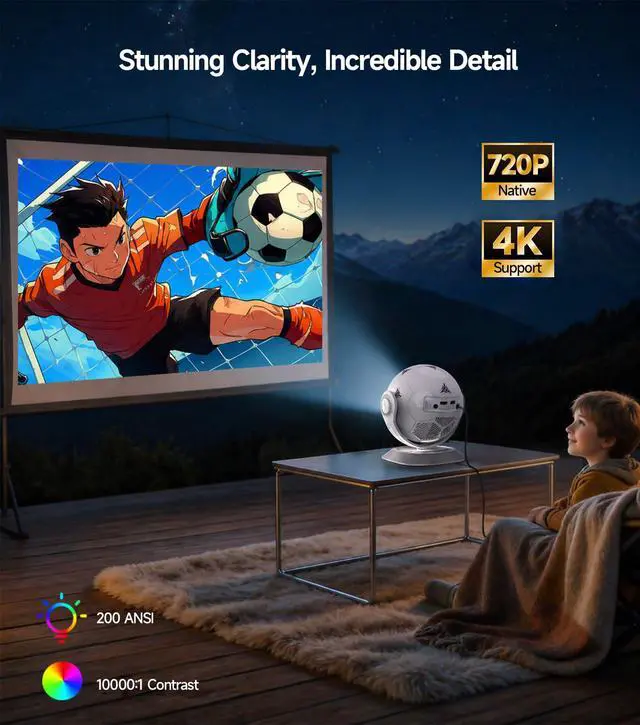
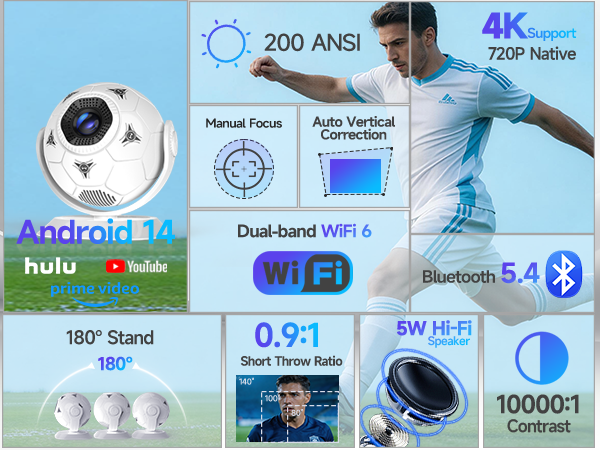
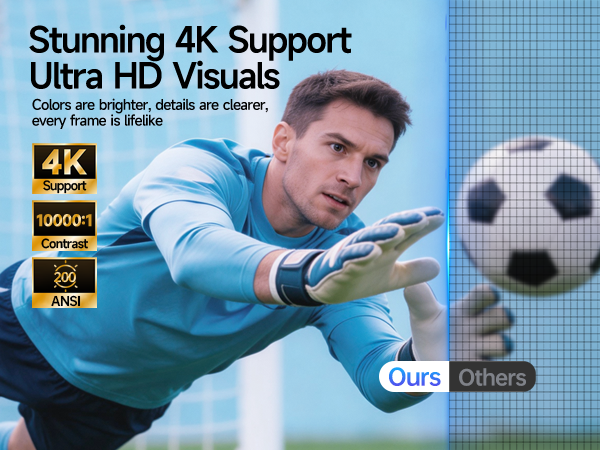
Display Resolution | Native 720P | Native 720P | Native 720P | Native 720P |
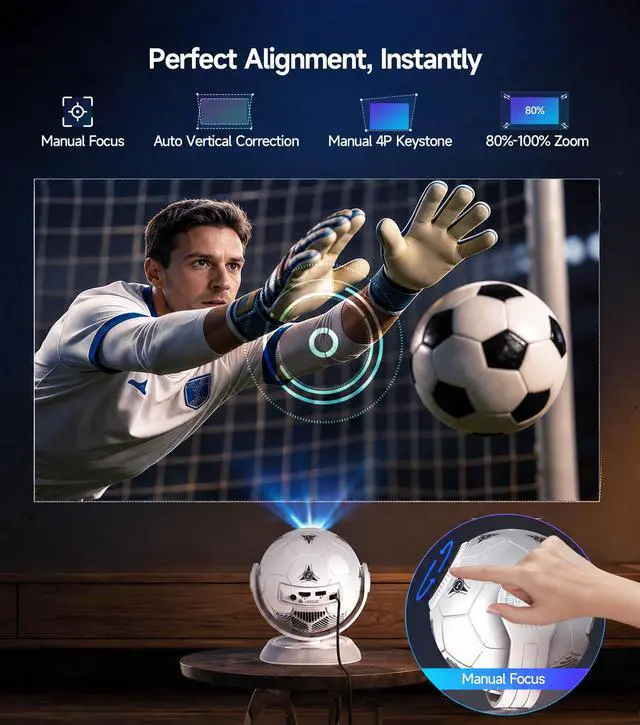
Focus Mode | Manual Focus | Manual Focus | Manual Focus | Manual Focus |
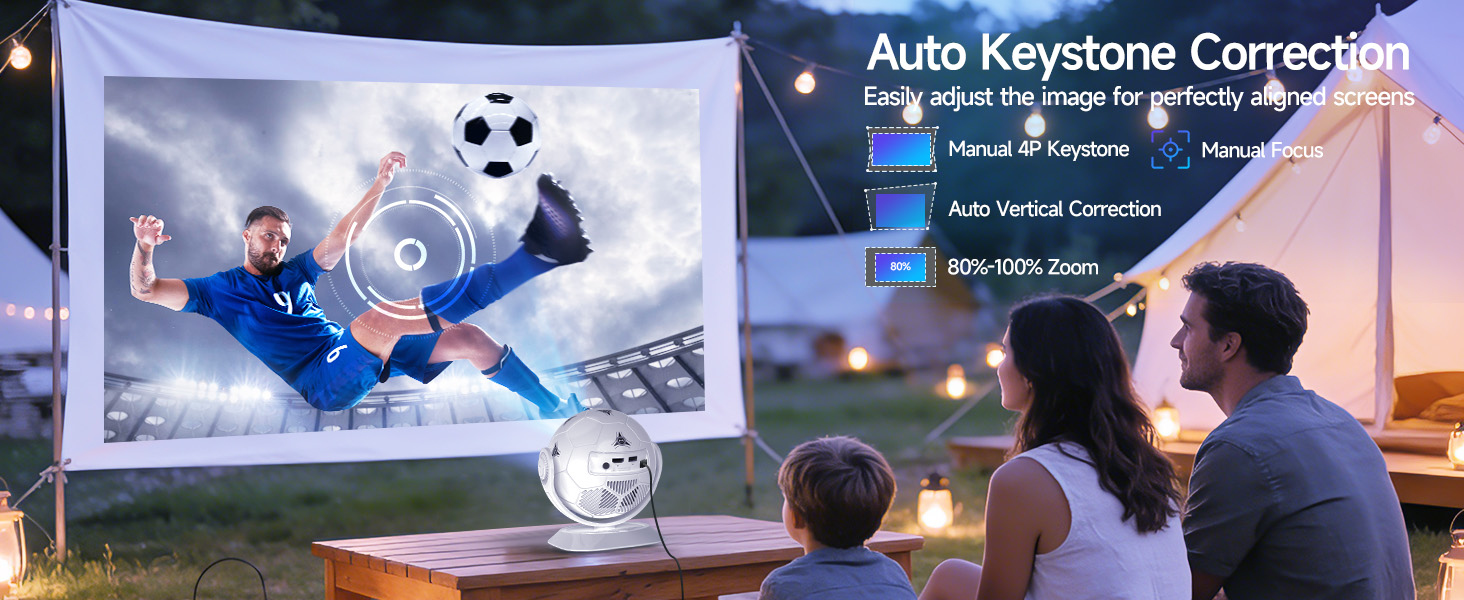
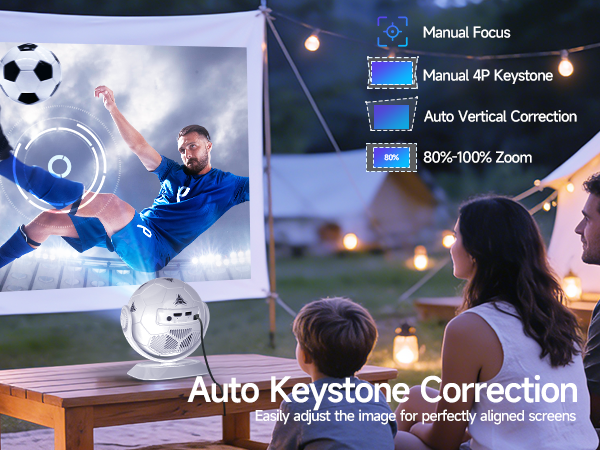
Auto Keystone Correction | Vertical | Vertical | Vertical | Vertical |
Brightness | 200ANSI | 200ANSI | 200ANSI | 200ANSI |
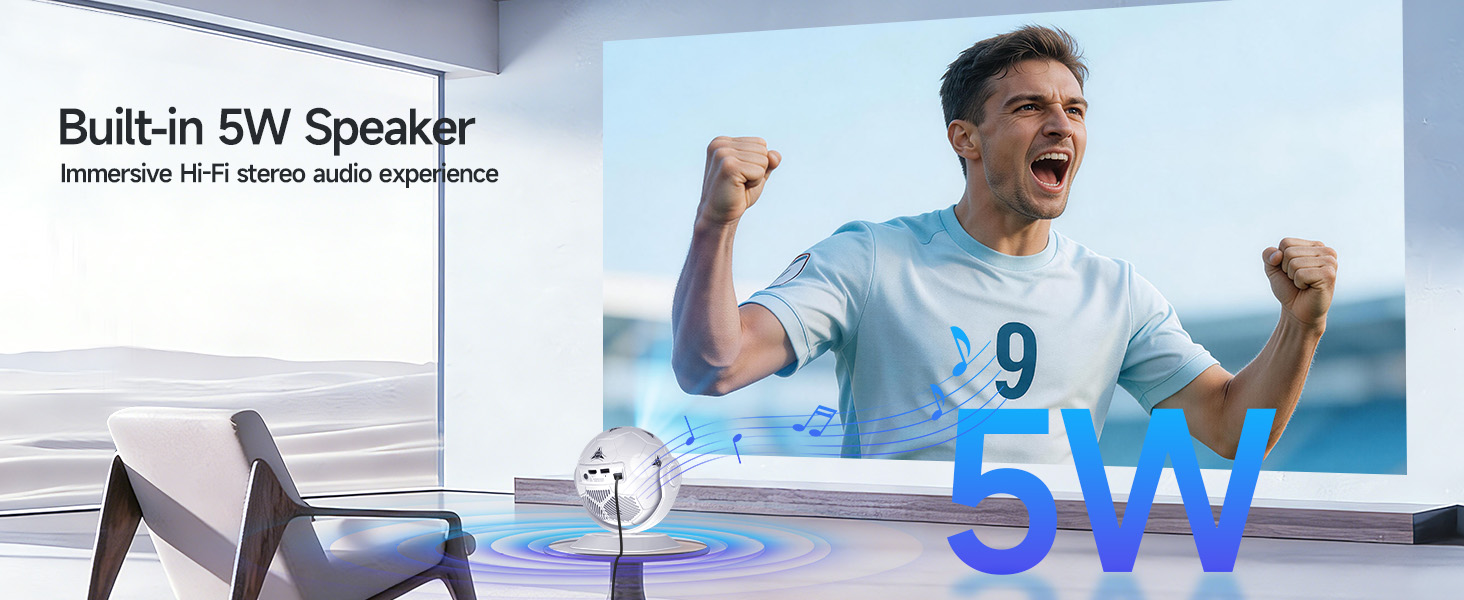
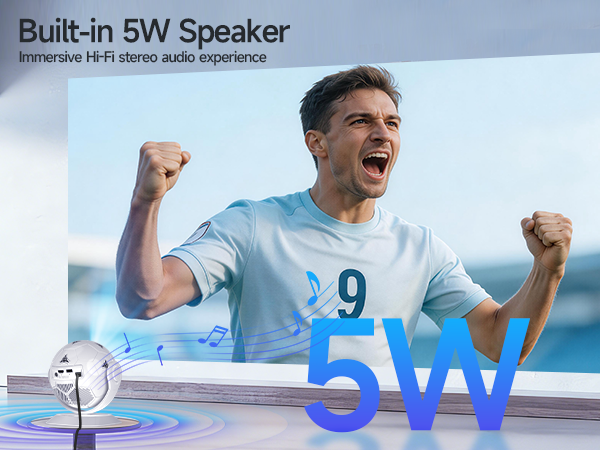
Speaker | Built-in 5W Speaker | Built-in 3W Speaker | Built-in 3W Speaker | 5W Soundbase Speake |
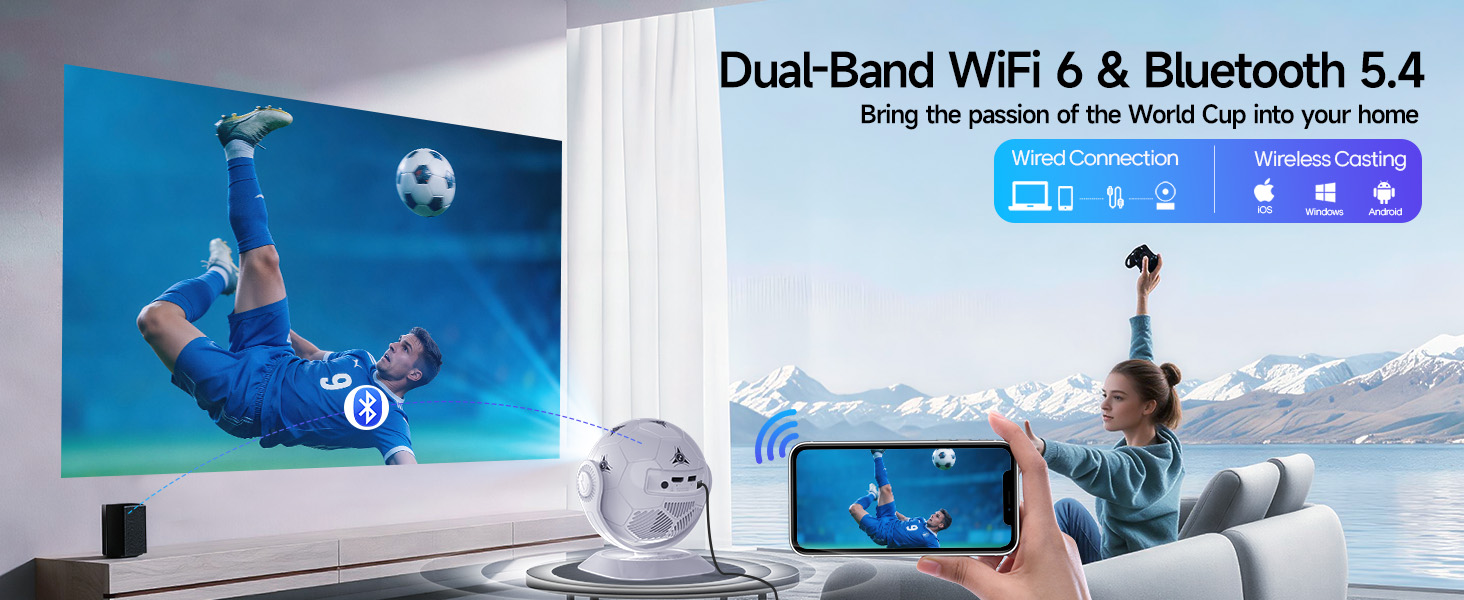
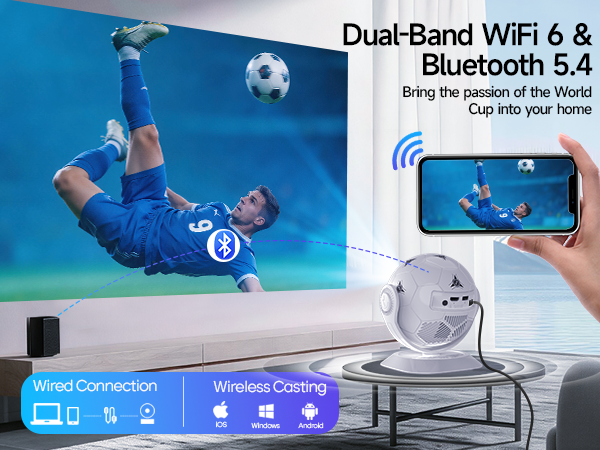
Connection | WiFi6 + Bluetooth 5.4 | WiFi6 + Bluetooth 5.4 | WiFi6 + Bluetooth 5.4 | WiFi6 + Bluetooth 5.4 |

2026 New Release HY300F | Upgraded HY300PRO | HY300Pro | HY300Pro+ |
|---|---|---|---|
| Customer Reviews | |||
| — | — | — | — |
| Price | |||
| — | — | — | — |
| Weight | |||
| 565g/1.25lb | 350g/0.77lb | 530g/1.17lb | 400g/0.88lb |
| Size | |||
| 165*172mm | 94.8*156.7mm | 170*101mm | 94.8*177mm |
| Display Resolution | |||
| Native 720P | Native 720P | Native 720P | Native 720P |
| Focus Mode | |||
| Manual Focus | Manual Focus | Manual Focus | Manual Focus |
| Auto Keystone Correction | |||
| Vertical | Vertical | Vertical | Vertical |
| Brightness | |||
| 200ANSI | 200ANSI | 200ANSI | 200ANSI |
| Speaker | |||
| Built-in 5W Speaker | Built-in 3W Speaker | Built-in 3W Speaker | 5W Soundbase Speake |
| Connection | |||
| WiFi6 + Bluetooth 5.4 | WiFi6 + Bluetooth 5.4 | WiFi6 + Bluetooth 5.4 | WiFi6 + Bluetooth 5.4 |
| Why OTA Update Before Use? | To ensure optimal performance and take advantage of our latest features and updates, please upgrade to the most recent software version before first use. You can do this by navigating to Settings > About device > Online upgrade. |
|---|---|
| Is It Good for Daytime Use? | Due to its brightness limitations, the projector is ideal for dark environments, such as a backyard at night, a campsite after sunset, a living room with closed curtains, or a bedroom with the lights turned off. |
| Info on Streaming Services | Due to the HDCP (High-bandwidth Digital Content Protection) agreement, screen mirroring may not function properly (no image or sound) when attempting to mirror content from certain apps, such as Prime Video, Hulu, and others. We recommend that you use a streaming device such as a Fire Stick or Roku. |
| Activate Manual Focus? | To help you fine-tune the sharpness of your projection, the projector features an internal gear mechanism. Simply rotate the gear to adjust the focus and achieve your desired level of clarity. |
| How to Get a Square Image? | Automatic vertical keystone correction works best when the projector lens is directly facing the wall. If the results are unsatisfactory, follow these steps: 1. Place the projector on a flat surface and ensure the lens is perpendicular to the wall. 2. Navigate to Settings > Projection Settings > Keystone Correction > Initial Angle Correction. 3. If needed, disable the automatic keystone correction and make manual adjustments for optimal alignment. |
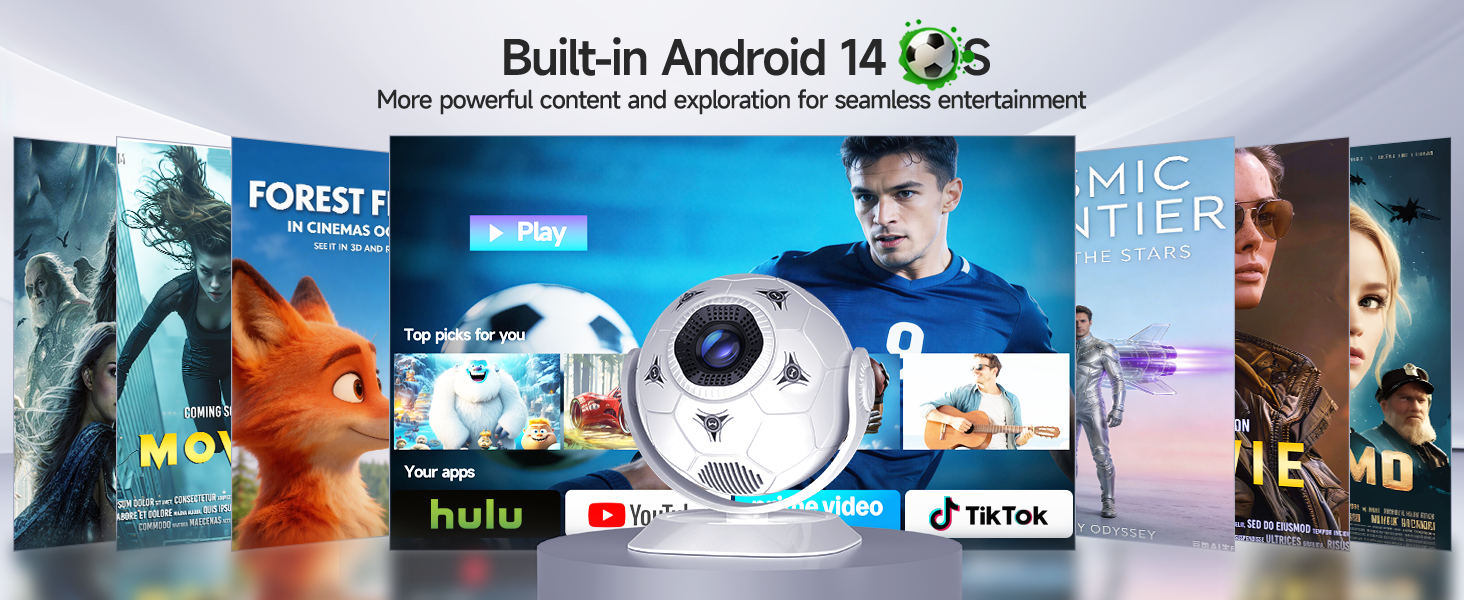
| Adjust Picture Settings? | The projector with Android 14 does not include Display settings for adjusting Brightness, Contrast, Hue, Saturation, or Sharpness within the Android system interface. However, when using HDMI or USB Drive mode, you can access these picture adjustment options by pressing the “MENU” button on the remote control. |
| Can’t Connect to Wi-Fi? | 1. Ensure the projector and your router are within 16 feet (5 meters) of each other. Check if other devices connect to Wi-Fi. 2. Check the time zone settings by navigating to Settings > Time and Date > Time Zone and ensure it is accurate. 3. Attempt to connect to a different Wi-Fi network or use your phone's hotspot as an alternative. 4. Test both the 2.4GHz and 5GHz frequency bands on your router. 5. Reset the projector by going to Settings > Other Settings > Restore Factory Settings. |
| Screen-Mirror iOS? | 1.Ensure your device is updated to the latest version. You can do this by navigating to Settings > About device > Online upgrade. 2.Open the ScreenCast app. 3.Use AirPlay on your iOS device, making sure both devices are connected to the same Wi-Fi network. |
| How to Use Air Mouse Remote? | Some apps are designed for mobile devices and require the mouse mode to be activated for navigation. Follow these steps to enable the air mouse function: 1. Open the Bluetooth settings on your device. 2. Press and hold both the “Left” and “Right” buttons simultaneously to enter pairing mode. 3. Press the “Mouse” icon on the remote to activate the air mouse function. 4. Move your wrist to control the cursor using the air mouse feature. |
| Unable to Pair BT Devices | 1.Update the firmware to the latest version. 2.Clear the Bluetooth records. 3. Restart the projector and try pairing again. 4.Connect another Bluetooth speaker or headset 5. Keep the projector close to the Bluetooth device, avoiding metal objects or walls between them. Note: Miracast and AirPlay use Wi-Fi connections, not Bluetooth. The projector only supports Bluetooth audio output devices (such as speakers or headphones), not phones or other transmitters. |