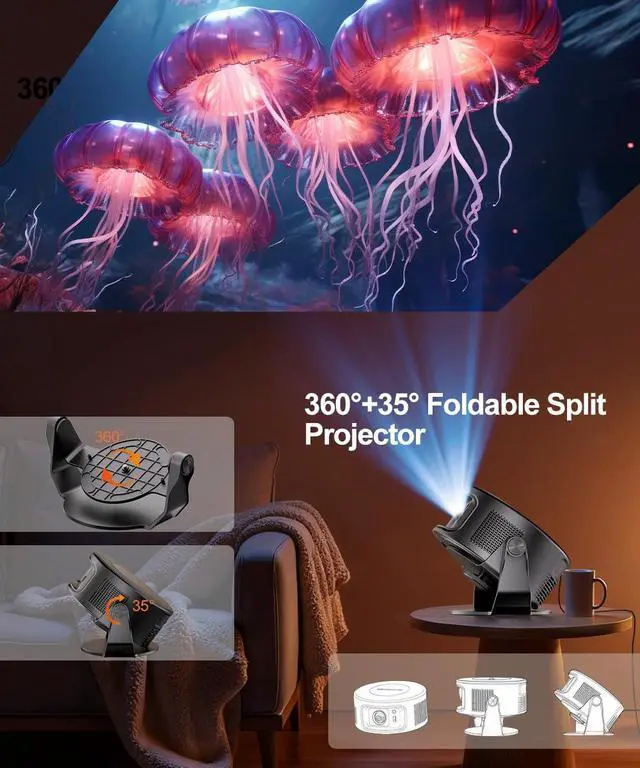
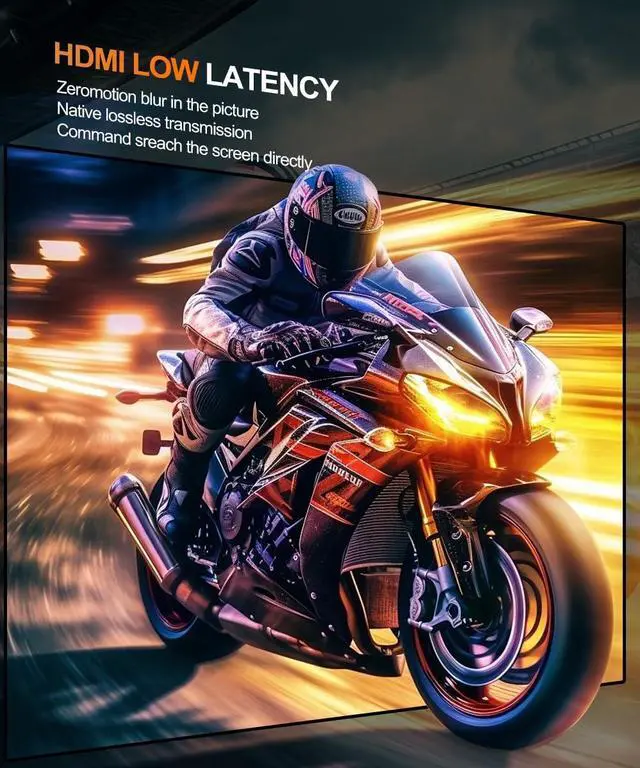
Smart Voice Assistant: With voice assistant, simply press the voice button and issue simple voice commands to quickly search for what you want, such as "open YouTube, adjust volume, or check the weather", simplifying your daily operation experience.
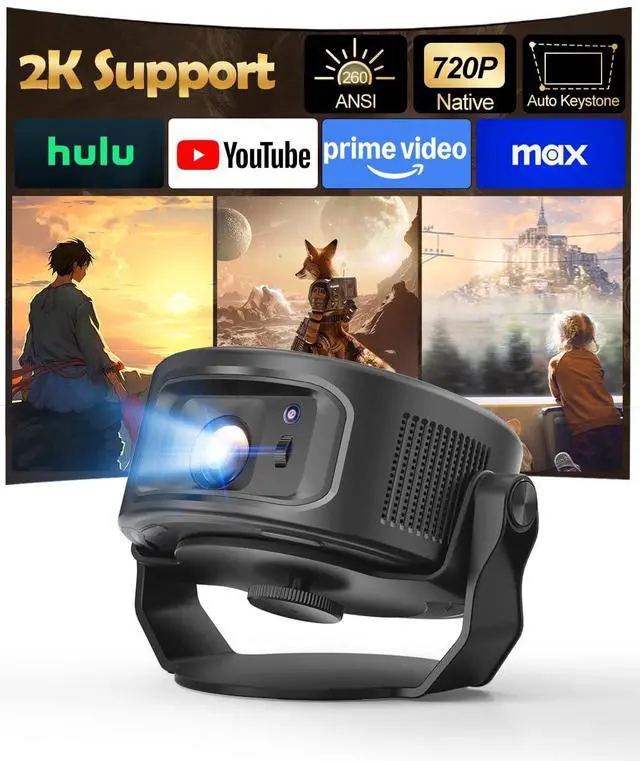
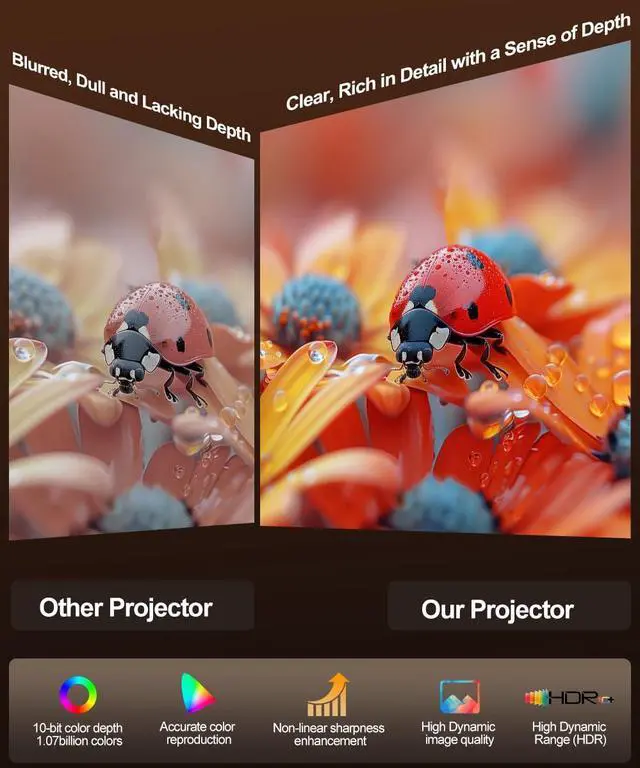
Stunning Picture Quality: 260 ANSI lumens brightness, native 720P resolution with 2K support, and 10000:1 high contrastthis outdoor projector delivers vivid colors and sharp details, perfect for movies, shows and games day or night.
Advanced Keystone Correction for Perfect Images: Our portable projector features automatic hardware keystone correction that retains 100% of the original resolution without any output loss. It works in real - time with millisecond - level speed, ensuring that the image remains uniform and of high quality. You can even use side projection without sacrificing image quality, and the 80% - 100% zoom function gives you more flexibility in adjusting the screen size.
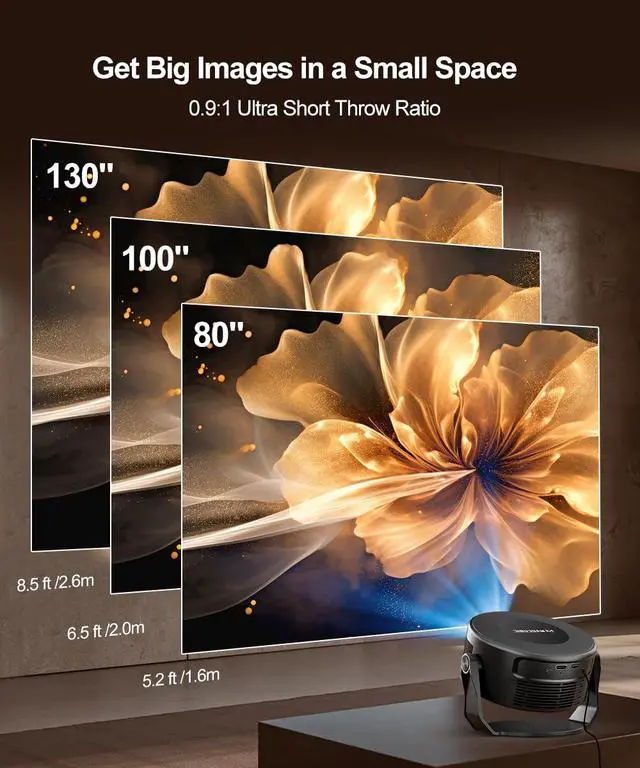
Optimal Viewing Anywhere: Boasting a 0.9:1 throw ratio, this magcubic projector offers an optimal viewing experiencewe recommend a distance of 5.2 feet from an 80-inch screen for the best home theater effect.
+
+
Overview
Specs
Reviews
Any questions? Our AI mode will help you find out quickly.
Due to its brightness limitations, the projector is ideal for dark environments, such as a backyard at night, a campsite after sunset, a living room with closed curtains, or a bedroom with the lights turned off.
Info on Streaming Services
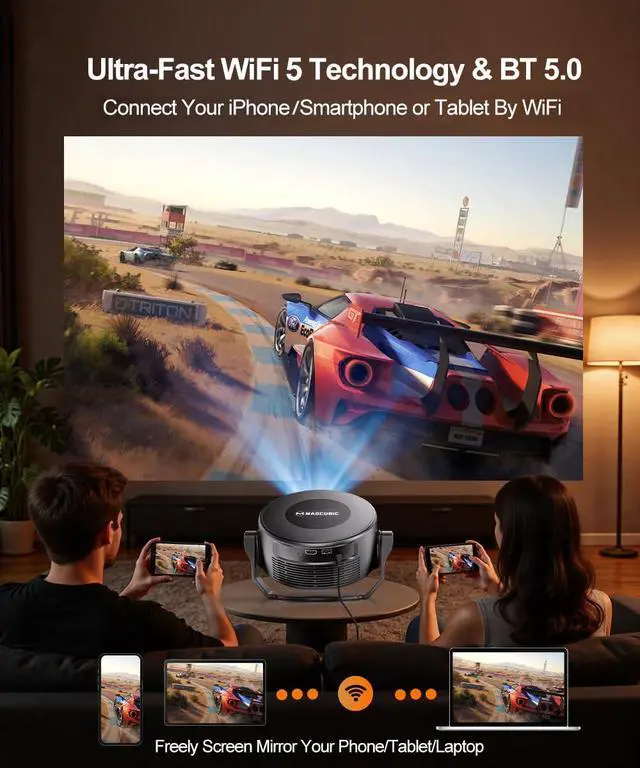
Due to the HDCP (High-bandwidth Digital Content Protection) agreement, screen mirroring may not function properly (no image or sound) when attempting to mirror content from certain apps, such as Prime Video, Hulu, and others. We recommend that you install it from the App Store directly.
Activate Manual Focus?
If the image appears blurry, use the electronic focus buttons on the remote control to adjust it until the picture becomes sharp. Also, make sure the projector is placed within the correct throw distance range.
How to Get a Square Image?
Automatic vertical keystone correction performs best when the projector lens is positioned directly facing the wall. If the result is not satisfactory, please follow these steps: 1. Place the projector on a flat, stable surface and ensure the lens is perpendicular to the wall for a properly squared image. 2. Go to Projector Settings > Display > Reset Keystone. 3. If necessary, turn off automatic keystone correction and manually adjust the image for optimal alignment.
Adjust Picture Settings?
If the initial image quality is not to your liking, you can fine-tune the display parameters in user mode. Simply navigate to Projector Settings > Pictures > Picture Mode > User to customize and optimize your picture settings.
Can’t Connect to Wi-Fi?
1.Keep the projector and router within 16 feet (5 meters). Check if other devices connect to Wi-Fi. 2.Verify time zone accuracy in Settings > Device Preferences > Date and Time 3.Try a different Wi-Fi network or use your phone’s hotspot. 4.Test both 2.4GHz and 5GHz bands on your router. 5. Disable other wireless devices such as Bluetooth and wireless mice, as they may interfere with the Wi-Fi signal. 6. Restart the projector via Settings > Device Preferences > Restart.
Unable to Pair BT Devices
1.Update the firmware to the latest version. 2.Clear the Bluetooth records. 3. Restart the projector and try pairing again. 4.Connect another Bluetooth speaker or headset 5. Keep the projector close to the Bluetooth device, avoiding metal objects or walls between them. Note: Miracast and AirPlay use Wi-Fi connections, not Bluetooth. The projector only supports Bluetooth audio output devices (such as speakers or headphones), not phones or other transmitters.
FAQ
Is It Good for Daytime Use?
Due to its brightness limitations, the projector is ideal for dark environments, such as a backyard at night, a campsite after sunset, a living room with closed curtains, or a bedroom with the lights turned off.
Info on Streaming Services
Due to the HDCP (High-bandwidth Digital Content Protection) agreement, screen mirroring may not function properly (no image or sound) when attempting to mirror content from certain apps, such as Prime Video, Hulu, and others. We recommend that you install it from the App Store directly.
Activate Manual Focus?
If the image appears blurry, use the electronic focus buttons on the remote control to adjust it until the picture becomes sharp. Also, make sure the projector is placed within the correct throw distance range.
How to Get a Square Image?
Automatic vertical keystone correction performs best when the projector lens is positioned directly facing the wall. If the result is not satisfactory, please follow these steps: 1. Place the projector on a flat, stable surface and ensure the lens is perpendicular to the wall for a properly squared image. 2. Go to Projector Settings > Display > Reset Keystone. 3. If necessary, turn off automatic keystone correction and manually adjust the image for optimal alignment.
Adjust Picture Settings?
If the initial image quality is not to your liking, you can fine-tune the display parameters in user mode. Simply navigate to Projector Settings > Pictures > Picture Mode > User to customize and optimize your picture settings.
Canâ??t Connect to Wi-Fi?
1.Keep the projector and router within 16 feet (5 meters). Check if other devices connect to Wi-Fi. 2.Verify time zone accuracy in Settings > Device Preferences > Date and Time 3.Try a different Wi-Fi network or use your phoneâ??s hotspot. 4.Test both 2.4GHz and 5GHz bands on your router. 5. Disable other wireless devices such as Bluetooth and wireless mice, as they may interfere with the Wi-Fi signal. 6. Restart the projector via Settings > Device Preferences > Restart.
Unable to Pair BT Devices
1.Update the firmware to the latest version. 2.Clear the Bluetooth records. 3. Restart the projector and try pairing again. 4.Connect another Bluetooth speaker or headset 5. Keep the projector close to the Bluetooth device, avoiding metal objects or walls between them. Note: Miracast and AirPlay use Wi-Fi connections, not Bluetooth. The projector only supports Bluetooth audio output devices (such as speakers or headphones), not phones or other transmitters.
Smart Projector, Mini Projector with WiFi and Bluetooth HY300GT
Learn more about the Detailed Specifications
Model
Brand
Magcubic
Series
HY300GT
Details
Cabinet Color
Black
Type
LCD
Display
Brightness
6400 lumens
Native Resolution
1280 x 720
Maximum Resolution
1280 x 720
Aspect Ratio
1280 x 720
Contrast Ratio
10,000:1
Display Size
140 inches to 40 inches
Horizontal Refresh Rate
240 Hz
Vertical Refresh Rate
240 hertz
Lens
Lens
Built-In Wi-Fi and Bluetooth
Focal Length
0.6 meters - 2.5 meters
Display Colors
H.264, H.265
Throw Distance
2.5 meters
Projection Methods
Table Mount
Keystone Correction
Portable
Lamps & Accessories
Other Accessories
Adapter, Remote, User Manual
Connectivity
Input Audio Signals
usb
Input Audio Connectors
usb
Network Connectors
USB
USB
USB
Other Connectors
usb
Bluetooth
Wi-Fi
Convenience
Features
Ultra Short Throw, Built-In Speaker
Regulatory Approvals
not_applicable, has_fcc_id
Panel
Active Matrix, TFT LCD
Dimensions & Weight
Dimensions
72"
Weight
1.139 kilograms
Package Contents
Package Contents
Adapter, Remote, User Manual
Additional Information
First Listed on Newegg
August 03, 2026
There are no reviews yet.
Do you own this product?
Warranty & Returns
Warranty, Returns, And Additional Information
Warranty
Please contact the Seller directly for warranty information. Warranty information may also be found on the Manufacturer's website.