Your Browsing History
Meet Your Seller
VOICEPING PTT Earpiece USB C - Earbuds with PTT Button and Mic (for Teams, Zello, and Other Walkie Talkie Apps on Android/iOS Smartphones)
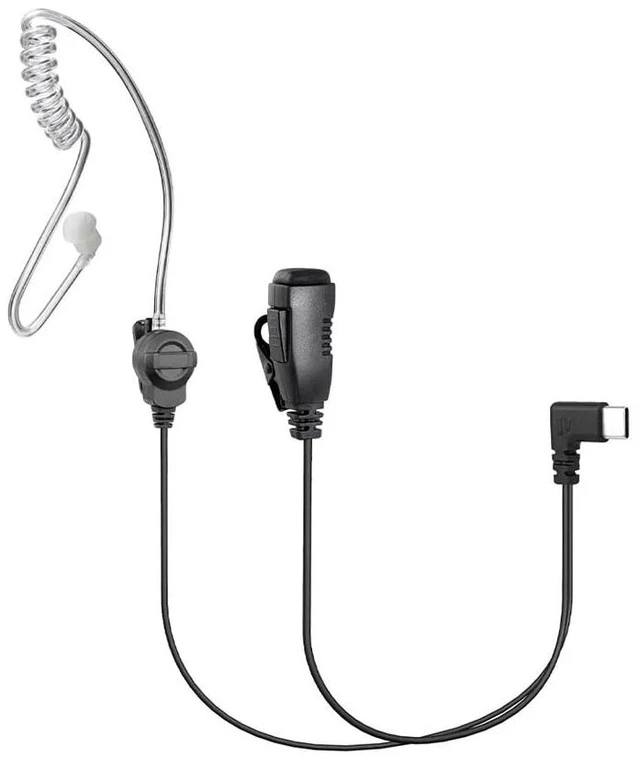
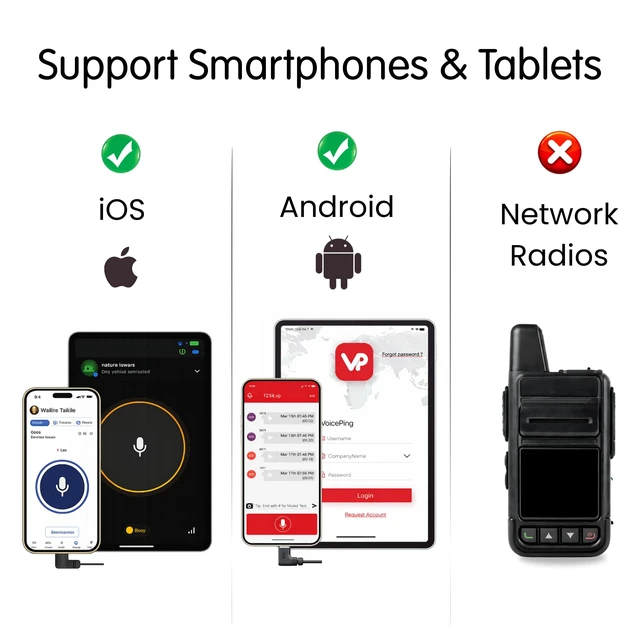
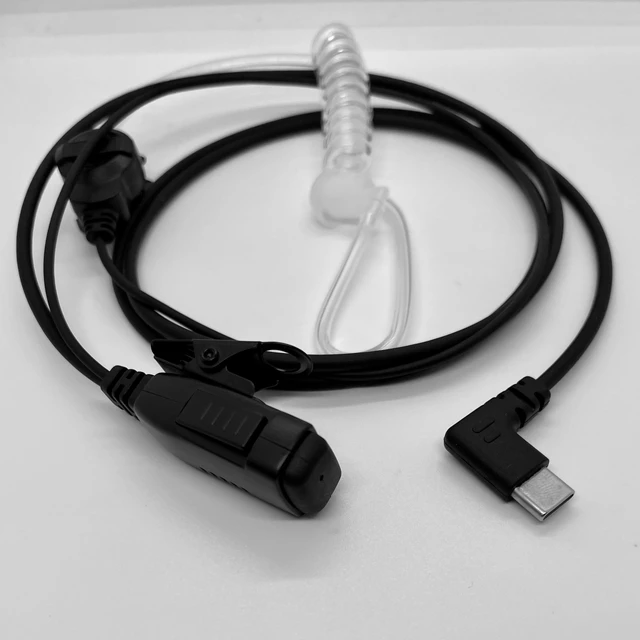
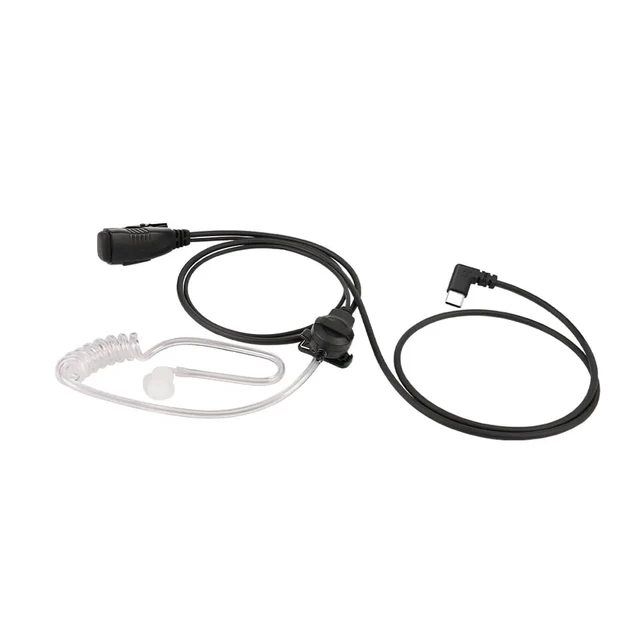
- USB C - Push To Talk Earpiece with PTT button and USB C connector. Supports most Android Smartphones. Supports iPhones with USB C (iPhone 15 and newer) and Walkie talkie Apps. L-shaped USB C to prevent accidental removal.
- True Push To Talk - Unlike normal 3.5mm earpieces which works in Toggle mode, this is True Push To talk. Press to Talk, release and it stops. No more accidental jamming or hot mic.
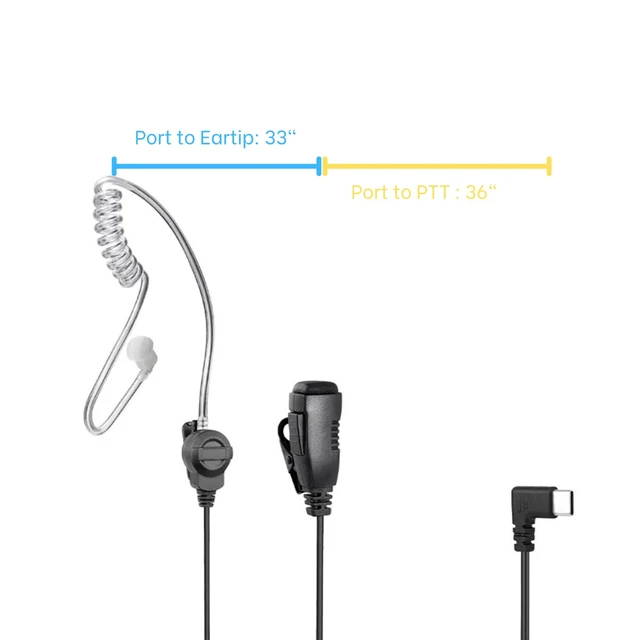
- Two Wire Design - 1 Meter from USB Type C connector to listening airtube. One Side Airtube Earpiece, 1x natural color earpiece.
- PTT button - Reliable & rated for 100,000 presses. Equivalent to 133 presses per work hour. 90 day warranty and replacement.
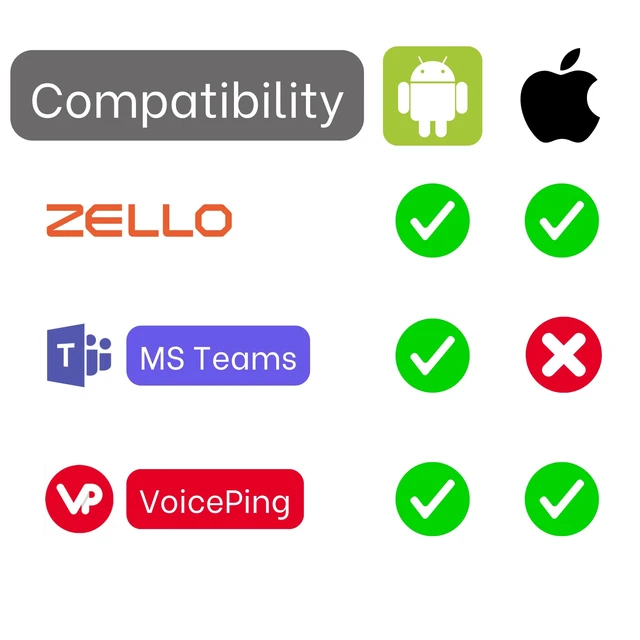
- App Tested: Zello, VoicePing, MS Teams, Unity Intercom. Other PTT apps might work too. Due to the variety of Android & Walkie Talkie Apps, we suggest that you purchase one for TESTING first before making a larger purchase. Samsung phones generally work. iPhone 15 and newer supported. DOES NOT WORK: Relay X, Zello Radios that are not smartphones, Phone call Pickup.
- Buy in Bulk & Save Get more value with our convenient 5-Pack! Instead of paying $35 each, grab 5 for just $140 thats like getting one FREE (5 for the price of 4).
+
+
Overview
Specs
Reviews
Any questions? Ask CelesteSM will help you find out quickly.
Try me now
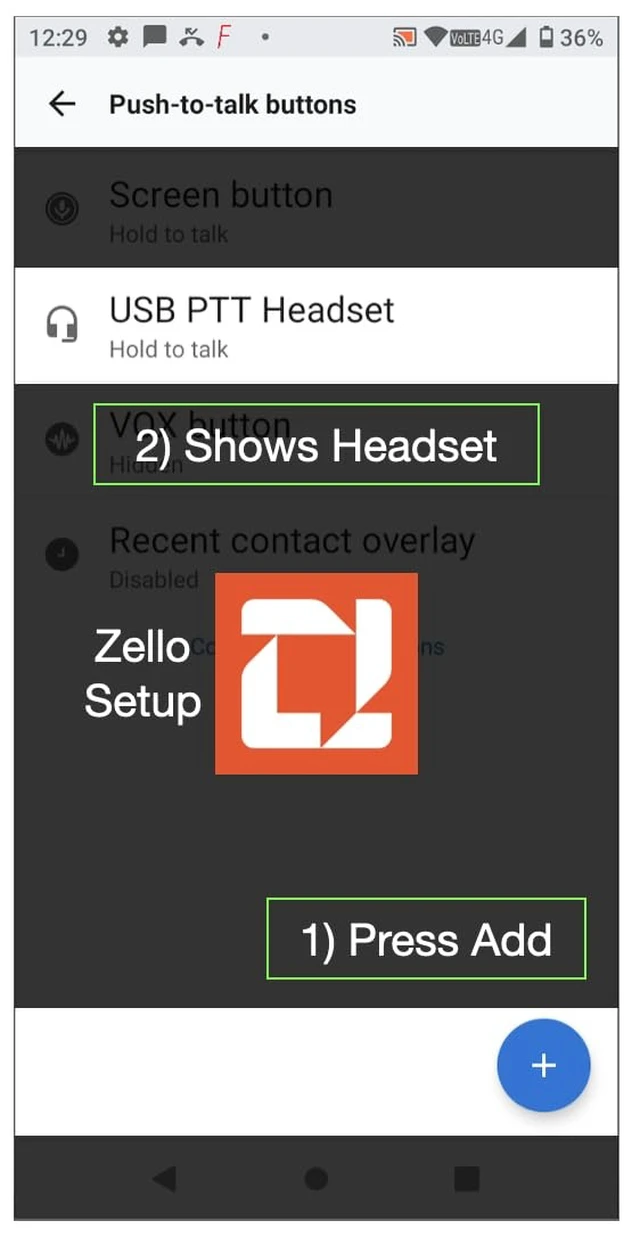
- For Zello support, please setup in Zello App
- 1. Insert "VoicePing PTT Earpiece USB C" to the USB C Port of your ANDROID smartphone
- 2. Open Zello ANDROID app
- 3. Tap open the App Menu icon (3 vertical dots)
- 4. Select Options
- 5. Select Push-to-talk buttons
- 6. Tap the Add (+) icon at the bottom right corner
- 7. When prompted, give the PTT Button of "VoicePing PTT Earpiece USB C" a short quick press.
- 8. After successful setup, "USB PTT headset" should appear and described as "Hold to talk" mode.
- 9. Select a channel. Try to PTT via "VoicePing PTT Earpiece USB C"
- 10. Lock the phone and off the screen. Then try to PTT again.
- Troubleshooting
- - Try to re-plug the USB C
- - Verify that USB PTT Headset appears and it is in Hold To Talk Mode
- - Verify that a channel is selected before you exit Zello or off the screen.
Warranty & Returns
Warranty, Returns, And Additional Information
Warranty
- Please contact the Seller directly for warranty information. Warranty information may also be found on the Manufacturer's website.
- CONTACT
Return Policies
- Return for refund within: 30 days
- Return for replacement within: 30 days
- This item is covered by Ler fendiot Return Policy
Manufacturer Contact Info
- For a directory of all our manufacturers, please click below.
- Manufacturers Directory
LOADING...