




 here!
here!
I’m your shopping assistant for PC builds, upgrades, and everything tech.
Got questions? Ask away!
Start a conversation
here!
I’m your shopping assistant for PC builds, upgrades, and everything tech.
Got questions? Ask away!
Start a conversation



Any questions? Ask CelesteSM will help you find out quickly.
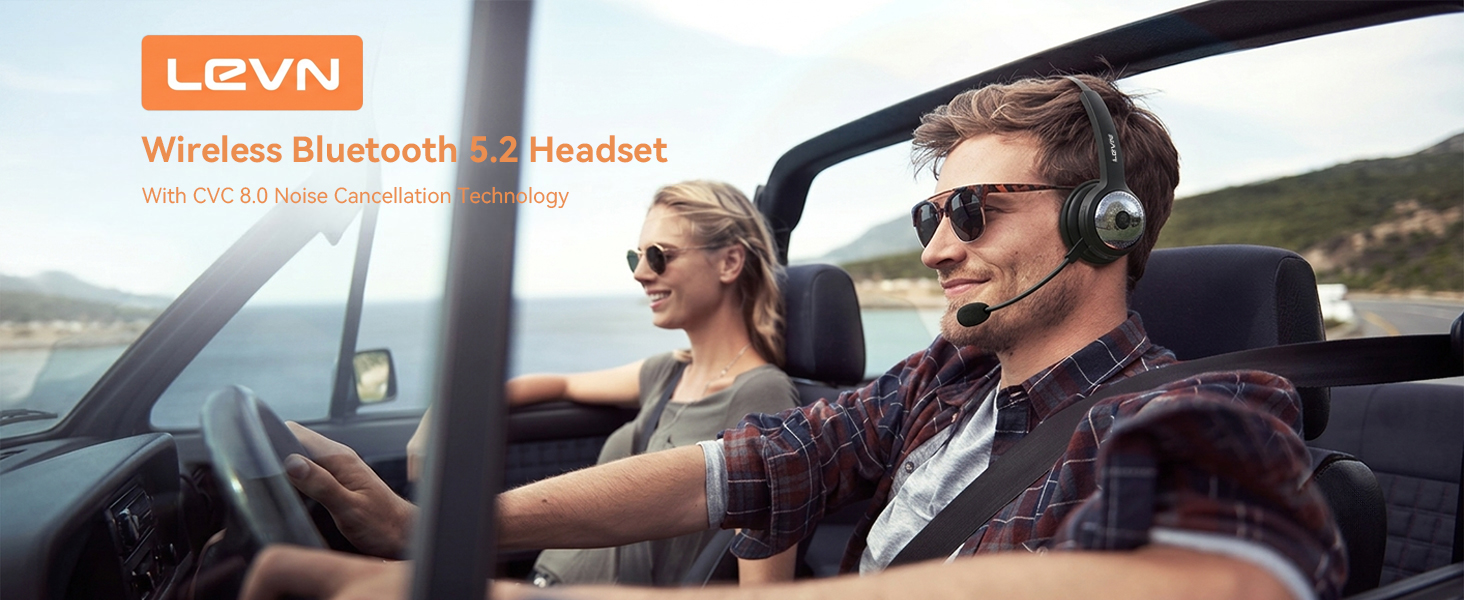

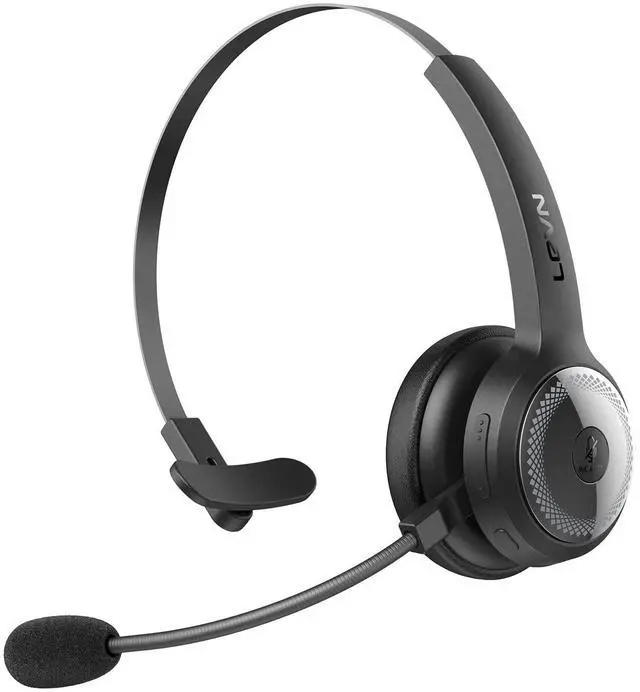
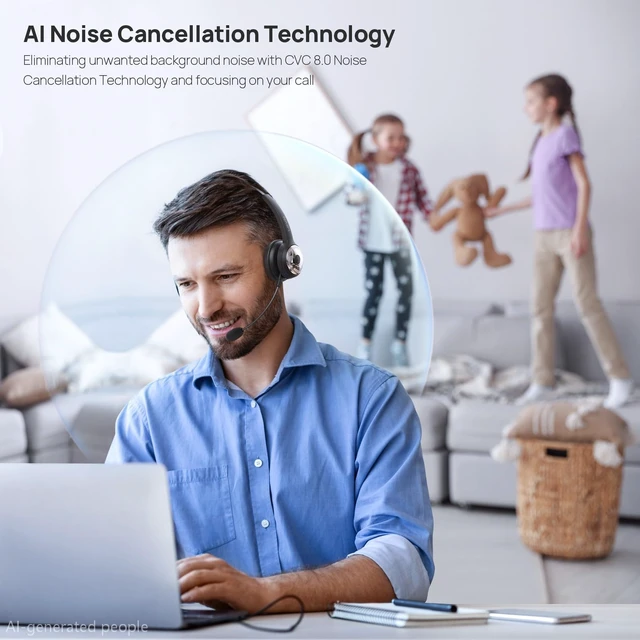
The LEVN noise cancelling bluetooth headphone uses advanced ENC technology, it can prevent the listener from hearing your background noise by calculating the frequency band of environmental noise in advance. No more embarrassment when working remotely!
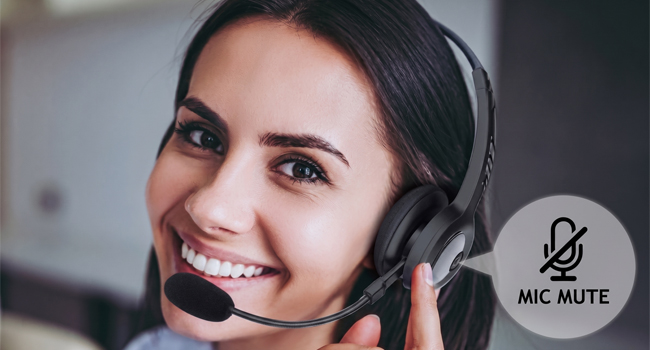
Our wireless bluetooth headset supports mute on calls (Android & macOS ETC). but may not be compatibleon some Windows software. What's more, the mute function is not a two-way control. If you mute yourself on the computer, you must also unmute on the computer, and vice versa
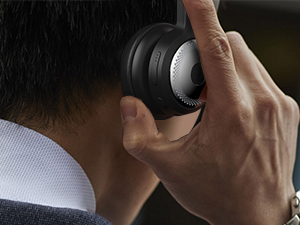
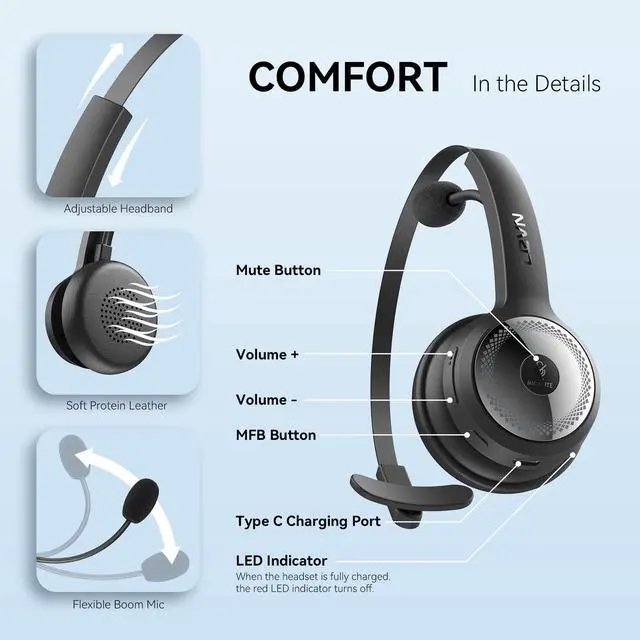
On LEVN Bluetooth Headset with microphone, MFB answers/ends calls on mobile (Android/iPhone), not on PC/landline—use device controls
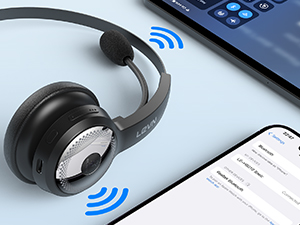
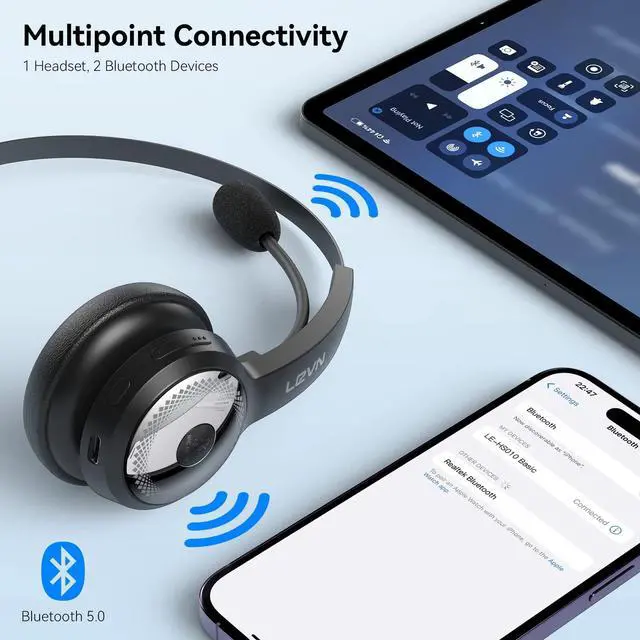
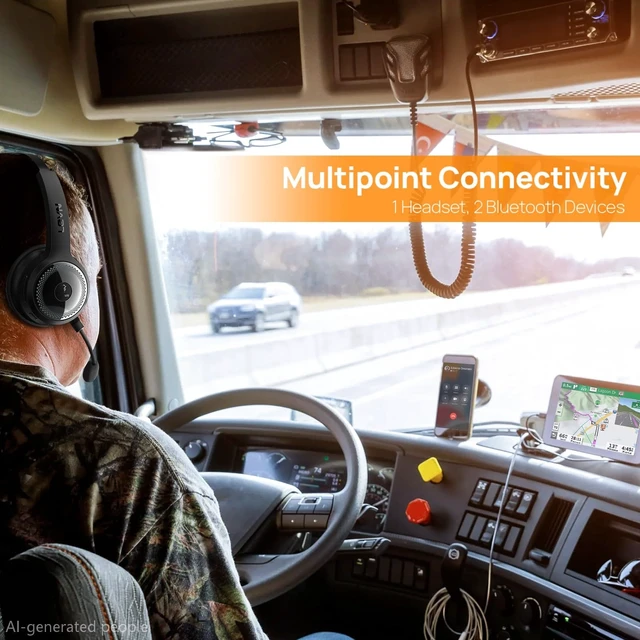
With LEVN Bluetooth headphone, Multipoint connects to 2 devices (laptop & phone) simultaneously—stay on a call without missing other notifications.
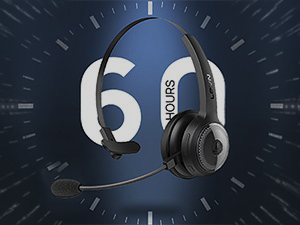
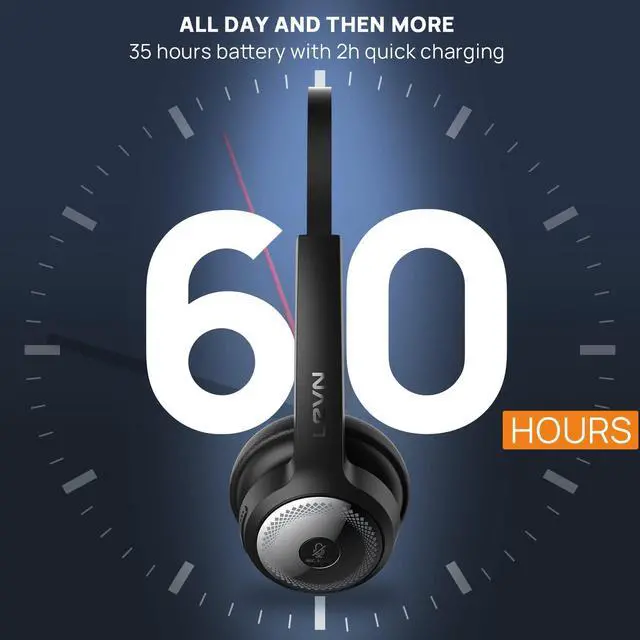
The LEVN trucker bluetooth headset offers 60hrs talk & 200hrs standby—great for long hauls. Truckers won't worry about battery dying on the road.
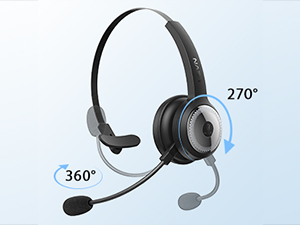
The LEVN Bluetooth Headset has a 270° rotatable boom mic with bidirectional tech, fits either side, and withstands thousands of rotations.
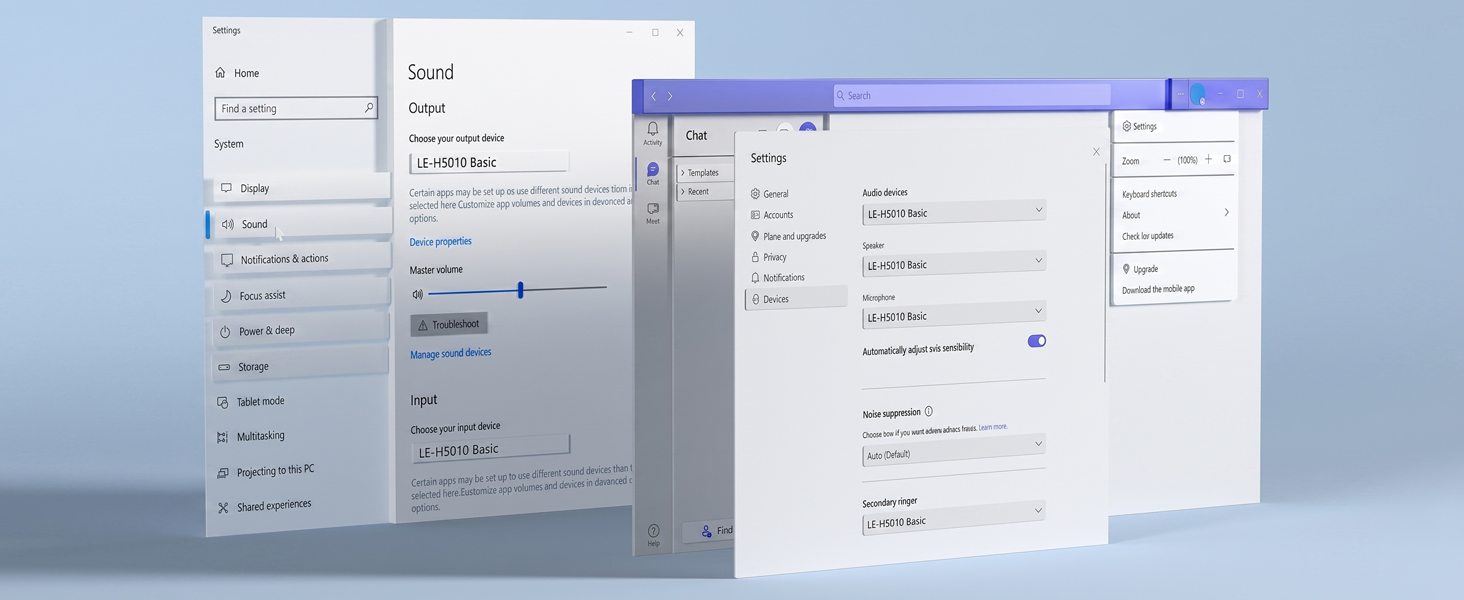
The microphone and the speaker of the headset may be disabled or not set as the default device on your computer.
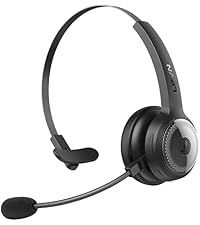 LE-HS010 Basic | 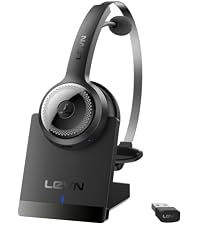 LE-HS010 Super V4 | 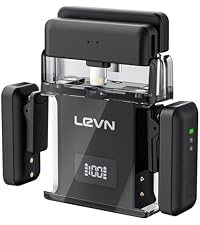 LEVN Wireless Microphone | 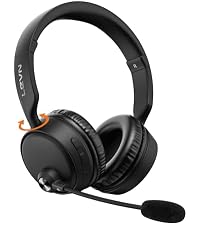 LE-CT003 | 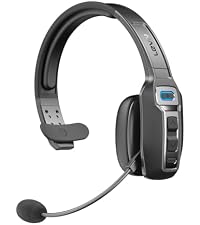 LE-HS012 | 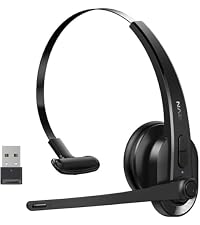 LE-HS011 Sup | |
|---|---|---|---|---|---|---|
Customer Reviews | — | — | — | — | — | — |
Price | — | — | — | — | — | — |
ENC | ? | ? | ? | ? | ? | ? |
AI Noise Canceling | by 92% | by 99.9% | AI Noise Canceling | by 99.9% | by 99.9% | by 99.9% |
Connectivity | Bluetooth - NO USB DONGLE | Bluetooth & USB Dongle | USB-C/Lightning | Bluetooth 5.3 | Bluetooth V5.2 | — |
Bluetooth Multipoint | 2 Devices Simultaneously | 1 Device | 2 Device | 2 Device | 2 Device | 1 Device |
Charging Method | USB C Cable | Charging Base or USB C Cable | USB C Cable | USB C Cable | USB C Cable | USB C Cable |
Battery Life | Up to 60 hours | Up to 45 hours | Up to 20 hours | Up to 60 hours | Up to 65 hours | Up to 50 hours |
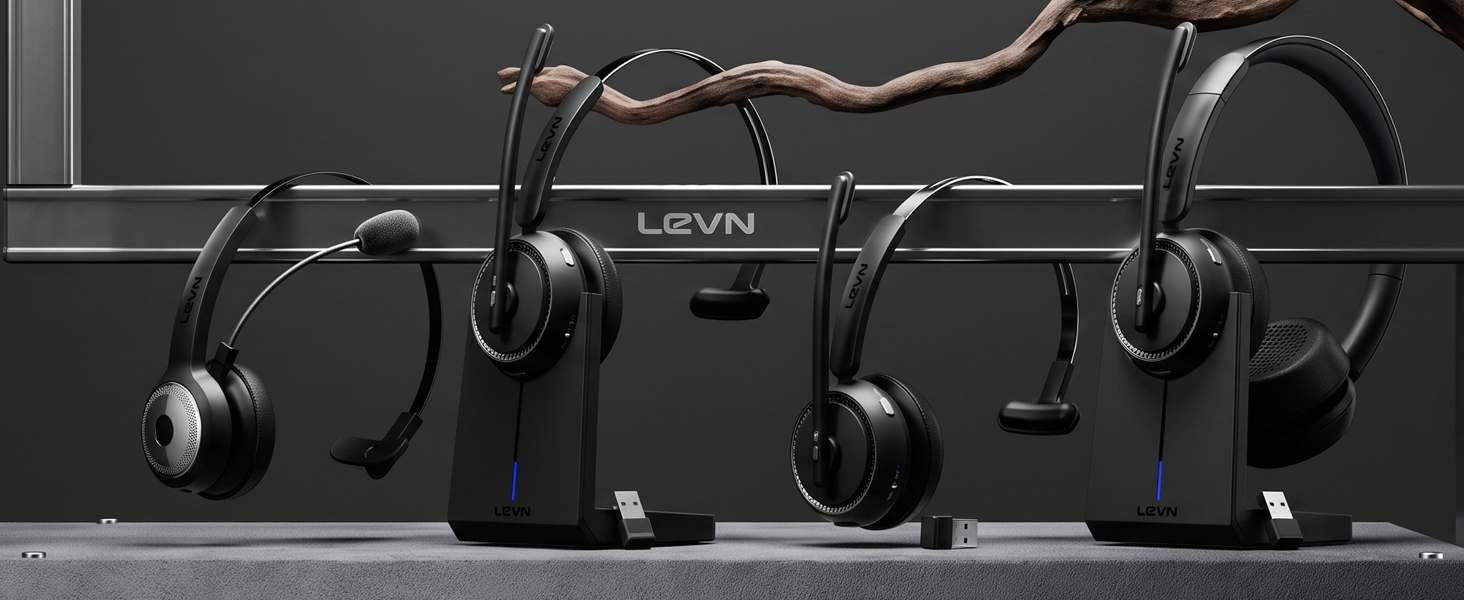

Eliminating Unwanted Background Noise and Focusing on your Call with LEVN

Established in 2003, LEVN has a two-decade legacy in wireless audio, delivering unmatched expertise, superior quality, and an exceptional user experience. Meticulously crafted headphones ensure superior sound and seamless connectivity. Our goal is to enrich wireless audio with revolutionary features and innovative technology, shaping the future of Bluetooth headsets
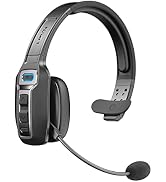
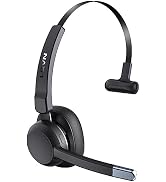
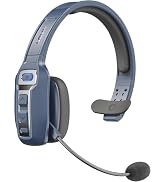
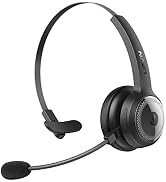
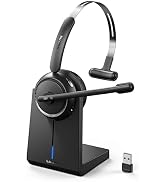
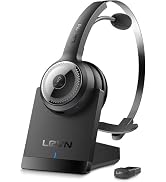
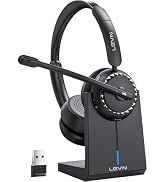
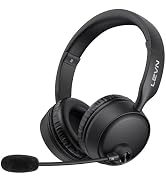
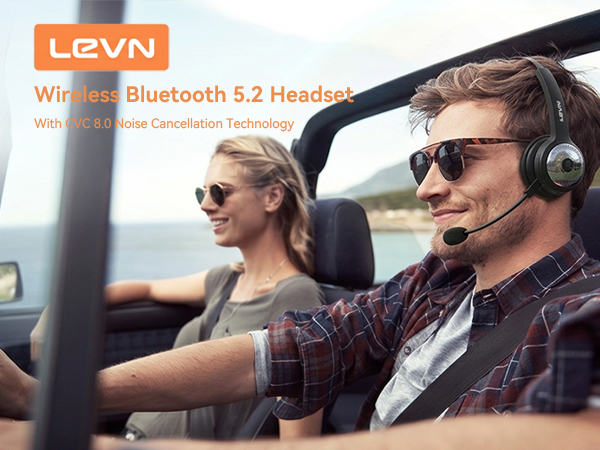
The LEVN noise cancelling bluetooth headphone uses advanced ENC technology, it can prevent the listener from hearing your background noise by calculating the frequency band of environmental noise in advance. No more embarrassment when working remotely!
Our wireless bluetooth headset supports mute on calls (Android & macOS ETC). but may not be compatibleon some Windows software. What's more, the mute function is not a two-way control. If you mute yourself on the computer, you must also unmute on the computer, and vice versa
On LEVN Bluetooth Headset with microphone, MFB answers/ends calls on mobile (Android/iPhone), not on PC/landline—use device controls
With LEVN Bluetooth headphone, Multipoint connects to 2 devices (laptop & phone) simultaneously—stay on a call without missing other notifications.
The LEVN trucker bluetooth headset offers 60hrs talk & 200hrs standby—great for long hauls. Truckers won't worry about battery dying on the road.
The LEVN Bluetooth Headset has a 270° rotatable boom mic with bidirectional tech, fits either side, and withstands thousands of rotations.
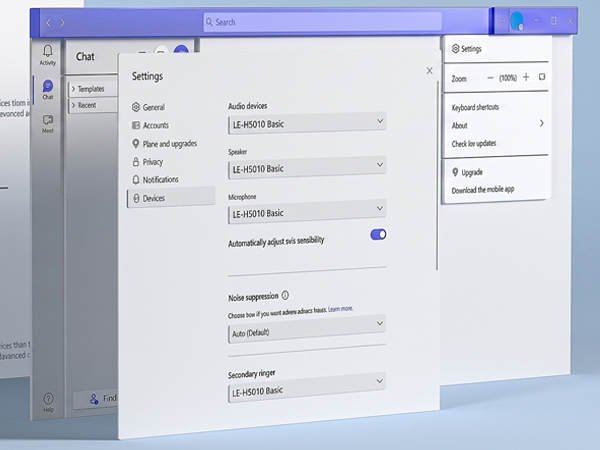
The microphone and the speaker of the headset may be disabled or not set as the default device on your computer.
LE-HS010 Basic | LE-HS010 Super V4 | LEVN Wireless Microphone | LE-CT003 | LE-HS012 | LE-HS011 Sup |
|---|---|---|---|---|---|
| Customer Reviews | |||||
| — | — | — | — | — | — |
| Price | |||||
| — | — | — | — | — | — |
| ENC | |||||
| ? | ? | ? | ? | ? | ? |
| AI Noise Canceling | |||||
| by 92% | by 99.9% | AI Noise Canceling | by 99.9% | by 99.9% | by 99.9% |
| Connectivity | |||||
| Bluetooth - NO USB DONGLE | Bluetooth & USB Dongle | USB-C/Lightning | Bluetooth 5.3 | Bluetooth V5.2 | — |
| Bluetooth Multipoint | |||||
| 2 Devices Simultaneously | 1 Device | 2 Device | 2 Device | 2 Device | 1 Device |
| Charging Method | |||||
| USB C Cable | Charging Base or USB C Cable | USB C Cable | USB C Cable | USB C Cable | USB C Cable |
| Battery Life | |||||
| Up to 60 hours | Up to 45 hours | Up to 20 hours | Up to 60 hours | Up to 65 hours | Up to 50 hours |
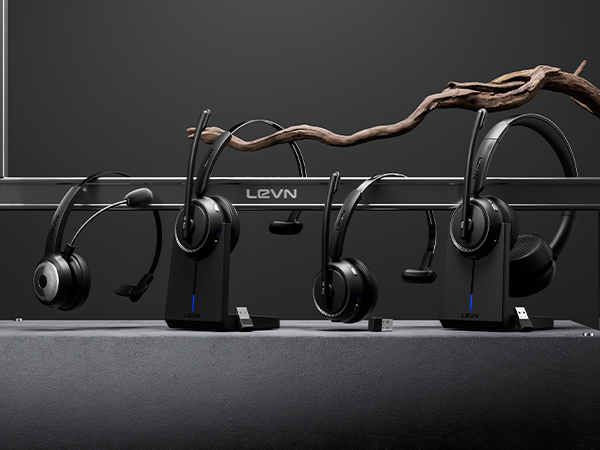
Eliminating Unwanted Background Noise and Focusing on your Call with LEVN
Established in 2003, LEVN has a two-decade legacy in wireless audio, delivering unmatched expertise, superior quality, and an exceptional user experience. Meticulously crafted headphones ensure superior sound and seamless connectivity. Our goal is to enrich wireless audio with revolutionary features and innovative technology, shaping the future of Bluetooth headsets
| Brand | LEVN |
| Color | Black |
| Ear Placement | On Ear |
| Form Factor | On Ear |
| Impedance | 32 ohm |
| Brand Name | LEVN |
| Model Number | LE-HS010 Basic |
| Model Name | LE-HS010 Basic |
| Built-In Media | Charging Cable Type C, LEVN Trucker Bluetooth Headset, No USB Dongle Included, User Manual |
| Age Range Description | Adult |
| Number of Items | 1 |
| Manufacturer | LEVN |
| Headphone Jack | USB-C |
| Connectivity Technology | Wireless |
| Wireless Technology | Bluetooth |
| Bluetooth Range | 10 meters |
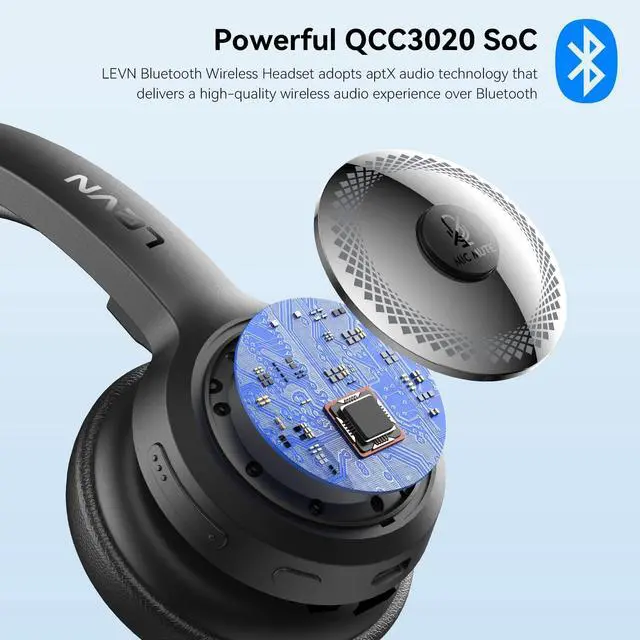
| Bluetooth Version | 5.2 |
| Control Type | remote |
| Control Method | Touch |
| Battery Charge Time | 1.5 hours |
| Battery Average Life | 60 hours |
| Noise Control | Active Noise Cancellation |
| Audio Driver Type | Dynamic Driver |
| Enclosure Material | Leather |
| Specific Uses For Product | Home, Personal, Professional |
| Antenna Location | Calling |
| Compatible Devices | Laptops, Desktops, Smartphones, Tablets, Telephones |
| Water Resistance Level | Not Water Resistant |
| Carrying Case Material | Faux Leather |
| Additional Features | Microphone Included, Noise Cancellation, wireless |
| Headphones Ear Placement | On Ear |
| Headphone Folding Features | On Ear |
| Earpiece Shape | On Ear |
| Style Name | LE-HS010 Basic |
| Unit Count | 1 Count |


