




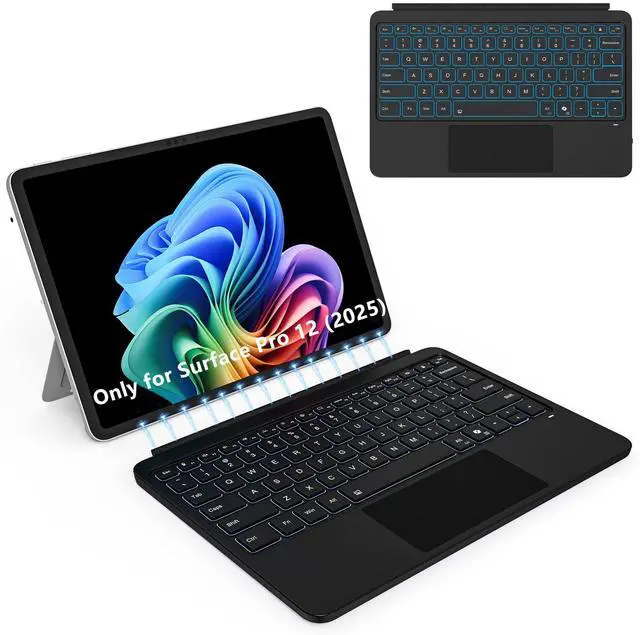
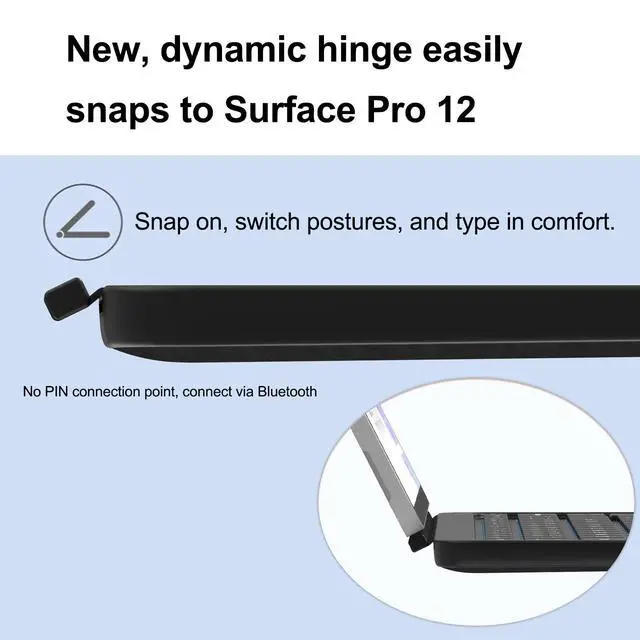
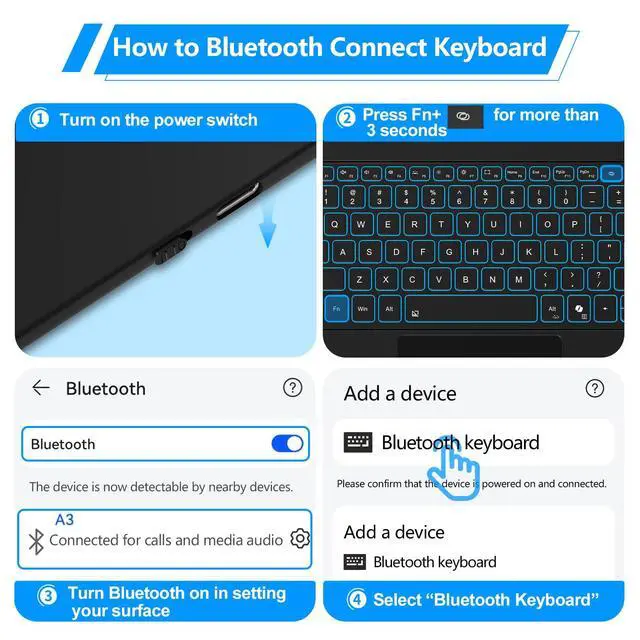


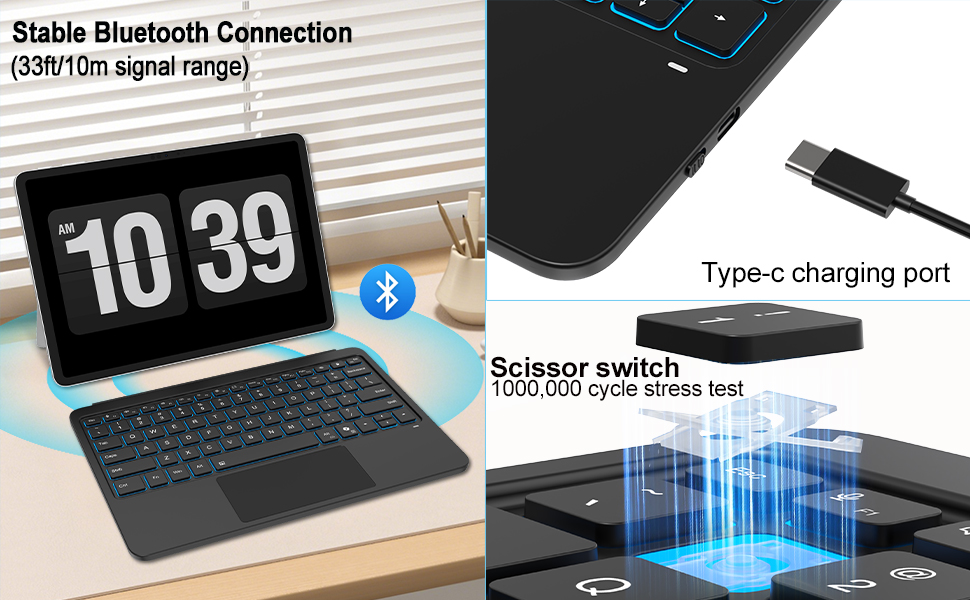
To connect: Use the Bluetooth settings on your device. This keyboard does not have a PIN connection point.
A simple reset can often fix connection or function issues. Please follow these steps:
1. On your keyboard, find these three keys: Fn, F, and J.
2. Press and hold all three keys down at the same time.
3. Keep holding them for about 5 seconds.
4. You will know the reset is complete when the indicator light flashes three times. The keyboard's backlight will also return to its standard white light.
Please note: This reset will fix most common problems (like connection or cursor issues), and your keyboard will be ready to pair with your device again via Bluetooth.
Q: Can the keyboard be charged via surface contact?
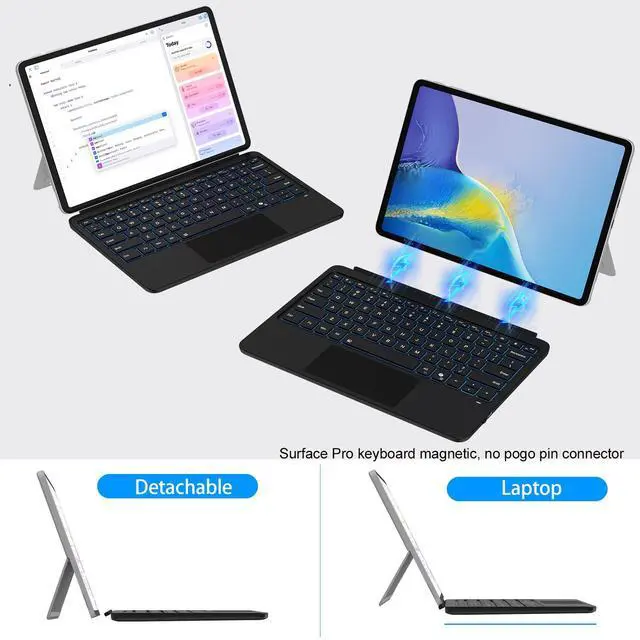
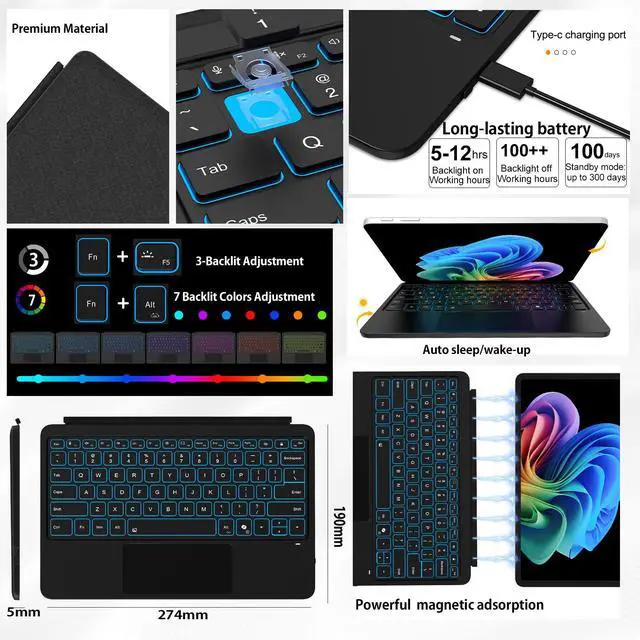
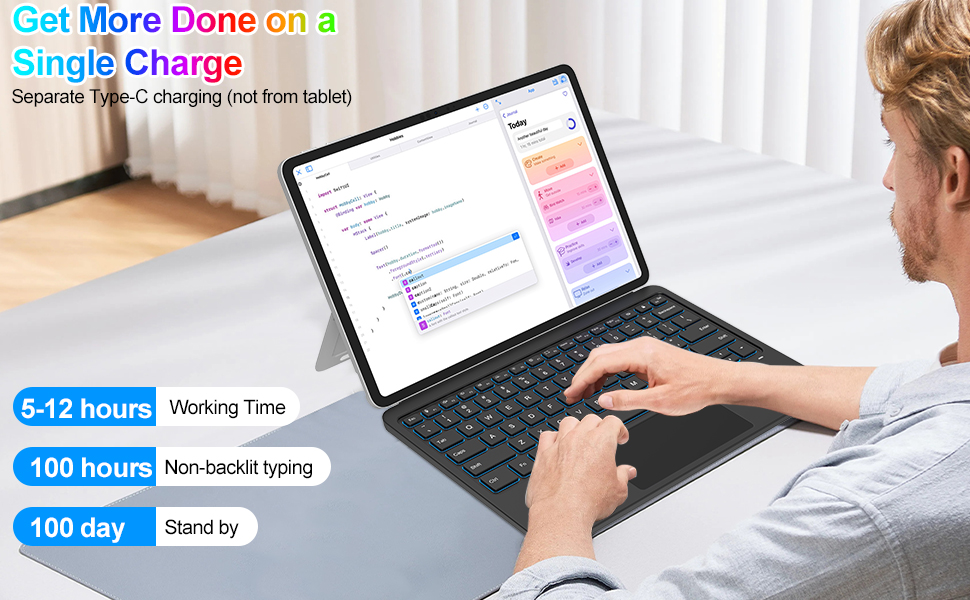
Note: unlike OEM, the keyboard doesn't have a PIN connection point, and will not charge via surface contacts! (must charge separately)
Q: Can the keyboard charge wirelessly from the computer?
A: No, the keyboard and computer cannot transfer electricity directly
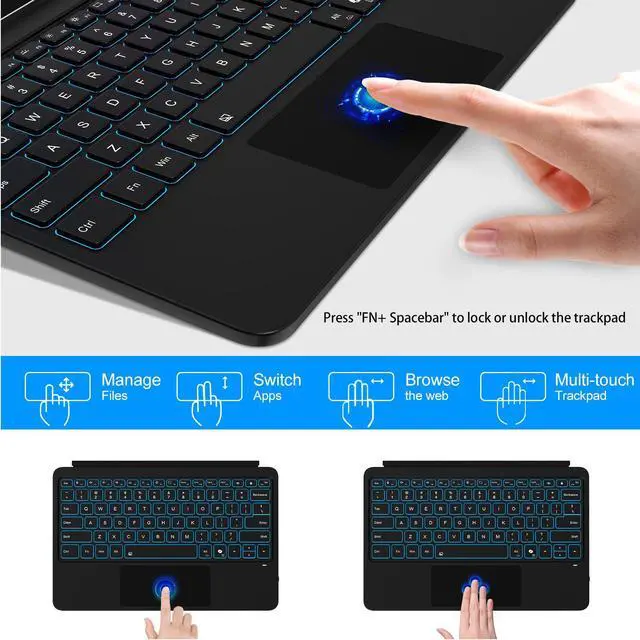
Q: Adjust touchpad on/off/sensitivity?
A: 1. Sensitivity: Settings ? Devices ? Touchpad ? Touchpad Sensitivity ? Related Settings ? Other Settings (mouse/pointer options).
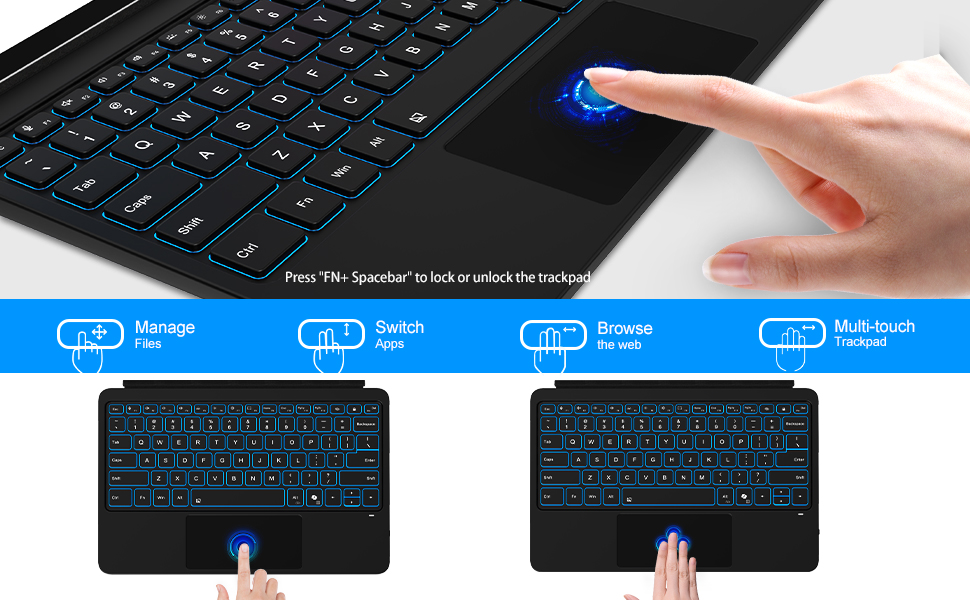
2. Toggle touchpad: Fn + Space.
3. If touchpad doesn’t work: Turn it on in Surface Settings
Q: What should I do if I can't type?
A: Go to Settings ----> Accessibility ----> Keyboard ----> Turn off "Sticky keys" ----> Turn off "Filter keys"
Q: Is it easy to pair?
A: First pairing takes about 10 seconds:
Go to Settings ? System ? About ? Bluetooth & devices ? Devices ? Add device ? Bluetooth Keyboard.
To connect: Use the Bluetooth settings on your device. This keyboard does not have a PIN connection point.
A simple reset can often fix connection or function issues. Please follow these steps:
1. On your keyboard, find these three keys: Fn, F, and J.
2. Press and hold all three keys down at the same time.
3. Keep holding them for about 5 seconds.
4. You will know the reset is complete when the indicator light flashes three times. The keyboard's backlight will also return to its standard white light.
Please note: This reset will fix most common problems (like connection or cursor issues), and your keyboard will be ready to pair with your device again via Bluetooth.
Q: Can the keyboard be charged via surface contact?
Note: unlike OEM, the keyboard doesn't have a PIN connection point, and will not charge via surface contacts! (must charge separately)
Q: Can the keyboard charge wirelessly from the computer?
A: No, the keyboard and computer cannot transfer electricity directly
Q: Adjust touchpad on/off/sensitivity?
A: 1. Sensitivity: Settings ? Devices ? Touchpad ? Touchpad Sensitivity ? Related Settings ? Other Settings (mouse/pointer options).
2. Toggle touchpad: Fn + Space.
3. If touchpad doesn’t work: Turn it on in Surface Settings
Q: What should I do if I can't type?
A: Go to Settings ----> Accessibility ----> Keyboard ----> Turn off "Sticky keys" ----> Turn off "Filter keys"
Q: Is it easy to pair?
A: First pairing takes about 10 seconds:
Go to Settings ? System ? About ? Bluetooth & devices ? Devices ? Add device ? Bluetooth Keyboard.