here!
here!
I’m your shopping assistant for PC builds, upgrades, and everything tech.
Got questions? Ask away!
Start a conversation
here!
I’m your shopping assistant for PC builds, upgrades, and everything tech.
Got questions? Ask away!
Start a conversation



Any questions? Ask CelesteSM will help you find out quickly.
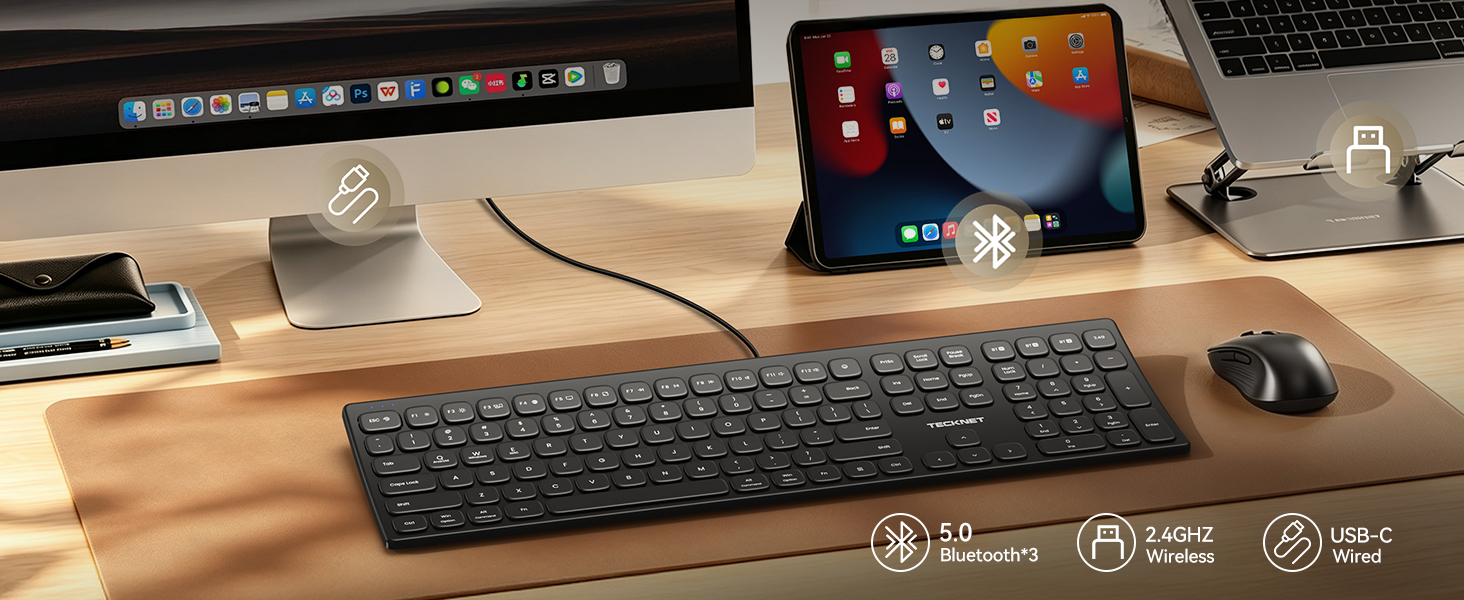
Is this keyboard compatible with my device (Windows, Mac, iOS, Android)? How stable is the connection?
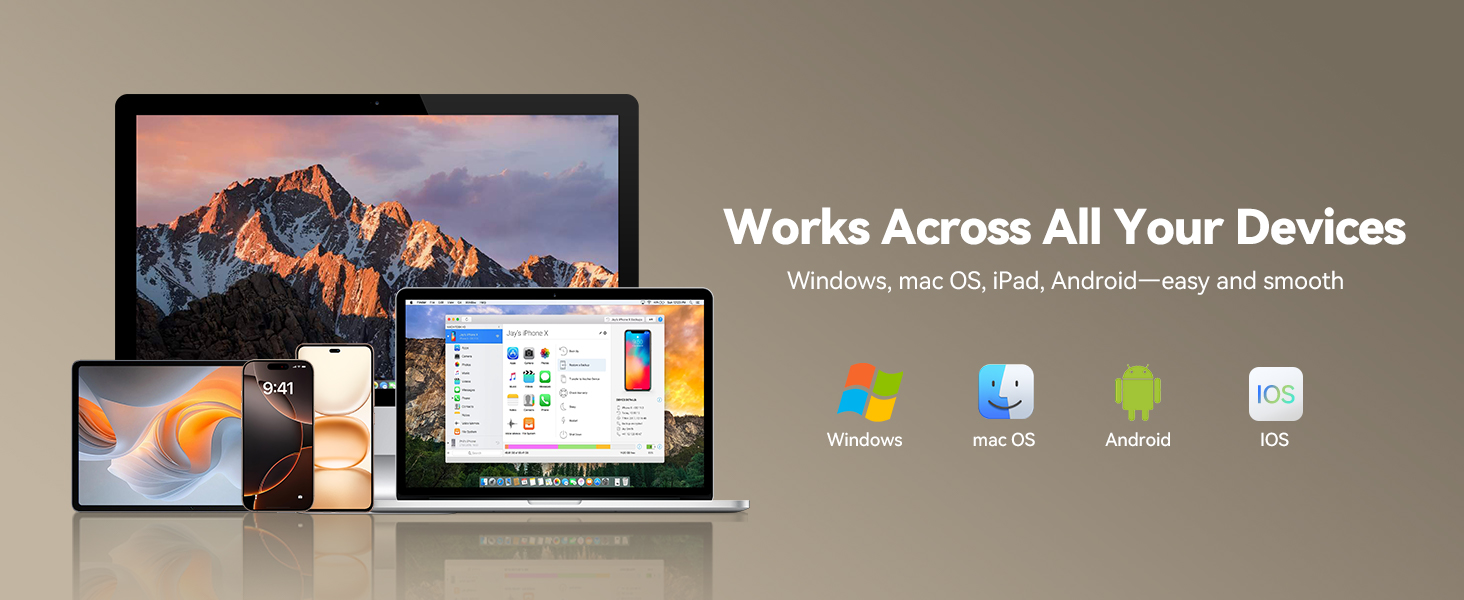
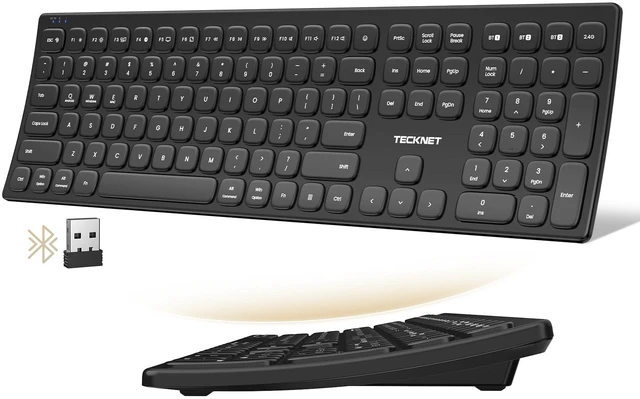
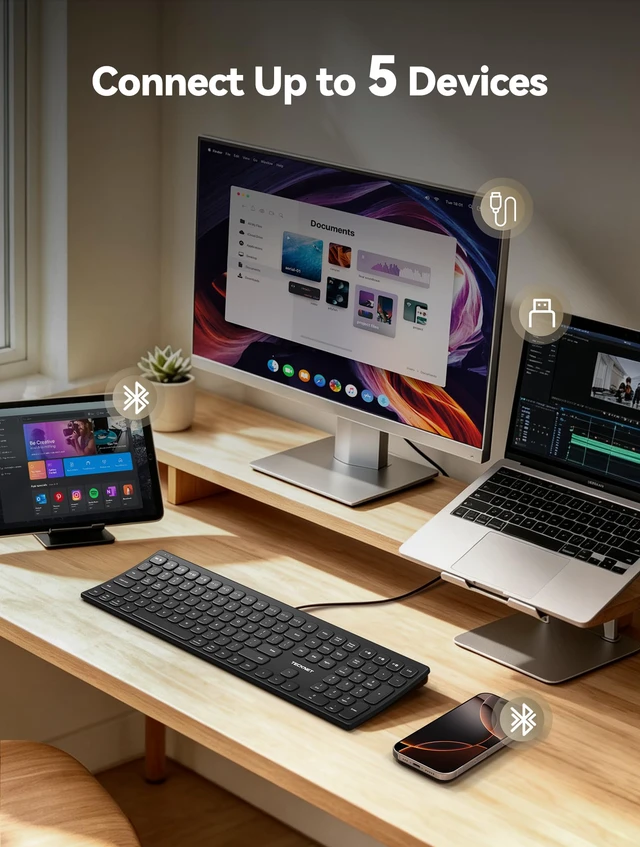
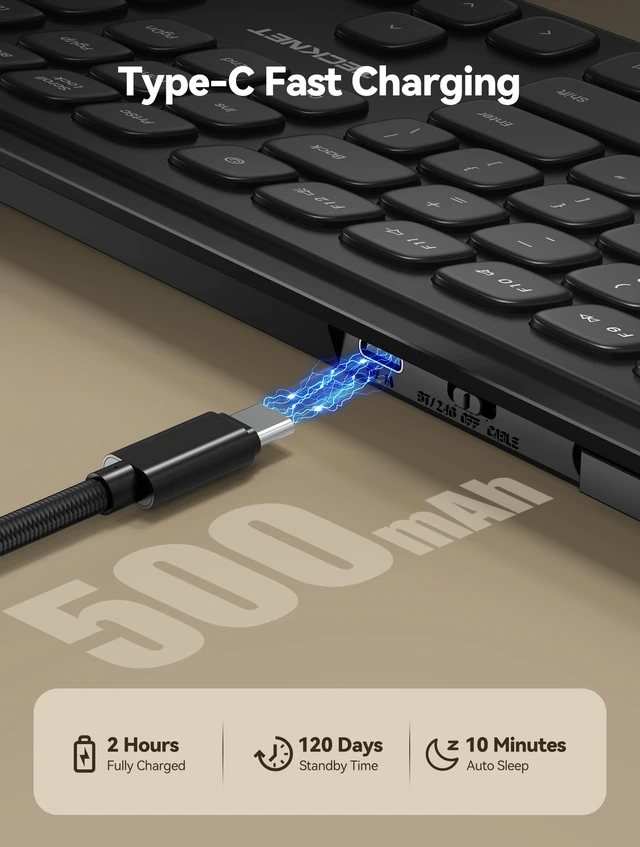
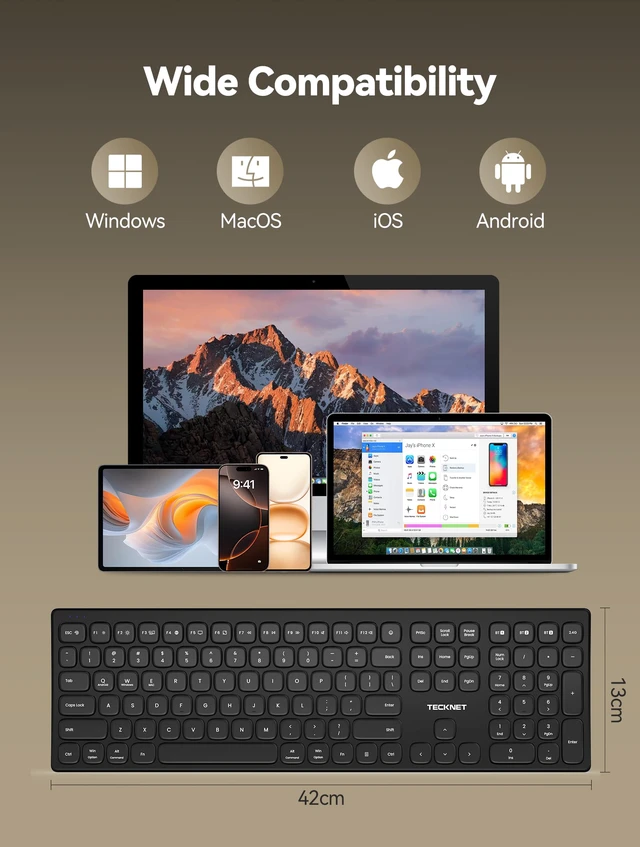
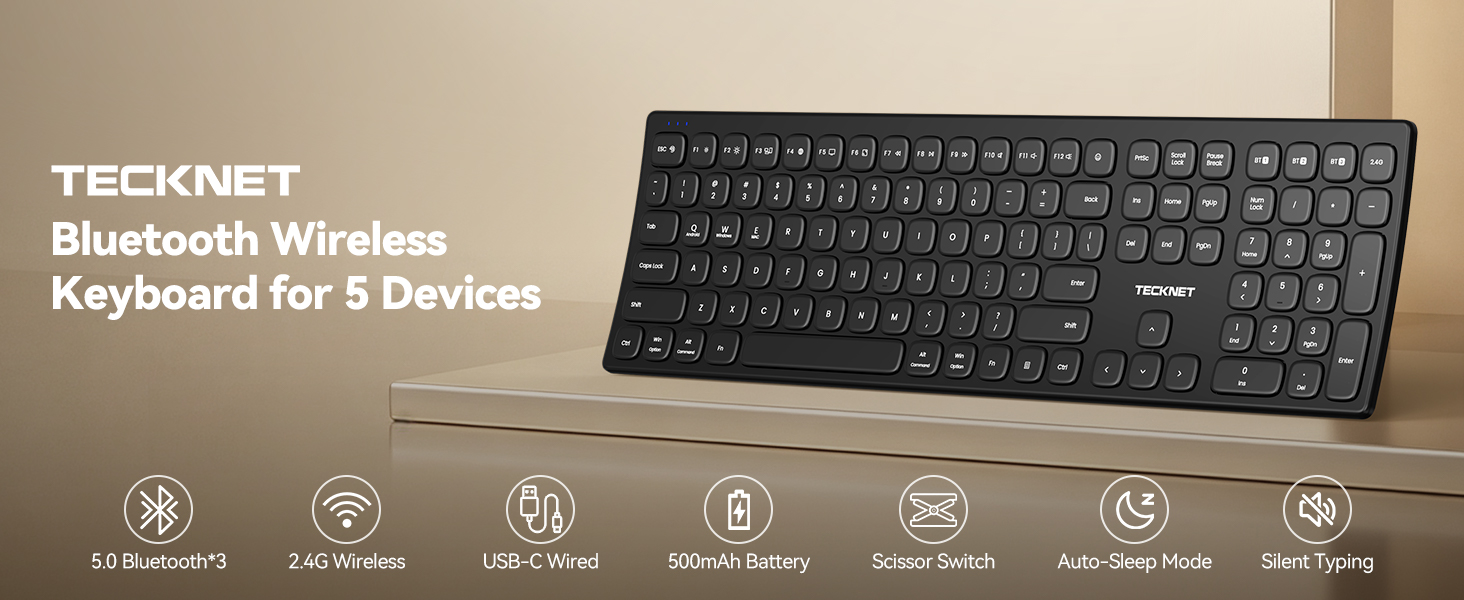
Yes! Works with Windows 11/10(and older versions), macOS, iOS, and Android etc. Connect via Bluetooth 5.0, the included 2.4GHz wireless USB adapter, or a USB-C cable—wired mode offers the most rock-solid connection for critical tasks.
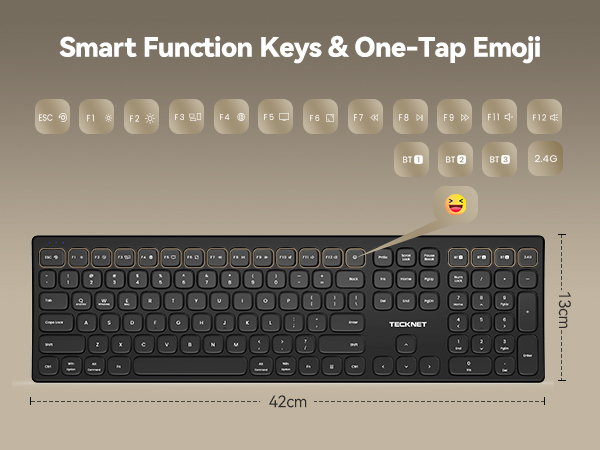
How do I switch between up to 5 devices? Is switching smooth?
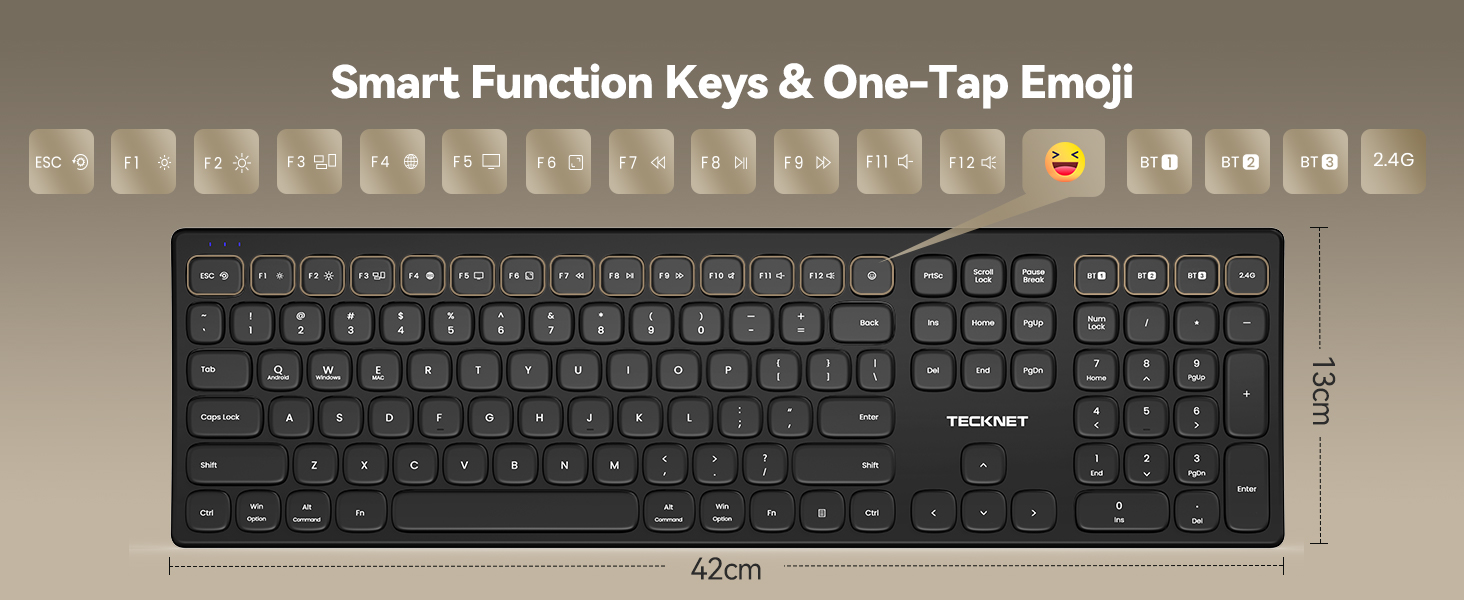
Use Dedicated shortcuts: simply press FN+Q (Android), FN+W (Windows), FN+E (iOS). Switching is virtually instant—the keyboard remembers your last session. To pair a new device, hold the button for 2 seconds until it flashes.
Why does it sometimes disconnect? Or have lag, stutter?
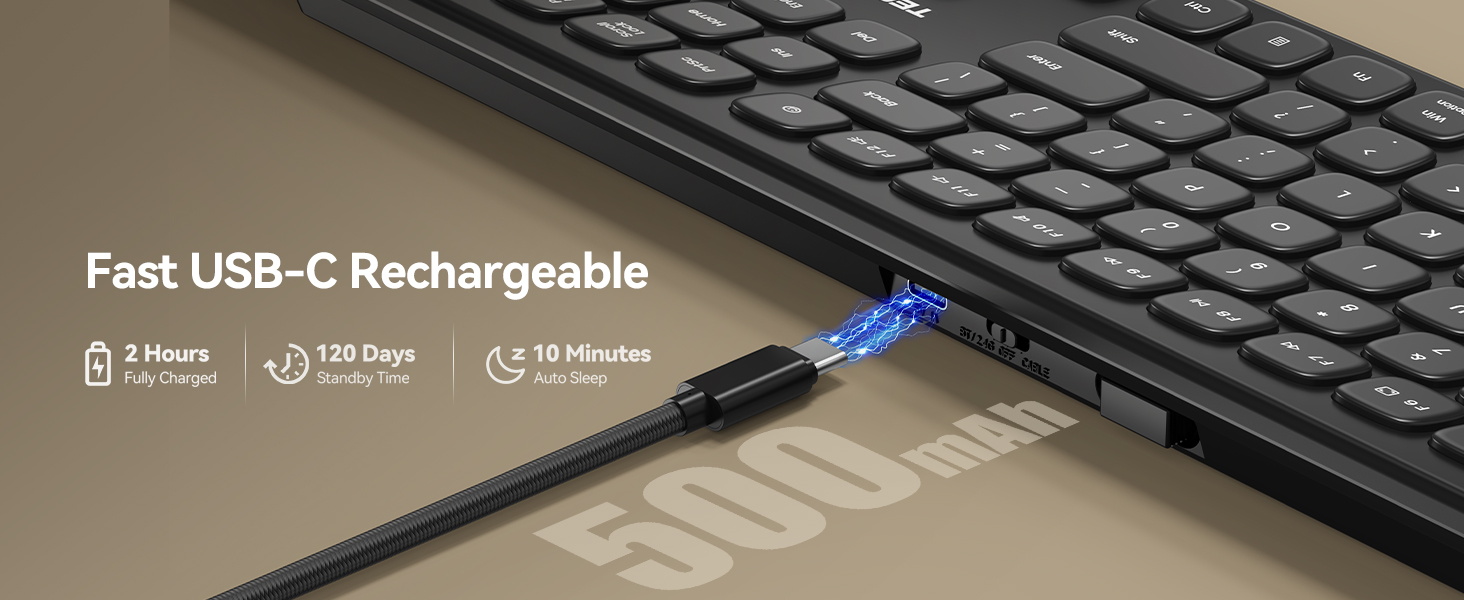
Occasional hiccups are usually due to wireless interference (Wi-Fi, metal objects, distance >15m) or low battery. For a smoother experience:Keep the keyboard charged and reduce nearby wireless devices.Remove unused paired devices from your system.
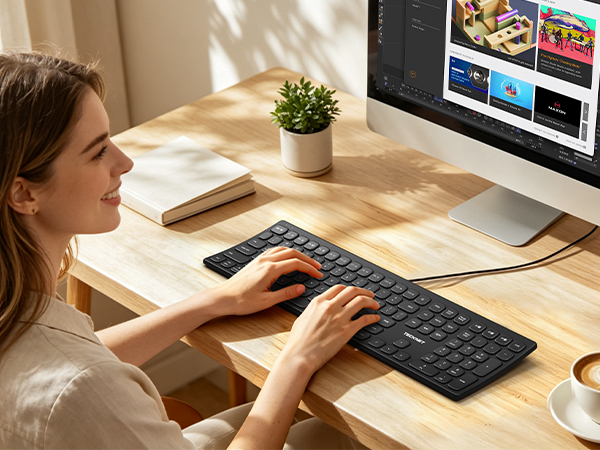
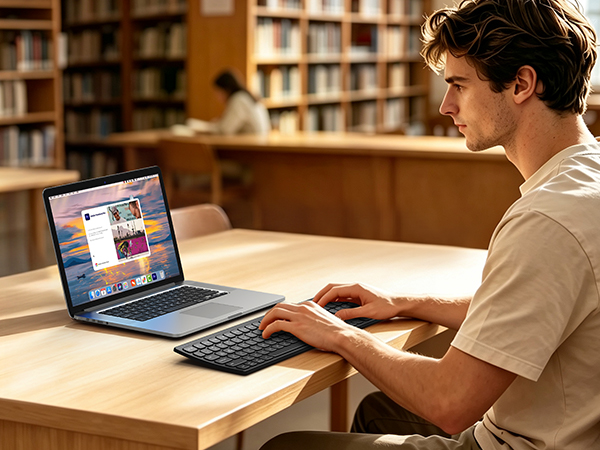
How can this full-size keyboard boost my productivity?
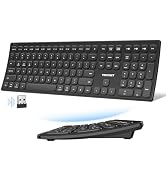
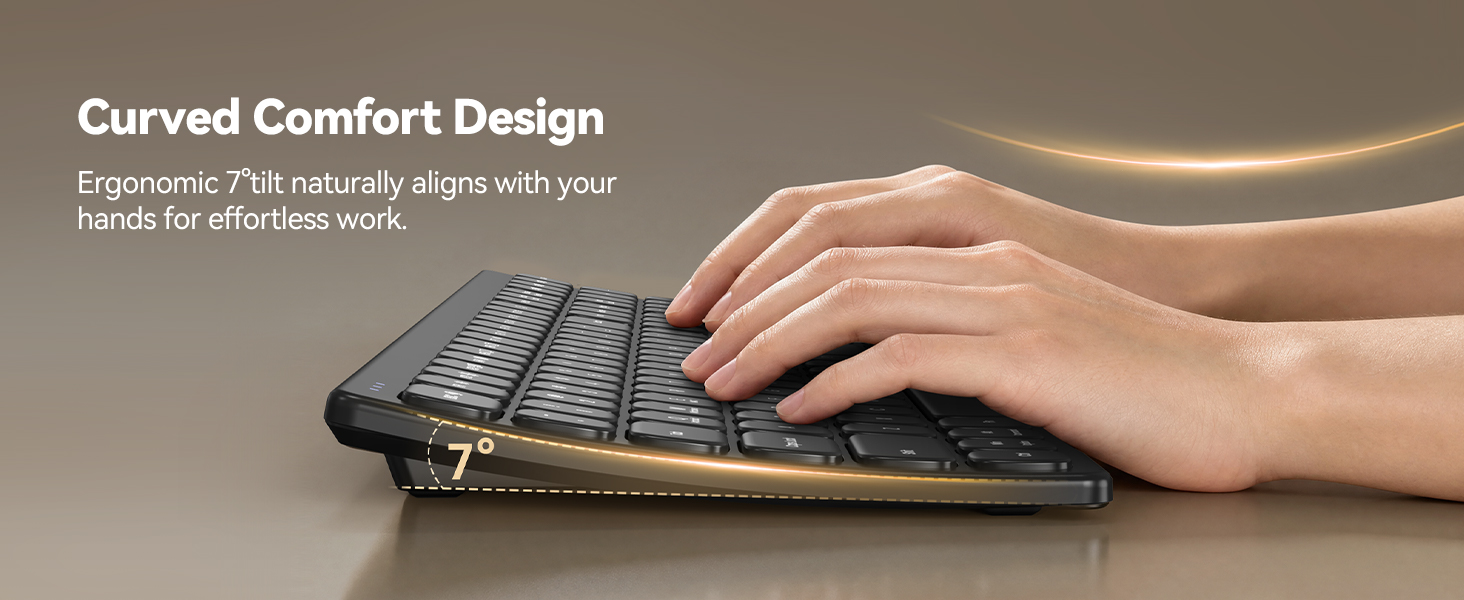
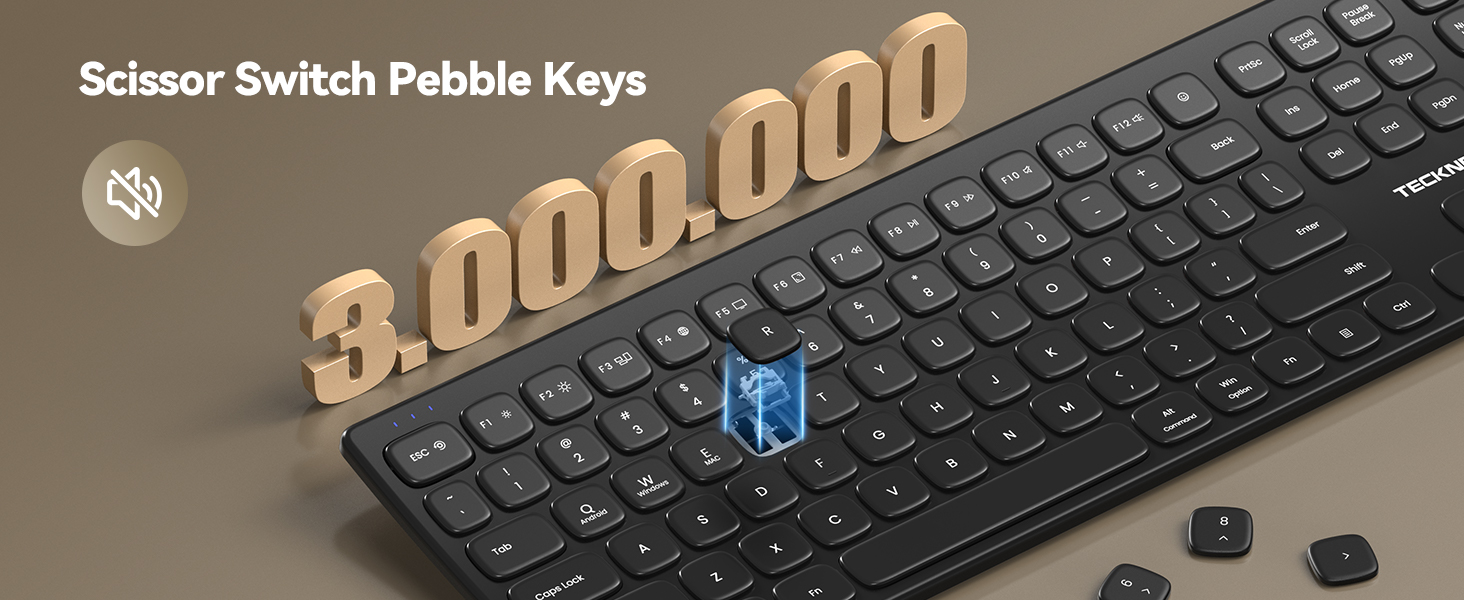
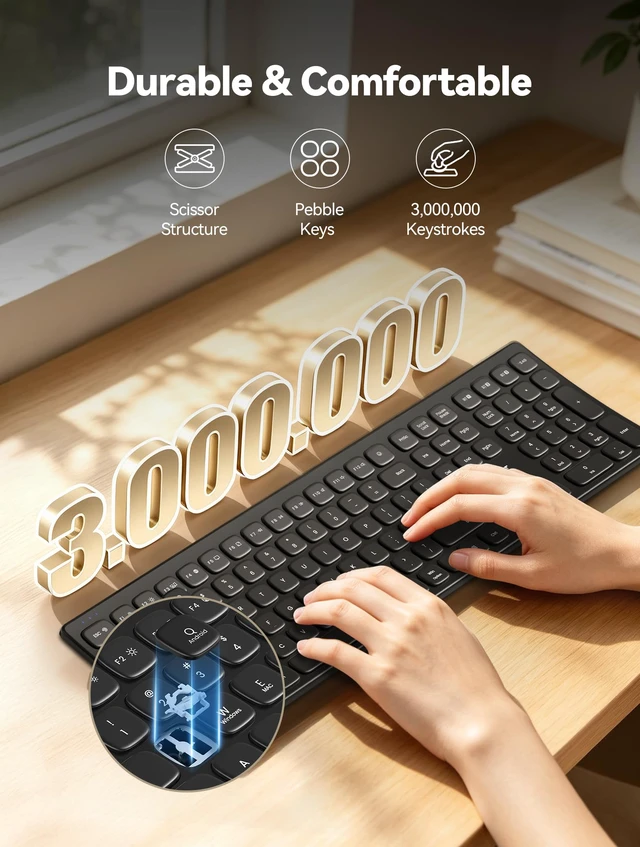
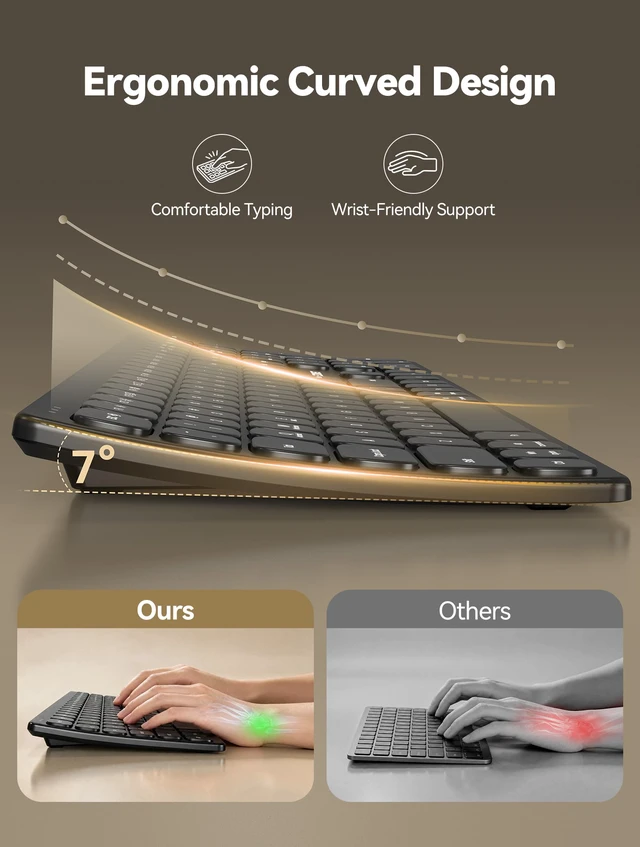
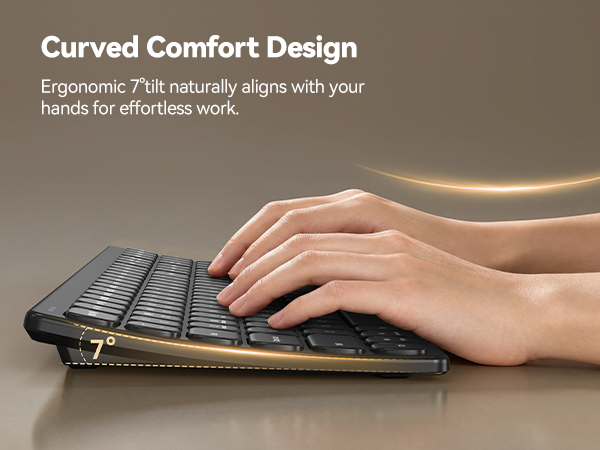
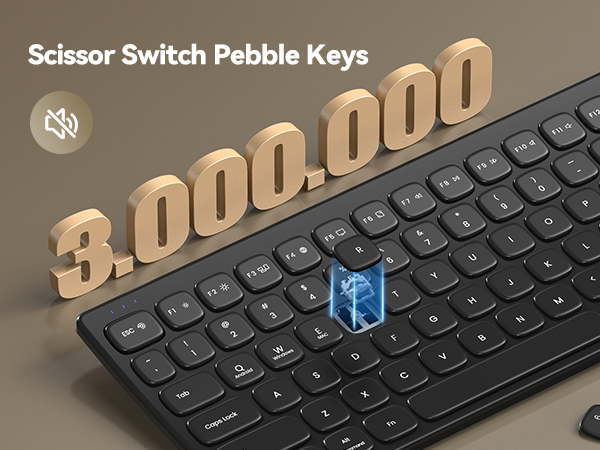
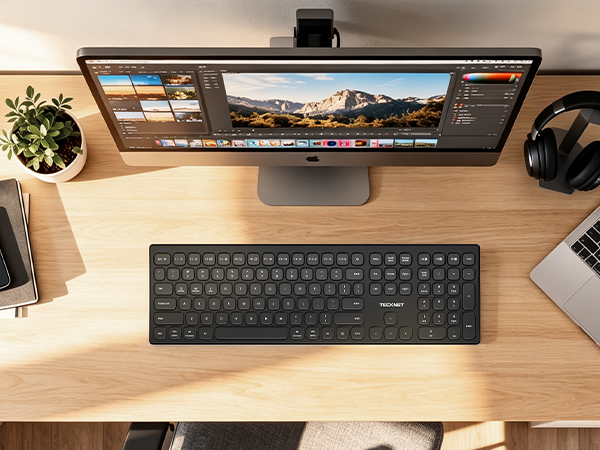
Engineered for performance, this keyboard features a smart tri-zone layout with numpad. Combine with one-touch multi-device switching and ergonomic, curved design paired with responsive scissor-switch keys—it’s keep you comfortable, productive.
What precautions should I take when using TECKNET keyboard?
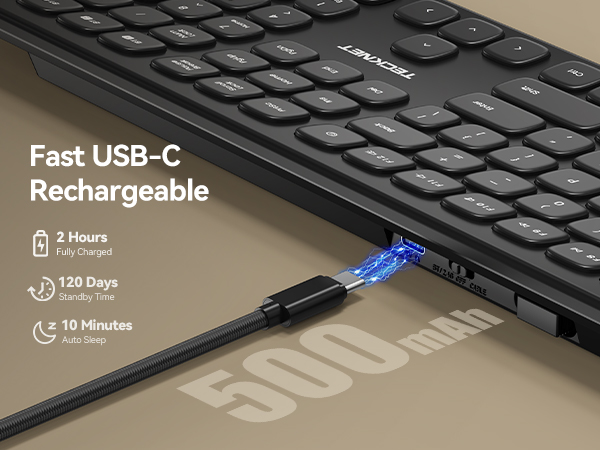
To ensure flawless performance: Fully charge before first use and recharge regularly. If pairing issues arise, a quick keyboard reset usually resolves it. Please feel free to Contact TECKNET—we’re here to make sure your setup runs perfectly.
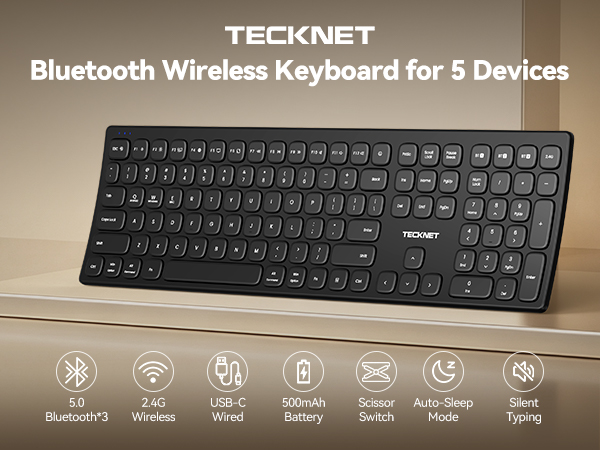
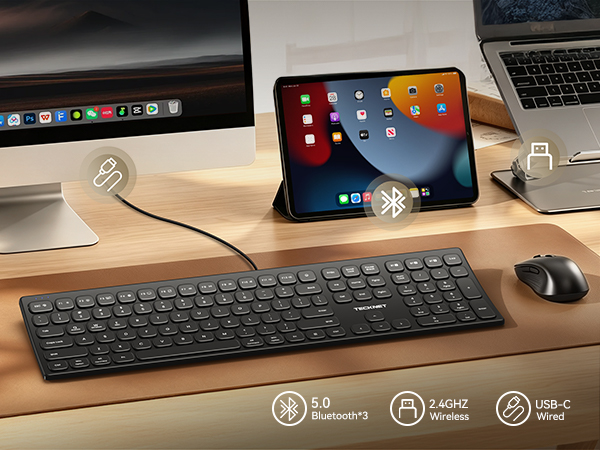
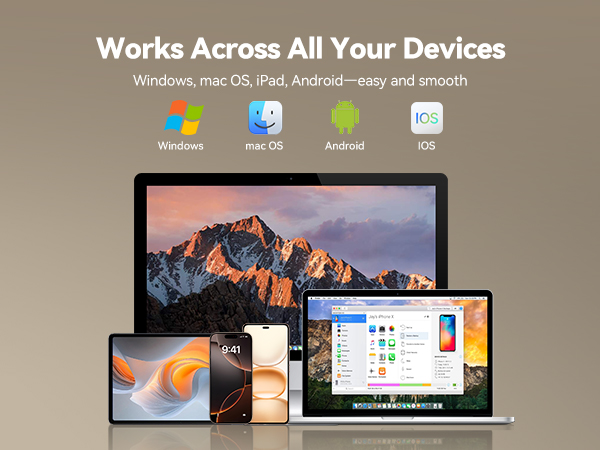

Is this keyboard compatible with my device (Windows, Mac, iOS, Android)? How stable is the connection?
Yes! Works with Windows 11/10(and older versions), macOS, iOS, and Android etc. Connect via Bluetooth 5.0, the included 2.4GHz wireless USB adapter, or a USB-C cable—wired mode offers the most rock-solid connection for critical tasks.
How do I switch between up to 5 devices? Is switching smooth?
Use Dedicated shortcuts: simply press FN+Q (Android), FN+W (Windows), FN+E (iOS). Switching is virtually instant—the keyboard remembers your last session. To pair a new device, hold the button for 2 seconds until it flashes.
Why does it sometimes disconnect? Or have lag, stutter?
Occasional hiccups are usually due to wireless interference (Wi-Fi, metal objects, distance >15m) or low battery. For a smoother experience:Keep the keyboard charged and reduce nearby wireless devices.Remove unused paired devices from your system.
How can this full-size keyboard boost my productivity?
Engineered for performance, this keyboard features a smart tri-zone layout with numpad. Combine with one-touch multi-device switching and ergonomic, curved design paired with responsive scissor-switch keys—it’s keep you comfortable, productive.
What precautions should I take when using TECKNET keyboard?
To ensure flawless performance: Fully charge before first use and recharge regularly. If pairing issues arise, a quick keyboard reset usually resolves it. Please feel free to Contact TECKNET—we’re here to make sure your setup runs perfectly.