


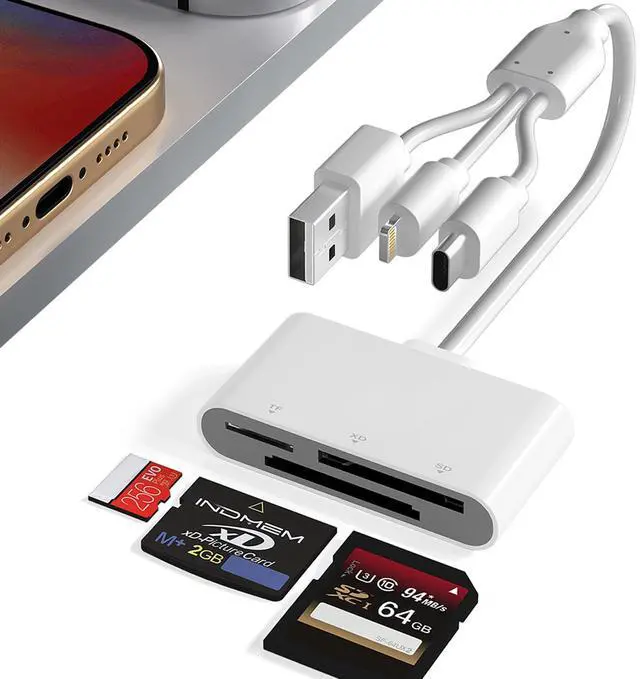
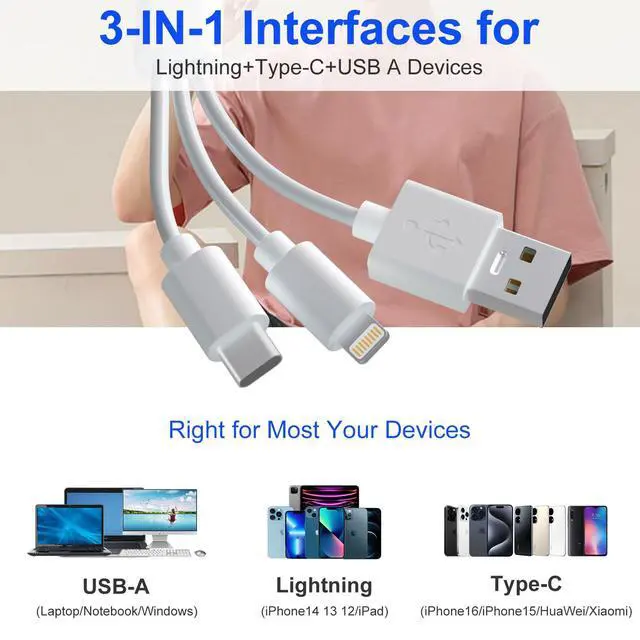


Lightning+USB C+USB A Ports 3 in 1 Port Design
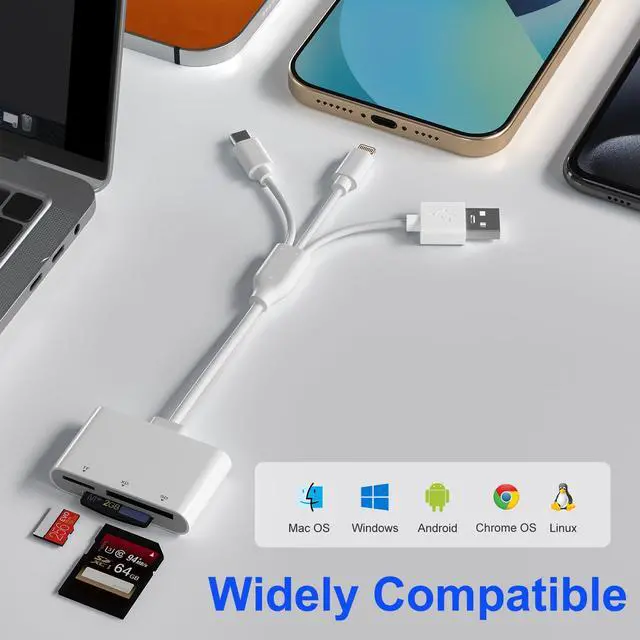
- USB C port supports iPhone 16, iPhone 15, Samsung Galaxy, Huawei, tablet, laptop, Macbook and so on.
- Lightning port supports iPhone 14/14 Plus/13/13 Pro/13 Pro Max/13mini/12/12 Mini/11 Pro/11 Pro Max/ XS Max/ XS and so on.
- USB A port supports PC and so on.

Multi Card Reader
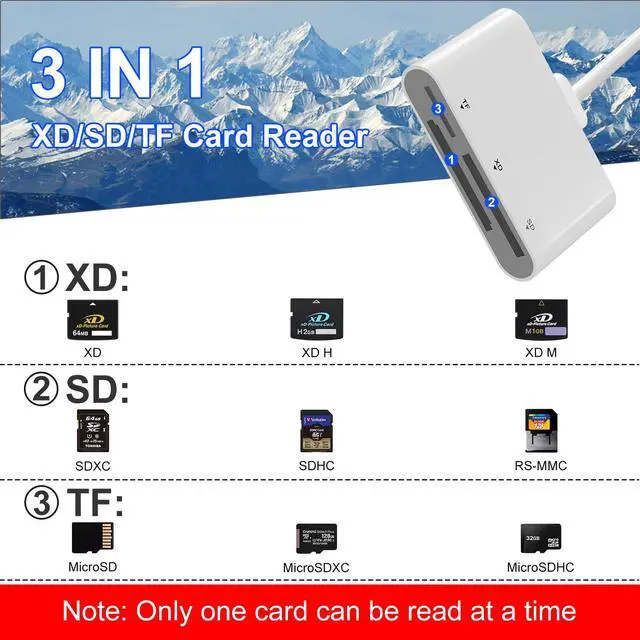
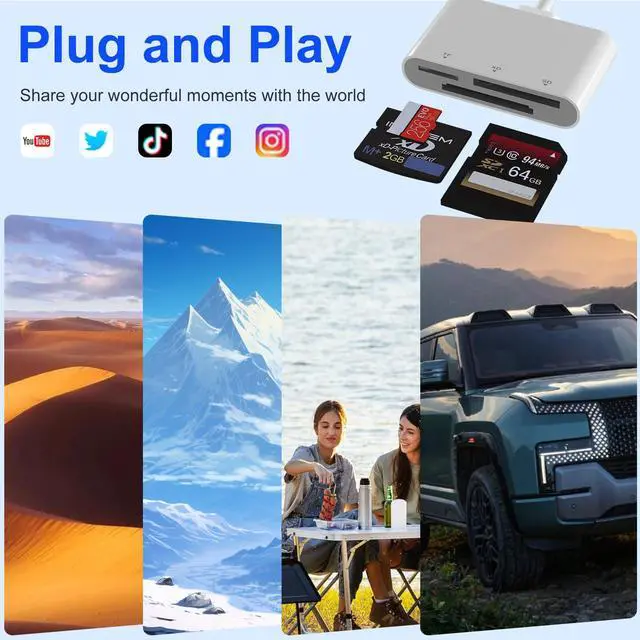
- Comes with SD/TF/XD 3 card slots.
- Supports a wide range of card types such as olympus xD-Picture card, SD/SDHC/SDXC and microSD memory card.
- This design eliminates the need for separate card readers for each card format, thus saving space.
Note: Reading two cards at the same time is not supported.

Transfers Data Quickly and is Easy to Carry
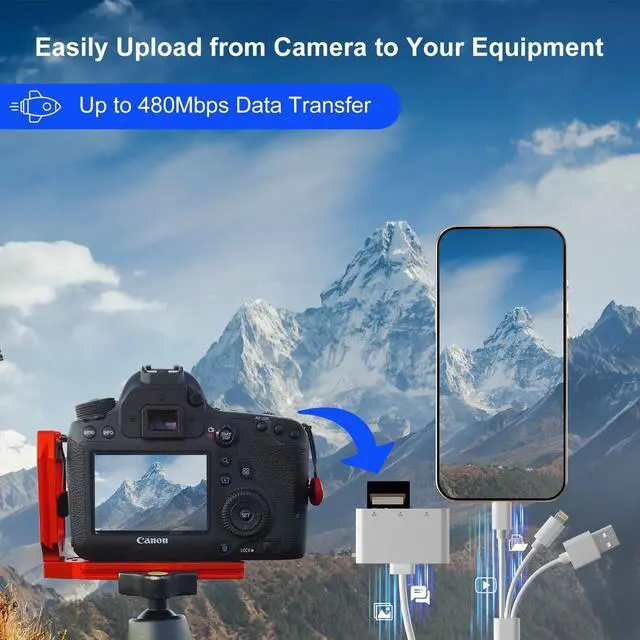
480Mbps(max) transfer speed, it swiftly moves your data, saving you time and improving productivity.
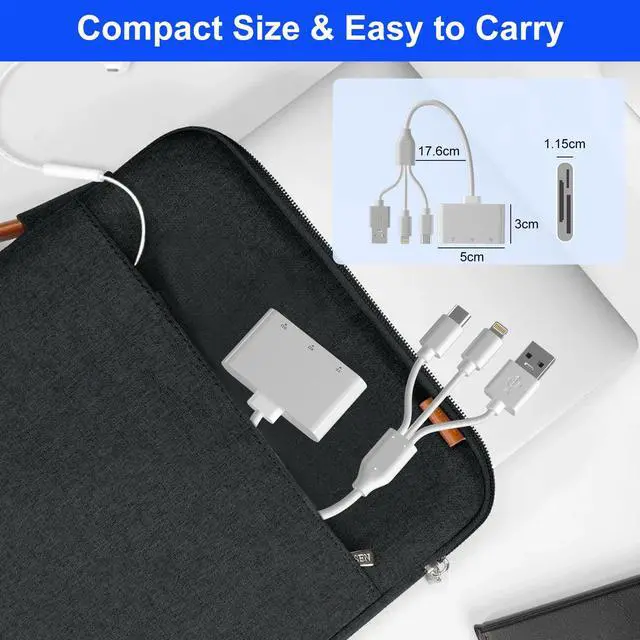
Compact design makes it easy to carry and use.
Whether on the go or process data at the office, you can easily put it in your pocket or take it with you. Perfect for photographers, studios, and one dealing with large files.

OS How to store from phone to memory card?
1.Insert the memory card into the card reader
2.Then insert the caard reader into the iPhone find the "photos" app
3.Select the picture or video you want to save to the memory card
4.Click on "save to files"
5.Find the card reader file and select Save File to complete the operation.(generally data of memory card is on “Untiled” or "NONAME", which is the name of your memory card)
OS How to store from memory card to phone?
1.Insert the memory card into the card reader
2.Then insert tthe card reader into the iPhone
3.Find the "files" app, Click"Untitled"
4.Selsct the photo or video you want to import into your iPhhone
5.Select "Save Items" to complete the ooperation

Q: Which iOS and Android versions are supported by the SD/TF/XD card reader USB adapter?
- A: The SD/TF/XD card reader supports iOS devices running iOS 9.1 and above, as well as OTG-enabled Android smartphones/computers. However, for iOS 9.2 to iOS 12.4, only one-way import of photos and videos to Apple devices and the use of USB keyboards are supported. Word, Excel, PowerPoint, PDF reading, and USB mouse operation are not supported. Full functionality is available for iOS 13 and above.
Q: Why can’t it be used on my iPad pro/air?
- A: Your external storage device must be formatted using APFS or exFAT. Encrypted drives are not supported, nor are NTFS formats. All smartphones cannot recognize NTFS format and only support FAT32 format. Please back up the files on the SD card and format the SD card to FAT32 format.
Q: Why is my Android phone not recognizing the card reader after I plug it in?
- A: This is a known limitation of the Android system. Due to the way Android handles external devices, the system only scans external storage once—when the device is first connected. If you plug in the card reader before inserting the memory card (SD, TF, or XD), your Android device may not detect the card.
To ensure proper operation on Android devices (using the Type-C connector):
- Insert the memory card first into the reader.
- Then connect the card reader to your Android phone or tablet.
- If you want to change the card, unplug the card reader, insert the new card, and then reconnect it to your device.
- This ensures your device performs a fresh scan and detects the new card properly.
This behavior is specific to Android devices. iPhones (Lightning connector) and computers (USB-A or Type-C ports) do not require this step. On those devices, you can insert or remove cards freely while the card reader is connected.
Lightning+USB C+USB A Ports 3 in 1 Port Design
- USB C port supports iPhone 16, iPhone 15, Samsung Galaxy, Huawei, tablet, laptop, Macbook and so on.
- Lightning port supports iPhone 14/14 Plus/13/13 Pro/13 Pro Max/13mini/12/12 Mini/11 Pro/11 Pro Max/ XS Max/ XS and so on.
- USB A port supports PC and so on.
Multi Card Reader
- Comes with SD/TF/XD 3 card slots.
- Supports a wide range of card types such as olympus xD-Picture card, SD/SDHC/SDXC and microSD memory card.
- This design eliminates the need for separate card readers for each card format, thus saving space.
Note: Reading two cards at the same time is not supported.
Transfers Data Quickly and is Easy to Carry
480Mbps(max) transfer speed, it swiftly moves your data, saving you time and improving productivity.
Compact design makes it easy to carry and use.
Whether on the go or process data at the office, you can easily put it in your pocket or take it with you. Perfect for photographers, studios, and one dealing with large files.
OS How to store from phone to memory card?
1.Insert the memory card into the card reader
2.Then insert the caard reader into the iPhone find the "photos" app
3.Select the picture or video you want to save to the memory card
4.Click on "save to files"
5.Find the card reader file and select Save File to complete the operation.(generally data of memory card is on “Untiled” or "NONAME", which is the name of your memory card)
OS How to store from memory card to phone?
1.Insert the memory card into the card reader
2.Then insert tthe card reader into the iPhone
3.Find the "files" app, Click"Untitled"
4.Selsct the photo or video you want to import into your iPhhone
5.Select "Save Items" to complete the ooperation
Q: Which iOS and Android versions are supported by the SD/TF/XD card reader USB adapter?
- A: The SD/TF/XD card reader supports iOS devices running iOS 9.1 and above, as well as OTG-enabled Android smartphones/computers. However, for iOS 9.2 to iOS 12.4, only one-way import of photos and videos to Apple devices and the use of USB keyboards are supported. Word, Excel, PowerPoint, PDF reading, and USB mouse operation are not supported. Full functionality is available for iOS 13 and above.
Q: Why can’t it be used on my iPad pro/air?
- A: Your external storage device must be formatted using APFS or exFAT. Encrypted drives are not supported, nor are NTFS formats. All smartphones cannot recognize NTFS format and only support FAT32 format. Please back up the files on the SD card and format the SD card to FAT32 format.
Q: Why is my Android phone not recognizing the card reader after I plug it in?
- A: This is a known limitation of the Android system. Due to the way Android handles external devices, the system only scans external storage once—when the device is first connected. If you plug in the card reader before inserting the memory card (SD, TF, or XD), your Android device may not detect the card.
To ensure proper operation on Android devices (using the Type-C connector):
- Insert the memory card first into the reader.
- Then connect the card reader to your Android phone or tablet.
- If you want to change the card, unplug the card reader, insert the new card, and then reconnect it to your device.
- This ensures your device performs a fresh scan and detects the new card properly.
This behavior is specific to Android devices. iPhones (Lightning connector) and computers (USB-A or Type-C ports) do not require this step. On those devices, you can insert or remove cards freely while the card reader is connected.