





![USB to Ethernet Adapter, QUUGE [Plug & Play] USB 2.0 to RJ45 LAN 10 100Mbps Ethernet Adapter for ...](http://c1.neweggimages.com/sellingpilot/modules/product/a-plus/e75fd29432f111491e2f72a6934a27f1a991cb45eddb5607e19402d602031dce.jpg)
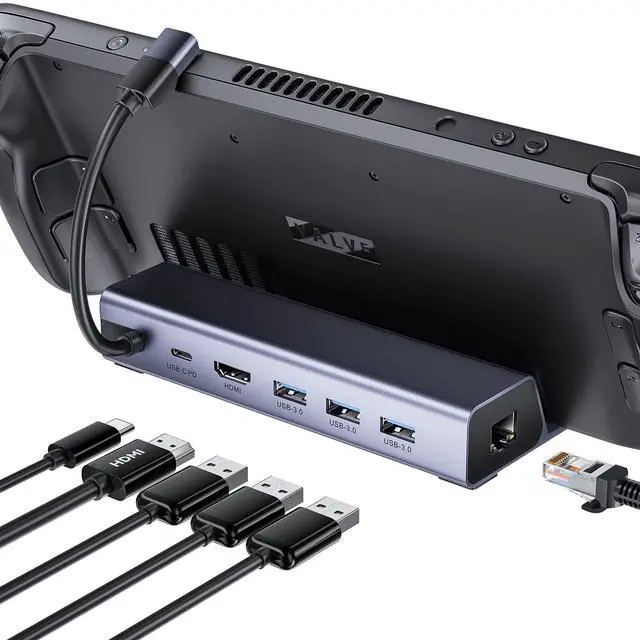
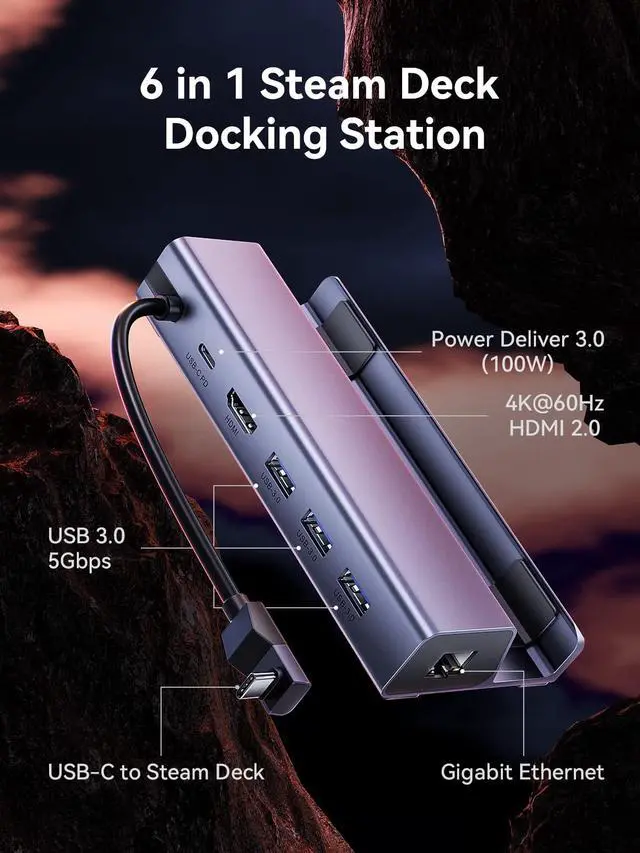
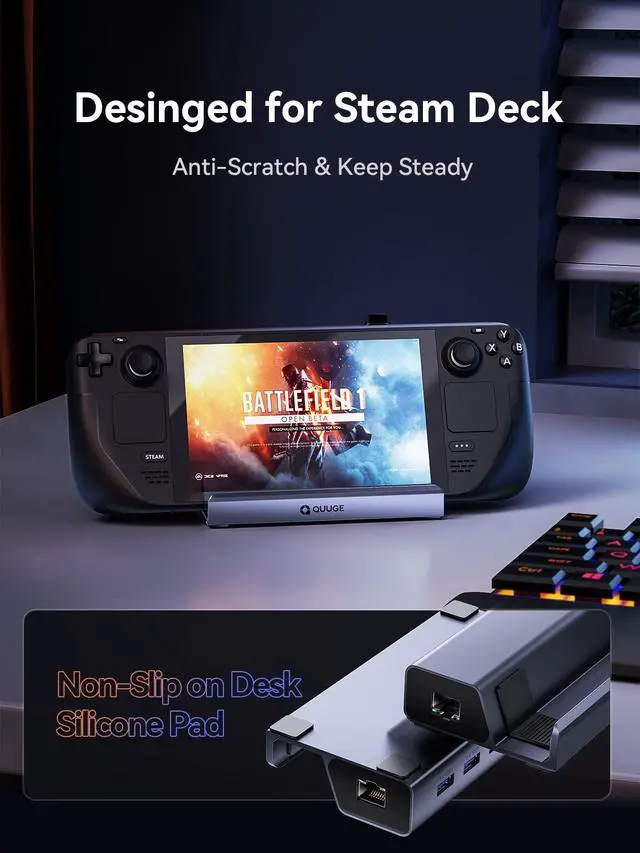
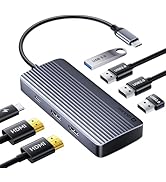
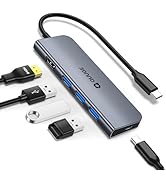
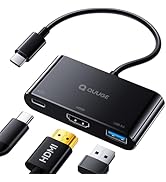
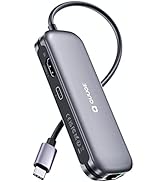
QUUGE 6 in 1 USB C Dock for Steam Deck (Gen 1)
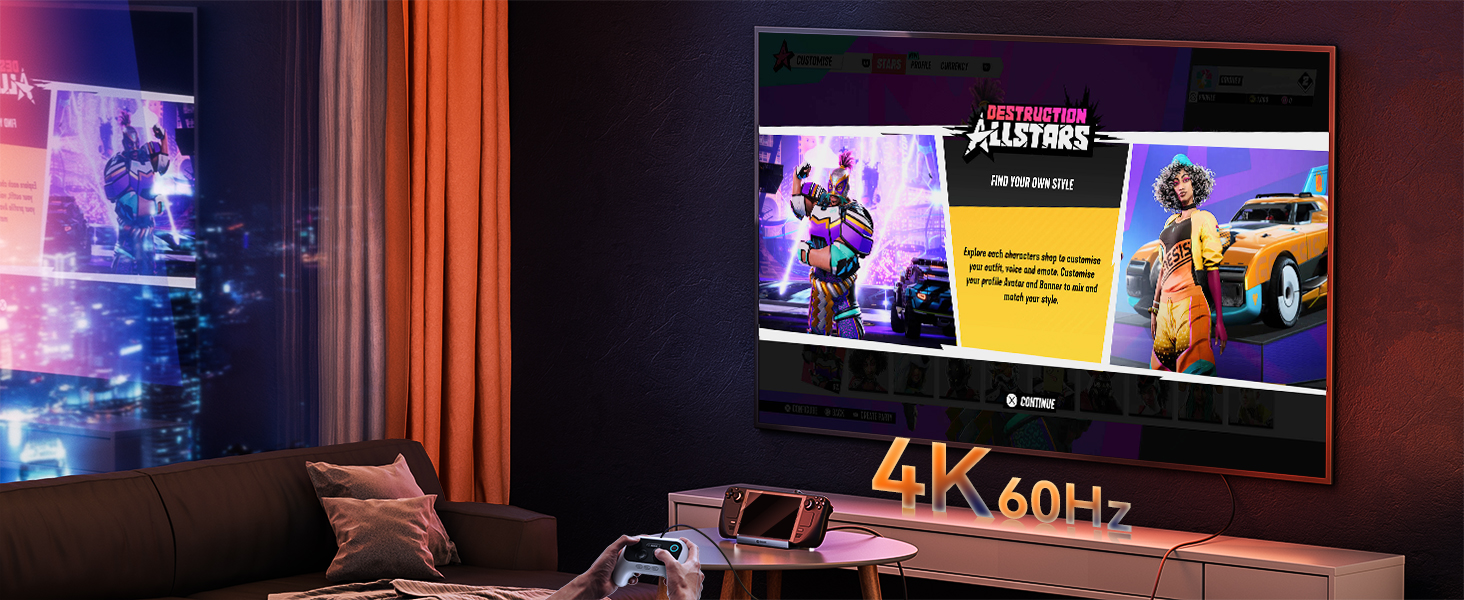
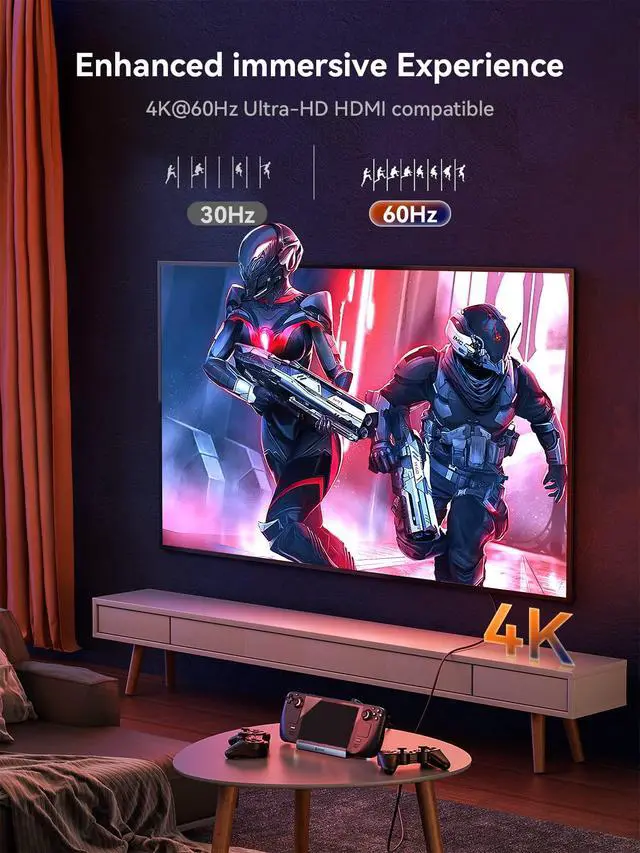
Let your screen be clear
HDMI 2.0 4K60Hz Output
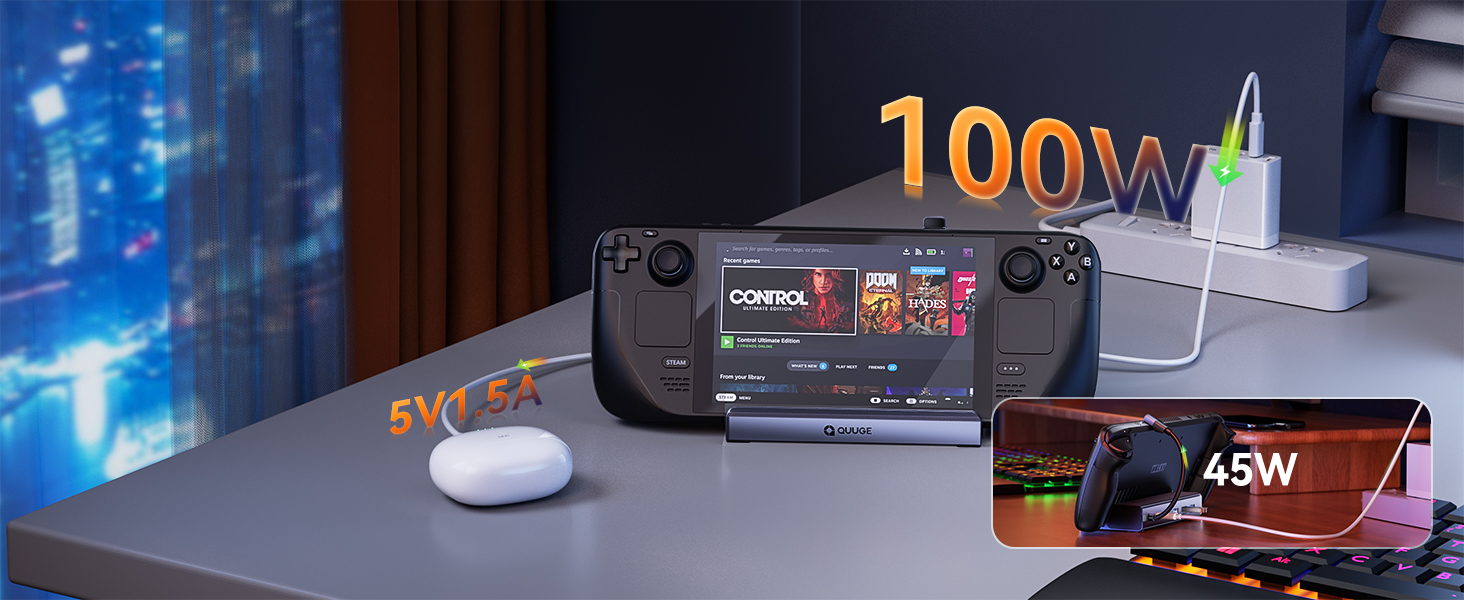
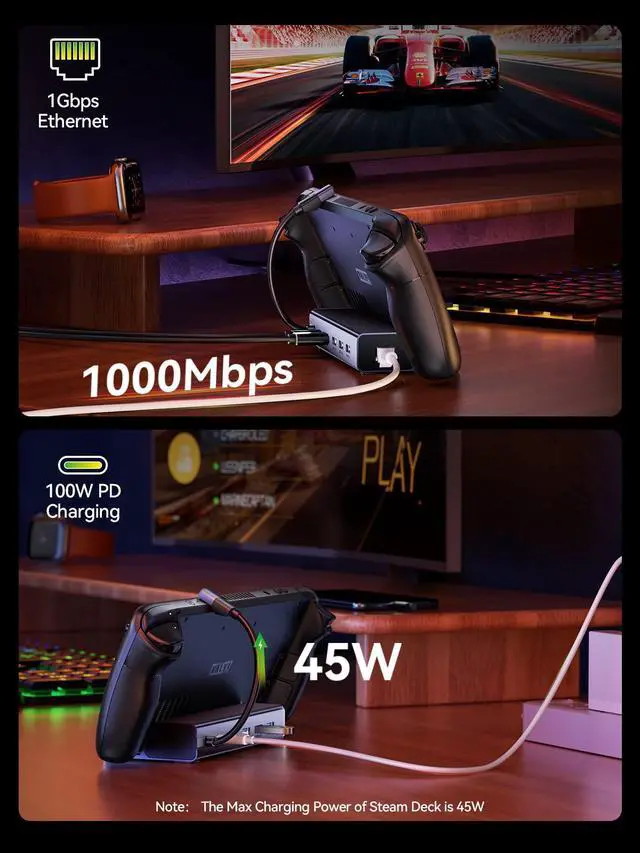
The "usb-c pd" port provides up to 45W of power for the Steam deck, and usb-A provides 5V1.5A power.
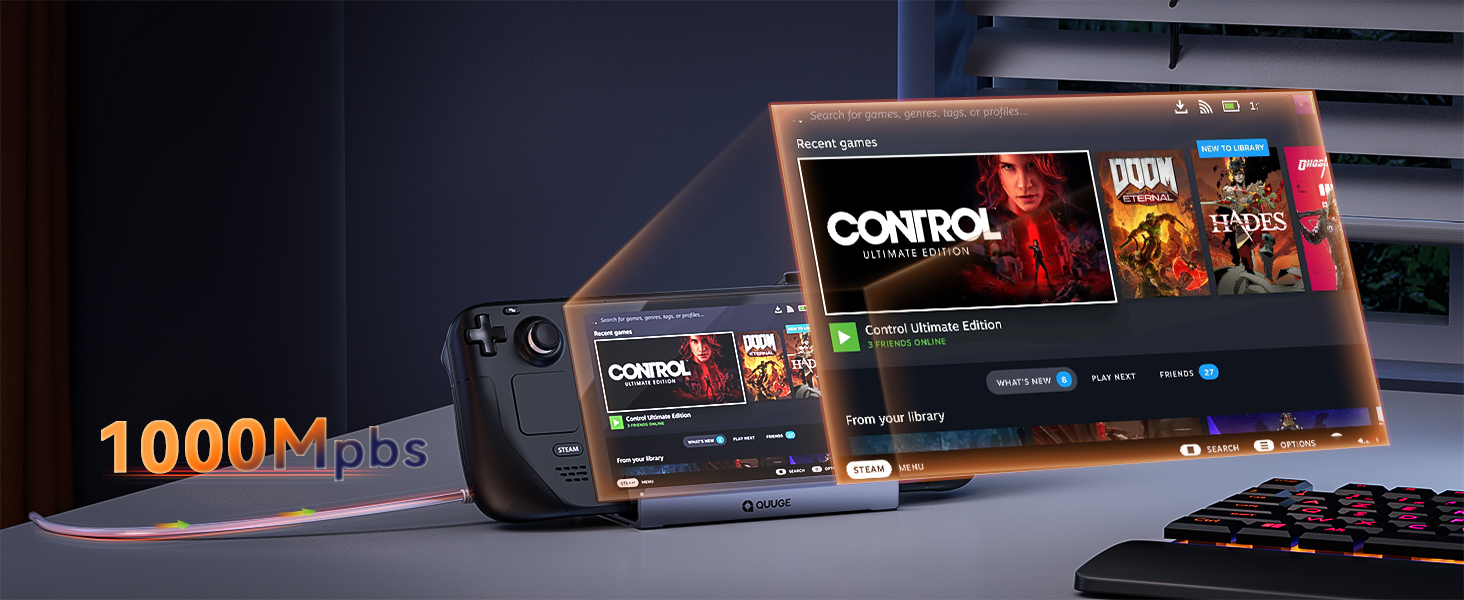
Equipped with Gigabit LAN port for faster download speed and excellent gaming experience.
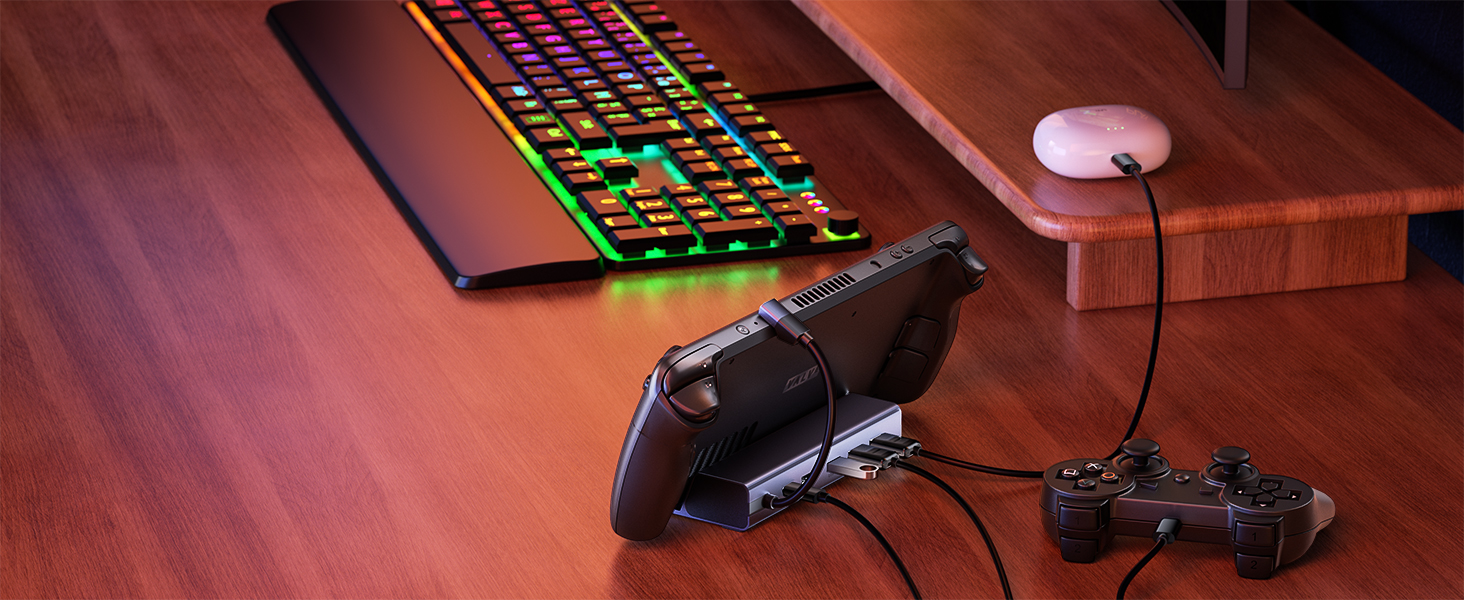
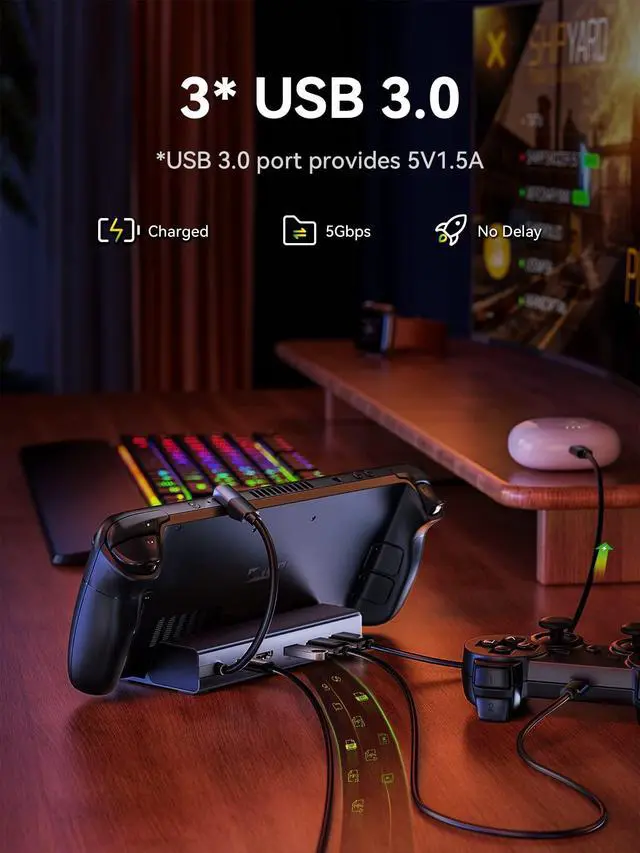
3*USB-A
Provides 5Gbps transfer speed and 5V1.5a power supply for small smart devices.
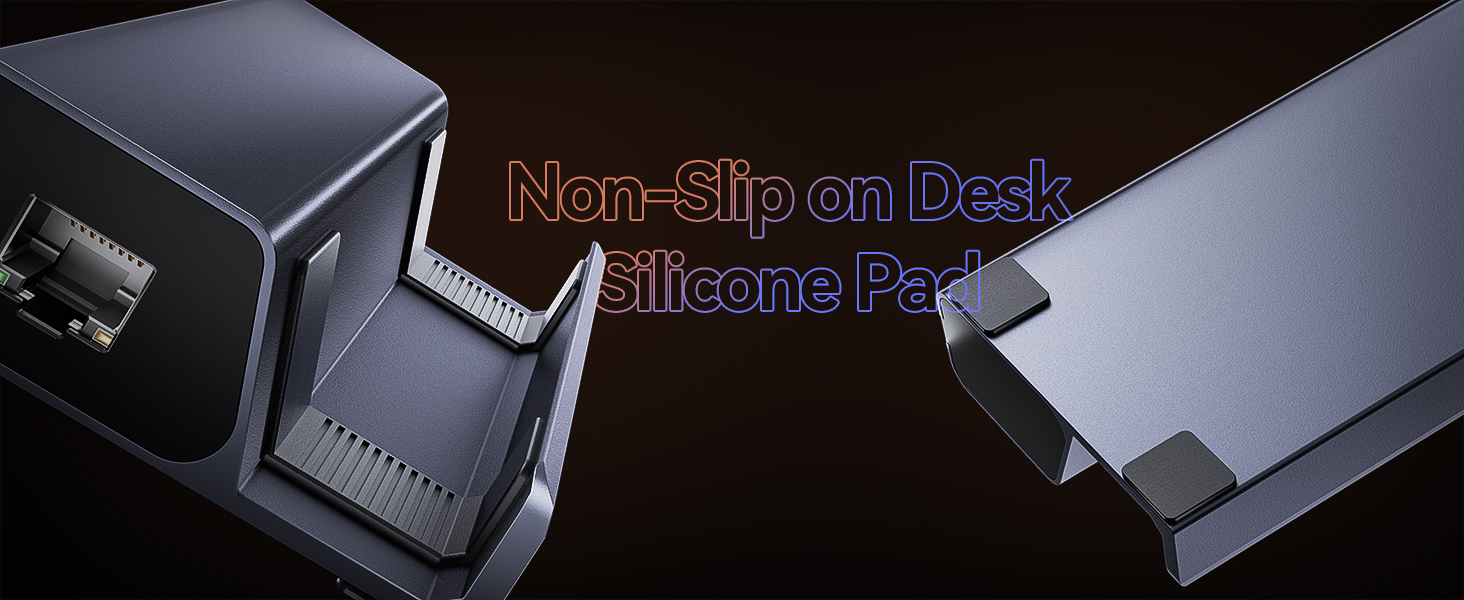
Equipped with Gigabit LAN port for faster download speed and excellent gaming experience.


For 2.4G wireless devices
When connecting 2.4G wireless devices, please use the USB extension cable to avoid frame drops or disconnection
How to ensure the output of 4K@60Hz?
Please use HDMI to HDMI 2.0/2.1 Cable shorter than 15 feet in length and use as few cable adapters as possible. Then manually debug into desktop mode and set 4K@60Hz output. You also need to set it in-game if necessary.
Why do external devices such as mouse and keyboard not work well when docking?
Please use 65W or more or the charging adapter that comes standard with your Steam deck to ensure your Steam deck has sufficient power supply.
Why does the Ethernet not work?
After the SteamOS is upgraded, you need to manually enter the desktop mode and connect the wired network. Turn off Wi-Fi, or set the wired connection priority.
Why does the TV not recognize my sound barrier and deactivate the CEC device?
In the Steam settings, click Audio, there is output, and click "External Devices", and the audio can be transmitted to the TV.
NOTE
- NOT compatible with Protective Case with Kickstand, Please ensure that the thickness of your protective case is less than 2mm.
- Please make sure that all of the following conditions are met for achieving 4K@60Hz output: [A] Used HDMI to HDMI 2.0/2.1 Cable shorter than 15 feet in length. [B] Manually debuged into desktop mode and set 4K@60Hz output. [C] Set 4K@60Hz Output it in-game.
- DO NOT use HDMI to DisplayPort cables or adapters please.
- If you need to use HDMI Switch (the 8K one is better), make sure that the HDMI cable at both ends of it does not exceed 6.6 Feet.
- We recommend that you connect your Power Adapter (45W and above) while docking your Steam Deck to ensure stable operation of the output video and external devices.
- When running big games, too high image can put a large burden on the Steam Deck, which may be not capable of handling such high power consumption. You can reduce the picture quality of the game appropriately to reduce the latency of the external device during the game.
Other QUUGE Docking Stations You Might Like
 6 in 1 Steam Deck Dock(A) |  6 in 1 Steam Deck Dock(B) |  7 in 1 Steam Deck Dock |  6 in 1 SSD Steam Dock |  8 in 1 Docking Station |  10 in 1 Docking Station |  18 in 1 Docking Station | |
|---|---|---|---|---|---|---|---|
Customer Reviews | — | — | — | — | — | — | — |
Price | — | — | — | — | — | — | — |
Extended Monitor | 1 | 1 | 1 | 1 | 1 | 2 | 4 |
Max Display Resolution | 4K@60Hz | 4K@60Hz | 4K@60Hz | 4K@60Hz | 4K@60Hz | 4K@60Hz | Single 8K@30Hz / Quad 4K@60Hz |
Max Transfer Speed | 5Gbps | 5Gbps | 5Gbps | 10Gbps | 5Gbps | 5Gbps | 10Gbps |
USB Port | 3*USB-A | 2*USB-A & 1*USB-C | 2*USB-A & 1*USB-C | 2*USB-A & 1*USB-C | 2*USB-A & 1*USB-C | 2*USB-A & 2*USB-C | 2*USB-A & 3*USB-C |
Network Port | RJ45 | RJ45 | RJ45 | RJ45 | RJ45 | RJ45 | RJ45 |
Power Supply | Not Include | Not Include | Not Include | Not Include | Not Include | Not Include | Include a 150W DC Power Supply |
QUUGE 6 in 1 USB C Dock for Steam Deck (Gen 1)
Let your screen be clear
HDMI 2.0 4K60Hz Output
The "usb-c pd" port provides up to 45W of power for the Steam deck, and usb-A provides 5V1.5A power.
Equipped with Gigabit LAN port for faster download speed and excellent gaming experience.
3*USB-A
Provides 5Gbps transfer speed and 5V1.5a power supply for small smart devices.
Equipped with Gigabit LAN port for faster download speed and excellent gaming experience.


When connecting 2.4G wireless devices, please use the USB extension cable to avoid frame drops or disconnection
How to ensure the output of 4K@60Hz?
Please use HDMI to HDMI 2.0/2.1 Cable shorter than 15 feet in length and use as few cable adapters as possible. Then manually debug into desktop mode and set 4K@60Hz output. You also need to set it in-game if necessary.
Why do external devices such as mouse and keyboard not work well when docking?
Please use 65W or more or the charging adapter that comes standard with your Steam deck to ensure your Steam deck has sufficient power supply.
Why does the Ethernet not work?
After the SteamOS is upgraded, you need to manually enter the desktop mode and connect the wired network. Turn off Wi-Fi, or set the wired connection priority.
Why does the TV not recognize my sound barrier and deactivate the CEC device?
In the Steam settings, click Audio, there is output, and click "External Devices", and the audio can be transmitted to the TV.
NOTE
- NOT compatible with Protective Case with Kickstand, Please ensure that the thickness of your protective case is less than 2mm.
- Please make sure that all of the following conditions are met for achieving 4K@60Hz output: [A] Used HDMI to HDMI 2.0/2.1 Cable shorter than 15 feet in length. [B] Manually debuged into desktop mode and set 4K@60Hz output. [C] Set 4K@60Hz Output it in-game.
- DO NOT use HDMI to DisplayPort cables or adapters please.
- If you need to use HDMI Switch (the 8K one is better), make sure that the HDMI cable at both ends of it does not exceed 6.6 Feet.
- We recommend that you connect your Power Adapter (45W and above) while docking your Steam Deck to ensure stable operation of the output video and external devices.
- When running big games, too high image can put a large burden on the Steam Deck, which may be not capable of handling such high power consumption. You can reduce the picture quality of the game appropriately to reduce the latency of the external device during the game.
Other QUUGE Docking Stations You Might Like
6 in 1 Steam Deck Dock(A) | 6 in 1 Steam Deck Dock(B) | 7 in 1 Steam Deck Dock | 6 in 1 SSD Steam Dock | 8 in 1 Docking Station | 10 in 1 Docking Station | 18 in 1 Docking Station |
|---|---|---|---|---|---|---|
| Customer Reviews | ||||||
| — | — | — | — | — | — | — |
| Price | ||||||
| — | — | — | — | — | — | — |
| Extended Monitor | ||||||
| 1 | 1 | 1 | 1 | 1 | 2 | 4 |
| Max Display Resolution | ||||||
| 4K@60Hz | 4K@60Hz | 4K@60Hz | 4K@60Hz | 4K@60Hz | 4K@60Hz | Single 8K@30Hz / Quad 4K@60Hz |
| Max Transfer Speed | ||||||
| 5Gbps | 5Gbps | 5Gbps | 10Gbps | 5Gbps | 5Gbps | 10Gbps |
| USB Port | ||||||
| 3*USB-A | 2*USB-A & 1*USB-C | 2*USB-A & 1*USB-C | 2*USB-A & 1*USB-C | 2*USB-A & 1*USB-C | 2*USB-A & 2*USB-C | 2*USB-A & 3*USB-C |
| Network Port | ||||||
| RJ45 | RJ45 | RJ45 | RJ45 | RJ45 | RJ45 | RJ45 |
| Power Supply | ||||||
| Not Include | Not Include | Not Include | Not Include | Not Include | Not Include | Include a 150W DC Power Supply |
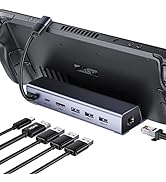
Multiport USB C Hub
![USB to Ethernet Adapter, QUUGE [Plug & Play] USB 2.0 to RJ45 LAN 10 100Mbps Ethernet Adapter for ...](//c1.neweggimages.com/sellingpilot/modules/product/a-plus/e75fd29432f111491e2f72a6934a27f1a991cb45eddb5607e19402d602031dce.jpg)
Multiport Adapter
