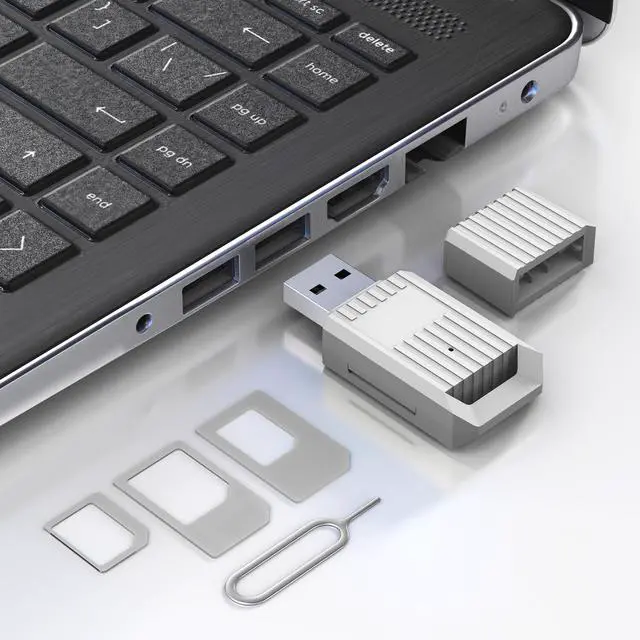
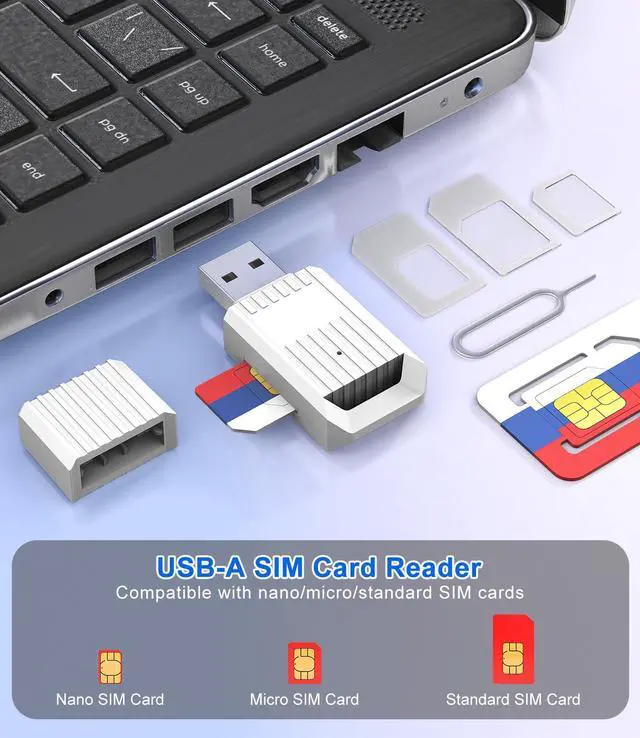
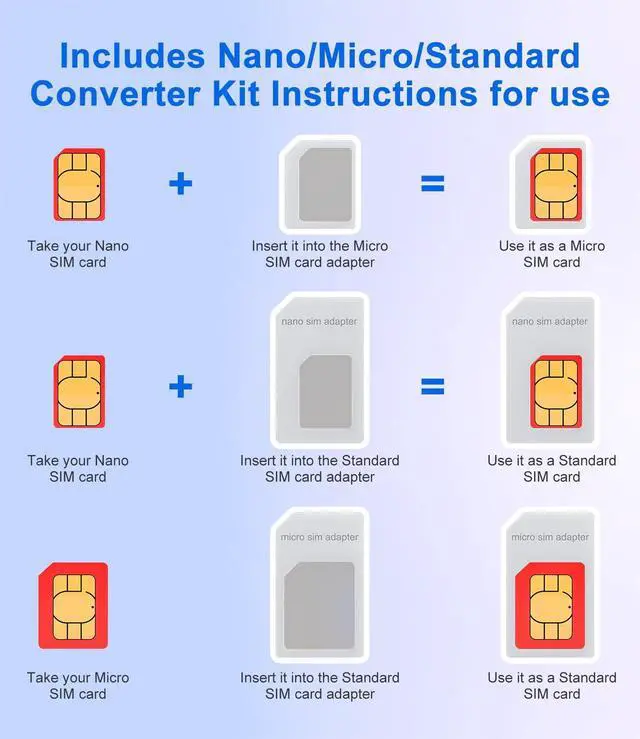
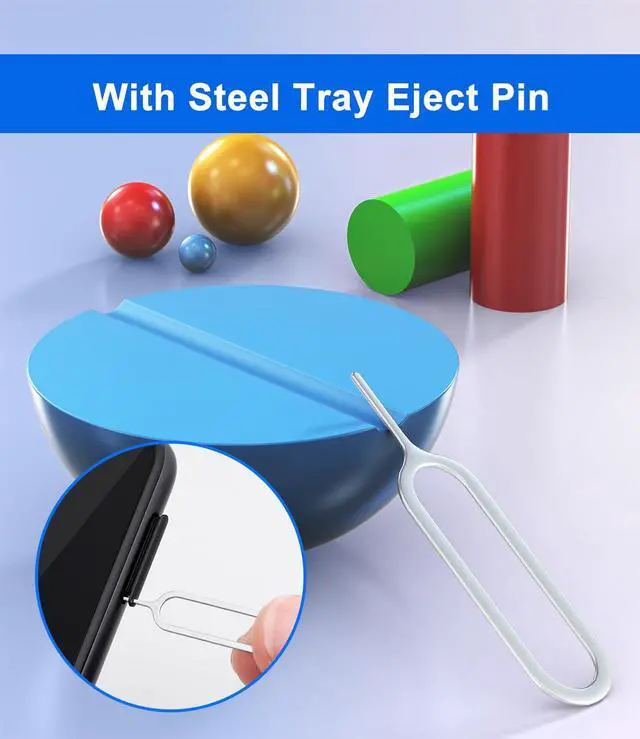
SIM Card Reader - Nano Sim Card Adapter Kit with Eject Pin - Standard/Micro/Nano Sim Card Readers - USB A to Sim Card Adapter for Edit and Read Messages/Contacts - SIM Adapters for PC Laptop Windows
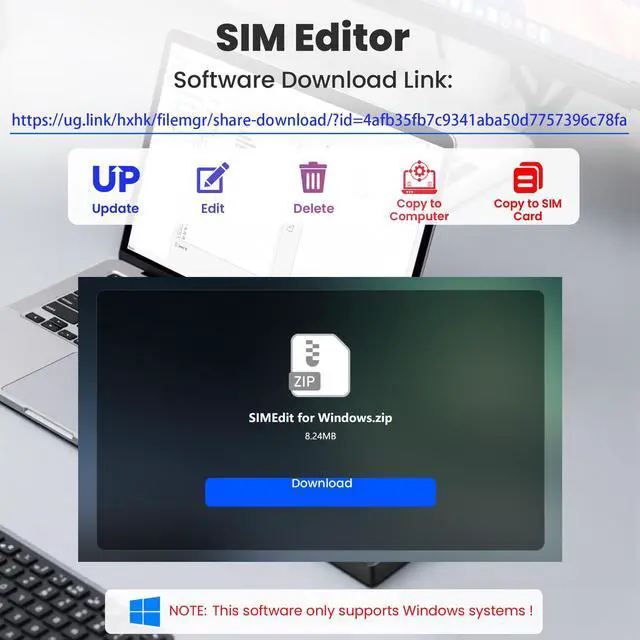
Notice: This SIM card reader is plug-and-play. However, you will need to download a SIM editor to your computer. You can download a SIM editor via the link in image 4, or you can search for one on Google or other websites. Our reader is widely compatible with various SIM editors. If you still cannot obtain an editor, you can contact the seller's customer service to obtain the installation package.
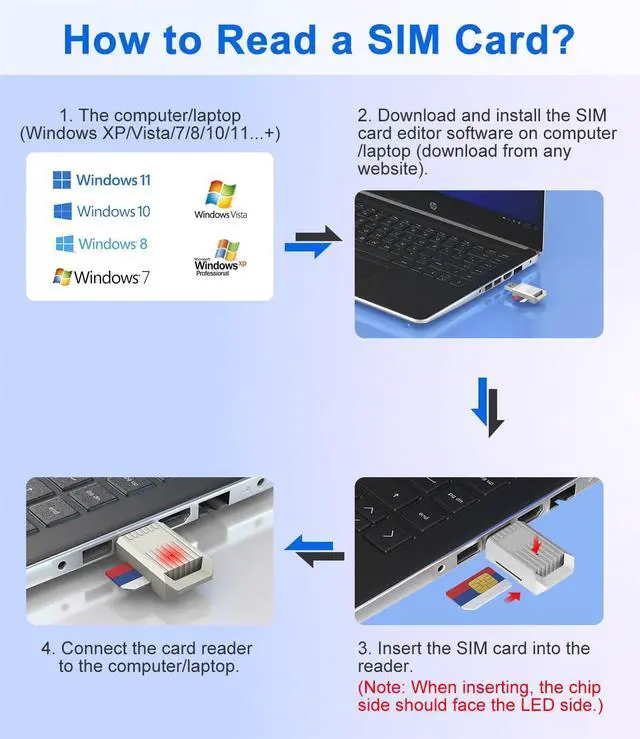
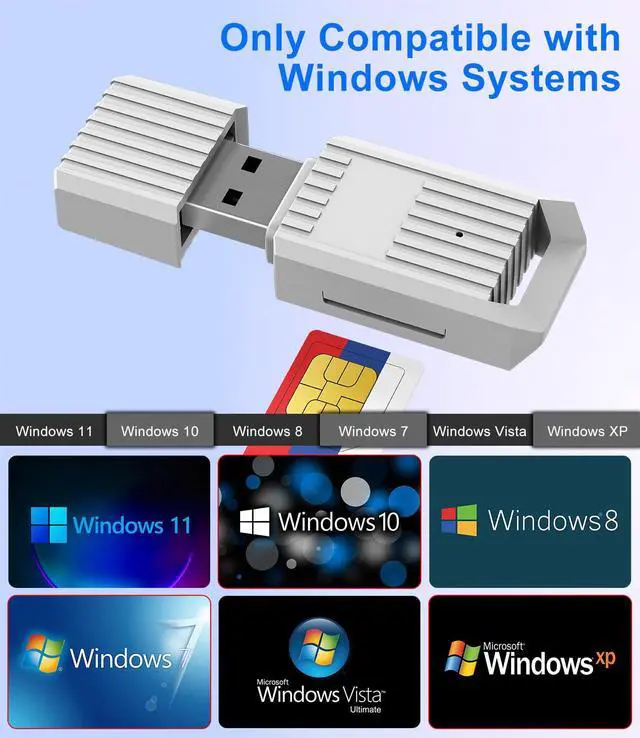
USB-A SIM Card Reader for Windows Engineered exclusively for Windows operating systems, this reader offers native plug-and-play support from Windows XP through Windows 11. Simply insert the SIM card, connect to a USB-A port, and manage contacts, SMS, and SIM toolkit data directly via compatible PC software (e.g., SIM Manager/Editor Software, which is widely available online). Note: This device does not support Android, macOS, Chrome OS, or iOS.
Professional Tool for SIM Data Management & BackupIdeal for IT technicians, mobile repair shops, and frequent travelers who need to: Back up phonebook contacts and SMS from SIM cards to a PC. Edit/add or delete SIM-stored contacts in bulk using a full keyboard and mouse. Read SIM card identifiers (IMSI, ICCID) for inventory or troubleshooting. Retrieve PUK codes or view network-related SIM data via compatible tools. Archive legacy SIM card data before deactivating old numbers.
+
+
Overview
Specs
Reviews
Any questions? Our AI mode will help you find out quickly.
Try me now
USB C Standard/Micro/Nano SIM Card Reader
Easy Setup in Minutes
Step 1
Insert your Standard SIM card into the reader's slot
Step 2
Plug the reader into an available USB-A port on your Windows computer/PC/Laptop
Step 3
Install your preferred SIM editor software, which is widely available online(OR You can download a SIM editor via the link in image 4); Select SIM editing software; Right click mouse; Select Run as administrator
Step 4
SIM card page; Select the contacts to be copied; Click the right navigation symbol will copy the selected contacts to the PC page; Select the contacts to be copied on the PC page; Click Change
Step 5
Copy the bottom file saving path
Step 6
Open the file manager; Paste the save path of the file you just copied; Press Enter; The page that opens is the mobile phone address book that has been copied to the PC/Laptop.
USB C Standard/Micro/Nano SIM Card Reader
Easy Setup in Minutes
Step 1
Insert your Standard SIM card into the reader's slot
Step 2
Plug the reader into an available USB-A port on your Windows computer/PC/Laptop
Step 3
Install your preferred SIM editor software, which is widely available online(OR You can download a SIM editor via the link in image 4); Select SIM editing software; Right click mouse; Select Run as administrator
Step 4
SIM card page; Select the contacts to be copied; Click the right navigation symbol will copy the selected contacts to the PC page; Select the contacts to be copied on the PC page; Click Change
Step 5
Copy the bottom file saving path
Step 6
Open the file manager; Paste the save path of the file you just copied; Press Enter; The page that opens is the mobile phone address book that has been copied to the PC/Laptop.
SIM Card Reader - Nano Sim Card Adapter Kit with Eject Pin - Standard/Micro/Nano Sim Card Readers - USB A to Sim Card Adapter for Edit and Read Messages/Contacts - SIM Adapters for PC Laptop Windows
Learn more about the Detailed Specifications
Additional Information
First Listed on Newegg
May 28, 2026
There are no reviews yet.
Do you own this product?
Warranty & Returns
Warranty, Returns, And Additional Information
Warranty
Please contact the Seller directly for warranty information. Warranty information may also be found on the Manufacturer's website.