


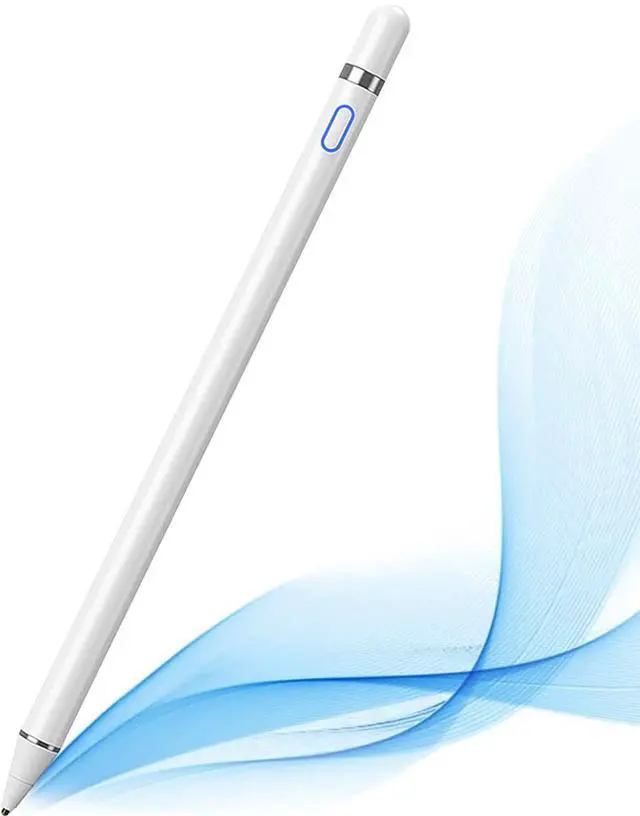

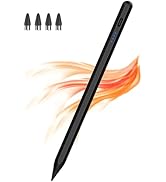
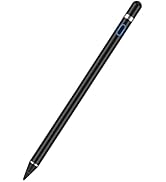
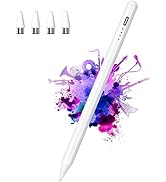
Active Digital Stylus Pen for Touchscreen, Stylus Pencil for Apple iPad mini/Pro/Air, Samsung, iPhone, Android and Most Phone & Tablet, 1.5mm Fine Point Rechargeable Pens - White
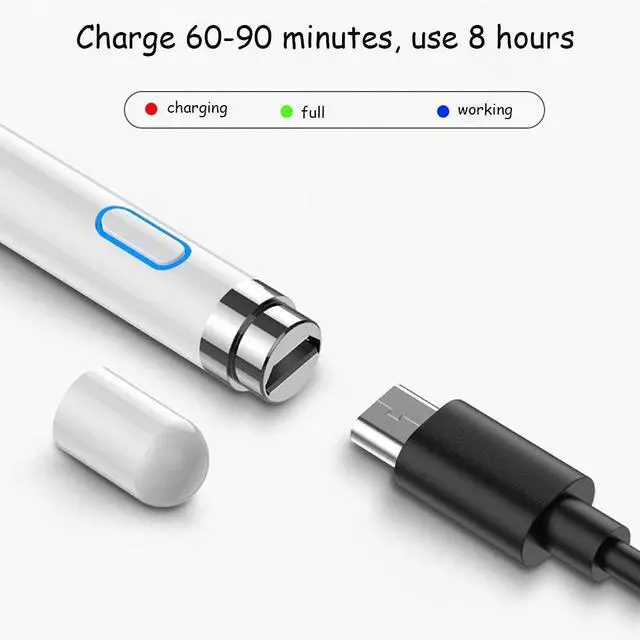
Great FeatureThis iPad active pens built-in battery provides 8 hours active use while it's fully charged with Micro USB in 60 minutes. Charging input is 5V.
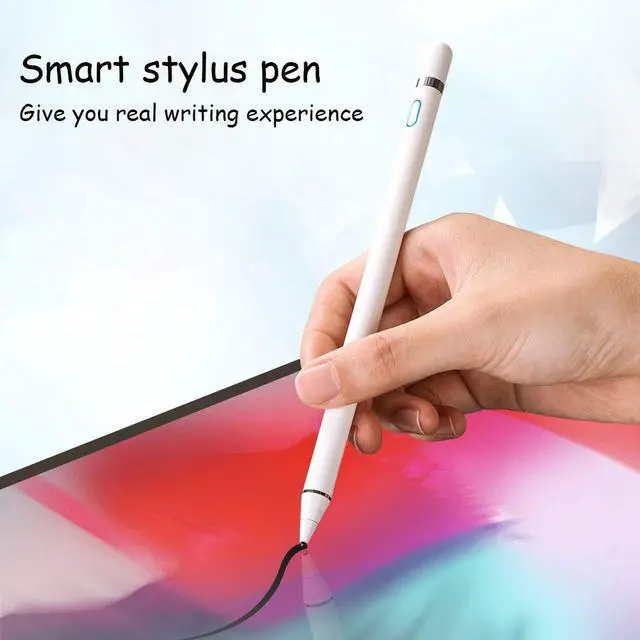
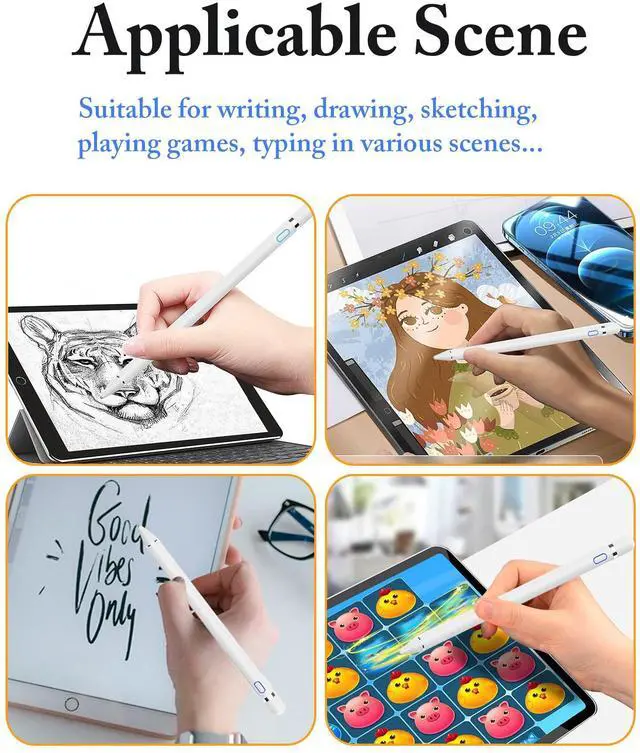
About Active StylusFine, Light, Brief stylish design with 178mm length, 16.8g weight, 1.5mm tip for smoothly writing and drawing. More sensitive with long time wearing at best performance.Best Stylus for artist,journalist,teacher and students etc.
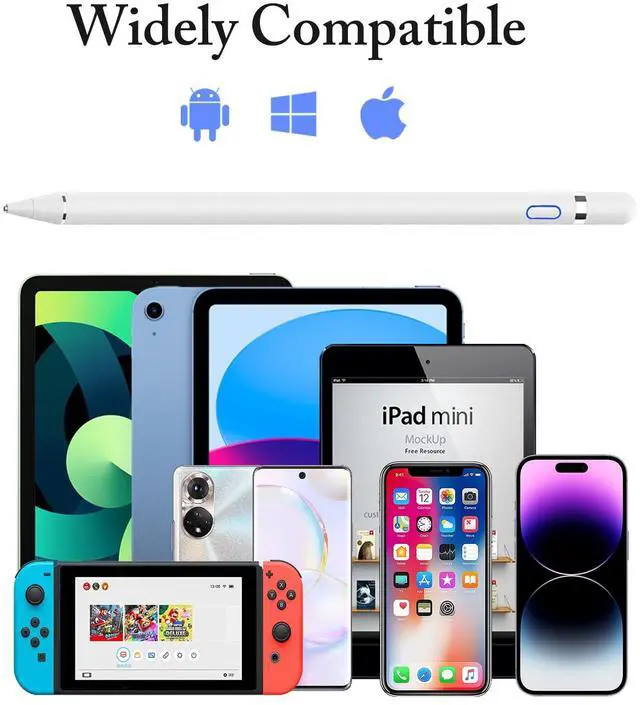
Stylus Pens for Touch Screen Devices Our rechargeable active stylus pens are specially design for most touch screen devices including: iPad /iPad 2/new iPad 3/iPad4/iPad Pro/iPad Mini/ iPad Mini 2/iPad Mini 3 /iPad Mini 4 and other most popular tablets, smartphones.
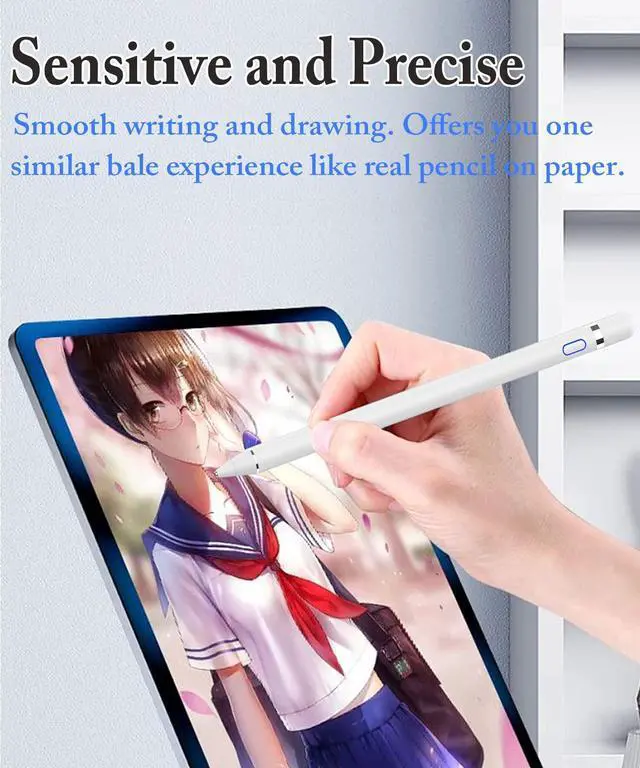
Precise Point Control These digital stylus pens is sensitive to pressure and tilt, so you can easily vary line weight, create subtle shading, it makes your iPad Pro even more powerful and can help you be more creative.
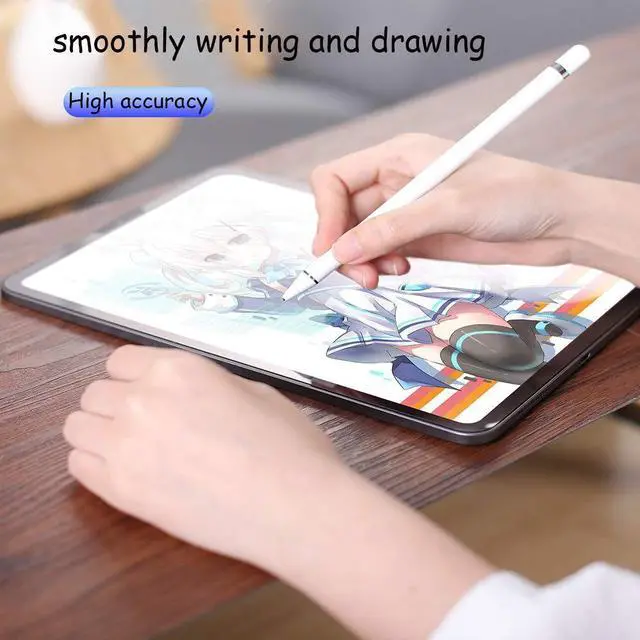
User-Friendly DesignThis iPad Pencil can be written directly on iPad or iPhone, just pressing the button once (Blue light on) and you can draw or write on your touch screen devices.
+
+
Overview
Specs
Reviews
Any questions? Our AI beta will help you find out quickly.
At DOGAIN, we believe that the most meaningful gains in life come from intentional actions. Celebrate of the journey with DOGAIN towards a better, more fulfilled life.
Please try to set up your iPad as follows: info--->Apple Pencil--->Disconnect--->Start writing to connect
Doesn't work on Noteshelf?
Please try to set up your iPad as follows:Setting--->Stylus--->Enable
Doesn't work on Goodnotes?
Please try to set up your iPad as follows: Stylus&Palm rejection--->Smart Stytus--->None
Doesn't work on Notes?
Please try to set up your iPad as follows: Setting--->Draw with finger
Can't write in Procreate?
Please try to set up your iPad as follows:Setting---> Gesture controls--->General--->Disable Touch actions (Disconnect the Bluetooth connection between the active pen/Apple pencil and iPad before using the stylus)
Can't write in Sketches?
Please try to set up your iPad as follows:Setting--->Stylus--->Enable(Disconnect the Bluetooth connection between the active pen/Apple pencil and iPad before using the stylus)
Can't write in Sketchbook?
Please try to set up your iPad as follows:Setting--->Preferences--->Pen Connection--->Pen--->None(Disconnect the Bluetooth connection between the active pen/Apple pencil and iPad before using the stylus)
Can't write in Vectornator?
Please try to set up your iPad as follows: Setting--->Input--->Draw only with pencil(Disconnect the Bluetooth connection between the active pen/Apple pencil and iPad before using the stylus)
Can't write in Onenote?
Please try to set up your iPad as follows: Draw--->Drawing Mode--->Draw with touch(Disconnect the Bluetooth connection between the active pen/Apple pencil and iPad before using the stylus)
S-Note on Samsung
[?] icon in the upper right corner--->“Settings”---> turn off “S Pen Mode only”
Jnotes/ Yun-Note on Huawei
[?] icon in the upper right corner --->“Settings”---> open “Finger writing”, and then select a pen/brush to write.
Accessibility functions
Quick launch and gestures --->Screen capture and screen recording (Screen capture (knuckle/three-finger slide) and screen recording must be turned off, otherwise it will affect the misoperation of the software)
Some APP Settings
Doesn't work on Notability?
Please try to set up your iPad as follows: info--->Apple Pencil--->Disconnect--->Start writing to connect
Doesn't work on Noteshelf?
Please try to set up your iPad as follows:Setting--->Stylus--->Enable
Doesn't work on Goodnotes?
Please try to set up your iPad as follows: Stylus&Palm rejection--->Smart Stytus--->None
Doesn't work on Notes?
Please try to set up your iPad as follows: Setting--->Draw with finger
Can't write in Procreate?
Please try to set up your iPad as follows:Setting---> Gesture controls--->General--->Disable Touch actions (Disconnect the Bluetooth connection between the active pen/Apple pencil and iPad before using the stylus)
Can't write in Sketches?
Please try to set up your iPad as follows:Setting--->Stylus--->Enable(Disconnect the Bluetooth connection between the active pen/Apple pencil and iPad before using the stylus)
Can't write in Sketchbook?
Please try to set up your iPad as follows:Setting--->Preferences--->Pen Connection--->Pen--->None(Disconnect the Bluetooth connection between the active pen/Apple pencil and iPad before using the stylus)
Can't write in Vectornator?
Please try to set up your iPad as follows: Setting--->Input--->Draw only with pencil(Disconnect the Bluetooth connection between the active pen/Apple pencil and iPad before using the stylus)
Can't write in Onenote?
Please try to set up your iPad as follows: Draw--->Drawing Mode--->Draw with touch(Disconnect the Bluetooth connection between the active pen/Apple pencil and iPad before using the stylus)
S-Note on Samsung
[?] icon in the upper right corner--->“Settings”---> turn off “S Pen Mode only”
Jnotes/ Yun-Note on Huawei
[?] icon in the upper right corner --->“Settings”---> open “Finger writing”, and then select a pen/brush to write.
Accessibility functions
Quick launch and gestures --->Screen capture and screen recording (Screen capture (knuckle/three-finger slide) and screen recording must be turned off, otherwise it will affect the misoperation of the software)
Do boldly,Gain remarkably
DOGAIN: Do with Devotion, Gain with Connection
At DOGAIN, we believe that the most meaningful gains in life come from intentional actions. Celebrate of the journey with DOGAIN towards a better, more fulfilled life.
DOGAIN Stylus Pen
Active Digital Stylus Pen for Touchscreen, Stylus Pencil for Apple iPad mini/Pro/Air, Samsung, iPhone, Android and Most Phone & Tablet, 1.5 mm Fine Point Rechargeable Pens - White
Learn more about the Detailed Specifications
General
Brand
DOGAIN
Model
Part Number
KZ-02
General
Color
White
Specification
Length
17.8 in x 0.9 in x 17.8 in
Additional Information
First Listed on Newegg
April 10, 2026
There are no reviews yet.
Do you own this product?
Warranty & Returns
Warranty, Returns, And Additional Information
Warranty
Please contact the Seller directly for warranty information. Warranty information may also be found on the Manufacturer's website.