






Soundodo is a group of innovative, professional industrial designers, aesthetic elites, audio masters composed of the team
Our passion for sound and innovation drives us to create high quality headphone transmitters kits and Bluetooth car adapter Kits
Our team of experts ensures the highest standards of the product to ensure that it aligns with the brand's values and prioritizes user experience and technology.
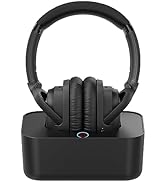
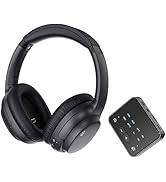
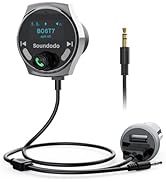
tv earbuds and car adpter kits
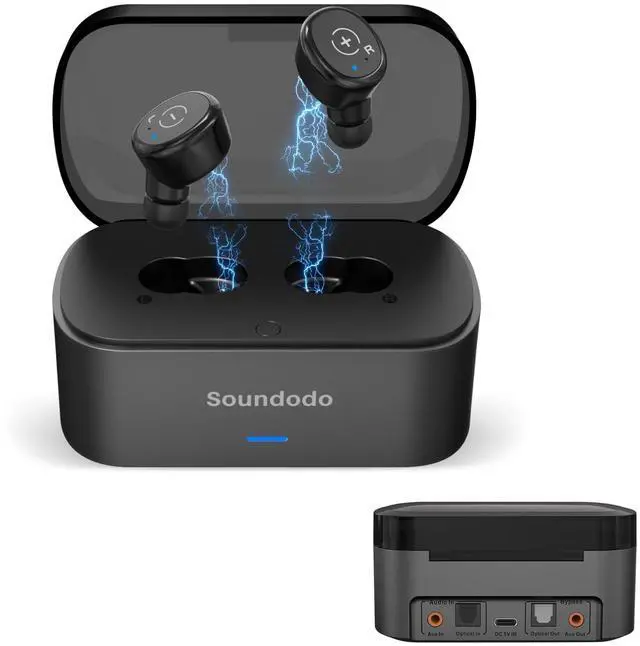
Soundodo E3Pro--Wireless earbuds for TV Watching

Below are the types of TVs and amplifiers that are and are not compatible. Please read the special notes.
COMPATIBLE DEVICES

Regarding the compatibility issue of E3Pro:
It can only be used when the TV has an optical AUX/RCA out interface and is connected to the corresponding jack on the E3Pro. If the home TV does not have the above interfaces or only has an HDMI interface, it cannot be used.

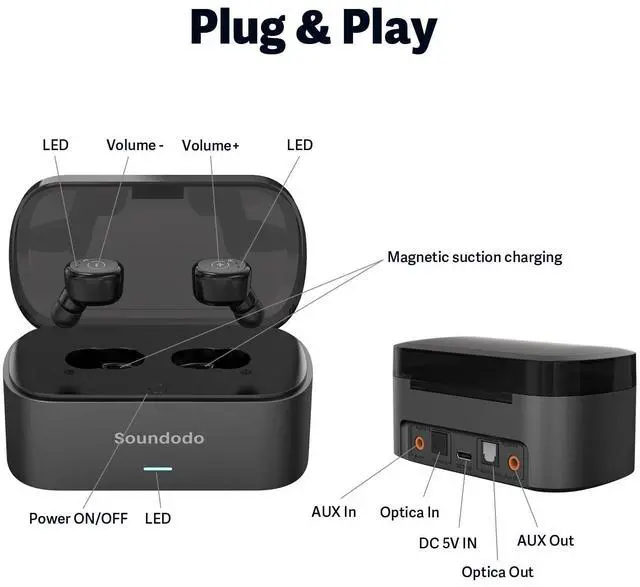
Volume adjustment: Locate the earplugs. There are left and right markings on them, which can control the volume of the headphones. Please read them carefully

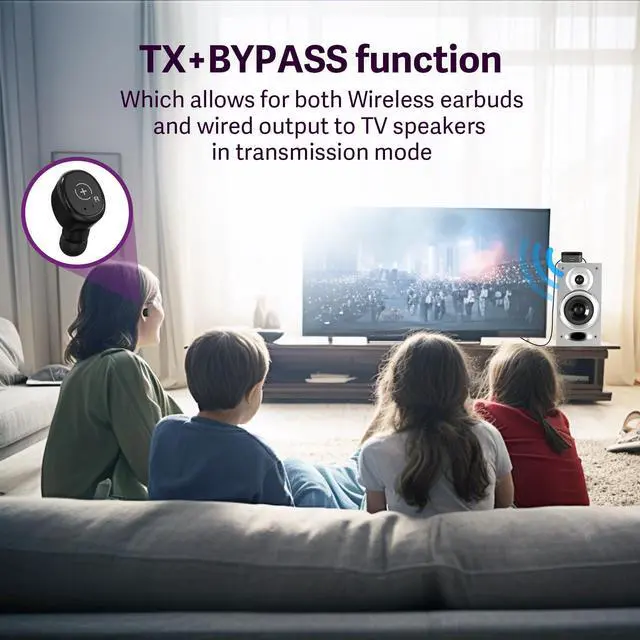
Using the earbuds and E3Pro Bypass simultaneously
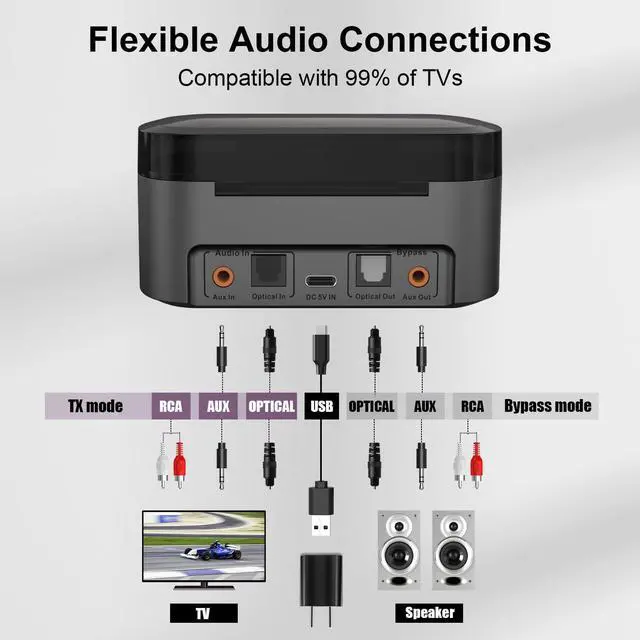
- This device supports both wireless and wired use at the same time, after connecting the TV to the transmitter, you can continue to choose optical or AUX/RCA 3.5mm cable to connect the transmitter audio output to the stereo audio input.

Three options to connect the TV and amplifier
- If Option A is selected, use the same two AUX cables, one connecting the E3Pro to the TV and the other connecting the E3Pro to the power amplifier. The same is true for option B and C
- Only one AUX/RCA 3.5mm/optical cable in product box and another identical cable needs to be prepared by yourself

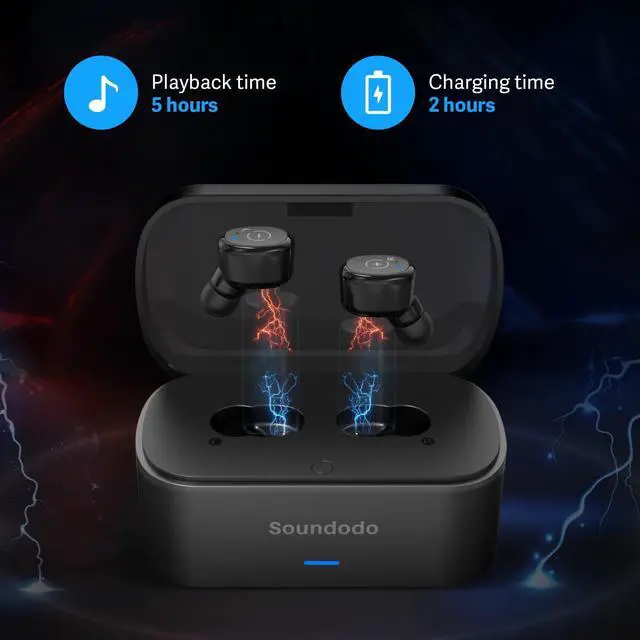
Earbuds Battery
Note:
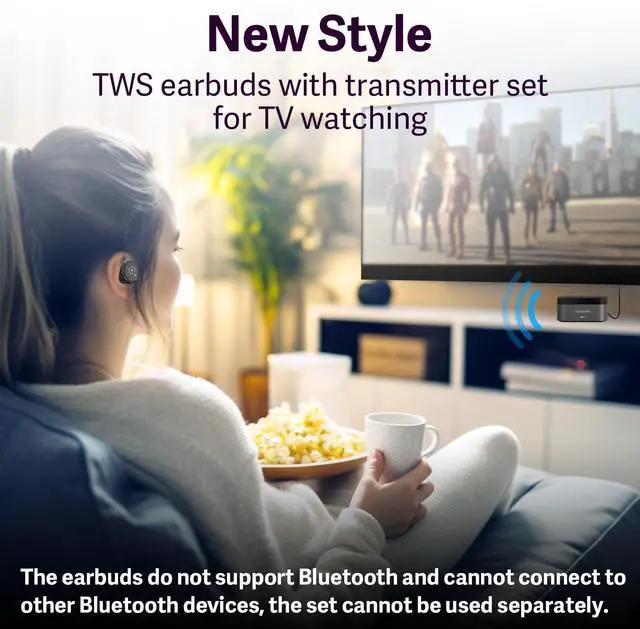
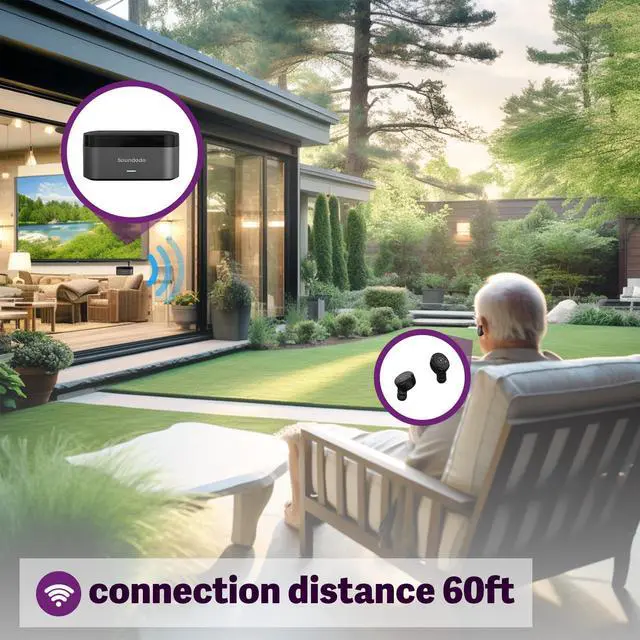
- The wireless headphones and transmitter are connected via 2.4G wireless (NOT Bluetooth).
- It's only takes 2 hours to fully charge and supports charging while using.

Optical Setting
Note:
- Please connect E3Pro to the Audio Output port of the TV.
- If using the optical port, the TV must be set to PCM or Stereo. Does not support Dolby/DTS input.
- Each TV model has a sound setting, but the names or locations may vary. Please follow the steps mentioned above.
Steps are as Follows

1. Plug
Plug the transmitter into a power source and connect to your TV’s audio output port.

2. Pair
After plugging in the power supply, the earbuds and transmitter pair automatically, no additional operations are required.

3. TV Settings
If you use optical cable to connect to your TV, change your TV audio settings to “PCM / Stereo”. If you use 3.5mm cable, no settings are required.

4. Play
Put on your headphones and enjoy the best audio-visual feast.

Soundodo E3Pro--Wireless earbuds for TV Watching

Below are the types of TVs and amplifiers that are and are not compatible. Please read the special notes.
COMPATIBLE DEVICES

Regarding the compatibility issue of E3Pro:
It can only be used when the TV has an optical AUX/RCA out interface and is connected to the corresponding jack on the E3Pro. If the home TV does not have the above interfaces or only has an HDMI interface, it cannot be used.

Volume adjustment: Locate the earplugs. There are left and right markings on them, which can control the volume of the headphones. Please read them carefully
Using the earbuds and E3Pro Bypass simultaneously
- This device supports both wireless and wired use at the same time, after connecting the TV to the transmitter, you can continue to choose optical or AUX/RCA 3.5mm cable to connect the transmitter audio output to the stereo audio input.
Three options to connect the TV and amplifier
- If Option A is selected, use the same two AUX cables, one connecting the E3Pro to the TV and the other connecting the E3Pro to the power amplifier. The same is true for option B and C
- Only one AUX/RCA 3.5mm/optical cable in product box and another identical cable needs to be prepared by yourself
Earbuds Battery
Note:
- The wireless headphones and transmitter are connected via 2.4G wireless (NOT Bluetooth).
- It's only takes 2 hours to fully charge and supports charging while using.
Optical Setting
Note:
- Please connect E3Pro to the Audio Output port of the TV.
- If using the optical port, the TV must be set to PCM or Stereo. Does not support Dolby/DTS input.
- Each TV model has a sound setting, but the names or locations may vary. Please follow the steps mentioned above.
Steps are as Follows
1. Plug
Plug the transmitter into a power source and connect to your TV’s audio output port.
2. Pair
After plugging in the power supply, the earbuds and transmitter pair automatically, no additional operations are required.
3. TV Settings
If you use optical cable to connect to your TV, change your TV audio settings to “PCM / Stereo”. If you use 3.5mm cable, no settings are required.
4. Play
Put on your headphones and enjoy the best audio-visual feast.

Soundodo is a group of innovative, professional industrial designers, aesthetic elites, audio masters composed of the team
Our passion for sound and innovation drives us to create high quality headphone transmitters kits and Bluetooth car adapter Kits
Our team of experts ensures the highest standards of the product to ensure that it aligns with the brand's values and prioritizes user experience and technology.
tv earbuds and car adpter kits