

Your Browsing History
- Free 30-day Returns
$127.88
Ships from China.

Meet Your Seller

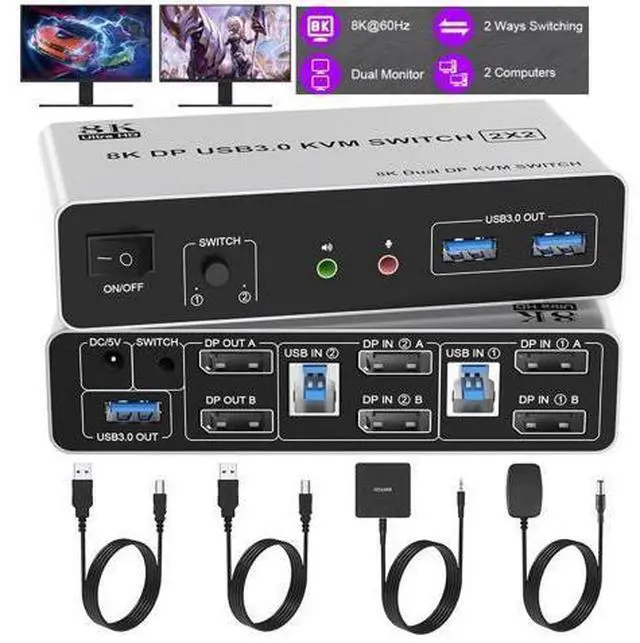


DIXSG KVM Switch 2 Monitors 2 Computers, 8K@60Hz DP 1.4 Dual Monitor Displayport USB 3.0 KVM Switch for 2 Computer Share 2 Monitors, Audio Mic Port and 3 USB3.0 Devices Support Extended and Copy Mode
Limited time offer, ends 10/13 By TechMax Depot
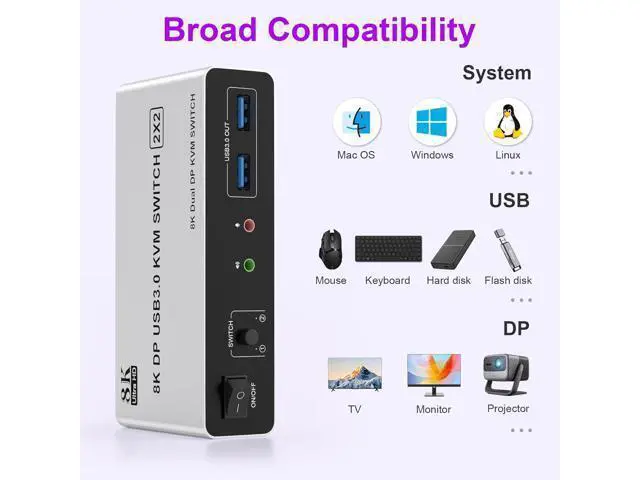
- KVM Switch 2 Monitors 2 Computers : Many of you may have 2 desktops or laptops, this KVM is for you to control them using one set of keyboard, mouse and single or dual monitors to make your work space tidy and efficient. Supports copy mode and extended mo
+
+
Overview
Specs
Reviews

Any questions? Our AI mode will help you find out quickly.
Try me now
8K Displayport KVM Switch for 2 Computers Share 2 Monitors and 3 USB 3.0 devices, Audio & Microphone Does Everything You Need!
Features: Share one set of keyboard, mouse and dual monitors between 2 computers or laptops; Dual monitors output support up to 8K@60Hz for extended, mirrored or spliced display;
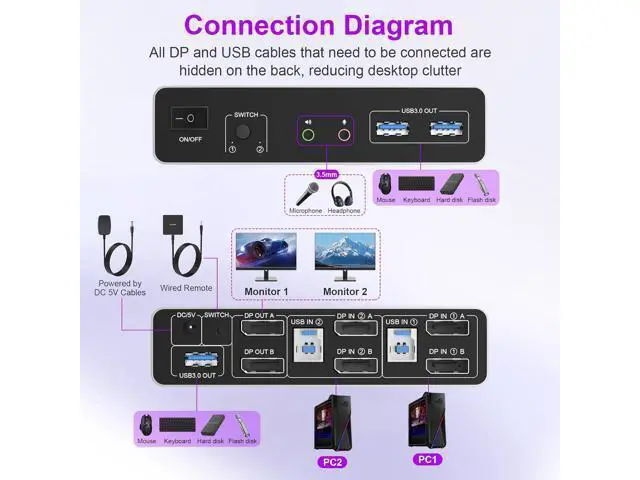
Switching modes: Buttons on the front panel and wired remote; With extra 3 USB 3.0 and Audio Microphone output; The ports that need to plug in DP/USB cables are all hidden behind the KVM, so the desktop doesn't get cluttered. Connection Steps & Notes
1. Insert the adapter into the KVM;
2. Plug the DP cable into the KVM and monitor; (Output) 3. 1). Connect PC1 Firstly (Input) Use 1 DP cable to connect the "DP IN 1 A" input interface and PC1 DP A output interface, Use 1 DP cable to connect the "DP IN1 B" input interface and PC1 DP B output interface. Use 1 "USB-a to USB-b" USB cable to connect the "USB IN 1" input interface and PC1 USB interface. 2)Then, Connect PC2 according to the connection steps of PC1.
4. Insert the mouse and keyboard into the KVM switch
5. If needed, you can connect a microphone and audio port
Note:
1. Most of the reasons why only one video output works is because of incorrect connection. Please make sure each PC has(2 DP+USB cable) connect to the KVM.
2. If the input USB ports are not connected or connected incorrectly, the output USB device will not be recognized.
3.
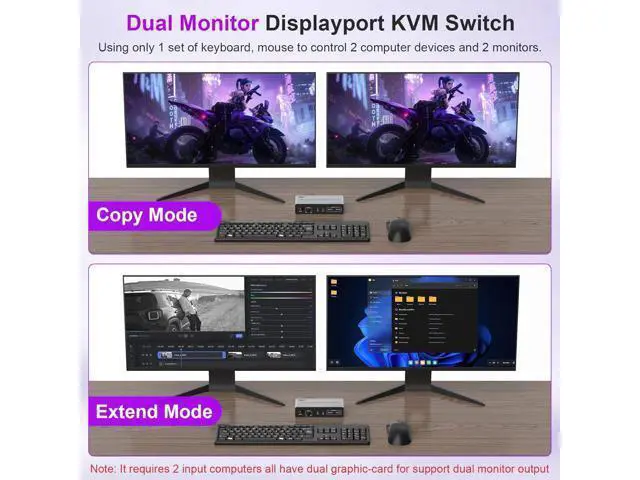
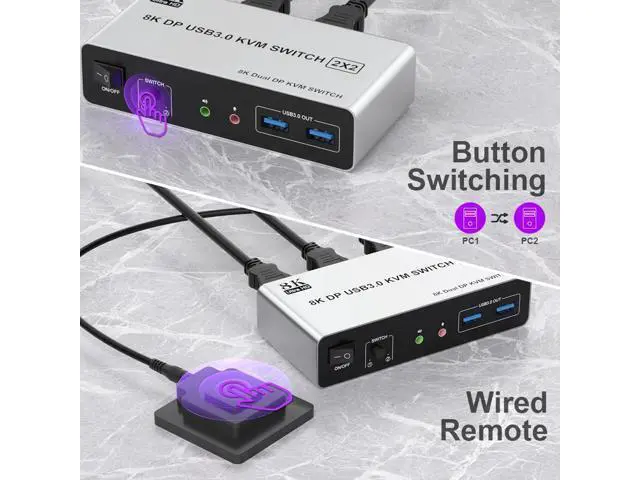
Note: DP cables are not included Supports Button Switch You can easily and quickly switch between computers with the push of a button on the control panel. Support wired remote control A push-button controlled switch extension cable is included for easy switching without having to get up when using it. Supports separate audio and microphone output Display Port switch comes with a 3.5 mm Audio Jack port with a DAC chip inside, which can be inserted into a 3-segment 3.5 mm earpiece device, and a 3.5 mm microphone interface, which can be inserted into a 3-segment microphone. LED Indicator When switching to which PC, the LED will tell you whether PC1 or PC2 is active. 2 Display Modes Extended Display Mirrored Display 1)Extended mode can output 2 different screens and mirror mode can output 2 identical screens.
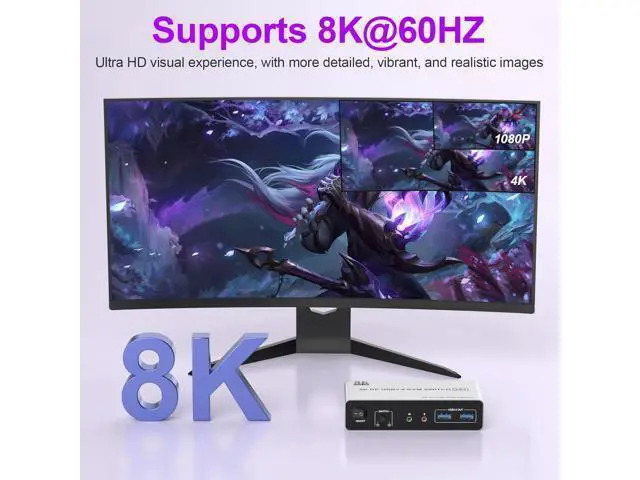
Note: If your graphics card has a splicing screen function, you can use the splicing screen mode. 2) The requirement for this KVM to achieve a 2-screen display is that each PC you connect to has the capability to support a 2 screen display. This has nothing to do with KVM. Supports Resolutions Up to 8K@60Hz, 4K@120Hz This kvm switch dual monitor supporting high resolution max up to 8K@60Hz, and also supports 4K@60Hz or other lower resolution (Downward Compatible).
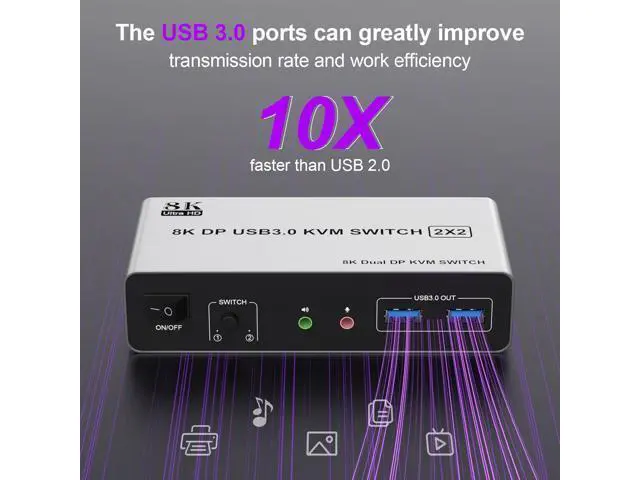
Note: Only when both your computer Graphics card, monitor and DP cable support 8K@60Hz then you can get 8K@60Hz effect, so if you want the max resolution you have to check your devices first. 3 USB 3.0 Ports Supports 5Gbps data transfer speed, can transfer files in Seconds, 10 times faster than USB 2.0. 8K Displayport KVM Switch for 2 Computers Share 2 Monitors and 3 USB 3.0 devices, Audio & Microphone Does Everything You Need!
Features: Share one set of keyboard, mouse and dual monitors between 2 computers or laptops; Dual monitors output support up to 8K@60Hz for extended, mirrored or spliced display;
Switching modes: Buttons on the front panel and wired remote; With extra 3 USB 3.0 and Audio Microphone output; The ports that need to plug in DP/USB cables are all hidden behind the KVM, so the desktop doesn't get cluttered. Connection Steps & Notes
1. Insert the adapter into the KVM;
2. Plug the DP cable into the KVM and monitor; (Output) 3. 1). Connect PC1 Firstly (Input) Use 1 DP cable to connect the "DP IN 1 A" input interface and PC1 DP A output interface, Use 1 DP cable to connect the "DP IN1 B" input interface and PC1 DP B output interface. Use 1 "USB-a to USB-b" USB cable to connect the "USB IN 1" input interface and PC1 USB interface. 2)Then, Connect PC2 according to the co
Features: Share one set of keyboard, mouse and dual monitors between 2 computers or laptops; Dual monitors output support up to 8K@60Hz for extended, mirrored or spliced display;
Switching modes: Buttons on the front panel and wired remote; With extra 3 USB 3.0 and Audio Microphone output; The ports that need to plug in DP/USB cables are all hidden behind the KVM, so the desktop doesn't get cluttered. Connection Steps & Notes
1. Insert the adapter into the KVM;
2. Plug the DP cable into the KVM and monitor; (Output) 3. 1). Connect PC1 Firstly (Input) Use 1 DP cable to connect the "DP IN 1 A" input interface and PC1 DP A output interface, Use 1 DP cable to connect the "DP IN1 B" input interface and PC1 DP B output interface. Use 1 "USB-a to USB-b" USB cable to connect the "USB IN 1" input interface and PC1 USB interface. 2)Then, Connect PC2 according to the connection steps of PC1.
4. Insert the mouse and keyboard into the KVM switch
5. If needed, you can connect a microphone and audio port
Note:
1. Most of the reasons why only one video output works is because of incorrect connection. Please make sure each PC has(2 DP+USB cable) connect to the KVM.
2. If the input USB ports are not connected or connected incorrectly, the output USB device will not be recognized.
3.
Note: DP cables are not included Supports Button Switch You can easily and quickly switch between computers with the push of a button on the control panel. Support wired remote control A push-button controlled switch extension cable is included for easy switching without having to get up when using it. Supports separate audio and microphone output Display Port switch comes with a 3.5 mm Audio Jack port with a DAC chip inside, which can be inserted into a 3-segment 3.5 mm earpiece device, and a 3.5 mm microphone interface, which can be inserted into a 3-segment microphone. LED Indicator When switching to which PC, the LED will tell you whether PC1 or PC2 is active. 2 Display Modes Extended Display Mirrored Display 1)Extended mode can output 2 different screens and mirror mode can output 2 identical screens.
Note: If your graphics card has a splicing screen function, you can use the splicing screen mode. 2) The requirement for this KVM to achieve a 2-screen display is that each PC you connect to has the capability to support a 2 screen display. This has nothing to do with KVM. Supports Resolutions Up to 8K@60Hz, 4K@120Hz This kvm switch dual monitor supporting high resolution max up to 8K@60Hz, and also supports 4K@60Hz or other lower resolution (Downward Compatible).
Note: Only when both your computer Graphics card, monitor and DP cable support 8K@60Hz then you can get 8K@60Hz effect, so if you want the max resolution you have to check your devices first. 3 USB 3.0 Ports Supports 5Gbps data transfer speed, can transfer files in Seconds, 10 times faster than USB 2.0. 8K Displayport KVM Switch for 2 Computers Share 2 Monitors and 3 USB 3.0 devices, Audio & Microphone Does Everything You Need!
Features: Share one set of keyboard, mouse and dual monitors between 2 computers or laptops; Dual monitors output support up to 8K@60Hz for extended, mirrored or spliced display;
Switching modes: Buttons on the front panel and wired remote; With extra 3 USB 3.0 and Audio Microphone output; The ports that need to plug in DP/USB cables are all hidden behind the KVM, so the desktop doesn't get cluttered. Connection Steps & Notes
1. Insert the adapter into the KVM;
2. Plug the DP cable into the KVM and monitor; (Output) 3. 1). Connect PC1 Firstly (Input) Use 1 DP cable to connect the "DP IN 1 A" input interface and PC1 DP A output interface, Use 1 DP cable to connect the "DP IN1 B" input interface and PC1 DP B output interface. Use 1 "USB-a to USB-b" USB cable to connect the "USB IN 1" input interface and PC1 USB interface. 2)Then, Connect PC2 according to the co
Warranty & Returns
Warranty, Returns, And Additional Information
Warranty
- Please contact the Seller directly for warranty information. Warranty information may also be found on the Manufacturer's website.
- CONTACT
Return Policies
- Return for refund within: 30 days
- Return for replacement within: non-replaceable
- This item is covered by TechMax Depot Return Policy
Manufacturer Contact Info
- For a directory of all our manufacturers, please click below.
- Manufacturers Directory
LOADING...