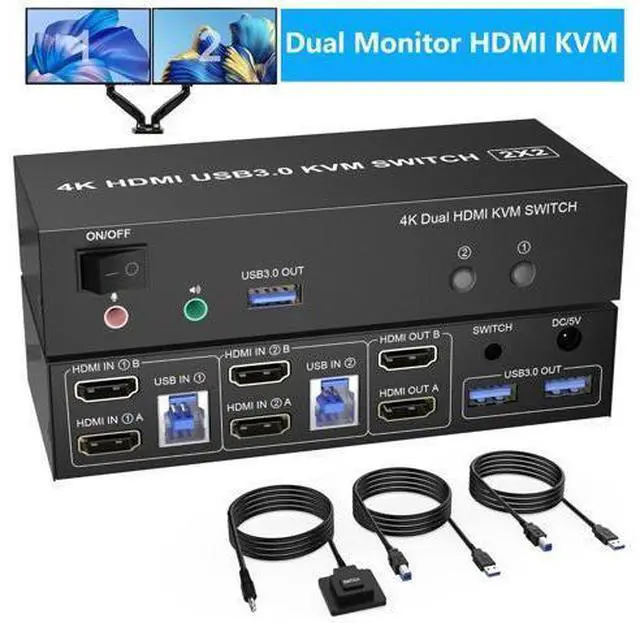
USB 3.0 Dual Monitor HDMI KVM Switch for 2 Computers 2 monitors
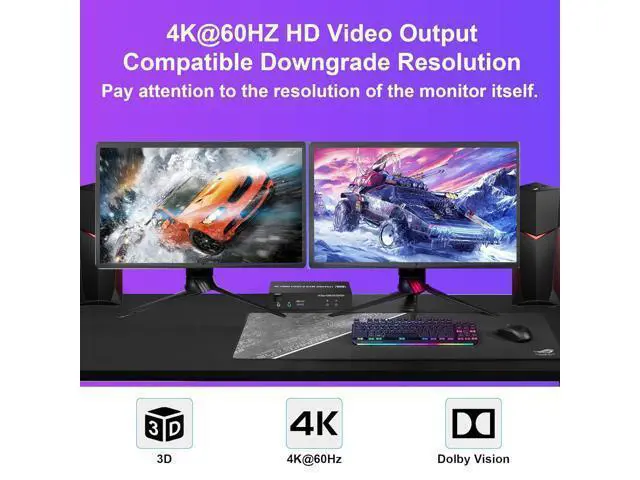
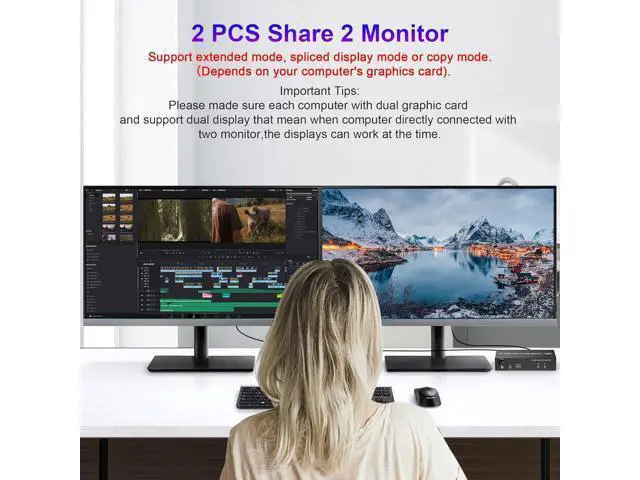
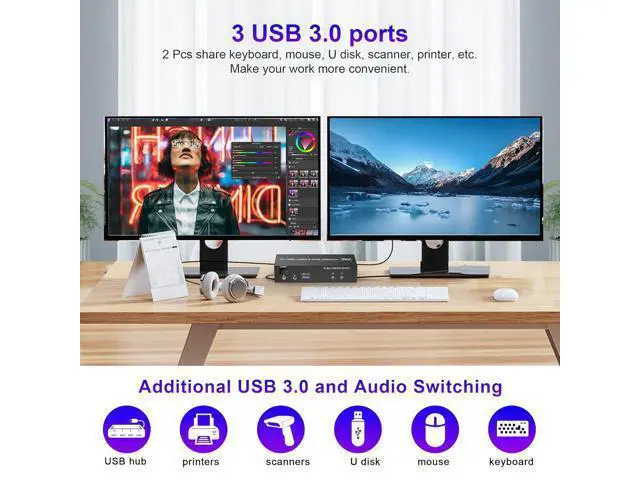
Advantages: Share one set of keyboard, mouse and dual monitors between 2 computers or laptops; Dual monitors output support up to 4K@60Hz for extended, mirrored or spliced display (Depends on your computer's graphics card. ); No complicated installation is required, and non-professionals can easily operate it; Cross support major operation systems including Windows, Linux, Mac and more;
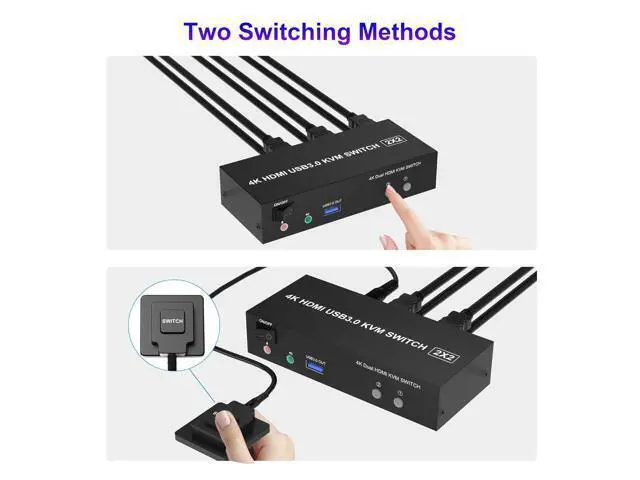
Switching modes: Buttons on the front panel and wired remote; The ports that need to plug in HDMI/USB cables are all hidden behind the KVM, so the desktop doesn't get cluttered; A USB hub can expand the USB 3.0 ports if multiple connections are required; Audio Microphone output.
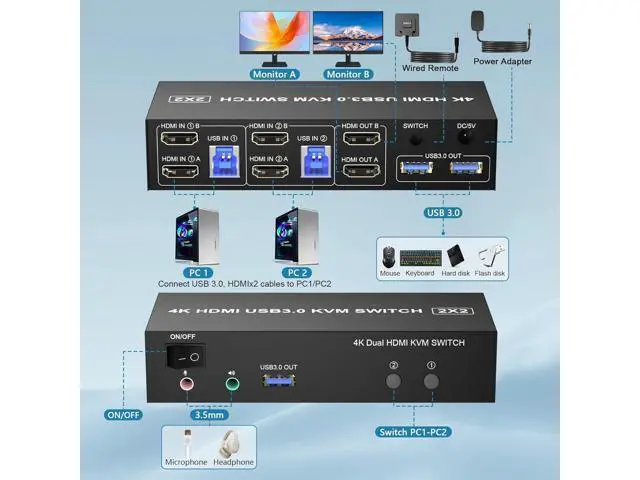
installation steps:
1. Insert the adapter into the KVM;
2. Plug the HDMI cable into the KVM and monitor; (Output)
3. Plug the HDMI cable and USB 3.0 cable into the KVM and your computer/laptop (HDMI cables are not included) (Input) HD IN1 A + HD IN1 B + USB IN1=PC1 HD IN2 A + HD IN2 B + USB IN2=PC2
4. Insert the mouse and keyboard into the KVM switch
5. If needed, you can connect a microphone and audio port
Note:
1. Most of the reasons why only one video output works is because of incorrect connection. Please make sure each computer have 2 HDMI cables connect to the KVM.
2. If the KVM switch does not work, you can turn off the switch on the panel and turn it on again after 2-3 seconds, and it will return to normal. KVM Switch With 3 USB 3.0 ports with 3 USB 3.0 ports, backward compatible with USB 2.0 and USB 1.1, share USB devices such as keyboard mouse scanner, printer, flash drive, etc. USB 3.0 Dual Monitor HDMI Switch for 2
Computers Advantages: Share one set of keyboard, mouse and dual monitors between 2 computers or laptops; Dual monitors output support up to 4K@60Hz for extended, mirrored or spliced display(Depends on your computer's graphics card. ); No complicated installation is required, and non-professionals can easily operate it; Cross support major operation systems including Windows, Linux, Mac and more;
Switching modes: Buttons on the front panel and wired remote; The ports that need to plug in HDMI/USB cables are all hidden behind the KVM, so the desktop doesn't get cluttered; A USB hub can expand the USB 3.0 ports if multiple connections are required; Audio Microphone output.
installation steps:
1. Insert the adapter into the KVM;
2. Plug the HDMI cable into the KVM and monitor; (Output)
3. Plug the HDMI cable and USB 3.0 cable into the KVM and your computer/laptop (HDMI cables are not included) (Input) HD IN1 A + HD IN1 B + USB IN1=PC1 HD IN2 A + HD IN2 B + USB IN2=PC2
4. Insert the mouse and keyboard into the KVM switch
5. If needed, you can connect a microphone and audio port
Note:
1. Most of the reasons why only onevideo output works is because of incorrect connection. Please make sure eachcomputer have 2 HDMI cables connect to the KVM.
2. If the KVM switch does not work, you can turn off the switch on the panel and turn it on again after 2-3 seconds, and it will return to normal.





 here!
here!