

Your Browsing History

Meet Your Seller

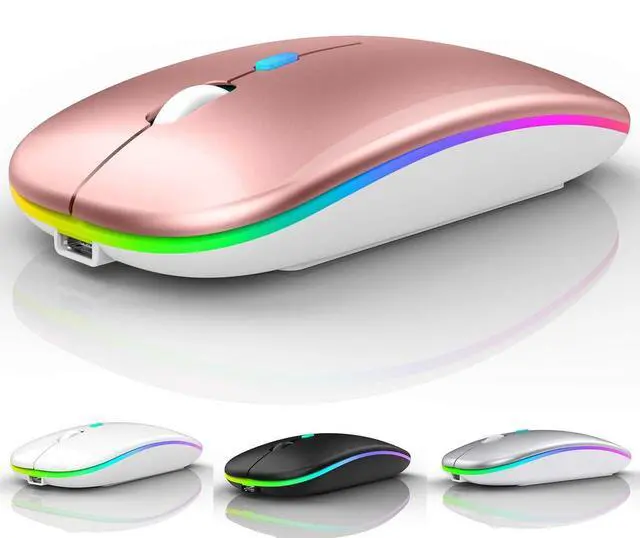
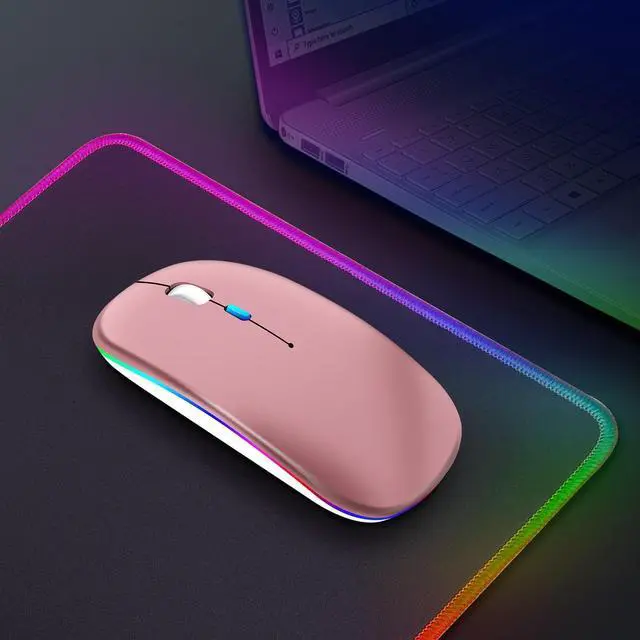
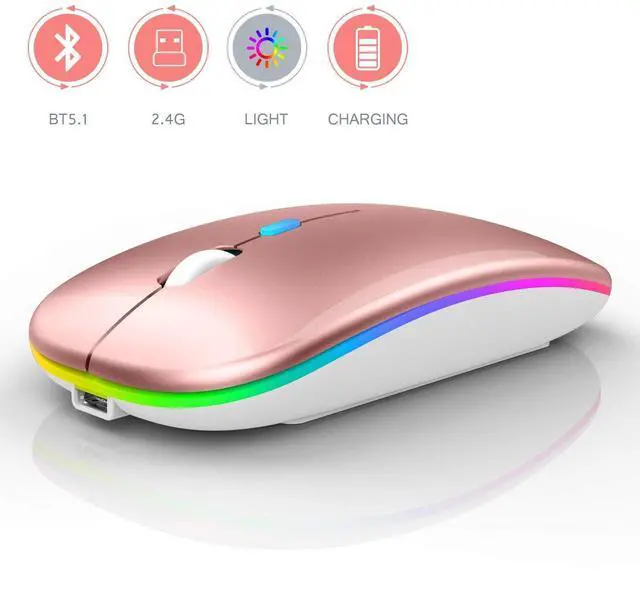
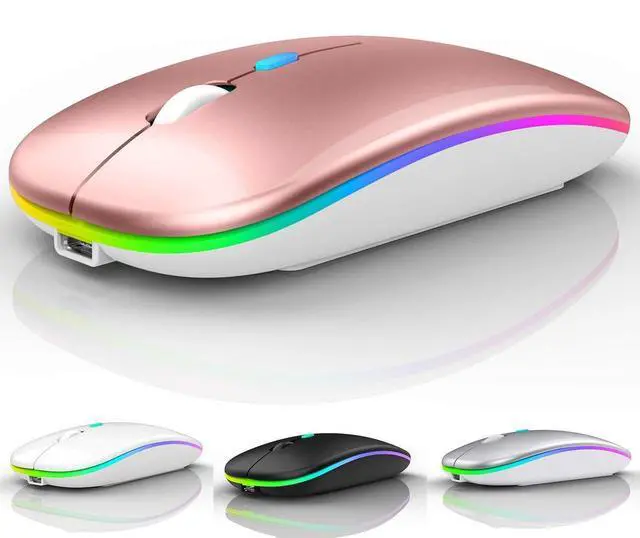
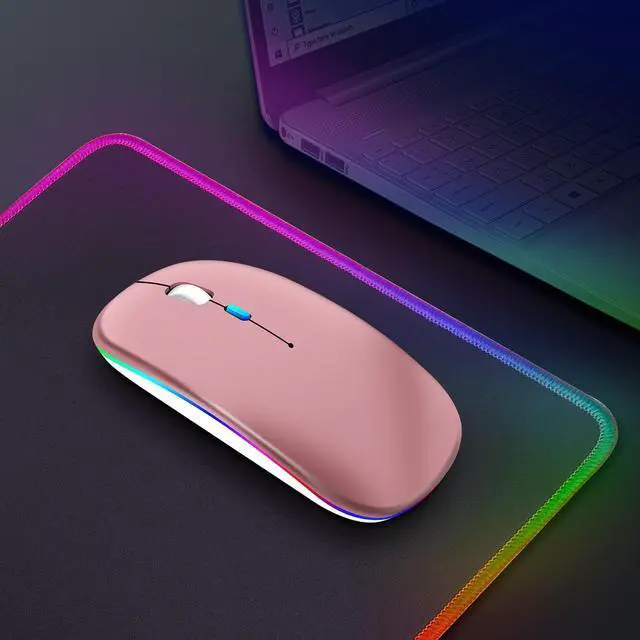
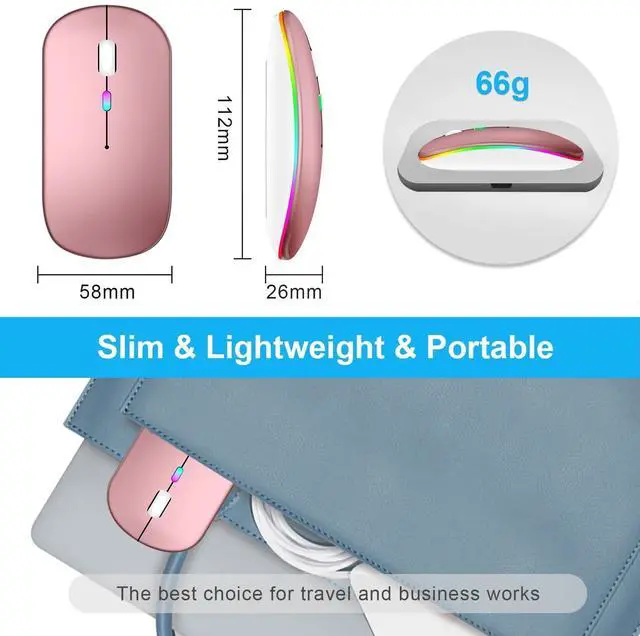
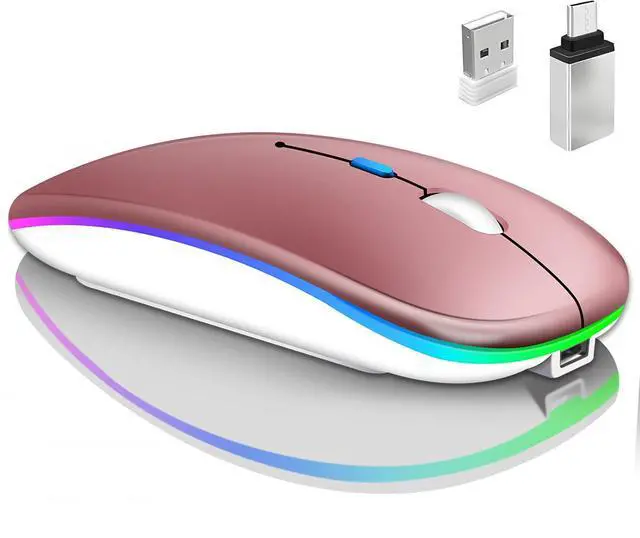
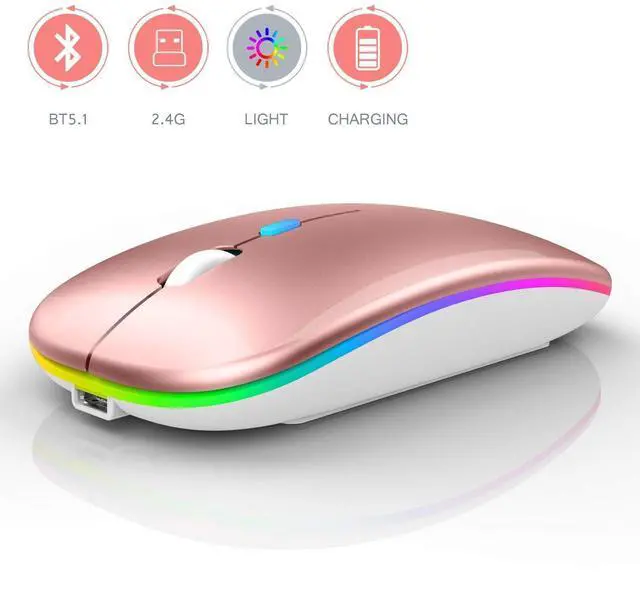


Qullqian LED Bluetooth Mouse,Bluetooth Mouse for MacBook Pro/MacBook Air,Rechargeable Wireless Mouse for MacBook, Laptop, Mac,Computer Mouse (Rose Gold)
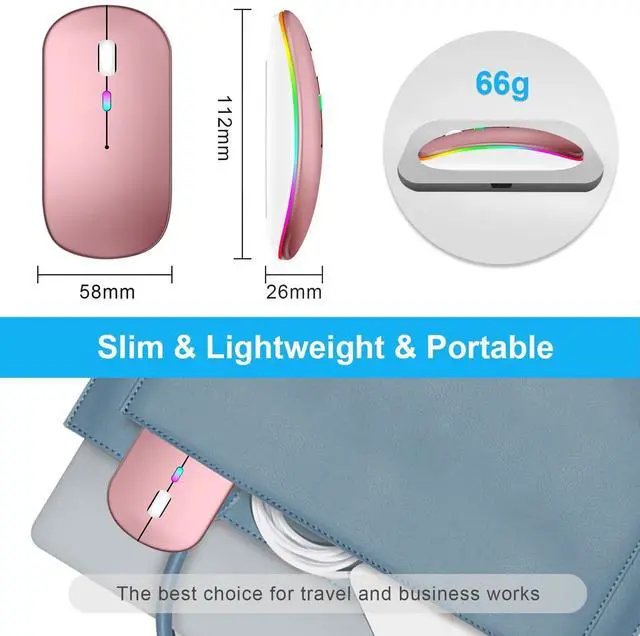
- ERGONOMIC DESIGN Good surface coating technology given you a skin-like touch feeling. User-friendly design provide all-day comfort for work and entertainment, portable and pocket-sized perfect for travel, Mute design keeps away annoying clicks.
- For all computers and laptops and ios13 / ios14 tablet/pro/Air / Phone / MAC / MacBook / Pro / air windows / chromebook / HP / Dell
- Use the DPI mouse button on the screen: you are free to adjust the mouse sensitivity to match your activity. Provide 3 DPI levels (800-1200-1600). The higher the DPI, the faster the cursor moves on the screen
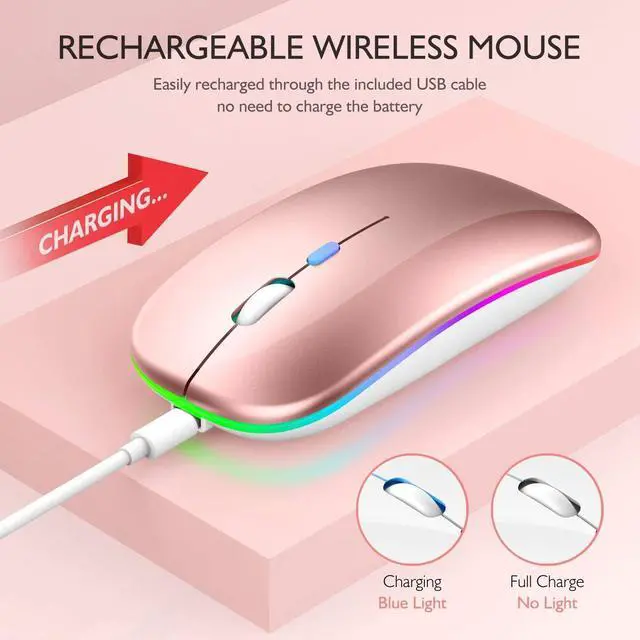
- 7-color LED mouse: After the mouse is successfully connected to your computer/laptop/iPad device, the 7-color LED starts to light one by one.
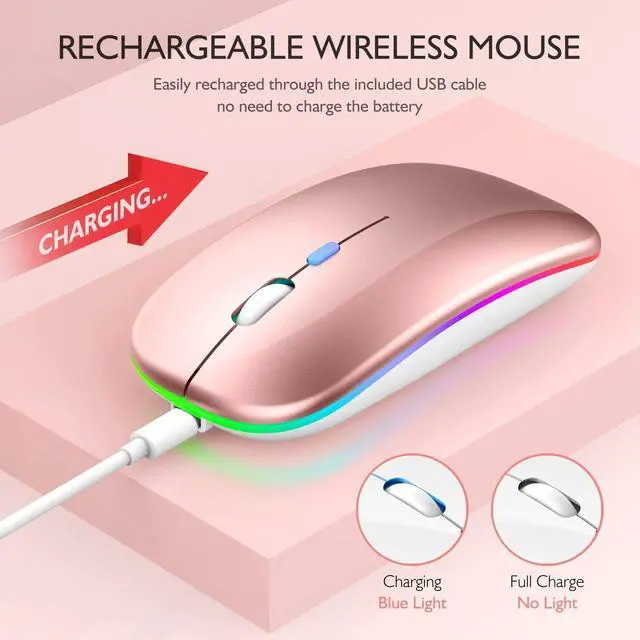
- BUILT-IN BATTERY: Built-in battery,easy to charge by micro usb cable,no more need for extra AAA battery.
+
+
Overview
Reviews

Any questions? Our AI mode will help you find out quickly.
Try me now
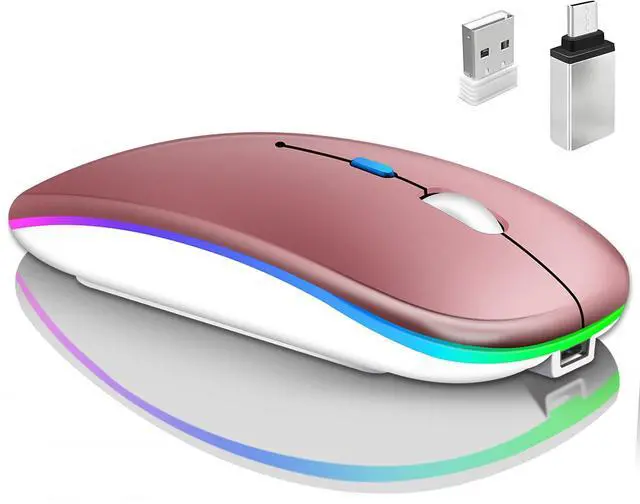
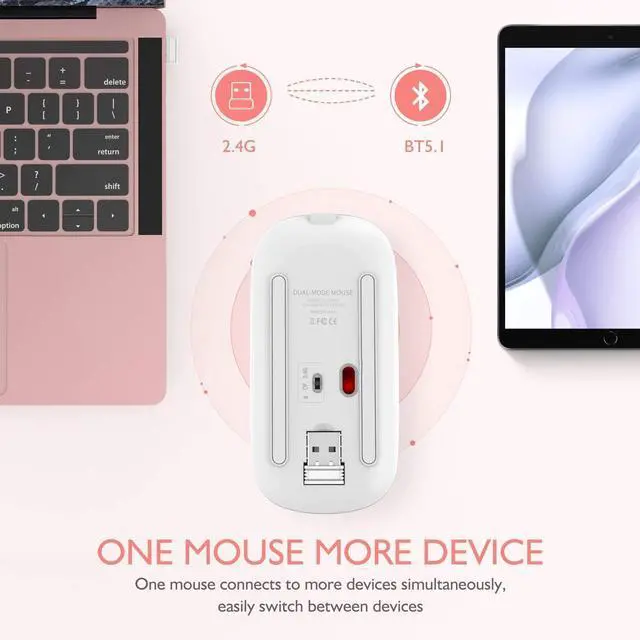
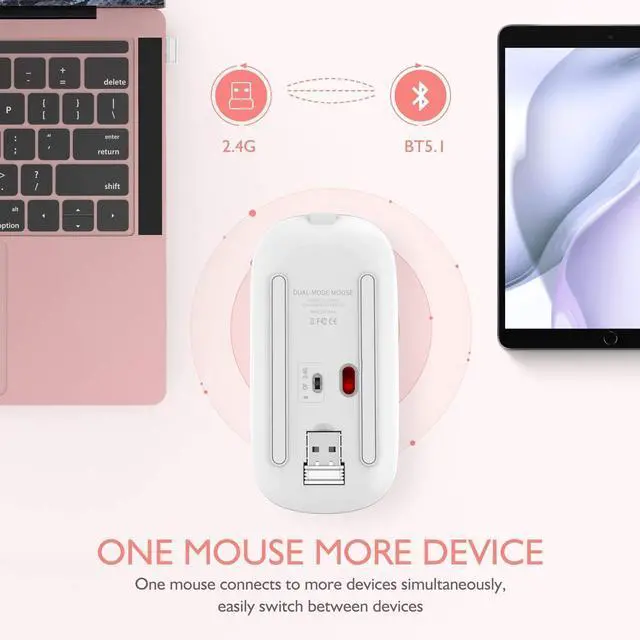
Packing list: Instructions*1, LED rechargeable Bluetooth5.1 + 2.4G dual-mode mouse *1, 2.4g Nano USB receiver *1(hidden in the slot at the bottom of the mouse), USB charging line *1,
How to connect to a laptop using bluetooth mode:
Turn on the Bluetooth switch at the bottom of the mouse > open the computer system Settings > open Bluetooth >when the computer bluetooth display is looking for nearby bluetooth devices, find the "BT5.1 mouse", click the connection, and then successfully connected, you can use the mouse.
How to connect to iOS/iPad/Pro/Air/ Mini/ Phone (ios 13/ios 14) via Bluetooth Mouse
first slide the button at the bottom of the mouse to the bluetooth " " position. ( bluetooth mode.)
(1) open tabletSettings >Accessibility > Touch > AssistiveTouch > Click to open An auxiliary dot will appear on the screen
(2) Go back to Settings > Click on the bluetooth > Click to open > BT 5.1 MOUSE > connect and Pair.PIN:0000)
How to Charge Wireless Mouse?
When the pointer of your mouse does not move or cannot be used, or suddenly disconnects continuously in use, you need to charge it for about 3 hours. Please use the USB port of your computer to charge it, or use an adapter with an output of no more than 5v to charge it
How to use the 2.4G receiver mode:
Open the 2.4G receiver mode at the bottom of the mouse, remove the USB receiver at the bottom of the mouse,Plug the USB receiver into your computer's USB port and move the mouse to start working
7-color LED mouse: After the mouse is successfully connected to your computer/laptop/iPad device, the 7-color LED starts to light one by one.
Warranty & Returns
Warranty, Returns, And Additional Information
Warranty
- Please contact the Seller directly for warranty information. Warranty information may also be found on the Manufacturer's website.
- CONTACT
Return Policies
- Return for refund within: 30 days
- Return for replacement within: 30 days
- This item is covered by AxisLink Return Policy
Manufacturer Contact Info
- For a directory of all our manufacturers, please click below.
- Manufacturers Directory
LOADING...