

Your Browsing History

Meet Your Seller

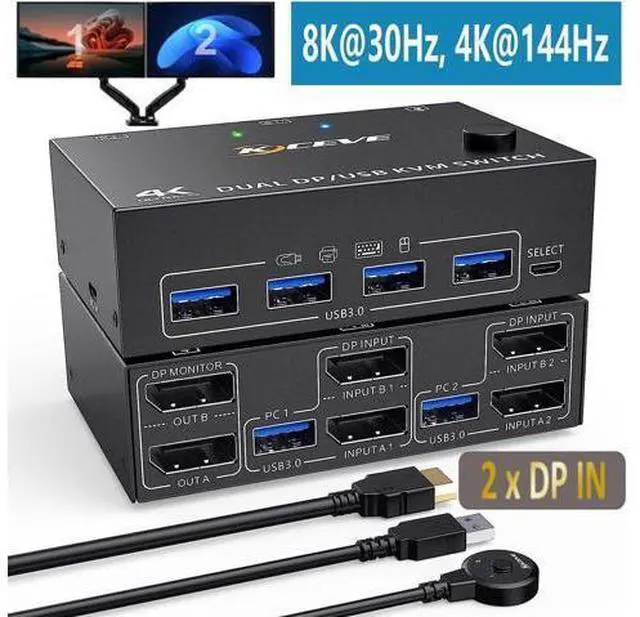


Dual Monitor Displayport KVM Switch for 2 Computers 2 Monitors 8K@30Hz 4K@144Hz, Display Port DP1.4 USB 3.0 KVM Switches 2 in 2 Out with 4 USB 3.0 Ports , Wired Remote and 4 Cables Included
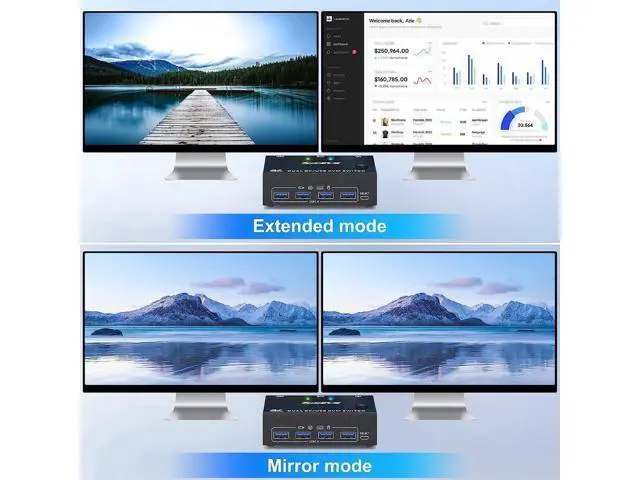
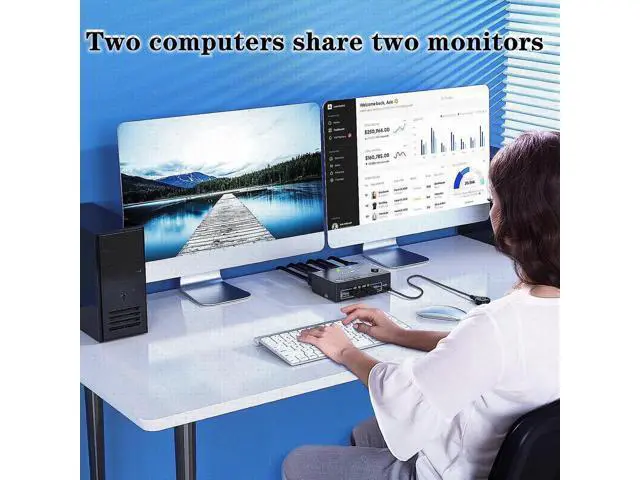
- [DisplayPort 1.4 KVM Switches] This KVM switch controls 2 PCs or laptops with only one set of keyboard, mouse and 2 monitors. Can display mirrored and extended desktops or view information from 2 PCs for home office setup, gaming and streaming device support.
- [Ultra HD 8K@30Hz ] Supports up to 8K@30Hz, 4K@60Hz, 2K@144Hz, backward compatible with DP 1,2. NOTE: The final resolution also depends on the graphics card, monitor, cables, and adapters how they work together.
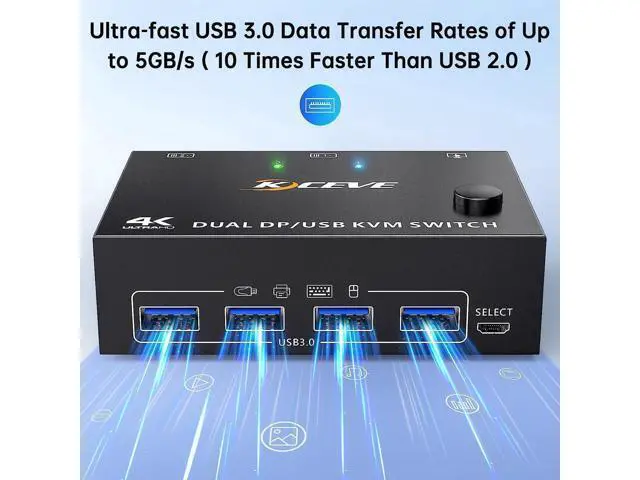
- [with 4 USB 3.0 Ports] with built-in 4 USB 3.0 ports that can detect keyboard, mouse, printer and other USB devices. The USB 3.0 port offers file transfer speeds of up to 5Gbps.
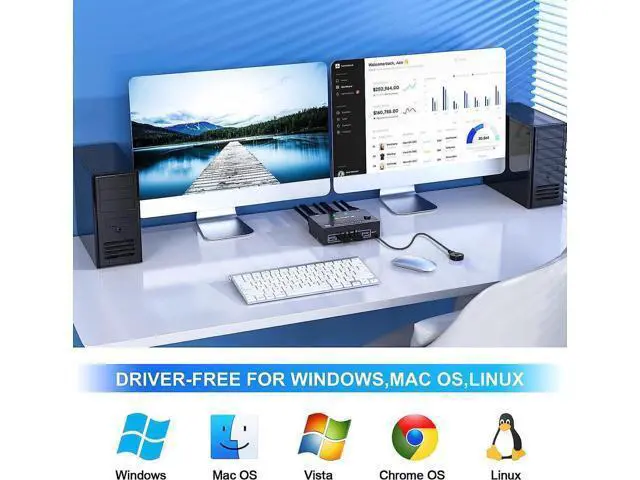
- [Good compatibility] Compatible with Windows 10/8/8.1/7/Vista/XP and Mac OS, Linux etc.. NOTE: An external 5V adapter is required when using this KVM Switch with high-power USB devices such as hard drives, digital cameras, SSDs, etc.
- [Two Switching Modes] You can switch between computers using the buttons on the control panel or the wired remot
+
+
Overview
Specs
Reviews

Any questions? Our AI mode will help you find out quickly.
Try me now
Product advantages: Ultra HD 8K@30Hz, 4K@60Hz experience with image quality, backwards compatible Dual display output, supports two display modes for expansion and reflection With 4 USB 3.0 ports, supported with USB port devices (such as mouse, keyboard, U disk, printer, etc) About control panel buttons and desktop controller one-button switching, the time only takes 2-4 seconds Overall support for important operating systems, including Windows, Linux, Mac and more With this Dual Monitor DP KVM Switch, the screens of the 2 monitors come from the same computer, and you can watch movies for entertainment while working.
Important Warm tips: The premise for this dual DP KVM to achieve dual-screen display is that each PC you connect to has the capability to support dual or multi-screen display. This has nothing to do with KVM.
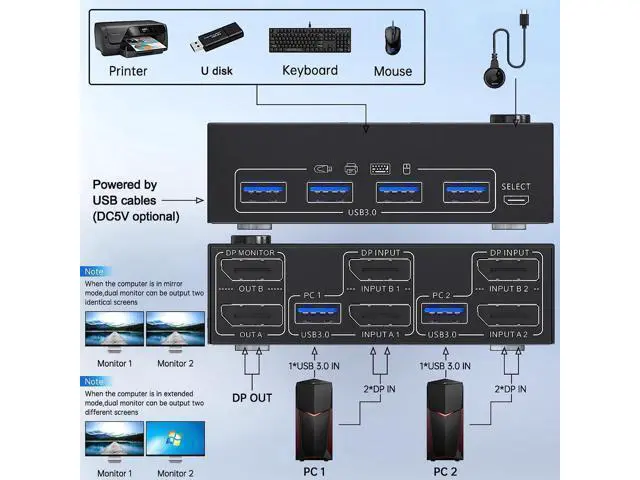
Detection method: You can connect the computer to 2 monitors directly (not via KVM). For laptops, this displayport KVM switch supports USB C docking stations, but the resolution refresh rate may be limited by the docking station, and you may need to connect DC 5V to power the KVM (depending on your docking station). The 2 monitors can only output the video source from one computer (mirror mode or expansion mode), and cannot output the signal source of PC1 and PC2 at the same time. The cables (2*DP cable+1*USB cable) connecting PC 1 and PC 2 to the KVM cannot be cross-connected, because the USB cables not only supply power to the KVM, but also transmits data between the computer and the USB devices. Installation Guide Tips Each computer must connection 2 DP cables and 1 USB cable to ensure keyboard, mouse and monitors to work correctly.
Connection steps: Step
1. Connect 2*DP cables+1*USB-A cable between PC 1 and KVM (USB 3.0, INPUT A1, INPUT B1). Step
2. Connect 2*DP cables+1*USB-A cable between PC 2 and KVM (USB 3.0, INPUT A2, INPUT B2). Step
3. Connect 2*DP cables between the KVM (OUT A, OUT B) and your 2 monitors. Step
4. Insert your USB devices (keyboard mouse and U disk) into the USB port on the KVM. Step
5. Insert the Wired Remote into the "SELECT" port to remotely switch between PC1 and PC2. ***Notice***
1. After connecting the computers and the monitors through KVM, you need to set the screen output mode on the computer (press Windows+P) and select the output mode in the pop-up window on the screen. Otherwise, only one of the two connected monitors work normally.
2. Before purchasing this dual monitor KVM switch, please make sure that connecting your computer directly to the monitor can work normally, Otherwise, the KVM will not be available.
3. Most of the reasons why only one video output works is because of incorrect connection. Please make sure each PC has(2 DP cables+1 USB cable) connect to the KVM.
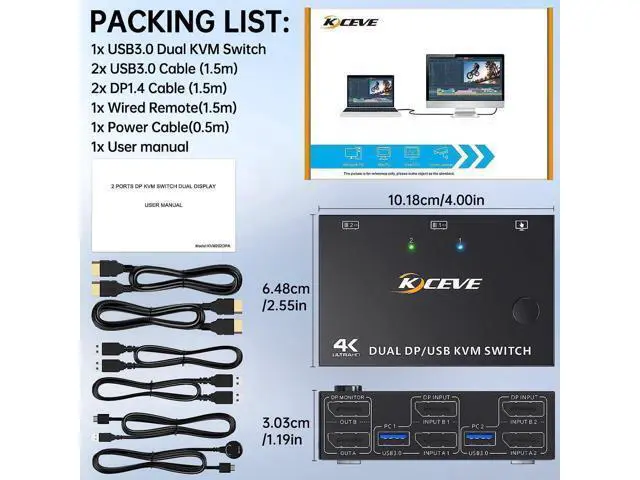
Packing list: 1 * Displayport KVM switch; 2 * 8K DP 1.4 cable; 2 * USB 3.0 cable; 1 * Wired remote; 1 * USB power cable; 1 * User manual. 4-Port USB 3.0 with 5Gbps Supports 5Gbps data transfer speed, can transfer files in Seconds, 10 times faster than USB 2.0. Suitable for multiple systems Driver-free for Windows 11/10/8/7/Vista/XP and Mac OS, Linux, plug and play. 8K/4K HD Resolution Support 8K@30Hz, 4K@144Hz, 1440P@144Hz and backward compatible with lower resolutions. DC/5V port If your USB port is used with a more powerful USB device, you need to connect a DC/5V power supply to power it (DC/5V power cable included) Switch with one button
Convenient and quick switching: Just press the button on the front of the KVM panel or wired desktop controller (included), and you can switch to another computer in about 2-4 seconds. Works as a USB 3.0 switch (2 in 4 out) 4 USB 3.0 ports, backward compatible with USB 2.0 and USB 1.1, share USB devices such as keyboard mouse scanner, printer, flash drive, etc. Please be Aware before
Order: This Dual Monitor KVM Switch requires 2* DP+1*USB input for each computer and 2* DP output for 2 monitors. However, most computers especially laptops do not have 2 Display
Important Warm tips: The premise for this dual DP KVM to achieve dual-screen display is that each PC you connect to has the capability to support dual or multi-screen display. This has nothing to do with KVM.
Detection method: You can connect the computer to 2 monitors directly (not via KVM). For laptops, this displayport KVM switch supports USB C docking stations, but the resolution refresh rate may be limited by the docking station, and you may need to connect DC 5V to power the KVM (depending on your docking station). The 2 monitors can only output the video source from one computer (mirror mode or expansion mode), and cannot output the signal source of PC1 and PC2 at the same time. The cables (2*DP cable+1*USB cable) connecting PC 1 and PC 2 to the KVM cannot be cross-connected, because the USB cables not only supply power to the KVM, but also transmits data between the computer and the USB devices. Installation Guide Tips Each computer must connection 2 DP cables and 1 USB cable to ensure keyboard, mouse and monitors to work correctly.
Connection steps: Step
1. Connect 2*DP cables+1*USB-A cable between PC 1 and KVM (USB 3.0, INPUT A1, INPUT B1). Step
2. Connect 2*DP cables+1*USB-A cable between PC 2 and KVM (USB 3.0, INPUT A2, INPUT B2). Step
3. Connect 2*DP cables between the KVM (OUT A, OUT B) and your 2 monitors. Step
4. Insert your USB devices (keyboard mouse and U disk) into the USB port on the KVM. Step
5. Insert the Wired Remote into the "SELECT" port to remotely switch between PC1 and PC2. ***Notice***
1. After connecting the computers and the monitors through KVM, you need to set the screen output mode on the computer (press Windows+P) and select the output mode in the pop-up window on the screen. Otherwise, only one of the two connected monitors work normally.
2. Before purchasing this dual monitor KVM switch, please make sure that connecting your computer directly to the monitor can work normally, Otherwise, the KVM will not be available.
3. Most of the reasons why only one video output works is because of incorrect connection. Please make sure each PC has(2 DP cables+1 USB cable) connect to the KVM.
Packing list: 1 * Displayport KVM switch; 2 * 8K DP 1.4 cable; 2 * USB 3.0 cable; 1 * Wired remote; 1 * USB power cable; 1 * User manual. 4-Port USB 3.0 with 5Gbps Supports 5Gbps data transfer speed, can transfer files in Seconds, 10 times faster than USB 2.0. Suitable for multiple systems Driver-free for Windows 11/10/8/7/Vista/XP and Mac OS, Linux, plug and play. 8K/4K HD Resolution Support 8K@30Hz, 4K@144Hz, 1440P@144Hz and backward compatible with lower resolutions. DC/5V port If your USB port is used with a more powerful USB device, you need to connect a DC/5V power supply to power it (DC/5V power cable included) Switch with one button
Convenient and quick switching: Just press the button on the front of the KVM panel or wired desktop controller (included), and you can switch to another computer in about 2-4 seconds. Works as a USB 3.0 switch (2 in 4 out) 4 USB 3.0 ports, backward compatible with USB 2.0 and USB 1.1, share USB devices such as keyboard mouse scanner, printer, flash drive, etc. Please be Aware before
Order: This Dual Monitor KVM Switch requires 2* DP+1*USB input for each computer and 2* DP output for 2 monitors. However, most computers especially laptops do not have 2 Display
Warranty & Returns
Warranty, Returns, And Additional Information
Warranty
- Please contact the Seller directly for warranty information. Warranty information may also be found on the Manufacturer's website.
- CONTACT
Return Policies
- Return for refund within: 30 days
- Return for replacement within: 45 days
- This item is covered by ApexGadgets Return Policy
Manufacturer Contact Info
- For a directory of all our manufacturers, please click below.
- Manufacturers Directory
LOADING...