Your Browsing History
Meet Your Seller
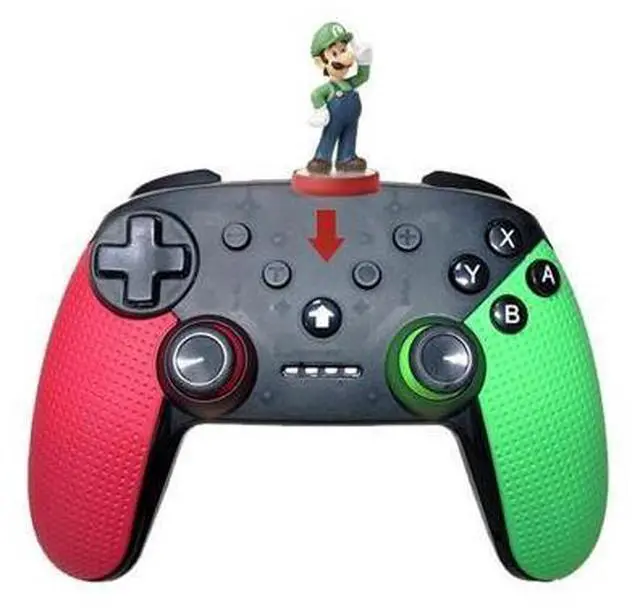
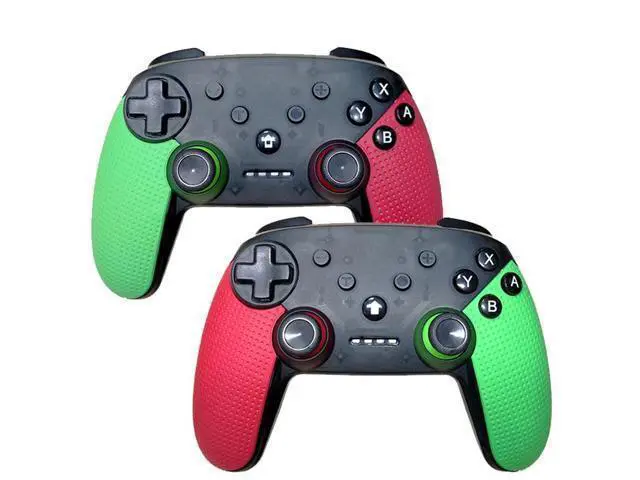
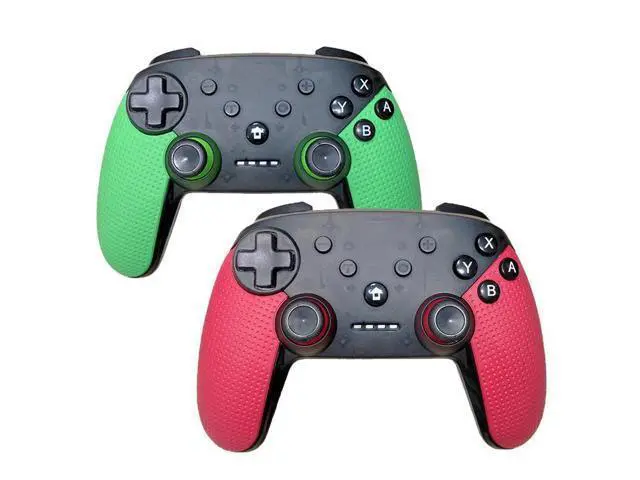
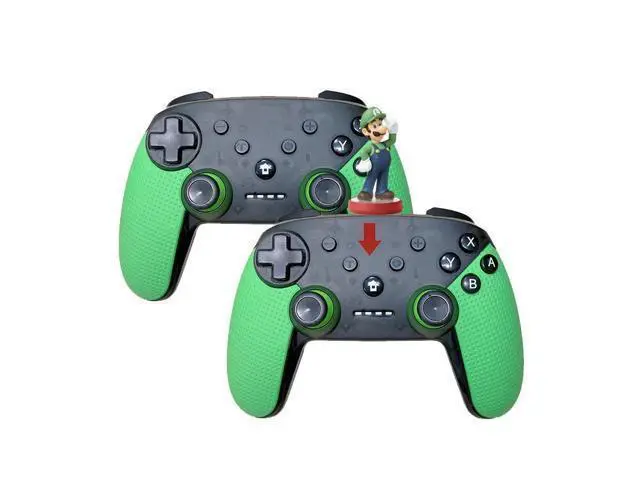
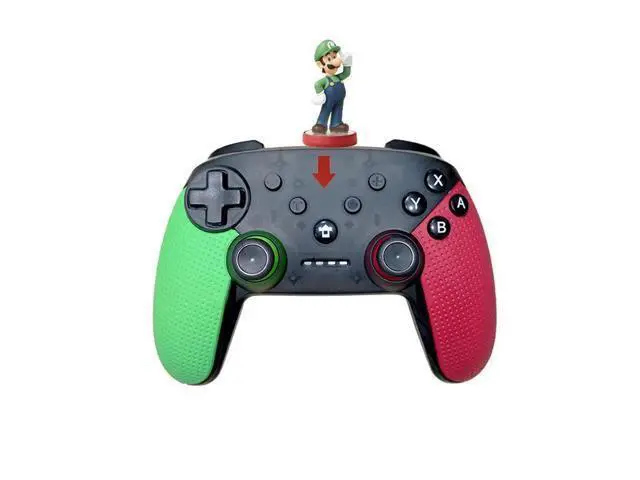
Quality Bluetooth NS Pro Controller Wireless Joystick With NFC For Nintendo Switch Game Machine And PC
Limited time offer, ends 07/26 By Glovibe Tech
- Good Quality
+
+
Overview
Specs
Reviews
Any questions? Our AI beta will help you find out quickly.
Try me now
Quality Bluetooth NS Pro Controller Wireless Joystick With NFC For Nintendo Switch Game Machine And PC Features: New upgrade with NFC function (please refer to the picture in the option) Double motor Bluetooth connection
Complete function: with screen capture function and vibration function 1, the host's settings 1To connect the Bluetooth controller, the host's Controller Connection (Bluetooth) option is On, or the Flight Mode is turned off; 2 Select Controllers-> Change Grip / Order on the main page to let the host search for Bluetooth device status. (This operation is not required for back connection) 3Note: If the host is difficult to pair with the handle, it may be that the host has too many Bluetooth devices connected, you need to manually clear the Bluetooth information (System Setting-> Controllers and Sensors-> DisConnect Controllers); 2, the handle pairing host When the handle is off, press and hold the small button next to the TYPE USB for 3 seconds to enter the code status. The 4 LEDs are in the state of fast running light. The channel indicator corresponding to the successful connection is always on. Automatically sleeps if there is no synchronization within 1 minute. If the Bluetooth connection is successful, the corresponding channel indicator LED is always on (Switch host assignment) 3, the handle back to the host When the handle is off, press any key to wake up the handle. After being woken up, it will automatically connect to the host that is paired with it. If the connection is unsuccessful in 6 seconds, it will automatically sleep. 4, low voltage alarm 5, the handle test 6, RESET test

Warranty & Returns
Warranty, Returns, And Additional Information
Warranty
- Please contact the Seller directly for warranty information. Warranty information may also be found on the Manufacturer's website.
- CONTACT
Return Policies
- Return for refund within: 30 days
- Return for replacement within: non-replaceable
- This item is covered by Glovibe Tech Return Policy
Manufacturer Contact Info
- For a directory of all our manufacturers, please click below.
- Manufacturers Directory
LOADING...