Your Browsing History
Meet Your Seller
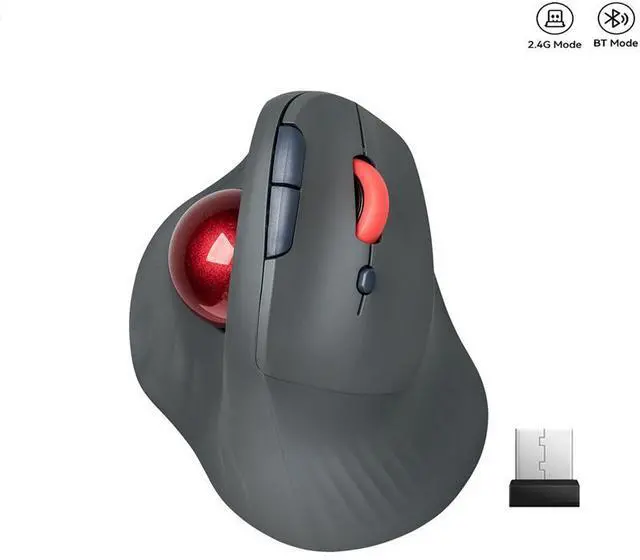
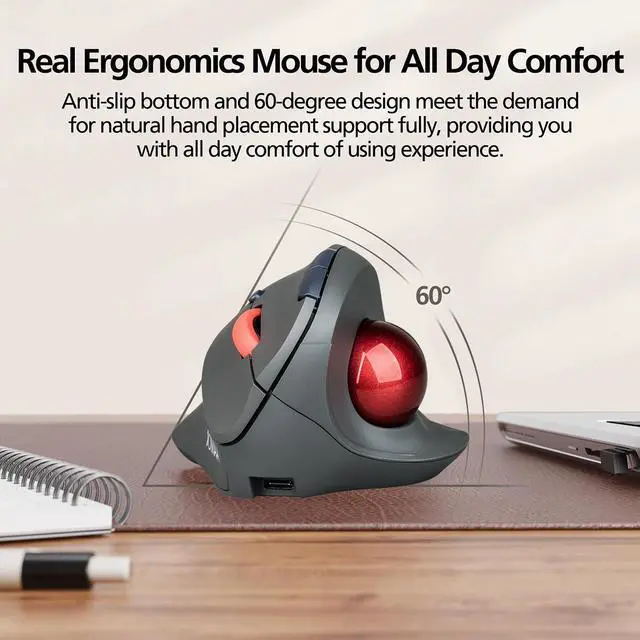
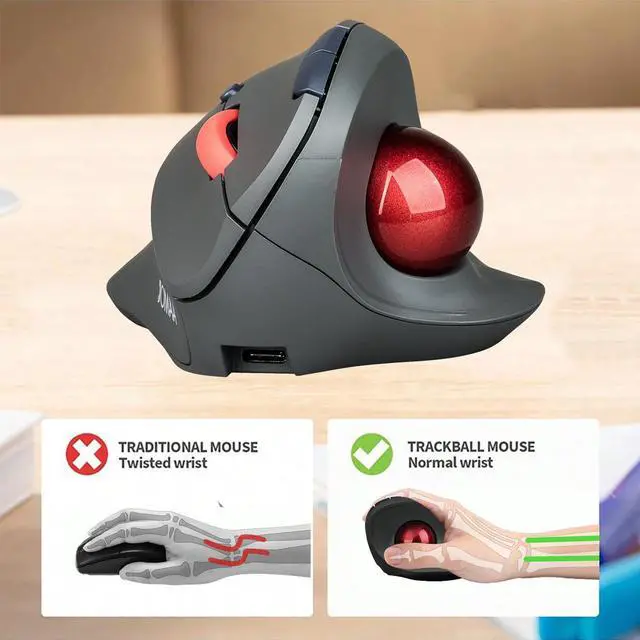
Wireless Vertical Trackball Mouse Dual Mode BT + 2.4G Connectivity, 650mAh Rechargeable Battery, Ergonomic Thumb-Operated Rollerball
Limited time offer, ends 08/09 By SlotNeat
- Specifications:
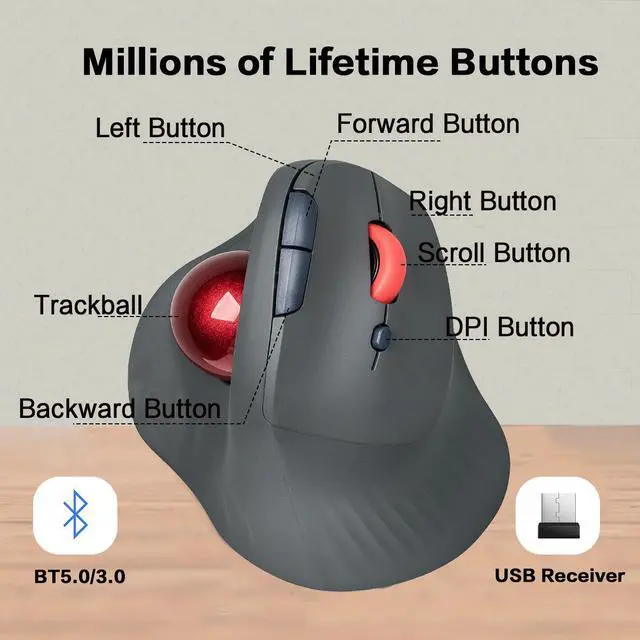
- 5 buttons + scroll wheel
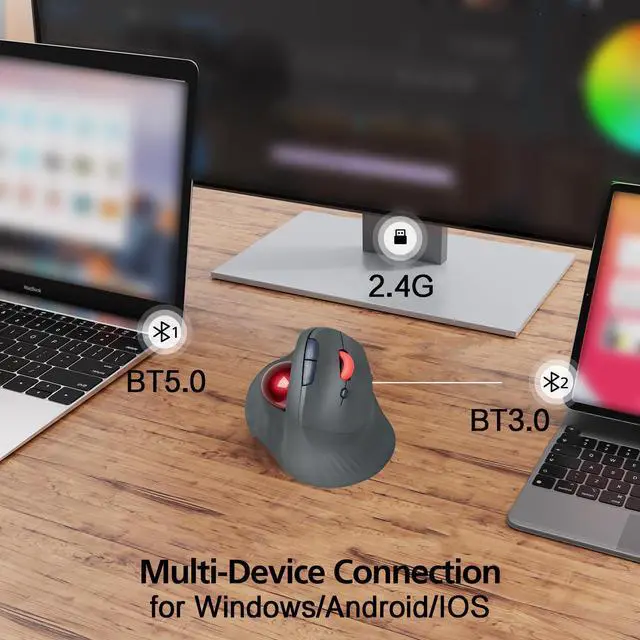
- 2.4G / Bluetooth 3.0 / 5.0 connectivity (Wireless range: approx. 10 meters)
- Plug and play
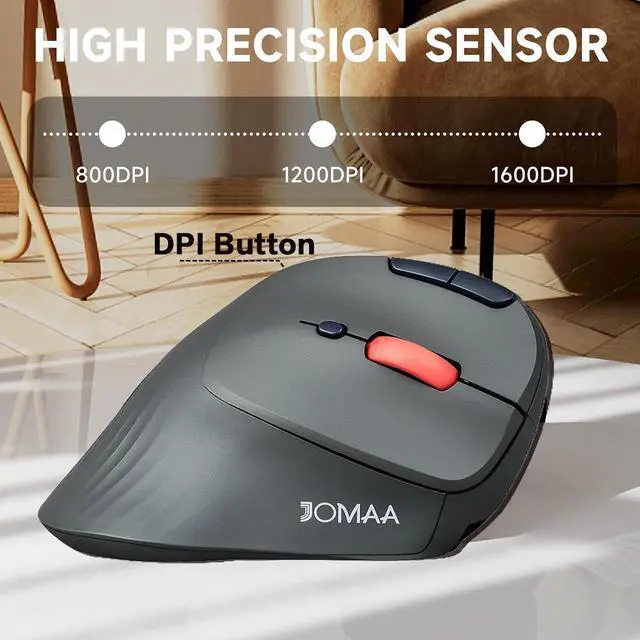
- DPI: 800 / 1200 / 1600
- Built-in 500mAh lithium battery
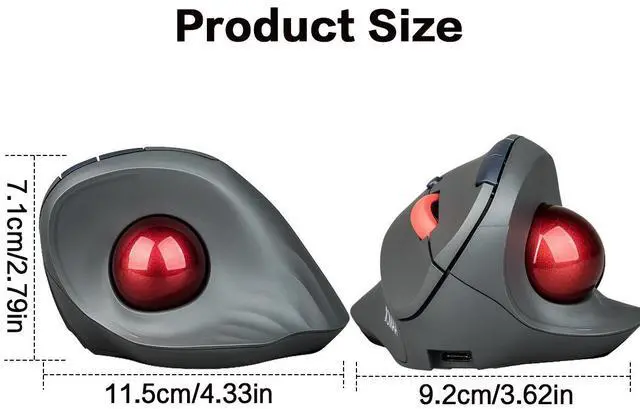
- Product Dimensions: 11.5 × 9.2 × 7.1 cm
- System Requirements:
- Device with an available USB port and built-in Bluetooth adapter
- Windows® 11, Windows® 10, MacOS
- Charging the Mouse:
- Connect the included charging cable to the USB-C port on the mouse, and plug the other end into a USB port on your computer.
- The red indicator light turns on while charging and turns off when fully charged.
- Mouse Connection:
- The mouse can be connected via 2.4G (wireless) or Bluetooth.
- A: 2.4G (Wireless) Connection
- Remove the USB receiver from the compartment on the bottom of the mouse.
- Insert it into a USB port on your computer.
- Move the connection switch on the mouse to the 2.4G option the mouse will pair with your device automatically.
- B: Bluetooth Connection
- Move the connection switch on the mouse to the Bluetooth option.
- Press and hold the Bluetooth button on the mouse for 3 to 5 seconds the mouse will enter pairing mode.
- Turn on Bluetooth on the device you want to pair, then select BT 3.0 Mouse or BT 5.0 Mouse from the device list. If both options are available, choose BT 5.0 Mouse for faster connection.

+
+
Overview
Specs
Reviews
Any questions? Our AI mode will help you find out quickly.
Try me now
Package Contents:
- Mouse × 1
- USB Charging Cable × 1
- USB Receiver × 1
- Quick Setup Guide × 1
Specifications:
- 5 buttons + scroll wheel
- 2.4G / Bluetooth 3.0 / 5.0 connectivity (Wireless range: approx. 10 meters)
- Plug and play
- DPI: 800 / 1200 / 1600
- Built-in 500mAh lithium battery
- Product Dimensions: 11.5 × 9.2 × 7.1 cm
System Requirements:
- Device with an available USB port and built-in Bluetooth adapter
- Windows® 11, Windows® 10, MacOS
Charging the Mouse:
- Connect the included charging cable to the USB-C port on the mouse, and plug the other end into a USB port on your computer.
- The red indicator light turns on while charging and turns off when fully charged.
Mouse Connection:
The mouse can be connected via 2.4G (wireless) or Bluetooth.
A: 2.4G (Wireless) Connection
- Remove the USB receiver from the compartment on the bottom of the mouse.
- Insert it into a USB port on your computer.
- Move the connection switch on the mouse to the 2.4G option the mouse will pair with your device automatically.
B: Bluetooth Connection
- Move the connection switch on the mouse to the Bluetooth option.
- Press and hold the Bluetooth button on the mouse for 3 to 5 seconds the mouse will enter pairing mode.
- Turn on Bluetooth on the device you want to pair, then select BT 3.0 Mouse or BT 5.0 Mouse from the device list. If both options are available, choose BT 5.0 Mouse for faster connection.
Warranty & Returns
Warranty, Returns, And Additional Information
Warranty
- Please contact the Seller directly for warranty information. Warranty information may also be found on the Manufacturer's website.
- CONTACT
Return Policies
- Return for refund within: 30 days
- Return for replacement within: 30 days
- This item is covered by SlotNeat Return Policy
Manufacturer Contact Info
- For a directory of all our manufacturers, please click below.
- Manufacturers Directory
LOADING...