



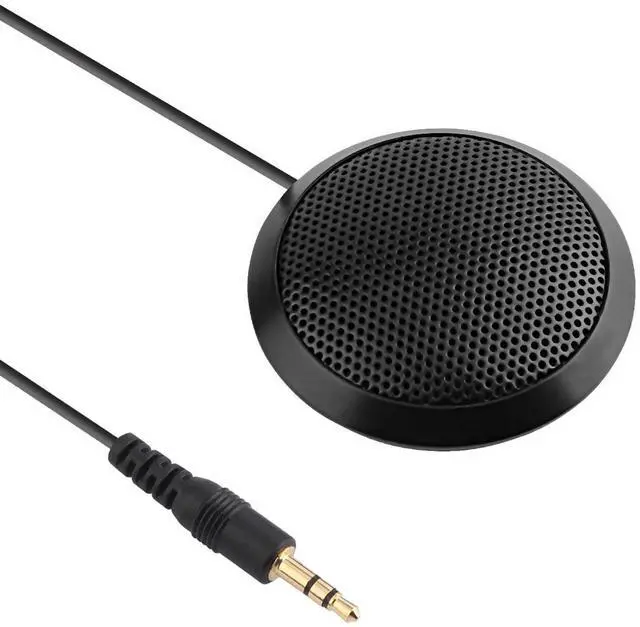



Dreokee 3.5mm Conference Microphone
- 3.5mm connector
- Stereo and clear sound
- Portable
Environmental & Distance Tips:
For best performance, use the microphone in a relatively quiet environment (to reduce background noise interference) and maintain a distance of 5–15cm between the user’s mouth and the microphone.
Specification
- Frequency Response: 40Hz-16kHz
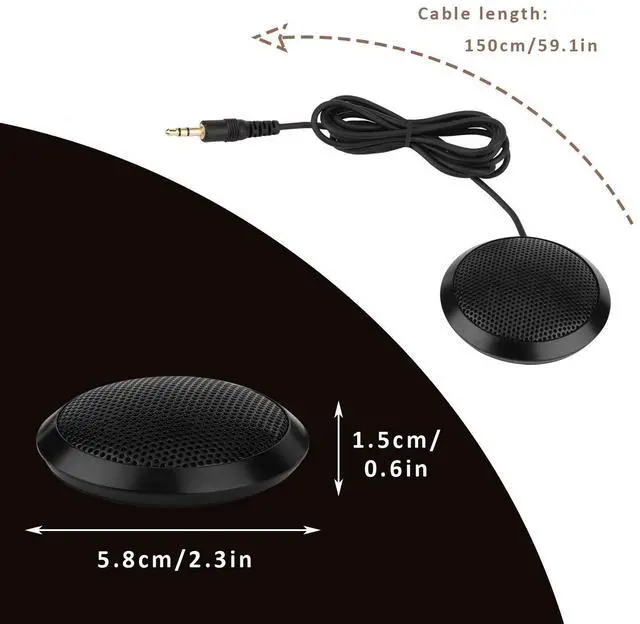
- Connect Cable: 1.5m
- 3.5mm plug
- 3m effective distance


Stereo and clear sound
- Stereo and clear sound
- Will not take to much of your space
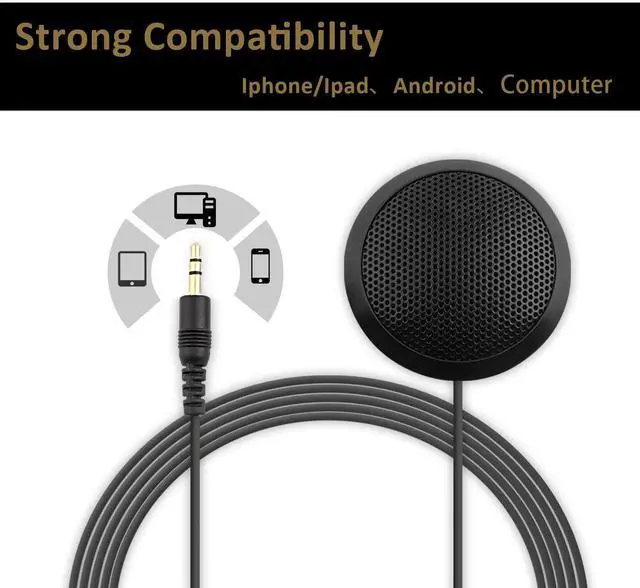
- Easy to use, plug to connect
- Portable
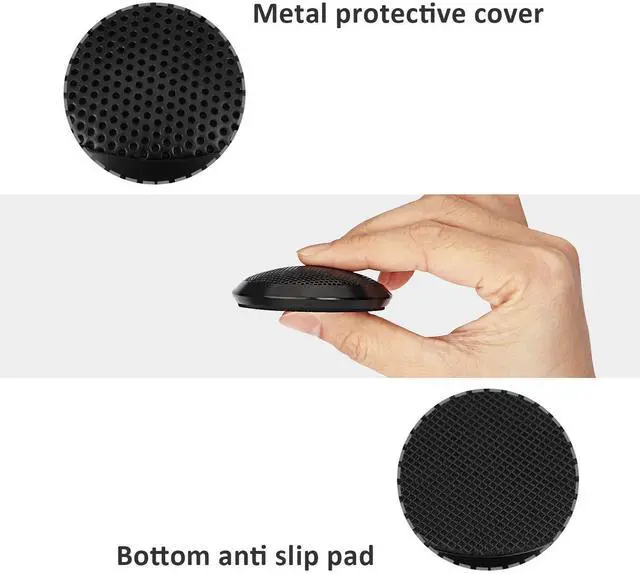
- Non-slip pad

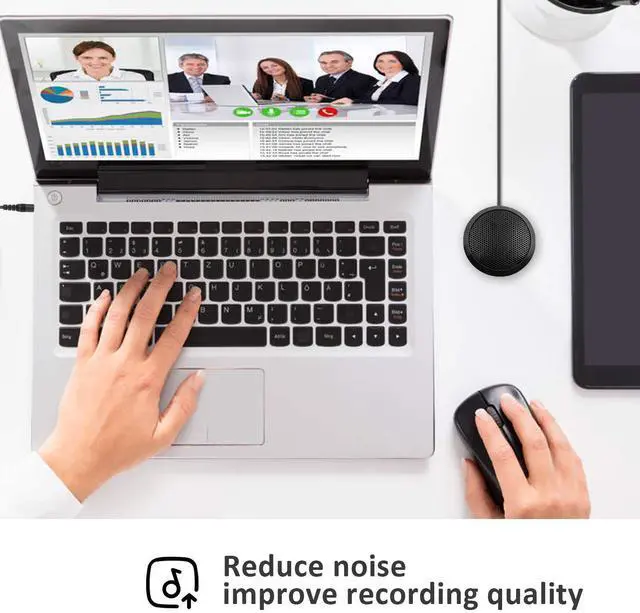
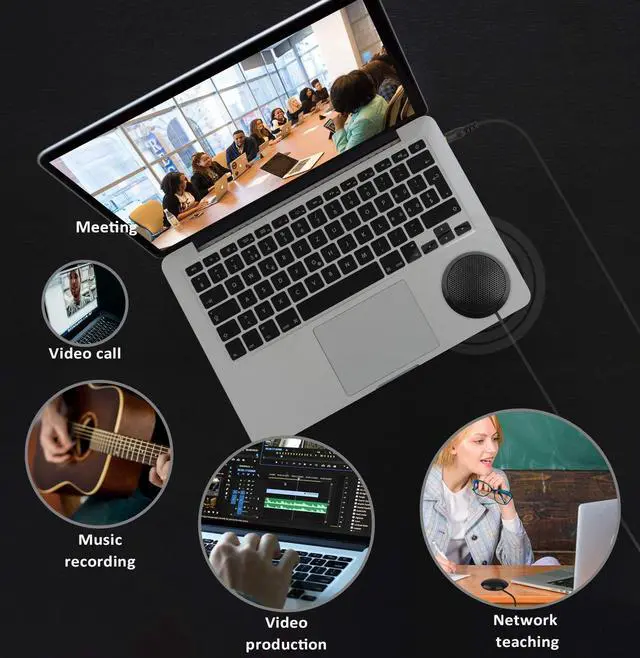
Online meeting

Office conference

Distance Learning

How to Connect?
- Insert microphone 3.5mm plug into the 3.5mm audio interface on your pc (with the color of pink normally), plug to connect;
- If your computer can not recognize it, please right-click the “Volume” icon and select “Recording Devices”; enter the “Recording” tab and select “Microphone” which is the system default recording device, and click “Properties”;
- Choose the “Levels” tab, drag the volume slider to 80, then drag the boost slider to 0 or +10.0 dB
 Conference Microphone |  Conference Microphone | |
|---|---|---|
| Customer Reviews | — | — |
| Price | — | — no data |
| TYPE | 3.5mm connector | USB |
| LENGTH | 150mm | 195mm |
Dreokee 3.5mm Conference Microphone
- 3.5mm connector
- Stereo and clear sound
- Portable
Environmental & Distance Tips:
For best performance, use the microphone in a relatively quiet environment (to reduce background noise interference) and maintain a distance of 5–15cm between the user’s mouth and the microphone.
Specification
- Frequency Response: 40Hz-16kHz
- Connect Cable: 1.5m
- 3.5mm plug
- 3m effective distance
Stereo and clear sound
- Stereo and clear sound
- Will not take to much of your space
- Easy to use, plug to connect
- Portable
- Non-slip pad
Online meeting
Office conference
Distance Learning
How to Connect?
- Insert microphone 3.5mm plug into the 3.5mm audio interface on your pc (with the color of pink normally), plug to connect;
- If your computer can not recognize it, please right-click the “Volume” icon and select “Recording Devices”; enter the “Recording” tab and select “Microphone” which is the system default recording device, and click “Properties”;
- Choose the “Levels” tab, drag the volume slider to 80, then drag the boost slider to 0 or +10.0 dB
Conference Microphone | Conference Microphone | |
|---|---|---|
| Customer Reviews | — | — |
| Price | — | — no data |
| TYPE | 3.5mm connector | USB |
| LENGTH | 150mm | 195mm |