Your Browsing History
- Free 30-day Returns
$35.99
Ships from China.
Meet Your Seller
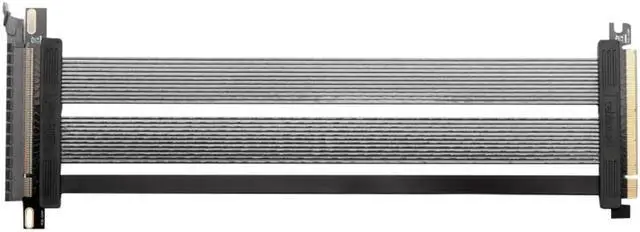
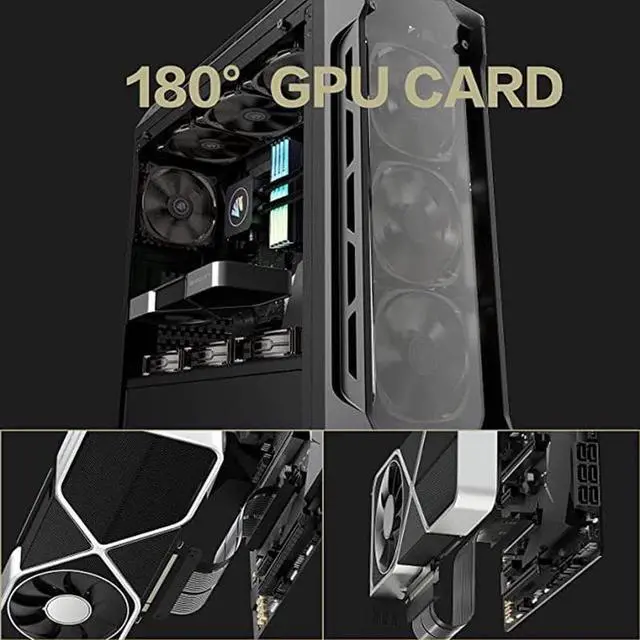
PCI-E 4.0 x16 Extension Cable, High Speed Flexible Pcie Riser Cable PC Audio Video Power Cables, 180 Degree Adapter
- Plug and Play: This PCIE 4.0 X16 extender can be easily installed, plug and play, backward compatible with PCIE 3.0, PCIE 2.0, PCIE 1.0.
- High Speed: This PCIE 4.0 X16 riser cable supports 25.6GB/s high speed graphics data transmission, up to 128Gbsp transmission rate.
- Widely Compatible: This GPU entension cable is compatible with RTX3090, RTX3080, RTX3070, RTX3060TI, RX6900XT, RX6800 and other devices that support PCI Express 4.0.
- High Stability: This PCIE 4.0 X16 cable adopts excellent slots that provide stable transmission and high stability.
- Easy Installation: This graphic card extender with 180 degrees right angle EMI shielding slot ensures easy installation, eliminating signal interference and ensuring optimal performance.
+
+
Overview
Specs
Reviews
Any questions? Our AI mode will help you find out quickly.
Try me now
Easy troubleshooting steps to resolve issues:
Step 1: Update BIOS on both Motherboard and GPU
Update to the newest firmware / BIOS / software for the motherboard and GPU. The newest update can be obtained from the manufacturer's website.
Step 2: Set BIOS to optimal default
Overclocking is the main reason for the system to become unstable in Gen 4 setting. Reset BIOS to optimal default may resolve the issue and allow the system to run under Gen 4 without issue.
Step 3: Try to boot without the riser cable
Make sure the system can boot properly without the riser cable.
Step 4: Clean the connector contacts on the riser cable and GPU
Cleaning the connector contact (Gold Fingers) on both GPU and riser cable with rubbing alcohol to remove possible particle build-up.
Step 5: Ensure the cable is fully and securely inserted into the socket
Please make sure the male connector (Gold Fingers) is fully inserted into the motherboards PCIe socket. Our riser has a very short pin designed to provide better insertion loss. The pins may not be in full contact with the PCIe socket pins resulting in signal lanes drop from x16 to x8, or worse at x4 speed. Make sure you choose the right length cables. Too long or too short may both result in performance loss.
Step 6: Try a different PCI-e slot (Always choose the PCIe slot closest to the CPU)
If the motherboard has multiple Gen 4 PCIe slots, try to install the cable on a different slot.
Step 7: I have done all of the above and Im still having trouble with the riser cable
PCI-E specifications do not regulate the use of a riser cable. As a result, Gen 4 motherboards are designed to connect the GPU directly. Hence leave a limited headroom for the use of a riser cable, and the use of a riser cable may fail when the insertion loss is over the limits due to poor components used in motherboards. Not all motherboards and GPUs are manufactured to the same quality, some have higher headroom than the other.
In these rare cases, the easiest ways to resolve the problem are:
Exchange another riser cable to try. (If shorter length works, always choose a shorter length)
Exchange another motherboard of the same brand.
Exchange motherboard for a different brand. (99% of the customers have completely resolved the issue at this point)
If none of these works, please get in touch with us directly and provide us with your system information (model/make of MB, CPU, GPU, PC case). We are happy to provide a solution.
*Please do not allow cable to directly touch the backplate of GPU which may generate temperatures higher than the riser cables' maximum operating temperature of 75 degrees celsius. If direct contact is unavoidable, applying thermal tape is strongly recommended

Step 1: Update BIOS on both Motherboard and GPU
Update to the newest firmware / BIOS / software for the motherboard and GPU. The newest update can be obtained from the manufacturer's website.
Step 2: Set BIOS to optimal default
Overclocking is the main reason for the system to become unstable in Gen 4 setting. Reset BIOS to optimal default may resolve the issue and allow the system to run under Gen 4 without issue.
Step 3: Try to boot without the riser cable
Make sure the system can boot properly without the riser cable.
Step 4: Clean the connector contacts on the riser cable and GPU
Cleaning the connector contact (Gold Fingers) on both GPU and riser cable with rubbing alcohol to remove possible particle build-up.
Step 5: Ensure the cable is fully and securely inserted into the socket
Please make sure the male connector (Gold Fingers) is fully inserted into the motherboards PCIe socket. Our riser has a very short pin designed to provide better insertion loss. The pins may not be in full contact with the PCIe socket pins resulting in signal lanes drop from x16 to x8, or worse at x4 speed. Make sure you choose the right length cables. Too long or too short may both result in performance loss.
Step 6: Try a different PCI-e slot (Always choose the PCIe slot closest to the CPU)
If the motherboard has multiple Gen 4 PCIe slots, try to install the cable on a different slot.
Step 7: I have done all of the above and Im still having trouble with the riser cable
PCI-E specifications do not regulate the use of a riser cable. As a result, Gen 4 motherboards are designed to connect the GPU directly. Hence leave a limited headroom for the use of a riser cable, and the use of a riser cable may fail when the insertion loss is over the limits due to poor components used in motherboards. Not all motherboards and GPUs are manufactured to the same quality, some have higher headroom than the other.
In these rare cases, the easiest ways to resolve the problem are:
Exchange another riser cable to try. (If shorter length works, always choose a shorter length)
Exchange another motherboard of the same brand.
Exchange motherboard for a different brand. (99% of the customers have completely resolved the issue at this point)
If none of these works, please get in touch with us directly and provide us with your system information (model/make of MB, CPU, GPU, PC case). We are happy to provide a solution.
*Please do not allow cable to directly touch the backplate of GPU which may generate temperatures higher than the riser cables' maximum operating temperature of 75 degrees celsius. If direct contact is unavoidable, applying thermal tape is strongly recommended
Warranty & Returns
Warranty, Returns, And Additional Information
Warranty
- Please contact the Seller directly for warranty information. Warranty information may also be found on the Manufacturer's website.
- CONTACT
Return Policies
- Return for refund within: 30 days
- Return for replacement within: 30 days
- This item is covered by lilila-reeUS Return Policy
Manufacturer Contact Info
- For a directory of all our manufacturers, please click below.
- Manufacturers Directory
LOADING...