

Your Browsing History


Meet Your Seller






NearStream VM20 Wired Streaming Camera 4K with 40X Hybrid Zoom/8 Noise Canceling Mics/Remote Control, Plug & Play, HDMI/USB/RJ45 Webcam for LiveStream, Video Call, Creator, Multicam Ready
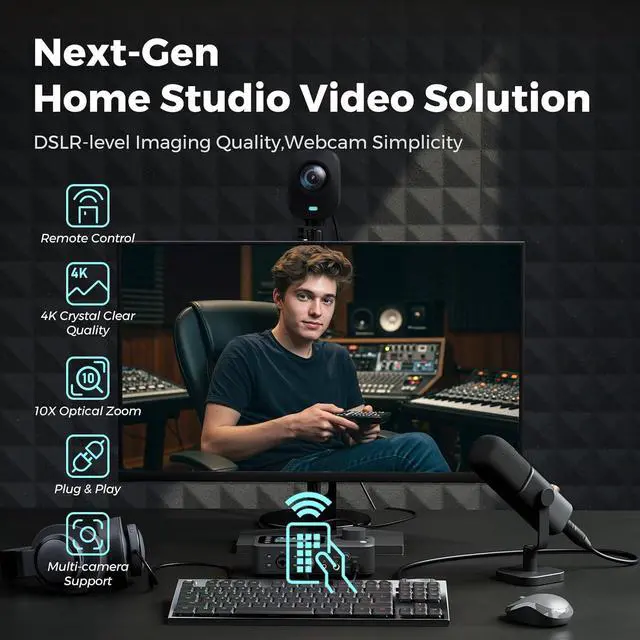
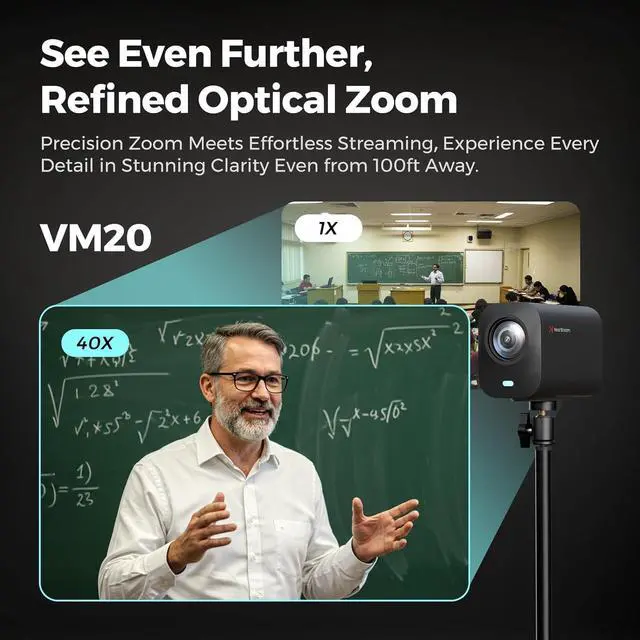
- 4K Crystal Clear Imaging & 40X Hybrid Zoom: This streaming camera features an impressive 40X Hybrid Zoom (10x optical, 4x digital), ensuring crisp, detailed images from distances. Equipped with advanced sensor, it performs exceptionally well in low-light conditions, providing high clarity and detail. The camcorders video camera 4k is tailored for vloggers, streamers, and content creators seeking top-tier image quality.
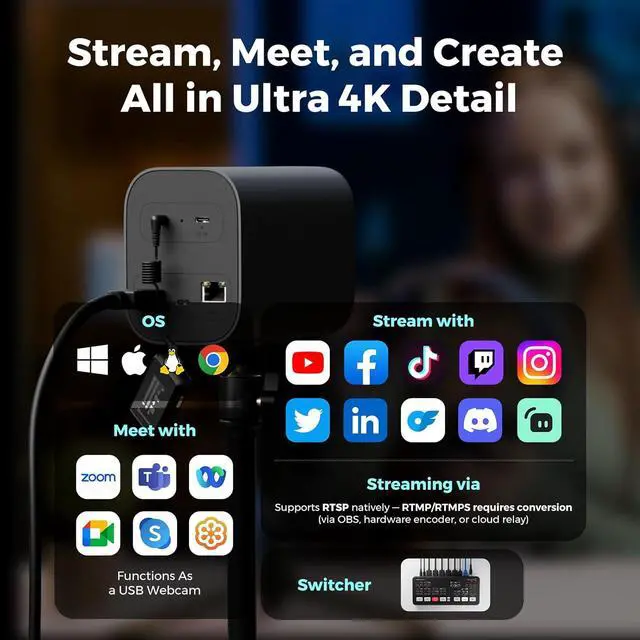
- Multiple Connection Options & Effortless Setup with Simple Webcam Connectivity: The camera offers three wired connection optionsHDMI, USB, and RJ45. Additionally, the compact camera supports the RTSP protocol, enabling seamless streaming to platforms like Facebook, YouTube, Twitch, and OBS. Plus, This wired webcam offers effortless connectivity with plug-and-play functionality, ensuring a seamless setup just like any standard webcam.
+
+
Overview
Specs
Reviews

Any questions? Our AI mode will help you find out quickly.
Try me now
Support for Multi-camera Setup & Versatile Shooting Angles: With the ability to connect multiple VM20 content creator cameras, you can easily build a professional broadcast studio that captures dynamic visuals from various angles. Besides, The VM20 webcam for PC features a 1/4-inch mounting hole, making it simple to attach to tripods or mounts for landscape, portrait, or overhead shots.
Smart Remote Control & Preset Modes: You have complete control over your video capture settings. From zooming in and out to adjusting preset positions and customizing visual settings, the remote allows you to easily fine-tune your real-time video for the perfect shot. The 3 customizable Preset Positions allow you to quickly switch between scenes with minimal adjustments.
8-MEMS Mic Array with AI Noise-Canceling & 3.5 mm
Audio Input: This YouTube camera is equipped with an 8-MEMS microphone array that captures 360° audio within a 16-foot radius. The advanced AI noise-canceling feature ensures crystal-clear sound by intelligently eliminating unwanted background noise. Plus, with support for external audio input via a 3.5 mm jack, you can connect the external microphone to VM20.
Warm Tips for Using VM20:
1.
Audio Tips: Match your audio level to the cameras Line-in, use the correct TRS/TRRS cable, and fully insert the connector. For best results, use the NearStream AWM20T microphone. 2.
Video Tips: Use USB for 4K or HDMI/RJ45 for 1080p. Set App/OBS to High Quality, improve lighting, clean the lens, ensure focus, and use a wired network 6000 kbps. 3.
Compatibility: Works with Windows and macOS only; not compatible with iPhone, iPad, or Android.
4.
Software: Use NearStream NearSync on PC or Mac; no mobile app available.
5.
Menu Adjustment: Hold the Flip button on the remote to correct mirrored text.
Firmware Update & Windows Setup: After updating your VM20 camera to firmware V 1.0. 0.0. R. 20251011, Windows users must uninstall the VM20 in Device Manager to ensure proper recognition (keep the camera connected via USB throughout).
Steps: Open Device Manager Locate VM20 camera under "Audio Inputs and Outputs" or "Sound, video, and game controllers" Right-click Uninstall Confirm Unplug & reconnect. Repeat buyers whose PC remembers an old VM20 should do the same for the new camera. Mac users do not need these steps. Contact us anytime if you need help.
Smart Remote Control & Preset Modes: You have complete control over your video capture settings. From zooming in and out to adjusting preset positions and customizing visual settings, the remote allows you to easily fine-tune your real-time video for the perfect shot. The 3 customizable Preset Positions allow you to quickly switch between scenes with minimal adjustments.
8-MEMS Mic Array with AI Noise-Canceling & 3.5 mm
Audio Input: This YouTube camera is equipped with an 8-MEMS microphone array that captures 360° audio within a 16-foot radius. The advanced AI noise-canceling feature ensures crystal-clear sound by intelligently eliminating unwanted background noise. Plus, with support for external audio input via a 3.5 mm jack, you can connect the external microphone to VM20.
Warm Tips for Using VM20:
1.
Audio Tips: Match your audio level to the cameras Line-in, use the correct TRS/TRRS cable, and fully insert the connector. For best results, use the NearStream AWM20T microphone. 2.
Video Tips: Use USB for 4K or HDMI/RJ45 for 1080p. Set App/OBS to High Quality, improve lighting, clean the lens, ensure focus, and use a wired network 6000 kbps. 3.
Compatibility: Works with Windows and macOS only; not compatible with iPhone, iPad, or Android.
4.
Software: Use NearStream NearSync on PC or Mac; no mobile app available.
5.
Menu Adjustment: Hold the Flip button on the remote to correct mirrored text.
Firmware Update & Windows Setup: After updating your VM20 camera to firmware V 1.0. 0.0. R. 20251011, Windows users must uninstall the VM20 in Device Manager to ensure proper recognition (keep the camera connected via USB throughout).
Steps: Open Device Manager Locate VM20 camera under "Audio Inputs and Outputs" or "Sound, video, and game controllers" Right-click Uninstall Confirm Unplug & reconnect. Repeat buyers whose PC remembers an old VM20 should do the same for the new camera. Mac users do not need these steps. Contact us anytime if you need help.
Warranty & Returns
Warranty, Returns, And Additional Information
Warranty
- Please contact the Seller directly for warranty information. Warranty information may also be found on the Manufacturer's website.
- CONTACT
Return Policies
- Return for refund within: 30 days
- Return for replacement within: 30 days
- This item is covered by MINGPIN YOUCHUANG E-COMMERCE LIMITED Return Policy
Manufacturer Contact Info
- For a directory of all our manufacturers, please click below.
- Manufacturers Directory
LOADING...