

Your Browsing History

Meet Your Seller

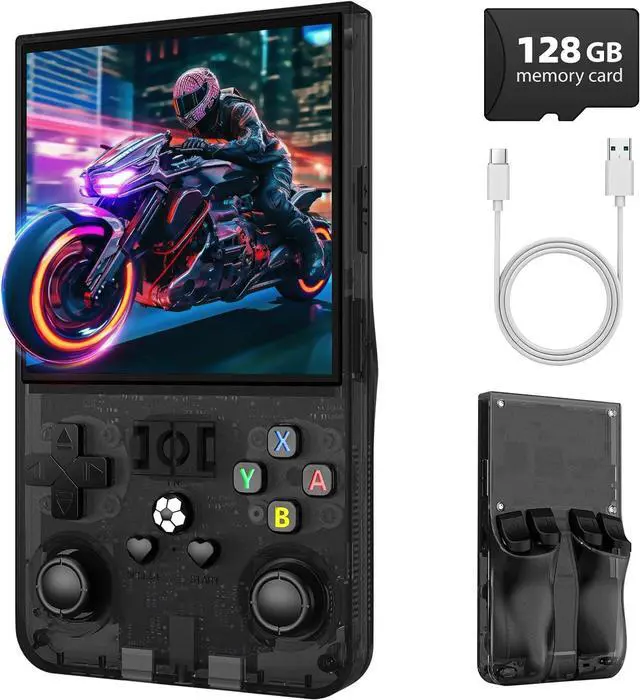
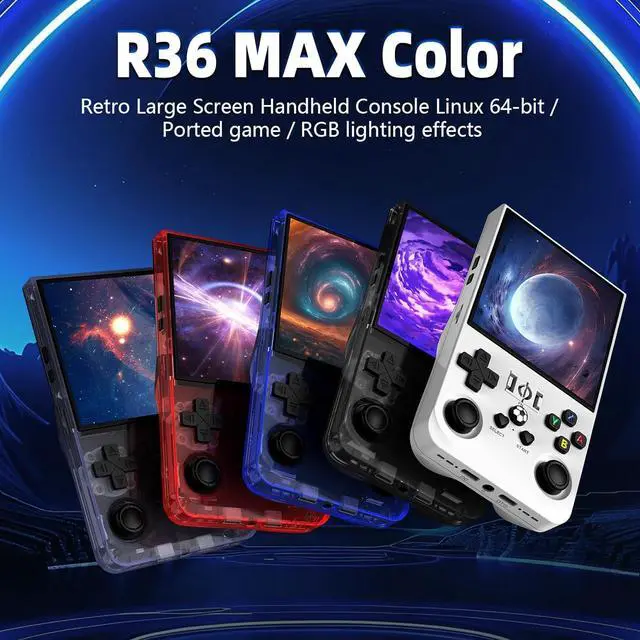

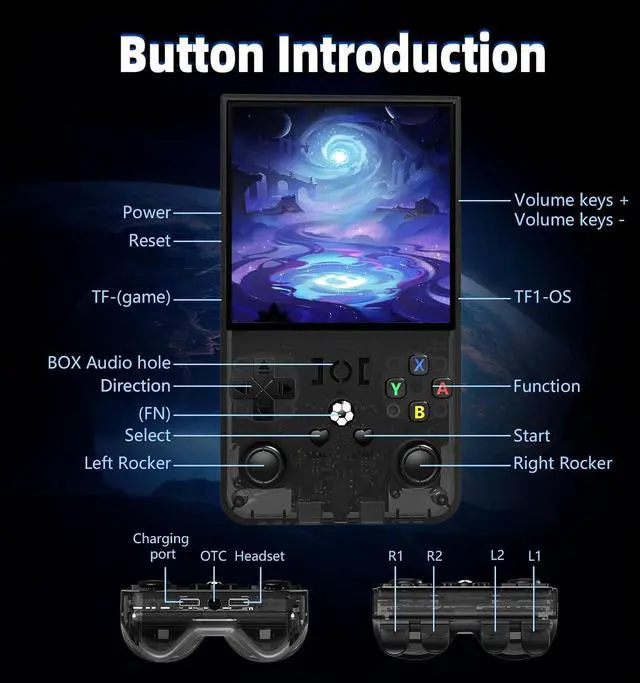


R36MAX Retro Handheld Game Console, 4.0 Inch IPS Screen Retro Gaming Console,Linux System, 4000mAh Battery Portable Pocket Mini Arcade, Built-in 128G,Retro Black
- R36MAX New Retro Game SystemThe R36 MAX is a high-performance retro video game console, equipped with a 1.5GHz 64-bit RK3326 CPU and Linux system with a ARM64bit quad-core Cortex-A35 CPU. It offers a smooth and responsive gaming experience across a variety of emulators.
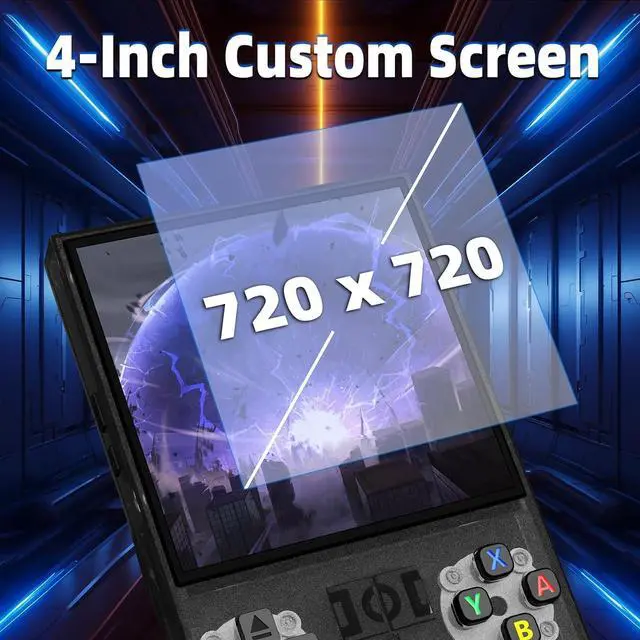
- 4.0 inch HD Tempered Glass ScreenThe R36MAX Retro features a 4.0 inch IPS screen covered with scratch-resistant tempered glass. The screen has a resolution of 720*720 pixels, presenting clear images and soft colors. Therefore, whether it's the delicate details of the game graphics or the light and shadow special effects in the intense battles, they can all be accurately displayed, effectively reducing visual fatigue and allowing players to immerse themselves in the game.
+
+
Overview
Specs
Reviews

Any questions? Our AI beta will help you find out quickly.
Try me now
128G StorageThis retro gaming console comes can be plugged and played without an internet connection. With its 128G storage capacity, you can enjoy a vast library of games, and there's an option to insert an additional TF card to expand your game collection even further.
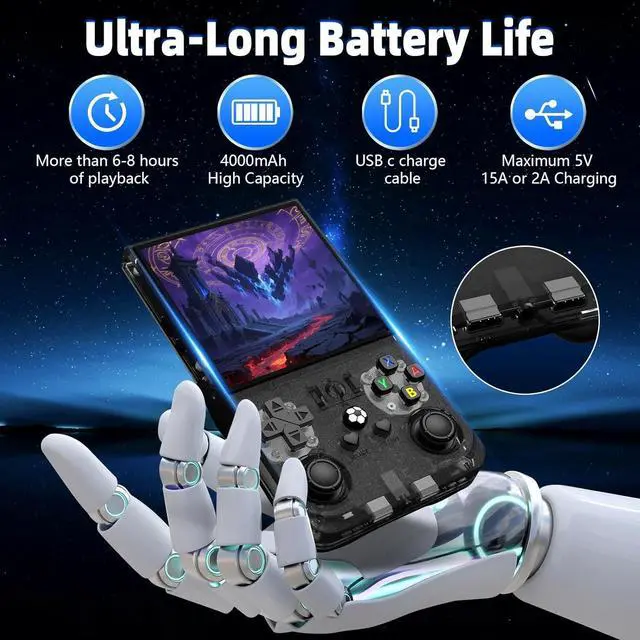
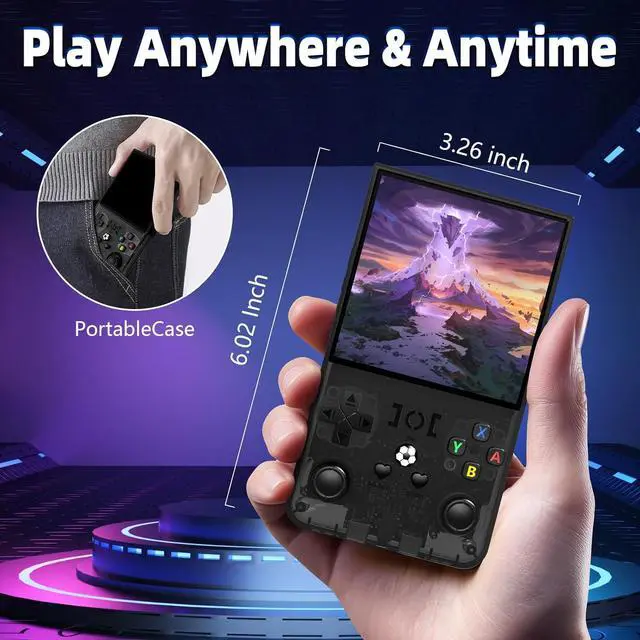
Portable Design with 4000mAh BatteryDesigned for portability, this mini retro game console features a compact and lightweight design. The 4000mAh rechargeable battery offers up to 10 hours of playtime, making it perfect for gaming on the go. It also includes built-in speakers and a 3.5 mm headphone jack for an immersive audio experience.
Perfect GiftThis R36MAX game console takes you back to a filled with laughter and surprises. Here are the steps on how to adjust the rotating screen mode of the game handhelds: Step
1: Enter any game, Select + X, press "B" to return, you will enter the RetroArch menu, as shown in figure 1, enter the settings option, "A" is the confirmation key, "B" is the return key;
Step 2: Go to Settings - Select "Video".
Step 3: Select "Output".
Step 4: Select "Video
Rotation" Step 5: Select "Normal".
Portable Design with 4000mAh BatteryDesigned for portability, this mini retro game console features a compact and lightweight design. The 4000mAh rechargeable battery offers up to 10 hours of playtime, making it perfect for gaming on the go. It also includes built-in speakers and a 3.5 mm headphone jack for an immersive audio experience.
Perfect GiftThis R36MAX game console takes you back to a filled with laughter and surprises. Here are the steps on how to adjust the rotating screen mode of the game handhelds: Step
1: Enter any game, Select + X, press "B" to return, you will enter the RetroArch menu, as shown in figure 1, enter the settings option, "A" is the confirmation key, "B" is the return key;
Step 2: Go to Settings - Select "Video".
Step 3: Select "Output".
Step 4: Select "Video
Rotation" Step 5: Select "Normal".
Warranty & Returns
Warranty, Returns, And Additional Information
Warranty
- Please contact the Seller directly for warranty information. Warranty information may also be found on the Manufacturer's website.
- CONTACT
Return Policies
- Return for refund within: 30 days
- Return for replacement within: 30 days
- This item is covered by Grandwood Tech Limited Return Policy
Manufacturer Contact Info
- For a directory of all our manufacturers, please click below.
- Manufacturers Directory
LOADING...